Managing Org-aware features flags
Org-aware feature flags allow cluster administrators to allocate features to specific Orgs, and lets Org administrators independently enable or disable these features for their users. This means each Org within a multi-Org ThoughtSpot deployment can have its own configuration, without affecting other Orgs.
| To enable this Beta feature, contact ThoughtSpot Support. |
Managing Org-aware Spotter features flags
In a multi-tenant ThoughtSpot environment that uses Orgs, all Spotter AI configuration was previously applied across all Orgs. This meant that customers who needed different Spotter AI behavior across their Orgs had no supported path other than running separate clusters. Org-aware Spotter feature flags remove this constraint. Org administrators can now configure Spotter AI features independently within their Org, provided the cluster administrator has first made those features available to them. The cluster administrator retains top-level control, can lock any flag across Orgs, and can review the configuration across all Orgs at any time.
| This article describes Spotter AI feature management in multi-tenant deployments with Orgs enabled. If your instance does not use Orgs, see Enabling Spotter. |
How Org-aware Spotter flags work
Each Spotter AI feature flag has a tenant-level value that applies to the entire cluster by default. When a cluster administrator allocates a flag to an Org, that Org gains the ability to set a per-org override value.
When Spotter evaluates a flag for a given Org, the resolution logic is as follows:
-
Does an override entry exist for this Org?
-
Yes — use the Org-level override value.
-
No — use the current tenant-level value.
-
This is a live fallback, not a snapshot. If the cluster administrator changes the tenant-level value for a flag, all Orgs that have not been allocated that flag immediately reflect the new value. Orgs with an override entry are unaffected by tenant-level changes for that flag.
Override entries can only be created through the Feature Management UI. If an Org has not been allocated a flag, no override entry can exist for it, and that Org always inherits the tenant-level value.
Allocating Spotter feature flags
The cluster administrator allocates feature flags to Orgs from Feature management in the Admin Settings.
-
Go to Admin settings and select All Orgs.
-
Select Feature management.
-
Under ThoughtSpot AI select Edit orgs or Allocate orgs for the feature flag you want to allocate.
-
Select one or more Orgs to allocate the flag to.
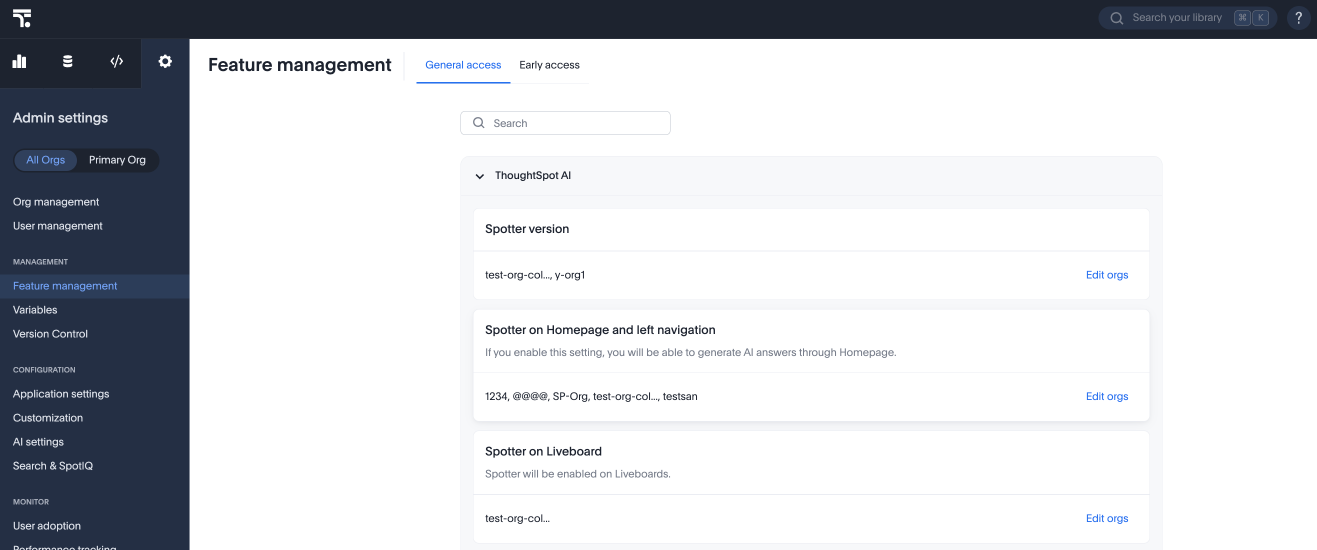
Allocating a flag to an Org makes it visible and configurable on that Org administrator’s Admin settings page under Feature management. The Org administrator then sets their desired value, which creates the override entry for that Org.
Unallocating Spotter feature flags
When a cluster administrator removes the allocation for a flag from an Org:
-
The override entry for that Org is permanently deleted.
-
The Org immediately reverts to the current tenant-level value. No action is required from the Org administrator.
-
The previous override value is not recoverable after removal.
| Unallocating a flag from an Org is irreversible. The Feature management UI requires explicit confirmation before completing an unallocate action. The audit log captures the override value at the time of removal. |
Unallocating is the mechanism for returning an Org to cluster-wide behavior. There is no separate revert or kill-switch. To disable per-Org overrides for a flag entirely, unallocate it from all Orgs.