Import and export legacy memory source TML
Reference questions and business terms are the original tools for adding context to Spotter. This page covers how to migrate them across Orgs, clusters, and data models using TML export and import.
For more information about TML files, see ThoughtSpot Modeling Language.
| Data model instructions use a separate migration path — see Migrate instructions. |
Migration target scenarios
The three main factors to consider in migrating Spotter memory sources are:
-
Target and source environments.
-
Number of targets.
-
Target Model differences.
Target and source environments
- Across different instances
-
A common scenario where analysts test Spotter on a Model in a development environment and, once satisfied with the training, replicate this to the production environment for business users. This applies to both Cloud and Embedded customers.
- Within the same instance or environment
-
Users often migrate training from one Model to another within the same instance.
Use Cases:
-
Embedded customers might have a primary Model and want to replicate training across Models dedicated to different end clients separated by user groups within the same environment.
-
Customers might be creating a reduced version of a Model to enable Spotter when the existing use case is too difficult to train in one session.
-
Customers might have identical Models in a cluster and want to train on all of them in one session.
-
- Across different Orgs
-
Embedded customers often operate multiple Orgs within an instance and need to migrate training from one Model in a primary Org to Models in other Orgs.
Number of targets
- From one source Model to a single target Model
-
Typically, customers migrate training from a development Model to production to ensure consistency for business users. This process is straightforward, focusing on one-to-one replication.
- From one source Model to multiple target Models
-
Training across multiple Models in one cluster in one session:
-
Users aim to avoid duplicating training efforts on similar Models.
-
For instance, one company wants to train on multiple identical Models (only differing by data rows). Another company also wanted to train on the table level since most of the Models were derived from one base table.
-
In the current scenario, this can only be addressed efficiently through migration, where training is performed on one Model and then migrated to others.
- Replicating experience for multiple customers
-
Embedded customers often need to migrate training data to Models for each of their end clients to provide a consistent experience across their client base.
-
Target Model differences
Users want to replicate the Spotter experience from one Model to another. However, depending upon the difference between the two Models, there could be challenges in migration or replicating the experience.
- Identical Model
-
Target Models are direct copies of the original Model, sharing the same data columns.
Migration ensures consistency and allows for seamless replication of the training without any adjustments. - Slightly different Model
-
Target Models may differ from the source Model in the following ways:
-
Contain additional or fewer columns.
-
Have the same columns with modified names.
While the underlying table joins might stay consistent, Embedded customers often adjust Models according to their clients' data. You need to adapt the data to maintain the relevance and effectiveness of training during migration.
-
Export memory sources from a Model
You can export legacy memory source TML files from the Model view in the Data workspace by following these steps:
-
Navigate to the Data workspace and select the Model containing the memory sources you want to export.
-
Select the more options icon
 and hover over the TML section.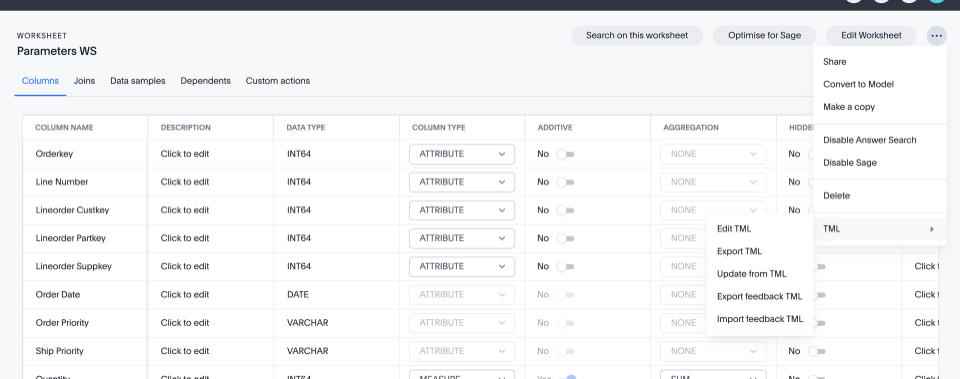
-
If you select Export memory TML, the TML file automatically downloads. Note that memory TML files only contain reference questions and business terms defined on the Model, not conversational or Liveboard memory.
| No memory source file is created if there are no memory source entries associated with the Model. |
Export memory source from Coach Spotter
You can export memory sources from the Reference questions and Business terms pages pages in the Data workspace. To export memory sources from the Reference questions and Business terms pages, follow these steps:
-
Navigate to the Data workspace and select Memory sources from the left menu.
-
Click Download all memories. The JSON file automatically downloads.
Export memory sources using ThoughtSpot Embedded APIs
You can download legacy memory source TML files from ThoughtSpot Embedded APIs as long as you are using v2. The specific API is /api/rest/2.0/metadata/tml/export.
To export only the TML of memory sources associated with an object, set the GUID of the object as identifier and set the type as FEEDBACK in the metadata array.
To export the TML of an object along with the memory source associated with it, set the GUID of the object as identifier, set the type as LOGICAL_TABLE in the metadata array, and set export_with_associated_feedbacks in export_options to true.
We also support custom object IDs in legacy memory source TML files.
| Object IDs are in beta and off by default. To enable them, contact ThoughtSpot Support. |
Import memory sources into ThoughtSpot
Import into a Model
To import a legacy memory source TML file directly into a Model, follow these steps:
-
Navigate to the Data workspace and open the Model you want to import TML memory sources into.
-
Select the more options icon
and hover over the TML section.
-
Select Import memory TML.
-
The Import memory page appears. Click Select .tml file to upload to search your files and upload the TML file, or drag and drop it. Ensure that the file is in .tml format.
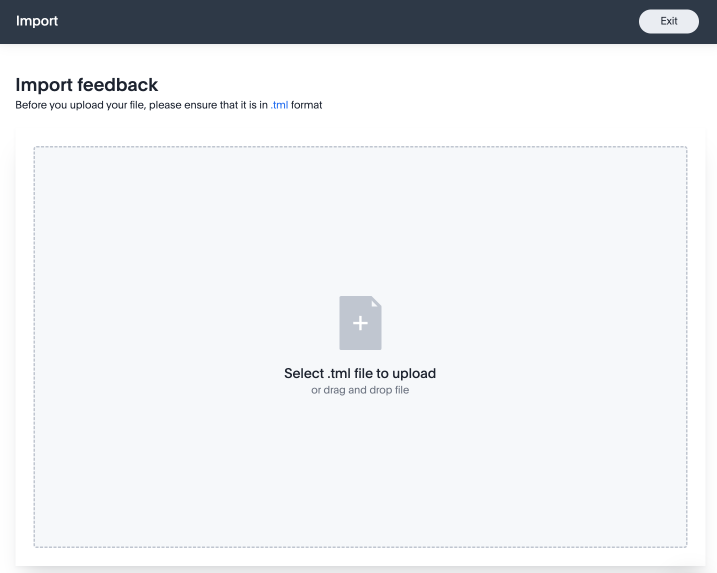
Ensure that the GUID in the legacy memory source TML matches the target Model GUID. -
The Import screen appears, showing the object name, file name, status, and possible actions. You can select Edit to edit the TML file. When ready, select the checkbox next to the file or files and click Import n selected.
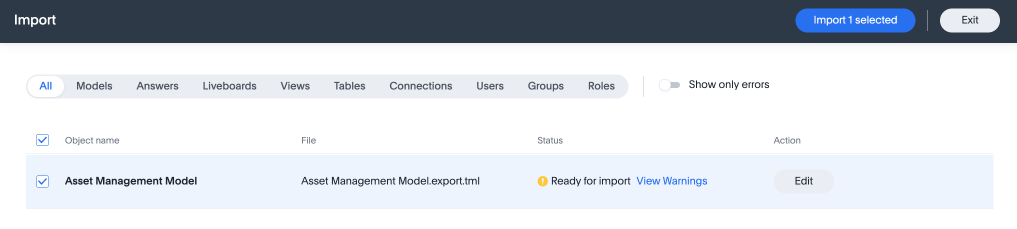
-
Click Exit. The memory sources will be appended to the Model’s legacy memory source TML file.
Mandatory fields
| Attribute | Reference question | Business term |
|---|---|---|
access |
Mandatory. |
Mandatory. |
axis_config |
Mandatory. |
Optional. |
chart_type |
Mandatory. |
Optional. |
feedback_phrase |
Mandatory. |
Mandatory. |
id |
Mandatory. |
Mandatory. |
parent_questions |
Optional. |
Mandatory. |
rating |
Mandatory. |
Mandatory. |
search_tokens |
Mandatory. |
Mandatory. |
type |
Mandatory. |
Mandatory. |
Resolving errors
To avoid errors with legacy memory source TML files, check the following before uploading:
-
Check that the GUID present at the top of the file is a valid Model already present in the system.
We do not currently support importing a new Model and its memory sources in the same zip file. -
Check the sanity of the TML file, making sure you don’t have missing fields, invalid entries for fields like
type,access,chart_type, ordisplay_mode, invalidsearch_tokensfor the Model, or invalid formula expressions for the Model that memory source entries are being targeted for. -
Check for similar entries within the file: No two memory source entries can have the same 'feedback_phrase'. This can occur when uploading memory source entries on the user level, which can have the same memory source phrase. The system will throw an error when uploading multiple such entries. You have the option to edit the legacy memory source TML to avoid such scenarios.
-
Check for conflicts with existing entries: The memory source entry should not have the same 'feedback_phrase' as a memory source present already on the target Model. It will throw a warning and will override the existing memory source entry if import is still completed. You have the option to edit the legacy memory source TML or modify the existing entries to avoid the conflict.
-
Do not modify the values for the following fields:
display_mode,chart_type, andaxis_config. Changes to these fields are not validated by the system during upload and may lead to unintended behavior.
Related information
TML for Spotter feedback Migrating everything at once? This page covers reference questions and business terms only.
For Liveboard and conversation memory → Export memory
For Spotter instructions and data model instructions → Migrate instructions