Manage memory
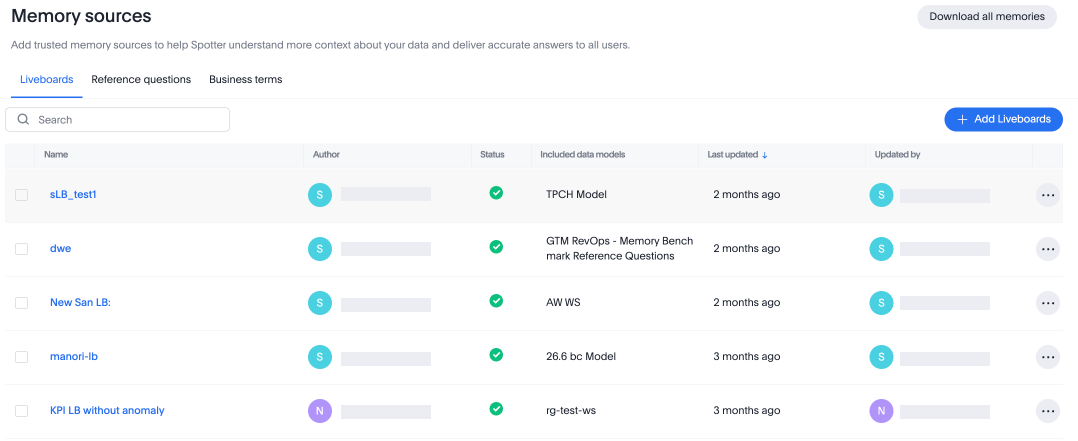
The Memory Sources page is where admins and authorized users view and manage the sources memory has been generated from — Liveboards, reference questions, and business terms — along with the memory generated from each.
| Conversation memory is not shown as a separate source on this page. Corrections and definitions taught through conversation do add to memory and are applied at query time — they just are not surfaced here as a distinct entry. |
Memory sources page
The Memory sources page has three tabs:
- Liveboards tab
-
Lists all Liveboards that have been added as sources for memory generation, along with the status of each generation run.
- Reference questions tab
-
Shows the reference questions defined on your data models. These are read-only.
- Business terms tab
-
Shows the business terms defined on your data models. You can add business terms from this tab.
Enable memory
For how to enable memory at both the instance level and Org level — including flag locations, TSE deployment options, and personal memory setup — see Memory permissions and governance.
View and manage shared memory
Liveboards
From the Liveboards tab you can:
-
Add a Liveboard. See Learning from Liveboard for the full flow.
-
View generation status — see whether generation is in progress, completed, or failed for each Liveboard source.
-
Download memory (per Liveboard) — use the More menu
 on a Liveboard row to download the rules and recipes generated from that specific Liveboard as a JSON file.
 -
Delete a Liveboard source — use the More menu
on a Liveboard row to remove the Liveboard as a source and delete all memory generated from it.
View all shared memory
There are two ways to see what Spotter currently knows across your data models:
- Download all memories
-
The Download memory button is in the top-right of the Memory Sources page. Clicking it downloads a single JSON file containing all shared memory you have access to, grouped by data model.
What gets included depends on your role and access:
Role What is downloaded Admin
All shared memory across all data models in the Org
Data model owner
All shared memory for data models you own, plus all memory from Liveboards you can view
Can manage Spotter / Manage Memory access
All shared memory for data models you have access to, plus all memory from Liveboards you can view
All other users
All memory from Liveboards you can view
The download format is JSON. There is no import mechanism — the download is for inspection and export only.
- Via conversation
-
Ask Spotter directly about the specific topic you want to check — for example:
"What do you remember about how we calculate gross margin?"
Spotter fetches memories relevant to your question. Ask by topic rather than asking broadly — Spotter can fetch up to 20 memories at a time, so a specific question returns more useful results than a general one.
View and manage personal memory
Personal memory is not managed from the Memory Sources page — it is managed through conversation. As an end user, here is what you can do.
To see your personal memory:
Ask Spotter: "What do you know about me?"
Spotter lists the personal memories it has saved for you — your stated role, preferences, and any context you have shared in past conversations.
To correct or delete a personal memory:
Tell Spotter in conversation what to change or remove. For example:
-
"Forget that I said I’m an analyst — I’m a finance lead."
-
"Remove everything you know about my preferred chart types."
Spotter will confirm the change and update your personal memory immediately.
To turn off personal memory for yourself:
Go to Profile settings → Personal Memory and toggle it off. Spotter will stop writing new personal memories but will retain what it has already saved until you explicitly delete them.
Memory persistence
Memory does not expire. There is no time-to-live on generated or written memory — it persists until explicitly deleted. This applies to both shared memory and personal memory.
When the Memory from Liveboards and conversations flag is turned off, memory is not deleted. Spotter stops consuming it, but it remains in the system. Re-enabling the flag makes all existing memory active again immediately.
When the Enable personal memory learning for all users flag is turned off, personal memories follow the same rule — they are preserved but not applied until the flag is re-enabled.