Reusable Datasets
Datasets are encrypted tables stored in ThoughtSpot and refreshed at a user-defined interval. With SpotCache, these tables are optimized for fast, reliable access to the data your teams use most.
Create a dataset
To create a reusable dataset, follow these steps:
-
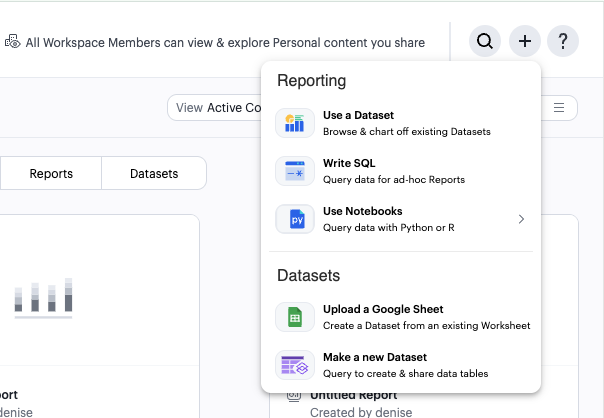
From the home screen, click New, then select Make a new Dataset.
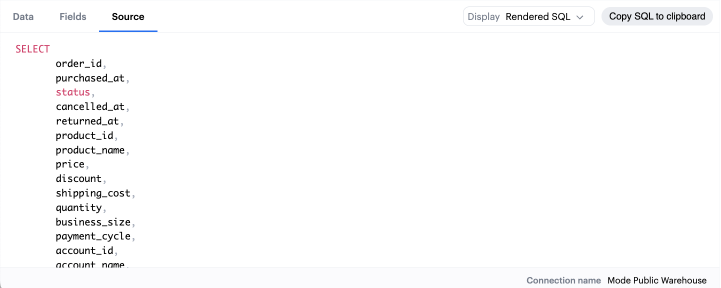
This opens the Dataset editor where you can write a new SQL query or insert SQL snippets using Definitions.
Add a name and description
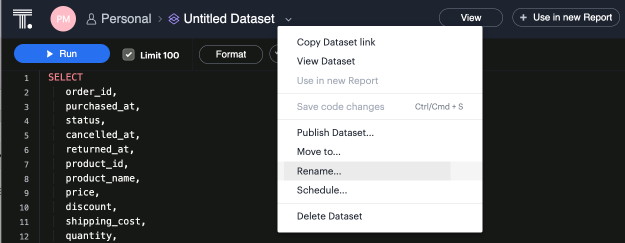
You can add a name and description to the dataset. To do so, select the caret next to the placeholder name, Untitled Dataset. From the dropdown, select Rename.
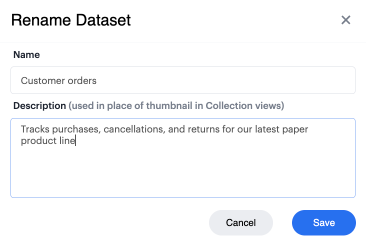
Enter the desired dataset name and description, then select Save.
|
Use consistent naming conventions and add detailed descriptions to your datasets. Doing so helps other team members find and understand how to use the dataset. |
Schedule a dataset
You can set a schedule for your dataset to refresh. When a dataset refreshes, all associated Reports built using that dataset receive a prompt to pull in the fresh data.
To create a new schedule:
-
Select the caret next to the dataset name and choose Schedule.
-
Select Create New Schedule to open the scheduling options.
-
Set the refresh frequency, as well as the specific time and timezone.
Publish a dataset to ThoughtSpot
Once you have created a dataset and set a schedule, follow these steps to publish it to ThoughtSpot:
-
Click Publish in the upper right corner of the top menu.
You can only publish datasets you created.
-
In the Publish to the Data workspace window, enter the dataset name and click Publish.
Your dataset is published to ThoughtSpot as a table. You can access it from the Datasets section in the Data workspace. Published datasets can be used as a source for Liveboards and Spotter, like any other table in the Data workspace.
|
Only users with can manage data privileges can access the Data workspace. |
To go directly to the Data workspace from a dataset, hover over the Published icon when viewing or editing a dataset.
Unlike items from ThoughtSpot Connections, which are live, a dataset is an extract that runs on a schedule. Your dataset in ThoughtSpot refreshes according to the schedule you set in Analyst Studio.
Republish a dataset
Once a dataset is published, click Republish Dataset to apply your latest changes. Republishing updates the previously published table in place, so dependent Liveboards and Spotter content continue to work. The Republish option appears whenever there are unpublished changes to the source dataset.
|
If you have already created dependent Liveboards or Spotter conversations based on a dataset, the following changes can cause breaks and require careful consideration before proceeding:
|
Dataset dependencies
The following tables describe the behaviors that occur in the Data workspace when you update a published dataset in Analyst Studio, and in Analyst Studio when you update a published dataset in the Data workspace.
Updates from Analyst Studio to the Data workspace
| Update to published dataset in Analyst Studio | Resulting behavior in the Data workspace | |
|---|---|---|
Data run outcomes |
Dataset run succeeds (manual or via a schedule). |
New cached results are made available automatically. |
Google Sheets or Excel sync succeeds (manual or via a schedule). |
New cached results are made available automatically. |
|
Dataset run fails (manual or via a schedule). |
Updates are paused. The table falls back to the last successful results until the issue is resolved. |
|
Dataset run succeeds, but exceeds the 10 GB result set limit. |
Updates are paused. The table falls back to the last successful results until the issue is resolved. |
|
Dataset run succeeds, but exceeds the total 25 GB/50 GB Workspace limit. |
Updates are paused. The table falls back to the last successful results until the total amount of published data is reduced. |
|
Google Sheets or Excel sync fails. |
Updates are paused. The table falls back to the last successful results until the issue is resolved. |
|
Dataset structure changes |
Column is added. |
The change is not reflected automatically and requires the dataset to be republished. |
Field description is added. |
Not supported in the table view. |
|
A column is removed. |
If dependent objects exist in ThoughtSpot, the system does not allow destructive changes. To reflect the change:
|
|
Field description is removed. |
Not supported in the table view. |
|
Data type of an existing column is changed. |
If dependent objects exist in ThoughtSpot, the system does not allow destructive changes. To reflect the change:
|
|
Dataset lifecycle changes |
Dataset name is changed. |
The system warns against any name change. If the change is made anyway, the name updates in the Data workspace, but dependent objects may break. |
Dataset is moved to a different Analyst Studio Collection. |
The system warns against any Collection change. If the change is made anyway, dependent objects may break. |
|
Dataset is unpublished. |
If dependent objects exist in ThoughtSpot, the system does not allow destructive changes. If no dependent objects are found, the table in the Data workspace is orphaned. |
|
Dataset is deleted in Analyst Studio. |
If dependent objects exist in ThoughtSpot, the system does not allow destructive changes. If no dependent objects are found, the table in the Data workspace is orphaned. |
Updates from the Data workspace to Analyst Studio
| Update to published dataset in the Data workspace | Resulting behavior in Analyst Studio | |
|---|---|---|
Dataset lifecycle changes |
Dataset name is changed in the Data workspace. |
The name changes in Analyst Studio. |
Dataset is deleted in the Data workspace. |
The dataset is unpublished in Analyst Studio. |