Manual translation of Answers and Liveboards
To take more control over how ThoughtSpot translates content for users in other locales, you can manually upload a CSV containing translations of terms and labels in Liveboards and Answers. These translated terms appear in ThoughtSpot automatically when a user in the defined locale language opens the Liveboard or Answer.
Translate your content
To manually translate a Liveboard, we recommend starting by downloading the Liveboard text as a CSV file. Then, you can specify the locale of the translation, fill in the translated phrases, and upload the file to ThoughtSpot.
Download a Liveboard as a CSV file
To download a Liveboard’s text as a CSV file, follow these steps:
-
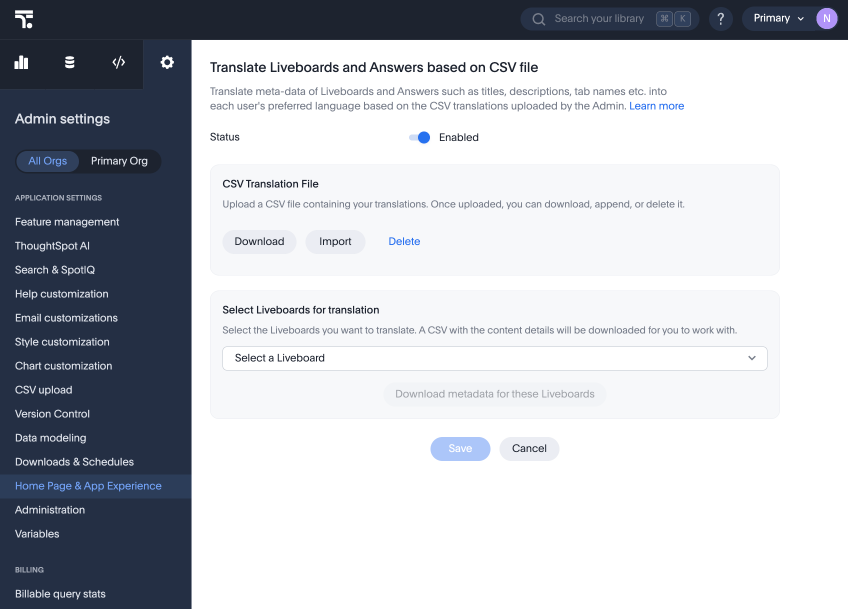
Navigate to the Admin tab, select All Orgs, and click Home Page & App Experience.
-
Scroll to Translate Liveboards and Answers based on CSV file and click Edit.
-
Set the status to Enabled.
-
Scroll to the Select a Liveboard dropdown and find the name of the Liveboard(s), either by search or by scrolling.
-
Click Download metadata for these Liveboards. The CSV file downloads.
Upload a translated CSV file
After you have added the locale field and translated each word or phrase in the CSV file, you can navigate to the Home Page & App Experience section of the Admin tab and select Edit next to Translate Liveboards and Answers based on CSV file.
You can then drag and drop the translated CSV file to the CSV Translation File field, or click to browse and upload from your files. Any errors in the CSV file surface below the drag and drop field.
content |
locale |
translated-content |
Spotter Conversations |
es-MX |
Conversaciones de Spotter |
Homepage Conversations |
es-MX |
Conversaciones en la página de inicio |
Overview |
es-MX |
Descripción general |
Liveboard Conversations |
es-MX |
Conversaciones en Liveboard |
Feedback Response |
es-MX |
Respuesta a los comentarios |
Supported content
Translated content is supported for the following written content:
-
Saved answers
-
Title and description
-
Downloaded Answers in PNG format
-
Answers exported as PNG files using the Answer Report API
-
-
Liveboards
-
Title and description
-
Tab name
-
Group title and description
-
Visualizations title and description
-
Note tiles
-
Personalized view names
-
Liveboards downloaded as PDFs
-
Scheduled Liveboards in PDF format
-
Liveboards exported as PDF or PNG files using the Liveboard Report API
-
Translated content appears in the following areas:
-
Answer page
-
Liveboard page
-
Download modal
-
Schedule modal
-
Liveboard Explore
-
Liveboard information pop-up
-
List pages such as Liveboard names, Answer names, and Liveboard names in schedules
-
Favorites, Trending, or Watchlist on the home page
For the following areas, translated content is not supported. By default, the content appears in the language it was saved in:
-
Object search and search in list pages. Searched objects appear according to their saved names.
-
Emails appear in English unless altered by an admin user.
-
TML files remain in English.
-
Titles generated for unsaved Answers are auto-generated based on column names.
-
Edit mode appears in the saved language.
-
Auto-translation is not supported for Spotter.
-
The pin modal appears in the saved language.
-
Monitor subscriptions and SpotIQ analyze in the list pages remain in the saved language.
-
AI highlights are not supported.
-
When you schedule a Liveboard and select a CSV or XLSX format, the downloaded content remains in the saved language.
-
Liveboards downloaded as CSV or XLSX files remain in the saved language.
-
Downloaded Answers remain in the saved language.
-
Liveboards exported using the Liveboard Report API in CSV or XLSX format, or visualizations exported using the Answer Report API remain in the saved language.
Limitations
-
Each individual CSV file you upload must be a maximum of 30 MB, with a maximum of 10,000 rows.
-
If both auto and manual translation are enabled, then ThoughtSpot always gives preference to manual translation. If manual translation cannot be done because content doesn’t exist in the CSV of the instance or the Org, then ThoughtSpot relies on auto translation if it’s enabled or shows the original content as is if auto translation is disabled.
-
If a translation CSV exists for a Liveboard, but manual translation is disabled, the CSV is not used to translate the Liveboard.
-
If a translation CSV is available at both instance and Org level, then ThoughtSpot gives preference to the CSV of the Org (so even if the instance CSV contains the same entry, we use the Org CSV for translation). If the Org CSV does not contain the relevant translation, then ThoughtSpot relies on the cluster CSV.