About your user profile
To view the user actions, select your user icon in the right corner of the top navigation bar.
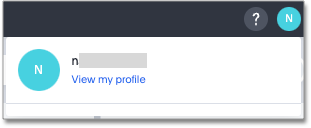
Select View my profile to navigate to your profile, where you can change your display name, icon, password, email, locale, and other preferences.
Notice that you can now see the My Profile interface.
Edit your display name
You can change the display name by selecting the profile icon present on upper-right corner of the screen.
-
Navigate to the user icon next to the Help button.
-
Select Profile.
-
In your profile, next to name, select Edit.
-
Enter the display name and select the Save button.

Change your profile picture
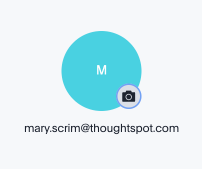
To change your profile picture, select the camera icon to the right of to your current profile picture, in the upper-left corner of your profile. Select an image from your file browser, and select Open.
You can use a *.png or *.jpg file.
Image files cannot exceed 4MB.
Change language and data format settings
The language that ThoughtSpot displays depends on the system locale. If you set your browser locale to one of ThoughtSpot’s supported locales, ThoughtSpot automatically defaults to that locale. Note that if your organization manages your browser settings, and your administrator already set your browser locale, ThoughtSpot automatically defaults to that locale. If your browser doesn’t allow you to change locale, ThoughtSpot launches in the OS locale.
If your browser locale is not one of ThoughtSpot’s supported locales, ThoughtSpot defaults to the English language. For example, if your browser locale is an unsupported Central American locale, such as Spanish (Mexico) (es-MX), ThoughtSpot launches in en-US.
After you set your locale in your ThoughtSpot profile, ThoughtSpot defaults to the locale in your profile over your browser or OS locale.
Changing your system language (locale)
You can update your system language by doing the following:
-
Select your user icon next to the Help button in the upper-right portion of the ThoughtSpot UI.
-
Select Profile.
-
Next to Preferences, select Edit.
-
To change your system language, click the System language dropdown menu and select a new language (locale).
-
Select Save.
The Language selection specifies more than just the language: it sets the locale, which controls both the language choice and standard data formats for date and number. So, if you set French as the default locale in your profile settings, the interface updates to reflect this. Be sure to refresh your browser page.
For example, in the United States the number format for large numbers uses the comma thousands separator and a period decimals separator, and looks like this: xxx,xxx.xx.
Most European countries use the reverse notation, with a comma decimals separator and a period thousands separator, like this: xxx.xxx,xx.
In addition to American English (en-US), ThoughtSpot supports the following locales:
| Locale | Language |
|---|---|
da-DK |
Dansk |
de-DE |
Deutsch |
de-CH |
Deutsch (Switzerland) |
en-AU |
English (Australia) |
en-CA |
English (Canada) |
en-DE |
English (Germany) |
en-IN |
English (India) |
en-NZ |
English (New Zealand) |
en-GB |
English (United Kingdom) |
en-US |
English (United States) |
es-ES |
Español |
es-US |
Español (Latinoamérica) |
es-MX |
Español (Mexico) |
fr-CA |
Français (Canada) |
fr-FR |
Français (France) |
it-IT |
Italiano |
nl-NL |
Nederland |
nb-NO |
Norsk |
pt-BR |
Português (Brasil) |
pt-PT |
Português (Portugal) |
ru-RU |
Pусский (ограниченный выпуск) |
fi-FI |
Suomi |
sv-SE |
Svenska |
zh-CN |
中文(简体) |
zh-HANT |
中文 (繁體) |
ja-JP |
日本語 |
ko-KR |
한국어 |
ThoughtSpot translates keywords, operators, and error messages. See the Keyword reference for all supported languages.
ThoughtSpot DOES NOT translate formulas, or metadata entered by the user. For example, if you name a visualization 'Quarterly Sales' in any variant of English and subsequently change the locale to a variant of French, the visualization remains 'Quarterly Sales' and does not become 'Ventes trimestrielles'. If you specify a currency in your data, that currency does not change when the locale changes. ThoughtSpot also does not translate its branded terms, such as Liveboard, SpotIQ, and so on.
Here is an example of a locale change from the default, American English, to Español.
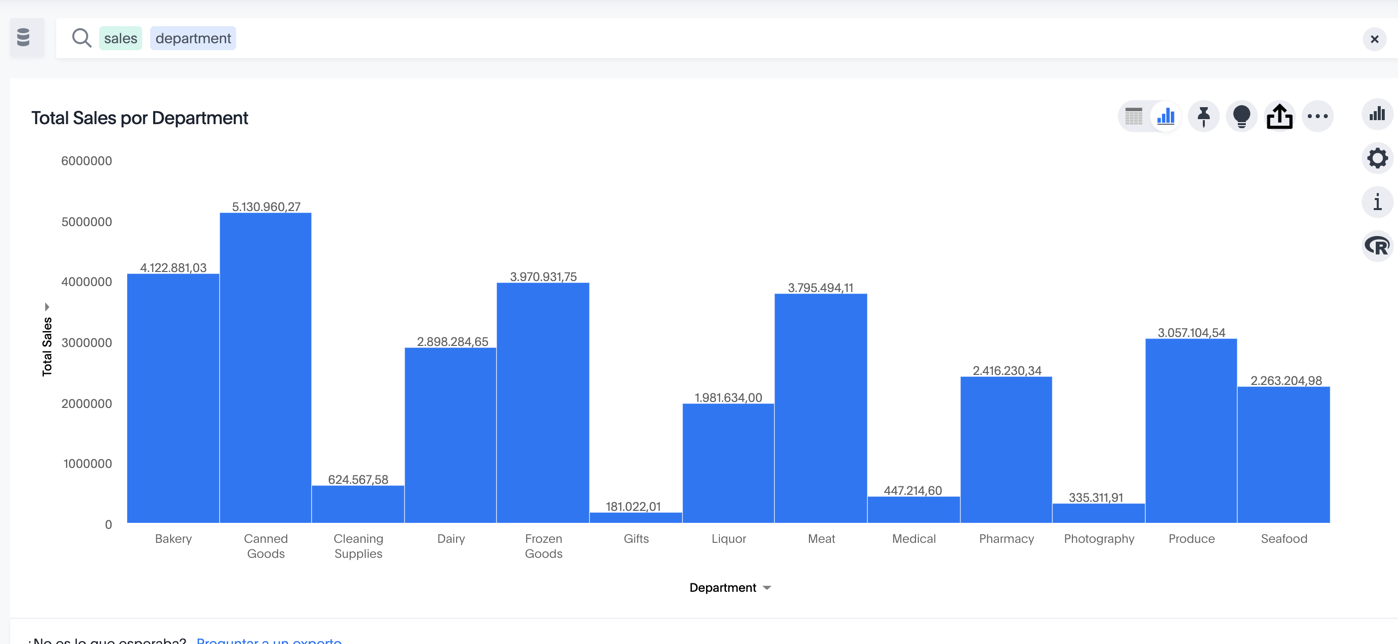
The number formatting of the data markers now reflects the European format, with a comma decimals separator, and a period thousands separator. However, the column names are still in English, because ThoughtSpot does not translate your metadata.
Update your email
To change your email, navigate to your profile.
Next to Preferences, select Edit.
Enter a different email in the email for receiving notifications text box, and select Save.
Change password
You can change your password from your profile.
Next to Update password, select Edit. Refer to Password requirements.
Enter the following information:
-
Current password
-
New password
-
Confirm new password
As you enter the updated password, the Password requirements checklist tells you which requirements you still need to fulfill.
To check that you entered the password correctly, you can select Show password.
Select Save.
Password requirements
By default, any password for a local user account in ThoughtSpot Cloud must meet the following criteria. Passwords for Single Sign-On (SSO) users do NOT need to meet these criteria. SSO users do not see the option to change their password.
-
The password must be 8 characters or more in length.
-
The password must include at least 1 uppercase letter, 1 lowercase letter, 1 number, and 1 special character.
-
The password must pass a complexity test based on an external library. This test ensures password complexity and uniqueness by checking for known patterns or words that are too simple. If the password is not complex enough, ThoughtSpot rejects it, even if it fulfills the other requirements. Refer to the Dropbox password library for more information.
-
The password cannot use certain blocked words. By default, the blocked words are: your username, any part of your display name, and any blocked words your company configures. To add additional words to the blocklist, contact ThoughtSpot Support.
Manage your Answer data panel experience
The new Answer data panel experience is on by default, if your administrator enabled it. You can turn it on or off from the Experience section of your profile. If that option is not available, contact your administrator.
To enable or disable the new Answer data panel experience, follow these steps:
-
Next to Experience, select Edit.
-
Next to Answer data panel experience, select New experience or Classic experience.
-
Select Save.
Manage your KPI Anomalies
KPI Anomalies allow you to choose globally showing or hiding SpotIQ anomalies and bounds on KPIs. If you choose show, you still have the ability to hide anomalies in each individual KPI’s chart configuration settings.
You can show or hide them from the Experience section of your profile. If that option is not available, contact your administrator.
To show or hide KPI Anomalies, follow these steps:
-
Next to Experience, select Edit.
-
Next to KPI Anomalies, select Show or Hide.
-
Select Save.
New user onboarding
When you are relatively new to using ThoughtSpot, we help you to become productive faster.
Whenever you need a refresher, navigate to your profile. Under Experience, at the bottom of your profile, you can revisit the new user onboarding. Select Revisit onboarding experience, and ThoughtSpot guides you through onboarding again.
Notification preferences
You have the option of receiving email notifications when other users share Liveboards or answers with you, when they request access to Liveboards or answers which you edit, or when a user threshold or scheduled alert is triggered.
| Both preferences are enabled by default, except if the Share notifications via email option in the Preferences section was set to Off when this feature was enabled. |
To enable a notification preference, do the following:
-
Next to Notification preferences, click Edit.
-
Select the checkbox for the notification you want to enable.
-
Click Save.
To disable a notification preference, do the following:
-
Next to Notification preferences, click Edit.
-
Clear the checkbox for the notification you want to disable.
-
Click Save.
Signing out
To sign out of your ThoughtSpot account, do the following:
-
Select the user icon at the far right of the top navigation bar.
-
Select Profile.
-
Scroll down to the Profile section of your user profile, and select Sign out.


