Add a ClickHouse connection
Adding a ClickHouse connection
To add a new connection to ClickHouse:
-
Navigate to Data workspace > Connections.
-
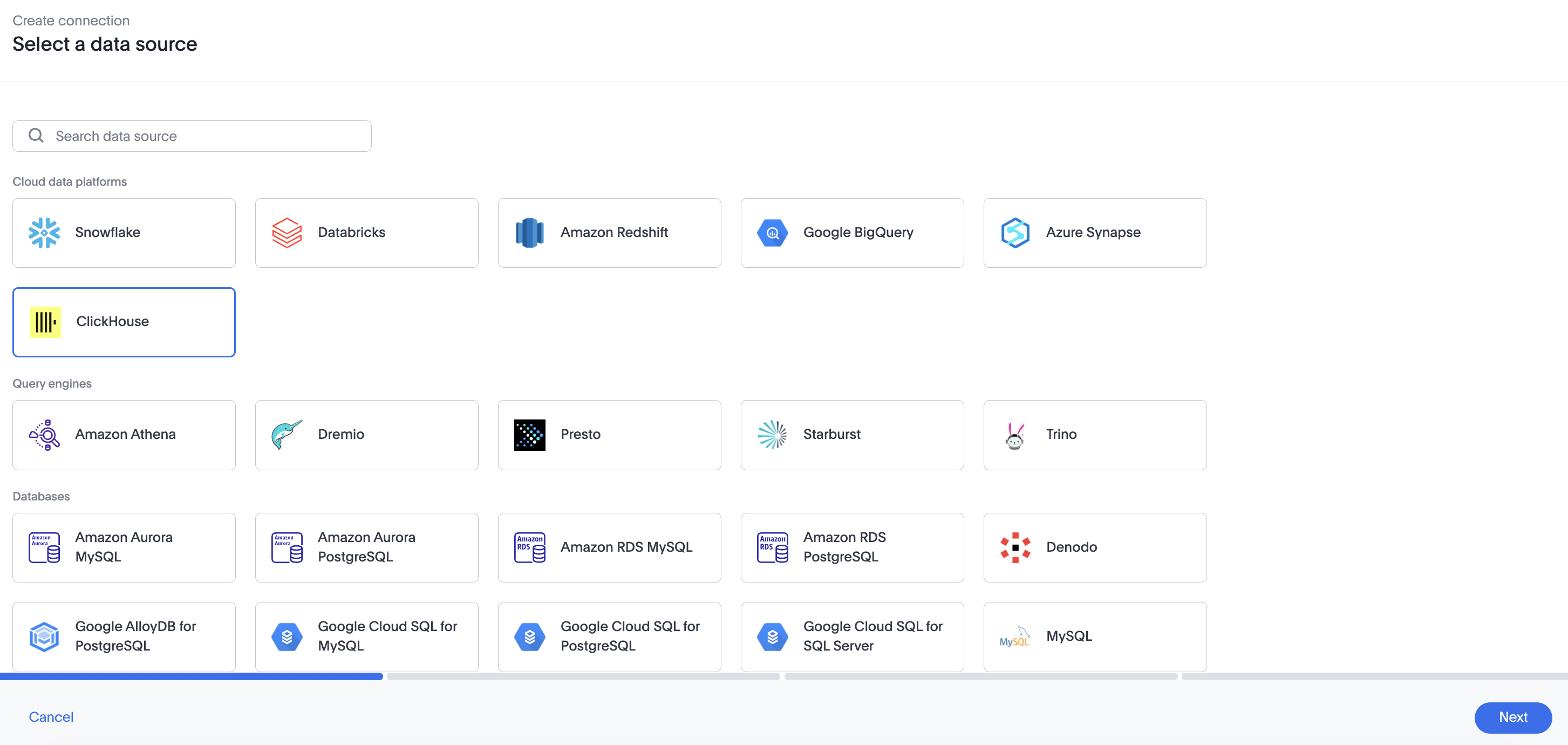
Click + Create connection, and select the ClickHouse tile. Then click Next.
-
Create a name for your connection, a description (optional), and enter the connection details for your ClickHouse data source. Then click Next.
Refer to the ClickHouse connection reference for more information on each of the specific attributes you must enter for your connection.
-
(Optional) Provide key-value pairs that you need to set up your connection to ClickHouse or customize additional JDBC parameters supported by ClickHouse, by doing the following:
-
Select the Advanced Config menu to reveal the Key and Value fields.
-
Enter your key and value information.
-
To add more keys and values, select the plus sign (+), and enter them.
Any key-value pairs that you enter must be defined in your ClickHouse data source. Key-value pairs are case-sensitive. -
-
Select tables and the columns from each table, and then click Validate and save.
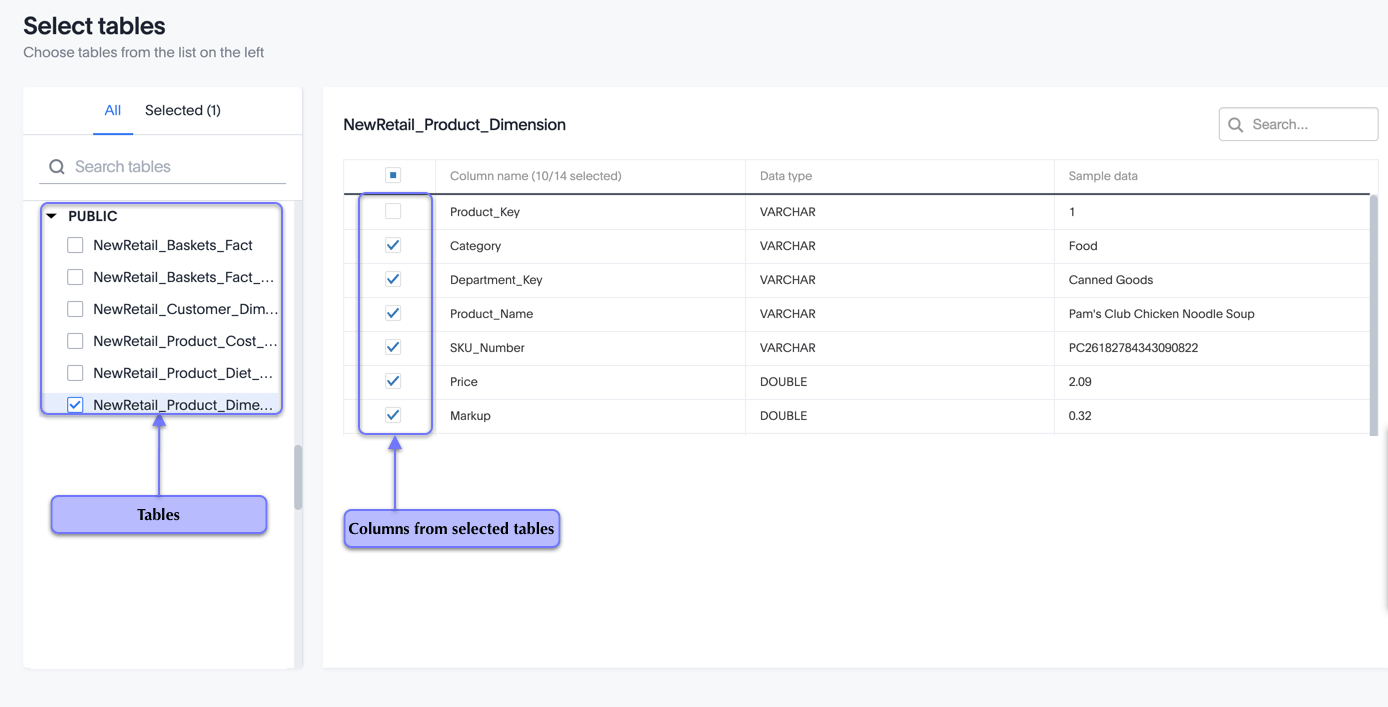
A message appears indicating the number of tables and columns that will be added to your connection.
Your new connection appears on the Data workspace > Connections page.
After you add the connection, you can search your ClickHouse database right away by selecting Search now.
The connection you just created is a link to the external data source. If there are any joins in the selected tables of the external data source, those are imported into ThoughtSpot.
You can now perform a live query on the selected tables and columns of your connection. Because the selected tables and columns in your connection are linked, it may take a while to initially render the search results. This is because ThoughtSpot does not cache linked data. With linked data, ThoughtSpot queries the external database directly, which is slower than querying data that is stored in ThoughtSpot’s database.
You can now perform a live query on the tables and columns of your connection. Because the selected tables and columns in your connection are outside ThoughtSpot (they are linked, not imported), it may take a little longer to render the initial search results. This is because ThoughtSpot does not cache linked data.
Share a connection
Users with can manage data or admin privileges can share connections with other users or groups that have can manage data privileges. Once granted access to a connection, users can add, remove, and modify tables in that connection.
To share a connection with another user, follow these steps:
-
Navigate to Data workspace > Connections.
-
Select the checkbox next to the name of the connection you want to share, and click Share.
-
In the Share connection dialog, enter the ID of the user or group you want to share the connection with. You can use the search bar to find the user or group.
-
Select Done.
Note that to remove share access from a connection, you must navigate to the Share connection dialog and select Remove access to the left of the user group or name.


