Create a formula in a Model
You create formulas by combining standard functions and operators, column names, and constant values.
Anyone who can create a Model can add a formula to it. Formulas are not reusable; the formula you create is associated only with the Model it belongs to. A complete list of available formulas and examples of each is available in the Formula function reference.
You can create a formula in a Model by using the Formula Builder. When you do this, the result of the formula gets added to the Model as a column. Use these steps to create a formula:
-
Select Formulas from the top menu and click Add formula.
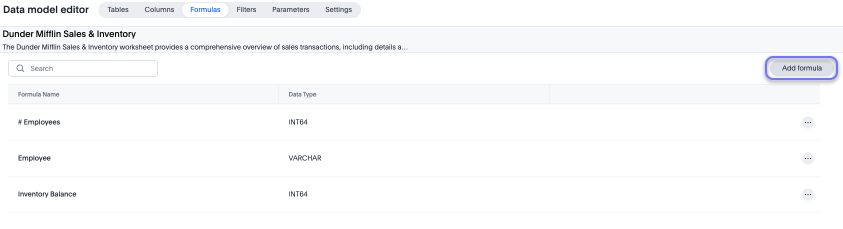
-
Type your formula in the Formula Editor.
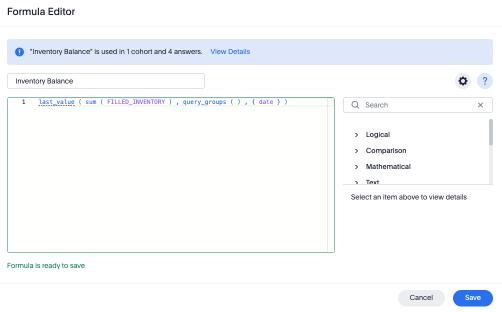
Formula elements are color coded by type and can include the formula operators and functions (blue), the names of columns (purple), and/or constants (black). -
If you want to change what your formula returns, use the Advanced settings
 .
.Depending on your formula, you may be able to change:
-
Data type: Determines the type of data that the formula generates. For example, use
datefor anadd_daysformula. -
Measure or attribute: Determines if the output of the formula is a measure or an attribute. For example, choose
attributefor a formula that generates age groups, and choosemeasurefor a formula that generates profit. -
Default Aggregation: Determines the default aggregation of the formula output. For example, choose
minto see minimum profit.
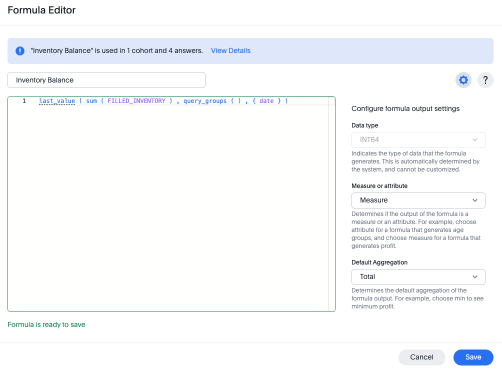
-
-
Name the formula by selecting on its title and typing the new name. Select Save.
For examples of how to use the TS_GROUPSvariable as a LIST TYPE, see Examples of ts_groups as a list type.