Edit a Dremio connection
You can edit a Dremio connection to add tables and columns.
Follow these steps to edit an existing Dremio connection:
-
Navigate to Data workspace > Connections.
-
Find the name of the connection.
-
Sort each column: Connection name, Connection type, _Modified (date), or Author.
-
Search on these categories.
-
-
Select the name of the connection.
-
Click Edit.
-
The Select tables page appears.
-
To change the connection name and description, select the Change connection name at the top of the screen.
-
To change the properties of the connection, such as authentication parameters, select the Update connection details option.
-
Select Continue to navigate through the editing workflow.
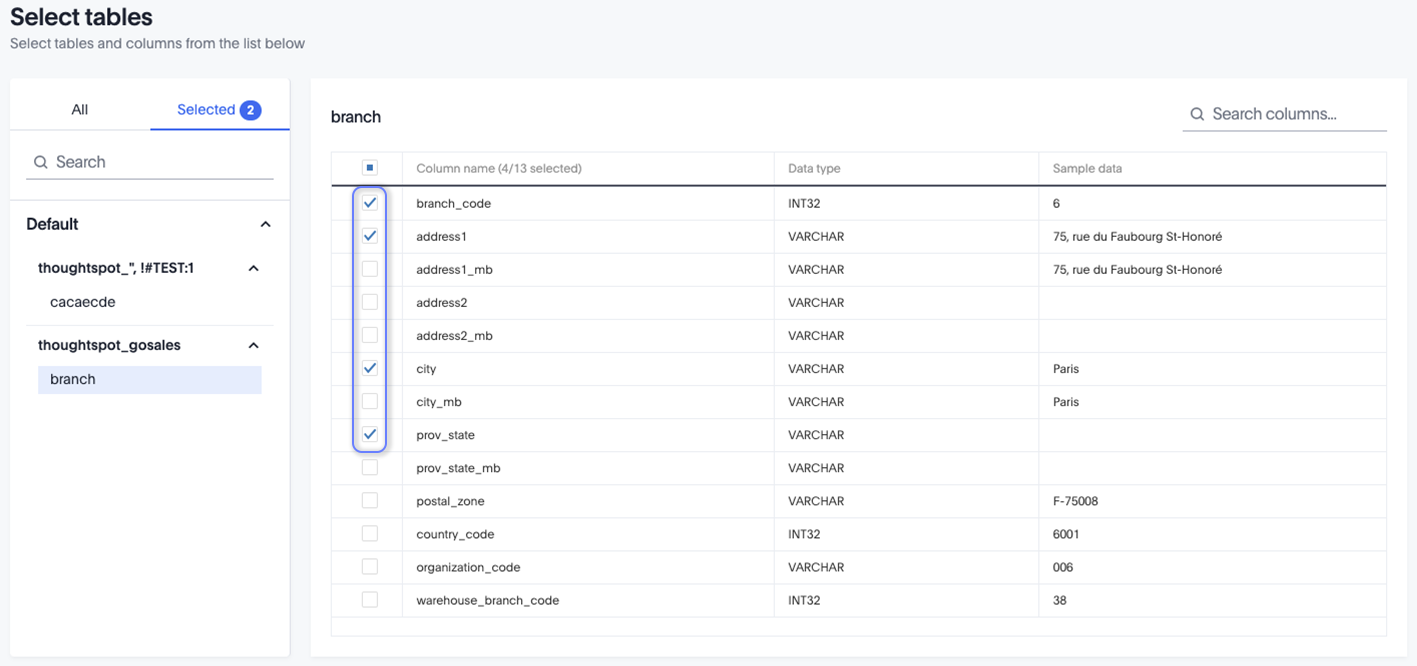
-
-
Select Update connection to save the updated connection details.
|
To save your changes without completing all steps, click Save and exit on the connection configuration step. ThoughtSpot saves your changes and returns you to the connection details page. |
Validate metadata
You can now validate connections to discover any changes in metadata after the connection was created. When you validate a connection, ThoughtSpot provides a JSON file containing details on any metadata changes. Once alerted to a metadata change, you can use TML to update the connection.
To validate your connection:
-
Navigate to Data workspace > Connections.
-
Select the name of the connection you want to validate.
-
Click Validate.
-
If ThoughtSpot detects any changes to the connection’s metadata, it displays an appropriate message. Else, it gives a message stating successful validation.