ThoughtSpot Modeling Language
Use ThoughtSpot Modeling Language to modify a worksheet, view, table, Liveboard, SpotIQ result, or answer in a flat-file format. Then you can migrate the object to a different cluster, or restore it to the same cluster.
To work with TML files for Worksheets, views, SQL views, tables, Answers, and Liveboards in ThoughtSpot, you can download these objects to a flat file in .TML format, modify it, and subsequently upload this file either to the same cluster, or to a different cluster.
To learn how to export, change, and update Worksheets, views, tables, Answers, and Liveboards, see Import and export TML files. To learn how to migrate multiple TML files at a time, see Migrate multiple TML files.
In this section, you learn the syntax of the TML files for each object. You also learn how to add and modify joins for Worksheets, views, SQL views, and tables.
See the following articles for the full syntax of each type of TML file:
Object ID in TML files
Rather than using a system-generated GUID to identify individual objects in TML files, you can now manually set an object property (obj_id) with a uniqueness constraint on the Org level. This allows you to manage content across multiple Orgs without having to manually change the GUID of an object each time you move it between Orgs. To enable this feature, contact ThoughtSpot support.
To use the obj_id property:
-
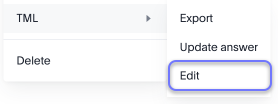
Navigate to the object, click the More menu and scroll to the TML section.
-
Select Edit.
-
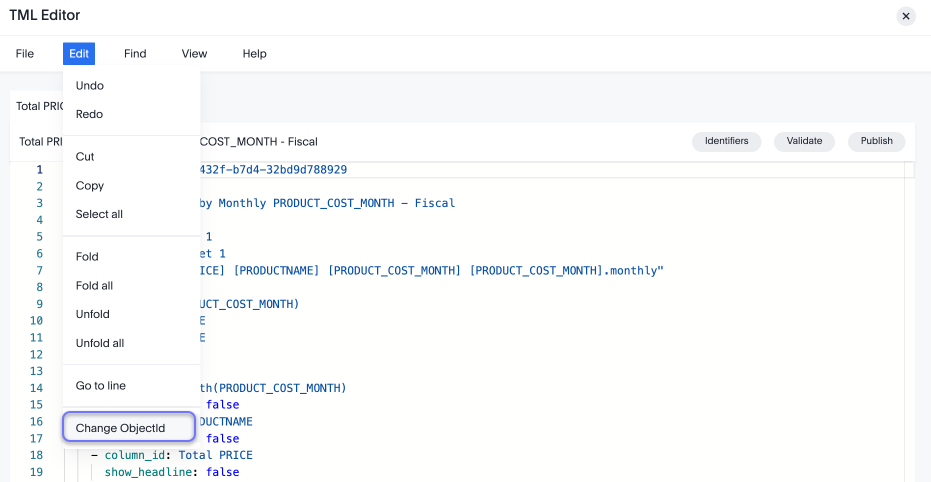
Once the TML file opens, click Edit and select Change ObjectId.
-
In the text box, choose a unique string to identify the object. Click Change.
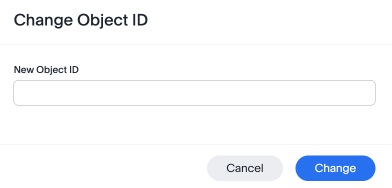
The resulting two lines at the top of the TML file should look like the below:
guid: <answer_guid>
obj_id: <unique_string>
When you migrate an object between Orgs, use the obj_id as the primary method of import.
fqn
fqn refers to the source table’s GUID. You can find this string of letters and numbers at the end of the URL for that table or connection.
For example, in https://<company>.thoughtspot.com/#/data/tables/34226aaa-4bcf-4d6b-9045-24cb1e9437cb, the GUID is 34226aaa-4bcf-4d6b-9045-24cb1e9437cb.
Use this optional parameter to reduce ambiguity and identify a specific table, if you have multiple tables with the same name. When exporting a TML file, you have the option to Export FQNs of referenced objects, which ensures that the TML files you export contain FQNs for the underlying tables and connections. If you do not add the fqn parameter, and the connection or table you reference does not have a unique name, the file import fails.
Limitations of working with TML files
There are certain limitations to the changes you can apply by editing a worksheet, answer, table, view, Liveboard, or SpotIQ result through TML.
-
Formulas and columns can either have a new name, or a new expression. You cannot change both, unless migrating or updating the worksheet two times.
-
It is not possible to reverse the join direction in the TML script.
-
You cannot create new tables using TML files. You can only update existing tables.
-
You can only change logical tables using TML files. You cannot change the physical version of the table that exists in a database. When you change the
column_name, for example, the name changes in the application, but not in the physical table in the database. -
You cannot import manually compressed .zip files. You can only import .zip files that you exported from ThoughtSpot: a custom set of TML files, an object and its associated data sources, or multiple objects of the same type that you exported from the object list page.
-
You cannot create or export TML files for R- or Python-powered visualizations.
-
You can only view and modify joins at the table level in the source table TML. You cannot view or modify table-level joins from the destination table’s TML file.
-
You cannot modify joins at the table level from the worksheet or view TML file. You can only change the joins for that specific worksheet or View. To modify table-level joins, you must edit the source table’s TML file.
-
You cannot use TML to remove columns or tables from an external connection. You can only add them.
-
If there is an error in any row-level security (RLS) rule when importing a table, all RLS rules for the table are removed. ThoughtSpot warns you about this on import, and highlights the rule that is in an error state, so you can fix it or remove it.