Learn from a Liveboard
Learning from Liveboard lets you point Spotter at a trusted Liveboard — one that already reflects how your team queries a dataset — and generate memory from it. Spotter analyzes the visualizations, extracts rules and recipes, and uses them as context when answering future questions on the associated data models.
| To enable this feature, contact your administrator. |
Only users with data model access can use this feature.
Enable learning from Liveboards
Learning from Liveboards is off by default and is enabled by the same Early Access option as learning from conversations.
To enable:
-
Navigate to the Admin tab and select All Orgs.
-
Select ThoughtSpot AI under Application settings.
-
Click Edit for the Other AI features section and set Memory from Liveboards and conversations to Enabled.
-
Click Save.
What happens when the feature is turned off:
-
No new memory can be generated from Liveboards.
-
Spotter stops fetching and applying any previously generated memory.
-
Existing memory is not deleted — if the feature is re-enabled, all previously generated memory becomes active again immediately.
-
Reference questions, business terms, and instructions are not affected.
Who can generate memory from a Liveboard
Users with coaching access or data model edit access on the data models associated with the Liveboard can generate memory.
If a Liveboard touches Models the user cannot access or cannot coach, those Models are excluded — memory generation proceeds on the accessible models only.
How to generate memory from a Liveboard
-
Navigate to Data workspace > Memory sources > Liveboard tab > Learn from Liveboards.
-
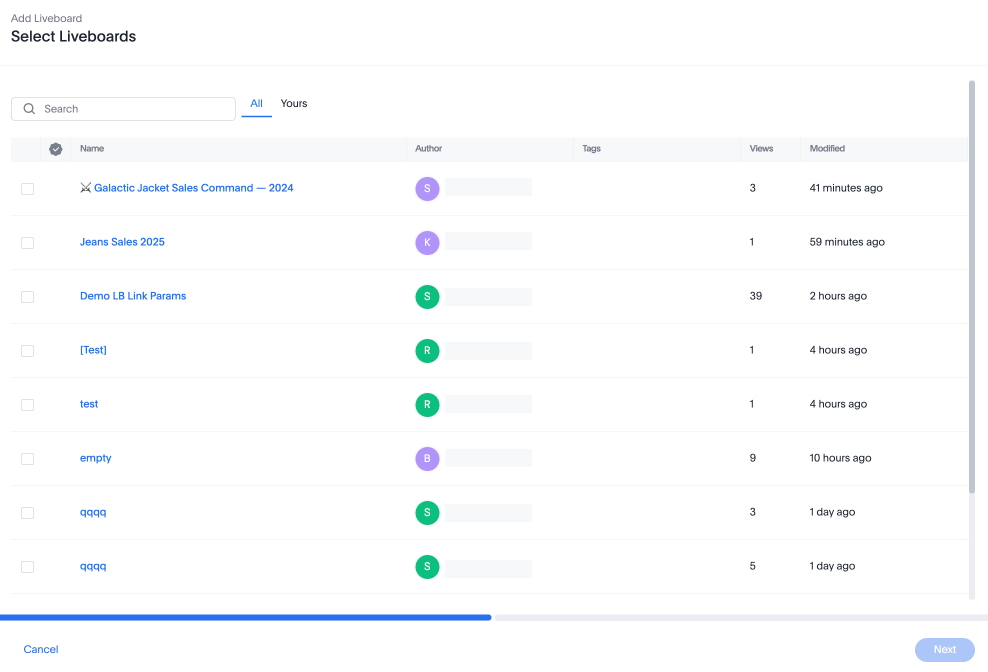
The Select Liveboards modal appears. Choose up to three Liveboards to learn from. Start with Liveboards that reflect your most common or trusted query patterns.
-
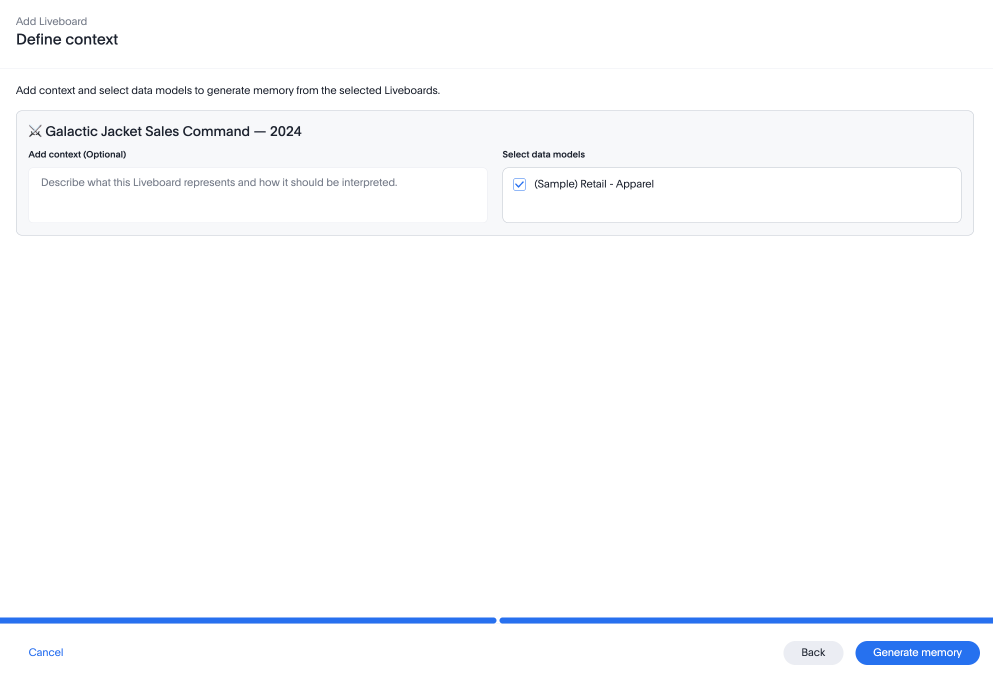
The Define context modal appears. Use context to describe the Liveboard — what it tracks, who it is for, and what use case it serves. This helps Spotter generate memory that reflects the right analytical intent.
Good examples:
-
"This Liveboard tracks pipeline health for the EMEA sales team."
-
"Used by CSM leadership to review quarterly retention metrics."
-
"Focuses on product adoption for enterprise accounts post-onboarding."
Avoid using context to tell Spotter which charts to focus on, which to skip, or to modify how specific values are interpreted during learning. These instructions will not be acted on.
All accessible data models associated with the Liveboard are selected by default; deselect any you don’t want to generate memory for.
-
-
Click Generate memory. Generation runs asynchronously, and typically takes ten to twenty minutes depending on the size of the Liveboard.
What will not be remembered as memory
The following are not stored as memory:
-
Charting preferences or visualization types.
-
Visualizations built on tables or Views — memory generation requires data models.
-
Sets created from visualizations.
-
Global filters and parameters applied on the Liveboard.
If a Liveboard is built entirely on tables or Views, memory will not generate. If the Liveboard has a mix of data model charts and table/View charts, generation proceeds on the data model charts only.
Validating generated memory
After generation completes, verify what Spotter has learned before relying on it in production. There are three ways to check:
-
Download memory. Select the More
 for the Liveboard entry and select Download memory. See Managing memory for how downloads work and what is included.
 -
Ask Spotter. In a conversation, ask "What do you remember about this dataset?" and Spotter will surface relevant memory entries it is holding.
-
Spotter thinking view. While asking questions in Spotter, expand the Thinking view to see exactly which memory context is being fetched and applied for that query.
The most reliable approach is to run five to ten representative questions on the data model after generation and compare answers to your baseline.
Troubleshooting
If Spotter’s answers degrade after generation, use the Thinking view to identify which memory context was applied on a bad answer.
Once identified, you have two options:
- Correct in conversation
-
Tell Spotter the correct definition mid-conversation. For example: "No, that’s wrong — Sets usage = cohort-save event. Remember this." Spotter updates that specific rule. This is the faster option when only a few rules are incorrect.
- Delete the source and regenerate
-
From Memory sources, delete the Liveboard source. This removes all memory generated from it. Then regenerate from a cleaner or more focused Liveboard.
We do not support editing individual rules from the memory source.
When memory gets out of date
Memory reflects the state of the Liveboard and data model at the time generation was run. It does not update automatically.
- If the data model changes after generation
-
Memory referencing old column names, metric definitions, or relationships becomes stale. Correct specific stale rules from conversation, or delete the Liveboard source and regenerate after the data model has stabilized.
- If the Liveboard is edited after generation
-
Memory is not refreshed automatically. Delete the source from Memory sources and re-trigger generation on the updated Liveboard.
Permissions
| Action | Who can do it |
|---|---|
Enable or disable the memory feature |
Admins only |
Generate memory from a Liveboard |
Users with coaching or data model edit access on the associated Models |
Delete a Liveboard memory source |
User who added it, or admin user |
View and download memory |
Visible to all users. Download scope determined by role and data model/ Liveboard access |
View memory per Liveboard |
Users with object-level view access to that Liveboard |