Auto mode in Spotter
Traditionally, using Spotter meant you had to choose a specific data model before you could ask a question. If your question required data from two different data models, you had to start two separate chats and manually combine the answers.
Auto mode removes this single-model limitation. It is a dynamic, multi-model-aware agent that identifies which data sources are needed to answer your query, searches across them, and combines the results into one synthesized response. If in doubt, Spotter asks you to validate the Model it has identified before querying. You can select Auto mode by clicking on the Data model dropdown in the search bar and clicking Auto mode.
| Auto mode is an opt-in capability and only available in Spotter 3. To enable it, contact ThoughtSpot Support. |
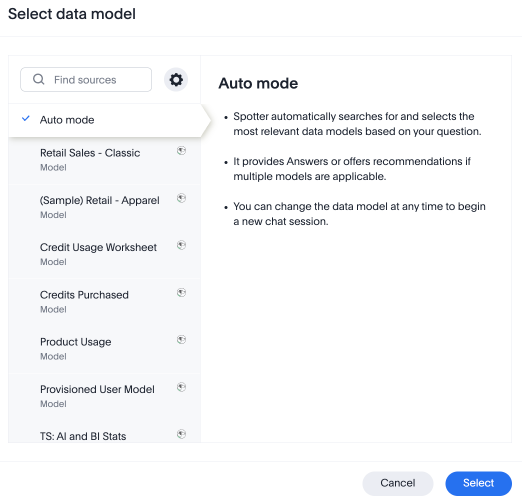
How Auto mode changes your workflow
Auto mode is designed for the multi-modal nature of work, where answers often hide across various data models.
The ad-hoc pivot:
-
You can start a conversation about one topic and immediately follow up with a question about another without losing context.
-
For example, you start by asking about a customer’s product usage. Once Spotter answers, you can immediately ask, “Now show me their open support tickets.”
-
Spotter carries over the context– like the customer name and date range– from the first part of the chat to the second.
The 360-degree query:
-
You can ask a single question that explicitly references multiple areas at once.
-
For example, “What is the status of ThoughtSpot’s renewal, and do they have any open P0 tickets?”
-
Spotter identifies that “renewal” is in the CRM Model, and “tickets” are in the Support Model, queries both in parallel, and gives you one combined answer.
How Spotter selects Models
Spotter doesn’t just guess where your data is; it ensures accuracy through the following:
-
Relevance ranking: Spotter interprets your keywords and maps them to metadata, descriptions, and content created (Liveboards, Answers) across all Spotter-enabled Models.
-
Confidence scores: It assigns a score to available Models; if it is highly confident, it proceeds automatically. You can reference the confidence scores to choose the most relevant source, if multiple have similar scores.
-
Clarification flow: If a term like “Revenue” exists in both a Sales and a Finance Model, Spotter stops and asks you which one you meant to ensure the answer is trusted.
-
Citing sources: Every answer will explicitly state which data models were used (for example, “sourced from Sales Data and Support Data”), making the answer verifiable.
Capabilities of Auto mode
- Default Model selection
-
The default Model will be based on your last interaction with Spotter.
- Model and data security
-
Spotter only accesses data models you already have permission to see, respecting security settings like row-level security and column-level security as well.
- Synthesize results from multiple Models
-
Instead of taking data from separate Models and giving you separate answers for each source, you get a single, coherent natural language response.
- Manual override
-
You can still manually select a single specific Model and chat with Spotter.
Limitations of Auto mode
- Language
-
Auto mode is currently only supported if your question is in English.
- Text responses
-
Combined answers from multiple Models are currently delivered as text summaries rather than integrated charts or graphs.
- Clear names
-
Spotter works best when you explicitly name the things you are looking for (like “orders” or “tickets”).
- Latency
-
Because Spotter may be querying multiple data sources at once, you might notice a slightly longer “thinking” time for complex, cross-model questions.