Managing search and SpotIQ settings
You can manage certain advanced settings for your organization from the Admin Console. This includes enabling, disabling, and configuring the following features: SpotIQ, column indexing, summaries, and the footer for downloaded Answers and Liveboards.
| If your organization uses multi-tenancy with Orgs, you must be a cluster administrator to manage these settings, not an Org administrator. You manage these settings for the whole cluster. You cannot set them separately for each Org. |
Navigate to the Admin Console by selecting the Admin settings option from your profile menu. Select Search & SpotIQ from the side navigation bar that appears.
If your organization uses multi-tenancy with Orgs, ensure that you are in the Primary Org, in the All orgs section of the Admin Console. You manage Search and SpotIQ settings for the whole cluster. You cannot set them separately for each Org.
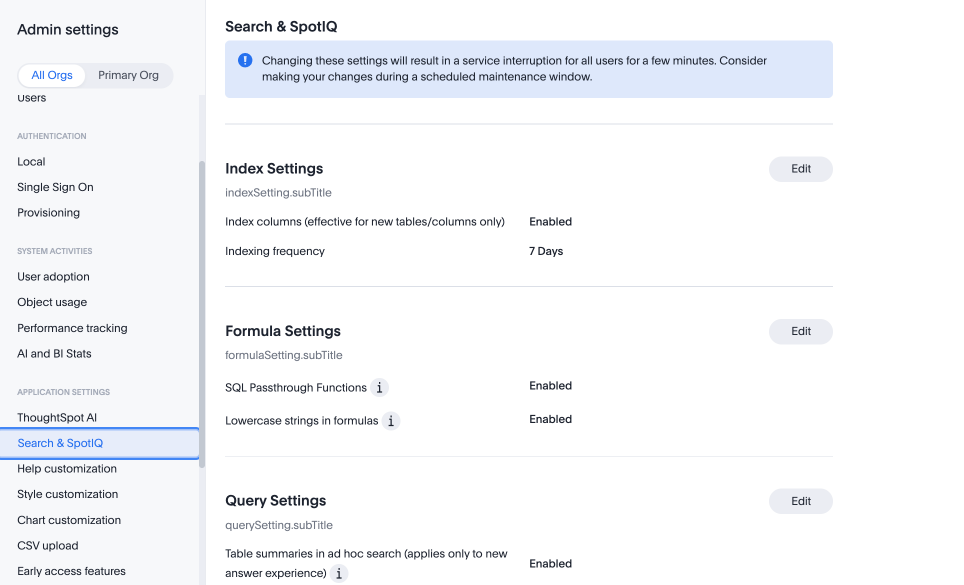
You can update the search, SpotIQ, Answer, SpotIQ, Liveboard, and footer settings from this page.
| Changing these settings results in a service interruption for all users for approximately 2 minutes. To minimize disruption, consider making your changes during a scheduled maintenance window. |
Index settings
Under Index settings, you can configure ThoughtSpot’s indexing behavior.
To learn more about ThoughtSpot’s default indexing behavior, refer to Manage suggestion indexing.
To manage search settings, follow these steps:
-
Select the Edit button in the Search Settings section.
-
Index columns (effective for new tables/columns only): Select the toggle to enable or disable ThoughtSpot’s indexing of columns in new connections. If you disable this feature, all columns from new connections are set to
DONT_INDEX. Note that this change only applies to columns from new connections. You must manually set columns that already exist toINDEXorDONT_INDEX. -
Indexing frequency: Select a frequency for column indexing from the dropdown list. The options are 8 hours, 16 hours, 24 hours, or 7 days. The default indexing frequency is 7 days. To further customize your indexing frequency and the index start time, contact ThoughtSpot Support.
-
Indexing scope: Select which columns you want to index. The options are Index only columns used in Models (default), or Index all columns.
Indexing only columns used in your Models significantly reduces the number of queries sent to your cloud data warehouse and reduces memory usage. This option does not apply to SQL views, CSV tables, or datasets, which are always indexed. -
Select Save.
Alternatively, you can select Reset configuration to reset to the default. By default, ThoughtSpot indexes new columns at a frequency of 24 hours, and enables summaries.
Formula Settings
Under Formula Settings, you can enable or disable the following formula opt-in features:
- SQL Passthrough Functions
-
Enables the use of SQL passthrough functions in search. These functions allow users to send SQL expressions directly to the database to expose custom database functions not yet implemented by ThoughtSpot. Enabling these functions, however, may pose a security risk as the SQL passed cannot be validated by TS and could be used to circumvent our row and column-level security.
- Lowercase strings in formulas
-
When enabled, strings defined in formulas are saved as lowercase. To respect the entered string’s case, disable this setting. The ability to respect the case is important when leveraging pass-through functions. This is because functions defined in the underlying data platforms are often case-sensitive.
To enable or disable SQL Passthrough Functions or Lowercase strings in formulas, follow these steps:
-
Select the Edit button in the Formula Settings section.
-
Select the toggle to enable or disable the feature.
-
Select Save.
Alternatively, you can select Reset configuration to reset to the default. By default, both settings are enabled.
Query Settings
Under Query Settings, you can enable or disable the following sql query generation rules:
- Table summaries in ad hoc search
-
This setting enables you to control whether column summaries in a table should be visible or not by default in the ad hoc search / answer page. Changing the value of the flag has no effect on saved objects i.e saved answers, pinned tables, headline tiles in Liveboards etc.
- Search Data, Go button re-run query
-
Clicking the Go button a second time allows the user to execute the same query. The user will be prompted to confirm.
- Measure SQL includes null check
-
When enabled, all measures are wrapped in a case statement to consider
NULLasZERO. When disabled, the underlying query is simplified. - Default date bucket for date columns
-
Default date bucket for date columns.
- Disable auto-date bucketing
-
When disabled, defaults to monthly date buckets.
- Optimize custom calendar filters
-
Some data sources might not be able to optimize data partitions when custom calendars are enabled. This setting adds an approximate(wide) filter to improve data fetches.
- Whether count/unique count should include null
-
When enabled, count/unique account includes
NULL.
To enable or disable query settings, follow these steps:
-
Select the Edit button in the Query Settings section.
-
Select the toggle to enable or disable the feature.
-
Select Save.
Alternatively, you can select Reset configuration to reset all settings to their defaults.
SpotIQ settings
Under SpotIQ settings, you can enable or disable SpotIQ analyze or Monitor, as well as define the upper limit frequency for monitoring KPIs.
To enable or disable SpotIQ Analyze or Monitor, follow these steps:
-
Select the Edit button in the SpotIQ Settings section.
-
Select the toggle to enable or disable the feature.
-
Select Save. Alternatively, you can select Reset configuration to reset to the default. By default, SpotIQ and Monitor are both enabled.
KPI monitoring frequency
Use the shortest time period to check alerts option to define the upper-limit frequency for monitoring KPIs. For example, if you define the upper-limit frequency as "weekly", users in your organization will not see "hourly" or "daily" options when they create KPI alerts.
To change the shortest time period to check alerts for your cluster, follow these steps:
-
Select the Edit button in the SpotIQ Settings section.
-
Open the shortest time period to check alerts dropdown menu and select one of the following time periods:
-
hourly
-
daily
-
weekly
-
monthly
-
-
Select Save changes. Alternatively, you can Reset to default. The default frequency is "hourly".
Related information