ThoughtSpot Modeling Language
ThoughtSpot Modeling Language (TML) is a markup language that represents ThoughtSpot objects (Models, Answers, Liveboards, tables, etc.) as human-readable text files — enabling version control, bulk editing, and migration of ThoughtSpot content.
Use TML to modify a ThoughtSpot object in a flat-file format. Then, migrate the object to a different instance, or restore it to the same instance.
To work with TML files for Models, views, SQL views, tables, Answers, Liveboards, and Monitor alerts in ThoughtSpot, you can download these objects to a flat file in .TML format, modify it, and subsequently upload this file either to the same instance, or to a different instance.
To learn how to export, change, and update Models, views, tables, Answers, and Liveboards, see Import and export TML files. To learn how to migrate multiple TML files at a time, see Migrate multiple TML files.
In this section, you learn the syntax of the TML files for each object. You also learn how to add and modify joins for Models, views, SQL views, and tables.
See the following articles for the full syntax of each type of TML file:
Object ID in TML files
Object ID (obj_id) is a user-defined, human-readable identifier you can assign to any ThoughtSpot object. Unlike the system-generated GUID, an obj_id stays the same when you move an object between Orgs, making it the recommended identifier for CI/CD pipelines and multi-Org deployments.
Object ID is optional
Object ID is fully optional. All existing workflows that rely on GUIDs or FQNs continue to work without changes. You can adopt obj_id incrementally, starting with only the objects you promote across environments, and expand from there.
To disable Object ID for your Org, contact ThoughtSpot support.
Availability
| Phase | Version | Notes |
|---|---|---|
Beta |
10.6.0.cl |
Initial release |
Early Access |
10.7.0.cl |
Expanded access |
General Availability |
26.3.0.cl |
GA release |
How object identity resolves
When you import a TML file, ThoughtSpot resolves the target object using the following precedence:
-
Object ID (
obj_id) — if present, ThoughtSpot uses this value first. -
GUID (
guid) — used only when noobj_idis present. -
Name / FQN — used as a last resort when neither
obj_idnorguidis present.
|
When both |
Uniqueness and scope
An obj_id must be unique per object type within an Org.
-
An Answer and a Liveboard in the same Org can share the same
obj_idvalue because they are different object types. -
Two Answers in the same Org cannot share the same
obj_id. -
The same
obj_idcan exist independently in multiple Orgs. This is the key behavior that enables cross-Org migration: you can userevenue-dashboardas anobj_idin your Dev, Staging, and Production Orgs simultaneously, and each Org maintains its own object with its own GUID.
Naming rules
When choosing an obj_id value, follow these rules:
-
Allowed characters: letters (
a-z,A-Z), numbers (0-9), hyphens (-), underscores (_), periods (.), and tildes (~). -
Spaces and other special characters are not allowed.
Recommended naming pattern:
Treat obj_id values like URL slugs. Keep them lowercase, concise, and descriptive. For example:
-
revenue-by-region -
prod.sales.model -
quarterly-pipeline-lb
Using a consistent naming convention across your Orgs makes TML files easier to read and reduces errors during migration.
Auto-generation and overriding
When Object ID is enabled for your Org, ThoughtSpot auto-generates an obj_id for every new object based on its name. For example, an object named "Sales Dashboard Q4" receives an auto-generated obj_id of Sales_Dashboard_Q4.
For CI/CD workflows, override the auto-generated value with a stable, intentional identifier that does not change if the object is renamed. You can override the value at any time using the TML editor or by editing the TML file directly.
Setting or changing an object ID
You can set or change an obj_id using the TML editor in the ThoughtSpot UI:
-
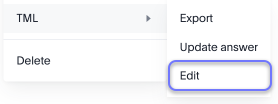
Navigate to the object, click the More menu, and scroll to the TML section.
-
Select Edit.
-
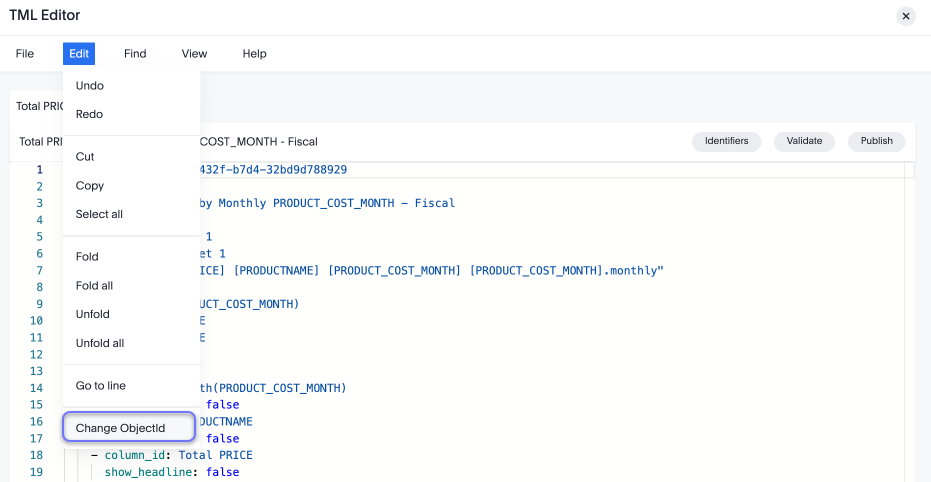
Once the TML file opens, click Edit and select Change ObjectId.
-
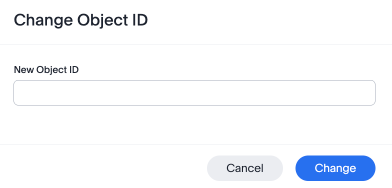
In the text box, enter a unique string to identify the object. Click Change.
The top of the TML file now shows both identifiers:
guid: <system_generated_guid>
obj_id: <your_unique_string>
Exporting TML with object IDs
How obj_id values appear in exported TML depends on your export method:
| Export method | Behavior |
|---|---|
UI export (feature flag enabled) |
|
API export |
|
API export example:
{
  "metadata": [{"identifier": "<object_guid_or_obj_id>"}],
  "include_obj_id": true
}
The following table summarizes the export parameter combinations:
| Parameter | Value | Result |
|---|---|---|
|
|
Exported TML includes the |
|
|
Exported TML does not include |
|
|
Exported TML includes the |
Both |
|
Exported TML includes both |
Importing TML with object IDs
When you import a TML file that contains an obj_id:
-
If the
obj_idmatches an existing object of the same type in the target Org, ThoughtSpot updates that object. -
If no match is found, ThoughtSpot creates a new object and assigns it the specified
obj_id.
Because obj_id is consistent across Orgs, you do not need to remap GUIDs when migrating content between environments.
Clone behavior
When you clone an object that has an obj_id, the clone receives a new, distinct obj_id. The original object’s obj_id is not copied to the clone, ensuring uniqueness within the Org.
API support
The following REST APIs support Object ID:
| API | Object ID support |
|---|---|
TML Export |
Pass |
TML Import |
Set or update the |
Metadata Search |
Query objects by |
Starting with version 26.9.0.cl, REST API v2.0 expands identifier support to accept obj_id as an identifier in additional endpoints.
Git integration
Object ID values in TML files are preserved when you commit and manage TML through Git. The obj_id field is part of the TML content and flows through Git workflows like any other TML property.
Native Object ID-aware Git commit and deploy API behavior is a separate capability from the basic preservation of obj_id in TML files committed to Git.
|
Using object IDs in CI/CD pipelines
Object IDs simplify multi-Org CI/CD workflows by giving each object a stable, portable identifier. Without obj_id, promoting TML between Orgs requires maintaining a GUID mapping table because the same object gets a different system-generated GUID in each Org.
With obj_id, the same identifier resolves to the correct object in every Org:
| Environment | obj_id |
GUID (system-generated) |
|---|---|---|
Dev |
|
|
Staging |
|
|
Production |
|
|
Recommended adoption workflow
To adopt Object IDs in an existing CI/CD pipeline:
-
Enable Object ID on all Orgs in your pipeline (Dev, Staging, Production). Contact ThoughtSpot support to enable the feature.
-
Assign meaningful
obj_idvalues to all objects you intend to promote. Use the TML editor or set the value directly in TML files. Choose stable identifiers that do not change when an object is renamed. -
Export TML with object IDs using the
include_obj_id=trueAPI parameter or the Include Object ID option in the UI. -
Import without a GUID. Remove the
guidfield from your TML files before importing into the target Org. ThoughtSpot uses theobj_idto match the object, and assigns a new GUID in the target environment. -
Validate the imported objects in the target Org to confirm they resolved correctly.
-
Retire your GUID mapping. Once all promoted objects have stable
obj_idvalues, you no longer need to maintain a table mapping GUIDs across Orgs.
Migrating existing pipelines
Adopting Object ID does not require migrating your entire pipeline at once. You can migrate incrementally:
-
Start with the objects you promote most frequently.
-
Assign
obj_idvalues to those objects in all Orgs. -
Gradually expand to cover more objects as you gain confidence.
-
Existing GUID-based and FQN-based workflows continue to work during and after migration.
Quick reference
| Topic | Summary |
|---|---|
Is it required? |
No. Object ID is fully optional. Existing GUID and FQN workflows are not affected. |
Resolution order |
Object ID → GUID → Name/FQN. When |
Uniqueness |
Unique per object type, per Org. The same |
Allowed characters |
Letters, numbers, hyphens, underscores, periods, tildes. No spaces or special characters. |
Auto-generated? |
Yes, from the object name when the feature is enabled. Override recommended for CI/CD. |
Export (UI) |
Included automatically when the feature flag is enabled. |
Export (API) |
Pass |
Import behavior |
Matches by |
Clones |
Clones receive a new, distinct |
Git |
|
Disabling |
Contact ThoughtSpot Support to disable the feature. |
fqn
fqn refers to the source table’s GUID. You can find this string of letters and numbers at the end of the URL for that table or connection.
For example, in https://<company>.thoughtspot.com/#/data/tables/34226aaa-4bcf-4d6b-9045-24cb1e9437cb, the GUID is 34226aaa-4bcf-4d6b-9045-24cb1e9437cb.
Use this optional parameter to reduce ambiguity and identify a specific table, if you have multiple tables with the same name. When exporting a TML file, you have the option to Export FQNs of referenced objects, which ensures that the TML files you export contain FQNs for the underlying tables and connections. If you do not add the fqn parameter, and the connection or table you reference does not have a unique name, the file import fails.
Limitations of working with TML files
There are certain limitations to the changes you can apply by editing a Model, Answer, table, view, Liveboard, or Monitor alert through TML.
-
Formulas and columns can either have a new name, or a new expression. You can’t change both, unless migrating or updating the Model two times.
-
It isn’t possible to reverse the join direction in the TML script.
-
You can only change logical tables using TML files. You can’t change the physical version of the table that exists in a database. When you change the
column_name, for example, the name changes in the application, but not in the physical table in the database. -
You can’t create or export TML files for R- or Python-powered visualizations.
-
Joins only appear in the table TML file of the source table in a join, or the table on the Many side of a Many-to-One join. You can only add and edit table joins from the TML file of the table on the Many side of the join. You can’t view or modify table-level joins from the destination table’s TML file.
-
You can’t modify joins at the table level from the Model, view, or Answer TML file. You can only override the joins for that specific Model, view, or Answer. To modify table-level joins, you must edit the source table’s TML file.
-
You can’t remove tables from a connection. You can only add them.
-
You can only delete table columns that have no dependents. If the table column has any dependents, ThoughtSpot returns an error when you try to import or validate the TML file. To delete a table column, you must first delete the dependents.
-
When deleting columns, you only delete ThoughtSpot’s record of the column. You don’t delete the column in your external database.
-
If there is an error in any row-level security (RLS) rule when importing a table, all RLS rules for the table are removed. ThoughtSpot warns you about this on import, and highlights the rule that is in an error state, so you can fix it or remove it.
-
Changing the filter order for Answers in the UI doesn’t change the filter order in the TML file.
-
Import of TML does not support Models that have the same name for parameters as for column names. This will result in a timeout during the TML validation process.
-
When a user sets a table visualization column header to blank (custom_name: "") and then exports/re-imports the Liveboard via TML, the blank header is not retained and uses the original column name instead.