Home page and navigation
The home page and navigation of ThoughtSpot Cloud have been entirely redesigned.
New home page
On the new home page, you can explore insights, search and access your library of Answers and Liveboards, and more. You can now choose between focused and modular home page options.
New ThoughtSpot Cloud instances use the focused home page by default. Administrators can manage the home page version for all Orgs, or for each Org. To change your home page experience, contact your administrator.
Enabling the focused or modular home page for administrators
The home page experience setting is available at the All Orgs level and at the Org level. An administrator with access to All Orgs must first select Focused for all Orgs. After that, Org administrators can switch their Org back to Modular.
To enable your desired home page:
-
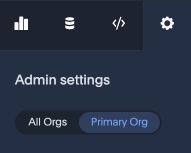
Go to Admin settings.
-
Select All Orgs, or select the Org you want to configure.
-
Go to Customization.
-
Select App Experience.
-
Go to Homepage experience and click Edit.
-
Select Focused or Modular and click Save.
If Spotter is disabled for your instance, you cannot select Focused. ThoughtSpot shows the message Experience cannot be changed to "Focused" because Spotter is disabled in this instance. To enable Spotter, contact ThoughtSpot Support.
| While the focused home page is active, the Customize home page settings for the modular home page are not available. |
Focused home page
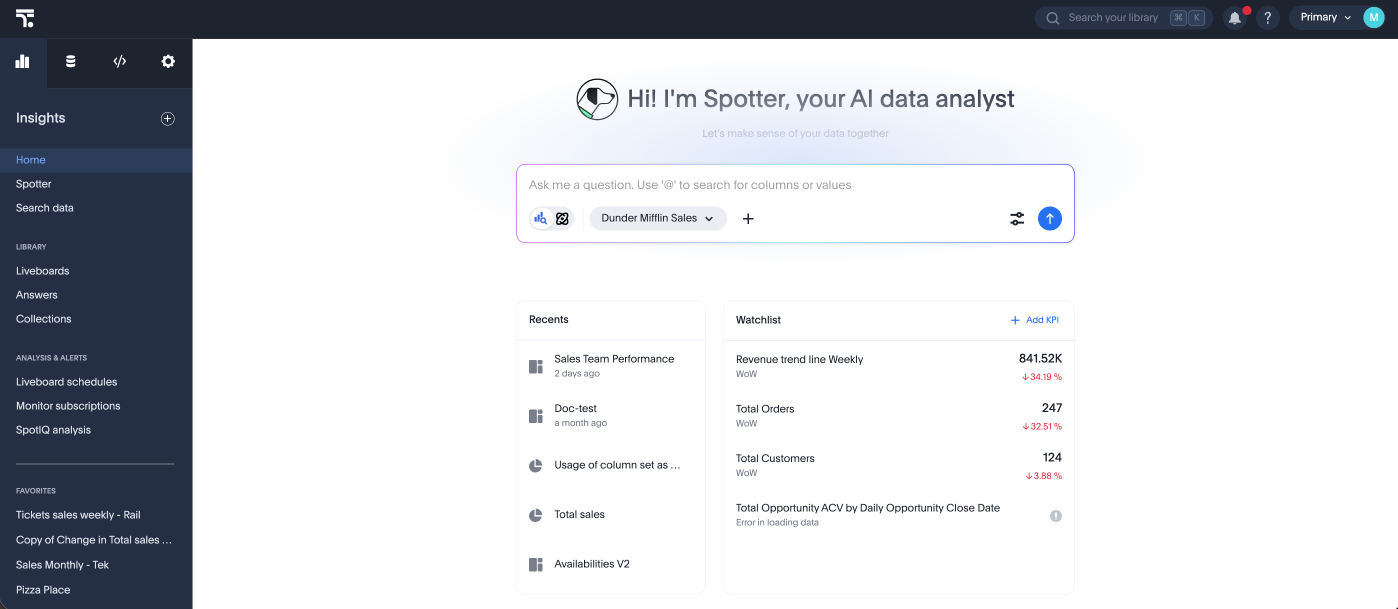
ThoughtSpot has a new focused home page experience. The focused home page delivers a streamlined, contemporary experience for users that highlights the Spotter experience. It includes shortcuts to allow you to do a Quick search, Deep analysis, or Know your data. It also includes a list of Recents and your Watchlist KPIs.
The focused home page requires Spotter. If Spotter is not enabled for your instance, ThoughtSpot shows the modular home page.
New navigation
The new global navigation organizes ThoughtSpot into different contextual sections. Each one is designed for a common type of ThoughtSpot user. You navigate to each option using the tabs in the left hand menu.
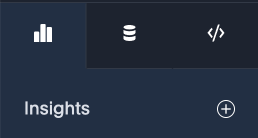
The Insights tab is designed for the business user.
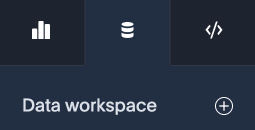
The Data workspace tab is designed for the data engineer.
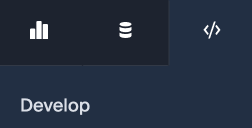
The Develop tab is designed for developers.
The Admin settings tab is designed for administrators.
Features are organized in the following ways:
| App | User | Features |
|---|---|---|
Insights |
Business user |
|
Data workspace |
Data engineer |
|
Develop |
Developer |
|
Admin settings |
Administrator |
|
Trying to find something in the redesigned navigation?
Here’s a quick reference which compares where things were in the previous navigation to where they are in the redesigned navigation:
| Previous location | New location |
|---|---|
Home |
Insights > Home |
Answers |
Insights > Answers |
Liveboards |
Insights > Liveboards |
SpotIQ |
Insights > SpotIQ Analysis |
Monitor |
Insights > Monitor Subscriptions |
Data |
Data workspace |
Develop |
Developer |
Admin |
Admin settings |
Command palette
You can now access anything in ThoughtSpot from a single keystroke. The command palette (Cmd + K on Mac / Ctrl + K on Windows and Linux) is a global command center that unifies navigation, search, and actions across the ThoughtSpot platform. Instead of switching between menus, list pages, and contextual controls, you can find content, trigger workflows, and navigate to any part of the product — all from one place.
With the command palette, you can:
-
Search across Liveboards, Answers, Models, and more in one place.
-
Launch a new Answer, Liveboard, or Spotter chat.
-
Jump to any section of ThoughtSpot directly, from Home to Admin settings.
-
Type your data question and send it straight to Spotter.
-
Press forward slash (/) to filter your search by Liveboards, Answers, Admin Settings, Create, Spotter, Models, Tables, and Collections.
-
Search results highlight matching terms for faster scanning, and visuals make it easier to understand what’s happening as you search.
We highly recommend that you register for the following free courses in ThoughtSpot University that cover the information in this article, and watch the following lessons:
Introduction to Search and Answers course: Watch the Navigating ThoughtSpot lesson.
Customizing the ThoughtSpot UI course: Watch the Home Page Announcement Module lesson.
Customizing the ThoughtSpot UI course: Watch the Focused Home Page lesson.
See other training resources at ThoughtSpot University.

