Add a hyperlink to a search
You can add a hyperlink directly within a search. Using the concat formula, you can create an external hyperlink, or link your Answer to another Liveboard.
How to add a basic hyperlink
To add an external hyperlink in a search, follow these steps:
-
Start a new search.
Alternatively, choose to edit an existing Answer from a Liveboard.
-
If the Answer shows a chart, switch to Table View
 .
-
Open the Data panel from the upper-right corner if it is not open, navigate to the Category
 or A to Z
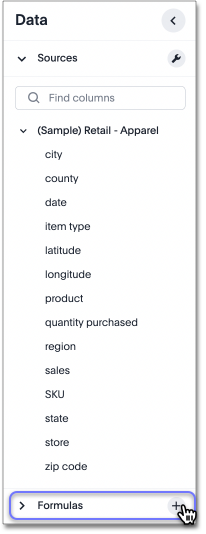
 view, click + Add, and select Formula.
-
Name your formula.
-
Enter your formula, following the basic syntax:
concat({caption}value{/caption}link)-
For a data set that does not contain properly formed urls, your formula should include the url in full.
For example, to link from the Product Category column to a Google search, use the following syntax to reference theproduct categorycolumn, and a Google search using its values:concat("{caption}",product category ,"{/caption}","https://www.google.com/search?q=",product category) -
For a data set that contains properly formed urls, you can simplify the formula.
For example, to link from the
Fruitcolumn to theurl, use the following syntax to reference the two columns,fruitandurl:concat("{caption}",fruit,"{/caption}",url)
-
-
Select Save.
How to link to another Liveboard
To add a hyperlink to another Liveboard, follow these steps:
-
Start a new search.
Alternatively, choose to edit an existing Answer from a Liveboard. -
Choose the target Liveboard for the link.
-
Open your target Liveboard and copy the web address.
-
Within your Search, switch to Table View.
-
In the Data side menu, scroll to Formulas and select the + icon.
-
Name your formula.
-
Enter your formula, following the basic syntax:
concat("{caption}"pinboard"{/caption}", "http://<thoughtspot_server>:<port>/?"<runtime filter>,column name)For example, the formula to link between a search on fruit sales and a Liveboard based on the same data with url
https://<thoughtspot-instance>.com/#/pinboard/e510f946-f9ce-48ad-a4af-1a40a9cf8addwould be:concat("{caption}"pinboard"{/caption}", "https://<thoughtspot-instance>.com/#/pinboard/e510f946-f9ce-48ad-a4af-1a40a9cf8add/?col1=fruit&op1=eq&val1=",fruit)Here, the runtime filter is operating on the column “fruit,” and will only return values that are equal (EQ) to the fruits listed in the columns. To learn more about runtime filters, see About runtime filters.
-
Select Save.
Hyperlinks in downloads and scheduled Liveboards
If a column uses a hyperlink formula with display text, the display text does not appear in every downloaded or scheduled file:
-
In XLSX, CSV, and table PDF files, the cell contains the full text string, for example
{caption}Display Text{/caption}https://..., instead of only the display text. -
In Liveboard PDF files, the display text appears as it does in ThoughtSpot, but the link is not clickable.
To show only the display text in XLSX, CSV, and table PDF files, contact ThoughtSpot support. Even when this is enabled for your cluster, links in downloaded files are not clickable.
For more information, see Table formatting, Download a Liveboard limitations, and Format and layout of scheduled Liveboards.