Spotter in Microsoft Teams
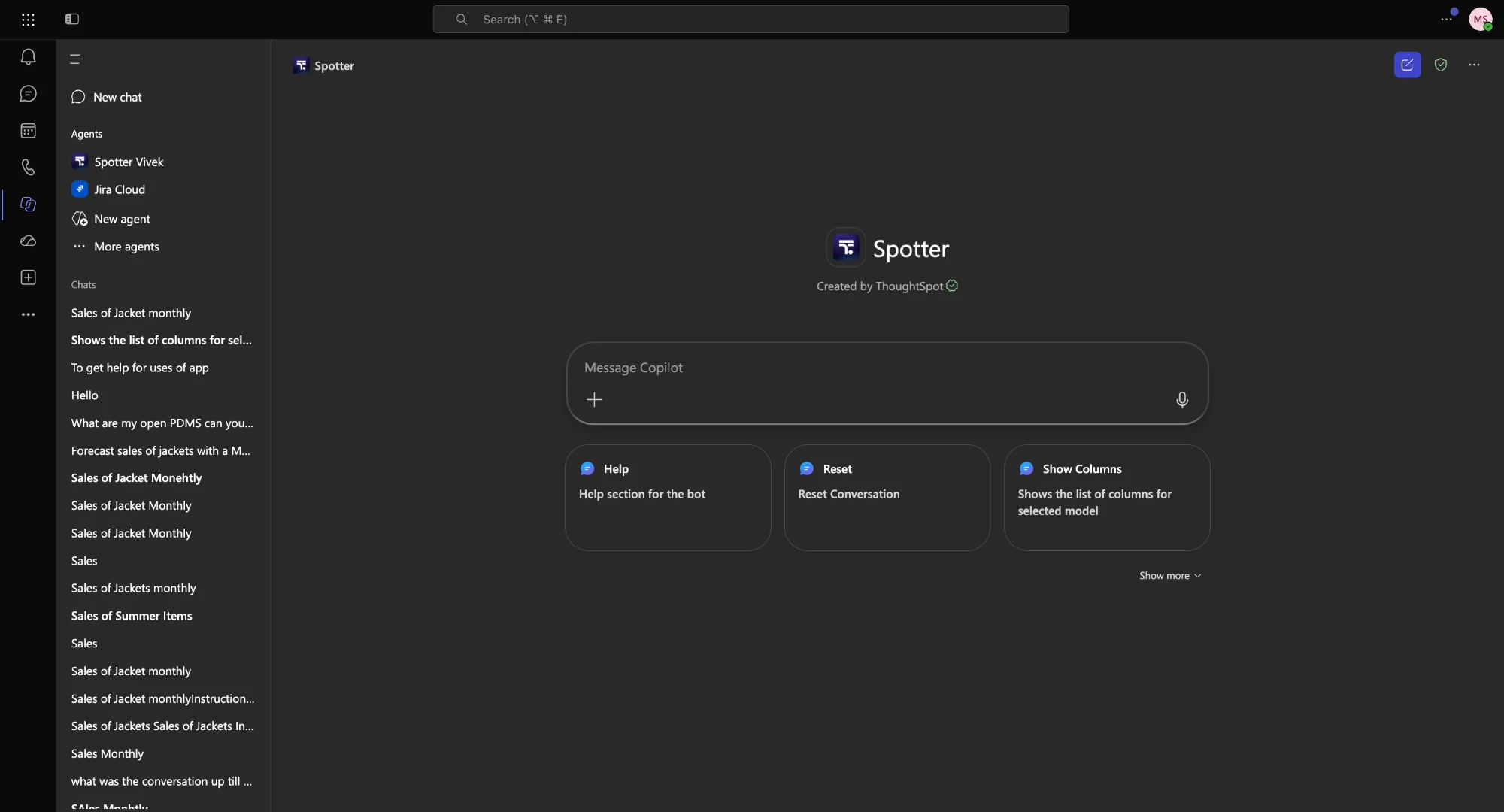
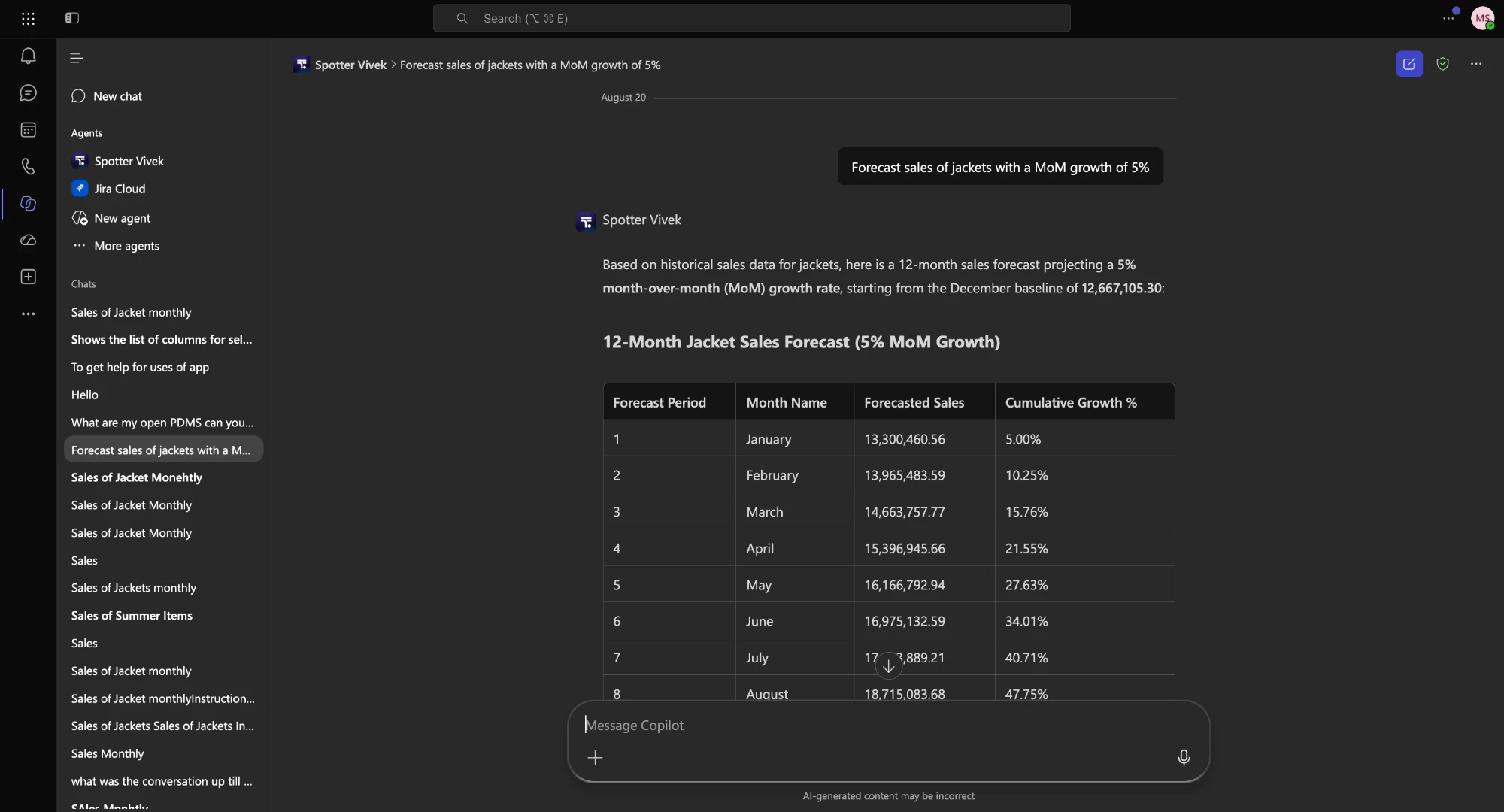
Spotter is ThoughtSpot’s AI analyst. With the Spotter app for Microsoft Teams, anyone can ask a data question in a one-on-one chat, in a team channel, or in Microsoft 365 Copilot, and get the answer in the same place.
Spotter answers from your ThoughtSpot data models, under the permissions of the person who asked. It goes beyond simple lookups. Ask about trends, comparisons, what’s driving a change, or a forecast. Answers arrive as text with chart or table images. Every answer names the data model it came from, so anyone reading can check the number. Spotter uses the data models, permissions, and Orgs you already have in ThoughtSpot.
Before you begin
| Requirement | Detail |
|---|---|
ThoughtSpot privileges |
Can use Spotter and Can download data. If your instance uses role-based access control (RBAC), the download privilege you need is different. See Understand RBAC and privileges. |
ThoughtSpot address |
Your instance must use a ThoughtSpot-managed address, such as <company>.thoughtspot.cloud. Custom domains are not supported. |
ThoughtSpot Embedded |
The embedded UI isn’t supported, so users connect from the ThoughtSpot application, not from inside your embedded app. |
Microsoft Teams |
The Spotter app must be allowed in your Teams tenant, and a Teams admin must consent to its permissions. |
Set up Spotter for your organization (admins)
-
Grant privileges in ThoughtSpot. Give the users or groups who’ll use Spotter the privileges listed in Before you begin.
-
Allow the app in Teams. In the Teams admin center, allow the Spotter app by ThoughtSpot.
Connect your Teams account (users)
Each person connects once.
-
In ThoughtSpot, click your user icon and select Profile.
-
Click Connect to MS Teams.
-
Sign in to your Microsoft account and click Accept.
Your profile now shows the Teams account you’re connected to. Spotter appears in Teams with a welcome message that describes what it can do.
To see which ThoughtSpot Org the Spotter app is connected to, type status. This is useful if you have access to more than one Org.
Ask Spotter a question
Spotter shows progress within a few seconds and streams the answer as it writes it. A full answer usually takes under a minute.
In a one-on-one chat
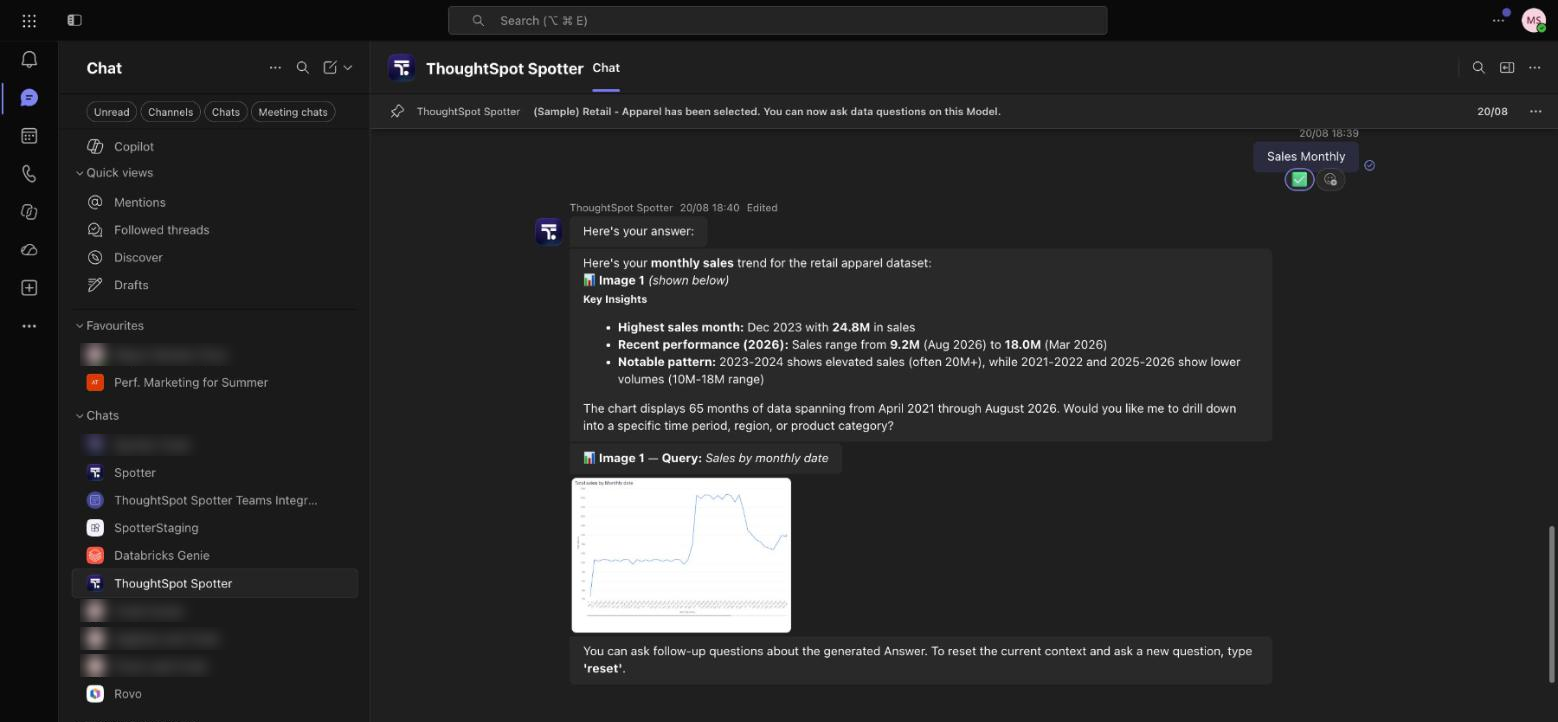
Open your chat with Spotter and ask your question, for example "sales by month."
Follow-up questions continue the same chat, and Spotter keeps the context. When you switch to a different topic or data model, type reset. Answers are faster and more accurate without the old context.
In a channel
To add Spotter to a channel:
-
Go to the channel and type @.
-
If Spotter isn’t listed, click Get bots and search for Spotter.
-
Select Spotter, choose the channel, and click Add.
You can also open Apps in Teams, search for Spotter, click Add, and then add it to the channel from Manage apps.
To ask a question, tag Spotter. For example @Spotter show sales by region. Spotter replies in the thread. It reads the earlier messages in that thread to understand the question. The numbers always come from your data models.
In a channel:
-
The data model you pick applies to everyone in the channel. Choose it deliberately up front. If not chosen, Spotter picks the appropriate data model to answer the question.
-
Post
@Spotter show modelsand@Spotter show columnsas a new channel post, not as a reply.
Choose a data model
You don’t have to pick a data model. By default, Spotter picks the most relevant one for each question and names it in the answer.
To use one specific Model:
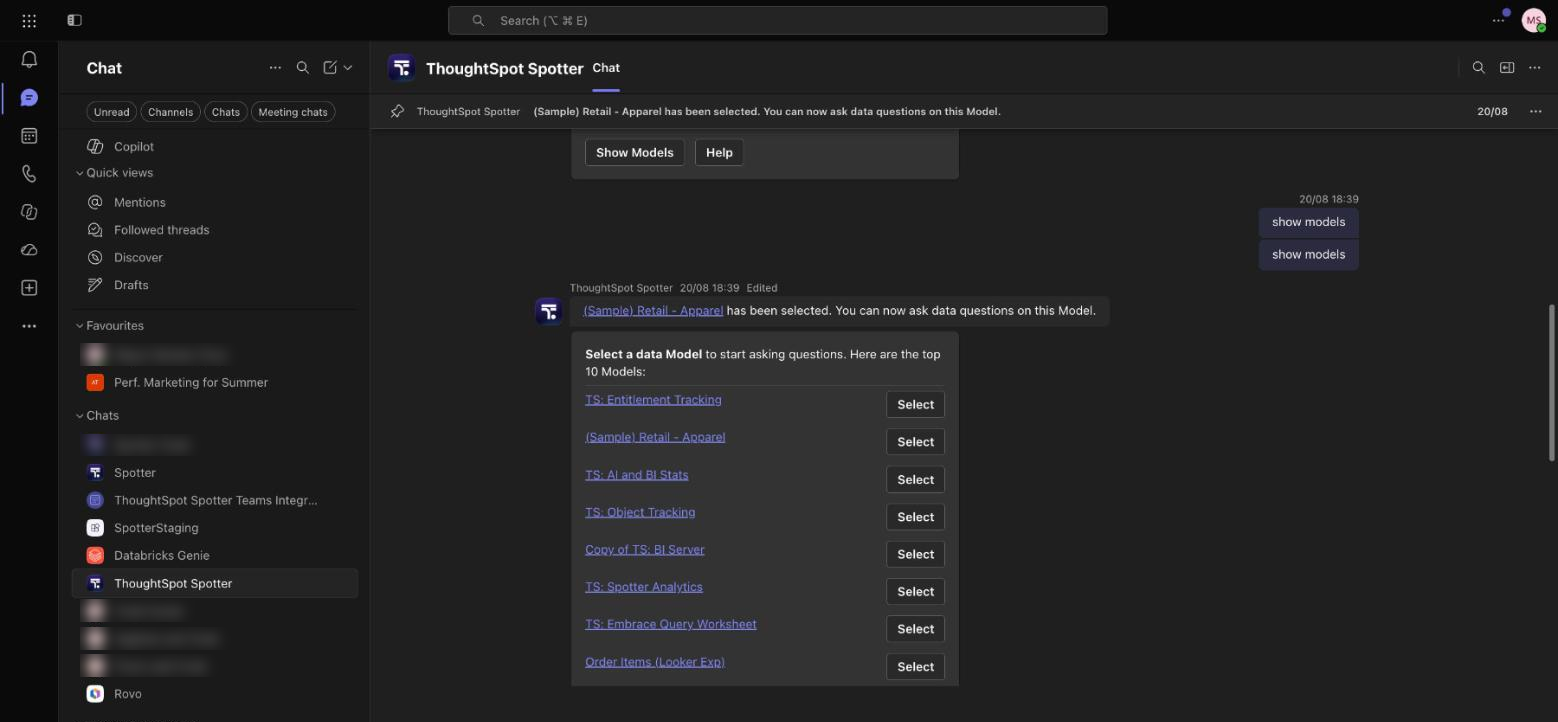
. Type show models.
-
Click Select next to the Model you want. If it isn’t listed, type
show models <model name>.
Every question in that chat then runs against that Model. To go back to letting Spotter choose, type show models and select Auto.
Commands
Type these as plain messages, or pick them from View prompts above the message box. In a channel, tag Spotter first, for example, @Spotter help.
| Command | What it does |
|---|---|
|
Shows how to get started, example questions, and how to contact Support. |
status |
Shows the ThoughtSpot Org the Spotter app is connected to. |
show models |
Opens the model picker. Choose a Model, or Auto to let Spotter choose for each question. |
show columns |
Lists the attributes, measures, and date columns in the selected Model. Works only when a specific Model is selected. |
reset |
Clears the chat and starts over. |
Who sees what
-
Spotter answers under the permissions of the person who asked. Row-level and column-level security rules apply exactly as they do in ThoughtSpot.
-
Everyone in a channel can see an answer posted there, the same as a file shared in the channel.
Not supported
-
Group chats
-
Private channels
-
Spotter in Copilot inside Outlook, Word, Excel, or PowerPoint
Disconnect from Microsoft Teams
- In ThoughtSpot
-
Go to Profile and click Disconnect from MS Teams.
- In Teams
-
Remove the app from the chat or team in Teams app management.
| Teams can also disconnect on its own, for example, when a token expires or after a network problem. If Spotter stops responding, connect again from your profile. |
Related information
Spotter 3 data handling: How Spotter stores and protects your data. Your data is never used to train LLMs.