Spotter benchmark platform
Users with admin or Can manage Spotter privileges can now access a platform to evaluate Spotter’s answers to specific queries for latency and accuracy, from within Spotter. The Benchmark tab allows you to see an overview of past query runs, create your own sample query and specify the correct answer in text or SQL, run those specific queries, and compare the results of selected query runs.
To access the benchmark platform, open Spotter, click the gear icon  and click Benchmark.
Overview
The Overview tab provides a summary of all the contents in the benchmark platform. The Trend over runs visualization allows you to track the accuracy of the runs you performed, and the latency. The visualizations at the bottom of the page allow you to identify the slowest queries, view the overall outcomes divided by pass and fail rate, and see a list of the most recent runs.
If this is your first time accessing the benchmark platform, you see a How Benchmark works window with a list of tasks. Once you have gone through the list by adding test queries, launching a run, and comparing runs, these items are checked off.
Runs
Once you have created a benchmark query, you can run it to determine Spotter’s accuracy in answering. To run a query:
-
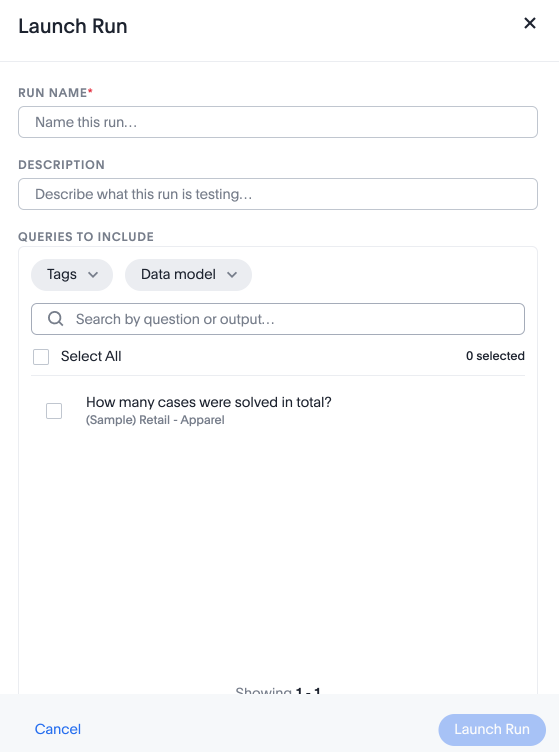
Navigate to the Runs tab and click Launch Run. The Launch Run popup appears.
-
Name the run, and optionally provide a description of what the run is testing.
-
Find the desired query to run by searching words used in the question, or by filtering by tags or data model. Select the query or queries and click Launch Run.
-
The run begins. Click Pause to stop at any time, or click Rerun to run the query again.
-
The run shows the status of the query, whether it passed or failed. An AI summary appears explaining the run’s score. Click the output to see a more detailed evaluator reasoning of why the run passed or failed.
-
You can download a CSV file with the status and details of all your past runs by clicking Download CSV. The downloaded CSV displays the query, the expected output, the actual output from the run, the evaluator reasoning for the pass or fail of the run, the score, the latency in milliseconds, the status, and the link to run as a conversation in Spotter.
-
Click Runs to return to the Run tab, where you can rerun or delete the run you created.
Queries
Before you can run or compare benchmark queries, you first have to define what questions you want to test. To create a query manually:
-
Click on the Queries tab. A list of past queries appears, each with a query id, the question, the expected output, and any tags you defined. You can see when each query was created, and edit or delete them easily.
-
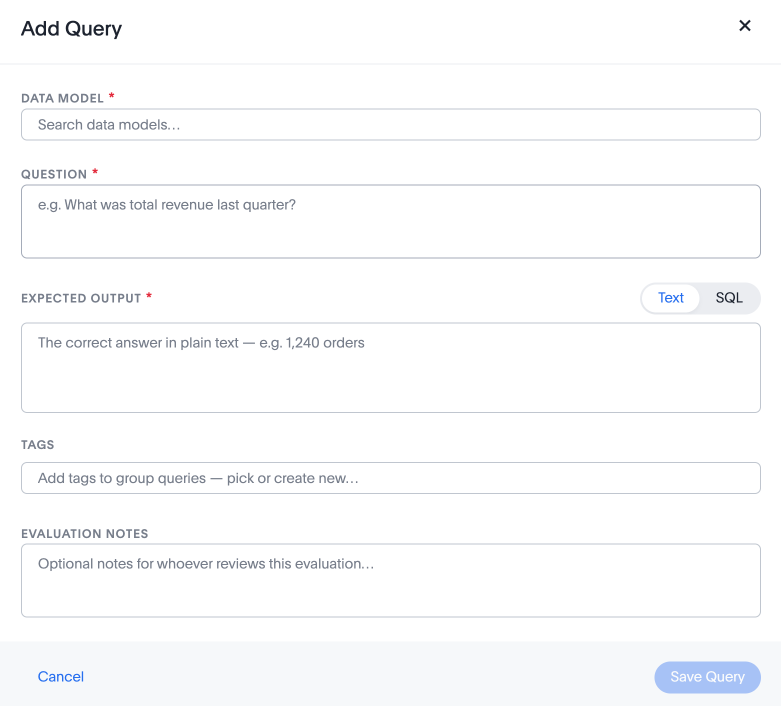
Click + Add Query. The Add Query popup appears.
-
Define the data model, question, and expected output. Note that you can record the desired output in text or SQL format.
-
[Optional] Add tags to your query to make it easier to search. You can also add evaluation notes to make your expectations clear to other users who might review the query.
-
Click Save Query.
To add queries in CSV format:
-
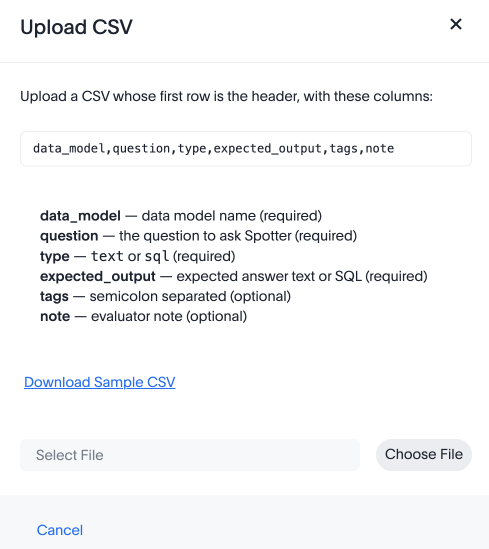
Navigate to the Queries tab and click Upload CSV. The Upload CSV pop-up appears.
-
Reference the pop-up for the expected format of the CSV file you will upload. Optionally, you can download the sample CSV file.
-
Confirm that your CSV file is in the correct format, with a first row as the header showing the following syntax:
data_model,question,type,expected_output,tags,note
-
Click Choose file and select the correct file. The file uploads automatically, showing the questions contained within.
Comparisons
If you have created multiple runs on the same data, you can compare the results to see what changes have made Spotter run the query more accurately.
To run a comparison:
-
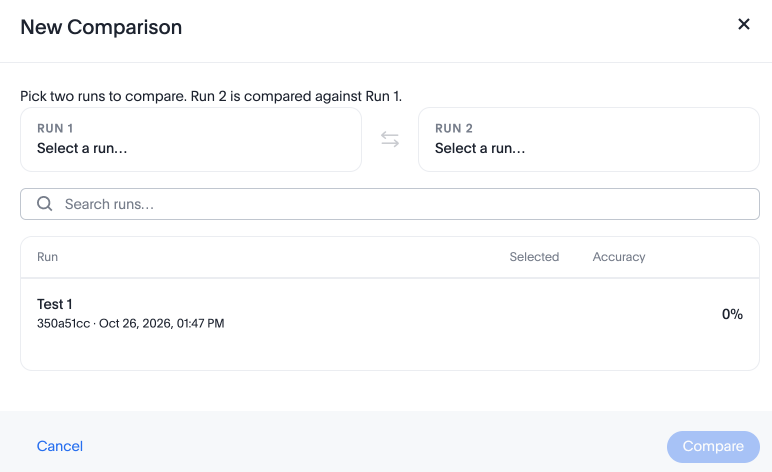
Either select the checkboxes next to two runs, preferably different versions of the same query, and click Compare (2), or navigate to the Comparisons tab, click + New Comparison, select two past runs from the list, and click Compare.
-
The Compare Runs page appears. You can see the total queries, the average score of run 1 and run 2, and the net change. An AI summary defines the change in score, and the differences in the queries.
-
You can see the list of questions included in the runs with their statuses, and click Download CSV to view them in CSV format.