Spotter in Slack
Spotter is ThoughtSpot’s AI analyst. With the ThoughtSpot Spotter app for Slack, anyone can ask a data question in a direct message, a channel, or a group DM and get an answer in the same thread. Tag Spotter the way you’d tag a colleague.
Spotter answers from your ThoughtSpot data models, under the permissions of the person who asked. It goes beyond simple lookups. Ask about trends, comparisons, what’s driving a change, or a forecast. Answers arrive as text, tables, and charts. Every answer names the data model it came from, so anyone in the thread can check the number.
Spotter in Slack is on by default for ThoughtSpot Cloud. It uses the data models, permissions, and Orgs you already have in ThoughtSpot.
Before you begin
| Requirement | Detail |
|---|---|
ThoughtSpot privileges |
Can use Spotter and Can download data. If your instance uses role-based access control (RBAC), the download privilege you need is different. |
ThoughtSpot address |
Your instance must use a ThoughtSpot-managed address, such as <company>.thoughtspot.cloud. Custom domains are not supported. |
ThoughtSpot Embedded |
The embedded UI isn’t supported, so users connect from the ThoughtSpot application, not from inside your embedded app. |
Slack workspace |
The ThoughtSpot Spotter app must be allowed in your workspace. |
Set up Spotter for your organization (admins)
Admins only need to do two things:
-
Grant privileges in ThoughtSpot. Give the users or groups who’ll use Spotter the privileges listed in Before you begin.
-
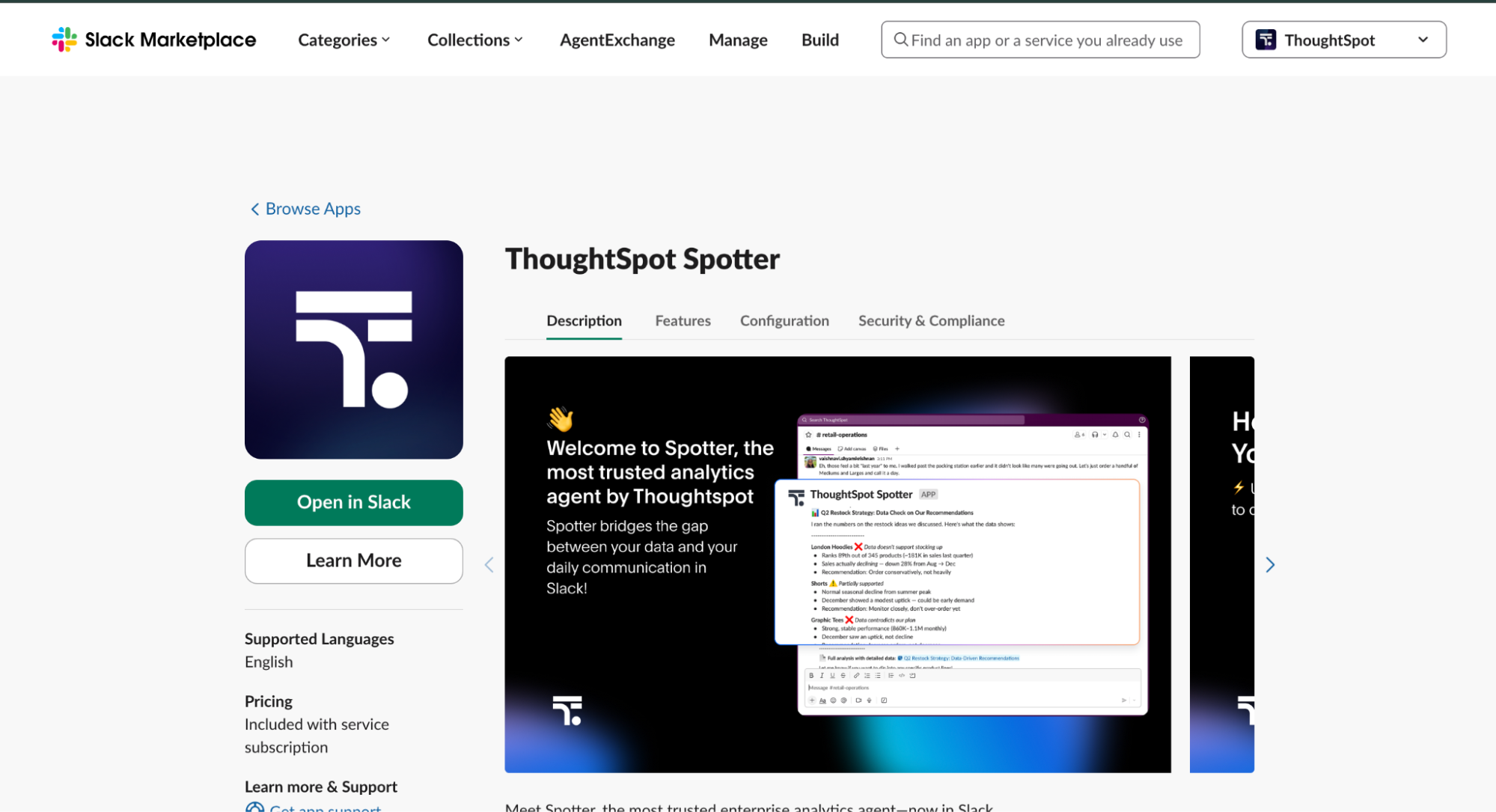
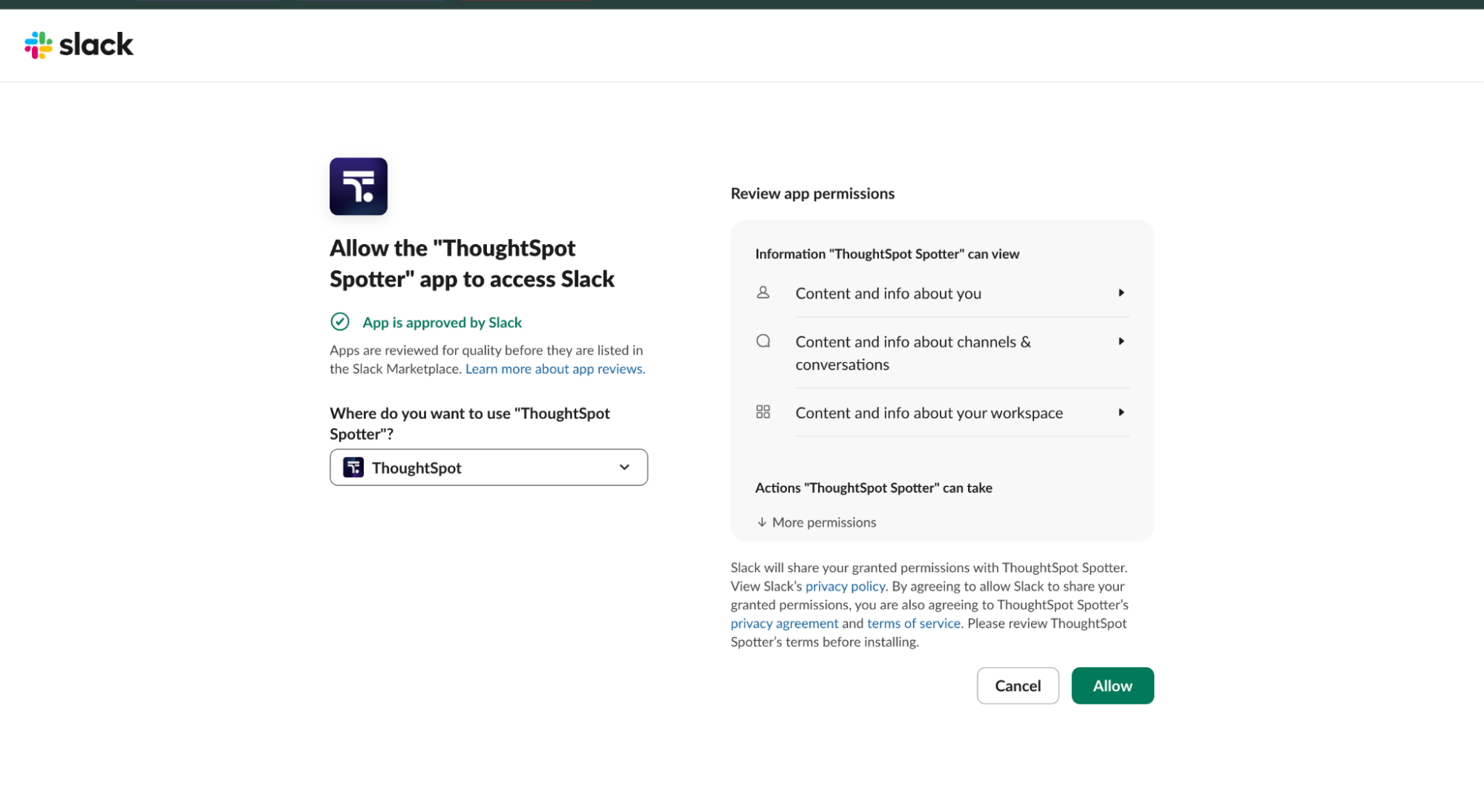
Allow the app in Slack. If your workspace requires admin approval for apps, approve ThoughtSpot Spotter in Slack’s app management settings. You can also install it for the workspace from the Slack Marketplace.
Connect your Slack account (users)
Each person connects once.
-
In ThoughtSpot, click your user icon and select Profile.
-
Click Connect to Slack.
-
Review the permissions and click Allow.
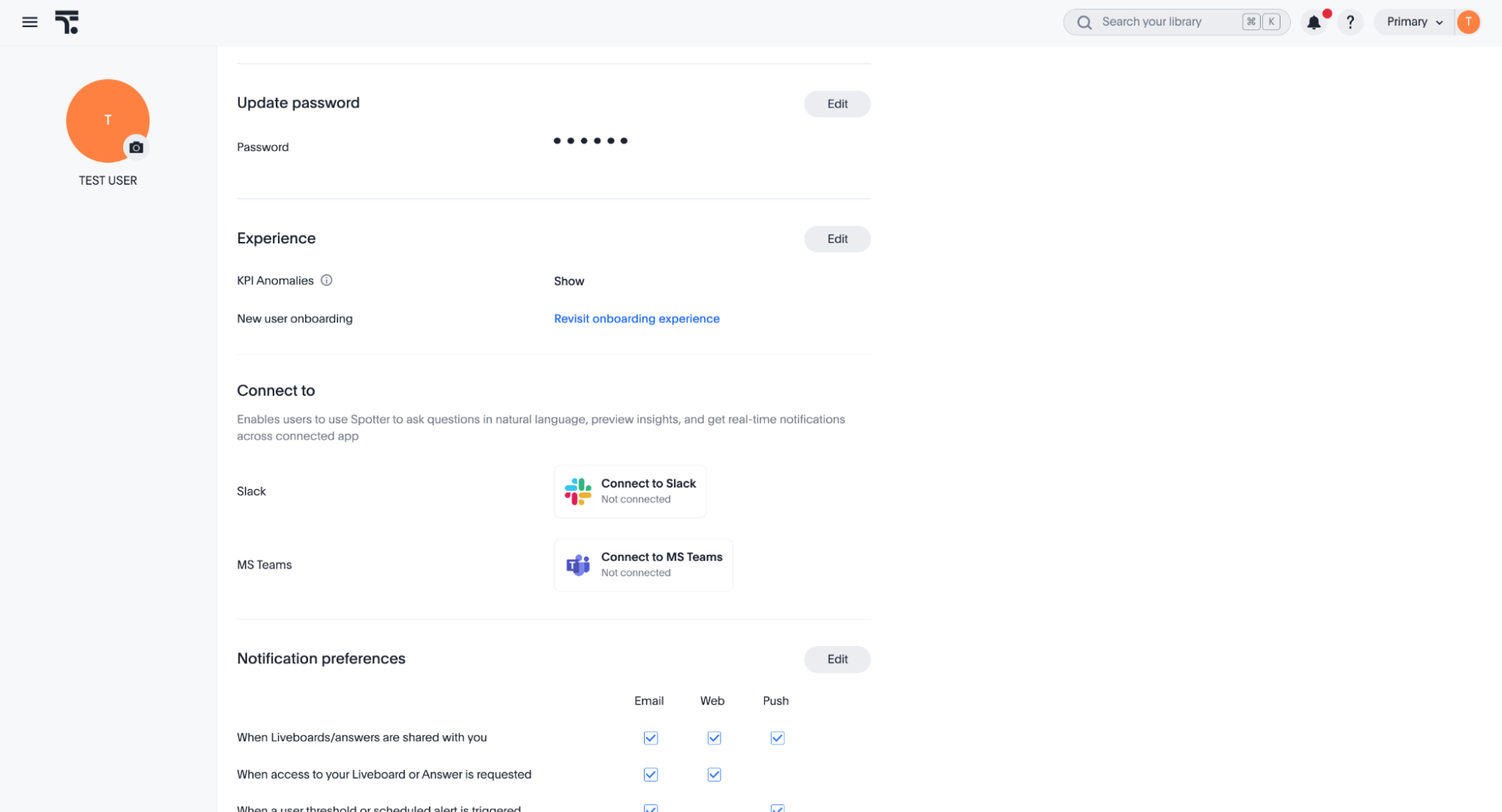
Spotter appears in Slack with a welcome message that describes what it can do. In your ThoughtSpot profile, the button changes to Disconnect from Slack.
To see which ThoughtSpot Org the Spotter app is connected to, type /spotter-status. This is useful if you have access to more than one Org.
Ask Spotter a question
Answers usually arrive in under a minute. Spotter shows a progress message while it works. Wait for one answer before you ask the next question.
In a direct message
Open a DM with Spotter and ask your question, for example, "show me total sales by month."
In a channel
-
Add Spotter to the channel by typing
/invite @Spotter. -
Tag Spotter at the start of your question, for example,
@Spotter show me sales by region. Spotter replies in a thread.
Choose a data model
You don’t have to pick a data model. By default, Spotter picks the most relevant one for each question. Each answer shows Answering using <model name>. If Spotter can’t tell which Model fits, it asks you to choose.
To use one specific Model:
-
Type
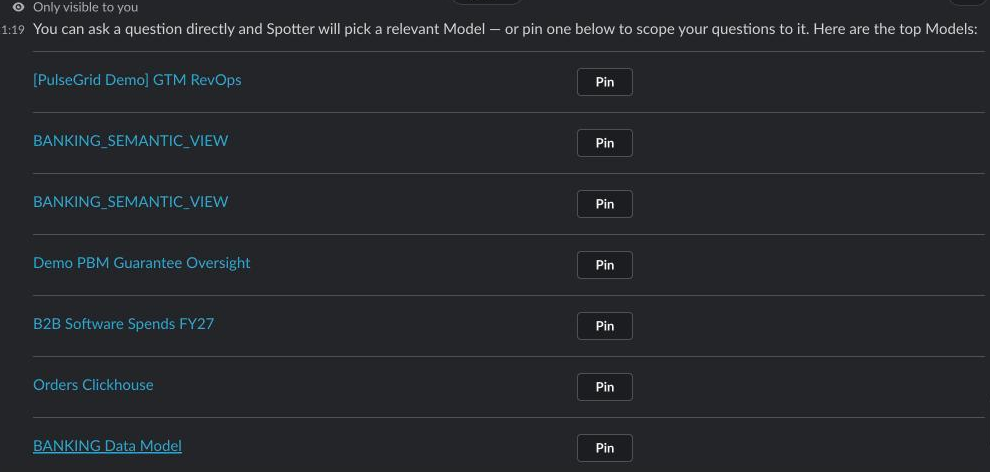
/spotter-show-models. -
Click Pin next to the model you want.
The pinned Model applies to that DM, channel, or group DM until you change it. To see its columns, type /spotter-show-columns.
Charts and tables
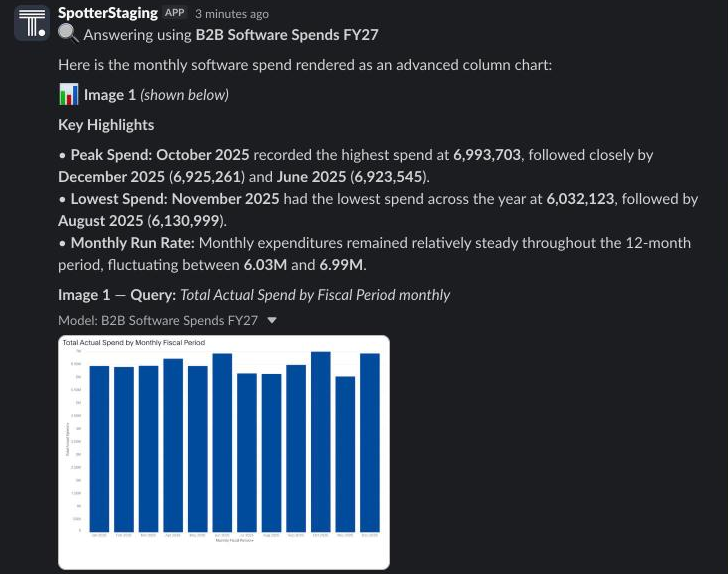
Tables and text appear directly in Slack. Charts are posted as images, each labeled with the question and the Model behind it.
Commands
| Command | What it does |
|---|---|
|
Shows how to use Spotter, with example questions. |
|
Shows the ThoughtSpot org the Spotter app is connected to. |
|
Lists your top data models so you can pin one. |
|
Lists the columns in the pinned Model. |
You can also ask Spotter questions like "what can you do?" or "which data models can I use?"
Who sees what
-
Spotter answers under the permissions of the person who asked. Row-level and column-level security rules apply exactly as they do in ThoughtSpot.
-
Everyone in a channel or group DM can see an answer posted there, the same as a file shared in the channel.
-
If someone else asks a follow-up, Spotter asks the user to start a separate chat, under their own permissions, and says so in its reply.
Notifications
When you connect, your ThoughtSpot notifications are delivered to you in Slack, for example, when someone shares an Answer with you. To choose which notifications you get, go to your ThoughtSpot profile settings.
Link previews
When you’re connected, links to your ThoughtSpot instance that you share in Slack expand into a preview of the object, such as an Answer. The preview can take up to 15 seconds to appear.
Disconnect
- In ThoughtSpot
-
Go to Profile and click Disconnect from Slack.
- In Slack
-
Remove the app’s access in Slack’s app management settings.
Slack can also disconnect on its own, for example, when a token expires or after a network problem. If Spotter stops responding, connect again from your profile.
We highly recommend that you register for the free Spotter in Slack course in ThoughtSpot University that covers the information in this article, and watch the Spotter in Slack lesson.
See other training resources at ThoughtSpot University.


Related information
Spotter data handling: How Spotter stores and protects your data. Your data is never used to train LLMs.
Spotter app in Slack Marketplace: the app listing, with its permissions and security details.