November 2026 26.11.0.cl
Spotter on Liveboards GA
You can now open Spotter from a Liveboard, and Spotter is now grounded in the context of that Liveboard — its tabs, visualizations, and the effective filters and time ranges applied to each chart. You can ask questions like "why did revenue drop in Q3?" or "summarize what you see on this Liveboard" and Spotter reads the actual live data behind each visualization to answer, without you having to re-specify your filters or date range. Tasks, such as building a forecast, running a why analysis, and charting the result, now stay in a single conversation context across Spotter and Liveboards. To enable this feature, contact ThoughtSpot support.
For more information, see Spotter 3 Liveboard side panel.
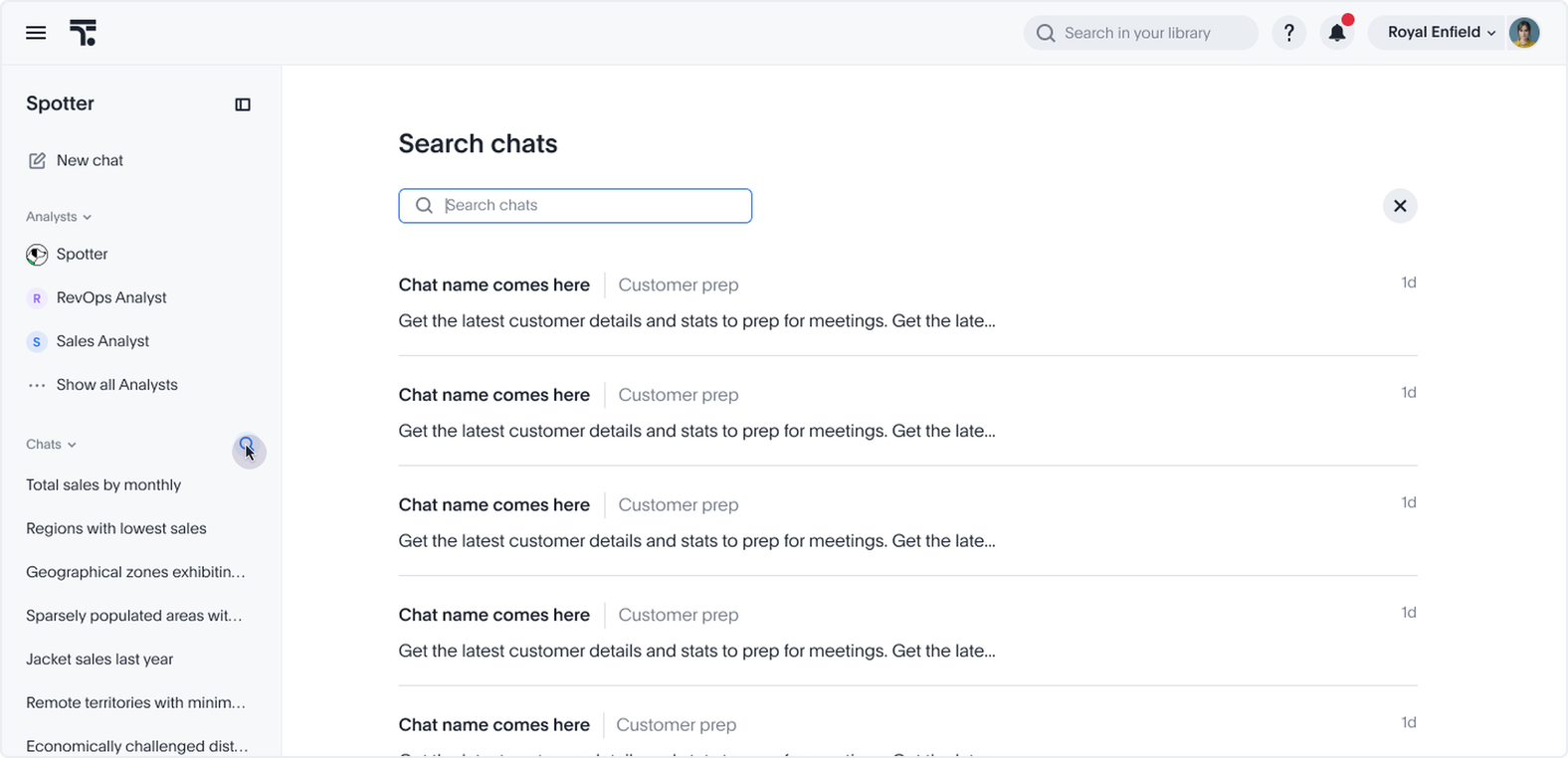
Search your Spotter chats GA
Find any past analysis in seconds and pick up where you left off. Search your Spotter chats by title, by the questions you asked, or by what Spotter answered, no need to ask again or scroll through your history. This feature is on by default in the Classic Spotter 3 experience, but requires chat history to be turned on. For more information, see Search your Spotter chats.
SpotterViz file upload GA
You can now upload a Tableau workbook (.twb, .twbx), or supported file type (.png, .jpg, .jpeg, .gif, .webp, or .pdf) to SpotterViz, and instruct the agent to create a Liveboard based on the file. You can request styling, visualization order, and filters within the SpotterViz interface. To enable this feature, contact your administrator.
For more information, see SpotterViz.
Spotter 3 scheduling GA
You can now request Spotter to send you scheduled updates on particular answers, without leaving your chat. Simply write, "Send me updates on this answer every Monday," and Spotter will email or Slack you updates as requested. Spotter notifies you based on your notification preferences defined in your user profile. To enable this feature, contact ThoughtSpot support.
For more information, see Scheduling in Spotter.
Writeback for Spreadsheet Beta
ThoughtSpot Spreadsheet view now supports writeback, allowing analysts to enter and publish data directly to the cloud data warehouse without leaving ThoughtSpot. In Spreadsheet view, you can create input tables alongside your Answer, define key columns to set the grain, and add editable or formula-based columns. Edits are held in session state until you click Publish to Warehouse, ensuring that no unintended writes occur. Published data is immediately available for Search, Liveboards, and Spotter queries. To enable this feature, contact ThoughtSpot support.
For more information, see Writeback.
Connect to Microsoft (MS) Teams from your user profile
The connection to MS Teams from your user profile is now on by default. This allows you to send reports from your searches and Spotter conversations directly to MS Teams. For more information, see Spotter in MS Teams.
Improve portability of personalized Liveboard views GA
You can now migrate personalized Liveboard views between environments, such as from development to production, without losing user customizations. This release introduces:
-
Smart Merge TML import: A new
enable_personalized_view_upsertfield on the existing TML import endpoint (POST /api/rest/2.0/metadata/tml/import) preserves personalized views during Liveboard TML import, instead of overwriting them. -
Ownership metadata in TML: Personalized views now include an
authorblock in TML withusernameanduser_emailattributes, allowing administrators to transfer view ownership during migration.
For more information, see Migrate personalized views across environments.
Liveboard filter and parameter overrides Early Access
You can now add filter and parameter values to a Liveboard URL. When someone opens the URL, the Liveboard’s chips show those values and the data loads with them applied. This makes it easy to link between Liveboards or share a filtered Liveboard without saving a personalized view. To turn the feature on, ask your administrator to enable Filtered Liveboard URLs on the Early Access page of the Admin portal. For more information, see Liveboard filter and parameter overrides.
Emails for failed schedule jobs GA
ThoughtSpot now automatically sends a failure notification email to the Liveboard schedule author whenever a scheduled job fails, eliminating the need for the author to check the run history manually.
For more information, see Schedule Liveboards.
Other features and enhancements
Admin panel changes for Spotter on Liveboards GA
ThoughtSpot introduces Spotter on Liveboards Liveboard side panel (New) experience. This new experience is available across Liveboards, the Homepage, embedded ThoughtSpot, REST API, MCP, Slack, and Teams from a single toggle. Administrators can choose the experience under Admin > ThoughtSpot AI > Choose Spotter 3 Liveboard Experience. New instances and existing instances upgrading to 26.11 are set to Answer overlay (Classic) by default. Your administrator can choose to change it to Liveboard side panel (New).
For more information see, Spotter 3 Liveboard side panel.
Monitoring for Spotter GA
Administrators can now monitor Spotter usage and review conversations from the Spotter settings menu. Two options are available:
-
Monitor metrics: Opens a Spotter usage metrics Liveboard in a new tab.
-
Monitor all chats: Opens a side panel with a searchable, filterable, and sortable list of all Spotter conversations in your organization.
Administrators can preview conversations, download the list as a CSV, and filter by user, agent, data source, date range, and more. Selecting a conversation opens a detailed view of the full message history, tool calls, and execution timings.
To enable Spotter chat monitoring, contact ThoughtSpot support.
For more information, see Monitor Spotter usage and chats.
Spotter benchmark platform GA
Users with admin or Can manage Spotter privileges can now access a platform to evaluate Spotter’s answers to specific queries for latency and accuracy, from within Spotter. The Benchmark tab allows you to see an overview of past query runs, create your own sample query and specify the correct answer in text or SQL, run those specific queries, and compare the results of selected query runs. For more information, see Spotter benchmark platform.
AI Context generation on Model save Early Access
Models now generate AI Context automatically once saved. This includes Models created manually, and those created in SpotterModel. To enable this feature, contact your administrator.
Generate memory from Liveboards in Model GA
You can now access memory generation for Liveboards from the Spotter optimization tab on a Model. Click View added Liveboards to see all Liveboards with current memory on the Memory sources tab. For more information, see Optimize your data model.
Writeback for cloud data warehouse GA
ThoughtSpot writeback tables are now generally available (GA).
For more information, see Writeback.
Data Cache for modeled sources GA
ThoughtSpot now supports model-level caching with Data Cache. Data Cache copies frequently queried data from your cloud data warehouse into ThoughtSpot-managed storage, so eligible queries are served from the cache instead of running on your warehouse. This means faster answers and lower warehouse compute costs. Once Data Cache is enabled for your cluster, data model editors can turn on caching for individual Models from the new Caching tab in the Model editor. No SQL changes, TML edits, or manual configuration are required. ThoughtSpot automatically routes queries to the cache when the requested data is available, and falls back to your live warehouse when it isn’t, so results are always correct. To enable this feature, contact ThoughtSpot support.
For more information, see Data Cache.
Publishing tables and views GA
You can now publish, unpublish, and manage publishing for tables and views directly from ThoughtSpot, using the same workflow previously available for Models. For more information, see Publishing objects between Orgs.
dbt MetricFlow integration - Google BigQuery and Amazon Redshift support Early Access
ThoughtSpot introduces support for Google BigQuery and Amazon Redshift as underlying cloud data warehouses (CDWs) in dbt MetricFlow. To enable this feature, contact your administrator. For more information, see Integrate with dbt MetricFlow.
Snowflake Semantic View integration Early Access
ThoughtSpot now preserves your custom model configuration when you re-sync a Snowflake Semantic View integration, so your column descriptions, formatting, custom calendars, geo configuration, and Spotter optimization settings are no longer overwritten on each sync. ThoughtSpot expands Semantic View coverage to include measures with dimension filters, hierarchies, and parameterized queries, so more of your Snowflake Semantic View definitions map directly into ThoughtSpot Models without manual adjustment. Formula and parameter associations are re-applied automatically after a sync, reducing manual reconciliation after each Snowflake Semantic View update. To enable this feature, contact your administrator. For more information, see Integrate with Snowflake semantic views.
Web URL support for Object ID
ThoughtSpot now supports custom, human-readable Object IDs (object_id) directly in Web URLs. Instead of relying solely on system-generated GUIDs, you can use stable, readable identifiers to navigate, share, and embed ThoughtSpot assets across environments. Existing GUID-based URLs continue to work unchanged.
Handling queries post Org deletion GA
Previously, deleting an Org in ThoughtSpot stopped user-initiated queries immediately, but background processes — including scheduled Liveboard reports, alerts, and search indexing — continued to run warehouse queries against the deleted Org’s connections for up to 7 days during the deletion grace period, resulting in unexpected warehouse spend. ThoughtSpot now stops all warehouse query execution for deleted Orgs immediately at deletion time. Deleted Orgs remain restorable during the grace period; the query block is automatically lifted if an Org is restored. For more information, see Delete Orgs.
Distinct visual styling for future dates on charts GA
Line and area charts in the new charts library now visually distinguish future dates from historical data. When a chart’s time axis includes dates in the future, ThoughtSpot renders the future segment with a dashed line style, so you can quickly identify projected or forecasted data at a glance.
MySQL driver upgrade GA
We have upgraded the MySQL driver to version 8.4.0.
For more information, see Cloud data warehouse driver details for connections.
Snowflake driver upgrade GA
We have upgraded the Snowflake driver to version 4.3.2.
For more information, see Cloud data warehouse driver details for connections.
For the Developer
For new features and enhancements introduced in this release of ThoughtSpot Embedded, see ThoughtSpot Developer Documentation.
Previous releases
26.10.0.cl
October 2026 26.10.0.cl
Spotter Analyst builder GA
The Spotter Analyst builder is now generally available (GA). In this chat-based interface, you can describe the analyst you would like to use, and Spotter translates your requests into instructions for the agent. Spotter Analysts are also GA in this release.
For more information, see Spotter Analysts.
Spreadsheets GA
The spreadsheet interface puts a familiar, editable grid directly on your live data. Save your work as an Answer that stays searchable, shareable, and governed like anything else in ThoughtSpot.
-
Columns and formulas on live data: Build new metrics with 70+ built-in functions. Every formula runs as a live query and persists as governed logic your team can reuse.
-
Shape your view instantly: Sorting, filtering, conditional formatting, and text and number formatting help you focus on what matters, and are applied live on your data.
-
Save as a governed Answer: Your spreadsheet becomes a searchable, shareable object with security and lineage intact, never a disconnected export.
-
Built for real datasets: Scroll seamlessly through large result sets and switch to full-screen mode for focused analysis.
For more information, see Spreadsheet.
Spotter connector marketplace GA
Spotter now features a browsable catalog with more than 100 third-party connectors, making it easier than ever to discover and add third-party data integrations. Every user can browse, search, and explore available connectors, including one-click options like Slack and Web Search, plus connectors for services like Microsoft Teams that guide you through setup. Your administrator or users with the CanManageSpotter privilege can add and configure connectors for your organization. If you don’t see a specific MCP server in the catalog, any MCP-compliant server can still be added manually. The Spotter marketplace connectors are available to all users in Spotter by selecting Settings > Connectors. This feature and the Can Manage Spotter privilege will be rolled out in the first weekly patch after the 26.10.0.cl release.
Charts added to the new charts library GA
The new charts library expands to add waterfall, pareto, funnel, and heatmap charts, bringing enhanced analytical flexibility and modernized styling across search, Spotter, and Liveboards. This release introduces support for multi-panel trellis and faceting modes, new multivariate axis configuration logic, and expanded customization options — including independent color controls for increment and decrement bars on Waterfall charts, refined gradient and label positioning on heatmaps, and enhanced axis formatting on pareto charts. For more information, see Changes in 26.10.0.cl.
Liveboard contextual filtering Early Access
Liveboard creators can now scope filters and parameters to a specific tab or group, instead of applying them globally across the entire Liveboard. This makes it easier to build focused, information-dense Liveboards where you can analyze a specific area without inadvertently affecting unrelated visualizations. To enable this feature, contact your administrator.
When a Liveboard with tab or group filters is imported into a cluster where this feature is disabled, the scoped filters are removed on import.
For more information, see Liveboard contextual filtering.
Liveboards with column-security rules GA
The enhanced behavior of Liveboards built with column security rules is now generally available (GA). If users restricted by column security access the Liveboard, they can see and interact with the Liveboard filters and visualizations, but cannot edit the Liveboard as a whole. If such inaccessible columns are used as filters in the Liveboard, the Liveboard will no longer be blocked. Schedules now honor column security rules, and each recipient receives their own report based on their column security rule assignments.
For more information, see Column security rules on Liveboards.
Other features and enhancements
Spotter connector user group sharing GA
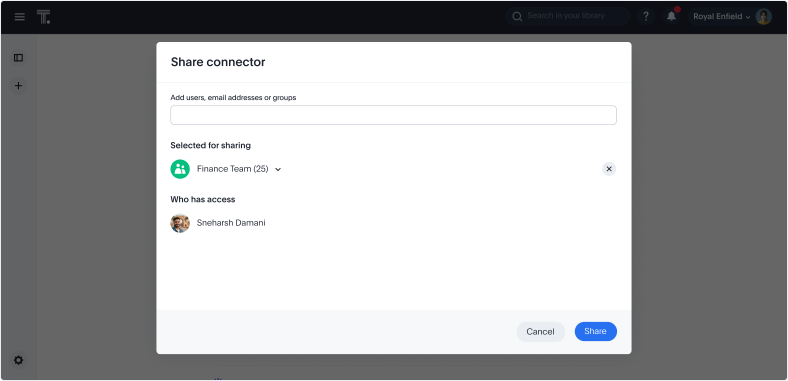
We’ve added more granular controls for sharing Spotter connectors in ThoughtSpot. Previously, if an administrator enabled a Spotter connector like Slack, it was shared with all users across all Orgs. Now, if you add a connector in the primary Org, you can choose whether to share it with certain users and groups, and it will be hidden by default from all other users and groups. You can still only add or edit connectors from the primary Org, but you can share connectors within any Org.
For more information, see Sharing a connector.
Liveboard dependency management Early Access
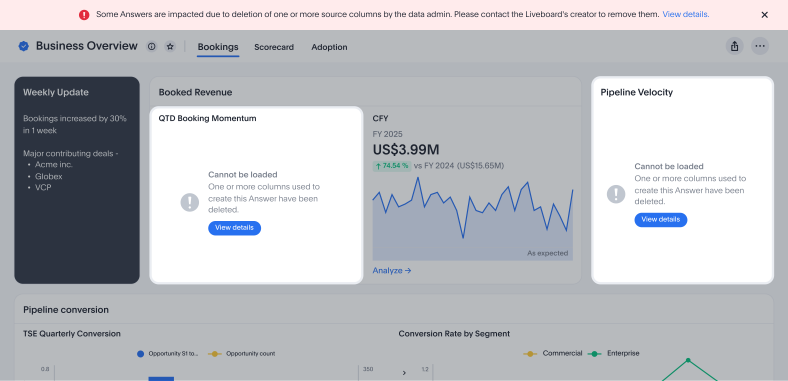
Admin users can now delete data model columns even if they’re in use on Liveboards. When a data model column that a Liveboard depends on is deleted, ThoughtSpot now detects the impact and shows you exactly what’s broken instead of displaying a generic error or silently failing. To enable this feature, contact ThoughtSpot support. For more information, see Liveboard dependency management.
Writeback for Snowflake Beta
Writeback with input tables allows you to create and edit tables directly in ThoughtSpot, where you can add new columns and update values. Data is saved back to your cloud data warehouse so you can use these tables across Answers and Liveboards. Currently, we support Snowflake cloud data warehouses. This feature supports planning, and operational workflows, removing the need for spreadsheets or manual uploads. Only users with edit permissions can make changes, and all edits are tracked for governance. To enable this feature, contact ThoughtSpot support.
For more information, see Writeback.
Muze Studio AI Beta
Muze Studio now includes an AI chat assistant that lets you build and refine custom charts using natural language. Simply describe the visualization you want, or ask follow-up questions to iterate on it, and the AI generates the configuration for you directly inside the Muze Studio editor. A built-in "Show work" timeline lets you trace each step the AI took, giving you full visibility into how your chart was constructed. To enable this feature, contact ThoughtSpot support.
For more information, see Use AI chat to create and refine charts.
Publishing from object lists GA
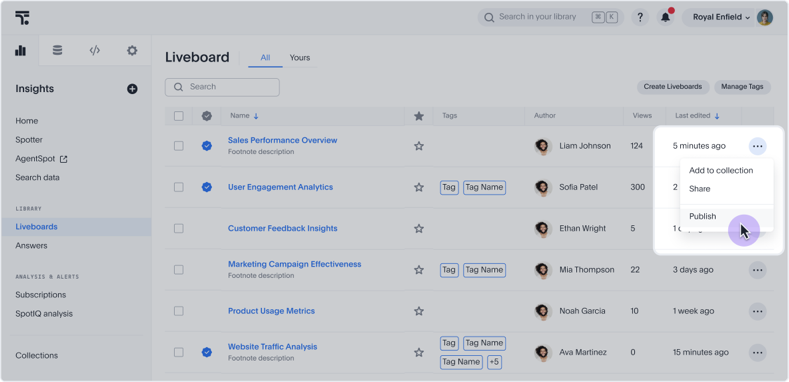
Publishing, and publishing from object lists are now generally available (GA). You can now publish, unpublish, and manage the publishing state of Answers, Liveboards, and Models directly from the list page view without having to open each object individually.
The Publish, Unpublish, and Manage publishing options are available in the row-level action menu on the Answers, Liveboards, and Data Workspace list pages. The publish and unpublish options allow you to select target Orgs, handle dependents, and confirm the action.
Publishing is a multi-Org feature. These actions are only visible in multi-Org environments where object publishing is enabled. You must be in the primary Org and be a cluster administrator to see the publish and unpublish actions.
For Models specifically, the publish action is not available for objects authored by a superuser or system user.
For more information about publishing objects across Orgs, see Publishing objects between Orgs.
Connection-level query timeout GA
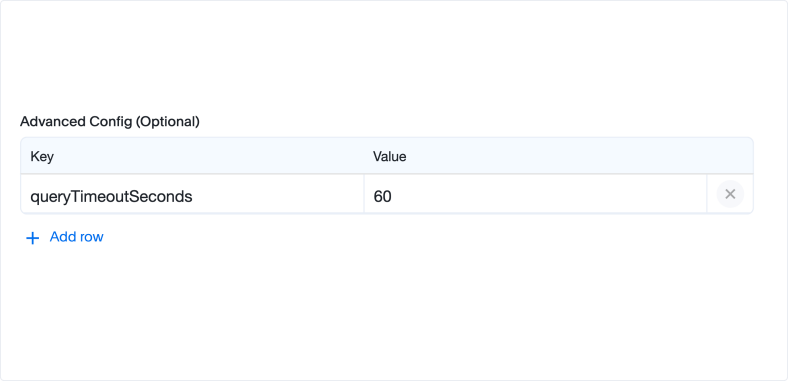
You can now set query timeout in the Advanced Config setting when you add Connections. You can define how many seconds a query should run for before it automatically times out.
Act as user Early Access
ThoughtSpot administrators can now impersonate a specific user to troubleshoot issues directly, without requiring screen shares or shadow accounts. To protect user privacy, each user must explicitly enable the Act as user setting in their profile before an administrator can initiate a session. Sessions are limited to 60 minutes, and the administrator can end the session at any time using the Exit session button. The target user receives email notifications when a session starts and ends. All actions taken during the session are captured in audit logs.
This feature is available for customers with the new Admin Portal enabled. Administrators can enable it from Feature Management > Early Access.
For more information, see Act as user.
Databricks Metric Views integration Early Access
Databricks Metric Views integration is now available in ThoughtSpot. This integration allows you to connect directly to Metric Views defined in Databricks and use them to automatically create Models in ThoughtSpot. You can import Metric Views, including metrics, formulas, and column metadata, and immediately use them for building Liveboards, running queries, analytics, and Spotter. Users with Can manage data privileges can manage and resync Metric Views as needed to reflect changes made in Databricks. To enable this feature, contact your administrator.
For more information, see Integrate Databricks Metric Views.
Data workspace page GA
The new Data workspace page is now generally available (GA). It now uses a modernized object table, making it easier to find, filter, and manage your data objects in one place. For more information, see Data workspace.
Secure suggestions in saved filter values Beta
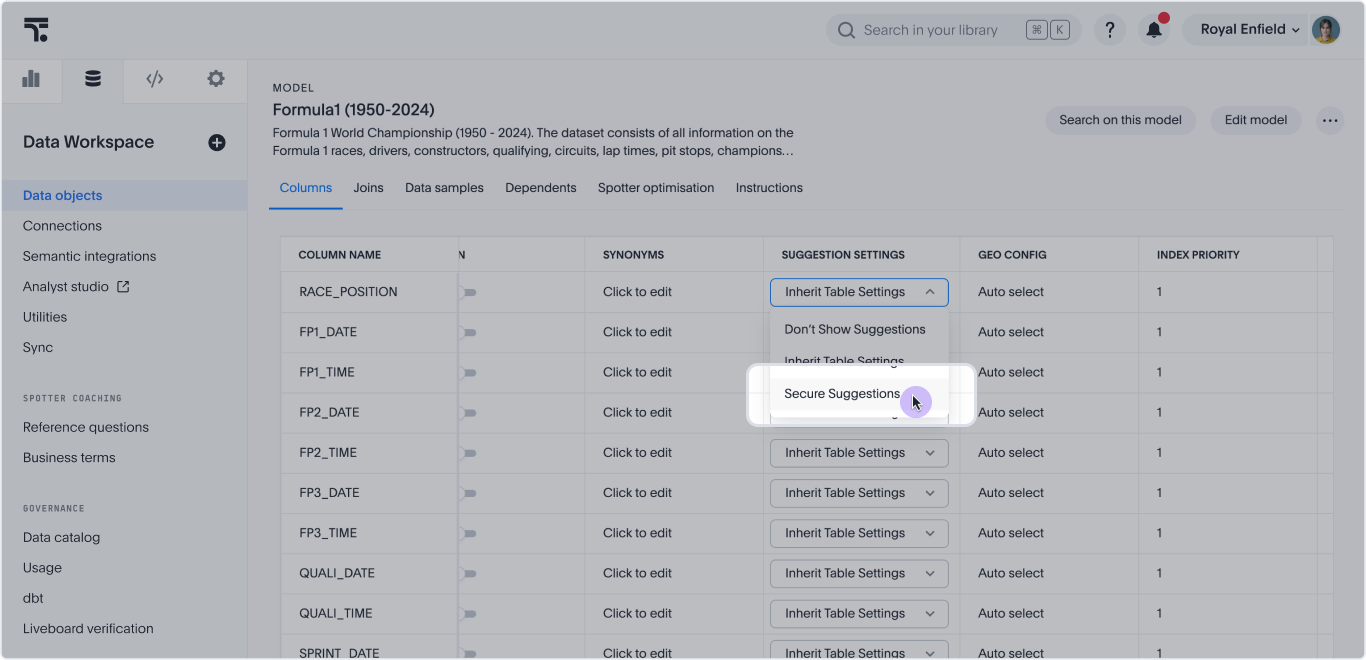
ThoughtSpot now enforces row-level security (RLS) on saved filter values in Answers and Liveboards. When a filter chip displays values from a column marked as Secure Suggestions in the data model, ThoughtSpot checks whether the current user has RLS access to those values before displaying them.
When filter values are cleared due to RLS enforcement, the user still sees data, but only the rows their RLS policy permits. An empty filter chip on a secured column does not mean no data; it means the saved filter values were not applicable to this user and the RLS policy is the active constraint.
To enable this feature, contact ThoughtSpot support. For more information on secure suggestions and RLS, see Secure suggestions in saved filter values.
Object IDs in template variables Beta
You can now define object IDs for variables in TML or the API. Object IDs now support multi-tenant objects. Use object IDs in tandem with GUIDs that identify objects in TML. You can use object IDs to identify objects that you export in TML and import to other Orgs, removing the need to completely recreate objects between Orgs. For more information, see
Language support for Polish, Romanian, Turkish, and Ukrainian GA
Amazon Athena driver upgrade GA
We have upgraded the Amazon Athena driver to version 3.8.0. For more information, see Cloud data warehouse driver details for connections.
For the Developer
For new features and enhancements introduced in this release of ThoughtSpot Embedded, see ThoughtSpot Developer Documentation.
26.9.0.cl
September 2026 26.9.0.cl
Spotter 3 visual redesign GA
We have redesigned the experience in Spotter 3 to look more streamlined and conversational. No functional changes have been made to how Spotter defines its reasoning, the "thinking" behind the answer. The search bar options have been simplified, but no functionality has been removed.
Multiple Model selection in Spotter Beta
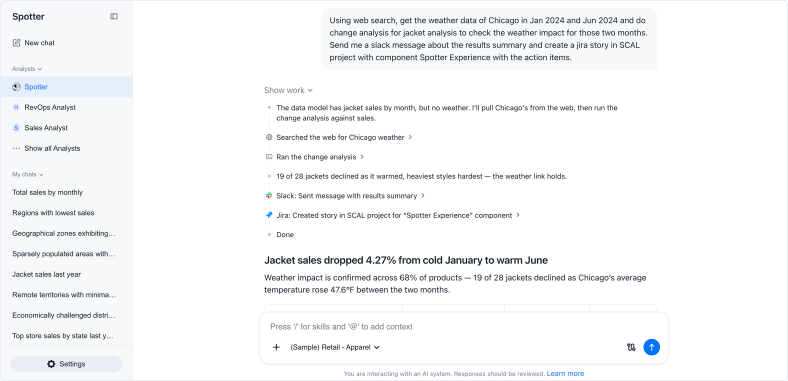
You can now select multiple Models to search on in a single Spotter conversation. For example, you could select a Revenue Model and a Finance Model and ask a question that spans data from both. To enable this feature, contact ThoughtSpot support. For more information, see Cross data model search in Spotter.
Pin a chat in Spotter GA
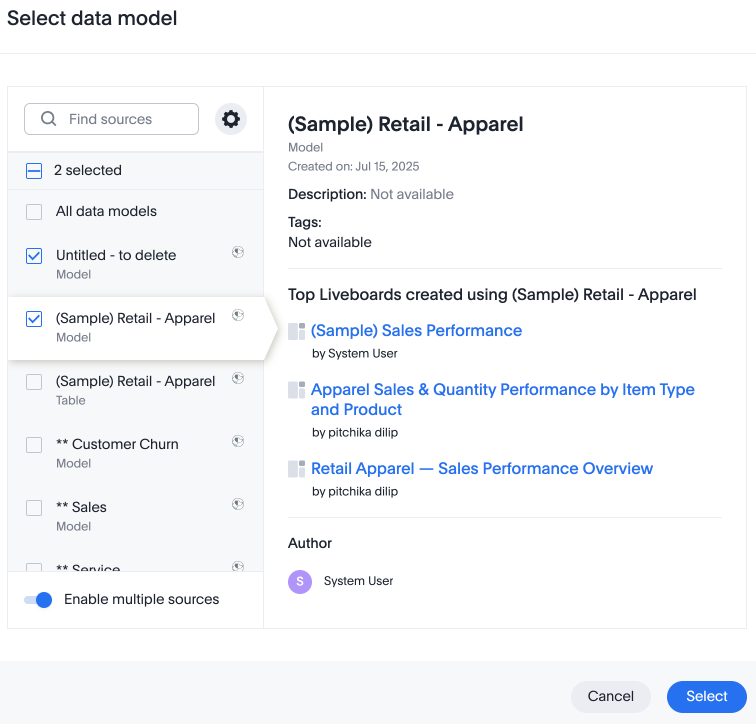
You can now pin chats to the top of the view in the Spotter side menu, so they’ll be easy to find. Pinned chats are organized by which chat has the most recent activity — most recently interacted with, or most recently pinned. For more information, see Pin a chat.
Spreadsheet on live data Early Access
Spreadsheet puts a familiar, editable grid directly on your live data. Open any ThoughtSpot data model, table, or dataset, and every column and formula you add runs as a live query against the governed model, with no export and no stale copy. Formula columns persist as governed logic, while sorting, filtering, conditional formatting, and text and number formatting let you shape the grid on the fly. Save your work as an Answer that stays searchable, shareable, and governed like anything else in ThoughtSpot.
-
Columns and formulas on live data: Build new metrics with 70+ built-in functions. Every formula runs as a live query and persists as governed logic your team can reuse.
-
Shape your view instantly: Sort, filter, conditional formatting, and text and number formatting help you focus on what matters, applied live on the data.
-
Save as a governed Answer: Your spreadsheet becomes a searchable, shareable object with security and lineage intact, never a disconnected export.
-
Built for real datasets: Scroll seamlessly through large result sets and switch to full-screen mode for focused analysis.
To enable this feature, contact ThoughtSpot support. For more information, see Spreadsheet.
Search data query cancellation GA
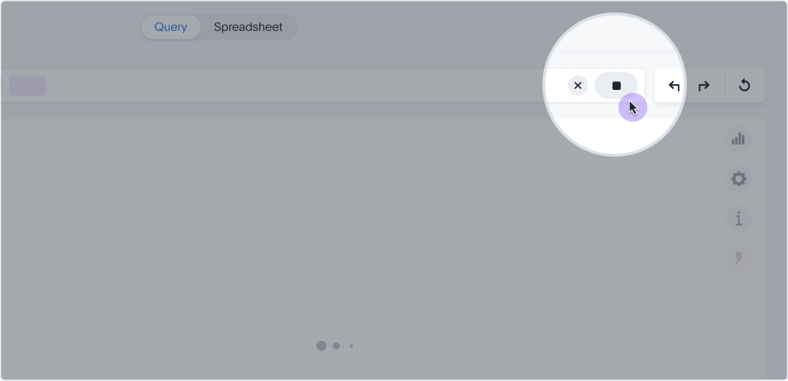
ThoughtSpot query cancellation for Search data is now generally available (GA). You can now stop in-progress queries on your cloud data warehouse (CDW) when you want to change or abandon a search. This reduces unnecessary CDW spend and lets you iterate faster.
Previously, queries made using Search data continued running until timeout or completion even after you modified the search, navigated away, or edited an Answer. This release introduces two cancellation mechanisms:
-
Implicit cancellation
ThoughtSpot automatically sends a cancel signal to the CDW when your action clearly indicates you no longer need the current result. For example, when you change the search bar, navigate to a different page, or open an Answer for editing from a Liveboard or Spotter.
-
Explicit cancellation
A Cancel button is available on the Search data page for queries you want to stop manually. For more information, see Search bar features.
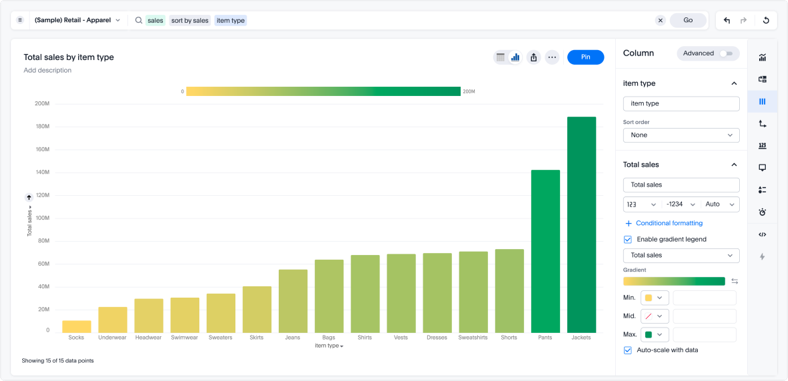
Gradient legends for charts GA
You can now encode a continuous measure, like profit margin or revenue, as a color gradient directly in the following charts in the new charts library:
-
Column (non-stacked)
-
Bar (non-stacked)
-
Line-column (non-stacked)
-
Scatter
-
Bubble
-
Donut (Arc marks, where the gradient applies to the slice fill)
Instead of building a separate chart or data table to surface a second variable, you can enable a gradient legend on any measure column and optionally set a "Vary by" measure to drive the color scale independently of the displayed value. This makes it faster to spot outliers, patterns, and directional trends at a glance. Hovering over a data point shows the exact value of the "Vary by" measure in the tooltip.
For more information, see Gradient legends.
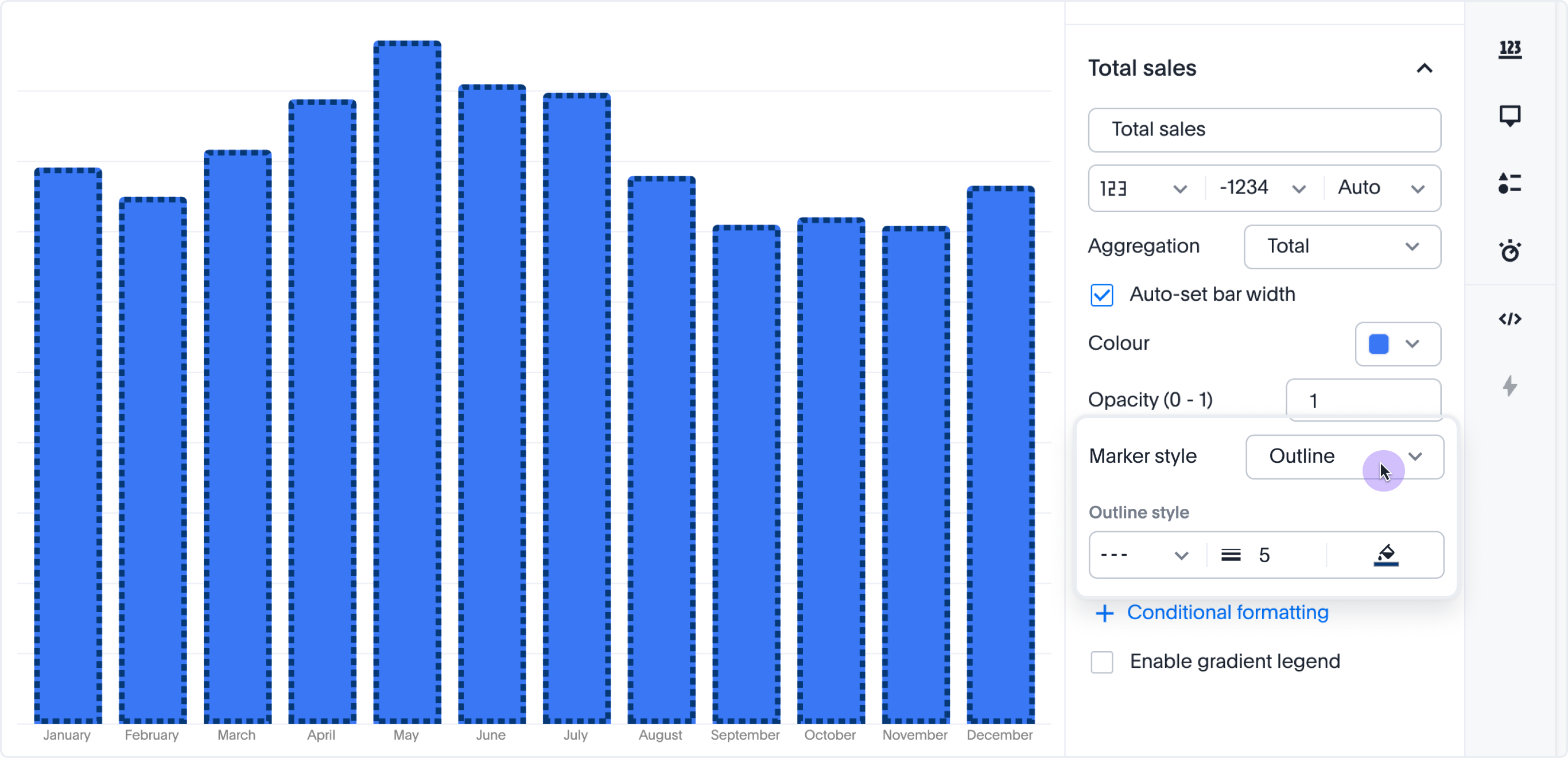
Outline encoding support GA
You can now use data to drive the outline (border) color of chart markers such as bars, arcs, and points. Bind a field to the outline color encoding to automatically generate an ordinal color palette or a continuous gradient, complete with legend and tooltip support. Outline width and dash style remain configurable per data point. Existing outline configurations are fully backward compatible. For more information, see Chart marker styles.
Horizontal scrollbar for charts and pivot tables GA
ThoughtSpot now renders a horizontal scrollbar across all chart types. For pivot tables, this removes the previous row-header column width cap, so attribute labels render at their full natural width instead of being truncated. The scrollbar behavior is consistent across chart types and viewport sizes. For more information, see Understanding charts.
Collections enhancements GA
ThoughtSpot adds two enhancements to Collections in this release.
-
You can now filter the content in a Collection using column headers, such as Type and Author. The filtering experience is consistent with the Answers and Liveboards list pages.
-
You can now star a Collection to mark it as a priority in your Collections view. Starred Collections stand out in the Collections list so you can quickly find the containers you are actively working in. For more information, see Filter content in a Collection and Star a Collection in Collections in ThoughtSpot.
Other features and enhancements
Spotter memory GA
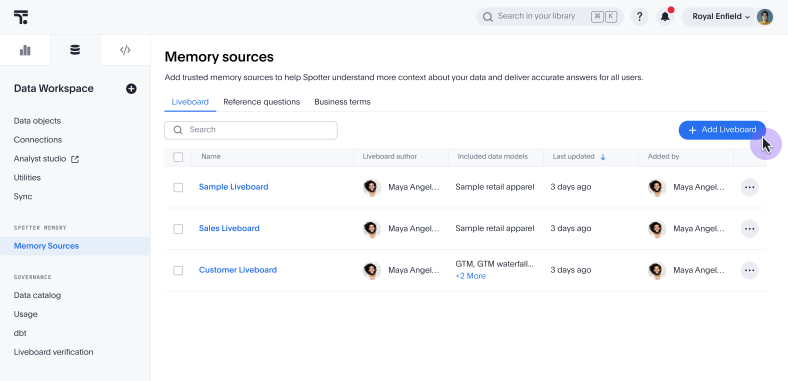
Spotter memory from Liveboards, personal memory, and memory from conversations are now generally available (GA). Additionally, we have added a regenerate option to refresh your memory in the Memory sources page in order to stay in line with changes to underlying Liveboards. For more information, see Add memory from conversations, Add memory from Liveboards, and Spotter personal memory.
Remember this button in Spotter 3 GA
We have replaced the previous + Add to memory button with a Remember this button. If you click Remember this below a Spotter answer, it triggers a command for Spotter to add the answer’s specifications directly to memory. You see a preview of the exact definitions it adds to conversational memory. Remember this is only supported for Spotter 3. For more information, see Remember this.
AI context redesign GA
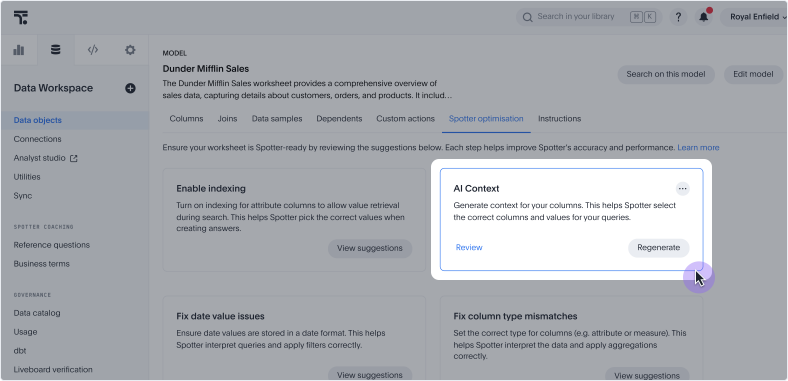
You can now prompt the creation of AI context from the Spotter optimization tab on a Model. Note that you must have edit access to a Model to create AI context. If you enable Spotter on a Model, it triggers AI context generation automatically. For more information, see AI context.
Early Access flag management GA
Cluster admins can now view and manage Early Access flags that are not Org-aware directly from Admin > Feature Management > Early Access. Previously, these flags were only accessible via CLI and did not appear in the Feature Management UI.
This feature is visible only to cluster admins. Org Admins do not see non-Org-aware flags in Feature Management. For more information, see Admin portal enhancements.
Scheduled Liveboards: dedicated connection configuration GA
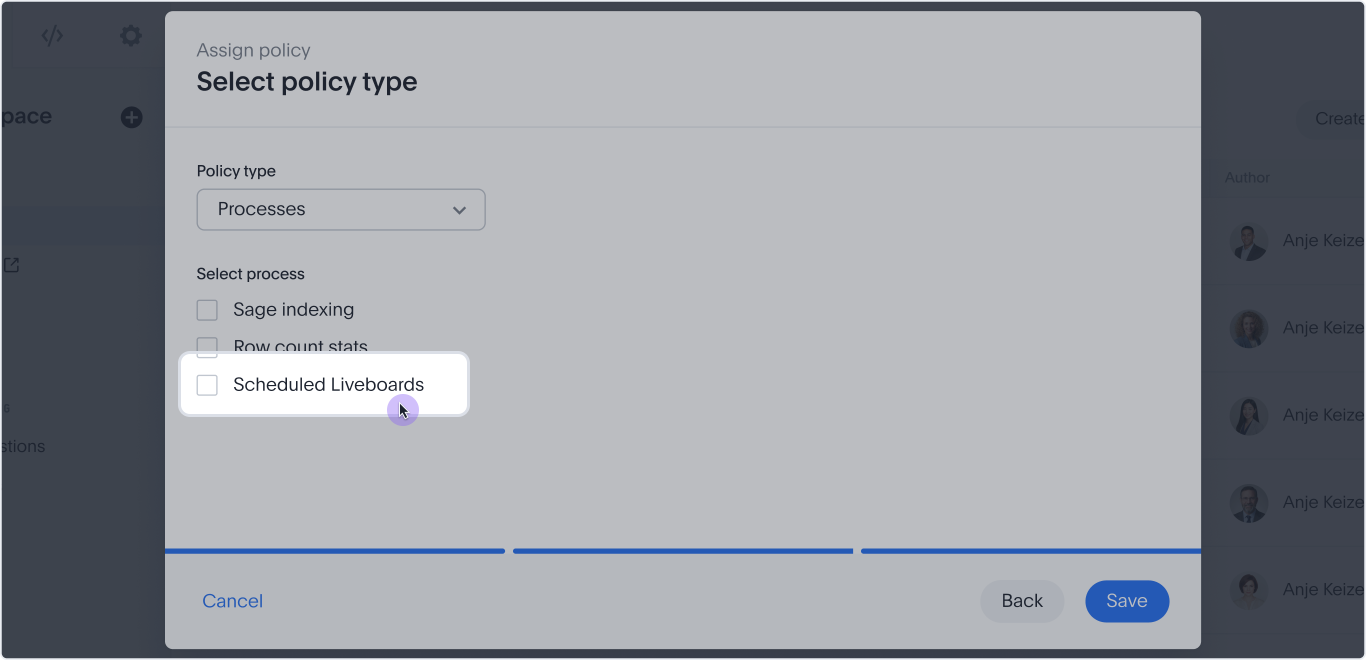
You can now add a Scheduled Liveboards process type to a connection configuration, so scheduled Liveboard queries can use a separate warehouse, credentials, or non-OAuth authentication method instead of the parent connection’s defaults.
Look for the new Scheduled Liveboards checkbox under the Processes policy type in Connection Configuration, alongside the existing Row count stats option.
Supported connectors |
Snowflake, Databricks, Google BigQuery |
Authentication |
Non-OAuth only |
Query routing |
Scheduled Liveboard tasks automatically route to this configuration |
Limits |
One configuration per process type; multiple processes can share a single configuration |
For more information, see Add a Snowflake connection, Add a Databricks connection, and Add a Google BigQuery connection.
Manage and remove parameterization from the UI GA
Administrators can now manage and remove parameterization on tables and connections directly from the ThoughtSpot UI when publishing is enabled. From the tables or Connections page, administrators can remove variable bindings from one or more objects or use the new Manage Parameters option to view, edit, add, or remove individual field-to-variable mappings without starting over. To use this feature, publishing must be enabled by ThoughtSpot support. For more information, see Unparameterize metadata objects.
Aggregate-aware query execution GA
Aggregate-aware query execution is now generally available (GA). Search data automatically switches from detailed Models to associated aggregate Models based on query granularity, reducing cloud costs and improving query latency without affecting insight accuracy. For more information, see Aggregate-aware query execution.
Databricks driver upgrade GA
We have upgraded the Databricks OSS driver to version 3.4.1. For more information, see Cloud data warehouse driver details for connections.
For the Developer
For new features and enhancements introduced in this release of ThoughtSpot Embedded, see ThoughtSpot Developer Documentation.
26.8.0.cl
August 2026 26.8.0.cl
SpotterViz insight tiles Early Access
SpotterViz insight tiles are now Early Access (EA). Insight tiles display AI-generated text analysis on a Liveboard. You configure the tile with instructions that define how the data should be interpreted — including which signals to surface and what conditions should be flagged. Each time the Liveboard loads, the agent executes those instructions against the current data and produces a text output. The tile supports outputs ranging from a single summary sentence to a multi-step analysis, depending on how the prompt is written. To enable this feature, contact your ThoughtSpot administrator.
For more information, see Insight tiles.
Command palette enhancements GA
The command palette (Cmd + K on Mac / Ctrl + K on Windows and Linux) includes several enhancements in this release:
-
Smarter search results — Search results are now ranked by relevance, surfacing the most useful answers, Liveboards, and destinations based on your query and usage history.
-
Navigate with / filters — Type /navigate in the palette to scope results to application destinations, including sub-section headings. Navigation results respect your role and permissions, so you only see sections you can access.
-
Onboarding tips — First-time users see contextual guidance in the palette’s empty state, helping you discover what the command palette can do without leaving your current page.
-
Updated visual design — Refreshed color tokens bring the palette’s appearance in line with the latest ThoughtSpot design system.
For more information, see Command palette.
Continuous Liveboard PDF experience GA
The continuous Liveboard PDF experience is now generally available (GA). This feature eliminates page breaks and preserves the layout of the original Liveboard, ensuring the exported PDF remains true to the on-screen experience. For more information, see Download a Liveboard.
Timezone-aware keywords GA
Timezone-aware keywords are now generally available (GA). Time zone-aware keywords ensure that relative date filters in ThoughtSpot — like "today," "yesterday," and "last 7 days" — always reflect the correct time for each user, no matter where they are in the world. This ensures that all searches, Liveboards, and dashboards automatically show time-based data that matches local business hours. For more information, see Timezone-aware keywords.
Other features and enhancements
Spotter Analysts Early Access
Spotter analysts are now Early Access (EA). You can create Spotter Analysts-- focused, governed analysts that tailor Spotter to a specific team, use case, or domain. Instead of accessing the general Spotter experience, configure the context once: which data models the agent can see, custom instructions that shape its behavior, the connectors it can use, and who the workspace is shared with. Open a Spotter Analyst and you enter a pre-configured experience the moment you start. To enable this feature, contact your administrator. For more information, see Spotter Analysts.
SpotterModel GA
SpotterModel is now generally available (GA). You can use SpotterModel to generate comprehensive, optimized Models ready to use in your analysis. SpotterModel automates table selection, join creation, and column selection, while allowing you to review and customize each step.
For more information, see SpotterModel.
Spotter starter prompts GA
You can now add potential first search options-- quick searches with preselected questions, deep analyses, or data knowledge prompts-- to guide first-time users of Spotter. For more information, see Spotter starter prompts.
Share chats Early Access
Sharing a chat lets your organization put Spotter’s insights to work. Rather than passing on a screenshot or an exported report, you hand over the analysis in the form the work was done: recipients open the same thread and follow the questions, the iterations, and the analysis that led to the conclusion, as you intended it to be read.
For more information, see Share a Spotter chat.
Test connection for Spotter connectors GA
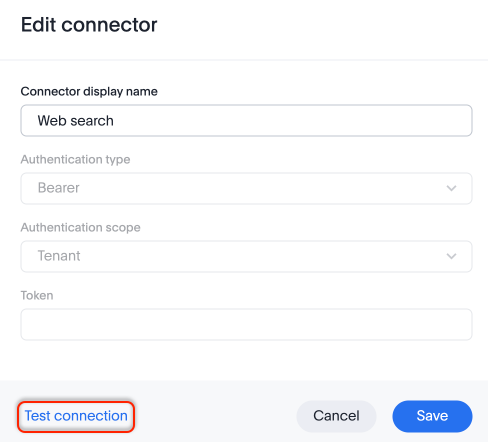
You can now validate that your MCP connectors are connecting and functioning, from the Spotter AI settings panel. When you configure a new connector from the Spotter AI settings panel, click Test connection to prompt a validation of the server connection, the tool listing, and the tool call. If the connection fails, you see a detailed error showing what needs to be done to fix the connection. For more information, see Spotter connectors.
Manage permissions for Spotter connectors GA
You can now edit tool call permissions individually when you set up a Spotter connector. Although the default is that read-only tools are enabled for all users, and write/delete tools and interactive tools require user approval, you can individually change the needed permissions for each tool. You can mark each tool as Always allow, Needs user approval, or Always deny. For more information, see
Spotter connectors.
Migrate Spotter memory across environments GA
You can now export Spotter memory, the rules and recipes Spotter has learned for your data models, and import it into another environment using ThoughtSpot REST APIs. This lets you carry accumulated intelligence from development to production, replicate it across Orgs, or seed a new data model. For more information, refer to the Spotter memory migration API documentation.
Admin portal enhancements GA
ThoughtSpot introduces a redesigned Admin settings experience with a cleaner, role-aware interface built to scale with multi-Org enterprise deployments. Settings are now grouped into focused categories — users, Orgs, features, appearance, and security.
Information architecture GA
The enhanced Admin portal reorganizes the administrative interface into four primary sections:
Home: The foundational landing page for creating Orgs and Users, kept outside of general management. Houses the most frequently used administrative functionalities. Management: Contains overarching settings and feature management that apply across the entire instance or organization. Configuration: Houses specific feature settings for a given organization, organized via clean sub-tabs and accordions. Includes Application Settings, Search & SpotIQ, and Customization tabs. Monitor: A dedicated space for tracking system health, operational status, and granular object and usage adoption details.
Org and user management
-
Create, rename, and delete Orgs from one central location.
-
Users, Roles, Groups, and Provisioning are now subtabs under User Management.
-
Click any user to view their details (name, email, role, groups, and status) in an inline card without leaving the page.
-
When creating a group, assign roles, nest child groups, and add users in a single workflow.
-
Assign Org admins and manage users across Orgs without contacting your instance admin.
-
View all Org details — creation date, creator, users, groups, and enabled feature flags — in one place.
-
Separate interfaces for instance administrators and Org administrators keep each role’s view focused and relevant.
Feature management
-
Enable or disable Early Access and GA features per Org, with no impact on other Orgs and no system restart required.
-
Org admins can customize styles, features, and notifications for their Org independently of instance-level defaults.
-
Allocate self-service feature management to specific Orgs, giving Org admins control to toggle features for their own Org.
Configuration
-
Application settings, customizations, AI settings, and Search and SpotIQ configuration are consolidated in one location.
-
Settings are organized into collapsible sections.
-
The page has two sub-tabs: Application Settings (auth, security, email) and Customization (logos, colors, styles).
Monitor
-
System health, performance, stats, and adoption and usage data are available in a single location.
This feature will be gradually released to customer instances with the 26.8.0.cl release. For status of when your instance will receive it, or for assistance, contact ThoughtSpot support.
For more information, see Admin settings portal enhancements.
Column aliases in reference questions and business terms GA
Reference questions and business terms now respect column aliases built in the underlying Model. For example, if you create column aliases in Spanish for a data model with English column titles, the reference question in the Memory sources page would display the alias for users with Spanish locales.
User-defined column aliases GA
Column aliasing for user-defined (UDF) columns is now generally available (GA). You define context-aware display names for columns in a Model, so that different users see the column names that are meaningful to them — based on their ThoughtSpot group, Org, or preferred language. A single Model can serve multiple client groups or locales without the need to maintain separate replicas, reducing complexity and memory overhead. To enable column aliasing for UDF columns, contact ThoughtSpot support. For more information, see User-defined column aliases.
Split download privilege GA
Split download permissions for Liveboards and schedules Separate download permissions for Liveboards and schedules are now generally available (GA). The download privilege has been split into separate, more granular permissions to enhance data security and administrative control. Administrators can now assign download privileges for visual downloads (PDF/PNG) and data exports (XLSX/CSV) independently. These new permissions are respected for both direct downloads and scheduled reports. For more information, see Understand RBAC and privileges.
Snowflake semantic integration enhancements Early Access
ThoughtSpot introduces the following enhancements to the Snowflake semantic integration experience:
-
A new inline editor
-
A new refreshed user experience
-
A new option in the more menu to import semantic updates
To enable this feature, contact ThoughtSpot support.
For more information, see Integrate with Snowflake Semantic Views.
Column security rules GA
Column security rules are generally available (Opt-in) in this release. Column security rules (CSR) let you restrict access to sensitive columns without the complexity of managing per-column shares.
Mark a column as protected and assign group access through the new Manage access panel — users who do not belong to an assigned group cannot see the protected column in search, Answers, or Liveboards, even if the table is shared with them. Protection is automatically inherited by Model and view columns derived from a protected base column. CSR coexists with the existing column-level security model — enabling CSR does not affect your current configuration. To enable this feature, contact ThoughtSpot support. For more information, see Column security rules.
Personalized views enhancements Early Access
ThoughtSpot now protects user-created personalized views when you migrate Liveboard TML across environments. Previously, importing an updated Liveboard TML from a development environment would overwrite all views in production, including those created by end users. The username and the email of the owner of each view is now displayed in the Liveboard TML so administrators can see who owns each view, and can transfer ownership by editing that info in the Liveboard TML. Personalized views now also have Object IDs, similar to tables and model references in the Liveboard TML. With this release, ThoughtSpot uses a smart merge approach. Smart merge is only possible using the TML import APIs. Using the API, you can opt in to smart merge by passing a new field as TRUE. The UI will continue to show the original merge logic. Views that exist only in production are preserved, new views from the source TML are added, and views present in both are updated. For more information, see Import and export TML files.
To enable this feature, contact your administrator.
New connection experience GA
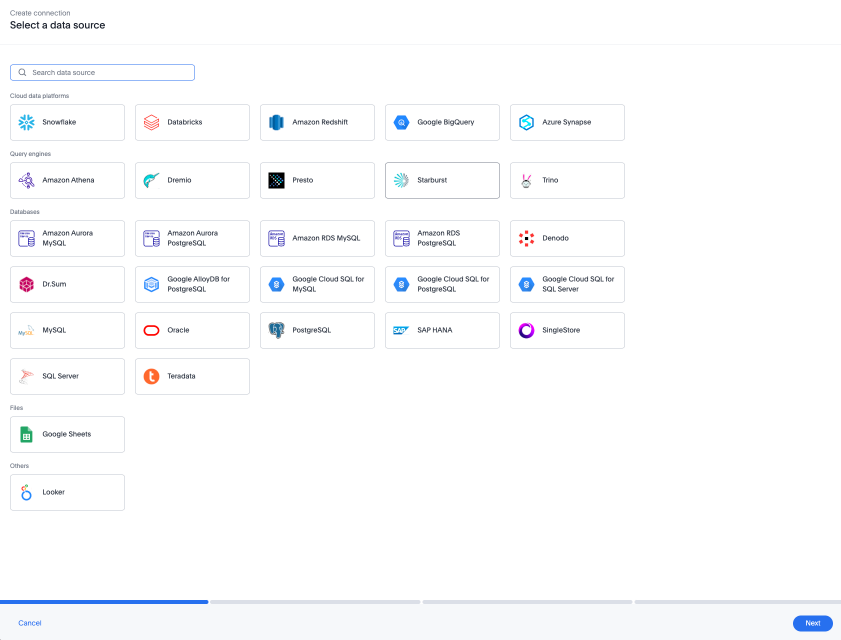
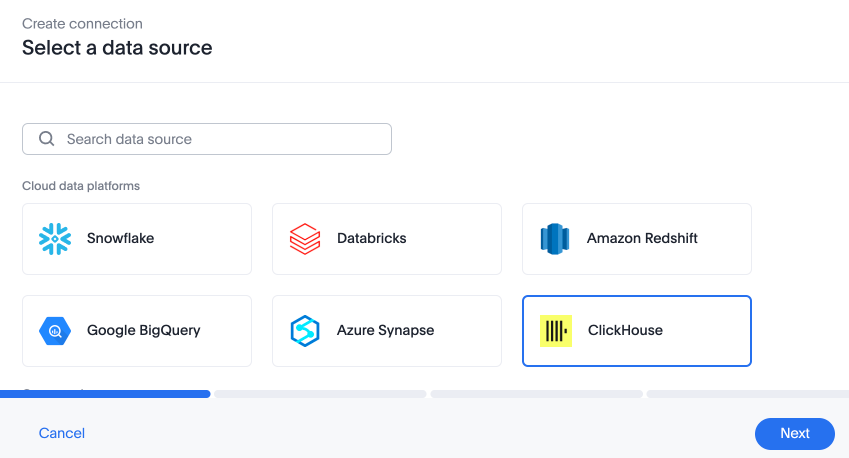
The new connection creation experience is now generally available (GA). We redesigned and streamlined the process to create a Connection. Set up your Connection in four easy steps by selecting a data source, configuring the Connection, selecting databases, and selecting tables.
For more information, see New connection configuration experience.
ClickHouse connection GA
ClickHouse connections are now generally available (GA). For more information, see ClickHouse.
For the Developer
For new features and enhancements introduced in this release of ThoughtSpot Embedded, see ThoughtSpot Developer Documentation.
26.7.0.cl
July 2026 26.7.0.cl
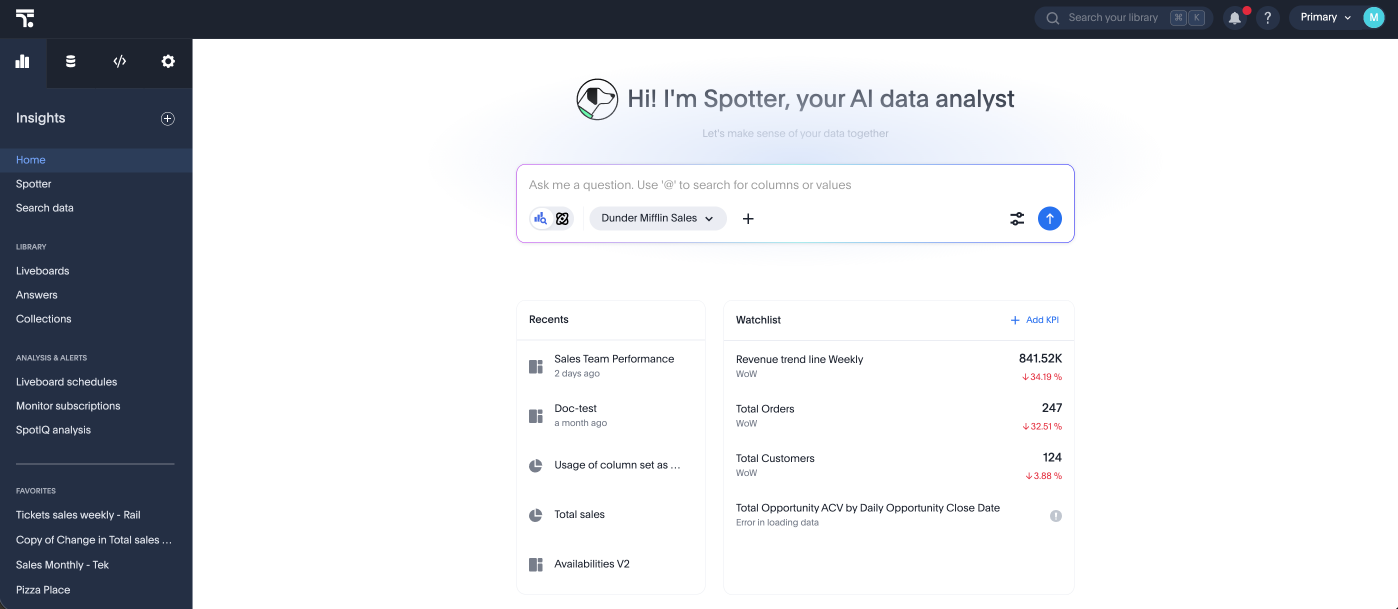
Focused home page Early Access
ThoughtSpot introduces a new focused home page experience option. The focused home page delivers a streamlined, contemporary experience for users that highlights the Spotter experience. Administrators can manage the home page version for all Orgs when the feature is enabled. To enable this feature, contact your administrator. For more information, see Focused home page.
New charts library GA
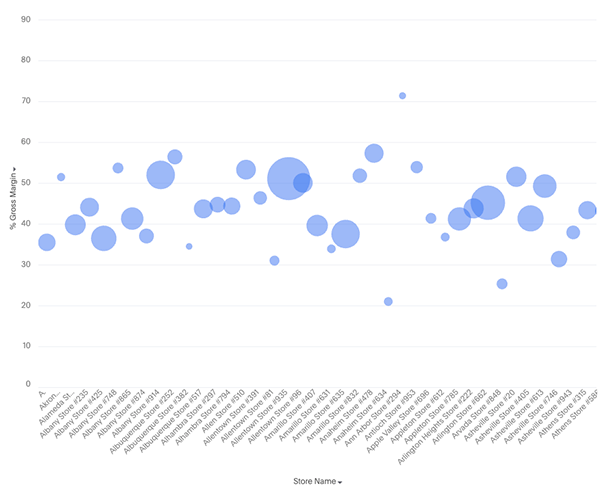
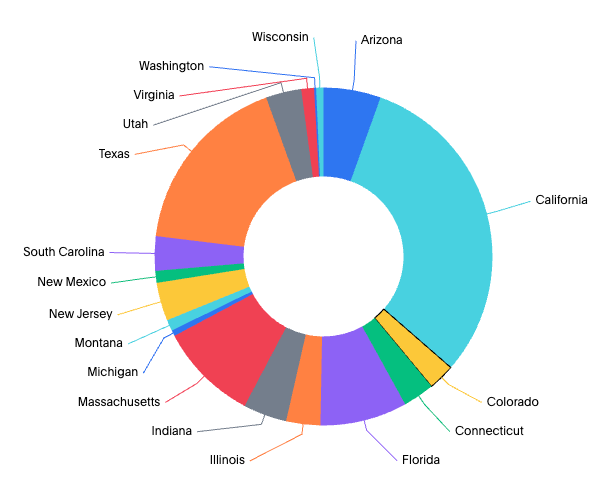
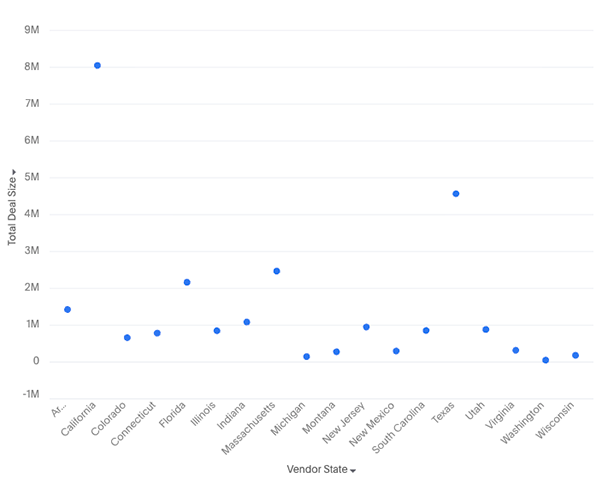
The new charts library is now generally available (GA) and is the default charting experience in ThoughtSpot. These new charts unlock sophisticated visualizations like faceted, cross-tabbed, multivariate, and bullet charts. They also resolve previous limitations by allowing multiple columns in line column charts and slicing by color with multiple measures, while providing deeper granular control over configurations such as tooltips, data labels, and axes.
In this release, we introduce the following new charts:
-
Bubble
-
Donut
-
Scatter
SpotterViz insight tiles Beta
Insight tiles display AI-generated text analysis on a Liveboard. You configure the tile with instructions that define how the data should be interpreted — including which signals to surface and what conditions should be flagged. Each time the Liveboard loads, the agent executes those instructions against the current data and produces a text output. The tile supports outputs ranging from a single summary sentence to a multi-step analysis, depending on how the prompt is written. To enable this feature, contact your Customer Success Manager (CSM).
For more information, see Insight tiles.
Command palette GA
The command palette is now generally available (GA). You can now access anything in ThoughtSpot from a single keystroke. The command palette (Cmd + K on Mac / Ctrl + K on Windows and Linux) is a global command center that unifies navigation, search, and actions across the ThoughtSpot platform. Instead of switching between menus, list pages, and contextual controls, you can find content, trigger workflows, and navigate to any part of the product — all from one place.
With the command palette, you can:
-
Search across Liveboards, Answers, Models, and more in one place.
-
Launch a new Answer, Liveboard, or Spotter chat.
-
Jump to any section of ThoughtSpot directly, from Home to Admin settings.
-
Type your data question and send it straight to Spotter.
-
Press forward slash (/) to filter your search by Liveboards, Answers, Admin Settings, Create, Spotter, Models, Tables, and Collections.
AgentQL Beta
Spotter now uses AgentQL — a smart semantic query engine — to answer complex analytical questions that go beyond what standard token-based answers can express, like questions involving nested logic, comparative rankings, derived metrics, and multistep filtering. AgentQL generates and executes precise semantic queries directly against your connected data source, grounded in your ThoughtSpot semantic model. Just ask your question in plain English, and Spotter handles the rest. To enable this feature, contact ThoughtSpot support. For more information, see AgentQL.
Other features and enhancements
Spotter Analysts Beta
You can now create Spotter Analysts-- focused, governed analysts that tailor Spotter to a specific team, use case, or domain. Instead of accessing the general Spotter experience, configure the context once: which data models the agent can see, custom instructions that shape its behavior, the connectors it can use, and who the workspace is shared with. Open a Spotter Analyst and you enter a pre-configured experience the moment you start. For more information, see Spotter Analysts.
Personal memory Early Access
Spotter can now create memory based on a single user’s conversations, remembering your personal preferences every time you give a correction. For more information, see Learn from conversations and Spotter personal memory.
Can manage Spotter privilege GA
Can manage Spotter is the privilege for a Spotter administrator — the person responsible for how Spotter behaves across the organization. It lets a user manage Spotter’s global coaching, memory, Spotter instructions, and Spotter Analysts.
Nothing changes for your existing setup. Can manage Spotter is opt-in and assigned by an administrator. No existing privilege or access is modified — coaching access, can manage data models, and can use Spotter privileges all continue to work exactly as before.
For more information, see Can manage Spotter privilege.
Org-aware Spotter feature flags Beta
ThoughtSpot introduces Org-aware Spotter feature flags enablement. Org-aware Spotter feature flags allow cluster administrators to allocate Spotter features to specific Orgs, and lets Org administrators independently enable or disable these features for their users. This means each Org within a multi-Org ThoughtSpot deployment can have its own Spotter AI configuration, without affecting other Orgs. To enable this feature, contact ThoughtSpot support. For more information, see Managing Org-aware Spotter features flags.
Writeback for Snowflake Beta
ThoughtSpot introduces writeback tables. Writeback with input tables allows you to create and edit tables directly in ThoughtSpot, where you can add new columns and update values. Data is saved back to your cloud data warehouse so you can use these tables across Answers and Liveboards. Currently, we support Snowflake cloud data warehouses. This feature supports planning, and operational workflows, removing the need for spreadsheets or manual uploads. Only users with edit permissions can make changes, and all edits are tracked for governance. To enable this feature, contact ThoughtSpot support. For more information, see Writeback.
Manual translation service for Liveboard and Answers GA
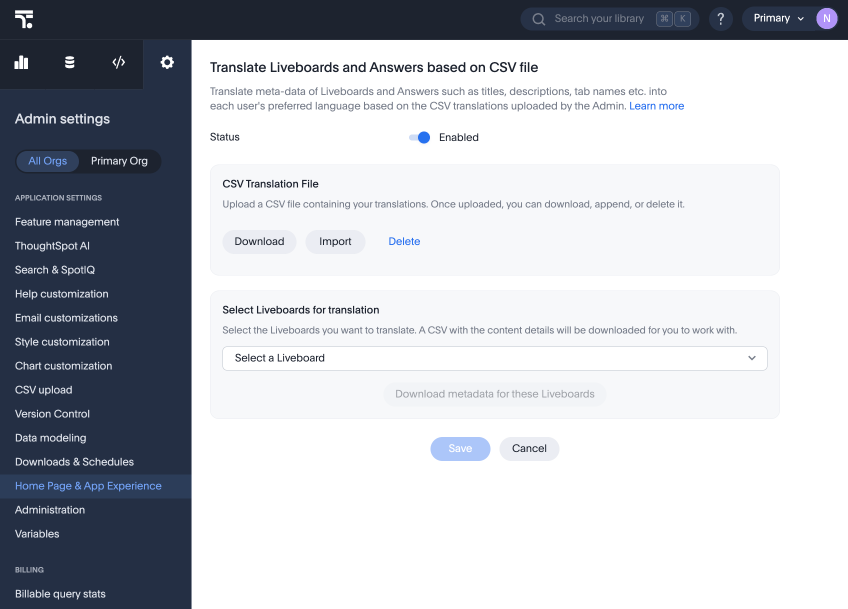
To take more control over how ThoughtSpot translates content for users in other locales, you can manually upload a CSV containing translations of terms and labels in Liveboards and Answers. These translated terms appear in ThoughtSpot automatically when a user in the defined locale language opens the Liveboard or Answer. For more information, see Manual translation.
dbt MetricFlow integration - Databricks support Early Access
ThoughtSpot introduces support for Databricks as an underlying cloud data warehouse (CDW) in dbt MetricFlow. To enable this feature, contact you administrator. For more information, see Integrate with dbt MetricFlow.
dbt MetricFlow public APIs Early Access
You can now use dbt MetricFlow public APIs, which will help to create or manage dbt MetricFlow models programmatically. To enable this feature, contact you administrator. For more information, see Integrate with dbt MetricFlow.
Org isolation while using per-Org SAML GA
ThoughtSpot now enforces strict Org boundaries when authenticating users through per-Org SAML identity providers (IdPs). When a user logs into an Org via a per-Org IdP, ThoughtSpot filters all incoming SAML group claims and silently drops any claim that references a group in a different Org. This prevents an IdP from granting unauthorized access across Org boundaries.
Org-scoped Identity Provider (IdP) connections UI Beta
ThoughtSpot introduces support for Org-scoped IdP connections and login page rendering. This update allows you to create IdP connections that are fully isolated per Org, ensuring that users can only authenticate into the Org associated with their IdP connection. The login page for each Org displays only the IdP connections configured for that Org, eliminating unpredictable login flows. Administrators can configure the system to show all IdP connections or just a default one per Org. This change prevents first-time login dead ends and aligns authentication with Org isolation principles. To enable this feature, contact ThoughtSpot support. For more information, see Org-scoped IdP connections and login page rendering.
For the Developer
For new features and enhancements introduced in this release of ThoughtSpot Embedded, see ThoughtSpot Developer Documentation.
26.6.0.cl
June 2026 26.6.0.cl
Spotter 3 GA GA
Spotter 3 is now generally available:
Key features:
-
Data-aware intelligence: Now securely reads the specific results of your query to write accurate insights and answer follow-up questions with full context.
-
Insight storage and chat history: Generates insights from your data and stores them in ThoughtSpot Cloud as your conversation history with Spotter.
-
Data security: Processes only the data needed to answer your question. Your data is sent to the LLM only to generate insights and is never stored or used for training.
-
Analyst-grade reasoning: Creates a plan, validates assumptions, and self-corrects to provide you verifiable results.
-
Narrative insights: Provides rich text summaries explaining why your data looks the way it does.
-
Automatic Model selection: Identifies and queries across multiple data models at the same time and selects the most relevant data source(s) based on your question.
-
Integrate your tools into Spotter: Integrate ThoughtSpot’s powerful agentic analytics capabilities into your own custom AI agents using the ThoughtSpot MCP server.
More information:
-
For details on the features each Spotter version supports, see Spotter versions.
-
For an overview of Spotter 3, watch the Spotter 3 introduction video.
-
To get started with Spotter, see Getting started with Spotter.
Spotter CSV upload support GA
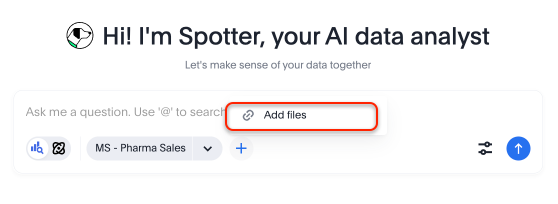
You can now upload CSV files directly to Spotter, enabling ad-hoc data analysis without requiring a pre-built data model. This feature makes it faster to explore and get insights from external data files directly in the Spotter interface. Simply click the + icon next to the Model selection button in the search bar and select the file you plan to upload. Note that the files you upload remain only in your conversation, and are not stored in ThoughtSpot. Files persist in your conversation for up to an hour. The size limit is 5 mb per file, 10 files per message.
For more information, see Spotter CSV upload.
Spotter answer stop button GA
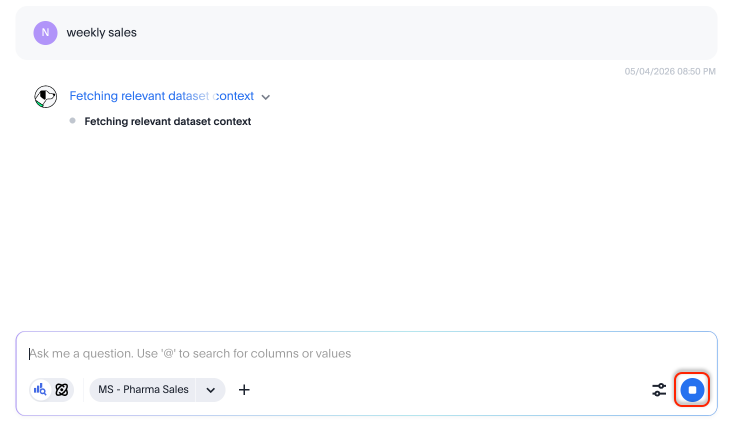
You can now stop in-progress answer generation in Spotter, giving greater control over query execution and improving the experience when you need to revise a query. For more information, see Getting started with Spotter.
SpotterViz enhancements GA
We have made the following enhancements to SpotterViz:
-
When you create a new Liveboard and SpotterViz is enabled, the Liveboard opens in edit mode.
-
You can now drag the SpotterViz window to resize it.
-
While SpotterViz is working, you can add additional prompts.
For more information, see SpotterViz.
SpotterViz charting skills GA
You can now make the following types of changes by prompting SpotterViz:
- Visual editing
-
Reference and modify specific visualizations, groups, or tabs.
- Bulk formatting
-
Apply changes across multiple objects simultaneously.
- Structural transformation
-
Change visual representations (chart types, axes, stacking).
- Cosmetic styling
-
Fine-tune colors, labels, legends, and branding.
For more information, see SpotterViz.
Command palette Early Access
You can now access anything in ThoughtSpot from a single keystroke. The command palette (Cmd + K on Mac / Ctrl + K on Windows and Linux) is a global command center that unifies navigation, search, and actions across the ThoughtSpot platform. Instead of switching between menus, list pages, and contextual controls, you can find content, trigger workflows, and navigate to any part of the product — all from one place.
With the command palette, you can:
-
Search across Liveboards, Answers, Models, and more in one place.
-
Launch a new Answer, Liveboard, or Spotter chat.
-
Jump to any section of ThoughtSpot directly, from Home to Admin settings.
-
Type your data question and send it straight to Spotter.
-
Press forward slash (/) to filter your search by Liveboards, Answers, Admin Settings, Create, Spotter, Models, Tables, and Collections.
To enable this feature, contact your ThoughtSpot administrator. For more information, see Command palette.
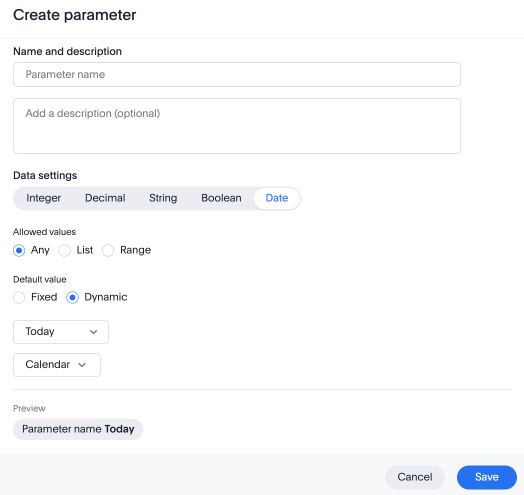
Dynamic values for date type parameters GA
You can now configure dynamic date type parameters when creating parameters, meaning that you can specify a dynamic rule like "start of current month", which updates with the current date rather than remaining static (for example, "June 14th"). For more information, see Creating parameters.
Models in object search Beta
Models are now fully discoverable through ThoughtSpot’s unified search. Whether you’re using the global search bar or the search results page, Models appear alongside Answers and Liveboards — making it faster and easier to find the data foundation your analyses are built on. To enable this feature, contact ThoughtSpot support.
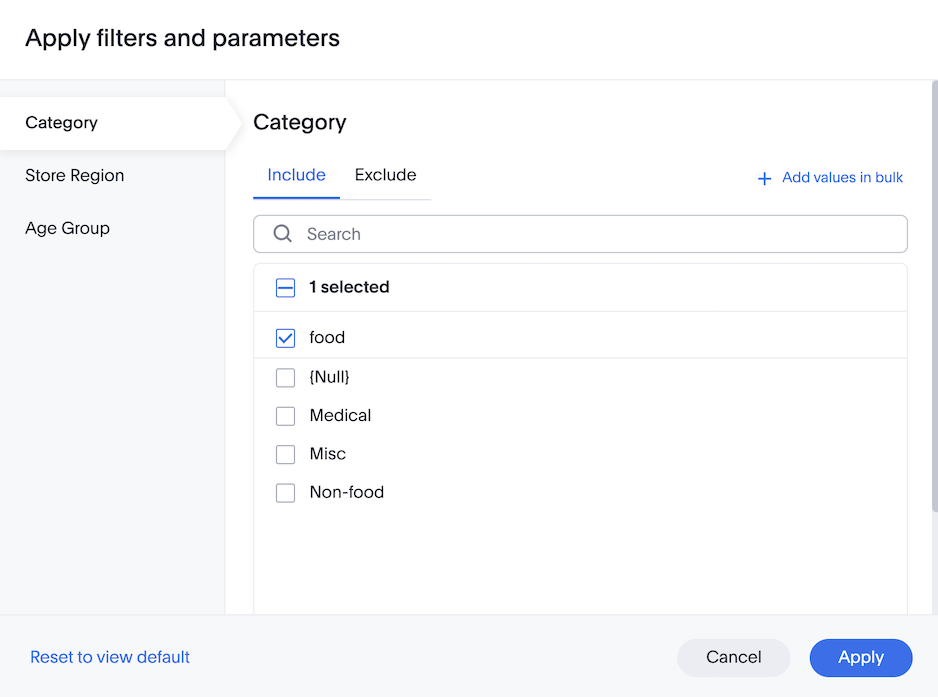
Centralized filter window GA
The centralized filter window is now generally available (GA). This feature introduces a single, unified interface for managing all Liveboard filters. Users can use this to view, update, and apply multiple filters at once, rather than interacting with each filter individually. This feature supports bulk filter changes, clear and reset actions, and provides a streamlined workflow for complex analyses. This improves efficiency, especially when working with Liveboards containing many filters or when users need to adjust several dimensions simultaneously. For more information, see Centralized filter window.
Other features and enhancements
Spotter instructions GA
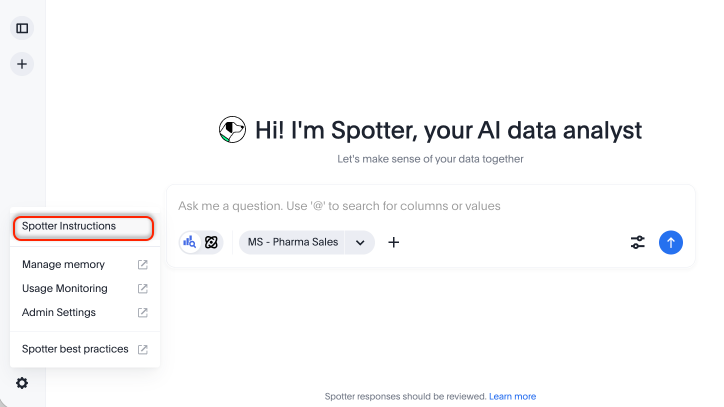
Administrators and Org administrators can now configure instructions at the agent level to customize how Spotter responds to queries across your organization. Spotter instructions let you tailor Spotter’s behavior for specific use cases, ensuring more consistent and relevant AI-generated answers. You can use Spotter instructions to specify output defaults like format and currency, tell Spotter how to handle ambiguous queries, and set guardrails for sensitive data. For example, you can say, “If the user doesn’t specify a breakdown, default to department, region, and location. Always compare year-over-year.”
To configure Spotter instructions, click the gear icon in the lower left corner of your Spotter conversation and select Spotter instructions.
For more information, see Spotter instructions.
SpotterModel Early Access
You can now use SpotterModel to generate comprehensive, optimized Models ready to use in your analysis. SpotterModel automates table selection, join creation, and column selection, while allowing you to review and customize each step. To enable this feature, contact your administrator.
For more information, see SpotterModel.
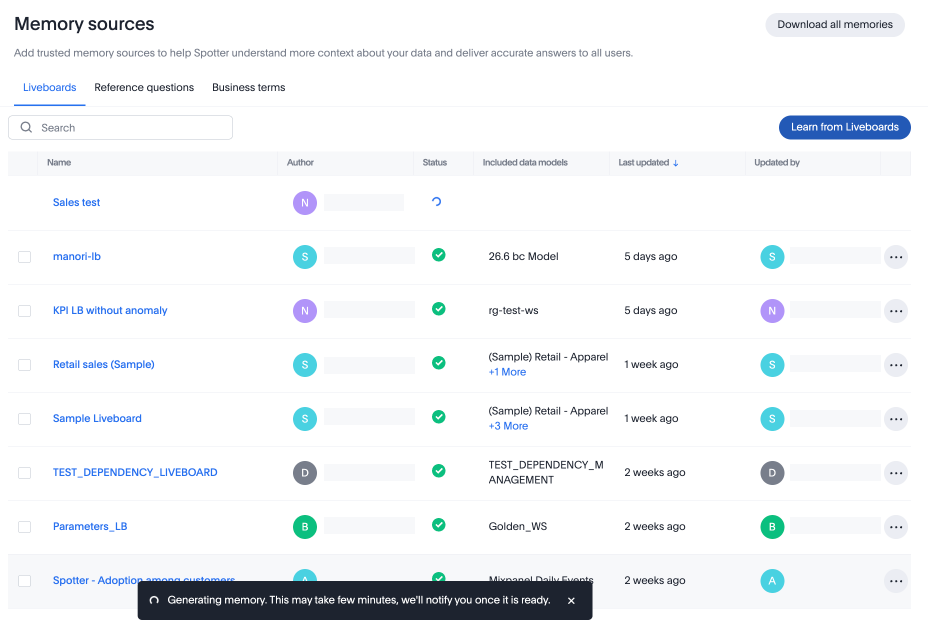
Memory from Liveboards enhancements GA
You can now reference the Status field in the Memory sources page to see whether your memory has been generated. ThoughtSpot also notifies you once the Liveboard memory is fully generated. To enable memory from Liveboards and conversations, contact your administrator. For more information, see Manage memory.
Browser caching for faster Liveboard loads Early Access
Liveboards now load faster on repeat visits using browser caching. The first time a user opens a Liveboard, ThoughtSpot stores a snapshot of the chart data in the user’s browser. On subsequent visits, ThoughtSpot serves charts from the cache, skipping the data warehouse query which is the longest part of the load process. To enable this feature, contact ThoughtSpot support. Once enabled, your administrator can configure cache setting.
For more information, see Browser caching for faster Liveboard loads.
Snowflake Semantic Views resync Early Access
You can now resync Snowflake Semantic Views integrations when the Snowflake semantic model or uploaded definition changes. Administrators can manage and resync Semantic Views as needed to reflect changes made in Snowflake. To enable this feature, contact ThoughtSpot support. For more information, see Integrate with Snowflake Semantic Views.
Connect to Iomete Early Access
You can now connect to Iomete cloud data warehouses. To enable this feature, contact your administrator. For more information, see Connect to Iomete.
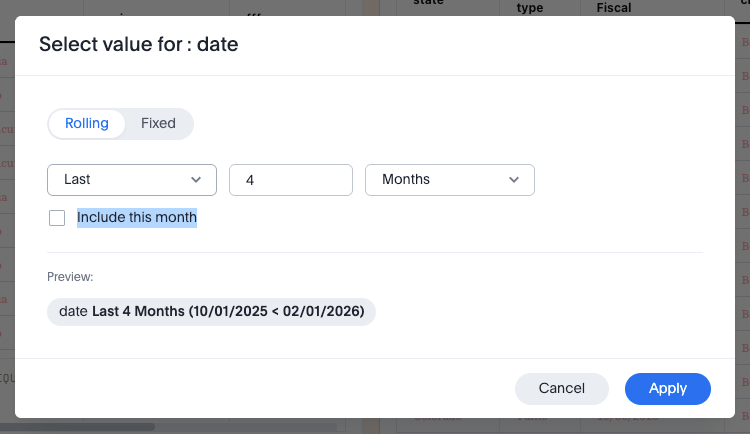
Rolling date filters: last period and this period GA
You can now include the current period within a date filter chip, when selecting a rolling date filter. This allows you to define a date range such as "last two months, including this month." This rolling date filters enhancement applies to both Liveboard and Answer filters.
For more information, see Date filters.
For the Developer
For new features and enhancements introduced in this release of ThoughtSpot Embedded, see ThoughtSpot Developer Documentation.
26.5.0.cl
May 2026 26.5.0.cl
SpotterViz Early Access
ThoughtSpot can now automatically create Liveboards based on your prompts, populating them with relevant visualizations and KPIs. In response to your prompt, ThoughtSpot evaluates available data sources, creates visualizations, and lays out the information for you. After creating a Liveboard, you can enter more prompts in SpotterViz at any time to revise and refine it. To enable this feature, contact your administrator.
For more information, see SpotterViz.
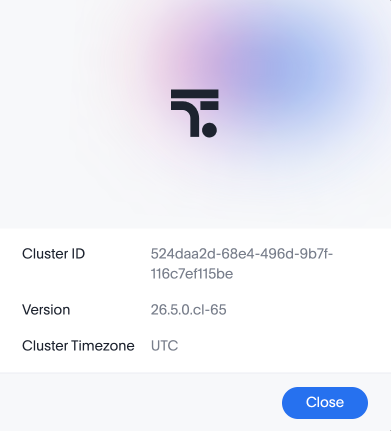
About your cluster GA
The new About menu item in the Help menu is now generally available (GA). This feature allows you to see the Cluster ID, Version, and Cluster Timezone for your cluster.
Edit an Answer in a Liveboard GA
Editing an Answer in a Liveboard is now generally available (GA). This feature adds an Edit button to the Answer toolbar in a Liveboard in edit mode. Click Edit  to open the Edit Answer page, where you can modify columns, filters, and formulas. You can save or cancel changes without leaving the Liveboard.
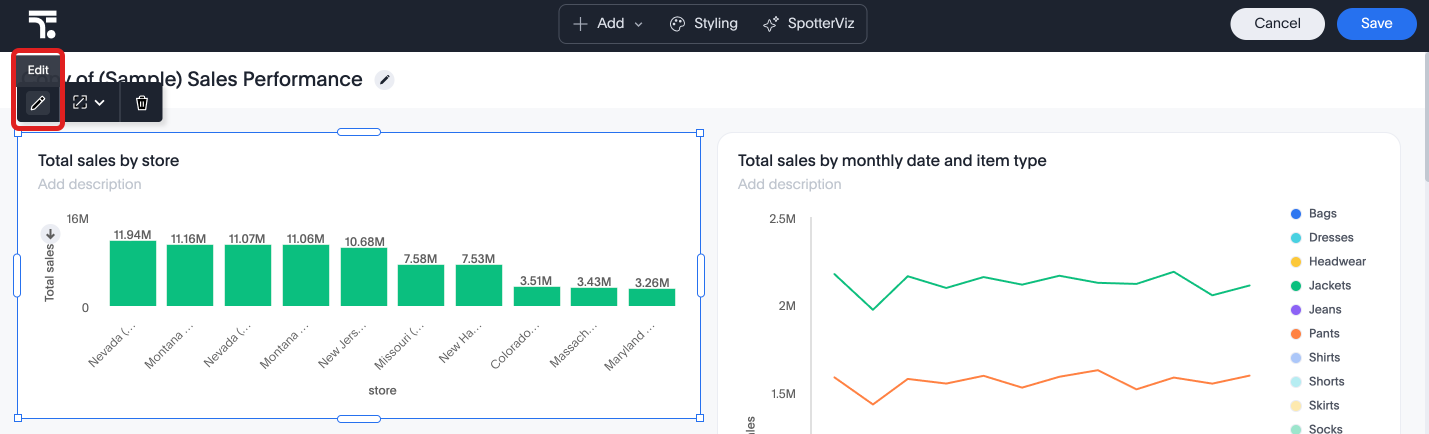
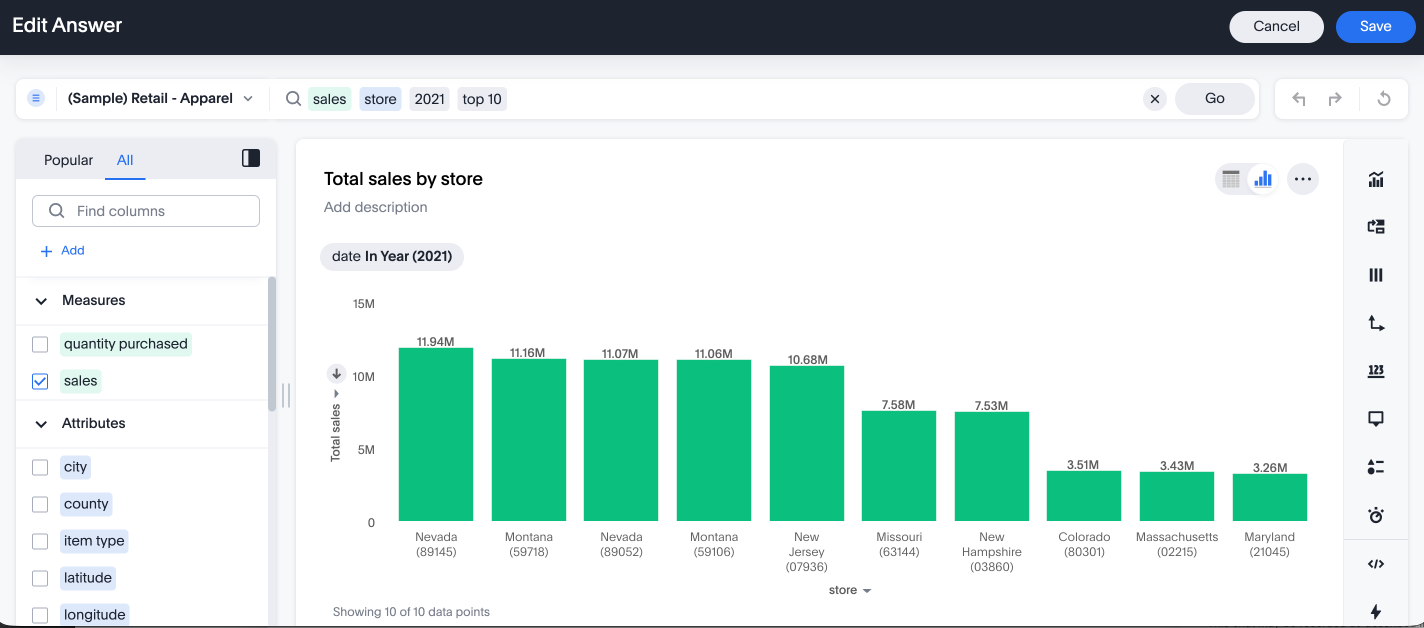
For more information, see Edit an Answer from your Liveboard.
KPI chart settings GA
ThoughtSpot introduces more granular controls for KPI charts. You can now:
-
Set different colors for anomalies, indicating whether they are above or below the expected value.
-
Choose to display null data as 'zero' or 'no data found'.
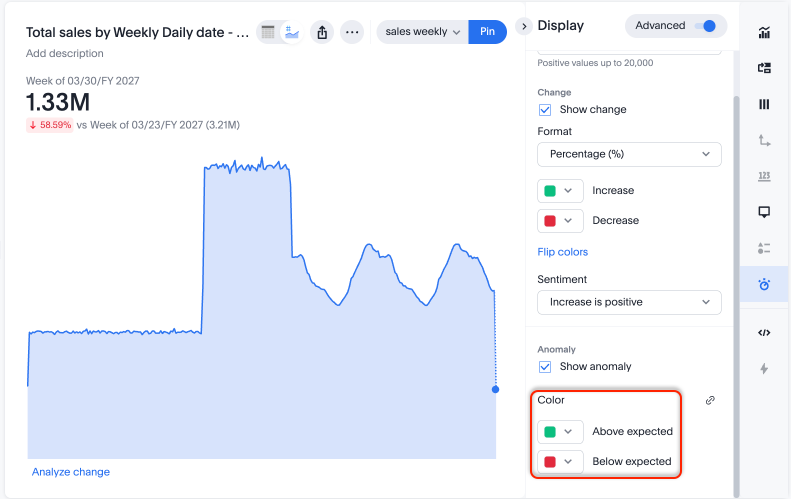
For more information, see Advanced KPI display options.
Collections GA
Collections are now generally available (GA). Collections in ThoughtSpot are organizational containers that can group and manage different ThoughtSpot objects into nested hierarchies similar to folders on a computer. These objects can be Liveboards, Answers, data models, tables, and even other Collections. Collections help with content organization, curated and structured content sharing, and collaboration. Additionally, you can assign different levels of access permissions for users you share your Collections with.
For more information, see Collections in ThoughtSpot.
TML support for Collections GA
You can now use ThoughtSpot Modeling Language (TML) to export Collections along with their hierarchy. Additionally, you can import Collections into new environments while retaining their complete folder structure.
For more information, see TML for Collections.
Customizable home page announcement GA
ThoughtSpot introduces the option to add a custom note tile to the home page where administrators can communicate important information, such as scheduled maintenance or new features to their users. This feature is generally available (GA).
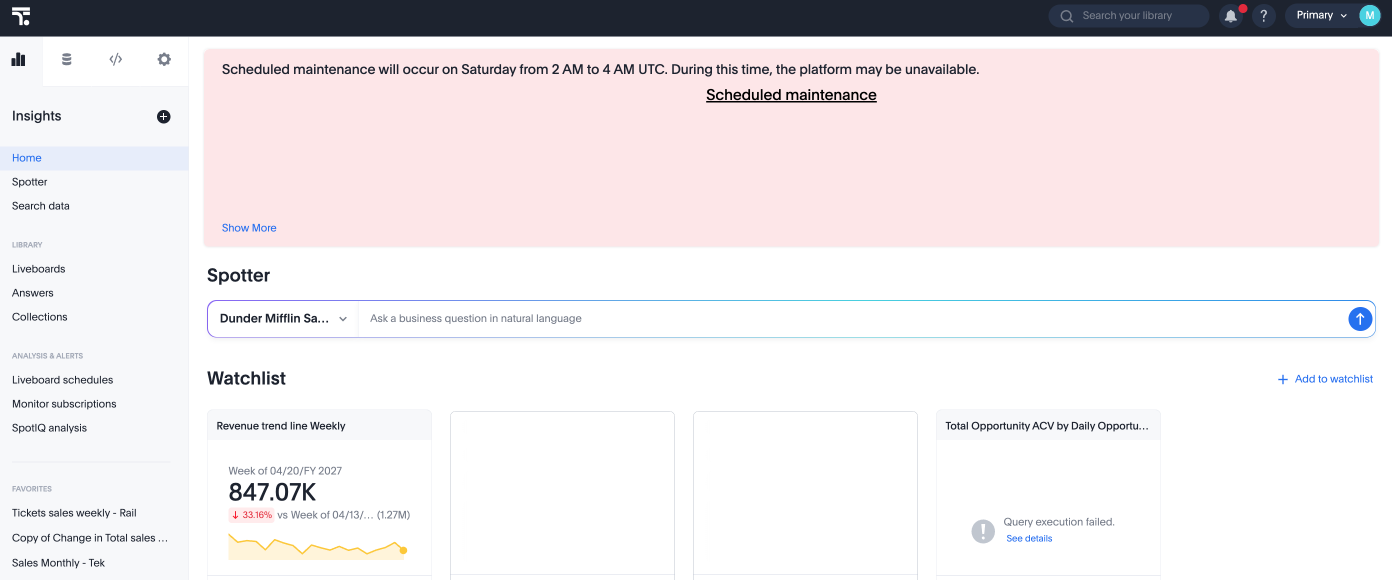
For more information, see Custom home page announcement.
Continuous Liveboard PDF experience Beta
This feature eliminates page breaks and preserves the layout of the original Liveboard, ensuring the exported PDF remains true to the on-screen experience. To enable this feature, contact ThoughtSpot support. For more information, see Download a Liveboard.
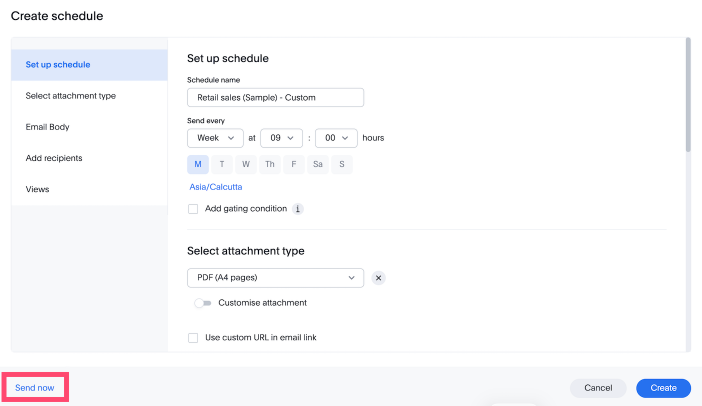
Send now option in scheduling Early Access
You can now send Liveboard schedule emails immediately. Unlike recurring schedules, you can now trigger immediate delivery for a one-time email or send an existing schedule instantly without altering its cadence. To enable this feature, contact your administrator.
For more information, see Scheduling a Liveboard.
Other features and enhancements
Spotter Memory Early Access
Spotter can now build its own memory to improve answer quality over time. Memory can be generated in two ways:
- Learn from conversations
-
If you have coaching access, anything you ask Spotter to remember is saved as a rule and applied to future sessions. For example, telling Spotter that "active users" means users with at least three sessions. For more information, see Learning from conversations.
- Learn from Liveboard
-
Generate memory from your trusted Liveboards, capturing the business rules and query patterns behind your visualizations. For more information, see Learn from a Liveboard.
To enable this feature, contact your administrator.
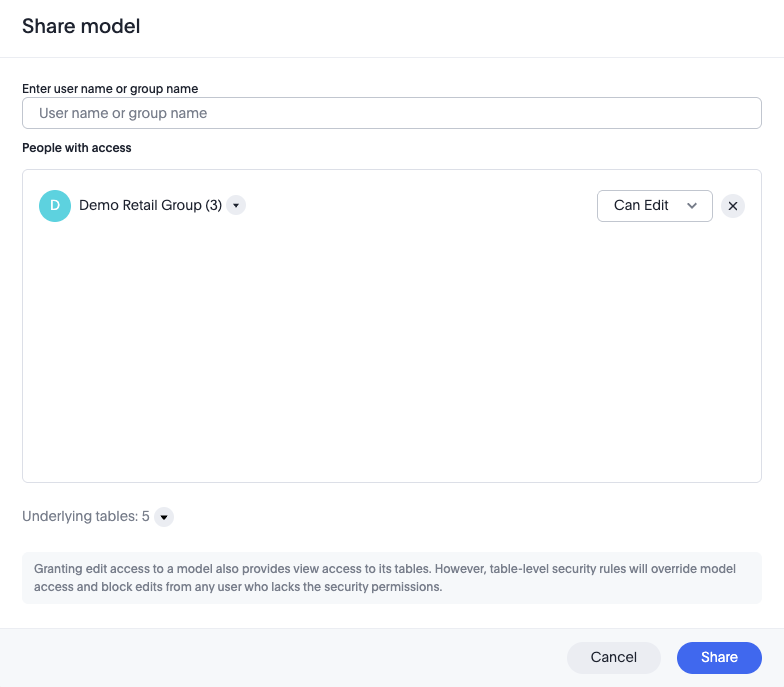
Model sharing enhancement Early Access
The Model sharing enhancement is now Early Access. When you share a Model with Edit access, the system automatically grants View access to all underlying tables and Views referenced by that Model. This eliminates the need to manually share access to dependent objects, significantly reducing the effort required to manage permissions and ensuring a smoother sharing experience. To enable this feature, contact your administrator.
For more information, see Share Models.
Column property sync Early Access
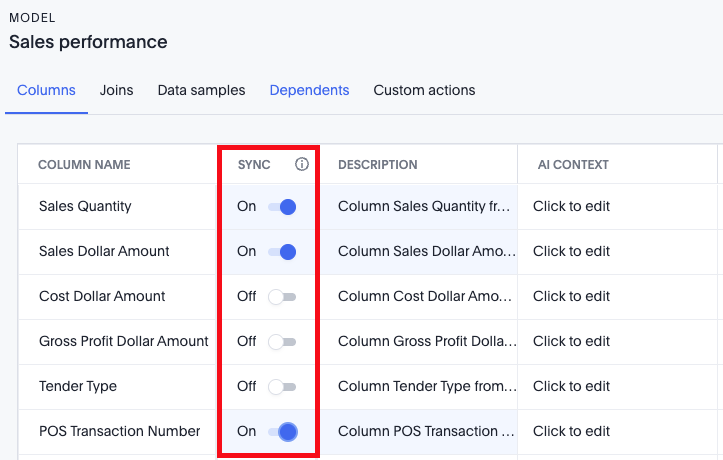
Column property sync is now Early Access. You can now keep parts of a Model in sync with their underlying tables. Previously, column properties were not automatically synchronized with the same columns at the Model level. As a result, the link for some column properties could break when the tables used for the Model were updated. If there were multiple Models on the same table, for changes like renaming a column or updating a description, you would have to go into each Model and update the values individually. To enable this feature, contact your administrator.
For more information, see Model column property sync.
Login Activity Tracking GA
ThoughtSpot now has a new data model, Login Activity Tracking, to capture login activity of users on a ThoughtSpot instance. Administrators can leverage this data model to build custom monitoring Liveboards, providing visibility into login timestamps, success rates, and additional session details.
For more information, see System Models.
Publishing workflow GA
Publishing from the primary Org is now generally available (GA). Publishing allows you to create an object in the Primary Org and publish it directly to target Orgs without generating duplicate copies. You can also unpublish objects across Orgs.
For more information, see Publishing objects between Orgs.
Snowflake Semantic Views integration Early Access
ThoughtSpot introduces Snowflake Semantic Views integration. This allows you to import external semantic model definitions from Snowflake Semantic Views that are then converted into fully functional, native ThoughtSpot Models. This eliminates the need to manually recreate Models and ensures consistency. To enable this feature, contact your administrator.
For more information, see Integrate with Snowflake Semantic Views.
dbt MetricFlow integration Early Access
ThoughtSpot introduces support for ratio metrics in dbt MetricFlow that allow you to import semantic definitions like formulas, measures, dimensions, and metrics from dbt. This eliminates the need to maintain separate models in dbt and ThoughtSpot. For more information, see Integrate with dbt MetricFlow.
Row-level security support in explore workflow filters GA
ThoughtSpot now support for row-level security in explore workflow filters is now generally available (GA). NOTE: Search suggestions continue to leverage the index functionality.
For Analyst Studio
ThoughtSpot Analyst Studio user and group sync GA
ThoughtSpot has enhanced how users and groups are synced between ThoughtSpot and Analyst Studio. The following improvements are included to help you to administer and secure Analyst Studio:
-
When a new Analyst Studio Workspace is created, users and groups in the linked ThoughtSpot Org are created in Analyst Studio.
-
Users and groups created in ThoughtSpot are also created in Analyst Studio.
-
Analyst Studio privileges are determined based on the privileges available to the user in ThoughtSpot.
-
User group membership in ThoughtSpot is accurately reflected in Analyst Studio as well.
-
If a group is deleted from ThoughtSpot, the group is also deleted from the Analyst Studio Workspace.
-
If a user is deleted from ThoughtSpot or loses access to Analyst Studio, the corresponding Analyst Studio user also loses access to the Analyst Studio Workspace.
For more information, see Access control and permissions.
Dataset rename and deletion sync GA
Datasets from Analyst Studio that you rename or delete in ThoughtSpot are now renamed or deleted in Analyst Studio. If you rename a Dataset in Analyst Studio, the name changes in ThoughtSpot. If you attempt to delete an Analyst Studio Dataset with dependent objects (Answers, Liveboards) in ThoughtSpot, you see a message warning you not to delete. For more information, see Dataset dependencies.
For the Developer
For new features and enhancements introduced in this release of ThoughtSpot Embedded, see ThoughtSpot Developer Documentation.
26.4.0.cl
April 2026 26.4.0.cl
AI auto-translation for Liveboards and Answers GA
We now support locale-specific translations for all written text on saved Answers and Liveboards, including downloaded and scheduled PDFs, and downloaded PNGs of visualizations. Translations are matched with the locale chosen in the user profile. Note that admins must enable AI auto-translation for your instance.
For more information, see Translations of Answers and Liveboards.
KPI chart settings GA
Advanced controls for KPI charts are now generally available (GA). You can now:
-
Decide how missing dates are displayed (as gaps, ignored, or treated as 0).
-
Specify whether to show or hide the current date, previous date, and previous value.
-
Abbreviate previous day (PD), previous month (PM), previous quarter (PQ), or previous year (PY).
-
Decide whether change is shown as percentage or absolute value.
-
Specify whether the measure’s increase is a positive or negative change.
For more information, see KPI charts.
Formula variables GA
Formula variables are now generally available (GA). Formula variables can be of any data type that ThoughtSpot supports, and can be associated with a single value or list of values. Formula variables created in the primary Org can be shared with other Orgs. A formula variable created in a non-primary Org is only visible in that Org. For more information, see Formula variables.
Column property sync Beta
ThoughtSpot now allows you to keep parts of a Model in sync with the underlying tables in the cloud data warehouse (CDW). Previously, as tables from the CDW were updated with new information from the CDW, it would cause the link for some column properties from the table to the Model to break. If there were multiple Models on the same table, for changes like renaming a column or updating a description, you would have to go into each Model and update the values individually. To enable this feature, contact ThoughtSpot support.
For more information, see Model column property sync.
Answer-level sets Early Access
ThoughtSpot introduces sets at the Answer level to answer query-on-query questions by generating and consuming Query sets within a single Answer flow. Users with edit permissions on an Answer can view and modify the associated Sets.
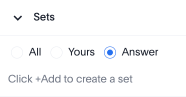
| These sets are Answer-specific and only saved if the Answer object is saved. |
To enable this feature, contact your administrator.
For more information, see Answer-level sets.
Allow export of high-resolution Liveboard PNG files GA
The export of high-resolution PNG images of Liveboards is now generally available (GA). You can now export improved high resolution PNG images of Liveboards. Previously, PNG exports were PDF reports in a PNG format created by taking a rolling screenshot of the PDF report generated in a headless browser.
Pivot tables in Liveboard exports Early Access
ThoughtSpot introduces support for exporting pivot tables in XLSX format. This feature ensures that pivot tables retain their full visual formatting and structural integrity when exported as XLSX files from a Liveboard. To enable this feature, contact your administrator. For more information, see Pivot tables in Liveboard exports.
Support removal of logo from emails GA
Customers can now hide the header logo in ThoughtSpot notification emails, eliminating the need to upload a placeholder image.
Aggregate-aware Model switching Beta
ThoughtSpot introduces aggregate-aware query execution. This is a transparent query optimization feature where Search Data automatically switches from detailed Models to associated aggregate Models. This provides a mechanism to manage and reduce cloud costs and improve query latency while maintaining insight accuracy. To enable this feature, contact ThoughtSpot support. For more information, see Aggregate-aware Model switching.
Other features and enhancements
SpotterModel Beta
You can now use SpotterModel to generate comprehensive, optimized Models ready to use in your analysis. SpotterModel automates table selection, join creation, and column selection, while allowing you to review and customize each step.
For more information, see SpotterModel.
Spotter connector permissions GA
Spotter asks for permission before using integrated tools like Slack or Confluence in a conversation, specifying exactly which action it will take and the tool it will use. You can choose to allow once, allow in the current conversation, or deny. This allows you full control of Spotter’s actions.
For more information, see Spotter connector permissions.
Slack connector available by default GA
The Slack connector for Spotter is now available to enable by default. Administrators can easily and instantly set up a connection between Slack and Spotter. For more information, see Slack connector in Spotter.
Variables GA
Variables are now generally available (GA). ThoughtSpot introduces variables to allow you to substitute values for specific properties of an object and enable dynamic data propagation across Orgs in ThoughtSpot. You can create variables of the following types: table mapping, connection property, and formula variable. In addition, you can delete, search, edit, and rename the variables. Note that you can create variables in ThoughtSpot, or by using APIs. If you are using APIs, you can also create connection property per principle variables. To create variables using APIs, see Custom variables. To create variables in ThoughtSpot, see Create variables.
Deactivate a Connection GA
You can now deactivate Connections directly within ThoughtSpot, suspending all activity on that Connection until it’s re-enabled. To access the Connection deactivation feature, you must have the New connection configuration experience enabled. Administrators can access this option from the Early Access tab. To reference an example, see Deactivate a Snowflake connection.
Aliasing dimension and fact tables in Models GA
Aliasing dimension and fact tables is now generally available (GA). Previously, table aliases were only supported for role-playing dimensions, or when a single physical dimension is referenced multiple times in a fact table, with each reference linking to a logically distinct role for the dimension. Now, we support table aliases for chasm trap models, and aliasing the primary fact table. Note that data security (row-level and column-level security) applies to the aliased table as well as the original table. We also now support progressive filters for table aliases.
For more information, see Role-playing dimensions.
Link parameters across Models in a Liveboard GA
Linking parameters across Models is now generally available (GA), and enabled by default for all users. Liveboard creators can link parameters of the same type across multiple different Models. This reduces the repetitive effort required for Liveboard users to individually set identical parameters for each Model.
For more information, see Link parameters across Models in a Liveboard.
Suggestion settings column GA
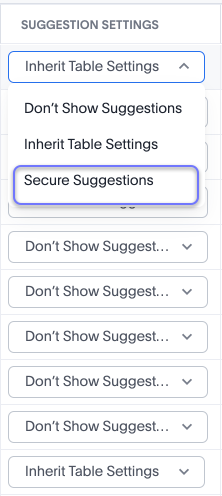
Suggestion settings are now generally available (GA). We have added the Suggestion Settings column to Models. This is used in conjunction with row-level security to ensure that values displayed in sample values and Spotter flows are secured.
Where columns require that strict row-level security is applied to sample values and Spotter, then set the Suggestion Settings column as Secure Suggestions.
For more information, see Suggestion settings.
Skip indexing large tables GA
Admin users can now specify to skip indexing for tables of a certain size. By default, ThoughtSpot does not set a limit on the size of tables it indexes. You can choose to Index all tables, Disable indexing for tables with ≥ 100M rows, Disable indexing for tables with ≥ 250M rows, or Disable indexing for tables it ≥ 1B rows.
For more information, see Managing search and SpotIQ settings.
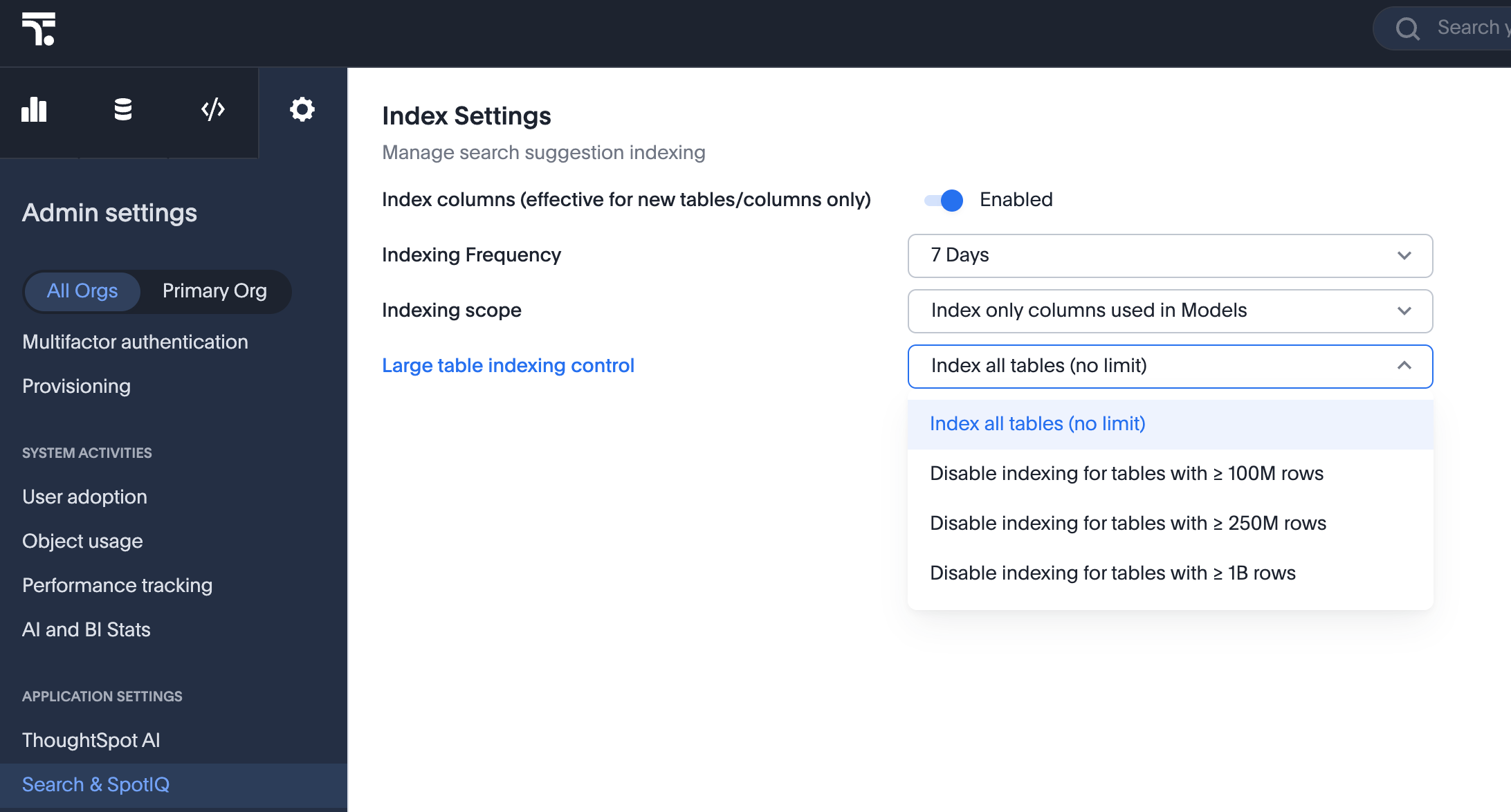
Centralized filter window Early Access
You can now adjust multiple Liveboard filters together in a single, centralized filter window. Instead of changing and applying each filter separately and reloading the page, you can combine your changes and apply them together.
For more information, see Edit a Liveboard filter.
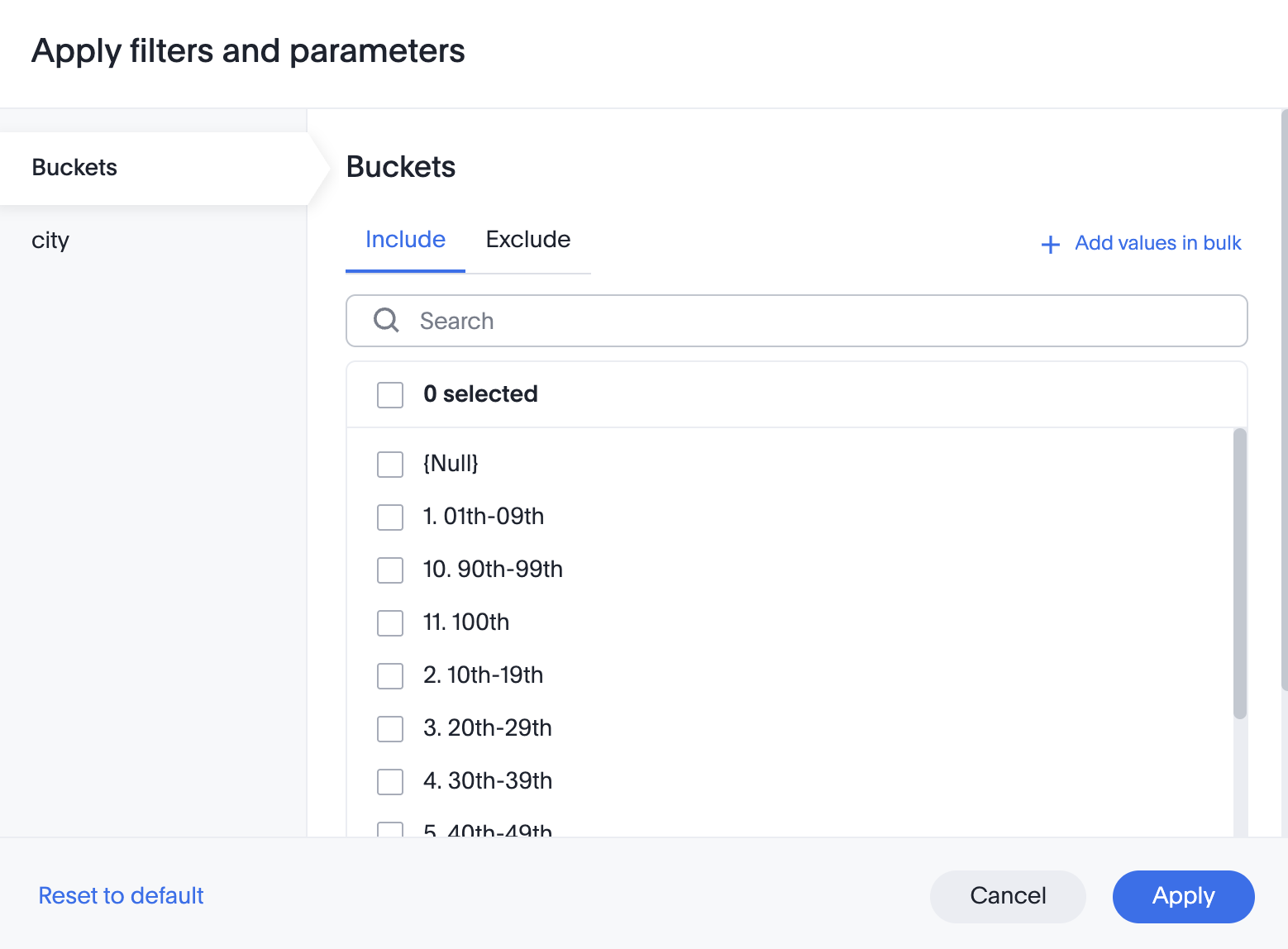
dbt MetricFlow support GA
ThoughtSpot introduces support for dbt MetricFlow that allows you to import semantic definitions like formulas, measures, dimensions, and metrics from dbt. This eliminates the need to maintain separate models in dbt and ThoughtSpot. For more information, see Integrate with dbt.
Row-level security variable TS_WILDCARD enhancement GA
You can now set variables in row-level security as TS_WILDCARD_ALL, which grants access to the data, and TS_WILDCARD_NONE, which denies access. Previously, ThoughtSpot only supported the TS_WILDCARD_ALL designation, and you had to set the variable as a value or list of values to control access.
For more information, see Tenant-based column aliasing.
Rolling date filters: last period and this period Early Access
You can now include the current period within a date filter chip, when selecting a rolling date filter. This allows you to define a date range such as "last two months, including this month." This rolling date filters enhancement applies to both Liveboard and Answer filters.
For more information, see Date filters.
Add object to Collections from list pages GA
You can now add objects to Collections directly from your Answers, Liveboards, and Data list pages without navigating to the Collections page, by clicking on Add to Collections at the top of the list page.
For more information, see Add objects to a Collection.
For the Developer
For new features and enhancements introduced in this release of ThoughtSpot Embedded, see ThoughtSpot Developer Documentation.
26.3.0.cl
March 2026 26.3.0.cl
KPI chart settings Early Access
ThoughtSpot introduces more granular controls for KPI charts. You can now:
-
Decide how missing dates are displayed (as gaps, ignored, or treated as 0).
-
Specify whether to show or hide the current date, previous date, and previous value.
-
Abbreviate previous day (PD), previous month (PM), previous quarter (PQ), or previous year (PY).
-
Decide whether change is shown as percentage or absolute value.
-
Specify whether the measure’s increase is a positive or negative change.
To enable this feature, contact your administrator. For more information, see KPI charts.
Improved experience for Liveboard downloads and schedules Early Access
ThoughtSpot introduces an improved experience for Liveboard downloads and schedules:
-
When you select Download, you can now select CSV and XLSX in addition to PDF. When you select CSV or XLSX, you can choose which visualizations to download and a bulk download of the Liveboard data is triggered instead of a static image.
-
When you select Schedule, you can now select specific visualizations to include in the scheduled email attachment as CSV or XLSX files.
To enable this feature, contact your administrator. For more information, see Download a Liveboard and Schedule a Liveboard job.
Enhanced dynamic parameters in charts GA
Enhanced dynamic parameters are now generally available (GA) and on by default. You can use parameters across axis names, column names, answer titles and descriptions to change these elements dynamically based on the parameter value. A parameter used in the title or description always displays the value of the same parameter used in the chart itself.
For more information, see Parameters in axis and column names of charts and tables.
Improved chart recommendations GA
Improved chart recommendations are now generally available (GA) and on by default. When you search, ThoughtSpot can automatically suggest a chart type based on your search query. The recommendations apply when using both Spotter and Search data. The following capabilities are improved:
-
When you submit a query for the first time, ThoughtSpot analyzes the data and automatically selects the most appropriate chart.
-
If you modify an existing query by adding or removing fields, ThoughtSpot retains the existing chart type unless it is forced to change.
-
When you drill down into data, ThoughtSpot maintains the current chart type whenever possible.
Add user-defined ID (object ID) in TML GA
You can now manage content across multiple Orgs without having to manually change the GUID of an object each time you move it between Orgs. You can directly add or edit an object ID in the TML of an Answer, table, Model, Liveboard, or View.
For more information, see Object ID in TML files.
Other features and enhancements
New admin settings locationThoughtSpot introduces a new user experience for Administration. Admin settings are now part of the left navigation panel.
|
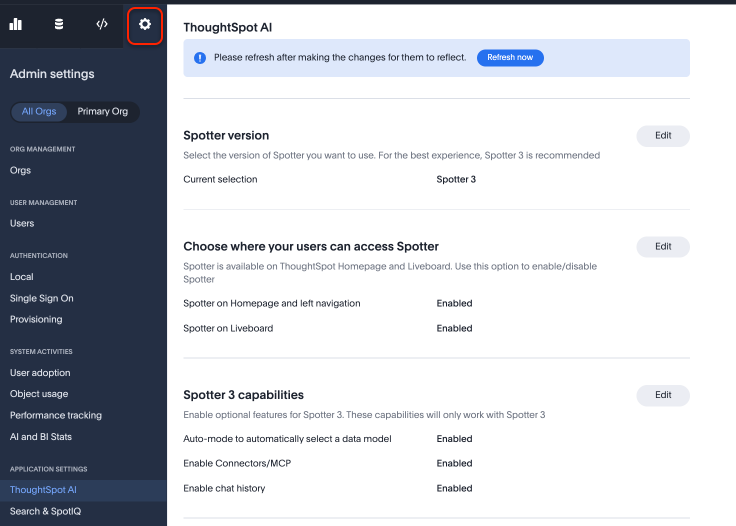
Spotter coaching access GA
You can now grant coaching access to users or groups from the Spotter-enabled Model you want them to coach. Users with Spotter coaching access on a data model can import or export associated coaching TML, as well as grant Spotter coaching access to other users or groups. Sharing Spotter coaching access is no longer restricted to data model editors. You can also grant Spotter coaching access to system-level Models like the Query Stats Model, and on published data models. Spotter coaching access does not require users to have edit access to the Model.
For more information, see Grant Spotter coaching access.
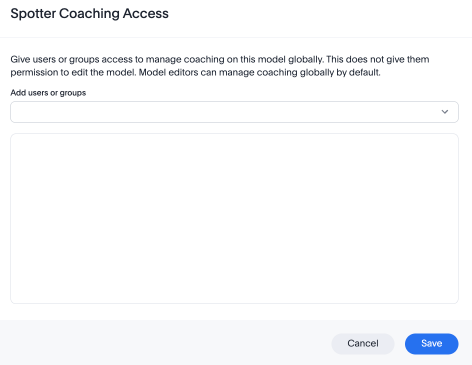
Object Tracking Beta
ThoughtSpot now has a new data model, Object Tracking, to capture creation date, creator, last modification date, and last modifier for any supported Liveboard, Model, and Answer. Administrators can leverage this data model to build custom monitoring Liveboards, offering visibility into who created or modified objects and when these actions occurred.
Suggestion settings column GA
Suggestion settings are now generally available (GA). We have added the Suggestion Settings column to Models to allow you to control data that shows in typeahead suggestions and column knowledge cards. Previously, on Models with row-level security defined, you would see suggested names of data that you could not access in typeahead suggestions or in column knowledge cards.
For example, if you only had access to data in California, you could see that data for Texas existed, although you could not access the data. Set the Suggestion Settings column as Secure Suggestions to ensure users never see references to data they shouldn’t be able to access. To enable this feature, contact ThoughtSpot support.
For more information, see Suggestion settings.
Column-level property for strict indexing and disabling typeahead GA
Column-level properties for strict indexing and disabling typeahead are now generally available (GA). To enable this feature, contact ThoughtSpot support. For more information, see Column security rules.
Publishing coaching to Orgs Early Access
ThoughtSpot now supports publishing Spotter coaching to Orgs. In addition to Org admins, now non-admin users with Spotter coaching management access on published data models in secondary Orgs can provide coaching access permissions to other users. You can import and export coaching TML and share the data model with other users. Previously, coaching was Org-specific. Coaching changes made in the primary Org are synced with the secondary Orgs where the Model is published. to enable the publishing feature, contact your administrator. For more information, see Publishing objects between Orgs.
Delete subobjects in Collections GA
To reduce the risk of accidental data loss while deleting objects from a Collection, ThoughtSpot now has an additional step to the deletion process. If you choose to delete the objects along with or without the Collection, you must explicitly type the word DELETE (in all caps) to confirm the action. If you do not type DELETE exactly as required, the deletion will not proceed.
Formula variables in query generation GA
The use of formula variables in query generation is now generally available (GA) and on by default. Formula variables can be of any data type that ThoughtSpot supports, and can be associated with a single value or list of values. Formula variables created in the primary Org can be shared with other Orgs. A formula variable created in a non-primary Org is only visible in that Org. For more information, see Formula variables.
Org-aware provisioned user reporting GA
The Provisioned users tab in the AI and BI Stats Liveboard can now be filtered by Orgs within ThoughtSpot. This allows you to see provisioned user counts and related metrics specifically for each Org, rather than just for the whole ThoughtSpot instance.
For the Developer
For new features and enhancements introduced in this release of ThoughtSpot Embedded, see ThoughtSpot Developer Documentation.
26.2.0.cl
February 2026 26.2.0.cl
Spotter 3 Early Access
In the 26.2.0.cl release, ThoughtSpot introduces Spotter 3 — an AI agent that breaks down the barriers between your structured and unstructured data, and then plans, reasons, and executes complex analysis like a human analyst.
Key features:
-
Data-aware intelligence: Now securely reads the specific results of your query to write accurate insights and answer follow-up questions with full context.
-
Insight storage and chat history: Generates insights from your data and stores them in ThoughtSpot Cloud as your conversation history with Spotter.
-
Data security: Processes only the data needed to answer your question. Your data is sent to the LLM only to generate insights and is never stored or used for training.
-
Analyst-grade reasoning: Creates a plan, validates assumptions, and self-corrects to provide you verifiable results.
-
Narrative insights: Provides rich text summaries explaining why your data looks the way it does.
-
Automatic Model selection: Identifies and queries across multiple data models at the same time and selects the most relevant data source(s) based on your question.
-
Integrate your tools into Spotter: Integrate ThoughtSpot’s powerful agentic analytics capabilities into your own custom AI agents using the ThoughtSpot MCP server.
Spotter 3 is Early Access in 26.2.0.cl. To enable this feature, contact your administrator. For more information on the features each Spotter version supports, see Spotter version comparison.
AI auto-translation for Liveboards and Answers GA
AI auto-translation is now generally available (GA). We now support locale-specific translations for all written text on saved Answers and Liveboards, apart from column names. Translations are matched with the locale chosen in the user profile. Note that admins must enable AI auto-translation for your instance.
For more information, see Translations of Answers and Liveboards.
Liveboard styling and grouping GA
Liveboard styling and grouping options are now generally available (GA) and on by default. Styles can be applied to a Liveboard, a tile, or a group of tiles to improve readability, differentiate specific content, or apply organizational branding guidelines. You can group relevant content together within a Liveboard using grouping.
For more information, see Liveboard grouping and Liveboard styling.
New chart settings experience GA
The new chart settings experience is now generally available (GA) and on by default. The chart settings panel is completely redesigned with a more intuitive layout and easier access. With over 50 advanced settings available across different chart types, you’ll have pixel-perfect control over every aspect of your visualizations - including data label sizes, colors, font styles, grid lines, tooltips, and more.
For more information, see New chart settings experience.
New charts library Early Access
This release significantly upgrades ThoughtSpot visualization capabilities by introducing nine new, powerful native charts — Line, Column, Bar, Area, Line Column, Line Stacked Column, Stacked Column, Stacked Bar, and Stacked Area.
These new charts unlock sophisticated visualizations like faceted, cross-tabbed, multivariate, and bullet charts. They also resolve previous limitations by allowing multiple columns in Line Column charts and slicing by color with multiple measures, while providing deeper granular control over configurations such as tooltips, data labels, and axes.
To enable this feature, contact your administrator. For more information, see New charts library.
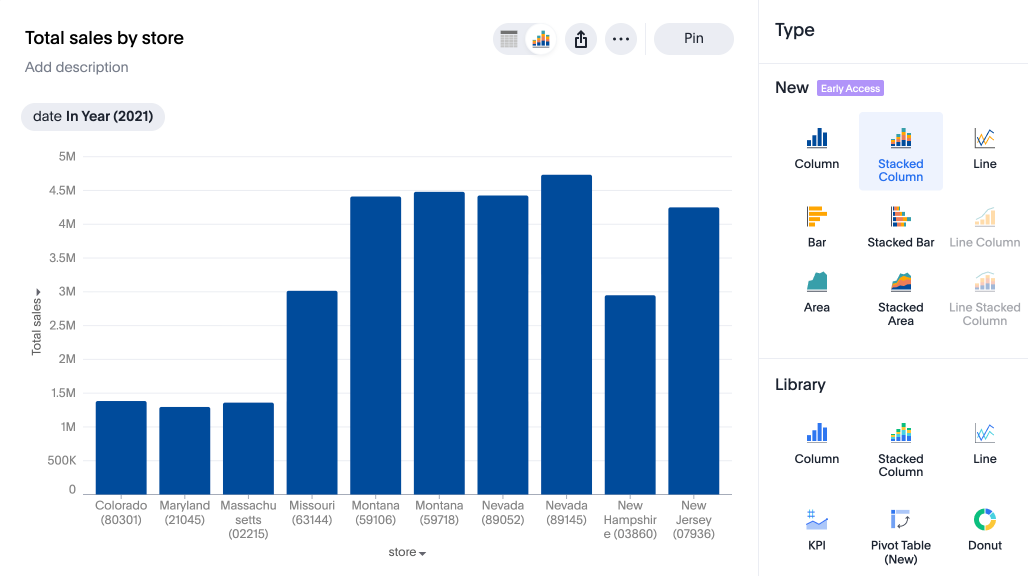
Pivot table enhancements GA
The new pivot table chart is now available by default. This new chart has improvements in the following areas:
-
Performance
-
Faster interaction while expanding rows and columns
-
Pagination
-
-
Customization
-
Custom sort order support
-
Column widths
-
Slicing with measures and attributes
-
Measure names and values
-
-
UX
-
Tooltips
-
Legends
-
Zebra mode
-
Decluttered header space
-
For more information, see New Pivot Table charts.
Share experience enhancement Beta
ThoughtSpot introduces an improved sharing experience. When you share a Model with Edit access, it now automatically includes View access to all referenced tables and Views. This prevents you from encountering any potential access errors. To enable this feature, contact ThoughtSpot support.
For more information, see Share Models.
Other features and enhancements
Publishing workflow Early Access
ThoughtSpot introduces publishing across Orgs. Publishing allows you to create an object in the Primary Org and publish it directly to target Orgs without generating duplicate copies. You can also unpublish objects across Orgs. To enable this feature, contact ThoughtSpot support. For more information, see Publishing objects between Orgs.
Publishing with parameters Early Access
ThoughtSpot introduces publishing with parameters. Parameters are used to assign variables to certain properties and fields within objects such as Connections and Tables. Parameterization with variables allows you to reuse and propagate the same object across various Orgs and environments within a ThoughtSpot instance while maintaining a consistent data structure of objects across Orgs. To enable this feature, contact ThoughtSpot support.
Publishing coaching to Orgs Early Access
ThoughtSpot now supports publishing of objects across Orgs. When you publish across Orgs, Spotter coaching works seamlessly on published data models. Org administrators can modify and manage coaching on published data models. To enable this feature, contact ThoughtSpot support.
Data indexing in published tables for connections across Orgs Early Access
ThoughtSpot now allows you to enable data indexing on published objects across Orgs. This ensures that each Org sees the data specific to the table mapped to the connection used in the publishing for that Org. You can do this with connections that use Service Account or OAuth authentication, but OAuth connections require the use of an API. To enable this feature, contact ThoughtSpot support.
Customizable announcement banners GA
Administrators can now display custom announcement banners at the top of the ThoughtSpot interface. These announcement banners will have scheduled start and end times, and the ability to target specific Orgs or all Orgs, as decided by the admin.
For more information, see Custom announcements.
Customize email template GA
Administrators can now customize the branding, content, and visibility of components in notification emails. The following parameters of the ThoughtSpot email template can be customized:
-
Style customization, like the change in color palette.
-
Custom vocabulary for notification emails. This allows you to replace ThoughtSpot specific terms like “ThoughtSpot,” “Liveboard,” “Answer,” and "SpotIQ," with your product terminology.
-
The company logo and the company contact details in the email footer.
-
Visibility of various actions like Modify alert, Unsubscribe, and the mobile app nudge.
-
Visibility of the Privacy policy, Contact support, and Manage notification preferences components in the email footer.
For more information, see Customize email template.
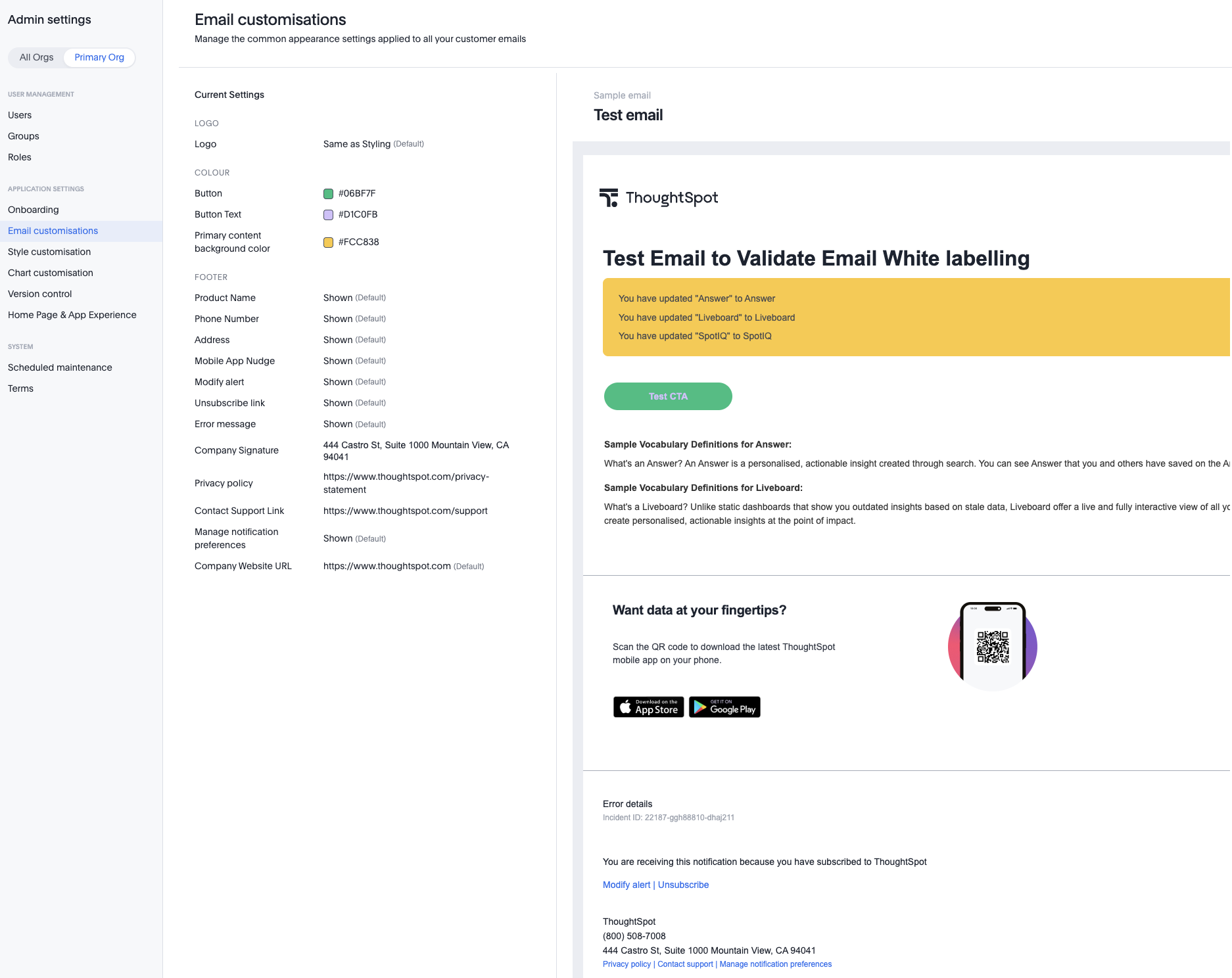
Suggestion settings Early Access
We have added the Suggestion Settings column to allow you to control data that shows in typeahead suggestions and column knowledge cards. Previously, on Models with row-level security defined, you would see suggested names of data that you could not access in typeahead suggestions or in column knowledge cards.
For example, if you only had access to data in California, you could see that data for Texas existed, although you could not access the data. Set the Suggestion Settings column as Secure Suggestions to ensure users never see references to data they shouldn’t be able to access. To enable this feature, contact your administrator.
For more information, see Suggestion settings.
Muze Studio GA
Muze Studio is now generally available (GA) and on by default. You can create your own charts in ThoughtSpot using the Muze charting library. A developer can create new chart types by writing the code in the code builder. This release introduces a new console window which helps developers quickly identify and resolve issues with real-time feedback on their JavaScript code execution by providing errors and warnings generated during code execution.
For more information, see Creating charts with Muze Studio.
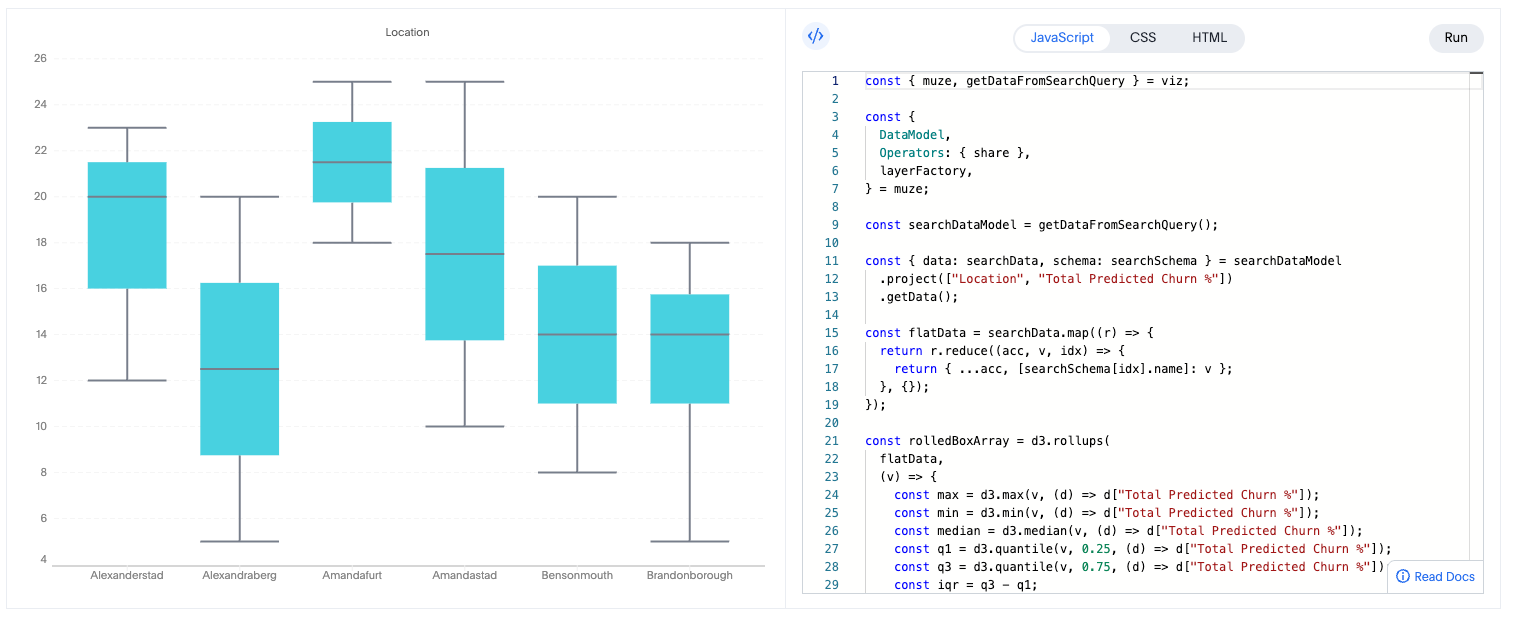
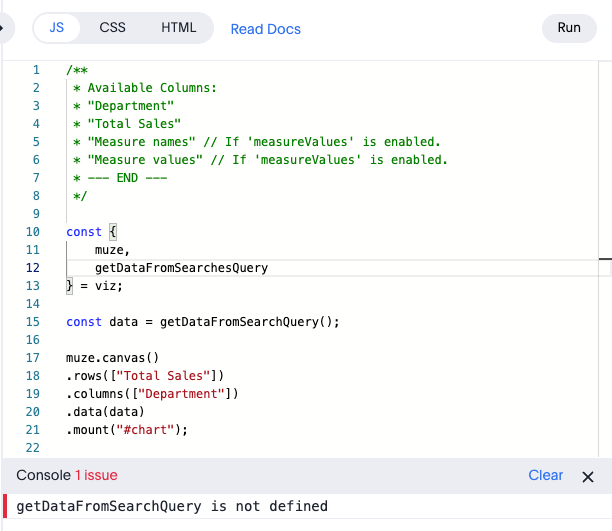
Indexing only columns used in your Models GA
You can now choose to index all columns or only those used in your Models. Previously, you could only index all columns. This significantly reduces the number of queries sent to your cloud data warehouse and reduces memory usage. This option does not apply to SQL views, CSV tables, or datasets, which are always indexed. It is on by default, but your ThoughtSpot administrator can modify this setting.
For more information, see Indexing settings.
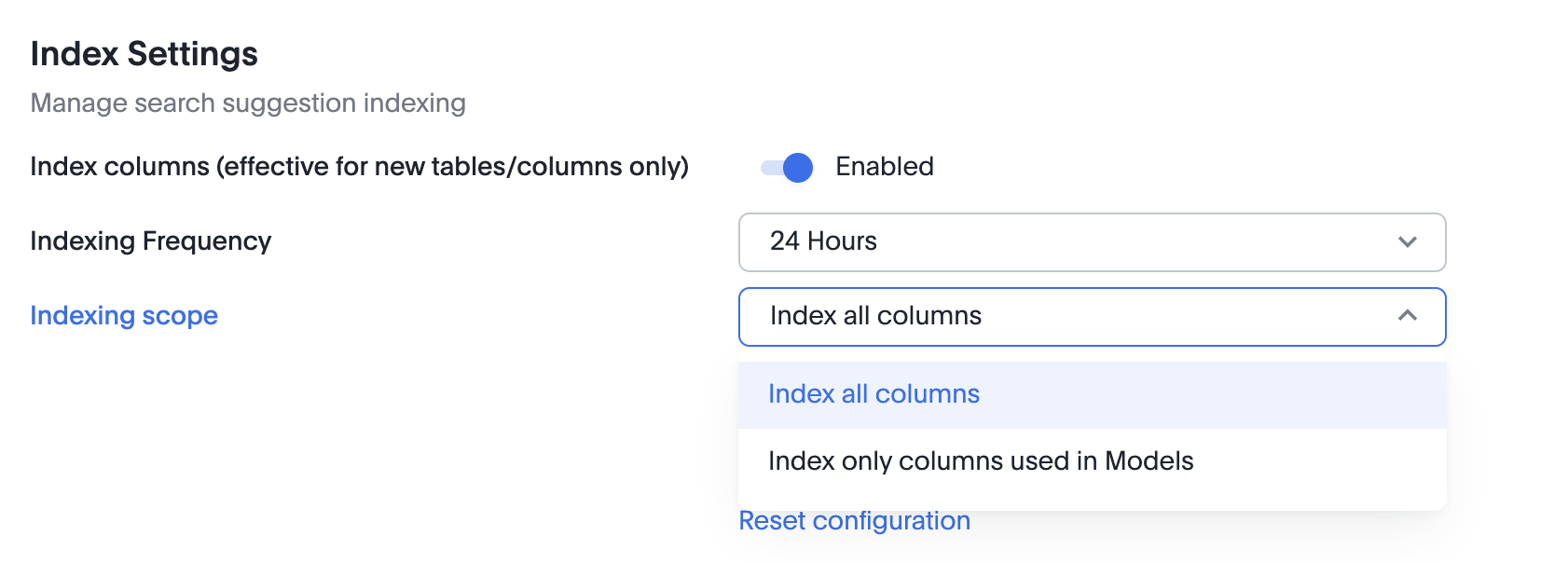
CSV upload support for Google BigQuery GA
You now have a quick and easy way to complete data loads of files that are not present in your cloud data warehouse. You can now upload a CSV file to your Google BigQuery connection that can be joined to other tables in your connection. To use this feature, go to Data > Utilities, and click Upload CSV. To enable this feature, contact your administrator.
For more information, see Upload a CSV file to Google BigQuery.
Bridge support for Teradata GA
You can now create a connection to Teradata using the Bridge connector.
For more information, see Bridge connectivity for Cloud Data Warehouses and Databases.
Date interval setting GA
The date interval setting in TML is now generally available (GA) and on by default. You can set the default date bucket for a Model column at the instance level. The options are detailed, daily, weekly, monthly, quarterly, yearly, hourly, or no_bucket. Note that hourly is only available for datetime data.
For more information, see Default date bucket.
Liveboards with column security rules Early Access
We have enhanced the behavior of Liveboards built with column security rules. If users restricted by column security access the Liveboard, they can see and interact with the Liveboard filters and visualizations, but cannot edit the Liveboard as a whole. If such inaccessible columns are used as filters in the Liveboard, the Liveboard will no longer be blocked. Schedules now honor column security rules, and each recipient receives their own report based on their column security rule assignments.
For more information, see Column security rules on Liveboards.
Formula variables Early Access
ThoughtSpot introduces a new type of variable called FormulaVariable. Formula variables can be of any data type that ThoughtSpot supports, and can be associated with a single value or list of values. Formula variables created in the primary Org can be shared with other Orgs. A formula variable created in a non-primary Org is only visible in that Org. To enable this feature, contact your administrator. For more information, see Formula variables.
UI for variables Early Access
ThoughtSpot introduces variables to allow you to substitute values for specific properties of an object and enable dynamic data propagation across Orgs in ThoughtSpot. To enable this feature, contact ThoughtSpot support. For more information, see Publishing objects between Orgs.
Aliasing dimension and fact tables in Models Early Access
Previously, table aliases were only supported for role-playing dimensions, or when a single physical dimension is referenced multiple times in a fact table, with each reference linking to a logically distinct role for the dimension. Now, we support table aliases for chasm trap models, and aliasing the primary fact table. Note that data security (row-level and column-level security) apply to the aliased table as well as the original table. We also now support progressive filters for table aliases.
For more information, see Role-playing dimensions.
For the Developer
For new features and enhancements introduced in this release of ThoughtSpot Embedded, see ThoughtSpot Developer Documentation.
10.15.0.cl
December 2025 10.15.0.cl
New navigation and homepage GA
ThoughtSpot is excited to announce that our brand-new navigation and homepage experience is now enabled by default for all users in the 10.15.0.cl release. This change does not apply to users of ThoughtSpot in an embedded environment.
Highlights of the new navigation and homepage
-
Enhanced navigation: commonly accessed features are now in a left-side navigation menu, providing a more intuitive and consistent user experience across all product areas
-
Fewer clicks: faster and easier to move between key areas, such as between Liveboards, or from a Model to searching data
-
Favorites and Liveboard schedule access: now available with a single click from the homepage navigation menu, allowing you to quickly find your most important data
-
Modern homepage: clean, contemporary, and customizable design
Starting in 10.15.0.cl, the classic navigation and homepage experience will no longer be available. This change only applies to ThoughtSpot Cloud customers and does not impact ThoughtSpot Embedded customers. For more information, see New homepage and persona-based navigation.
AI auto-translation for Liveboards and Answers Beta
We now support locale-specific translations for all written text on saved Answers and Liveboards, apart from column names. Translations are matched with the locale chosen in the user profile. To enable this feature, contact ThoughtSpot support.
For more information, see Translations of Answers and Liveboards.
Collections Beta
Collections in ThoughtSpot are organizational containers that can group and manage different ThoughtSpot objects into nested hierarchies similar to folders on a computer. These objects can be Liveboards, Answers, data models, tables, and even other Collections. Collections help with content organization, curated and structured content sharing and collaboration. Additionally, you can assign different levels of access permissions for users you share your Collections with. To enable this feature, contact ThoughtSpot support.
Liveboard styling and grouping Early Access
ThoughtSpot introduces new styling and grouping options for Liveboards. Styles can be applied to a Liveboard, a tile, or a group of tiles to improve readability, differentiate specific content, or apply organizational branding guidelines. You can group relevant content together within a Liveboard using grouping. To enable this feature, contact your administrator.
For more information, see Liveboard grouping and Liveboard styling.
Filtering a Liveboard for users with limited access to its Models GA
Filtering a Liveboard for users with limited access to its Models is now enabled by default. We’ve made the following changes to how you can filter a Liveboard that uses at least one Model that you don’t have access to.
When viewing a Liveboard, you can now do the following:
-
Filter columns and change parameters from a Model you have access to. Filters and parameters from an inaccessible Model remain read-only.
-
Select a hidden column used as a filter from a Model. It only shows the selected values, and you can’t change them.
When editing a Liveboard, you can now do the following:
-
Add, edit, and remove filters and parameters from a Model you have access to. You can’t link filters to a Model that you don’t have access to.
Granular download privileges Early Access
ThoughtSpot introduces more granular download privileges to improve data security controls. You can now assign download privileges for visual downloads (PDF/PNG) or data exports (XLSX/CSV) separately. These download privileges are respected for scheduling. To enable this feature, contact your administrator.
For more information, see Data download control privileges Early Access.
Make a copy in the Search data panel GA
You can now copy formulas, parameters and sets in the Search data panel. This saves time and eliminates the errors that can be caused when copying and pasting.
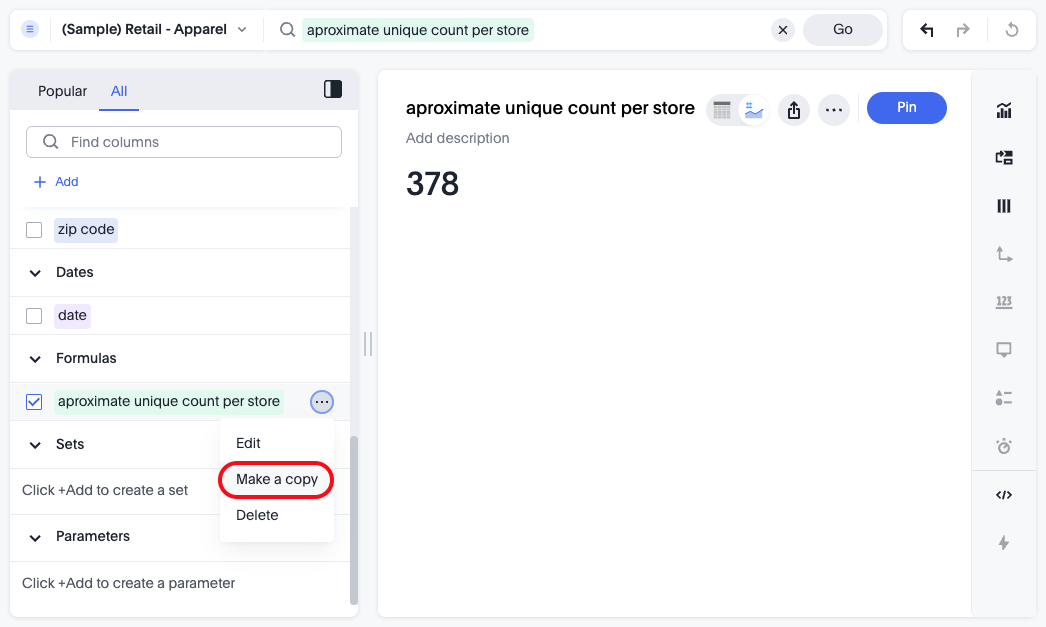
New chart settings experience Early Access
The chart settings panel is completely redesigned with a more intuitive layout and easier access. With over 50 advanced settings available across different chart types, you’ll have pixel-perfect control over every aspect of your visualizations - including data label sizes, colors, font styles, grid lines, tooltips, and more. To enable this feature, please contact your administrator. For more information, see New chart settings experience.
Include or exclude cover and filter pages from a Liveboard PDF GA
The option to exclude cover and filter pages from Liveboard PDFs is now on by default. ThoughtSpot Liveboard PDFs include a cover page and filter pages that contain information about the filters applied. You can now use the PDF Options checkboxes to choose to include or exclude these pages when downloading or scheduling a Liveboard PDF. Cover and filter pages can be excluded for a schedule or download by the user. An administrator can also set cover and filter pages to be included or excluded by default in Admin settings under Downloads & Schedules.
For more information, see Download a Liveboard as a PDF.
PNG screenshots in scheduled emails Early Access
You can now view a snapshot of a Liveboard tab directly within your scheduled email, without opening the attachment or clicking a link to view it in ThoughtSpot. Currently only one tab’s snapshot can be embedded in the email. To enable this feature, contact ThoughtSpot support.
For more information, see Schedule a Liveboard job.
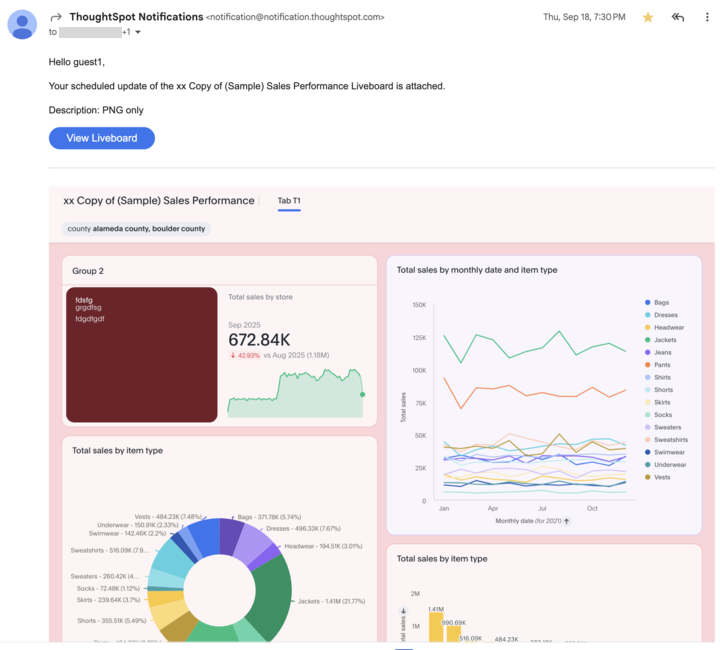
Other features and enhancements
AI context for Models GA
AI context for Models is now on by default. You can now add AI context to columns in any Model where you have Can Edit access. This context helps Spotter better interpret a column and its values, using this knowledge to differentiate between similar columns and answer your data questions more accurately. You can auto-generate this context automatically with a single click to get started.
Unlike Spotter context added to reference questions, which helps with similar queries, AI context for each column helps Spotter choose the correct columns and values for all queries.
For more information, see AI Context.
Data model instructions GA
Data model instructions are now on by default. You can now teach Spotter core concepts, default behaviors, and specific data nuances by adding natural language instructions directly to a data model. These standalone directives act as global rules for Spotter to follow. For example, you can create a rule that makes Spotter automatically apply a "last 30 days" date filter if a user’s query doesn’t specify a time frame. Access this option below the Spotter search bar or in the Instructions tab on the Model.
For more information, see Data model instructions in Spotter.
Create your own charts with Muze Studio Early Access
Utilize ThoughtSpot’s in-house charting library, Muze, to build custom charts on the fly. Developers can create new chart types by using the code builder. To enable this feature, contact your administrator.
For more information, see Creating charts with Muze Studio.
Link parameters across Models Early Access
ThoughtSpot now allows Liveboard creators to link parameters of the same type across multiple different Models. This reduces the repetitive effort required for Liveboard users to individually set identical parameters for each Model. To enable this feature, contact your administrator.
For more information, see Link parameters across Models.
Personal Access Token (PAT) authentication for Snowflake GA
We now support Personal Access Token authentication for Snowflake. For more information, see Add a Snowflake connection.
Databricks CSV upload GA
You now have a quick and easy way to complete data loads of files that are not present in your cloud data warehouse. You can now upload a CSV file to your Databricks connection that can be joined to other tables in your connection. To use this feature, go to Data > Utilities, and click Upload CSV.
For more information, see Upload a CSV file to Databricks.
Indexing queries default frequency change to weekly GA
The default indexing frequency has been changed from daily to weekly. Administrators can change this frequency via the Search and SpotIQ settings.
For more information, see Managing search and SpotIQ settings.
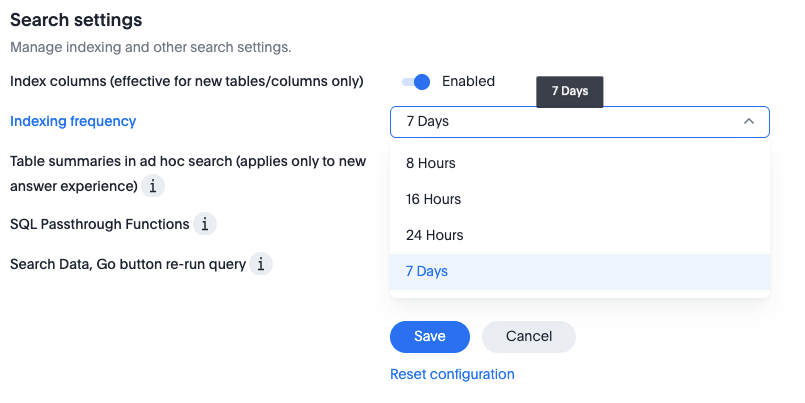
For the Developer
For new features and enhancements introduced in this release of ThoughtSpot Embedded, see ThoughtSpot Developer Documentation.
10.14.0.cl
New navigation and homepage coming soon!ThoughtSpot is excited to announce that our brand-new navigation and homepage experience will be enabled by default for all users in the upcoming 10.15.0.cl release. This change does not apply to users of ThoughtSpot in an embedded environment. Highlights of the new navigation and homepage
Starting in 10.15.0.cl, the classic navigation and homepage experience will no longer be available. This change only applies to ThoughtSpot Cloud customers and does not impact ThoughtSpot Embedded customers. For more information, see New homepage and persona-based navigation. |
November 2025 10.14.0.cl updates
Custom sorting on Answers GA
Custom sorting on Answers is now on by default and available to all users. You can now define and modify a custom sort order for attributes directly in an Answer. Sort order defined in the Answer overrides the sort order defined in the Model for that particular Answer.
For more information, see Define or edit a custom sort order for an Answer.
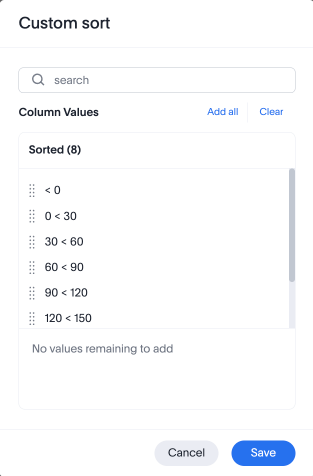
Other features and enhancements
Spotter coaching access GA
You can now delegate Spotter coaching responsibilities without granting data model editing permissions. This feature is available for all data model editors and administrators. From the More menu  on any Spotter-enabled data model, you can now grant the "Spotter Coaching Access" to other users or groups. Providing this access enables these users to manage all aspects of Spotter’s coaching, including the ability to view, modify and promote coaching from all users on that data model.
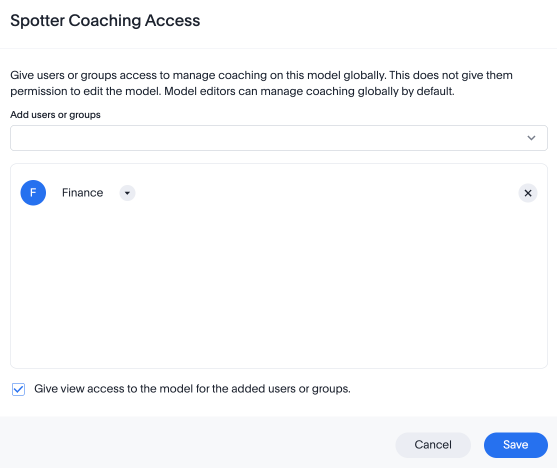
Spotter context in reference questions GA
Adding Spotter context in reference questions is now on by default and available to all users. Rather than simply coaching Spotter to recognize search tokens in reference questions, you can now improve accuracy and generalize the coaching by adding context, natural language explanations of how to apply these tokens in similar queries. For example, you could tell Spotter to always add 'user name', 'user id', and 'user role' when asked about the list of users.
For more information, see Context in Spotter.
Data model instructions Early Access
You can now teach Spotter core concepts, default behaviors, and specific data nuances by adding natural language instructions directly to a data model. These standalone directives act as global rules for Spotter to follow. For example, you can create a rule that makes Spotter automatically apply a "last 30 days" date filter if a user’s query doesn’t specify a time frame. To enable this feature, contact your administrator.
For more information, see Data model instructions in Spotter.
AI context for Models Beta
You can now add AI context to columns in any Model where you have Can Edit access. This context helps Spotter better interpret a column and its values, using this knowledge to differentiate between similar columns and answer your data questions more accurately. You can auto-generate this context automatically with a single click to get started.
Unlike Spotter context added to reference questions, which helps with similar queries, AI context for each column helps Spotter choose the correct columns and values for all queries. To enable this feature, contact ThoughtSpot support.
For more information, see AI Context.
Bring your own LLM Key GA
In addition to selecting OpenAI Azure and Google Gemini as the LLM for your Spotter experience, you can now connect your own LLM by providing the LLM Key for one of the supported providers (Azure, Vertex) or via your own gateway. This option allows you to exercise full control over your AI stack, by connecting ThoughtSpot directly to your private LLM endpoints.
For more information, see Connect to your Large Language Model (LLM).
Tenant-based column aliasing Early Access
Tenant-based column aliasing introduces the capability to define a column name or description based upon the user’s membership in a ThoughtSpot Org or group. For example, Client 1 may refer to a column as Region, whilst Client 2 may refer to this as State. This feature is an extension of the language-based aliasing. Data analysts can define these aliases via CSV upload or with TML. This feature is particularly useful for embedded scenarios where the same underlying Model is leveraged across multiple clients.
For more information, see Tenant-based column aliases.
Progressive Model filters GA
Progressive Model filters are now available to all users and on by default. Previously, any filter defined at the Model level applied to every query based on that Model. Now, you can define which table a filter applies to in the Model TML. Once defined, the filter only applies to queries that include columns from that specific table.
For more information, see TML for Models.
Groups level data inclusion in the AI and BI system Liveboard GA
The AI and BI system Liveboard now features group-level filters and a Group tab with visualizations like Group Champions, Most Popular Data Model, and Group Breakdown. Provisioned user information, including both active and inactive users, is now a primary KPI, and replaces the earlier Daily Active Users KPI.
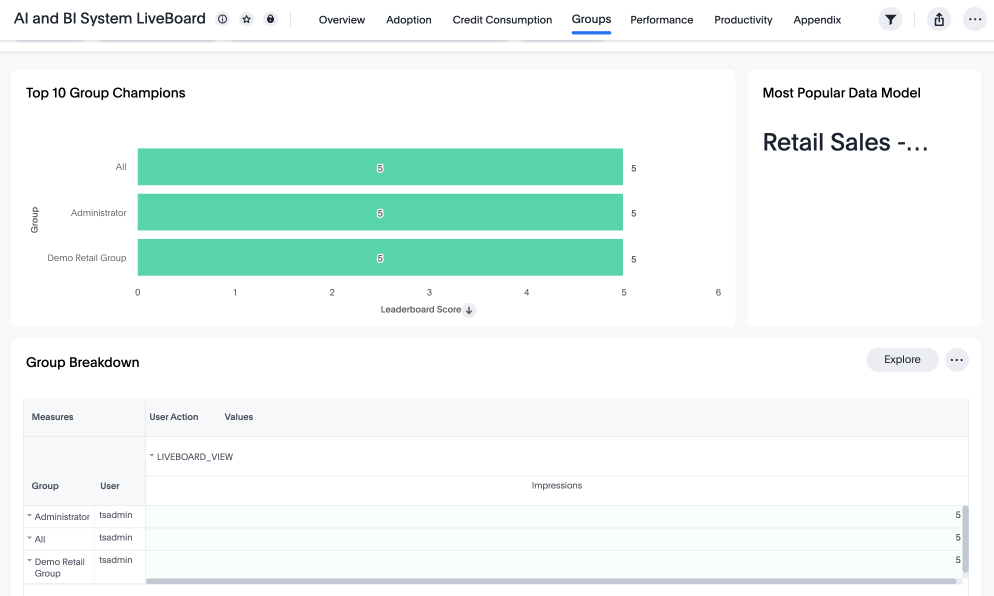
For the Developer
For new features and enhancements introduced in this release of ThoughtSpot Embedded, see ThoughtSpot Developer Documentation.
10.13.0.cl
September 2025 10.13.0.cl
| Features marked as Beta are off by default. To enable them, contact ThoughtSpot support. |
Navigation and favorites Early Access
ThoughtSpot introduces navigation organized by persona. The new navigation allows business users, analysts, data engineers, administrators, and developers to work in separate contextual sections designed specifically for their needs. In addition, Favorites have been added to the left panel navigation Insights tab. To enable this feature, contact your administrator.
For more information, see New home page and persona-based navigation.
List page GA
ThoughtSpot introduces improved list pages. List pages include improved sorting, filtering, tags and views. List pages also now remember selections for All and Yours, and allow you to see Favorites and Verified with one click.
Forecasting GA
Forecasting is now available to all users and on by default. You can use SpotIQ analysis to forecast future trends for your KPIs. ThoughtSpot uses machine learning models that learn from past trends, growth, and seasonality to project how the target metric will trend in the future.
This feature can be disabled from the Search & SpotIQ option under Application Settings on the Admin settings page.
For more information, see Forecasting.
Enhanced dynamic parameters in charts Early Access
Enhanced dynamic parameters are now available to all users and on by default. You can use any parameter from an axis or column name of a chart in the title or description of the Answer which contains that chart. A parameter used in the title or description always displays the value of the same parameter used in the chart itself.
Emails for failed scheduled jobs Early Access
The creator of a scheduled job now gets an email alert if the job fails to send to any number of subscribers to the job. To enable this feature, contact ThoughtSpot support.
For more information, see Schedule a Liveboard job.
Column sets GA
Column sets are now available to all users and on by default. A column set is a custom group of values from a single column. You can create column sets, which can be used to classify values in a list that you can then reuse across multiple analyses. For example, you can use column sets to define regions with specific countries included or excluded. Column sets are community objects which remain when you navigate away from the Search Data page and can be used by any user with view access to the underlying Model.
For more information, see Column sets.
Number formatting for Japanese GA
We have updated the abbreviations for large number formatting in Japanese. Our new format uses 千 for thousands, 百万 for millions, 十億 for billions, and 兆 for trillions.
Add groups as subscribers to alerts GA
Groups can now be added as subscribers to alerts. When you want to add multiple users to an alert subscription, you can now search for their group in the alert subscription modal and add them all at once. Note that users subscribed through a group must be removed from the group to be removed from the alert schedule.
Other features and enhancements
Spotter data model instructions Beta
You can now add data model instructions directly to a Model in the Data workspace. For example, you can instruct Spotter to specify the date filter as the last 30 days if the user does not provide a date keyword. You can edit instructions directly in a conversation by clicking the instructions icon in Spotter. You must have edit access to a Model or administrator privileges to view and edit instructions. Instructions on a Model are limited to 3000 characters. To enable this feature, contact ThoughtSpot support.
For more information, see Data model instructions in Spotter.
Column security rules Early Access
You can now set column security rules at the table level, and they will automatically be inherited to associated Models. Operational management is simplified as the cluster setting, Strict Object Mode, is not required. In addition, rules are only required for the secured columns rather than all columns in the table. For each column you select as restricted, you can define which group(s) can have access to the column. Users without access will not see the column in search results, or anywhere in the product. To enable this feature, contact your administrator.
For more information, see Column security rules.
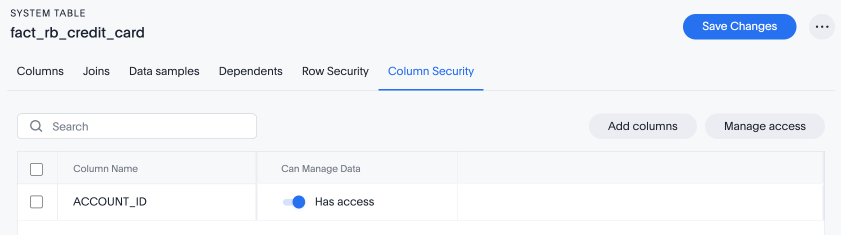
Enhanced row-level security (RLS) rule logic Early Access
ThoughtSpot introduces RLS rule logic to support using AND/OR operators with bracket notation. You can now define more precise and complex access control policies that accurately reflect your organization’s security requirements without resorting to data modeling solutions with access control list tables. To enable this feature, contact your administrator.
RLS support for integer comparison for ts_groups GA
ThoughtSpot introduces a new system variable ts_groups_int for integer comparison in the row-level security configuration. This allows you to create RLS rules where an integer column is compared directly to the integer group IDs a user belongs to.
For more information, see Row-level security.
ClickHouse AWS PrivateLink GA
ThoughtSpot now supports AWS PrivateLink for ClickHouse connections. ThoughtSpot encrypts all your data by default. For an additional layer of security and network reliability, you can use an AWS PrivateLink. To enable ClickHouse connections, contact your administrator.
For more information, see Enabling an AWS PrivateLink between ThoughtSpot Cloud and your ClickHouse data warehouse.
OAuth Client Credentials for Snowflake GA
We now support OAuth Client Credentials authentication for Snowflake. For more information, see Add a Snowflake connection and Snowflake OAuth with Client Credentials.
Connection TML import for OAuth without validation GA
ThoughtSpot now supports importing OAuth connections through TML without validation. This feature allows users to import an OAuth connection via TML without performing validation during the import process.
System Cross-domain Identity Management (SCIM) support GA
SCIM is now available to all users and on by default. ThoughtSpot supports the use of SCIM to automate identity management and user provisioning across different identity management systems. Customers who use identity providers like Okta or Active Directory for identity management can now sync their user-management functions between their IdP and ThoughtSpot Cloud. Users are provisioned with their corresponding group and Org attributes when they authenticate via SSO (SAML). Users that are deactivated in their IDP are removed from ThoughtSpot as well.
For more information, see Manage users and groups with SCIM.
Import Notebook files GA
You can now instantly import an existing Notebook for analysis. The new Import Notebook option allows you to upload any .ipynb file to start working immediately. For more information, see
The Notebook.
For the Developer
For new features and enhancements introduced in this release of ThoughtSpot Embedded, see ThoughtSpot Developer Documentation.
10.12.0.cl
September 2025 10.12.0.cl
| Features marked as Beta are off by default. To enable them, contact ThoughtSpot support. |
Spotter Coach business terms GA
You can now directly add business terms to Spotter Coach, rather than approving and editing terms from within a Spotter conversation.
For more information, see Spotter business terms.
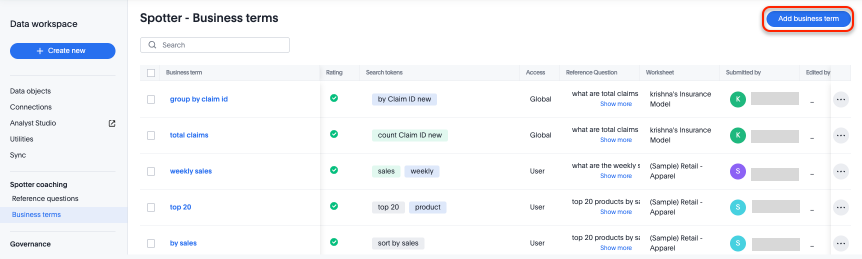
Coach Spotter from conversation Early Access
You can now coach Spotter without leaving your conversation. Click Add to coaching below an Answer to teach Spotter how to answer similar questions in the future. To enable this feature, contact your administrator.
For more information, see Reference questions.
Spotter data model instructions Beta
You can now use data model instructions to provide global feedback to Spotter that carries over to any query on the underlying data model. To provide data model instructions, select the instructions icon in Spotter and type a directive about how Spotter is to interpret the question. For example, you can instruct Spotter to specify the date filter as the last 30 days if the user does not provide a date keyword. To enable this feature, contact ThoughtSpot support.
For more information, see Data model instructions in Spotter.
Spotter context in feedback Beta
Rather than simply training Spotter Coach to recognize search tokens in reference questions, you can now add context, natural language explanations of why those tokens apply to that answer. For example, you could add an implicit rule to a sample reference question, clarifying that sales should only be calculated on completed transactions. Adding context to coaching improves accuracy and makes it easier to tailor Spotter to your data. To enable this feature, contact ThoughtSpot support.
For more information, see Context in Spotter.
Rerun queries in Search data Early Access
This functionality allows users to execute the same search query again without needing to refresh the browser or modify the query, and update results with the latest data.
With this feature, users can simply click  to rerun the query, which is useful for testing data model changes, formula updates, or database reloads. To enable this feature, contact ThoughtSpot support.
Change comparison for single-point KPIs Beta
You can now make your single-point KPIs more powerful and actionable with the new aggregated KPI chart. You can see how your KPI has changed from the previous period even for queries like 'sales last 14 days' or 'sales last 2 months'. To enable this feature, contact ThoughtSpot support.
For more information, see Change analysis for single-point KPIs.
Custom sort order on Answers Early Access
You can now define and modify a custom sort order for attributes directly in an Answer. Sort order defined in the Answer overrides the sort order defined in the Model for that particular Answer. To enable this feature, contact your administrator. For more information, see Define or edit a custom sort order for an Answer.
Include or exclude cover and filter pages from a Liveboard PDF Early Access
The option to exclude cover and filter pages from Liveboard PDFs is now available to all users and on by default. ThoughtSpot Liveboard PDFs include a cover page and filter pages that contain information about the filters applied. You can now use the PDF Options checkboxes to choose to include or exclude these page when downloading or scheduling a Liveboard PDF. Cover and filter pages can be excluded for a schedule or download by the user. An administrator can also set cover and filter pages to be included or excluded by default in Admin settings under Downloads & Schedules.
For more information, see Download a Liveboard as a PDF.
KPI alert emails GA
KPI alert emails now display a visualization of your KPI, along with the change from the previous time bucket, and the threshold condition.
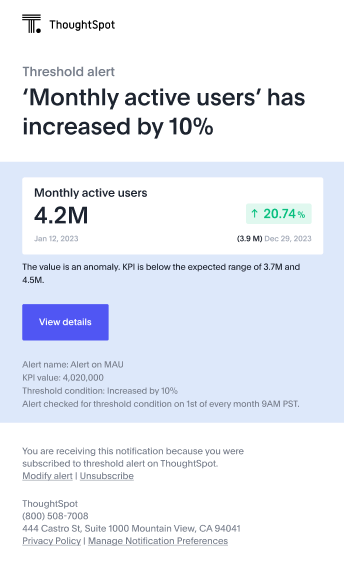
Query_groups optional grouping columns GA
Optional grouping columns are now available to all users and on by default. ThoughtSpot supports optional grouping columns in query_groups to ensure that only specified columns are included, if they are present in the query. A new syntax allows users to define an explicit optional list of grouping columns. Previously, you needed to manually exclude all other columns from the Model.
For more information, see Query_groups optional grouping columns.
Last value in period and first value in period functions GA
Last_value_in_period and first_value_in_period functions are now available to all users and on by default. These functions are useful for semi-additive measures, measures that typically return a single value per time period rather than being additive across time. For example, if you want to find out the last value for full-time employee headcount for the current date, you can use the formula, fxFTE = last_value_in_period(sum(full_time_employee), query_groups(), {date}).
For more information, see Last_value_in_period and first_value_in_period functions.
Other features and enhancements
Async Import TML utility Early Access
The Import TML can now also be done asynchronously from the new TML utility. This allows users to trigger TML imports directly from the UI, which are processed as asynchronous jobs in the backend. You can enable this feature from the Data modelling option under Application Settings on the Admin settings page. Once enabled, you can access the new UI from the Data workspace > Utilities page.
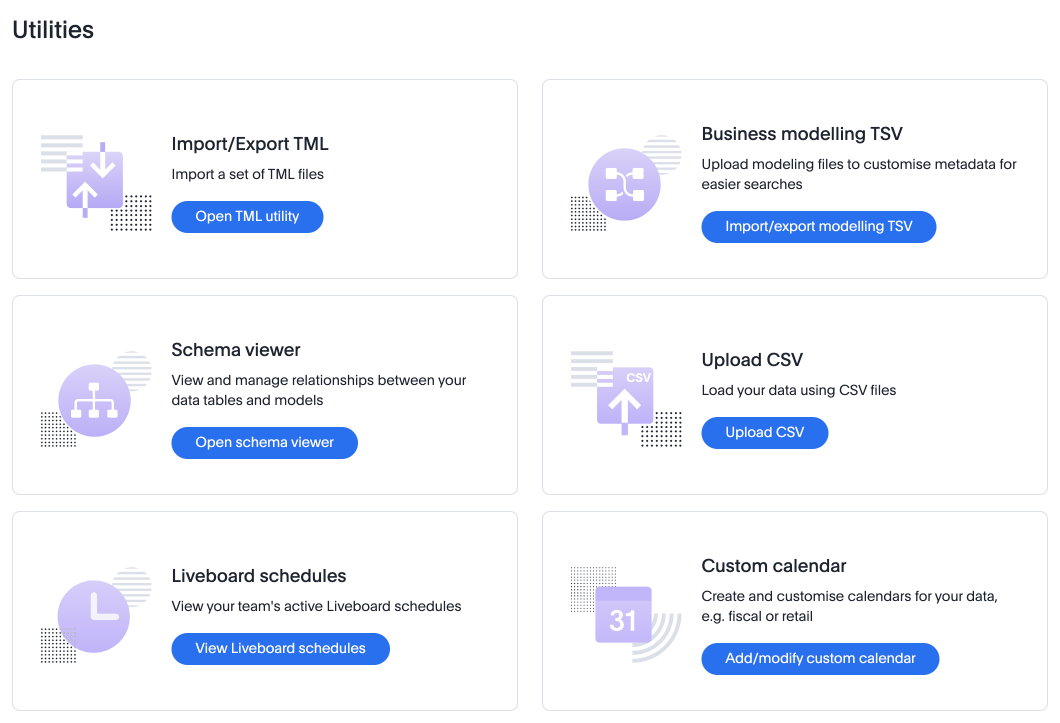
Bridge support for cloud data warehouses GA
Bridge provides options to securely connect your data source with ThoughtSpot Cloud, as an alternative to PrivateLink, VPC Peering, or VPN tunnels. We expanded support for Bridge to include the following connectors:
-
Azure Synapse
-
ClickHouse
-
Dremio
For more information, see Bridge connectivity for Cloud Data Warehouses and Databases.
Multiple configurations per connection GA
In addition to Snowflake, we now support multiple configurations for Databricks and Google BigQuery. This feature allows you to allocate separate configurations for different ThoughtSpot users, groups, or processes, eliminating the need to duplicate Liveboards and configure multiple connections, and helping you with cost tracking and governance. You can also use this for your system processes so that you can control and balance the computing load.
Add user-defined ID (object ID) in TML Beta
You can now directly add or edit an object ID in the TML of an Answer, table, Model, Liveboard, or View. This user-defined object ID allows you to manage content across multiple Orgs without having to manually change the GUID of an object each time you move it between Orgs. To enable this feature, contact ThoughtSpot support.
For more information, see Object ID in TML files.
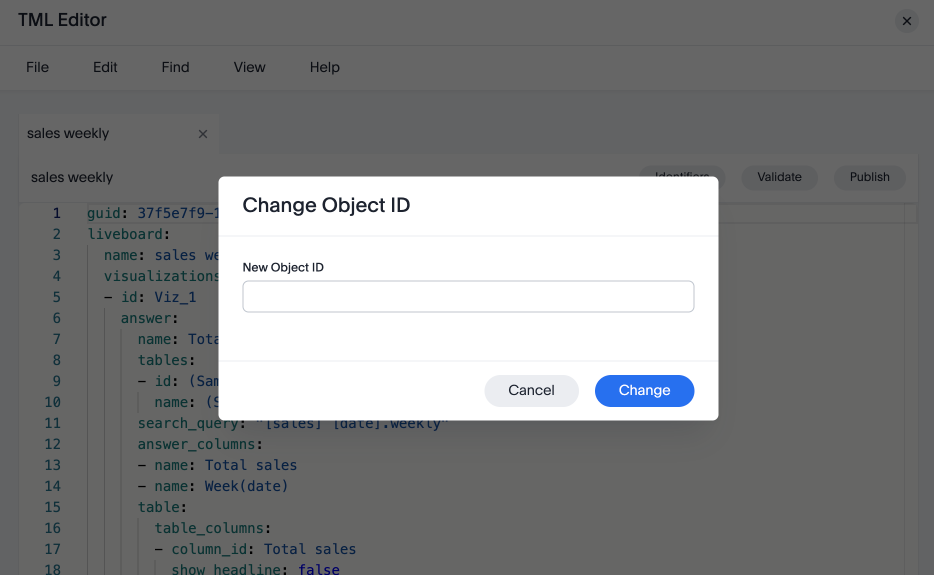
For the Developer
For new features and enhancements introduced in this release of ThoughtSpot Embedded, see ThoughtSpot Developer Documentation.
10.11.0.cl
July 2025 10.11.0.cl
| Features marked as Beta are off by default. To enable them, contact ThoughtSpot support. These features are not available for Free Trial. |
Why questions in Spotter Early Access
When you want to investigate further on a chart in Spotter, you can now ask direct questions like, "Why did my sales drop last month?" or "Why did sales drop in Q2?" Spotter identifies the key attributes and leverages the change analysis engine to provide a clear, natural language summary identifying the key drivers, supported by detailed visualizations. To enable this feature, contact your administrator.
For more information, see Why questions in Spotter and AI feature enablement.
Expand charts in Spotter GA
You can now click the expand button in the top right corner of a Spotter Answer to see the chart or table in full screen. For more information, see Getting started with Spotter.
Liveboard styling and grouping Beta
ThoughtSpot introduces new styling and grouping options for Liveboards. Styles can be applied to a Liveboard, a tile, or a group of tiles to improve readability, differentiate specific content, or apply organizational branding guidelines. To enable this feature, contact ThoughtSpot support.
For more information, see Liveboard grouping and Liveboard styling.
Filtering a Liveboard for users with limited access to its Worksheets or Models Early Access
We’ve made the following changes to how you can filter a Liveboard that uses at least one Worksheet or Model that you don’t have access to.
When viewing a Liveboard, you can now do the following:
-
Filter columns and change parameters from a Worksheet or Model you have access to. Filters and parameters from an inaccessible Worksheet or Model remain read-only.
-
Select a hidden column used as a filter from a Worksheet or Model. It only shows the selected values, and you can’t change them.
When editing a Liveboard, you can now do the following:
-
Add, edit, and remove filters and parameters from a Worksheet or Model you have access to. You can’t link filters to a Worksheet or Model that you don’t have access to.
Show only relevant filters and parameters on Liveboards GA
This feature is now on by default and available to all users. Filters and parameters that are not relevant to a tab are hidden by default when you open and view a Liveboard. You can choose to view all filters and parameters, including those that are not relevant to the tab, so that you can quickly create a new View or download the Liveboard without needing to switch tabs and apply filters individually.
For more information, see Apply filters to specific visualizations or tabs.
Add KPI to the watchlist from Liveboards and Answers GA
You can now add KPIs to your watchlist directly from the Liveboard or Answers page. Click the More menu icon in the upper-right corner of any Liveboard KPI or saved Answer, then select Add to watchlist. This allows you to track important KPIs without leaving the page you’re viewing.
KPI monitor alerts in Slack Early Access
Monitor alerts can send alert triggers directly to Slack to ensure better visibility and immediate action within your workflows. You can set up notifications to send to Slack when you create an alert. To enable this feature, contact your administrator.
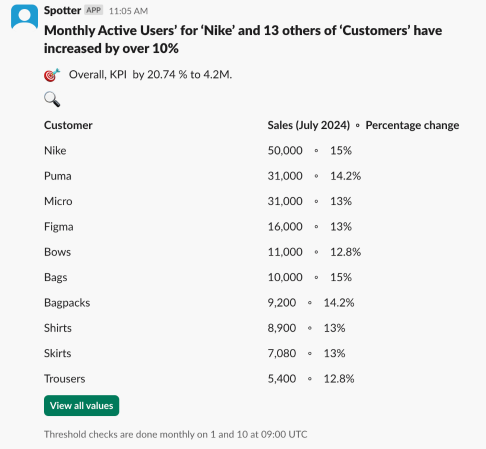
Copy formulas and parameters in Search data GA
You can now easily copy formulas and parameters in Search data. The copied object opens a pop-up window so you can easily edit and save as a new object.
For more information, see Copy a formula and Copy a parameter.
Reorder parameters in Liveboards and Answers GA
This feature is now enabled by default and available to all users. You can now edit a Liveboard or Answer to reorder the parameters along with filters and save your changes. The new order is reflected when anyone opens the Liveboard or Answer.
For more information, see Reorder parameters in Liveboards and Answers.
Other features and enhancements
AI and BI System Liveboard GA
ThoughtSpot introduces a new System Liveboard providing comprehensive visibility into query usage, user adoption, object usage, and query performance across your organization. You must have admin privileges to view this Liveboard.
Analyst Studio query tagging GA
Analyst Studio queries now appear within the AI and BI System Liveboard, allowing you to easily track your consumption of queries and data set refreshes.
Federated data source for Amazon Athena GA
We now support query federation for Amazon Athena.
For the Developer
For new features and enhancements introduced in this release of ThoughtSpot Embedded, see ThoughtSpot Developer Documentation.
10.10.0.cl
June 2025 10.10.0.cl
| Features marked as Beta are off by default. To enable them, contact ThoughtSpot support. These features are not available for Free Trial. |
Alerts by attribute GA
Alerts by attribute are now available to all users and on by default. You can now set KPI alerts to trigger when a selected attribute changes. This can include changes in the value of the attribute, such as an increase in sales by percentage by state, or a scheduled alert to trigger on a weekly basis.
For example, if you wanted to create an alert for a KPI tracking sales of different phones by brand, you could choose the intended brands as attributes and set an alert to be notified when sales for those specific brands dropped by 5%.
For more information, see Create an alert by attributes.
Feedback and learnability for Spotter Agent Beta
When Spotter Agent is enabled, you can give feedback with additional details, and leave comments that are reviewed by your administrator. The feedback you give will appear in the Spotter Conversations Liveboard. To enable this feature, contact ThoughtSpot support.
Spotter analytics model changes GA
We made the following changes to the TS: Spotter analytics data model, which is used by the Spotter Conversations Liveboard:
-
Added the Hidden, User Feedback Labels, and User Feedback Comments columns
-
Renamed the User Feedback column to User Feedback Rating
For more information, see Spotter Conversations Liveboard.
Other features and enhancements
Progressive model filters Beta
Previously, any filter defined at the Model or Worksheet level applied to every query based on that Model or Worksheet. Now, you can define which table a filter applies to in the Model or Worksheet TML. Once defined, the filter only applies to queries that include columns from that specific table.
For more information, see TML for Models.
Monitor application of row-level security at database level GA
When opening SQL comments in your database, you can now see whether RLS was applied to specific queries. In the SQL comments, you can check whether the value for isRLSApplied is true or false.
Spotter Conversations Liveboard available in all Orgs GA
The Spotter Conversations Liveboard is now available by default in all Orgs. In the primary Org, only administrators have access by default. In secondary Orgs, Org administrators can access this Liveboard, similar to other system objects.
For more information, see Spotter Conversations Liveboard.
Orgs support for ThoughtSpot plug-ins GA
The Microsoft PowerPoint add-in and the Google Slides add-on now support Orgs in ThoughtSpot. Orgs functionality is enabled by default in the Microsoft PowerPoint add-in. To enable Orgs in the Google Slides add-on, please contact ThoughtSpot support.
For more information, see Microsoft PowerPoint add-in and Google Slides add-on.
Query tags for Snowflake connections GA
ThoughtSpot introduces support for query tags on Snowflake connections. You can now set up query tags on your Snowflake connection to allow you to filter on users, groups, or other ThoughtSpot variables when auditing the Snowflake query logs. For more information, see Add a Snowflake connection.
For the Developer
For new features and enhancements introduced in this release of ThoughtSpot Embedded, see ThoughtSpot Developer Documentation.
10.9.0.cl
May 2025 10.9.0.cl
| Features marked as Beta are off by default. To enable them, contact ThoughtSpot support. These features are not available for Free Trial. |
Spotter Agent Early Access
With Spotter Agent’s powerful new capabilities, it’s easier than ever to explore your data and get answers that drive confident decisions.
Here’s what’s new:
-
Understand your data instantly
Ask Spotter what a dataset is about, explore available fields, and get clarity on how key metrics are defined — perfect for boosting data literacy. -
Never run out of questions
Not sure what to ask next? Spotter now suggests the next best questions based on your context, helping you dig deeper and explore smarter. -
Know how answers are calculated
Transparency matters. Spotter can now explain how it arrived at a specific answer, so you can trust and verify your insights.
Knowledge cards in Spotter GA
You can now hover over query tokens in Spotter to see background information on measures, attributes, formulas, and filters.
Spotter Worksheet and Model optimization GA
When you edit a Worksheet or Model that has Spotter enabled, you now see a Spotter optimization tab where you can click tiles to enable indexing, ensure date values are stored in the correct format, and optimize column types. You must have edit access to a Worksheet or Model to enable Spotter optimization.
For more information, see Spotter Worksheet/Model readiness.
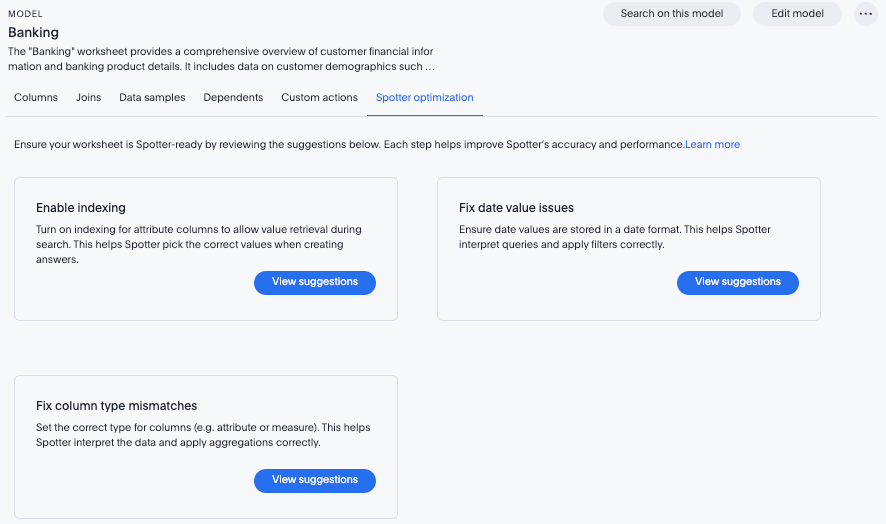
Spotter quick edits GA
You can now click tokens in a Spotter answer to edit them for clarity, such as specifying whether a measure should be classified as count or unique count, or changing the column being used as an attribute.
For more information, see Getting started with Spotter.
ThoughtSpot for Microsoft PowerPoint add-in Early Access
ThoughtSpot for PowerPoint is an add-in that allows you to insert charts and data visualizations into your PowerPoint presentation. Just connect to your ThoughtSpot instance, find a chart or visualization, and add it to your PowerPoint presentation. For more information, see ThoughtSpot add-in for Microsoft PowerPoint.
Exclude header from XLS files GA
ThoughtSpot now allows you to automate the removal of headers from XLSX files to allow you to optimize processing of your files. Once enabled, all XLSX files will have headers removed. To enable this feature contact ThoughtSpot support.
For more information, see Download your search.
Date phrase keywords Beta
Date phrase keywords now support grammatically correct combinations of date buckets—beyond simple options like yesterday or monthly. For example, you can now search for sales in the last week of each month with improved grammar in the following languages:
To enable this feature, contact ThoughtSpot support.
AI Highlights GA
AI Highlights are now available to all users. With AI Highlights, you get quick insights on how top metrics have changed in your Liveboard, dramatically reducing the time to derive insights from your KPIs. To enable this feature, contact your administrator.
For more information, see AI Highlights.
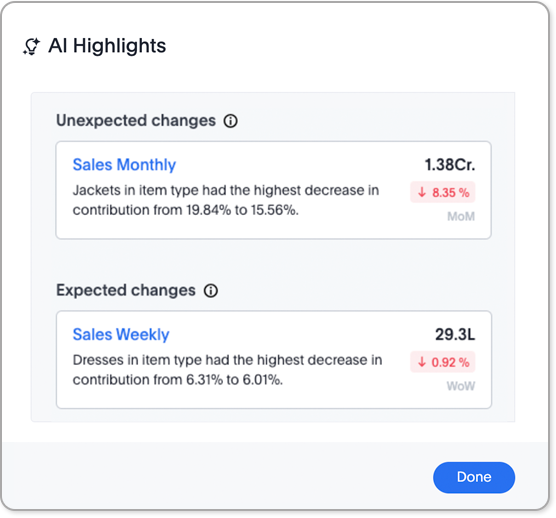
AI Highlights in Liveboard scheduled email Beta
When you create a Liveboard schedule, you can now receive AI Highlights in the scheduled email. For each KPI, the highlights define the top contributors for any change in the KPI value. To enable this feature, contact ThoughtSpot support.
For more information, see Schedule a Liveboard job.
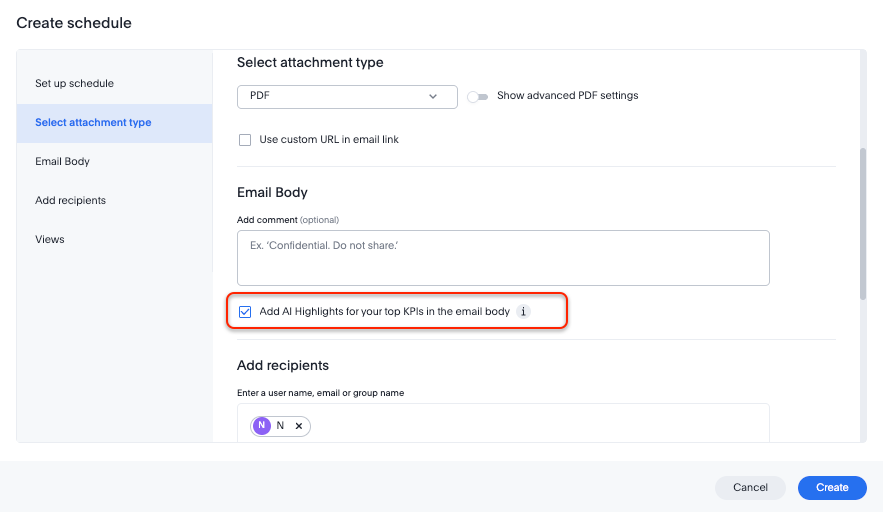
Monitor alerts time zone support GA
ThoughtSpot now allows you to create and modify Monitor alerts in different time zones. When setting up an alert, you can specify the desired time zone (for example, "America/Los_Angeles") for when the alert should be sent. This removes the previous requirement to convert alert times to UTC, enabling more flexible and localized alert scheduling and delivery for users across various regions.
Query_groups optional grouping columns Early Access
ThoughtSpot introduces optional grouping columns in query_groups to ensure that only specified columns are included, if they are present in the query. A new syntax allows users to define an explicit optional list of grouping columns. Previously, you needed to manually exclude all other columns from the Model. To enable this feature, contact your administrator. For more information, see Query_groups optional grouping columns.
Last value in period and first value in period functions Early Access
We have added support for last_value_in_period and first_value_in_period functions. These functions are useful for semi-additive measures, measures that typically return a single value per time period rather than being additive across time. For example, if you want to find out the last value for full-time employee headcount for the current date, you can use the formula, fxFTE = last_value_in_period(sum(full_time_employee), query_groups(), {date}). To enable this feature, contact your administrator.
For more information, see Last_value_in_period and first_value_in_period functions.
Other features and enhancements
Preview data for chasm and fan trap Worksheets in Spotter Beta
When you search on a Worksheet or Model containing a chasm or fan trap on Spotter, you can click the Preview data button to preview the underlying tables and columns. Click the names of tables in the left-hand menu to navigate between them. To enable this feature, contact ThoughtSpot support.
For more information, see Getting started with Spotter.
Export Spotter coaching from Coach Spotter GA
Filter, select and export specific reference questions or business terms across various data models directly from Coach Spotter.
For more information, see Migrate Spotter feedback using TML.
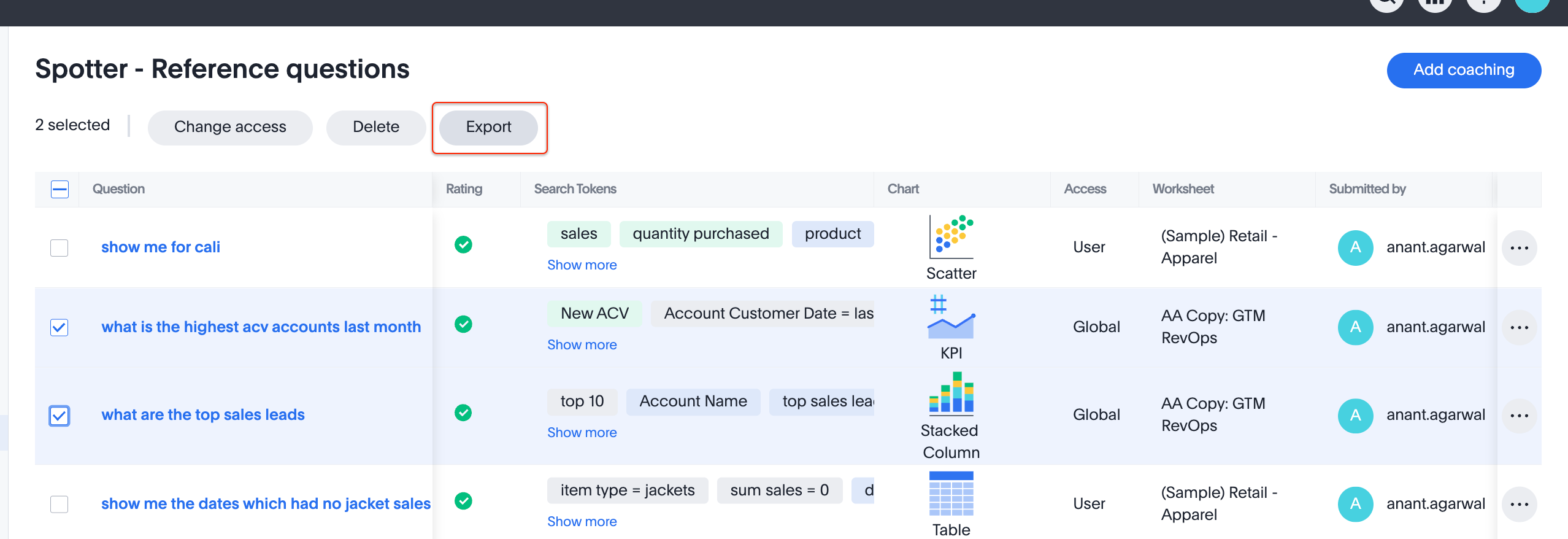
Import and export column properties for bulk edit GA
You can now make bulk edits to Model column properties by importing or exporting the Model as a CSV file from the Model editor. For more information, see Building your Model.
Home page watchlist enhancements GA
ThoughtSpot introduces a redesigned and enhanced user interface to make adding KPIs to your watchlist easier.
For more information, see Track important KPIs enhancements.
Column name and description aliasing for localization Beta
This feature provides the ability to define a column name or description alias in a Worksheet or Model which allows column names and descriptions to be displayed in a supported system language. When enabled, column names and descriptions in the Search Data and Answer interface display in the system language selected by the user in their ThoughtSpot user profile. To enable this feature, contact ThoughtSpot support.
For more information, see Column and description aliases for localization.
Multiple connection configuration for Google BigQuery Early Access
You can now create additional configurations for a Google BigQuery connection, rather than just the default configuration. With multiple connection configurations, you can configure separate Google BigQuery projects and/or authentications for specific ThoughtSpot users, groups, or processes, eliminating the need to duplicate connections.
For more information, see Add a Google BigQuery connection.
Google BigQuery connection fields GA
We have made the following changes to connection fields for Google BigQuery:
-
The Project field has been renamed to Billing Project.
-
We added the field Additional Projects.
For more information, see Add a BigQuery connection.
AI and BI Stats Beta
ThoughtSpot now has a new data model AI and BI Stats that allows customers to create Answers and Liveboards leveraging product usage data. This model systematically captures query performance metrics for every query executed against external databases. This enhancement aims to significantly improve the accuracy, reliability, and depth of insights delivered by system Liveboard reporting within ThoughtSpot.
For more information, see AI and BI Stats.
System Cross-domain Identity Management (SCIM) support Beta
ThoughtSpot introduces SCIM support to automate identity management and user provisioning across different identity management systems. Customers who use identity providers like Okta or Active Directory for identity management can now sync their user-management functions between their IdP and ThoughtSpot Cloud. Users are provisioned with their corresponding group and Org attributes when they authenticate via SSO (SAML). Users that are deactivated in their IDP are removed from ThoughtSpot as well. To enable this feature, contact ThoughtSpot support.
For more information, see Manage users and groups with SCIM.
For the Developer
For new features and enhancements introduced in this release of ThoughtSpot Embedded, see ThoughtSpot Developer Documentation.
10.8.0.cl
April 2025 10.8.0.cl
| Features marked as Beta are off by default. To enable them, contact ThoughtSpot support. |
In this release we introduce a unified help and support experience in ThoughtSpot.
To open help and support, click the question mark icon  .
Just like the original information center, you can access Help, Getting started, and What’s new. Now, you can also access support, and see the version of ThoughtSpot that you are currently using. The original support icon which appeared in the bottom right corner of ThoughtSpot has been removed.
In addition to these features, your ThoughtSpot administrator can add custom links, which appear under the Contact support menu item.
| We are gradually making this available to customers, so if you don’t see it immediately after your instance is upgraded, it should appear within one month. |
Chat support changes GA
With support, you can still send a message, book a call with a product specialist, or search for answers in our documentation, training, and community sites, using the help and support menu to open the support window.
| If you currently have your in-product support feature disabled, the Contact support menu option will display Report a problem instead. |
Parameters in column names in charts and tables GA
You can now add a parameter as a variable in the x and y-axis labels and column names of an Answer. When you select a different parameter value in the Answer, previously only the data changed. Now contextual information (such as axis name, column header, and legends) also updates to reflect parameter selected. Any place a parameter is used in Liveboards or Answers automatically displays the current information associated with the selected parameter value. For example, if you have a parameter which contains three possible values (Price, Shipping Cost, and Quantity), when you select Price, the information about the price of items is displayed. When you select Shipping Cost, the information updates to show shipping-related information, and so on.
For more information, see Parameters in axis and column names of charts and tables.
Blended axes in pivot table charts GA
In this release, we introduce a new way of adding multiple measures to pivot table charts called blended axes. With blended axes, you can group measures and control them through a system-defined chip called Values in the chart configuration settings. This chip acts like an attribute, with the different measures as its unique values. You can also place measures in rows of pivot tables instead of columns. This makes it possible to have more combinations and configurations of charts, including slicing the color for different measures, comparing multiple measures together, and more customizable pivot configurations.
For more information, see Blended axes in a pivot table.
Alerts by attribute Early Access
You can now set KPI alerts to trigger when a selected attribute changes. This can include changes in the value of the attribute, such as an increase in sales by percentage by state, or a scheduled alert to trigger on a weekly basis.
For example, if you wanted to create an alert for a KPI tracking sales of different phones by brand, you could choose the intended brands as attributes and set an alert to be notified when sales for those specific brands dropped by 5%. To enable this feature, contact your administrator.
For more information, see Create an alert by attributes.
KPI change analysis GA
The following changes to change analysis for KPI charts are now available to all users and on by default:
-
To open change analysis on a KPI chart, click the Analyze change button at the bottom of the chart.
-
When opening change analysis on a KPI, users see a summary of all changes.
-
KPI anomalies no longer appear as red points on the sparkline, they are labeled as out of the expected range of values.
For more information, see KPI change analysis.
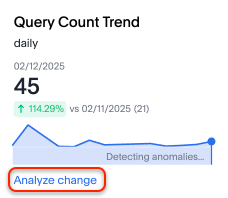
New languages support GA
In this release ThoughtSpot supports the following new system languages:
-
English (New Zealand)
Bilingual keywords for Japanese GA
ThoughtSpot now supports bilingual keywords for the Japanese locale. When your system language is set to Japanese, you can now enter keywords in either English or Japanese while searching.
For more information, see 日本語 Keyword reference.
Currency formatting for Japanese Beta
ThoughtSpot introduces whole number formatting for Japanese Yen (JPY) currency. To enable this feature, contact ThoughtSpot support. For more information, see Set number.
Include or exclude cover and filter pages from a Liveboard PDF Early Access
ThoughtSpot Liveboard PDFs include a cover page and filter pages that contain information about the filters applied. You can now use the PDF Options checkboxes to choose to include or exclude these page when downloading or scheduling a Liveboard PDF. To enable this feature, contact ThoughtSpot support.
For more information, see Download a Liveboard as a PDF.
Number formatting on attributes Beta
ThoughtSpot introduces enhanced number formatting controls for measures that are marked as attributes in the data source. Use this enhanced formatting to ensure that measures marked as attributes are formatted with the appropriate number format.
For more information, see Set number.
To enable this feature, contact ThoughtSpot support.
Other features and enhancements
Override null or empty values with a custom value Beta
ThoughtSpot introduces a feature to override displayed {Null} and {Empty} values with a customizable value. This allows you to define how null data values appear to better meet your organization’s specific needs.
For more information, see How NULL and blank values are displayed.
To enable this feature, contact ThoughtSpot support.
Create your own charts with Muze Studio Beta
You can now create your own charts in ThoughtSpot using the Muze charting library. A developer can create new chart types by writing the code in the code builder. To enable this feature, contact your ThoughtSpot administrator.
For more information, see Creating charts with Muze Studio.
For more information, see Creating charts with Muze Studio.
Model knowledge cards GA
Model knowledge cards are now available to all users and on by default. With knowledge cards, you can now see more detail about tables and columns before you add them to a Model. To view the knowledge card, click the knowledge card button  , and then click the table or column. For more information, see
Knowledge cards.
Migrate Spotter feedback using TML GA
You can now migrate feedback between Models using the feedback TML file. Select the more options icon on the Model and hover over the TML section to import or export the TML file containing your feedback.
For more information, see Migrate Spotter feedback using TML and TML for Spotter feedback.
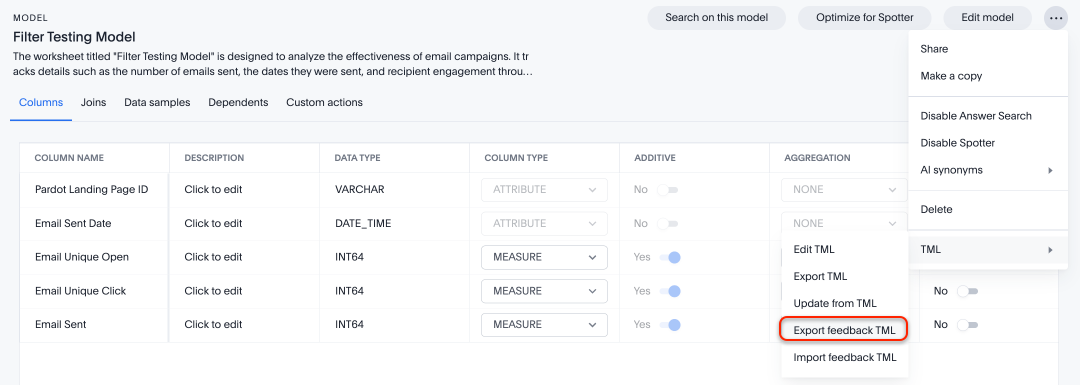
Column name and description aliasing for localization Beta
This feature provides the ability to define a column name or description alias in a Worksheet or Model which allows column names and descriptions to be displayed in a supported system language. When enabled, column names and descriptions in the Search Data and Answer interface display in the system language selected by the user in their ThoughtSpot user profile. To enable this feature, contact ThoughtSpot support.
For more information, see Column and description aliases for localization.
Join cardinality change for global joins GA
Join cardinality change for global joins is now available to all users and on by default. You can now change the cardinality of a join (1:1, 1:Many, Many:1) without needing to delete and remake the join. For more information, see Change join cardinality.
Natural Language Search queries in Query Stats Worksheet GA
ThoughtSpot now distinguishes between regular query consumption and Spotter queries within the Query Stats Worksheet. For more information, see System Worksheets.
OAuth for Denodo using Proof Key for Code Exchange (PKCE) GA
We now support OAuth with PKCE for Denodo.
Redesigned Connection creation Early Access
We redesigned and streamlined the process to create a Connection. Set up your Connection in four easy steps by selecting a data source, configuring the Connection, selecting databases, and selecting tables. To enable this feature, contact your administrator.
For more information, see New connection configuration experience.
Bridge support for Oracle, SAP HANA, and SQL Server GA
Bridge provides options to securely connect your data source with ThoughtSpot Cloud, as an alternative to PrivateLink, VPC Peering, or VPN tunnels. We added support for Bridge for the following connectors:
-
Oracle
-
SAP HANA
-
SQL Server
For more information, see Bridge connectivity for Cloud Data Warehouses and Databases.
For the Developer
For new features and enhancements introduced in this release of ThoughtSpot Embedded, see ThoughtSpot Developer Documentation.
Deprecated and removed features
For the latest information about features to be deprecated or removed, see Deprecated and removed features.
10.6.0.cl
February 2025 10.6.0.cl
| Features marked as Beta are off by default. To enable them, contact ThoughtSpot support. |
Spotter in Slack Beta
Where previously you could ask questions in natural language in Slack using the ThoughtSpot app, you can now use Spotter to conversationally search your data in Slack. Follow-up questions remain within the same thread, preserving context. Pin a Worksheet or Model to a channel to ensure quick access to data from that Worksheet or Model. To enable this feature, contact ThoughtSpot support.
| Spotter in Slack is not available for GCP and ThoughtSpot Embedded clusters yet. |
For more information, see Spotter in Slack.
Show only relevant filters and parameters on Liveboards Early Access
Filters and parameters that are not relevant to a tab are hidden by default when you open and view a Liveboard. You can choose to view all filters and parameters, including those that are not relevant to the tab, so that you can quickly create a new view or download the Liveboard without having to switch tabs and apply filters individually.
To enable this feature, contact your administrator.
For more information, see Apply filters to specific visualizations or tabs.
Improved sorting, filtering, and export of Answers and Liveboards in the new navigation and homepage experience GA
In this release, we provide new options for sorting and filtering Answers and Liveboards, as well as the option to export them to TML. These options are available in the home page, as well as the Liveboards and Answers pages of the Insights app in the new navigation and homepage experience. The options include the following:
-
Sorting Answer and Liveboard lists by "last modified"
-
Filtering Liveboards and Answers by All or Yours
-
Exporting selected Answers and Liveboards to TML
To confirm you are using the new navigation and homepage, go to your user profile and make sure Navigation and Homepage is set to New experience. For more information, see Home page.
Gradient-based conditional formatting GA
Gradient-based conditional formatting is now available to all users and on by default. You can now choose multiple colors to define a gradient in charts that support gradients — geo heatmap, geo area, heatmap, and treemap charts. You can control the low, mid, and high values, and numerical value points to customize the gradient.
For more information, see Change chart colors.
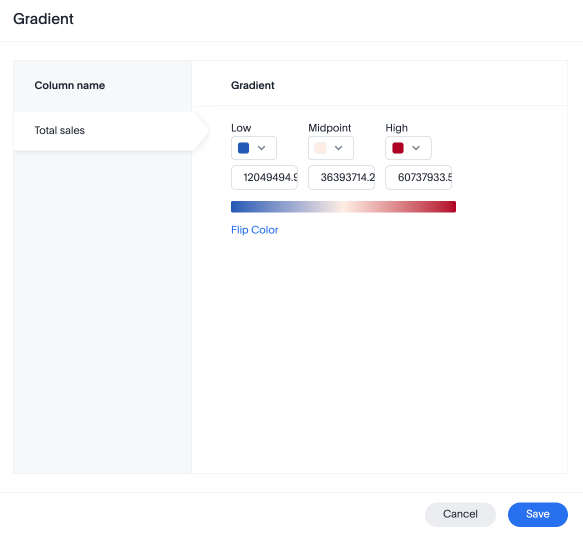
Query set bins Early Access
ThoughtSpot users can now create bins for aggregate results in query sets. This feature allows you to create groups based on bins of specified sizes with minimum and maximum values. To enable this feature, contact your administrator.
For more information, see Query sets.
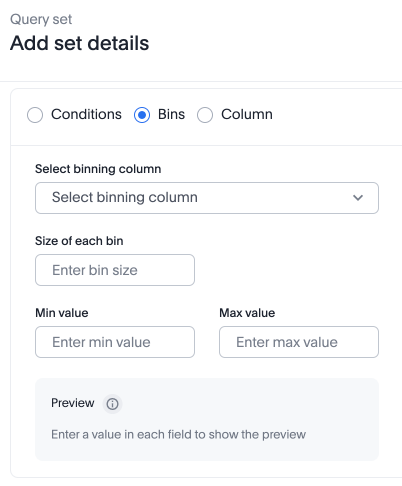
Passthrough filters for sets Early Access
You can now pass filters from a query into a set definition without needing to remake the set to include the filter. For example, if you create a query set defined as a list of SKUs that are ranked based on sales, where 1 through 10 are defined as Gold, 11 through 50 are defined as Silver, and the remainder are defined as Bronze, you can now add a filter such as Region. You can configure the set’s filter behavior from the TML, instructing ThoughtSpot to exclude or include specific columns, or to accept all filters by default. To enable query sets, contact your administrator.
For more information, see Passthrough filters for query sets.
Advanced conditional formatting GA
Advanced conditional formatting is now available to all users and on by default.
In addition to using conditional formatting to visually highlight a threshold in a measure (for example, sales > 10000), you can now use conditional formatting to compare a column’s measures to another column.
For example, if you search for sales this year compared to sales last year, you can highlight where sales this year were less than last year. You can set multiple conditional formatting rules to a single table.
For more information, see Advanced conditional formatting.
Custom comparison point for KPI charts GA
Custom comparison points for KPI charts are now on by default and available to all users. Previously, time-series KPI charts had limited options when comparing to past periods. For example, a weekly KPI could be compared against the previous week, the previous month’s same week, the previous quarter’s same week, or the previous year’s same week. Now, you can set a custom point in data against which ThoughtSpot compares the most recent data point, any number of weeks ago. This feature is applicable to all KPIs including time keywords like weekly, monthly, or quarterly. Your chosen comparison point persists for all viewers of the KPI. To enable this feature, contact your administrator.
For more information, see KPI charts.
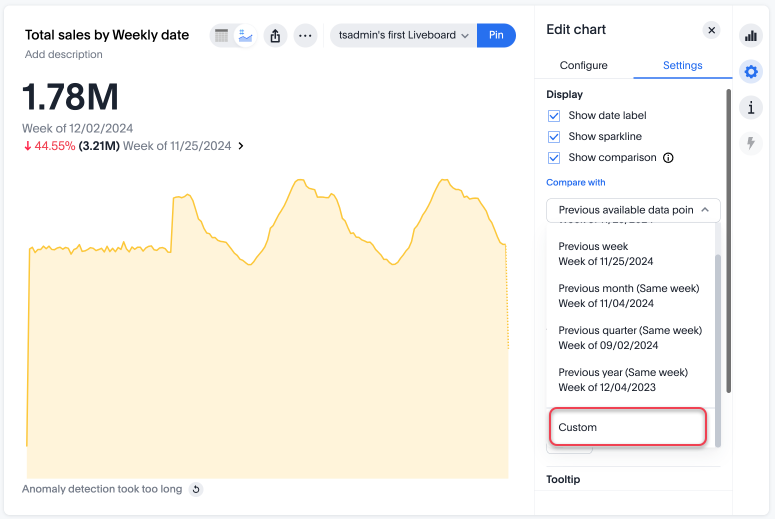
KPI change analysis GA
We made the following changes to change analysis for KPI charts:
-
To open change analysis on a KPI chart, click the Analyze change button at the bottom of the chart.
-
When opening change analysis on a KPI, users see a summary of all changes.
-
KPI anomalies no longer appear as red points on the sparkline, they are labeled as out of the expected range of values. To enable these changes, contact ThoughtSpot support.
Reorder parameters in Liveboards and Answers Early Access
You can now reorder the parameters in Liveboards and Answers, in the same way that you can reorder filters. When you edit a Liveboard or Answer to reorder the parameters and save your changes, the new order is reflected when anyone opens the Liveboard or Answer.
To enable this feature, contact your administrator.
For more information, see Reorder parameters in Liveboards and Answers.
Custom charts GA
Custom charts are now available to all users and on by default. Custom charts allow you to use charts created outside of ThoughtSpot, including from third-party chart libraries. For more information, see Custom charts.
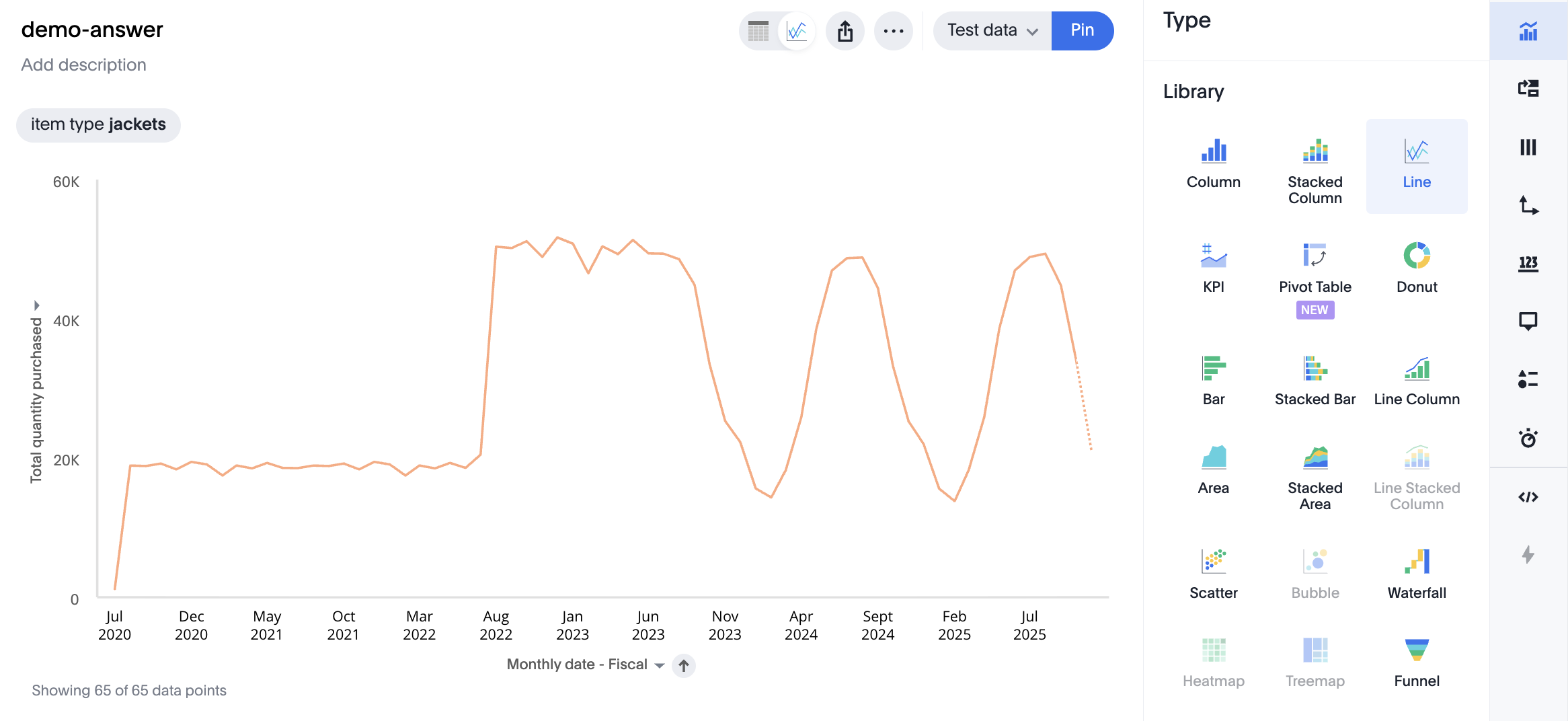
Pivot table charts Early Access
ThoughtSpot introduces a brand new pivot table chart. The new pivot table charts have the following features:
-
Faster load times with pagination.
-
We now support custom sort order.
-
You can now adjust column widths.
-
You can now slice with measures and attributes.
-
You can now use values for more granular control in configurations.
To enable this feature, contact your administrator.
For more information, see Pivot table charts.
Group aggregates in change analysis GA
You can now run change analysis on queries that contain group aggregate expressions.
ThoughtSpot Connected Slides new features GA
The ThoughtSpot Connected Slides add-on for Google Slides has the following new features:
-
Schedule daily, weekly, or monthly updates of all visualizations in your Google Slides presentation
-
Personalized views and tabs
-
Timestamp to show when a slide was last updated
For more information, see ThoughtSpot Connected Slides.
Other features and enhancements
Suggest indexing of columns for Spotter GA
In this release, we introduce Optimize for Spotter. It is an easier way of indexing the Worksheet and Model attribute columns required for accurate searches on specific column values in Spotter. After enabling Sage on a Worksheet or Model and clicking the Optimize for Spotter button, ThoughtSpot detects which columns are not indexed and allows you to index the ones you need for Spotter. For more information, see Optimize for Spotter.
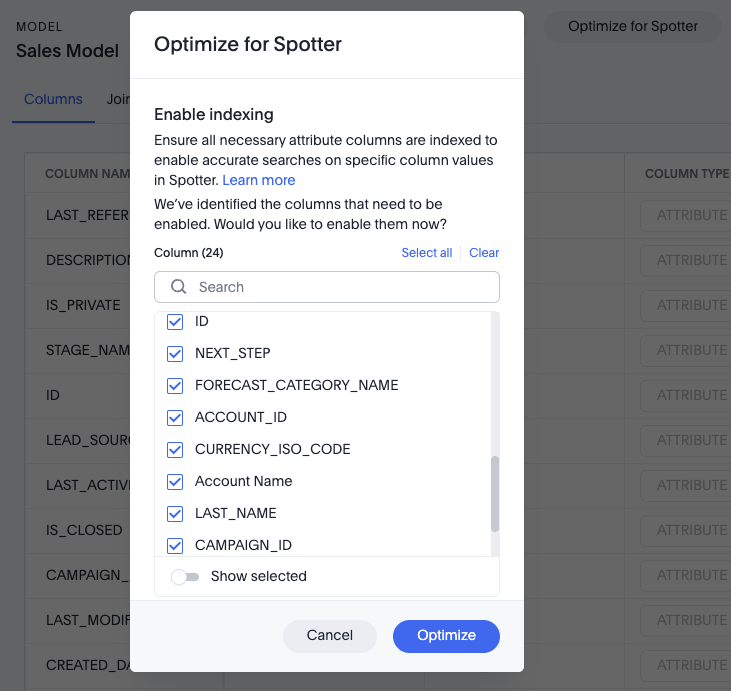
Spotter Conversations Liveboard GA
We’ve introduced the Spotter Conversations Liveboard to give you real-time visibility into user interactions with Spotter. With this Liveboard, administrators can:
-
Gain insights into user engagement and adoption metrics for Spotter.
-
Track query trends and understand user intent.
-
Monitor follow-up actions, including query refinements and edits within conversations.
-
Analyze feedback to identify training gaps and improve dataset coverage.
For more information, see Spotter Conversations Liveboard.
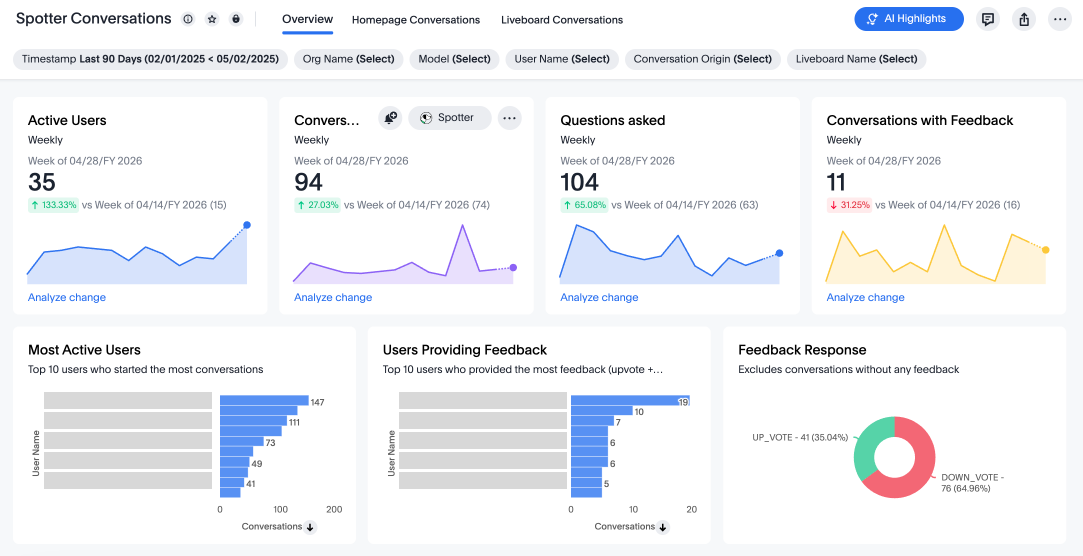
ClickHouse connection Early Access
You can now create connections from ThoughtSpot to ClickHouse. To enable this feature, contact your administrator. For more information, see ClickHouse.
Improved error messaging in Data model editor GA
The Data model editor has enhanced error messaging to help you understand and fix errors. Global errors, like a session expiring or an error when saving changes, are now displayed in a pop-up window. Local errors, associated with a specific tab, display a red dot on the tab and a banner under the tab after it is selected.
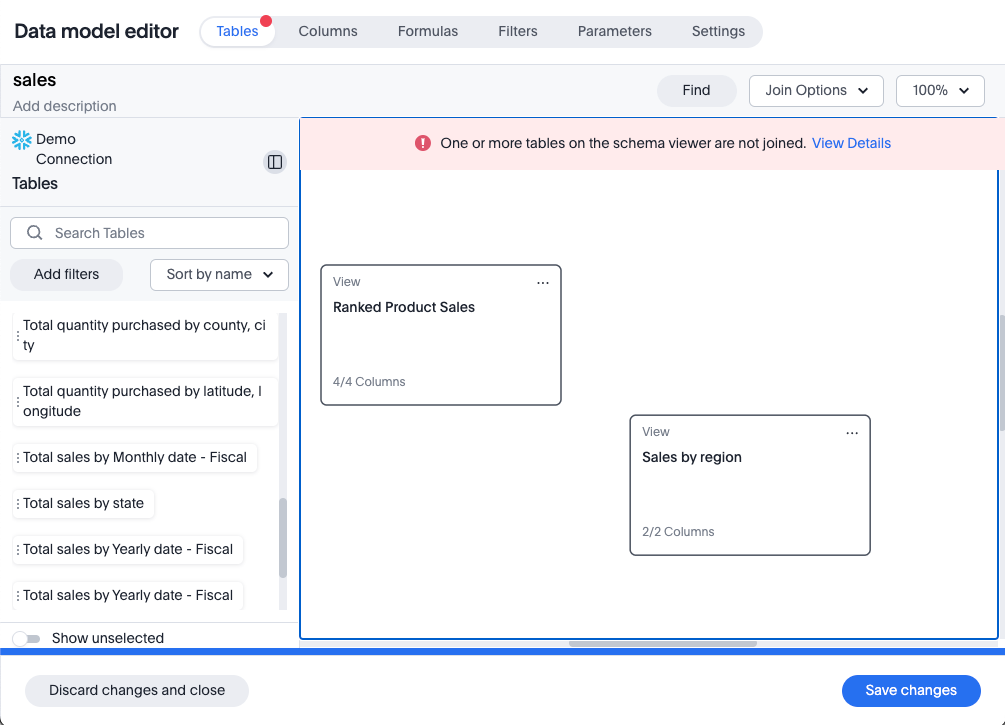
New security log events for data modeling GA
In this release, we’ve added new security log events for creating, updating, and deleting the following:
-
Tables
-
Imported tables
-
SQL views
-
Worksheets
You can access security logs from ThoughtSpot by pushing the logs to your SIEM server, or by pulling the logs using the Audit Logs API. For more information, see Collect security logs.
User-defined ID in TML Beta
Rather than using a system-generated GUID to identify individual objects in TML files, you can now manually set an object property (obj_id) with a uniqueness constraint on the Org level. This allows you to manage content across multiple Orgs without having to manually change the GUID of an object each time you move it between Orgs. To enable this feature, contact ThoughtSpot support.
For more information, see User-defined ID in TML.
Row count connection configuration Early Access
ThoughtSpot now allows you to assign different configurations when creating a connection, to run row count stats and keep them separate from other process and user queries. Use this feature to help with auditing and tracking your cloud data warehouse usage by user and process. Optimize costs by assigning the right resources to the right process and users.
To enable this feature, contact your administrator.
Import and export users and groups using TML Early Access
Import and export users, groups, roles, and privileges programmatically, using ThoughtSpot Modeling Language. You can use this feature to migrate from one environment to another, and user, group, and role configurations do not need to be recreated. To enable this feature, contact your administrator.
For more information, see Managing users, Managing groups, Understand RBAC and privileges.
Search data mandatory columns Beta
You can now use TML to define a list of associated columns that must be included in a search if a certain column is added. This allows you to make sure users do not remove necessary context from a search by removing a column. To enable this feature, contact ThoughtSpot support.
Multifactor authentication for customers using local authentication Beta
ThoughtSpot now supports multifactor authentication (MFA) for customers using local authentication powered by Enhanced IAM with IAM v2. Use MFA to enable secure access to your ThoughtSpot instance for your local auth users by introducing an additional authentication factor configurable at the cluster level. We support Okta Verify, Google Authenticator, and Email-based time-based one-time passcode (TOTP) authentication with ThoughtSpot MFA.
For more information, see Multifactor authentication for customers using local authentication.
ThoughtSpot Enterprise Org enablement GA
All ThoughtSpot Enterprise clusters will get enabled with Orgs by default starting with this release. Your environment remains a single-tenant environment until you create an Org. You can delete all the Orgs you created and use only the Primary Org if you want a single-tenant environment with Orgs enabled.
For more information, see Multi-tenancy with Orgs.
Org context for sharing links GA
ThoughtSpot’s org context for sharing links is now available to all users and enabled by default. URLs in emails now include Org context so that users are taken directly to the correct Liveboard in the correct Org even if they belong to multiple Orgs. You can also move between different browser tabs that point to different Orgs. To enable this feature, contact your administrator.
For more information, see Org context for sharing links.
For the Developer
For new features and enhancements introduced in this release of ThoughtSpot Embedded, see ThoughtSpot Developer Documentation.
10.5.0.cl
December 2024 10.5.0.cl
| Features marked as Beta are off by default. To enable them, contact ThoughtSpot support. |
Spotter suggested questions GA
To increase relevance to your search, Spotter now surfaces past global reference questions as sample questions below the search bar in the home page.
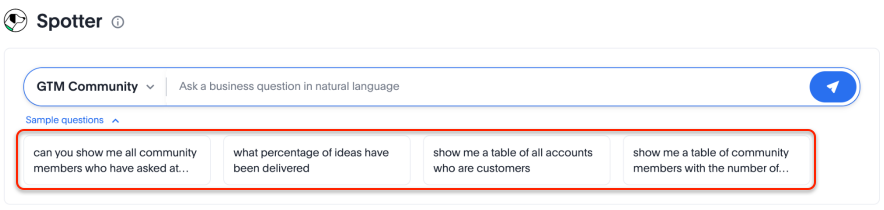
Data update for Google Sheets add-on GA
With ThoughtSpot Connected Sheets, a free add-on for Google Sheets, you can now update your existing search results to get the latest data without having to enter the search query again. You can do this for the current sheet or all sheets. For details, see ThoughtSpot Connected Sheets.
Anomaly-based alerts GA
Anomaly-based alerts are now on by default and available to all users. You can receive alerts when data of KPIs you are subscribed to fall outside the predicted value range.
When creating an alert, you can specify the time and frequency at which ThoughtSpot checks the KPI’s data against the values predicted by ML models trained on the data. For example, you can create an alert for a sales weekly KPI, and specify that ThoughtSpot compare the values every Monday at 5 PM. You may also add individual subscribers to the alert. If the KPI’s data falls outside the predicted range, ThoughtSpot sends an alert to your email and, if applicable, your subscribers' emails.
For more information, see Create an anomaly alert.
Change analysis summary tab Beta
Now with change analysis, you get a snapshot view of all the factors/attributes that have changed in a single view, to get an overview of your changes in the chart. You can click View details to see the changes by attribute, or select Customize to change which measures or attributes to analyze.
For more information, see Change analysis summary tab.
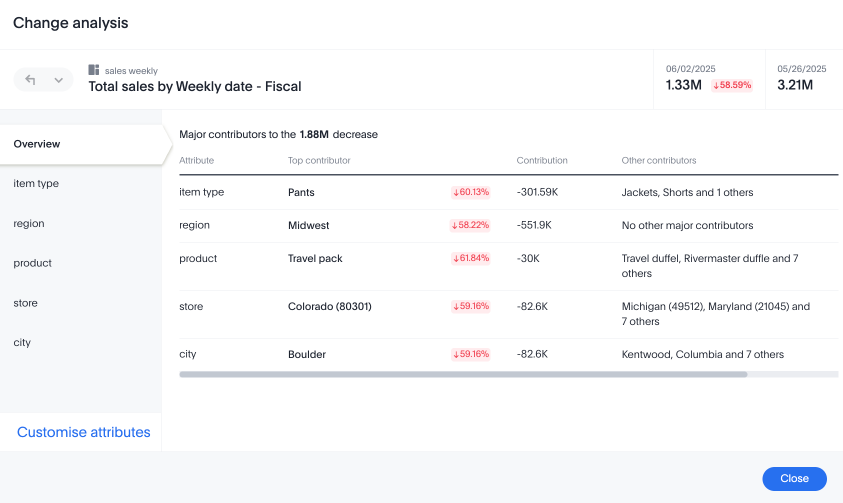
Custom comparison point for KPI charts Early Access
Previously, time-series KPI charts had limited options when comparing to past periods. For example, a weekly KPI could be compared against the previous week, the previous month’s same week, the previous quarter’s same week, or the previous year’s same week. Now, you can set a custom point in data against which ThoughtSpot compares the most recent data point, any number of weeks ago. This feature is applicable to all KPIs including time keywords like weekly, monthly, or quarterly. Your chosen comparison point persists for all viewers of the KPI. To enable this feature, contact your administrator.
For more information, see KPI charts.
Query set groups Early Access
ThoughtSpot users can now define groups for included query values using conditions in Query sets. Conditions allow you to create groups using operators, to specify the parameters of the group.
For example, you could create a query set that list each customer, their sales dollar amount and then add a formula that ranks the amount in descending order. You could then add groups to define GOLD, SILVER, BRONZE levels where Gold is Ranked 1-10, Silver 11-50 and Bronze everyone else.
To enable this feature, contact your administrator. For more information, see Query sets.
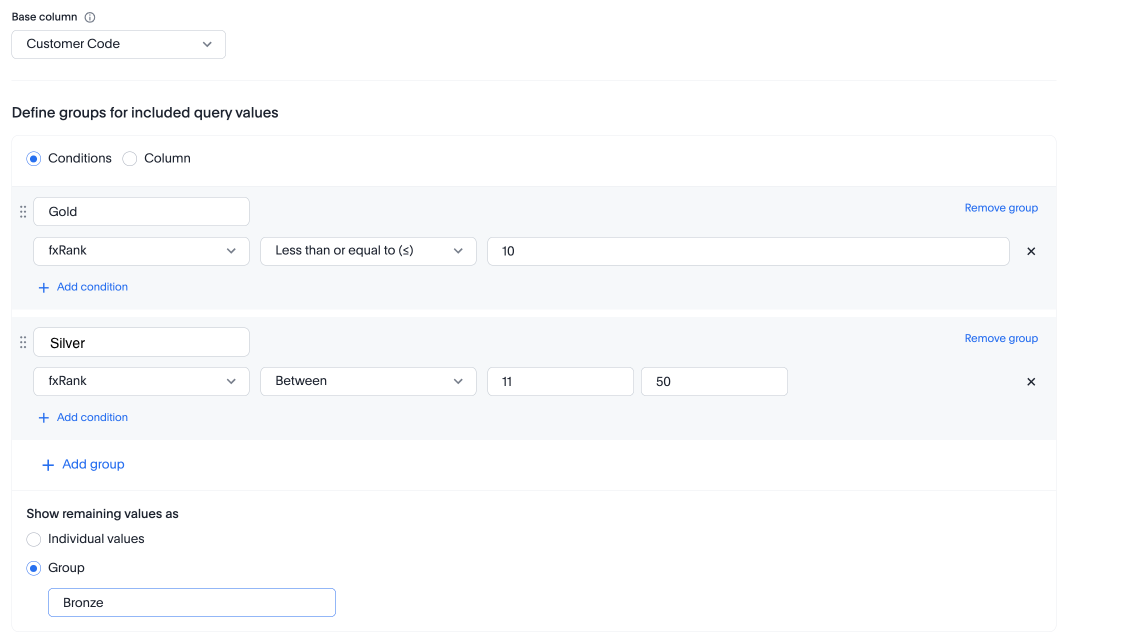
Pivot table enhancements Beta
We are introducing a new pivot table chart. To access this feature, contact ThoughtSpot support. This new chart has improvements in the following areas:
-
Performance
-
Faster interaction while expanding rows and columns
-
Pagination
-
-
Customization
-
Custom sort order support
-
Column widths
-
Slicing with measures and attributes
-
Measure names and values
-
-
UX
-
Tooltips
-
Legends
-
Zebra mode
-
Decluttered header space
-
Custom charts Early Access
Custom charts allow you to use charts created outside of ThoughtSpot, including from third-party chart libraries. To enable this feature, contact your administrator.
Compact Liveboard header GA
We have streamlined the design of Liveboard headers to ensure maximum visibility of Liveboard visualizations no matter the size of the screen. Tabs have been moved to the top line of the header, next to the title.
For more information, see Liveboards.

Other features and enhancements
Databricks service principal with OAuth GA
You can now authenticate a Databricks connection using a service principal and OAuth secret. For more information, see Add a Databricks connection.
Org switcher display Early Access
Administrators can now enable or disable the display of the org name and Org switcher for users. By default, the org name and switcher are visible to all users. Cluster administrators can modify this setting so that users with only a single org do not see the org name and switcher. For more information, see Orgs administration.
OAuth Connections sign-in for Search Data and Answer view GA
Admin users now have more control on how users sign in to Connections authenticated using OAuth when the connection authentication has expired. Previously, the Sign in with OAuth button appeared only on Liveboards built on the Connection. Now, users can access the sign-in flow from Search Data and Answers as well. For more information, see OAuth sign-in for Liveboards and Answers.
Join cardinality change for global joins Early Access
You can now change the cardinality of a join (1:1, 1:Many, Many:1) without needing to delete and remake the join. To enable this feature, contact your administrator. For more information, see Change join cardinality.
Utilities schema viewer GA
ThoughtSpot’s schema viewer connection picker is now on by default and available to all users. You can now use the dropdown or search to select your connection in the schema viewer.
| You can no longer view objects across all connections. You must filter by a specific connection. |
For more information, see Schema viewer connection picker.
Administer custom charts Early Access
Administrators can now enable custom charts on the Admin > All Orgs > Early access features page.
For the Developer
For new features and enhancements introduced in this release of ThoughtSpot Embedded, see ThoughtSpot Developer Documentation.
10.4.0.cl
November 2024 10.4.0.cl
| Features marked as Beta are off by default. To enable them, contact ThoughtSpot support. |
Spotter for Cloud GA
Introducing Spotter, our new AI-powered, unified conversational search experience. This feature replaces the previous Sage search experience. When enabled, you can enter the Spotter interface from the search bar on the Home page, or by clicking Spotter on any visualization pinned to a Liveboard.
You can ask successive questions to hone in on business insights, open a preview of the underlying data, drill down, edit or undo changes to the resulting AI-generated Answers, see what terms Spotter changed from question to question, and submit feedback to train Spotter’s interpretations. Analysts can also coach Spotter on how to interpret certain terms from the Admin page. For more information, see Spotter for Cloud.
Chart visualization enhancements GA
We made the following changes to visualizations on Liveboards:
-
You can now hover over items in a visualization’s legend to highlight the data that corresponds to that column.
-
You can hover over a truncated legend to see the corresponding column name in a tooltip.
-
We improved the readability for the smallest size of Liveboard visualizations. Now, minimum-sized visualizations display only the chart, omitting the x- and y-axes and labels. You can hover over select data points to see the values.
For more information, see Basic Liveboard usage.
Compact Liveboard header Early Access
We have streamlined the design of Liveboard headers to ensure maximum visibility of Liveboard visualizations no matter the size of the screen. To enable this feature, contact your administrator. For more information, see Liveboards.

Configuring color gradients Early Access
You can now choose multiple colors to define a gradient in charts that support gradients — geo heatmap, geo area, heatmap, and treemap charts. You can control the low, mid, and high values, and numerical value points to customize the gradient. For more information, see Change chart colors.
ThoughtSpot Sync: send full image of Liveboard to Slack Beta
ThoughtSpot introduces the ability for users to choose to export a Liveboard as a PDF or a PNG image when creating a new sync pipeline. PDFs include the complete Liveboard. PNG images are of the first page of the Liveboard. To enable this feature, contact ThoughtSpot support.
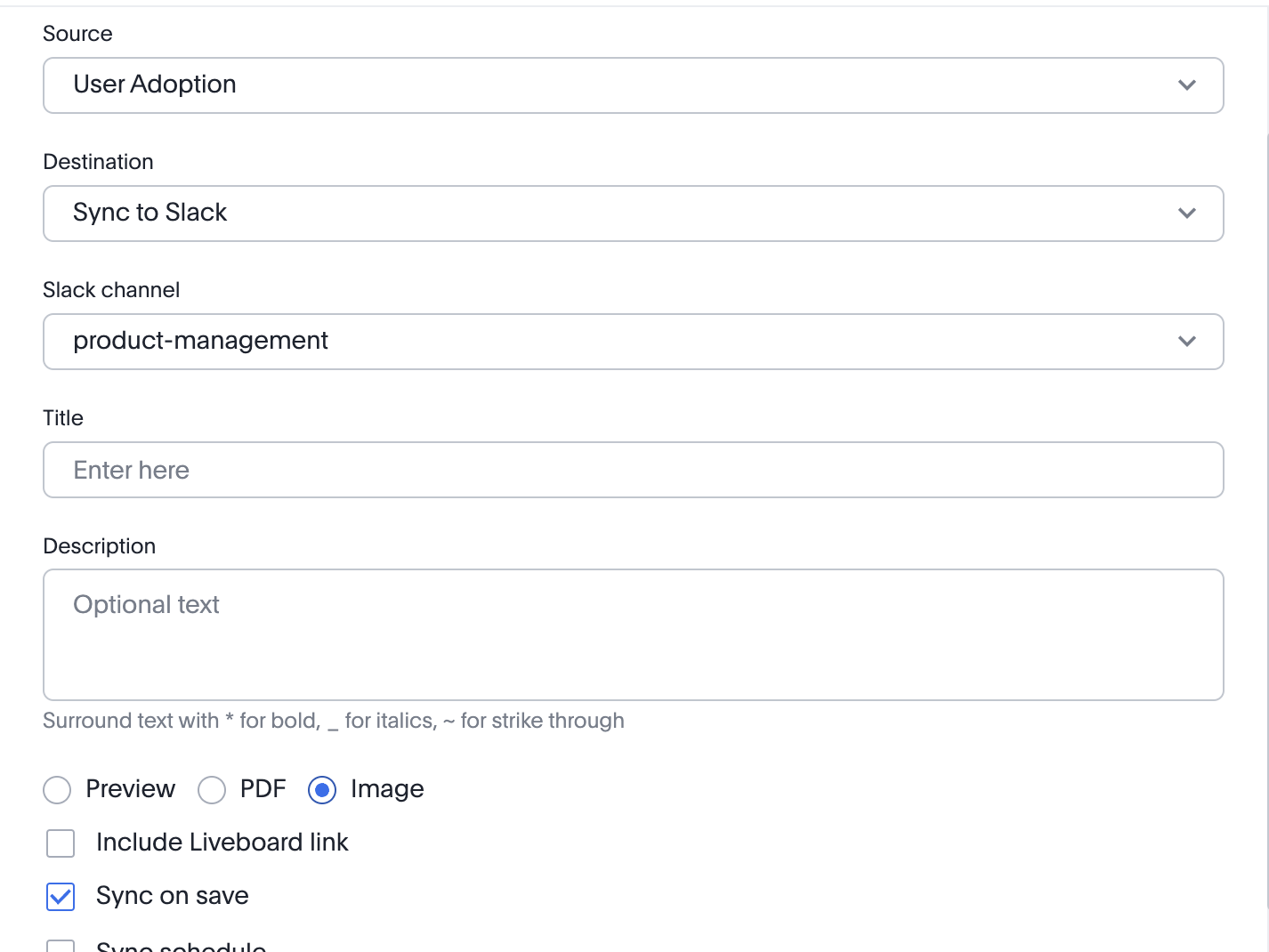
For more information, see Sync data from ThoughtSpot to Slack.
Other features and enhancements
Models GA
Models are now available to all customers and enabled by default. Worksheets are now deprecated and will be removed in a future release. Existing Worksheets continue to be available and editable, but Worksheet creation is disabled by default. To enable Worksheet creation, you must contact your ThoughtSpot administrator. You can migrate an individual Worksheet to a Model. Bulk migration of Worksheets to Models will be available in the 10.5.0.cl release. For more information, see Models.
Model knowledge cards Early Access
With knowledge cards, you can now see more detail about tables and columns before you add them to a Model. To view the knowledge card, click the knowledge card button , and then click the table or column. To enable this feature, contact your ThoughtSpot administrator.
For more information, see
Knowledge cards.
Updated joins tab for Worksheets and Models GA
The joins tab for Worksheets and Models is now updated to match the join creation UI for Models.
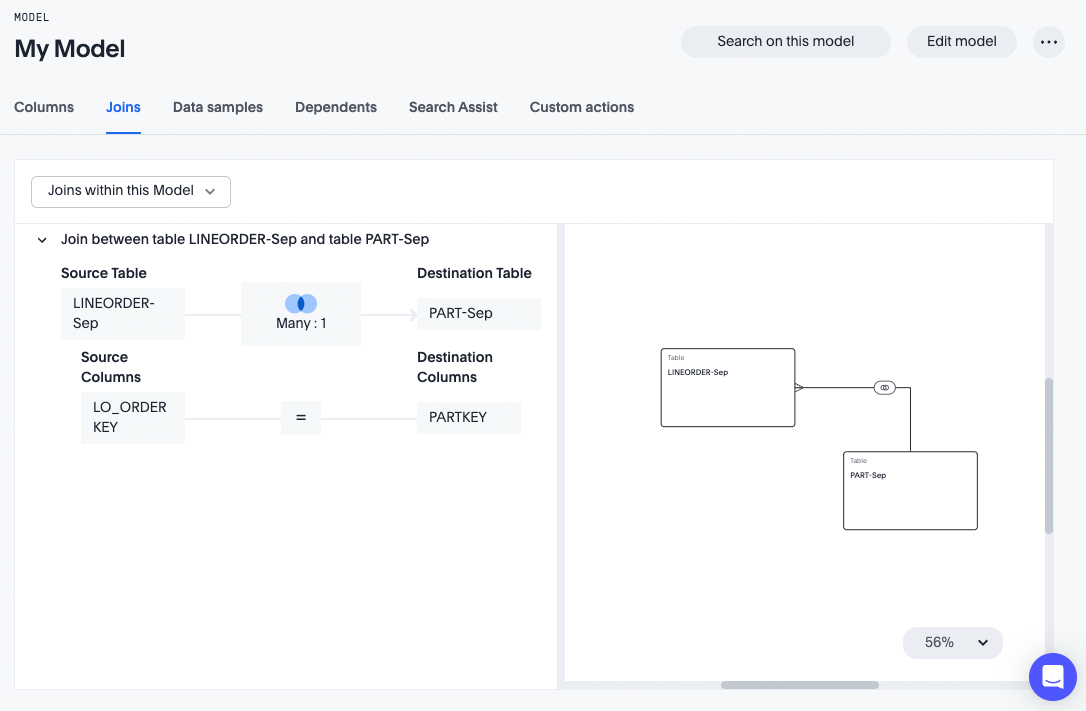
Control default and available chart types Beta
You can now control the default display mode for Answers (table or chart). You can also decide which chart types are available and default for your cluster. For example, you can set the default chart type for an Answer as a bar chart. You could also decide to remove pie charts from your cluster. To enable this feature, contact ThoughtSpot support. For more information, see Control default and available chart types.
ThoughtSpot Status Beta
Admin users can now navigate to the ThoughtSpot Status page to monitor the health of services on their cluster. The Status page displays the status of different ThoughtSpot services, like Authentication, Data Connections, Infrastructure Services, KPI Monitor, Search Data, Search Service, SpotIQ, Sync, and Spotter. The page also shares scheduled maintenance timelines, outage notifications, and incident reporting and updates.
To access the status page, add /status to the end of your cluster url (for example, https://<clustername>.thoughtspot.cloud/#/status). To enable this feature, contact ThoughtSpot support. For more information, see
Status page.
Version control permissions GA
We made the following changes to permissions regarding version control:
-
Admin users can now assign the Can set up version control privilege to allow non-admin users to access the version control settings under Admin > Application settings, and to use Version Control REST v2 APIs.
-
We renamed the previous Can manage version control permission to Can toggle version control for objects. Users with this permission and edit access to a ThoughtSpot object can enable or disable version history for that object.
For more information, see Version control for Liveboards and Answers.
Data panel column groups GA
Analysts can now set definitions in a Model’s TML file to group columns together in the Data panel for Search Data. You can also use TML properties to enable or disable alphabetical sorting of the groups. For more information, see TML for Models.
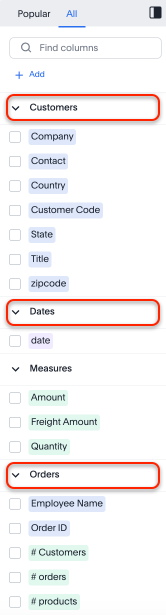
Download custom calendar GA
In the Create a custom calendar interface, you can now set up a template calendar and download it as a CSV file with all columns, based on the values you inputted. You can then modify the file and share it with your ThoughtSpot administrator to upload it to your database. Once the CSV is uploaded to the database, you can set up the calendar by directly mapping the table. For more information, see Create a custom calendar.
Utilities schema viewer connection picker Early Access
ThoughtSpot introduces a connection picker to the schema viewer. You can now use the dropdown or search to select your connection in the schema viewer.
| You can no longer view objects across all connections. You must filter by a specific connection. For more information, see Schema viewer connection picker. |
For the Developer
For new features and enhancements introduced in this release of ThoughtSpot Embedded, see ThoughtSpot Developer Documentation.
10.3.0.cl
October 2024 10.3.0.cl
| Features marked as Beta are off by default. To enable them, contact ThoughtSpot support. |
Natural language search and object search GA
Natural language search and object search are now separated. To search for an AI-generated answer using natural language, enter your question in the search bar marked Ask a business question in natural language on the home page. To search for related Answers and Liveboards, enter your question in the search bar marked Find existing Answers and Liveboards in the top navigation bar.
For information on the changes in ThoughtSpot Embedded, see Search experience in the ThoughtSpot developer documentation.
For any questions or concerns, contact ThoughtSpot support.
Manage tags for Answers and Liveboards GA
You can now manage all your Answer and Liveboard tags from one convenient window. Just click the Manage tags button at the top of your list of Liveboards or Answers, then create, edit, and delete tags. To delete and edit tags you must have administrator privileges or the can manage tags role if RBAC is enabled. For more information, see Use tags to organize.
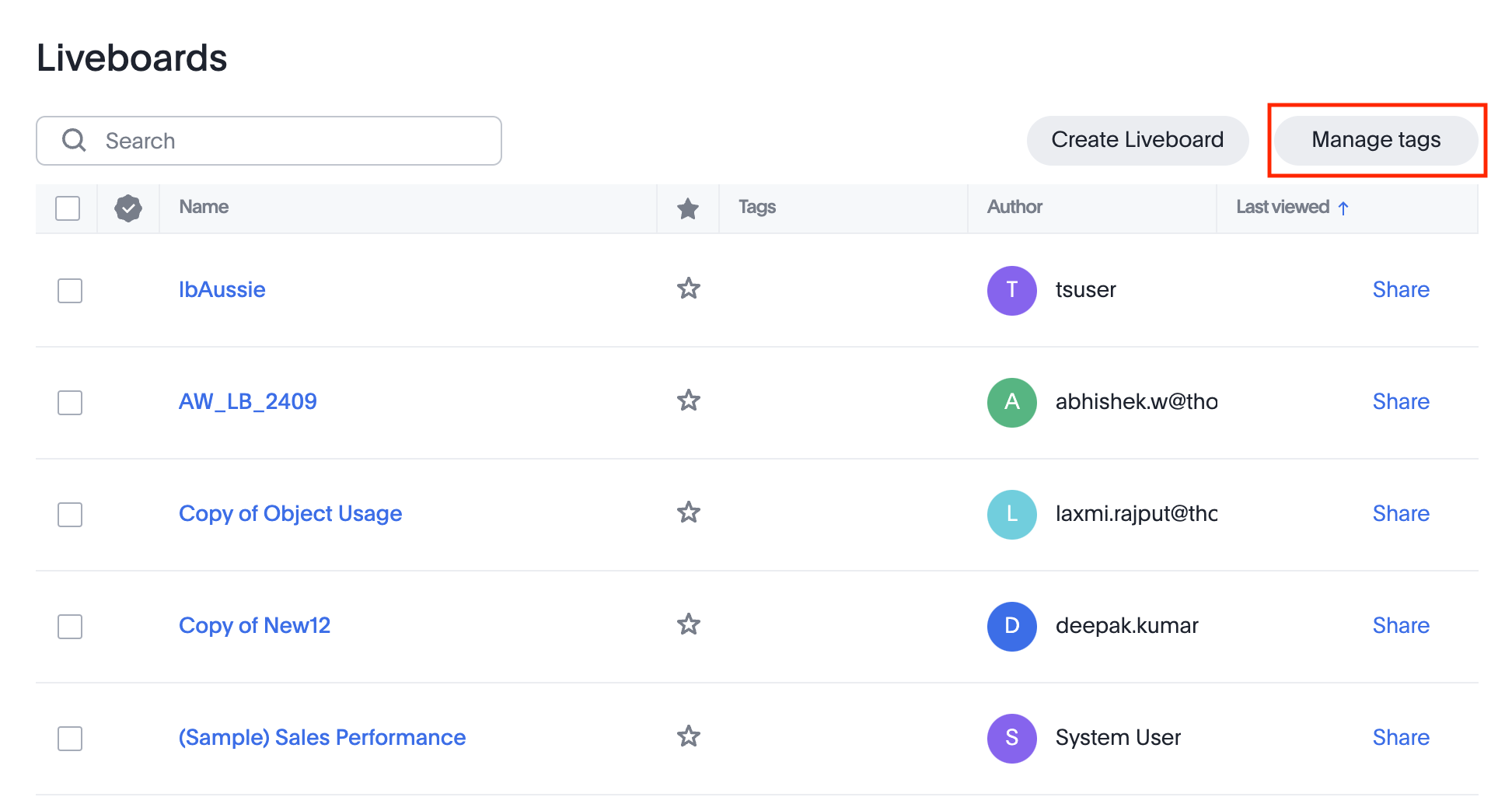
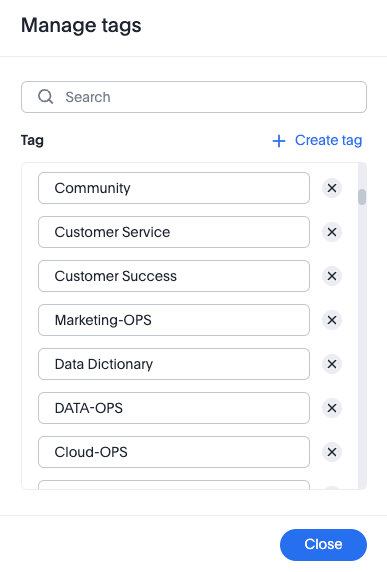
Create an alert from the Watchlist on the home page Early Access
You can now create alerts directly from the Watchlist on the home page.
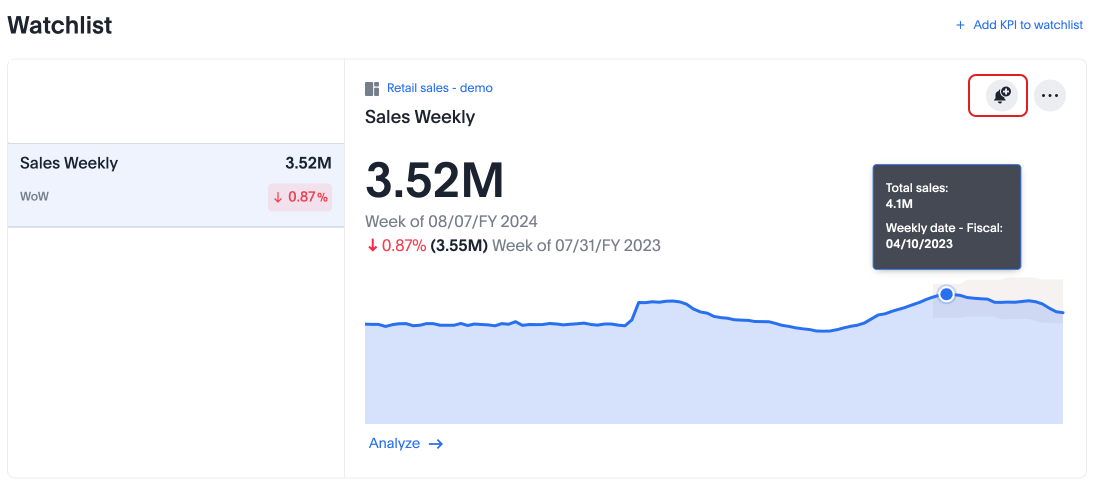
For more information, see Home page and Monitor Key Performance Indicators in your data.
Portuguese (Brazil) keywords GA
We have updated the Portuguese date keyword synonyms.
Analyst Studio Beta
ThoughtSpot introduces Analyst Studio, where you can write SQL queries to create reusable Datasets. You can set schedules to refresh Datasets, or publish them to the Data Workspace, where you can join multiple Datasets to query as a whole. ThoughtSpot’s enhanced identity and access management (IAMv2) allows users with the Can manage/access analyst studio privilege to navigate to Analyst Studio seamlessly from the Analyst Studio tab or app switcher.
For more information, see Analyst Studio and Understand RBAC and privileges.
Liveboard schedule available to all users Early Access
ThoughtSpot introduces access to Liveboard schedules on the home page. Users can now see all Liveboard schedules that they are subscribed to in a new section on the home page. From this page, you can edit Liveboard schedules that you created. Administrators can edit the Liveboard schedule for all schedules from this page.
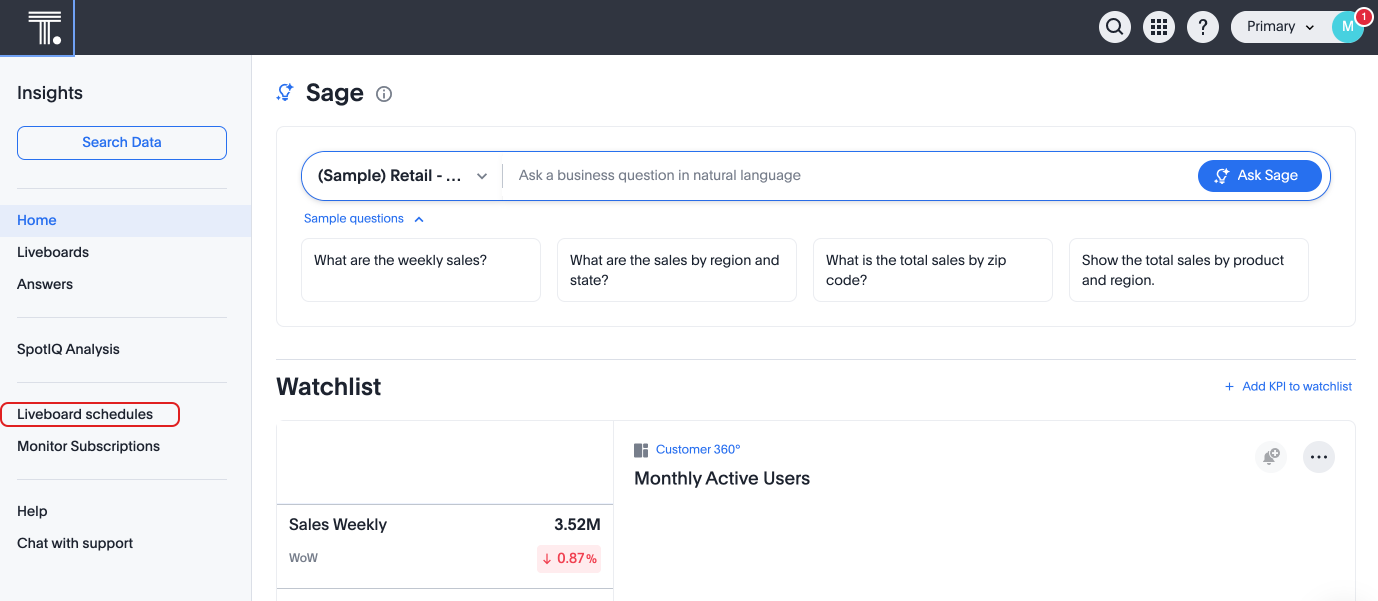
For more information, see New home page and persona-based navigation.
Other features and enhancements
Monitor the application of row-level security GA
You can now track whether or not row-level security is applied to queries. Risk and compliance analysts can track the volume of queries with row-level security applied versus those without. A row-level security tag is included in the sql query. This provides the ability to determine the number of queries that have included row-level security via the underlying database.
Each query log contains a comment as follows:
isRLSApplied: true/false.
Allow only ThoughtSpot users and groups to be added to schedules GA
ThoughtSpot schedules can be configured to prevent new and existing schedules from being sent to external emails. To enable this feature, contact ThoughtSpot support.
For more information, see Schedule a Liveboard job.
Categorization for Connections Early Access
You can now choose to sort Connections by type rather than order added to ThoughtSpot. To enable this feature, contact your administrator. For more information, see Categorizing Connections.
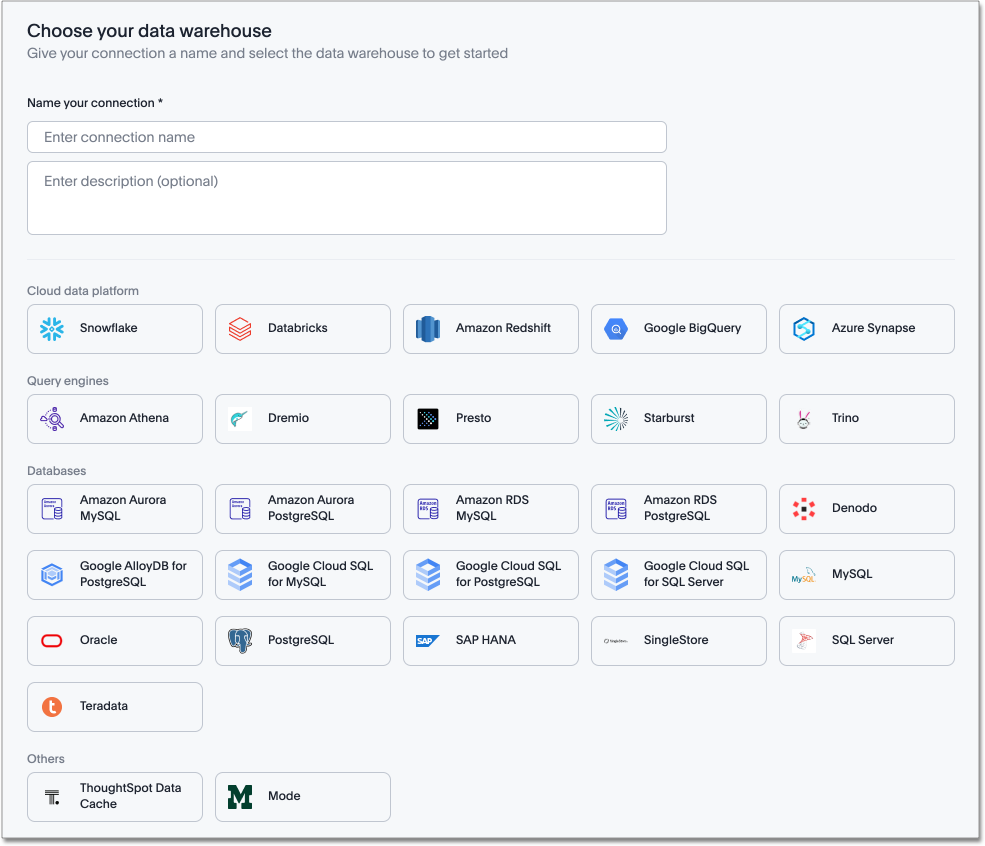
Org-specific URLs Early Access
ThoughtSpot introduces Org-specific URLs. URLs in emails now include Org context so that users are taken directly to the correct Liveboard in the correct Org even if they belong to multiple Orgs. You can also move between different browser tabs that point to different Orgs.
Local authentication support with IAMv2 Early Access
ThoughtSpot allows customers to enable or disable local authentication at the Org and cluster levels. To enable local authentication at the cluster level, administrators require the Can manage authentication privilege. To enable local authentication at the Org level, contact ThoughtSpot support.
| Org level settings override cluster level settings. |
For more information, see Managing local authentication.
Option to set new navigation and homepage experience as default Early Access
Administrators now have the ability to set the new navigation and homepage experience as the default UI for all users of the cluster, if it is enabled for the cluster. This feature is available in the Admin > Early access features page. For more information, see Enable Early Access features.
For the Developer
For new features and enhancements introduced in this release of ThoughtSpot Embedded, see ThoughtSpot Developer Documentation.
10.1.0.cl
August 2024 10.1.0.cl
| Features marked as Beta are off by default. To enable them, contact ThoughtSpot support. |
Anomaly-based alerts Early Access
You can now receive alerts when data of KPIs you are subscribed to fall outside the predicted value range.
When creating an alert, you can specify the time and frequency at which ThoughtSpot checks the KPI’s data against the values predicted by ML models trained on the data. For example, you can create an alert for a sales weekly KPI, and specify that ThoughtSpot compare the values every Monday at 5 PM. You may also add individual subscribers to the alert. If the KPI’s data falls outside the predicted range, ThoughtSpot sends an alert to your email and, if applicable, your subscribers' emails.
For more information, see Create an anomaly alert.
Keywords "of" and "percentage of" GA
The "of" and "percentage of" keywords are now on by default and available to all users. You can use the "of" and "percentage of" keywords to answer questions related to mix, contribution, share of, percentage, and total ratios. These keywords help answer questions such as, "What is the share of a certain store’s sales as a percentage of the regional whole?" To try out this feature, enter a search phrase in the search bar containing the keyword, such as sales percentage of store region, and press Go.
For more information, see Keywords: Of and Percentage of.
Sort and filter fragment and query feedback GA
You can now sort and filter columns in the Sage Coach fragment and query feedback pages.
You can also search for specific values for worksheet, feedback provider, and edited by to further narrow your selection.
Semi-additive measures with first and last values GA
Semi-additive measures with first and last values are now available to all users and on by default. A semi-additive measure, also known as snapshot data, is a measure that is usually aggregated for all attributes except for date and time. For certain measures, like inventory, you want to know what the value was at the beginning or end of a period. In that case, you can use the last_value function to find the inventory at the end of a month, rather than aggregating all values over the month. Similarly, you can use the first_value function to find out your stock at the beginning of a month.
For more information, see
Semi-additive measures with first_value and last_value functions.
Import and export sets using TML Beta
You can now use TML to import and export column sets and query sets in ThoughtSpot.
For more information, see TML for Sets.
Other features and enhancements
OAuth for Starburst using Proof Key for Code Exchange (PKCE) GA
We now support OAuth with PKCE for Starburst.
Bridge connectivity for Cloud Data Warehouses (CDWs) and Databases GA
Bridge provides options to securely connect your data source with the ThoughtSpot Cloud, as an alternative to PrivateLink, VPC Peering or VPN tunnels. We support Bridge for the following Connectors:
-
Amazon Athena
-
Amazon Redshift
-
Databricks
-
Google BigQuery
-
PostgreSQL
-
Snowflake
-
Starburst
-
Trino
For more information, see Bridge connector for Cloud Data Warehouses.
Local authentication support with IAMv2 Early Access
ThoughtSpot allows customers to enable or disable local authentication at the Org and cluster levels. To enable local authentication at the cluster level, administrators require the Can manage authentication privilege. To enable local authentication at the Org level, contact ThoughtSpot support.
| Org level settings override cluster level settings. |
For more information, see Managing local authentication.
Org-specific URLs Beta
ThoughtSpot introduces Org-specific URLs. URLs in emails now include Org context so that users are taken directly to the correct Liveboard in the correct Org even if they belong to multiple Orgs. You can also move between different browser tabs that point to different Orgs.
For more information, see Multi-tenancy with Orgs.
For the Developer
For new features and enhancements introduced in this release of ThoughtSpot Embedded, see ThoughtSpot Developer Documentation.
10.0.0.cl
July 2024 10.0.0.cl
| Features marked as Beta are off by default. To enable them, contact ThoughtSpot support. |
Advanced conditional formatting Early Access
In addition to using conditional formatting to visually highlight a threshold in a measure (for example, sales > 10000), you can now use conditional formatting to compare a column’s measures to another column.
For example, if you search for sales this year compared to sales last year, you can highlight where sales this year were less than last year. You can set multiple conditional formatting rules to a single table. To enable this feature, contact your administrator.
For more information, see Advanced conditional formatting.
Grouping measures in pivot tables Beta
ThoughtSpot now supports grouping measure in pivot tables. You can now move measures, and position them where you want in rows and columns. For more information, see Pivot tables.
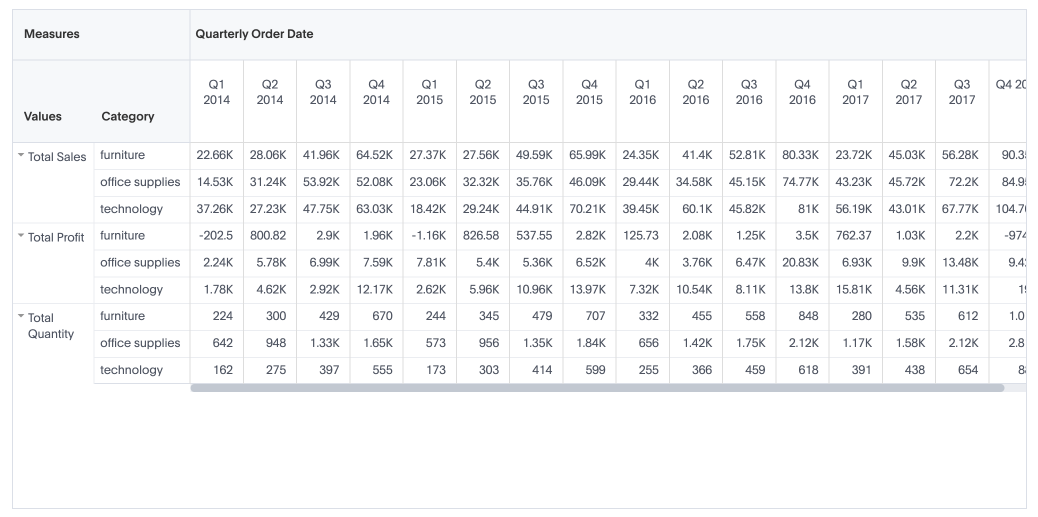
Other features and enhancements
IAM v2 migration GA
ThoughtSpot is upgrading our Identity and Access Management (IAM) capabilities to provide a more secure login and authentication experience. This experience has been improved to ensure that you can upgrade to IAM v2 easily and with minimal downtime. For more information, see Identity and Access Management V2.
Org deletion GA
You can now delete an Org without first manually deleting the data objects, connections, groups, and users within the Org. For more information, see Create.
Version control for Liveboards and Answers GA
Version control for Liveboards and Answers is now available to all users. Now teams of analysts can more easily collaborate on content development of Liveboards and Answers. You can enable version control on specific Liveboards and Answers. With version control enabled, every time you save the Liveboard or Answer, a new version is created and stored. You can browse the version history in ThoughtSpot and restore any saved versions whenever you need to. To enable this feature, contact your administrator.
For more information, see Version control for Liveboards and Answers.
For the Developer
For new features and enhancements introduced in this release of ThoughtSpot Embedded, see ThoughtSpot Developer Documentation.
9.12.5.cl
June 2024 9.12.5.cl
| Features marked as Beta are off by default. To enable them, contact ThoughtSpot support. |
Redesigned home page Early Access
In this release, you can try our redesigned and customizable home page, where you can ask natural-language questions with Sage, view your watchlist, favorites, library of Answers and Liveboards, and more. With the new left-hand navigation, you can go directly to your Liveboards, Answers, SpotIQ Analysis, and Monitor Subscriptions.
This new home page experience is disabled by default. Contact your ThoughtSpot administrator to enable this feature for your cluster. After that, open your user profile, and in the Experience section, set the Navigation and Homepage to New experience. Note that this setting also enables persona-based navigation.
New persona-based navigation Early Access
In this release, you can try our completely redesigned navigation experience organized by persona. The new app switcher allows business users, analysts, data engineers, administrators, and developers to work in separate contextual sections designed specifically for their needs. In addition, each app has left-hand navigation to create better consistency and ease of use for users switching between the different apps.
This new navigation experience is disabled by default. Contact your ThoughtSpot administrator to enable this feature for your cluster. After that, open your user profile, and in the Experience section, set the Navigation and Homepage to New experience. Note that this setting also enables the redesigned home page.
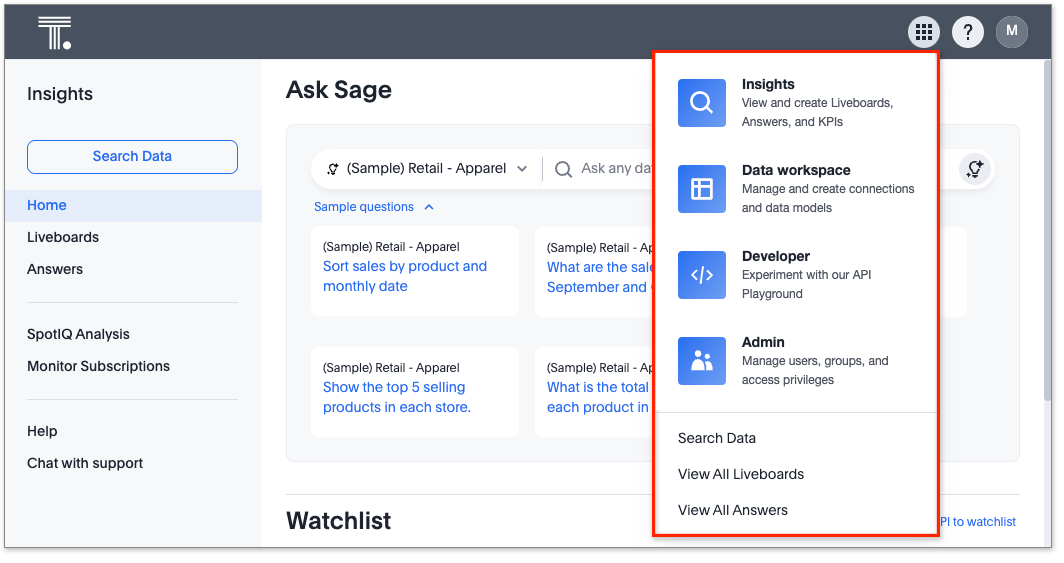
Drill down in change analysis GA
Drill down in change analysis is now on by default and available to all users. You can now drill down on specific columns in change analysis, in order to identify change drivers within your data. For example, if you run an analysis on sales monthly and find out that the 'jacket' item type changed the most, you can easily drill down on jacket sales and identify which region contributed the most to the change in sales.
Forecasting Early Access
You can now use SpotIQ analysis to forecast future trends for your KPIs. ThoughtSpot uses machine learning models that learn from past trends, growth, and seasonality to project how the target metric will trend in the future. To enable this feature, contact your administrator.
Note tile enhancements GA
ThoughtSpot introduces the ability to customize note tiles. You can now customize the appearance of note tiles. You can also edit hyperlinks and iFrames that previously had to be deleted and replaced to make changes. Images within note tiles are now responsive to screen size.
Query sets Early Access
You can create query sets, which can be used to classify values in a list that you can then reuse across multiple analyses. A query set is a custom group of values from a collection of objects in your database. Query sets are community objects which remain when you navigate away from the Search Data page and can be used by any user with view access to the underlying Worksheet. To enable this feature, contact ThoughtSpot support.
Custom charts Beta
You can now use custom charts created outside of ThoughtSpot, including third-party chart libraries. To enable this feature, contact ThoughtSpot support. For more information, see Custom charts.
Alation authentication GA
You can now connect to Alation using token-based authentication as well as service account authentication. For more information, see Alation catalog integration.
Sage Coach enhancements GA
We made the following changes to Sage Coach:
-
Only users with Worksheet editing rights can promote feedback to the global access level so that it applies user queries on the Worksheet.
-
Once feedback is promoted to global access level, users without worksheet editing access cannot take any actions on it.
-
When a Worksheet column is modified, such as a column name change, the changes are reflected in Sage Coach feedback. When a column is deleted, any feedback using that column is also removed. While saving a changed Worksheet, you have the option to review the impacted feedback, ensuring accurate updates upon confirmation.
-
You can now edit query fragment text before submitting feedback. Additionally, you can edit the natural language query terms along with the Answer tokens through the Sage Coach flow.
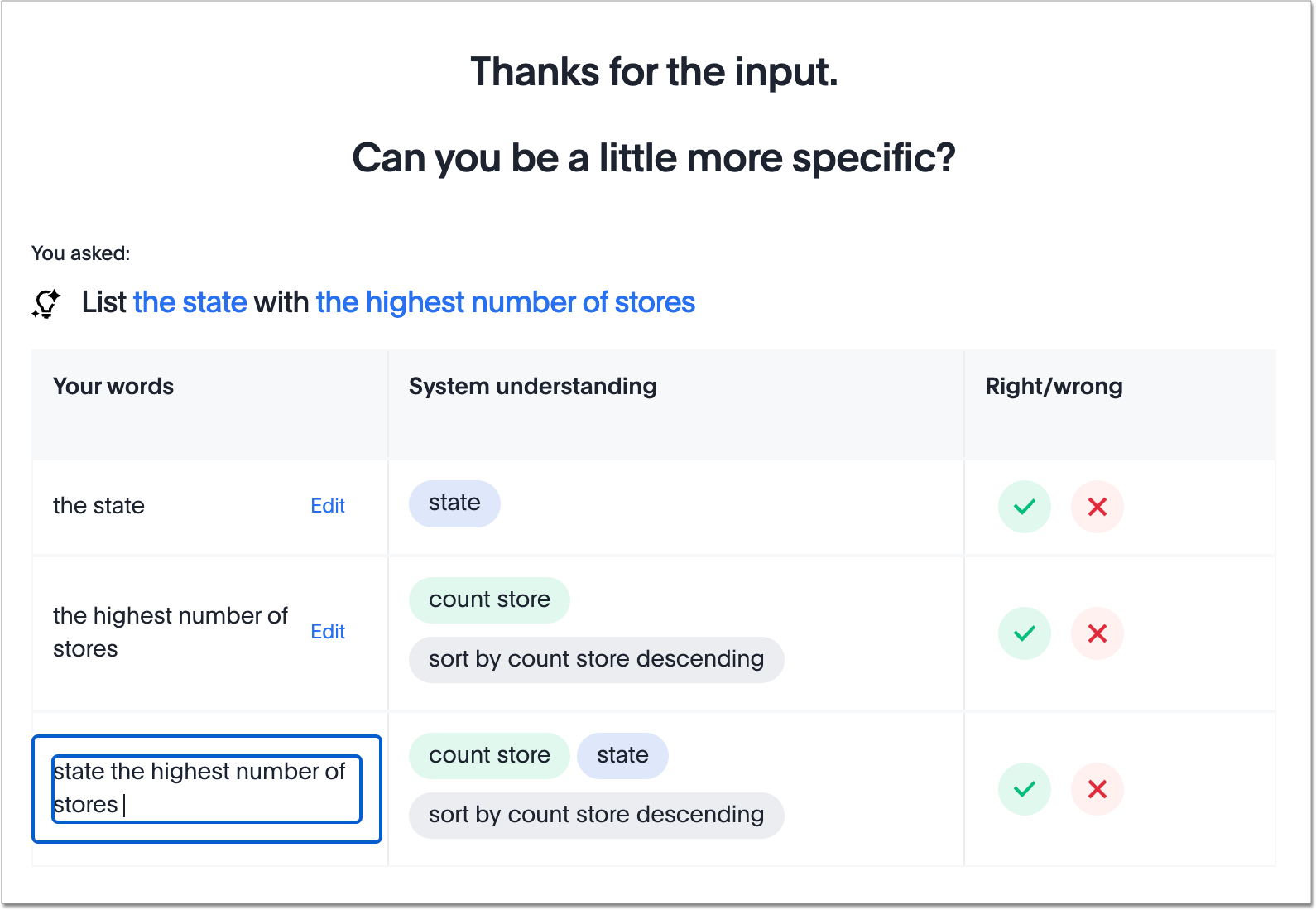
Save table layouts in the schema viewer GA
ThoughtSpot introduces the ability to save table layouts in the schema viewer. Table location and size are now maintained and saved in the schema viewer.
Language updates GA
ThoughtSpot now supports Korean and we’ve also added synonyms for date and time based keywords in German and French for a more accurate experience.
Other features and enhancements
Rules to sort TML GA
ThoughtSpot introduces a consistent sort order when exporting the TML of an object (table, SQL view, Liveboard, etc.). This ensures that unnecessary differences don’t show up between TML files when the objects haven’t really changed, and makes it easier to compare TML files.
Role-based access control Early Access
Role-based access control (RBAC) is now available to all users. RBAC allows for more granular access privileges. Use RBAC to apply privileges customized for your organizational needs.
To enable RBAC, contact ThoughtSpot support.
| Once you enable RBAC it cannot be disabled. |
For the Developer
For new features and enhancements introduced in this release of ThoughtSpot Embedded, see ThoughtSpot Developer Documentation.
9.12.0.cl
April 2024 9.12.0.cl
| Features marked as Beta are off by default. To enable them, contact ThoughtSpot support. |
Ask Sage Beta
You can now conversationally search ThoughtSpot using natural language on a Liveboard visualization, asking follow-up questions for further clarification or to take your analysis in a new direction. This conversational approach allows you to begin with a simple question, and ask successive questions to refine the answer you receive. ThoughtSpot translates each natural language question into a query, and answers in chart format. To enable this feature, contact ThoughtSpot support.
Forecasting Beta
You can now use SpotIQ analysis to forecast future trends for your KPIs. ThoughtSpot uses machine learning models that learn from past trends, growth, and seasonality to project how the target metric will trend in the future. To enable this feature, contact ThoughtSpot support.
For more information, see Forecasting.
Sage Coach GA
We made the following enhancements to Sage Coach:
-
Sage Coach shows the feedback from the selected Org-ID only.
-
Renamed the labels for Sage Coach under the Data tab as Sage Feedback - Queries and Sage Feedback - Fragments.
-
Added an Edited by column to indicate the last person to edit specific feedback in both Fragments and Queries pages.
-
Added a Rating column to the Fragments page to record whether the original Answer was rated accurate or inaccurate.
-
Added a Chart preference column to the Queries page.
-
Added an Access column to the Sage Feedback - Fragments page to record whether the access level is user-level or global to make it consistent with Sage Feedback - Queries page.
Collibra integration GA
Collibra integration is now available to all users and on by default. You can now see verification status and descriptions on tables and columns imported from Collibra. This information appears when you click on the corresponding table or column in Search data. Once connected, this information is visible to all users. For more information, see Collibra catalog integration.
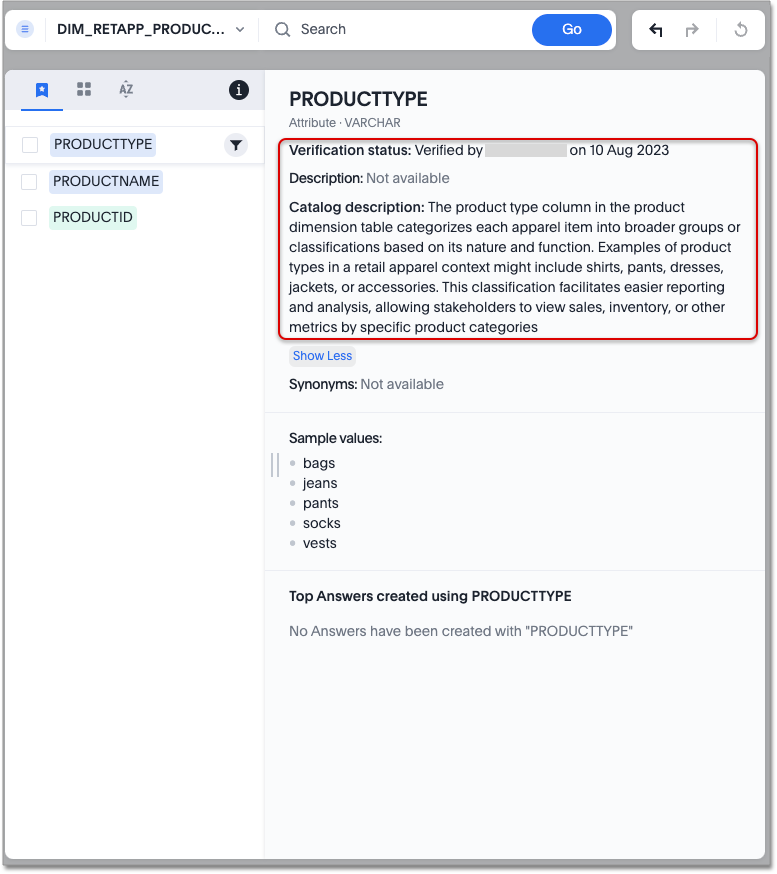
Show underlying data sources GA
ThoughtSpot now shows you which data sources are used in a Liveboard. A Liveboard may contain visualizations from many data sources. Authors may choose to use this feature to provide other Liveboard editors with access to the underlying data sources.
The data sources appear in the Show Liveboard details modal under Data source.
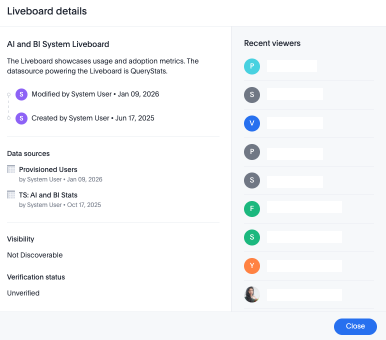
| If a data source is unavailable due to permissions, a message appears to indicate that in place of the data source name. |
For more information, see Details about a Liveboard.
Support for Excel (XLSX) attachments in Scheduled Liveboards GA
ThoughtSpot introduces support for scheduling Liveboards with Excel (XLSX) attachments, in addition to the existing PDF and CSV options. This allows users to explore tabular data from these reports by using the XLSX data files. For more information, see Schedule a Liveboard job.
Filters are now available for Liveboards with hidden columns included in a visualization GA
You can now change the filter values on Liveboards that have visualizations that include hidden columns, or a formula created from a hidden column.
Liveboard filters are now accessible to all users who have view or edit permissions to the underlying data source.
| Previously, users who did not have edit access to the underlying worksheet of a Liveboard with filters, could not update the Liveboard filters if the Liveboard used a hidden column. This was the case even if the user had view access to the underlying worksheets. |
For more information, see Liveboard filters.
Mobile app updates GA
-
Ask Sage on mobile
-
You can now use Ask Sage on mobile version 3.0.0. Ask Sage is a conversational experience that allows you to ask simple follow-up questions on visualizations in a Liveboard using natural language. You can effortlessly gain deeper insights on your metrics.
-
Remember personalized columns in change analysis GA
Personalized columns are now available to all users and on by default. Users with edit permissions on a Liveboard can set their preferred attribute columns through the change analysis window and select Apply to all users to keep those selections for any subsequent change analysis calculations on that Liveboard. Individual users can still override these preferences for their own calculations.
For more information, see Remember personalized columns.
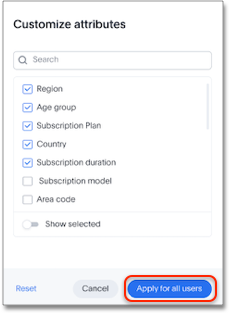
Drill down in change analysis Early Access
You can now drill down on specific columns in change analysis, in order to identify change drivers within your data. For example, if you run an analysis on sales monthly and find out that the 'jacket' item type changed the most, you can easily drill down on jacket sales and identify which region contributed the most to the change in sales. To enable this feature, contact your administrator.
For more information, see Iterative change analysis.
Semi-additive measures with first and last values Early Access
A semi-additive measure, also known as snapshot data, is a measure that is usually aggregated for all attributes except for date and time. For certain measures, like inventory, you want to know what the value was at the beginning or end of a period. In that case, you can use the last_value function to find the inventory at the end of a month, rather than aggregating all values over the month. Similarly, you can use the first_value function to find out your stock at the beginning of a month. To enable this feature, contact your administrator.
For more information, see
Semi-additive measures with first_value and last_value functions.
Version control for Liveboards and Answers Early Access
Now teams of analysts can more easily collaborate on content development of Liveboards and Answers. You can enable version control on specific Liveboards and Answers. With version control enabled, every time you save the Liveboard or Answer, a new version is created and stored. You can browse the version history in ThoughtSpot and restore any saved versions whenever you need to. To enable this feature, contact your administrator. For more information, see Liveboards and Answers.
ThoughtSpot Sync GA
We made the following enhancements to ThoughtSpot Sync:
-
Using ThoughtSpot Sync, you can now sync data directly from an Answer or a custom SQL view, to Excel.
-
You can now click the preview link when you create a Sync from the Data workspace to see a preview of the resulting Answer, Liveboard, or Custom SQL view. Answer, Liveboard, and Custom SQL view previews appear in a new tab.
-
When running a Sync, you can see the following information depending on the destination:
-
Slack: channel name
-
Microsoft Teams: team and channel
-
Sheets: file name and spreadsheet name
-
All others: object name and operation name
-
Other features and enhancements
Collibra catalog integration GA
Collibra catalog integration is now available to all users and on by default. You can now import metadata information related to your tables and columns from Collibra into ThoughtSpot. From the Data tab, you can set up a connection to Collibra to import column descriptions, column verification status, table descriptions, and table verification status.
For more information, see Collibra catalog integration.
Redshift AWS IDC OAuth GA
We now support Redshift connections using AWS IDC OAuth. For more information, see Configure AWS IDC OAuth for a Redshift connection.
Snowflake secondary role configuration for External OAuth GA
ThoughtSpot now supports secondary role configuration when you create a Snowflake connection using External OAuth. When you set secondary roles to ALL, you can access all tables that any single role has access to and combine them in a single SQL query without having to switch roles.
For more information on primary and secondary roles, see Enforcement model with primary role and secondary roles and Add a Snowflake connection.
Multiple configurations for Snowflake connections Early Access
You can now create multiple configurations for each Snowflake connection. This allows you to allocate a separate Snowflake warehouse for different ThoughtSpot users or groups, eliminating the need to duplicate Liveboards and configure multiple Snowflake connections and helping you with cost tracking and chargeback. You can also use this for your search indexing so that you can control and balance the computing load. In addition, this allows you to easily test a set of Liveboards against different environments (dev, qa, prod), and configure different databases for multi-tenancy / multi-org deployments. For more information, see Creating additional configurations for your Snowflake connection.
Manage onboarding configuration at the Org level GA
You can now manage onboarding configuration at the Org level. Now an Org administrator can update their onboarding configuration in the Admin panel without the need to contact the tenant administrator. This feature helps to reduce possible service interruptions by allowing you to make configuration changes per Org instead of taking the whole cluster down.
Enabling GIT integration for version control of Liveboards and Answers Early Access
Administrators can now enable version control of Liveboards and Answers. You enable version control for your ThoughtSpot Org by connecting it to a Github repository. Once enabled for the Org, version control can be enabled individually for any Liveboard or Answer. Each time a user saves changes, a new version of the Liveboard or Answer is created and stored in your Github repository. Users can easily browse and restore an older version from the Liveboard or Answer itself. For more information, see Version control for Liveboards and Answers.
User Adoption Liveboard GA
You can now use the User Adoption Liveboard to understand how ThoughtSpot is saving you time with ad-hoc insights, and how many users are accessing ThoughtSpot and creating new insights every month. For more information, see User Adoption Liveboard and User Productivity.
Connection TML GA
You can now use the table TML file to make changes to connection details like remapping columns and changing data type, rather than using the connection.yaml file. This allows you to make small changes to a Connection without the need to resolve all possible errors first. You can also edit or export the Connection TML file from the Data workspace. For more information, see TML for connections.
Demo data publishing on Enterprise Orgs GA
ThoughtSpot now supports demo data access at the Org level. Customers can leverage this functionality to allow users to try building Answers and Liveboards. This is available to all users in the Org, and users are added to Demo Data Retail group by default. Org administrators can remove users from this group to remove their access to Demo Data.
For the Developer
For new features and enhancements introduced in this release of ThoughtSpot Embedded, see ThoughtSpot Developer Documentation.
9.10.5.cl
April 2024 9.10.5.cl
| Features marked as Beta are off by default. To enable them, contact ThoughtSpot support. |
AI Highlights Early Access
With AI Highlights, you get quick insights on how top metrics have changed in your Liveboard, dramatically reducing the time to derive insights from your KPIs. To enable this feature, contact your administrator. For more information, see AI Highlights.
Mode connector Early Access
ThoughtSpot now supports connections to Mode. Import reusable Datasets created in Mode as table extracts to leverage the full ThoughtSpot product, from Worksheet/Model creation to Search, Answer creation, and KPI monitoring. For more information, see Connect to Mode.
Answer data panel enhancements GA
Now in the new Answer data panel, you can filter as you hover on a column, By category grouping by default, and display the information panel when you click a column.
Mobile app updates GA
-
Note tiles on mobile
-
You can now view note tiles for Liveboards in the mobile app. This feature is available in version 2.9.0 of the ThoughtSpot mobile app.
-
Collibra integration Beta
You can now see verification status and descriptions on tables and columns imported from Collibra. This information appears when you click on the corresponding table or column in Search data. Once connected, this information is visible to all users. To enable this feature, contact ThoughtSpot support.
For more information, see Collibra integration.
Custom charts Beta
You can now use custom charts created outside of ThoughtSpot, including third-party chart libraries. To enable this feature, contact ThoughtSpot support. For more information, see Custom charts.
Custom sets Early Access
You can create custom sets, which can be used to classify values in a list that you can then reuse across multiple analyses. ThoughtSpot introduces custom column sets in this release. A column set is a custom group of values from a single column. For example, you can use custom sets to define regions with specific countries included or excluded. Custom sets are community objects which remain when you navigate away from the Search Data page and can be used by any user with view access to the underlying Worksheet. To enable this feature, contact ThoughtSpot support.
For more information, see Custom sets.
ThoughtSpot Sync for Google BigQuery GA
ThoughtSpot Sync for Google BigQuery is now on by default and available to all users. Using ThoughtSpot Sync, you can now sync data directly from an Answer or a custom SQL view, to your Google BigQuery cloud data warehouse. For more information, see Sync data from ThoughtSpot to Google BigQuery.
Remove additional information when exporting a Liveboard as a CSV GA
ThoughtSpot allows users to export a Liveboard as a CSV. By default, the exported CSV has some additional information, such as filters applied, and user information. ThoughtSpot introduces the ability to remove this additional information when exporting a Liveboard as a CSV. By default, this feature is turned off. To enable this feature, contact ThoughtSpot support.
Other features and enhancements
Collibra catalog integration Beta
You can now import metadata information related to your tables and columns from Collibra into ThoughtSpot. From the Data tab, you can set up a connection to Collibra to import column descriptions, column verification status, table descriptions, and table verification status. To enable this feature, contact ThoughtSpot support.
For more information, see Collibra integration.
Click and drag to create joins with Models Early Access
You can now create joins in your Model by clicking and dragging from one table to another.
Granular privileges for can-manage-data Beta
ThoughtSpot Role-Based Access Control (RBAC) enhances the granularity of permissions with the addition of new data management privileges. The following data control privileges have been added:
-
Can create/edit Connections
-
Can manage data models
-
Can manage custom calendars
-
Can upload user data
RBAC is disabled by default. To enable this feature, contact ThoughtSpot support.
Feedback review GA
We made the following changes to ThoughtSpot feedback review for AI Answers:
-
Feedback for AI Answers is now Org-aware.
-
When you make a change to a Worksheet, ThoughtSpot now alerts you if this will affect any related query feedback. If you accept this and make the change, the feedback depending on that Worksheet is deleted.
Sharing dbt connections GA
You can now select a dbt connection and click Share to share the connection with other users or groups. By default, the underlying Cloud data warehouse connection is shared. Note that you need Can manage data privileges to access and share dbt connections. For more information, see Share a dbt connection.
dbt error message handling GA
ThoughtSpot displays dbt error messages that clearly describe whether the error originated in dbt or in ThoughtSpot, where the error was encountered, and what steps users should take to resolve the issue. For a list of the error messages ThoughtSpot supports, see dbt error messages.
Join enhancement for dbt connections GA
When creating a Worksheet from a dbt connection, ThoughtSpot joins the tables based on the relationships defined in the underlying .yml schema file. Now, joins between the tables will be created local to the Worksheet instead of creating a global join between the tables.
Ts_Groups system variable GA
ThoughtSpot now supports the ts_groups system variable in Answer and Worksheet formulas. You can use the ts_groups variable for data masking, or deciding whether to display the value of a column to a user based on their group membership. For more information, see
Data masking with system variables.
OAuth for Snowflake using Proof Key for Code Exchange (PKCE) GA
ThoughtSpot incorporates PKCE for Snowflake. The addition of PKCE as an extension of the OAuth 2.0 protocol provides an added layer of security.
Dremio on-premises support for OAuth GA
Dremio now supports use of OAuth with Dremio on-premises. For more information, see Configure OAuth for a Dremio connection.
Enhancements to error messages for Search and Answers GA
To improve our error messaging when an error prevents data from loading, we introduced a broader classification that allows you to understand issues more clearly. You can click "Copy error details" to download and send a file to your administrators.
Support for custom URLs in scheduled Liveboard emails GA
ThoughtSpot introduces support for custom URL links in scheduled Liveboard emails. If your organization has set a custom URL for your clusters, the links in scheduled emails now include the custom URL.
Develop custom charts Beta
Developers can now create custom charts for ThoughtSpot using the ThoughtSpot Charts SDK. To enable this feature, contact ThoughtSpot support. For more information, see Custom charts.
For the Developer
For new features and enhancements introduced in this release of ThoughtSpot Embedded, see ThoughtSpot Developer Documentation.
9.10.0.cl
February 2024 9.10.0.cl
| Features marked as Beta are off by default. To enable them, contact ThoughtSpot support. |
AI Highlights Beta
With AI Highlights, you get quick insights on how top metrics have changed in your Liveboard, dramatically reducing the time to derive insights from your KPIs. To enable this feature, contact ThoughtSpot support. For more information, see AI highlights.
Commenting on Liveboards GA
Commenting on Liveboards is now on by default and available to all users. You can now add or reply to comments, tag other users, or subscribe to comment threads directly on a Liveboard. Users can point out insights or reach out for clarification without leaving ThoughtSpot. To try it out, click the comment icon to the right of the edit icon, and select the data point you would like to comment on.
Anomaly insights with Monitor alerts for time-series KPI GA
When you receive an email about a threshold or scheduled alert, ThoughtSpot now surfaces any anomalies found in your KPI. You can see the expected range of values, and click a link to view your KPI in the original Liveboard. For more information, see Monitor.
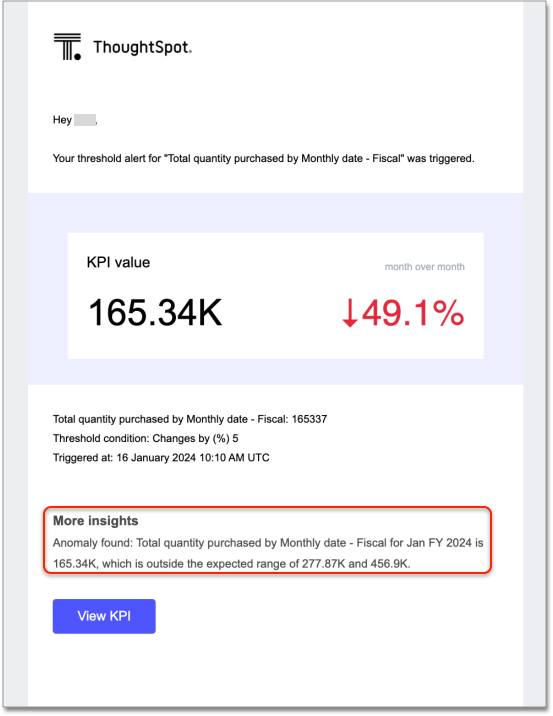
Contextual alert creation on KPI charts GA
ThoughtSpot now preserves the filters you use on a KPI when you create a Monitor alert. Users with view-only access to the underlying Liveboard can now receive alert emails for filtered KPIs without saving the filters on the Liveboard.
Chart customizations Early Access
You can now access advanced chart customization settings for Answers by selecting the Edit chart configuration icon  and selecting Advanced settings. Use these settings to adjust the size and appearance of tooltips, regression lines, gridlines, and chart backgrounds.
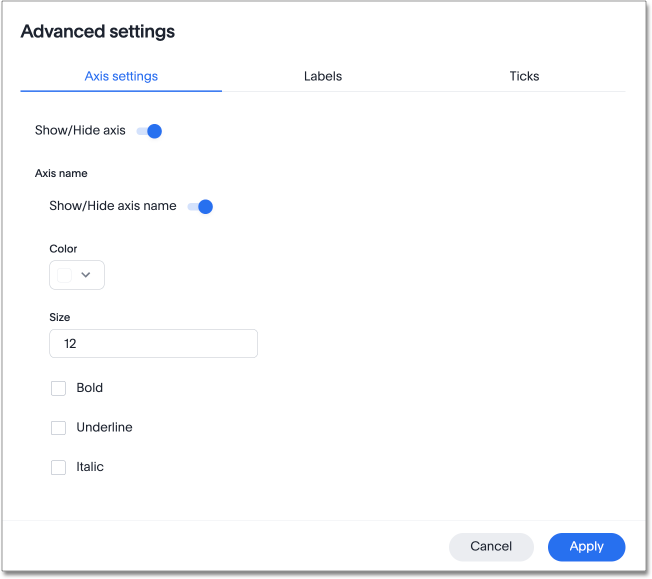
Tooltip customization GA
Customize tooltips to make charts easier to read and reduce the time to insights for business users. Use customized tooltips to add measures, attributes, and formulas that are not visualized in the chart. You can also customize tooltips to remove certain fields from the tooltips in a complex chart so that you are not overwhelmed with irrelevant information.
Configure the tooltip by selecting the Edit chart configuration icon and selecting Settings. By default, fields visualized in charts are included in the tooltip. You can remove fields or add fields that are not visualized.
Null and missing values in charts GA
You can now choose how null and missing values appear in line, column, and bar charts in ThoughtSpot. Null and missing values appear as bars of 1 pixel width on bar and column charts. You can choose whether to display null date values as zero values, line breaks, or an average of proximate values on a line chart. Rather than showing a sharp decline to zero every time there is null or missing data on your line chart, you can see the missing values represented as line breaks or averages of the closest values instead.
For more information, see Null and missing values in charts.
Iterative change analysis Beta
You can now drill down on specific columns in change analysis, in order to identify change drivers within your data. For example, if you run an analysis on sales monthly and find out that the 'jacket' item type changed the most, you can easily drill down on jacket sales and identify which region contributed the most to the change in sales. For more information, see Iterative change analysis.
Change analysis: remember personalized columns Early Access
Users with edit permissions on a Liveboard can set their preferred attribute columns through the change analysis window and select Apply to all users to keep those selections for any subsequent change analysis calculations on that Liveboard. Individual users can still override these preferences for their own calculations. For more information, see Remember personalized columns.
Natural language search chart type GA
You can now specify the answering chart type when you use natural language search. For example, search for "show me sales by region as a bar chart", and the results appear in bar chart format.
Add formula or parameter to Answer GA
You can now add a formula or parameter to an Answer by navigating to the Category  or A to Z
 view of the Data panel, clicking + Add, and selecting Formula or Parameter.
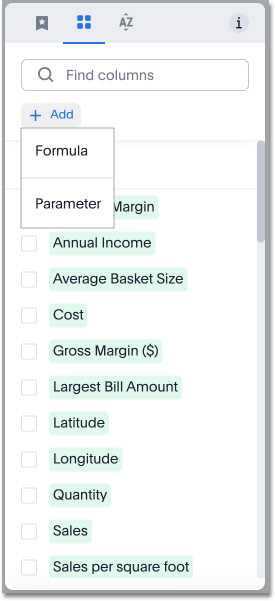
Worksheet summary GA
With Worksheet summary, when you search using the home page search, you get a natural language description of any Worksheet you select, summarizing the purpose of that Worksheet. You can also see the most popular columns, measures and attributes in the Worksheet, which can help you find the right worksheet.
Functional enhancements for verified Liveboards GA
You can now easily search for verified Liveboards with trusted content, and filter to view only verified content. Verified Liveboards are identified with a tag visible in all screens. You can also cancel verification requests when needed.
Renaming columns GA
You can now rename columns in an Answer and see the new name reflected on the table header, tooltips, legend, and chart configuration menu. Changes made to an Answer are not reflected in the underlying Worksheet. For more information, see Rename a table column.
ThoughtSpot Sync for Google BigQuery GA
Using ThoughtSpot Sync, you can now sync data directly from an Answer or a custom SQL view, to your Google BigQuery cloud data warehouse. For more information, see Sync to Google BigQuery.
Mobile app updates GA
-
Support OIDC authentication with IAMv2 on mobile
-
If IAMv2 login is enabled on your cluster, you will now be able to log in from your mobile app.
-
-
Internationalization and localization
-
You can now change your ThoughtSpot locale through the Mobile app. When your locale is updated, ThoughtSpot translates labels, date formats and number formats to match the default for your country and language.
-
-
Improve the deep link experience
-
You can share a link to objects in ThoughtSpot using instant messaging or email and the recipient can open the link in the mobile app or the web. If a user has the mobile app, the link will open directly in the mobile app. If they don’t have the mobile app, they are presented with the option to download it or to view it on the web.
-
Other features and enhancements
Custom sorting GA
Custom sorting is now available to all users and is on by default. ThoughtSpot introduces custom sorting of attributes to sort all chart types in a way that helps users to consume charts more efficiently. You can now sort on any attribute in a chart, using the custom sort column. Enter the attributes in order to set up a custom sort order.
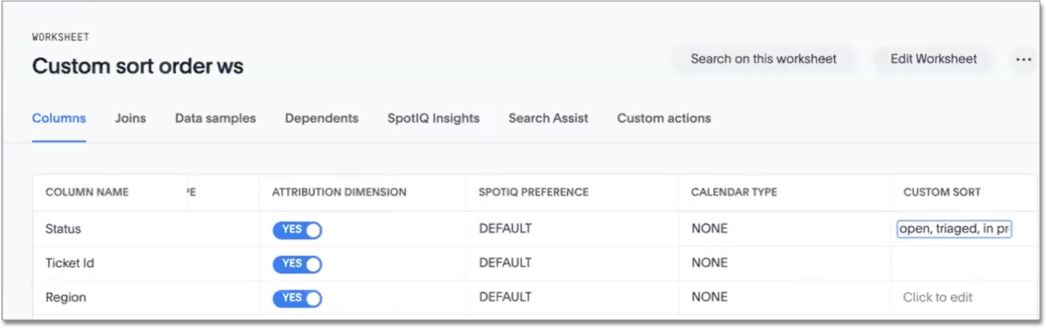
Google Cloud SQL for MySQL connection GA
You can now create connections from ThoughtSpot to Google Cloud SQL for MySQL.
Validate metadata for connections GA
You can now validate connections to discover any changes in metadata after the connection was created. When you validate a connection, ThoughtSpot provides a JSON file containing details on the metadata changes. Once alerted to a metadata change, you can use TML to update the connection.
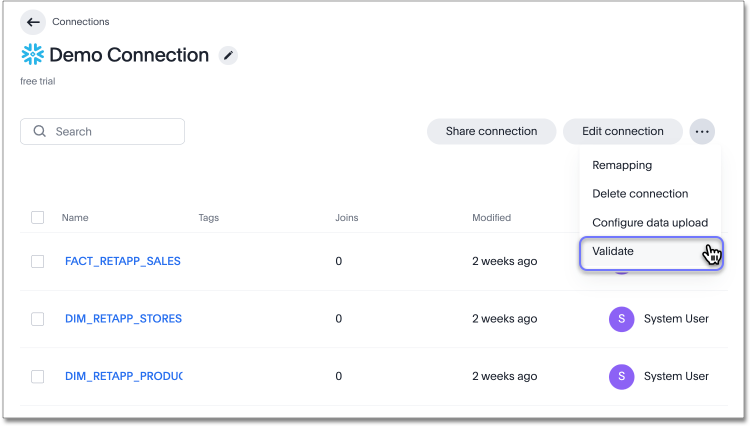
dbt public API GA
dbt core users can now use the dbt public API to upload dbt project files to ThoughtSpot. Use the dbt sync API to upload your dbt project’s zip files.
dbt version 1.7 GA
ThoughtSpot now supports dbt version 1.7.
SAML group mapping with Orgs GA
You can now map your SAML groups and Orgs from your IDP to ThoughtSpot. For more information see, SAML group and Org mapping.
OpenID Connect (OIDC) support with IAMv2 Early Access
ThoughtSpot now supports OpenID Connect (OIDC) for SSO with IAMv2. Multiple identity providers with OIDC such as Google , Microsoft, and Amazon are now supported. For more information, see Managing authentication with OIDC using IAMv2.
Bridge connector for Google Big Query GA
Sometimes connecting ThoughtSpot directly to your Google BigQuery database or changing your VPN/firewall configuration is not possible. For those situations, you can use Bridge to create a connection to your BigQuery database. The Bridge connector is easy to install, configure, and maintain. To enable this feature, contact ThoughtSpot support. For more information, see Add a Google BigQuery connection.
For the Developer
For new features and enhancements introduced in this release of ThoughtSpot Embedded, see ThoughtSpot Developer Documentation.
9.8.0.cl
January 2024 9.8.0.cl
| Features marked as Beta are off by default. To enable them, contact ThoughtSpot support. |
Give feedback to AI-generated Answers GA
When giving feedback to AI-generated Answers in Sage, you now tell ThoughtSpot what search tokens to use to signify certain key terms. For example, when you search for "best performing products this year", ThoughtSpot responds with the top five products sorted by sum of sales. You can correct top five to top ten by clicking the thumbs-down icon and editing the Answer. ThoughtSpot then stores that feedback, and admin users can decide to apply the feedback globally, so that every time someone searches for "best" products, they receive the top ten results.
Contextual alert creation on KPI charts Early Access
ThoughtSpot now preserves the filters you use on a KPI when you create a Monitor alert. Users with view-only access to the underlying Liveboard can now receive alert emails for filtered KPIs without saving the filters on the Liveboard. To enable this feature, reach out to your administrator.
Change analysis: More insights GA
Change analysis more insights are now available to all customers and are enabled by default. For example, ThoughtSpot finds values that underwent the highest percentage change between the two data points defined in your analysis, and values whose share of the total changed the most. The insights appear below the main analysis in the change analysis pop-up window. Note that insights do not appear for measures of type unique counts and ratios.
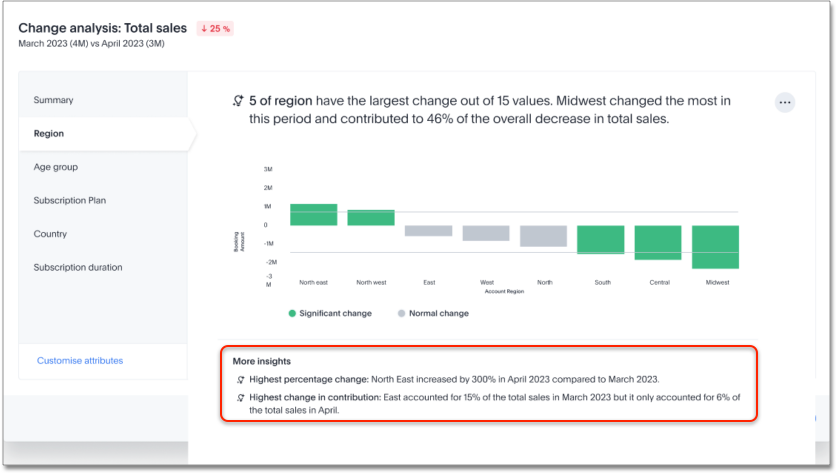
KPI scheduled watchlist alert GA
When you add a KPI to your home page watchlist, ThoughtSpot automatically creates a scheduled alert. You receive emails with updates to the KPI on a periodic basis. You can edit all scheduled alerts from the Monitor tab. For more information, see Track important KPIs.
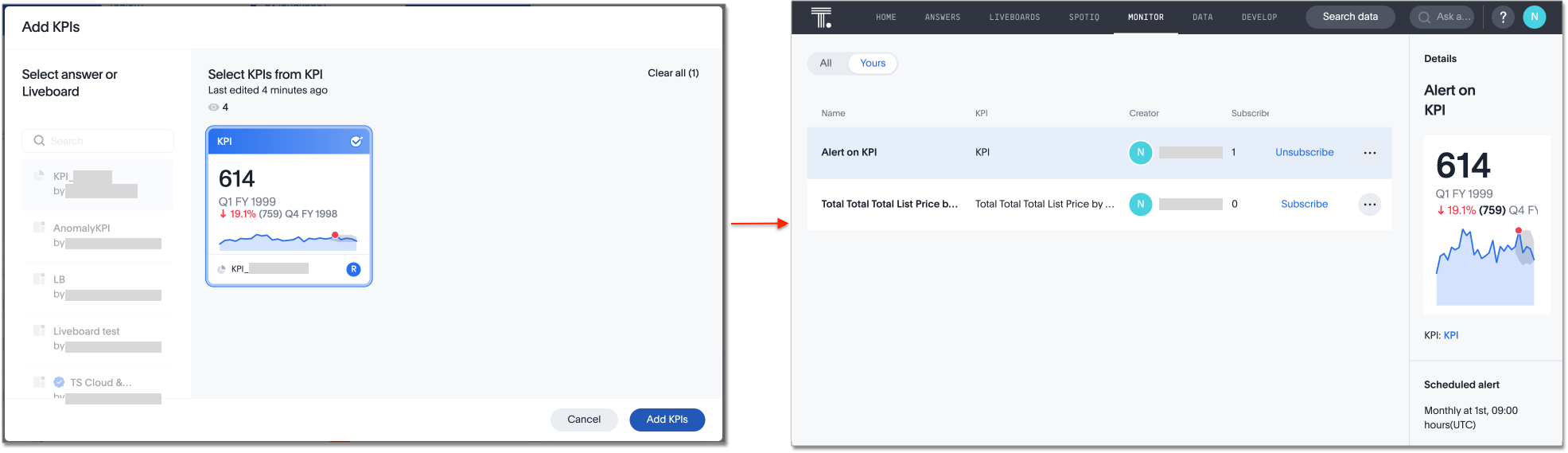
Personalized views GA
Personalized views are now available to all users and on by default. Personalized views allow you to save your own set of values for filters and parameters in a Liveboard. You can change the values of the already present filters and parameters in a Liveboard and save the view for future use. Any changes made to the master Liveboard are carried over to the view, including changes made to pinned visualizations, tabs, filter chips, and re-ordering. Changes made to the view are not pushed to the master Liveboard. This eliminates the need to make multiple copies of a Liveboard with your preferred filter values, that can fall out of sync with the original.
Atlan GA
Atlan is now available to all customers and is on by default. You can now see verification status and descriptions on tables and columns imported from Atlan. This information appears when you click on the corresponding table or column in Search data. Once connected, this information is visible to all users.
Sage Coach feedback review GA
You can now review user feedback from the Data workspace, and determine whether it should apply to only that user’s queries, or to the entire cluster. Use the Query Feedback modal to review feedback given to individual natural language queries, and use the Query Term Feedback modal to review the translation of individual natural language terms to search tokens.
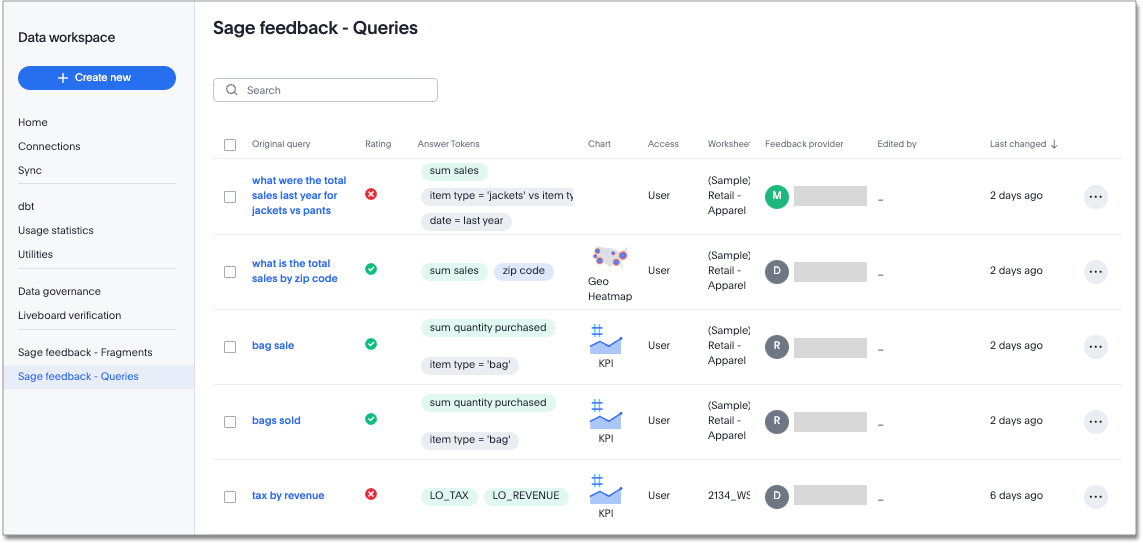
Database as a destination for Answer Sync GA
Using ThoughtSpot Sync you can now sync data directly from an Answer without having to save the answer first.
Enhancements for TS Sync GA
ThoughtSpot Sync allows you to connect and share complete Liveboards using Microsoft Teams and Slack. Previously only Answers could be shared.
Custom Sorting Early Access
ThoughtSpot introduces custom sorting of attributes to sort all chart types in a way that helps users to consume charts more efficiently. Previously custom sorting could only be applied to an Answer using custom columns and the search bar, and could not be applied to some chart types. You can now sort on any column in a chart, in ascending or descending order, from the column heading menu. To enable this feature, reach out to your administrator.
Other features and enhancements
Custom calendar enabled by default GA
In this release, custom calendar is enabled by default for all connections, except for the following which don’t support custom calendar:
-
Dremio
-
Denodo
Connections GA
The following connections are now available to all customers and are on by default:
-
Google AlloyDB for PostgreSQL
-
Google Cloud SQL for PostgreSQL
-
Google Cloud SQL for SQL Server
-
SingleStore
Atlan catalog integration GA
You can now import metadata information related to your tables and columns from Atlan into ThoughtSpot. From the Data tab, you can set up a connection to Atlan to import column descriptions, column verification status, table descriptions, and table verification status.
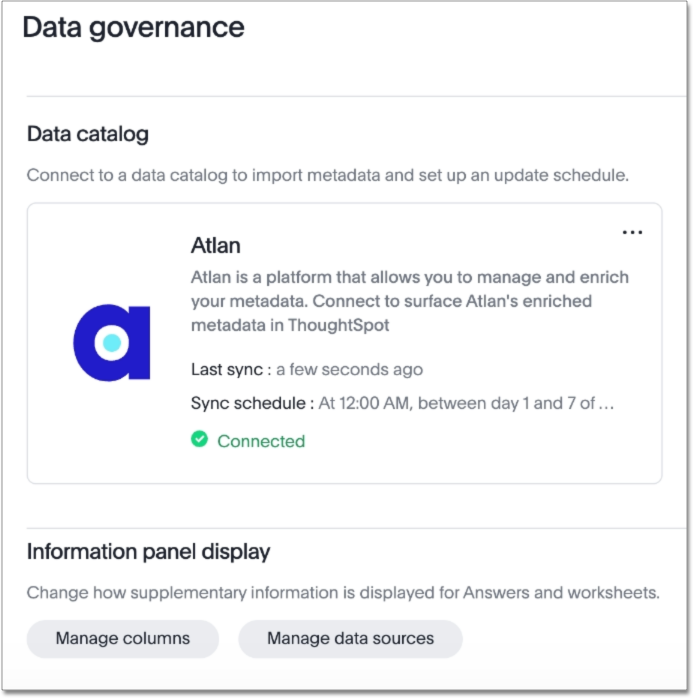
dbt public API GA
You can now use the dbt public API to perform the following tasks:
-
Create a dbt connection
-
Delete a dbt connection
-
Search a list of dbt connections
-
Update a dbt connection
-
Run dbt Sync
-
Update dbt Sync
OAuth connection improvements GA
If you do not have a valid OAuth access token, you can now directly navigate to the OAuth authorization screen when performing one of the following actions on a connection shared with you:
-
View sample data
-
Create a custom SQL view
-
Edit the connection
-
Upload a CSV file (Snowflake connections only)
Snowflake account name restrictions GA
In accordance with Snowflake’s recent JDBC update, ThoughtSpot does not support Snowflake account names that contain underscores for connections that use Private Link. For more information on how to adjust your account name behavior to avoid this restriction, see Snowflake Private Link.
For the Developer
For new features and enhancements introduced in this release, see ThoughtSpot Developer Documentation.
9.7.0.cl
October 2023 9.7.0.cl
| Features marked as Beta are off by default. To enable them, contact ThoughtSpot support. |
Atlan Beta
You can now see verification status and descriptions on tables and columns imported from Atlan. This information appears when you click on the corresponding table or column in Search data. Once connected, this information is visible to all users. To enable the connection to Atlan, contact ThoughtSpot support.
For more information, see Atlan catalog integration.
Mobile enhancements GA
We made the following improvements to ThoughtSpot mobile:
-
We simplified the sign in process for the ThoughtSpot mobile app. You can now enter your company email to receive an email with a magic link login, rather than entering the server URL.
-
You can now change your ThoughtSpot locale through the Mobile app. When your locale is updated, ThoughtSpot translates labels, date formats and number formats to match the default for your country and language.
-
You can now use SpotIQ analysis to directly identify the key drivers for recent change in your KPIs in ThoughtSpot Mobile. KPI change analysis allows you to drill down into the causes of change in your KPIs and customize the insights generated by SpotIQ.
Personalized Liveboard Views Early Access
Personalized views allow you to save your own set of values for filters and parameters in a Liveboard without editing the original Liveboard. You can change the values of the already present filters and parameters in a Liveboard and save it for future use. The new Liveboard is version of the master Liveboard, so any changes made to the master Liveboard are carried over ot the new Liveboard. This includes changes made to pinned visualizations, tabs, filter chips, and re-ordering. Changes made to the new Liveboard are not automatically pushed to the master Liveboard.
Embedding in note tiles GA
Embedding in note tiles is now available to all users and is on by default. You can now embed interactive content such as videos, pdfs, or Figma files into Liveboards using the note tile format. To try it out, enter a Liveboard, select the edit icon, and select Add note from the top bar. You can then click the embed icon and enter the URL or iFrame code for your content. You can interact with the content embedded in a Liveboard like you would with a website.
For more information, see Embedding content with iFrames.
System Variables in Answer and Worksheet formulas GA
Previously, ThoughtSpot supported the ts_username variable for use in row-level security formulas alone. Now, users can access the following string variables:
-
ts_orgname -
ts_email_domain
ts_orgname, ts_username, and ts_email_domain variables are available to use in Answer and Worksheet formulas.
Request access to data source from filter GA
When creating a filter on a Liveboard or Answer, you must have access to the underlying data source. Users can now request access to the underlying Worksheet through the filter modal on a Liveboard or Answer. For more information, see Liveboard filters.
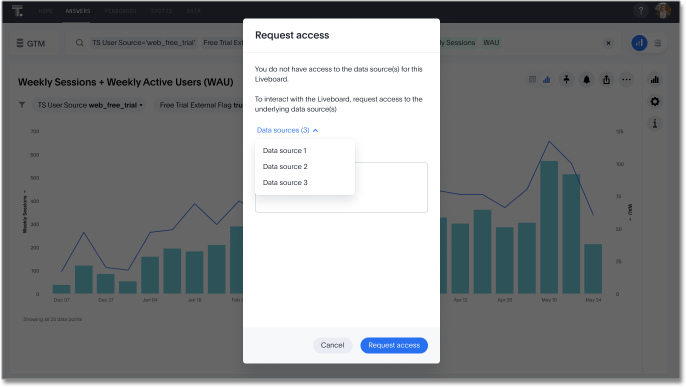
New data panel with tag-based filtering GA
The new data panel experience is available for all customers in this release, and is enabled by default. In this release, you can now filter data sources by how they are tagged.
For more information, see Start a new search.
Other features and enhancements
Atlan data catalog integration Beta
You can now import metadata information related to your tables and columns from Atlan into ThoughtSpot. From the Data tab, you can set up a connection to Atlan to import column descriptions, column verification status, table descriptions, and table verification status. This information appears when you click on the corresponding table or column in Search data. Once connected, metadata information is visible to all users.
For more information, see Atlan catalog integration.
SAP Hana calculation view input parameters Beta
Now, you can define a parameter to link to the parameter in SAP Hana using TML at the table level, and create a linked_parameter clause to ensure the parameter is displayed in all Answers created from the table. For more information, see TML for tables.
Key Pair authentication for Snowflake GA
We now support Key Pair authentication for Snowflake.
OAuth for Databricks using Proof Key for Code Exchange (PKCE) GA
We now support OAuth with PKCE for Databricks.
Roles added to Primary Org Beta
ThoughtSpot introduces role-based access control (RBAC) in Primary Orgs to allow for more granular access privileges. Use roles to apply privileges customized for your organizational needs.
To enable RBAC, contact ThoughtSpot support.
| Once you enable RBAC it cannot be disabled. |
For the Developer
For new features and enhancements introduced in this release, see ThoughtSpot Developer Documentation.
9.6.0.cl
September 2023 9.6.0.cl
| Features marked as Beta are off by default. To enable them, contact ThoughtSpot support. |
Change analysis: More insights Beta
When running change analysis, you can now see additional insights. For example, ThoughtSpot will detect values that underwent the highest percentage change between the two data points defined in your analysis, and values whose share of the total changed the most. The additional insights appear below the main analysis in the change analysis pop-up window.
Embedding in Note tiles Early Access
You can now embed interactive content such as videos, pdfs, or Figma files into Liveboards using the note tile format. To try it out, enter a Liveboard, select the edit icon, and select Add note from the top bar. You can then click the embed icon and enter the URL or iFrame code for your content. You can interact with the content embedded in a Liveboard like you would with a website. To enable this feature, contact ThoughtSpot support.
For more information, see Embedding in note tiles.
Query performance visibility Beta
You can now see the state of query execution for any Liveboard visualization while it loads. If a visualization takes longer than three seconds to load, ThoughtSpot displays the current query execution status (executing query, waiting for connection, or processing query) to help users identify the reason for the delay.
Alation metadata GA
Alation metadata is now available to all users and on by default. Users can now see metadata information on tables and columns imported from Alation. This information appears when you click on the corresponding table or column in Search data. Once connected, metadata information is visible to all users. For more information, see Catalog integration.
Hidden columns in tables GA
You can now hide a column from your table without removing it from your current Search. If you hide the column you’re using to sort results, the sorting order is unchanged. To try it out, create an Answer, open the Edit chart configuration menu , and drag the selected column to Hidden Columns.
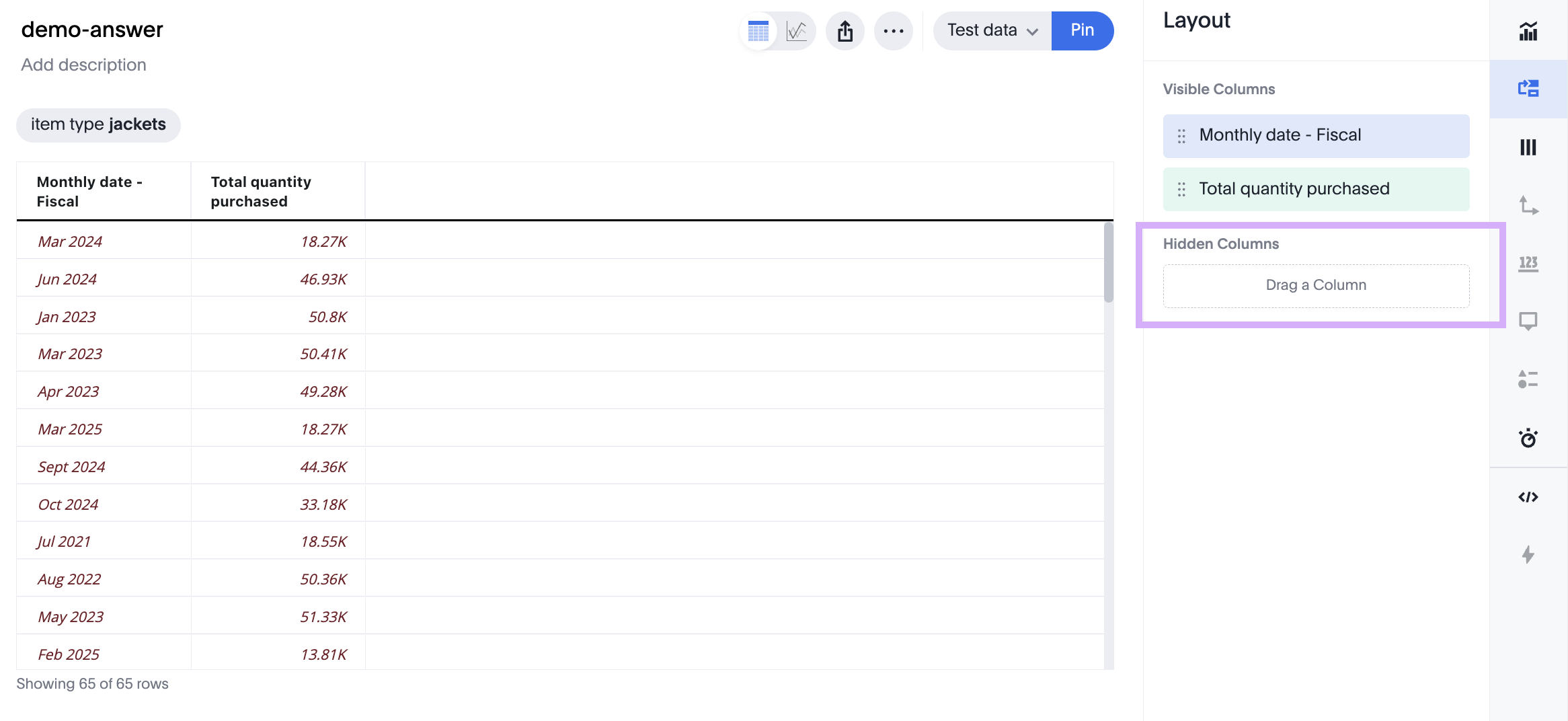
Commenting on Liveboards Early Access
You can now add or reply to comments, tag other users, or subscribe to comment threads directly on a Liveboard. Users can point out insights or reach out for clarification without leaving ThoughtSpot. To try it out, click the comment icon to the right of the edit icon, and select the data point you would like to comment on. To enable this feature, contact your administrator.
Natural language narratives Early Access
Beginning in 9.6.0.cl, ThoughtSpot generates insight narratives in natural language to summarize the data analyzed in SpotIQ. The narratives are generated by LLM, and appear above the charts created by SpotIQ. This feature must be enabled by your administrator. For more information, see Natural language narratives.
Verified Liveboards GA
We made the following enhancements to verified Liveboards:
-
When you request verification, you can now see the underlying data sources that will be shared with the verifier.
-
The name of the Liveboard now appears in verification request emails.
-
When editing an Answer on or pinning an Answer to a verified Liveboard, a warning banner appears indicating it may need to be verified again.
ThoughtSpot Connected Slides GA
ThoughtSpot Connected Slides is an add-on that allows you to insert charts and live data visualizations right into your Google Slides™ presentation. Just connect to ThoughtSpot, find a chart or visualization, and add it to your slide presentation.
For more information, see ThoughtSpot Connected Slides.
Other features and enhancements
Alation catalog integration GA
Alation catalog integration is now available to all users and on by default. You can now import metadata information related to your tables and columns from Alation into ThoughtSpot. From the Data governance section of the Data tab, you can set up a connection to Alation to import column descriptions, column verification status, table descriptions, and table verification status.
For more information, see Catalog integration.
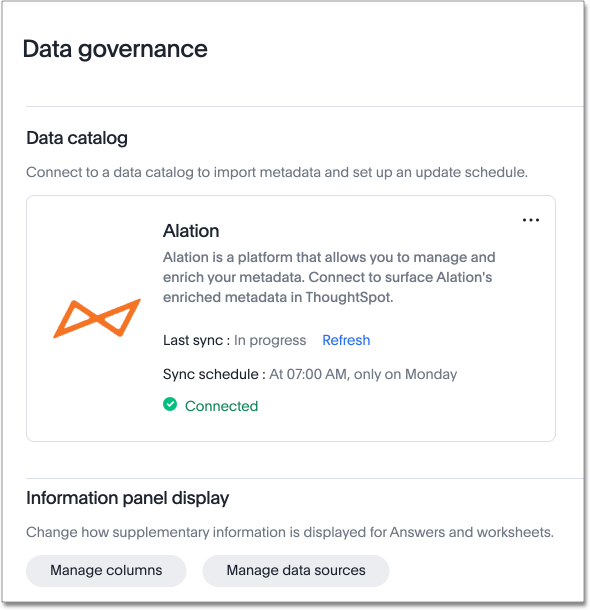
Roles added to Primary Org GA
ThoughtSpot introduces role-based access control (RBAC) in Primary Orgs to allow for more granular access privileges. Use roles to apply privileges customized for your organizational needs.
To enable RBAC, contact ThoughtSpot support.
| Once you enable RBAC it cannot be disabled. |
Index Statistics Liveboard GA
Admin users can now see indexing statistics for their cluster using the Index Statistics Liveboard. You can filter the results by connection, table, and column, and see the breakdown of indexed search tokens in the visualizations. This Liveboard helps you see how many search tokens you are using, and can help you diagnose indexing issues and errors. To try it out, go to Liveboards and search for Index statistics.
For more information, see Index Statistics Liveboard.
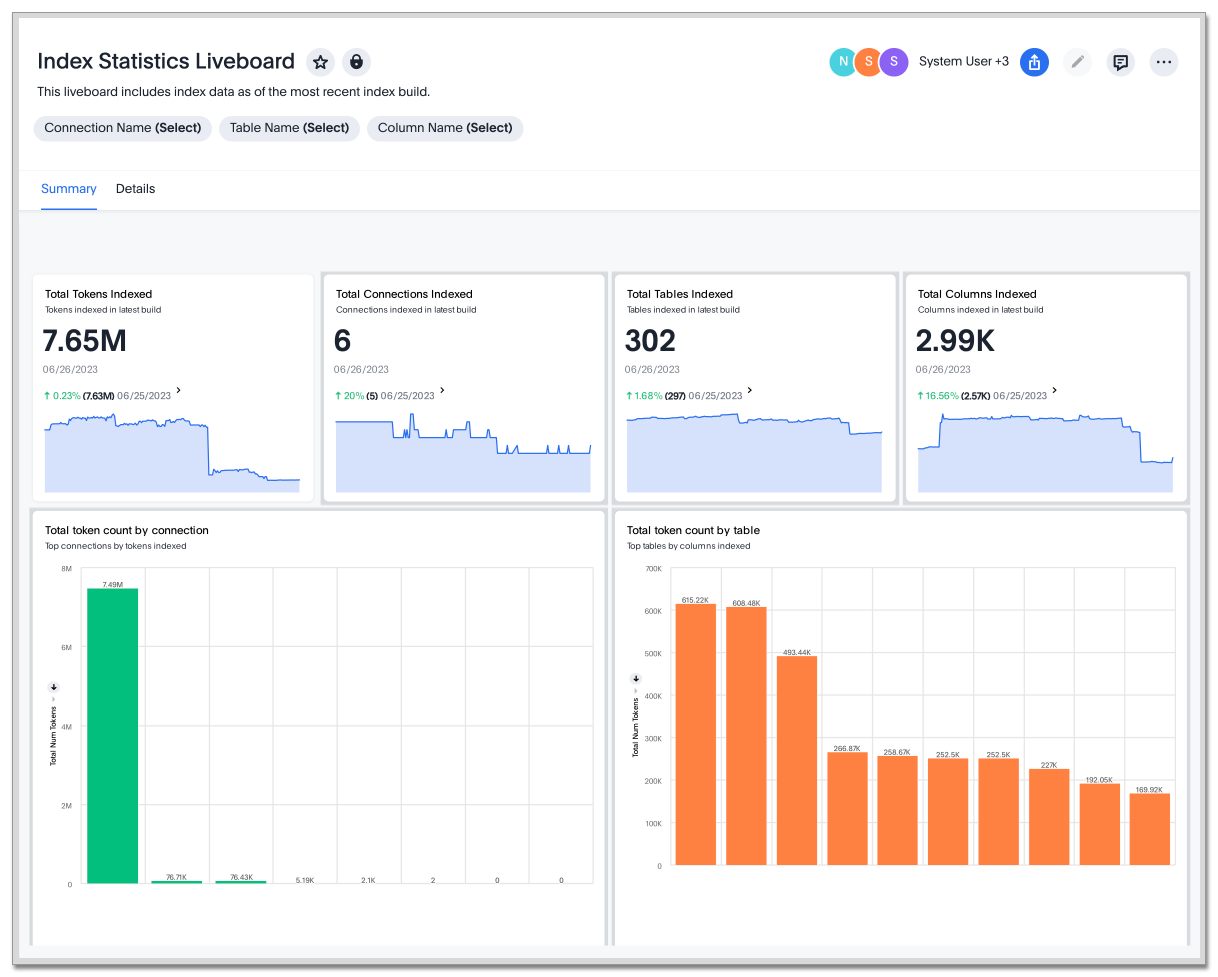
dbt sync GA
In the past, ThoughtSpot generated a new Worksheet every time a user edited an existing dbt data model. Now, ThoughtSpot maintains a persistent connection with dbt and provides realtime updates. Users can update an object, update an object and create a new object, or simply create a new object.
For more information, see Integrate with dbt.
dbt Worksheet join rule GA
Previously, when a Worksheet was created from a dbt model, the default worksheet join rule was "apply all joins". Now, "apply joins progressively" is the default. This means that when you search on a Worksheet, joins are applied as each search term is added, rather than applying all joins to every search.
Amazon Athena connection GA
You can now create connections from ThoughtSpot to Amazon Athena. For more information, see Amazon Athena.
For the Developer
For new features and enhancements introduced in this release, see ThoughtSpot Developer Documentation.
9.5.0.cl
September 2023 9.5.0.cl
| Features marked as Beta are off by default. To enable them, contact ThoughtSpot support. |
ThoughtSpot Sage GA
Natural language search enhancements
We made the following enhancements to natural language search:
-
The following keywords are now supported in natural language search: "vs", "growth of", and "trend".
-
Title and descriptions are now automatically created when you save an AI Answer.
-
ThoughtSpot now stores feedback in order to correctly answer related questions. For example, if you correct the column used in an Answer about annual recurring revenue for 2023, ThoughtSpot uses the correct column in Answers about annual recurring revenue for 2022 and 2021.
Pivot table enhancements GA
We made the following enhancements to pivot table charts:
-
When you download an xlsx version of a pivot table, the measure values are displayed as numbers instead of the general format.
-
When you download an xlsx version of a pivot table, row and column labels are shown as separate cells rather than as a column-separated list.
-
You can no longer add conditional formatting to a pivot table in heatmap mode.
-
Naming of subtotals and grand totals are now consistent in the chart and chart configuration dropdown.
-
We now support hyperlinks in pivot tables.
-
You can now choose to show or hide row and column summaries and subtotals, from the chart configuration menu. When summaries and subtotals are enabled, you can choose to display them at the top or bottom of the pivot table.
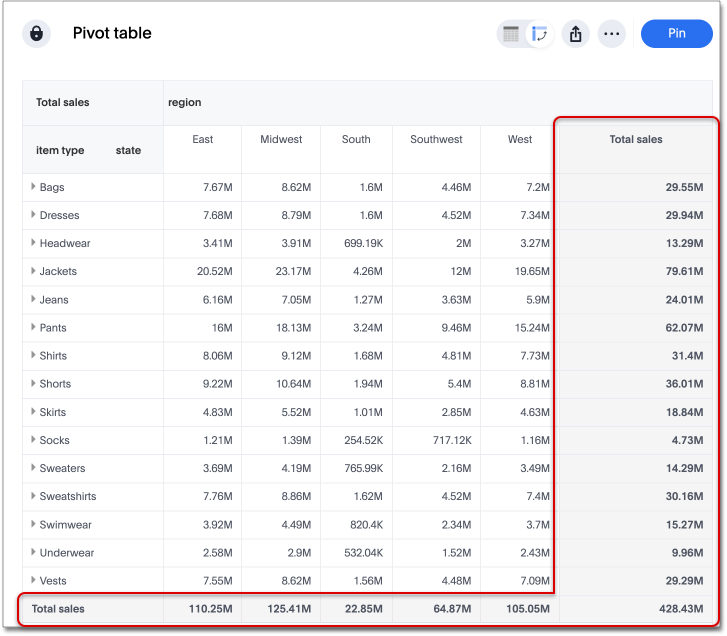
Date picker GA GA
Date picker is now GA and on by default. We added support for rolling, fixed, and custom date filters when creating an Answer or filtering a Liveboard. Previously, when adding a date filter to a Search, ThoughtSpot supported the conditions ON (=), ON OR AFTER (>=), BEFORE (<), and BETWEEN. Now, you can additionally filter for ON OR BEFORE (<=), NOT BETWEEN, ON LAST, and ON NEXT. To try it out, click the filter icon next to the Date column in the left side menu, or click the date filter below the Answer or Liveboard title.
For more information, see Date filters for Answers and Liveboards.
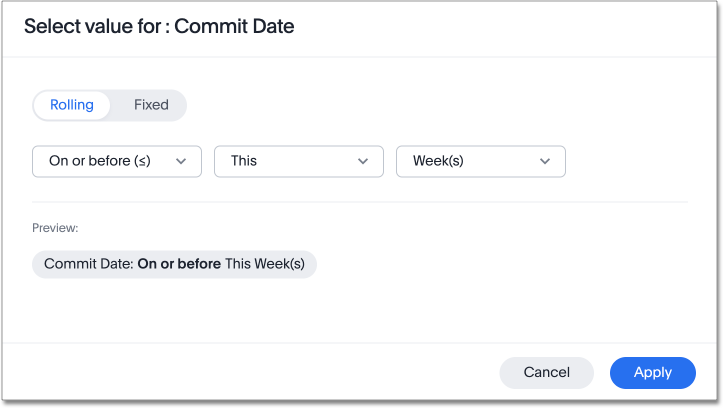
New data panel GA GA
The new data panel experience is GA in this release. This is part of the Data Fluency feature.
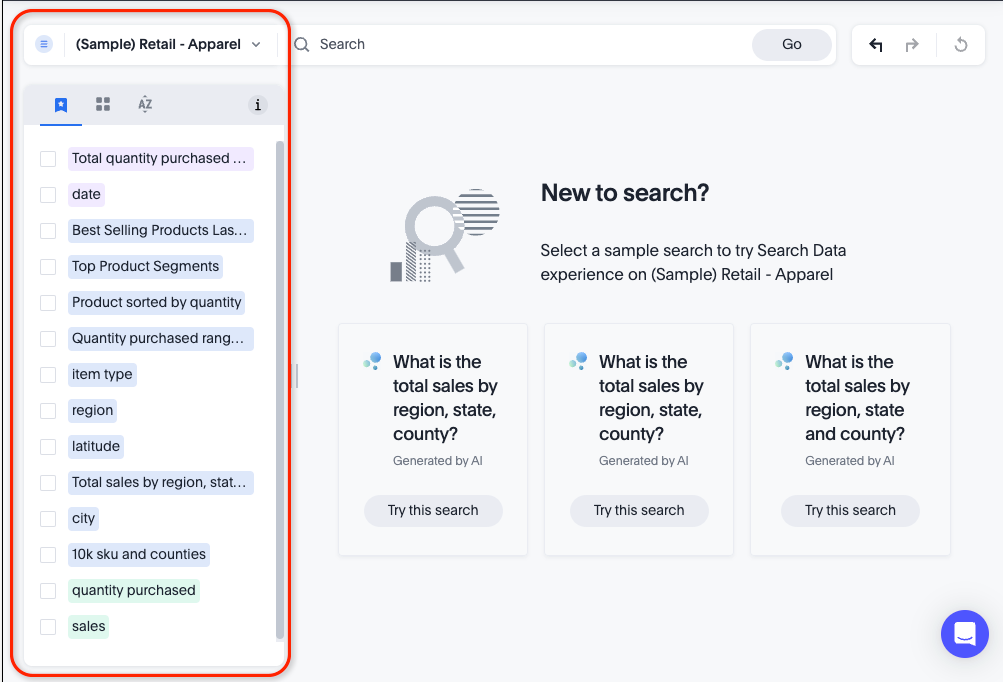
Verified Liveboards GA
Admin-assigned verifiers can now mark Liveboards as verified. Users can now request these verifiers to review their Liveboards, and verify if the information displayed is trusted content. Verified Liveboards carry a tag that signifies that they have been audited for correctness. For more information, see Verified Liveboards.
Rename filters on a Liveboard GA
You can now edit the display name of filters on Liveboards to better represent your data. To try it out, click the Edit icon on a Liveboard, click the filter you want to rename, select Filter options.
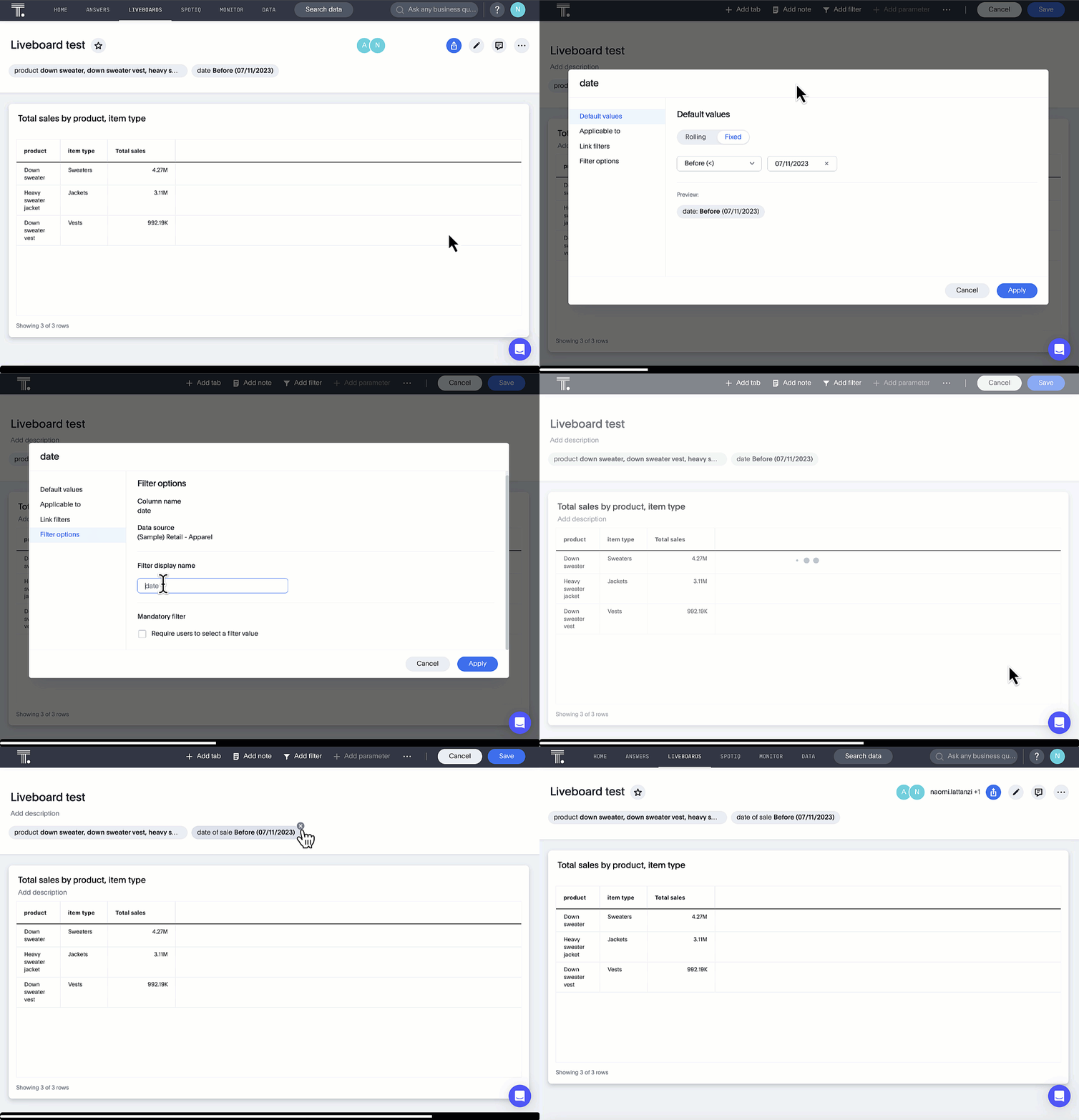
Chart display enhancements GA
When you create bar and column charts and slice by color, ThoughtSpot automatically enables gridlines to make the chart easier to read. You can choose to disable gridlines under the chart configuration menu.
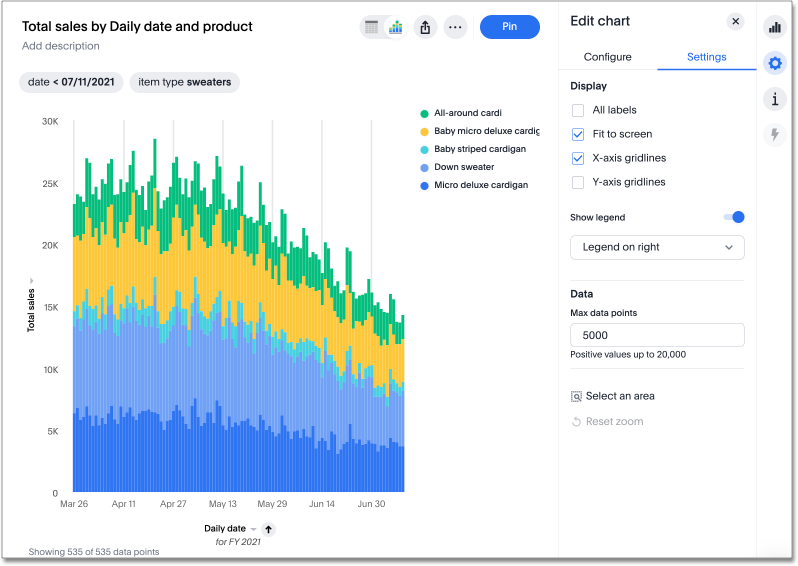
Monitor alerts in ThoughtSpot notifications GA
You can now see notifications for threshold and anomaly alerts in the ThoughtSpot notification service, rather than receiving emails.
Mobile enhancements GA
We made the following enhancements to ThoughtSpot Mobile:
-
We extended the length of mobile sessions on ThoughtSpot Cloud. If a user visits the mobile app at least once every two weeks, they will no longer be logged out.
-
We introduced a Watchlist tab on Mobile to make it easier for users to follow important metrics.
-
We simplified the sign in process for the ThoughtSpot mobile app. You can now enter your company email to receive an email with a magic link login, rather than entering the server URL.
Introduction of roles and more granular access privileges GA
ThoughtSpot introduces role-based access control (RBAC) to allow for more granular access privileges. Use roles to apply privileges customized for your organizational needs.
ThoughtSpot includes some standard roles to help existing customers transition to RBAC. To enable RBAC, contact ThoughtSpot support.
English (Germany) locale GA
Set your ThoughtSpot locale to English (Germany). ThoughtSpot changes your data format settings, such as currency and number formatting, and translates keywords, ThoughtSpot menu and navigation items, operators, and error messages. To try it out, navigate to your profile, and edit your system language. For more information, see Change language and data format settings.
ThoughtSpot for Connected Sheets add-on GA
ThoughtSpot Connected Sheets is an add-on for Google Sheets that allows you to connect to a ThoughtSpot instance, pull data directly into a Google Sheet from trusted data sources connected to that instance (like Snowflake, Google BigQuery, DataBricks, and others), and use the tools in Google Sheets for ad-hoc analysis. See ThoughtSpot Connected Sheets.
Other features and enhancements
Org-specific Liveboards for Essentials and Pro edition GA
In a shared cluster for Essentials and Pro edition, an Org admin can now see the following Org-specific Liveboards:
-
Credit usage
-
Billable query stats
-
User adoption
-
Object usage
-
Performance tracking
-
Usage statistics
Webhooks for KPI monitor alerts Beta
You can create webhooks to initiate workflows in third-party applications based on KPI changes, or send KPI alert notifications to custom channels. For example, if you are monitoring a "current inventory" KPI for an inventory management use case, you can build a workflow to trigger an order placement in a third-party app when your current inventory drops below a particular threshold value. Webhooks for Monitor is in beta and off by default. To enable it, contact ThoughtSpot support. For more information, see Webhooks for Monitor.
Alation data catalog integration Beta
You can now import metadata information related to your tables and columns from Alation into ThoughtSpot. From the Data tab, you can set up a connection to Alation to import column descriptions, column verification status, table descriptions, and table verification status. This information appears when you click on the corresponding table or column in Search data. Once connected, metadata information is visible to all users. For more information, see Catalog integration.
Singlestore connection Early Access
You can now create connections from ThoughtSpot to SingleStore. For more information, see Connect to SingleStore.
Azure AD external OAuth for Redshift GA
Redshift now supports external OAuth through Microsoft Azure AD. See Configure Azure AD external OAuth for a Redshift connection.
Single value selection for attribute filters GA
When creating a Liveboard, you can now designate attribute filters as single-select, in addition to multi-select. For example, you could choose to make a Country filter single-select, so users would only see data related to one country at a time.
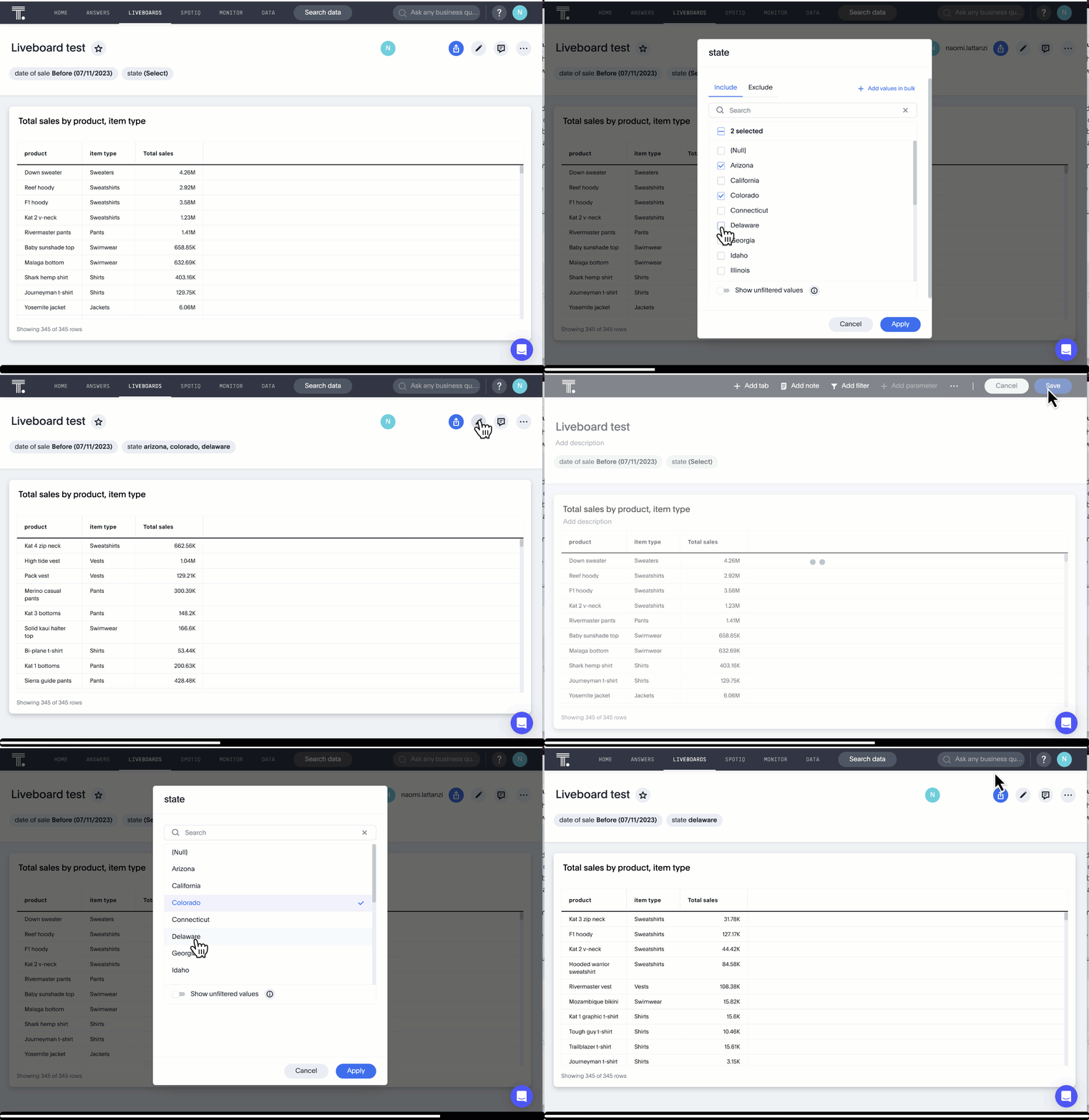
Fivetran connection to SpotApp GA
In this release, the Fivetran connection to SpotApp is GA. Fivetran helps you move data from applications like Salesforce, ServiceNow, Jira and others into a cloud data warehouse to make it easier for you to use the SpotApps designed for those applications.
ServiceNow Incident Management (Snowflake Connector for ServiceNow) GA
In this release, there is a new ServiceNow Incident Management SpotApp which allows you to use your ServiceNow data stored in Snowflake. If you use the ServiceNow Snowflake connector to move your data from ServiceNow to Snowflake, use this SpotApp to track the number of tickets submitted, and understand the efficiency of how those tickets are resolved.
For the Developer
For new features and enhancements introduced in this release, see ThoughtSpot Developer Documentation.
9.4.0.cl
August 2023 9.4.0.cl
| Features marked as Beta are off by default. To enable them, contact ThoughtSpot support. |
Natural language search improvements
We made the following changes to the natural language search feature:
-
Redesigned search results page. Filtering facets are now in the left panel.
-
You can now interact with the Answers created by natural language search, including sorting values and drilling down.
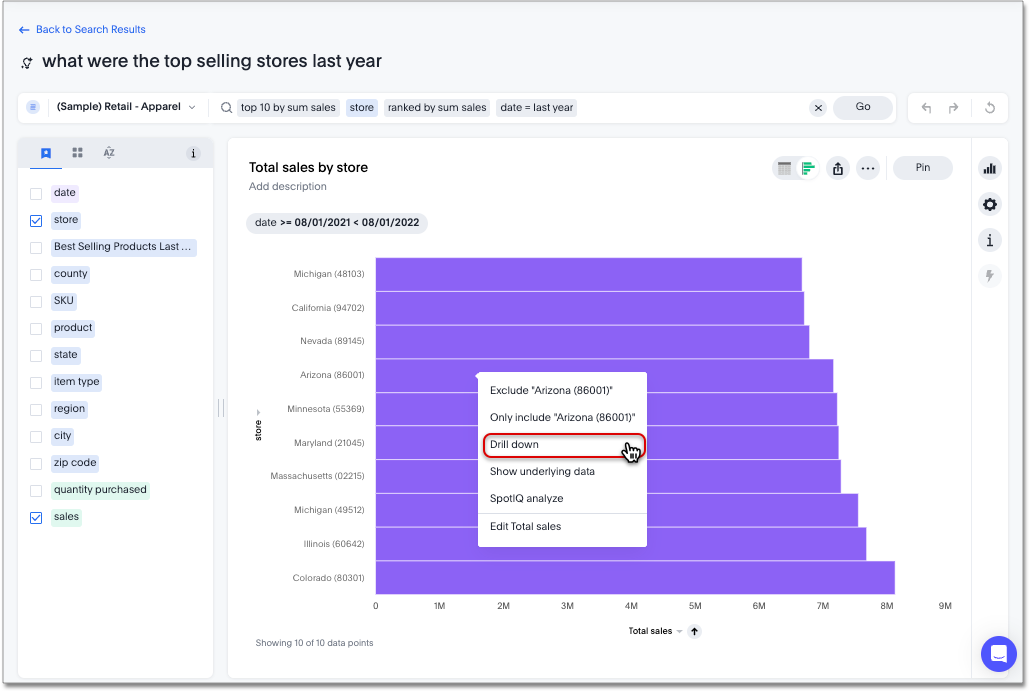
Sage features are disabled by default and available for administrators to enable in the Admin Console.
Once enabled, your ThoughtSpot administrator can grant access to the Natural language search and AI-suggested searches features for users in a group by assigning the Can preview ThoughtSpot Sage user privilege to the group. You do not need this privilege to access AI-generated Worksheet column synonyms.
Contextual change analysis GA
Contextual change analysis is now GA and on by default. You can now identify the key change drivers for changes in your metrics in a KPI chart. Select the percent change label or select any two data points on the KPI sparkline to view change analysis on your top 5 columns by usage-based ranking (UBR) and identify the reason behind the observed change. You can view the changes in other columns by clicking Customize attributes and selecting the desired column(s).
For more information, see Contextual change analysis.
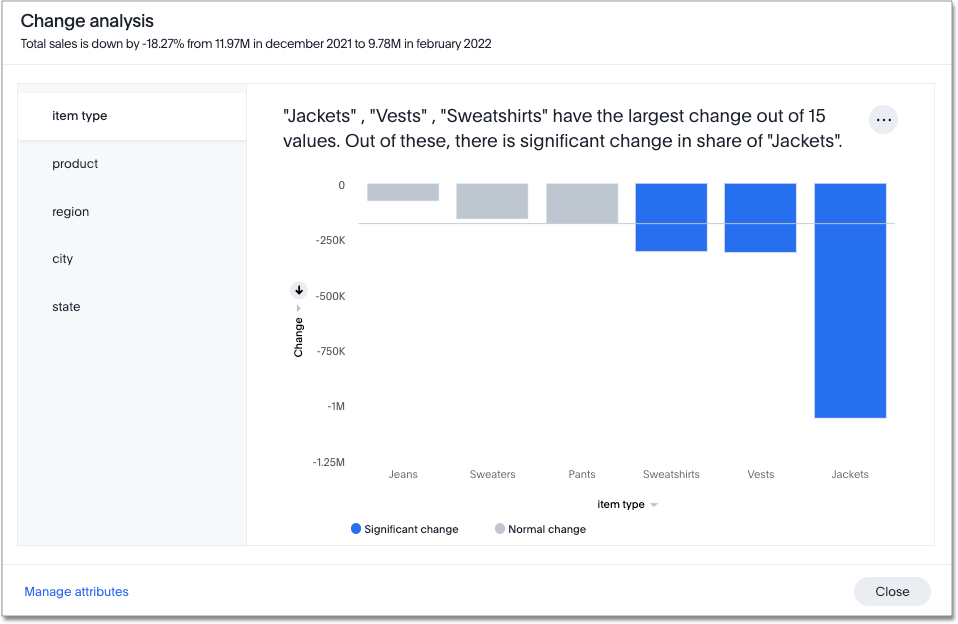
Custom groups Beta
You can now create custom groups, which can be used to classify values in a list you can then reuse across multiple analyses. As an example, you can use custom groups to search for which products are most popular, and define them by sales volume as "gold", "silver", or "bronze" level products. Custom groups are community objects which remain when you navigate away from the Search Data page and can be viewed by any user with view access to the underlying Worksheet.
For more information, see Custom groups.
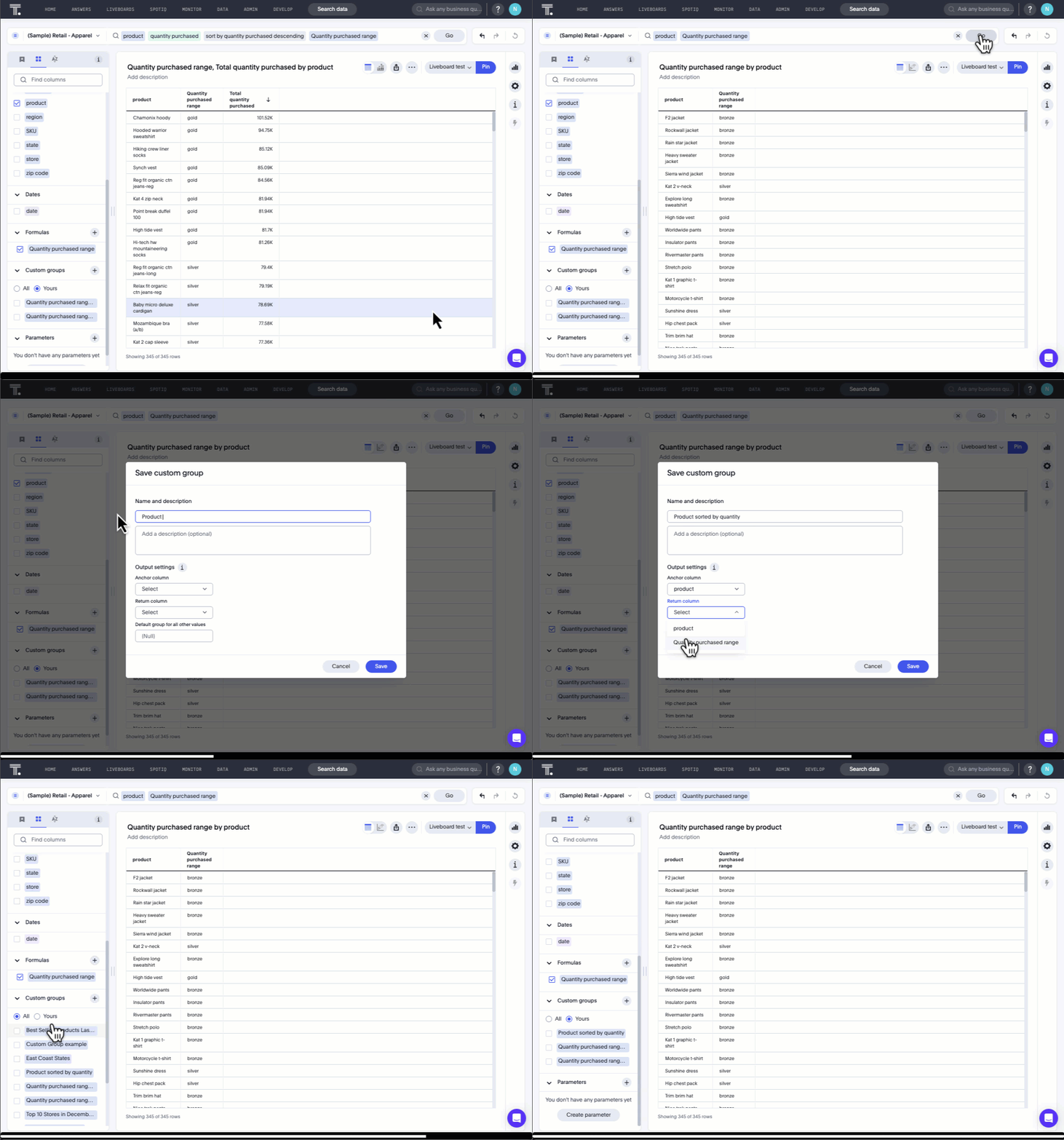
Notification center GA
You now receive in-app notifications when items are shared with you, or when other users request access to an Answer or Liveboard. To view these notifications, simply click on the user profile icon. For more information, see Web notifications.
Verified Liveboards Beta
Admin-assigned verifiers can now mark Liveboards as verified. Users can now request these verifiers to review their Liveboards, and verify if the information displayed is trusted content. Verified Liveboards carry a tag that signifies that they have been audited for correctness. To enable this feature, contact ThoughtSpot support. For more information, see Verified Liveboards.
Geomap chart enhancements GA
ThoughtSpot now supports the following enhancements for geomap visualizations:
-
We now provide geomap data for all countries. For a full list, see Openstreetmap supported countries.
-
We now support multiple levels of subdivisions within a country, rather than just city and zip code.
-
We now support visualizations comparing subdivisions of multiple countries in a single visualization. For example, if a selected column contains data from cities in the United States and Mexico, all data would be displayed on a single visualization.
To enable these features, the Geo config property in the underlying Worksheet must be set to Auto select. All Worksheets created after 9.4.0.cl GA classify geographical data as Auto select by default.
For more information, see Geo chart enhancements.
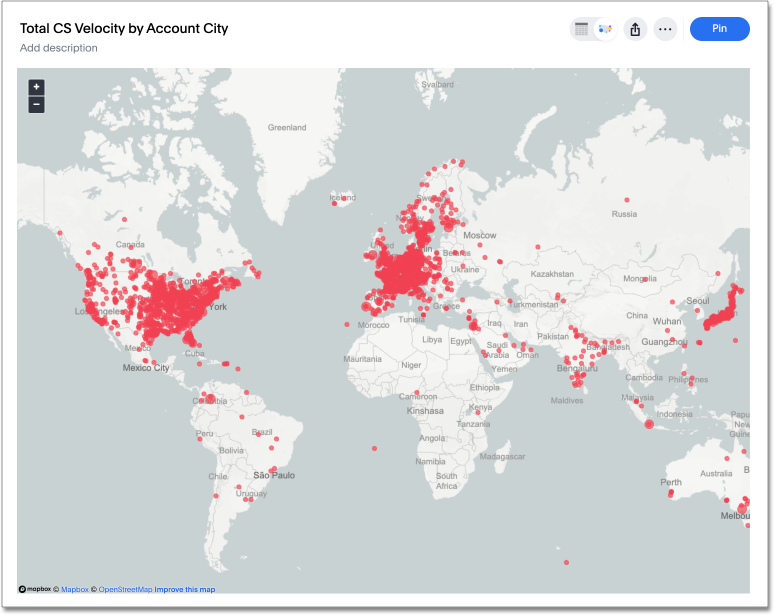
Date picker enhancement in Search Early Access
We added support for rolling, fixed, and custom date filters when creating an Answer or filtering a Liveboard. Previously, when adding a date filter to a Search, ThoughtSpot supported the conditions ON (=), ON OR AFTER (>=), BEFORE (<), and BETWEEN. Now, you can additionally filter for ON OR BEFORE (<=), NOT BETWEEN, ON LAST, and ON NEXT. To try it out, click the filter icon next to the Date column in the left side menu, or click the date filter below the Answer or Liveboard title. This feature must be enabled by your administrator. For more information, see
Date filters for Answers and Liveboards.
Headline creation and pinning deprecation GA
ThoughtSpot is deprecating the pin Headline to Liveboard feature. Beginning in the 9.4.0.cl Cloud release, users will no longer see the pin icon when they hover over table summaries. To visualize and pin single aggregated measures, attributes in string/date format, or time-series metrics with sparklines, you must create KPI charts. Existing Headlines pinned to Liveboards will not be affected in this release. For more information, see How to convert Headlines to KPI charts.
Show onboarding for new users following the share link GA
When new users receive a Share link and view the shared object in ThoughtSpot, they can now click the Keep exploring button to be directed to onboarding.
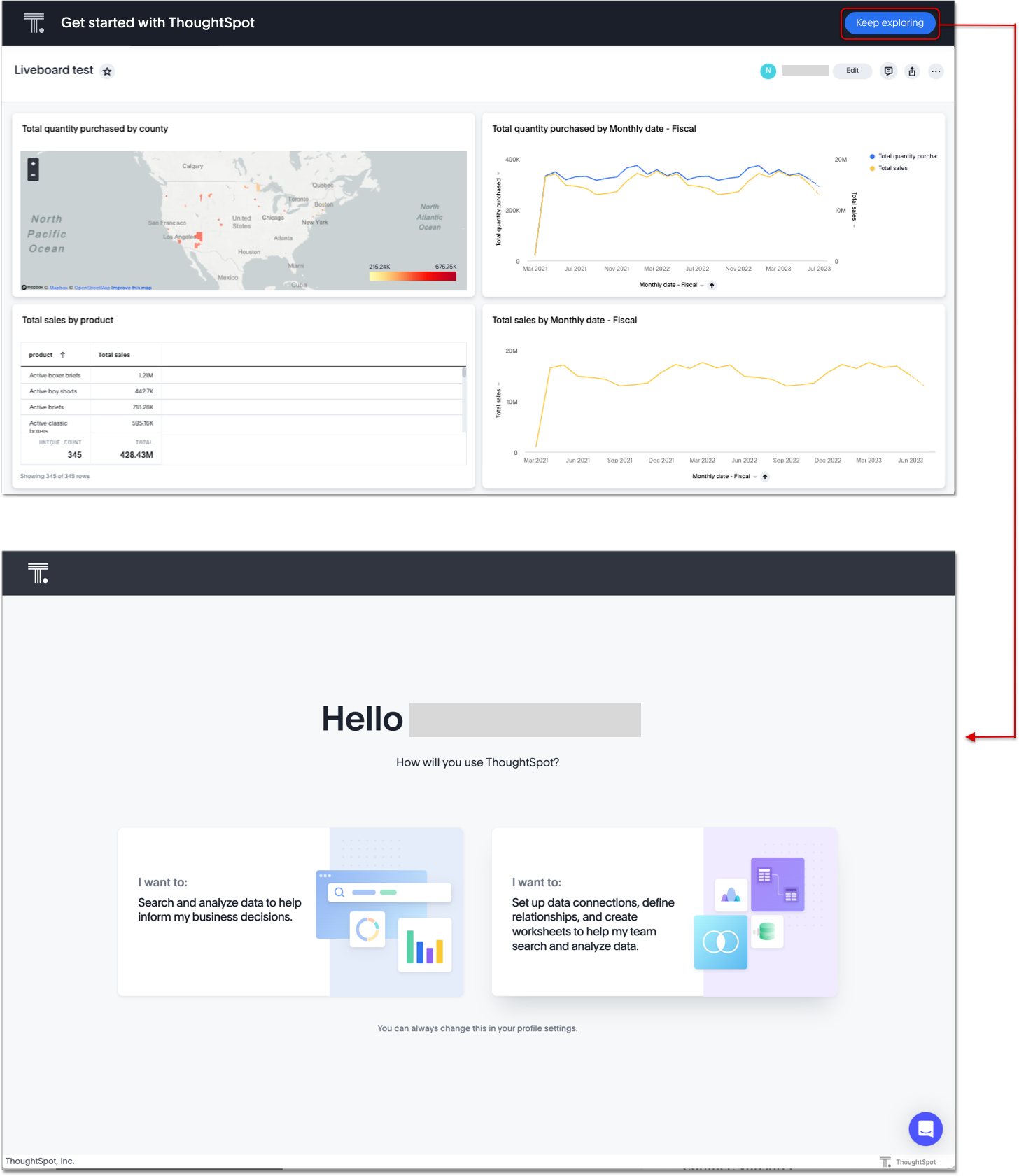
Other features and enhancements
Responsive Liveboards GA
We have improved the responsiveness of Liveboards. For windows between 1024 pixels and 500 pixels, the Liveboard columns respond to re-sizing. For windows smaller than 500 pixels in width, a horizontal scroll bar appears.
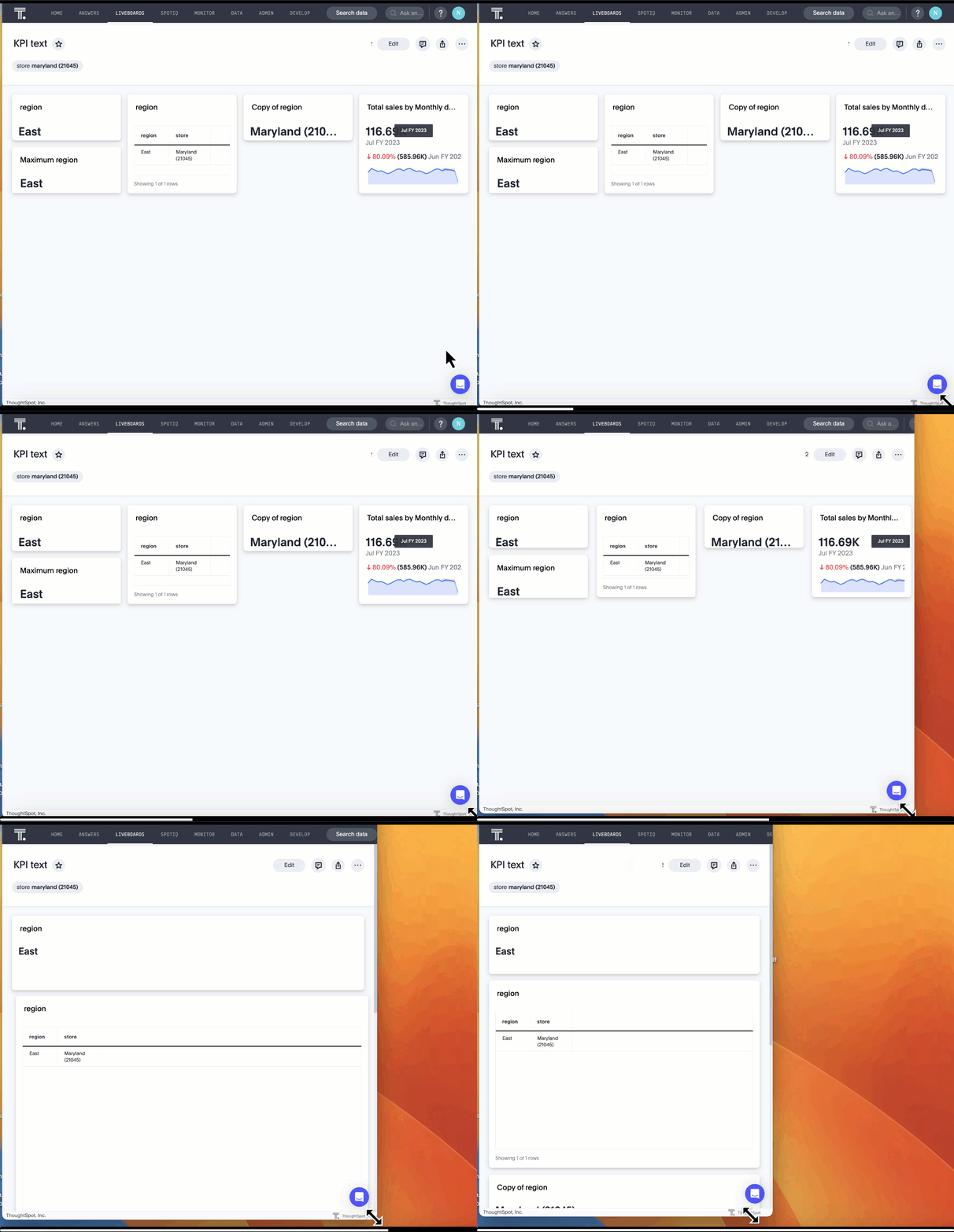
Liveboard tabs in Mobile app GA
We now display Liveboard tabs in the ThoughtSpot Mobile app. To create a Liveboard tab, you must access ThoughtSpot in a browser.
Worksheet formula indexing GA
In this release, worksheet formulas can now be indexed by setting Suggest values in search to Yes for the formula.
Admin controls for new data panel experience Early Access
ThoughtSpot admins now have more control for enabling the new data panel experience for users. In this release, admins can now make the new answer data panel experience default for all users of a cluster, by going to Admin > Search & SpotIQ and setting the Make new answer data panel experience default to Enabled.
Indexing Queries Liveboard GA
We introduced a Liveboard to answer the following questions:
-
How many indexing queries are made?
-
Which queries are failing and why?
-
How long are the indexing queries taking?
-
Which connections have the most failures so that the admin can easily identify them?
Admin users can access the Indexing Queries Liveboard by searching the Liveboards tab, and use the results to improve indexing queries performance. For more information, see Indexing Queries Liveboard.
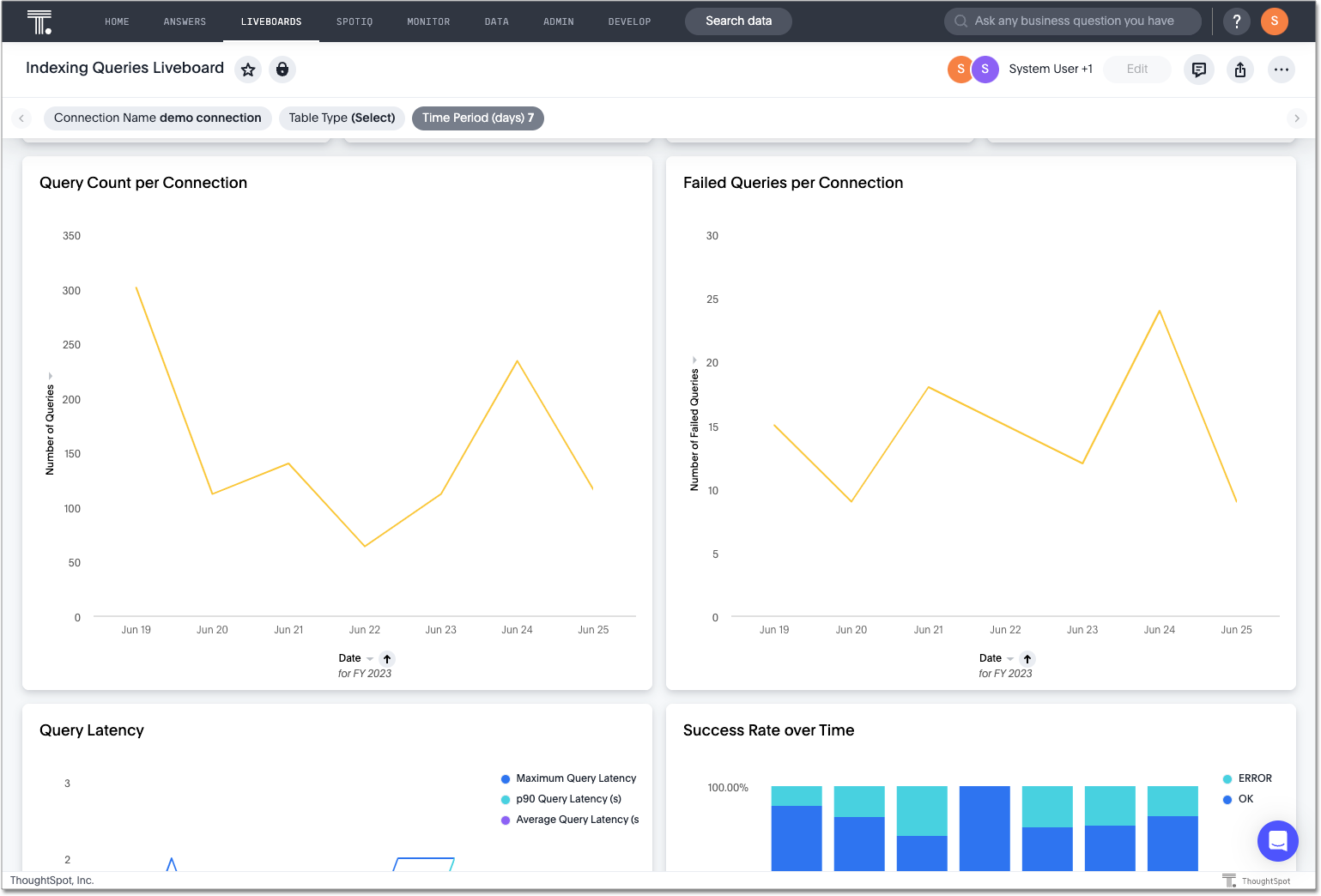
Snowflake Query Profile SpotApp GA
The Snowflake Query Profile SpotApp is now available. Use this SpotApp to analyze Snowflake query data to understand execution time better and pinpoint key areas for query optimization.
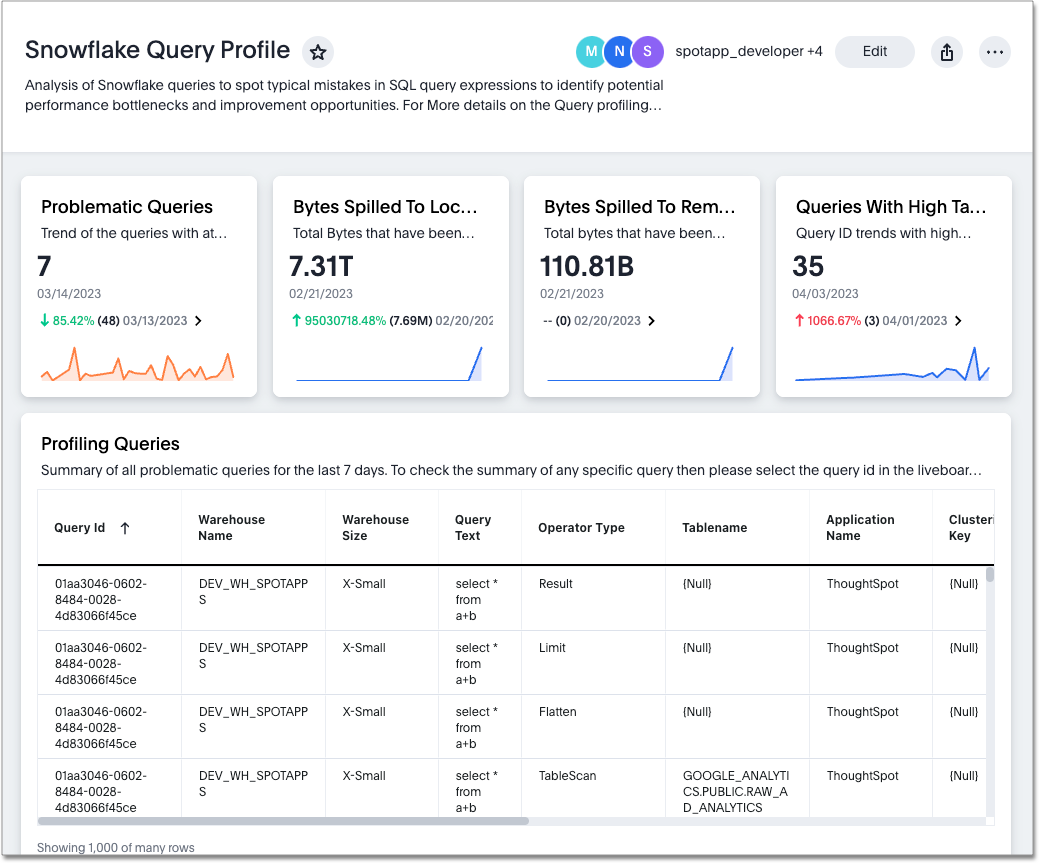
Connections GA
You can now create connections from ThoughtSpot to:
Connection error messaging improvements GA
If you run into an error while creating a connection, you can now click View details to see error details and add a comment for your administrator.
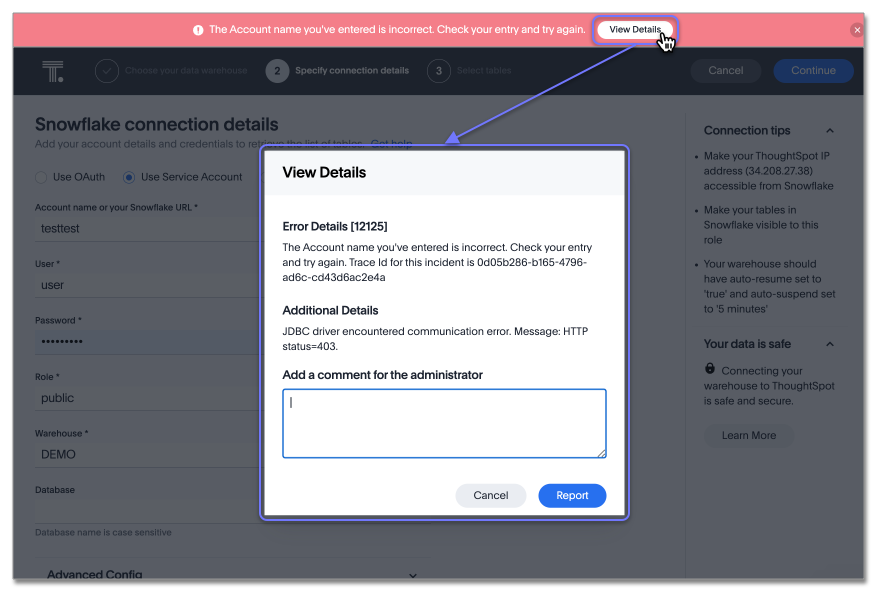
Table column case definition Beta
We are introducing the ability to specify the case of a table column (for example, upper, lower, or mixed). Previously, SQL generated by ThoughtSpot was always wrapped in a LOWER function with no configuration options. Now, users will be able to define whether columns in tables are mixed case or lower case. To enable this feature, contact ThoughtSpot support.
New London cloud region for AWS GA
ThoughtSpot Cloud now supports the London region when you connect using AWS. See ThoughtSpot Cloud requirements and support.
For the Developer
For new features and enhancements introduced in this release, see ThoughtSpot Developer Documentation.
9.3.0.cl
June 2023 9.3.0.cl
| Features marked as Beta are off by default. To enable them, contact ThoughtSpot support. |
ThoughtSpot Sage Early Access
In this release, ThoughtSpot Sage features are available for administrators to enable, without contacting ThoughtSpot Support. ThoughtSpot Sage makes it easier for you to get answers and insights from your complex data. ThoughtSpot Sage uses a combination of GPT-3, GPT-3.5T and GPT-4, and the large language models (LLM) of the Microsoft Azure OpenAI Service.
Sage features include:
-
Natural language search
-
AI-suggested searches
-
AI-generated Worksheet column synonyms
Sage features are disabled by default and available for administrators to enable in the Admin Console.
Once enabled, your ThoughtSpot administrator can grant access to the Natural language search and AI-suggested searches features for users in a group by assigning the Can preview ThoughtSpot Sage user privilege to the group. You do not need this privilege to access AI-generated Worksheet column synonyms.
Natural language search Early Access
You can now search using natural language to access AI-generated answers to your business questions. This feature is now available for administrators to enable, without contacting ThoughtSpot Support. To try it out, navigate to the Home page, select the search bar labeled Ask any business question you have and type your question. When you enter your question, you will see the AI-generated answer appear, along with a list of related Answers created by users in your team.
You can select the Worksheet to search on by clicking the Worksheet title in the left side of the search bar and selecting a new Worksheet from the dropdown. Worksheets with AI answers enabled display a triangular icon to the left of the Worksheet name:  .
This feature must be enabled by your administrator.
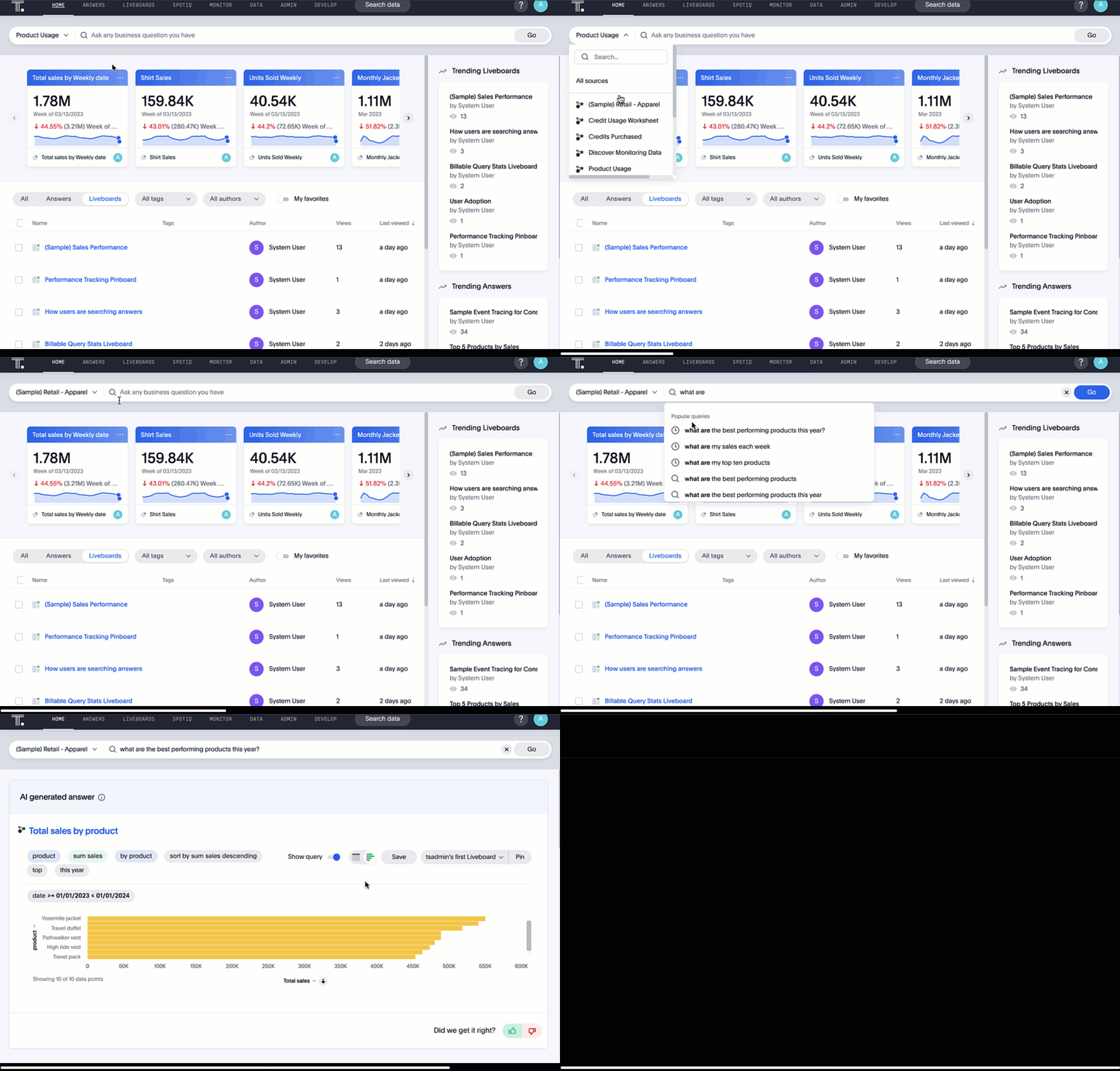
AI-suggested searches Early Access
The AI-suggested searches feature is now available for administrators to enable, without contacting ThoughtSpot Support. This feature helps you think of relevant questions to ask of your own data source, by providing examples of searches. This feature is designed to help you get started if you are a new user of Search Data, or if you are working with a new Worksheet. This feature must be enabled by your administrator. For more information, see AI-suggested searches.
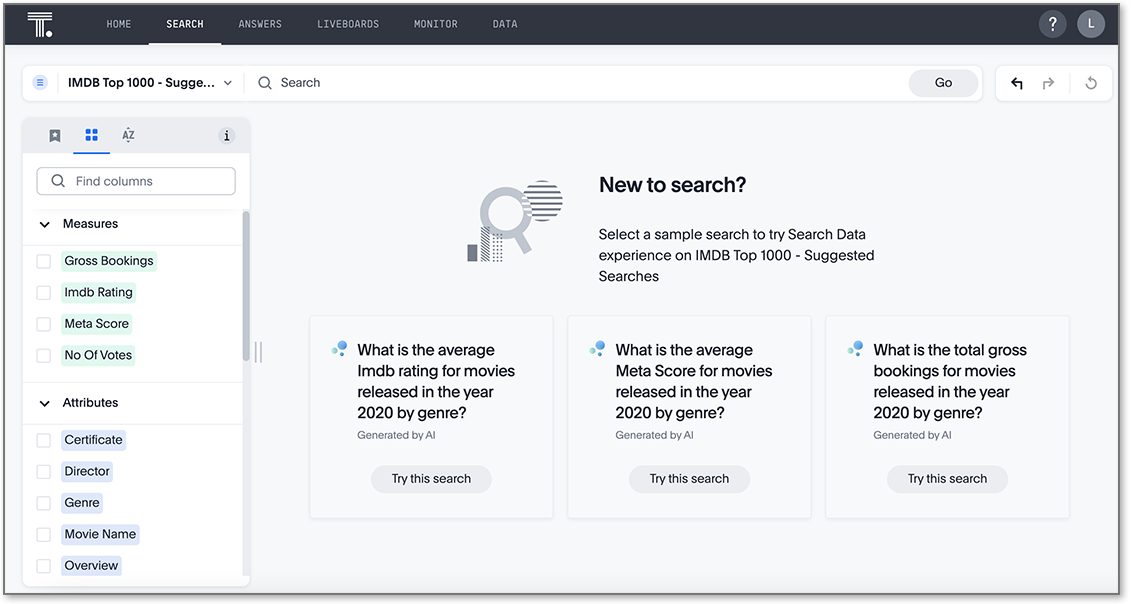
Liveboard cross filters GA
Liveboard cross filters are now GA. Right-click any data point in your Liveboard and easily filter the entire Liveboard by that value. For example, if you right-click California in a geo chart on your Liveboard, and then select Filter, all the other visualizations only show data from California. A visualization for Total sales by city, for example, would only show sales for cities in California. This feature is also called brushing and linking. To try it out, select any data point(s) in a Liveboard visualization, and select Filter from the menu that appears. For more information, see Liveboard cross filters.
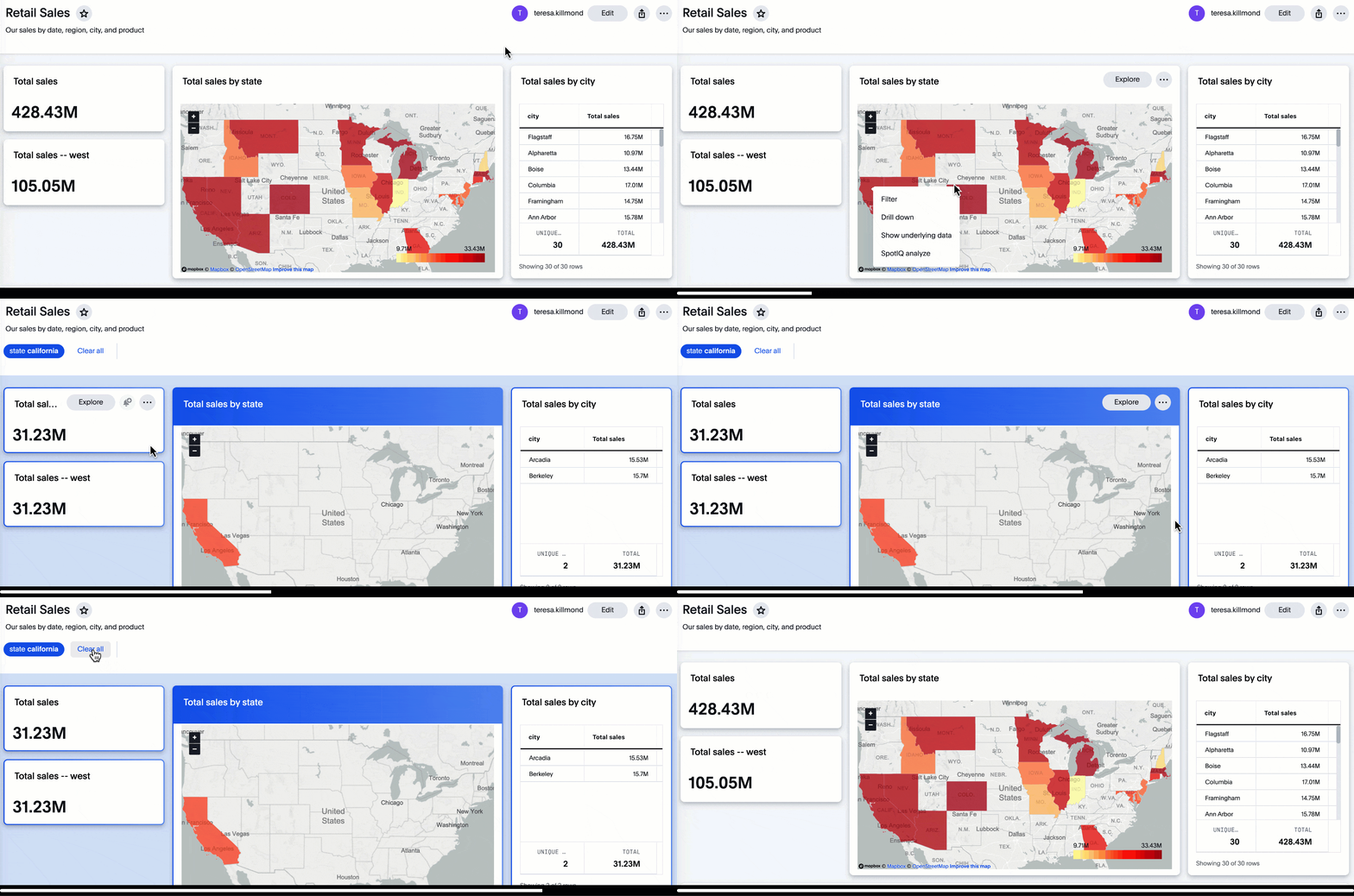
Liveboard note tiles GA
The Liveboard note tiles feature is now GA. Add notes to your Liveboards, so that viewers of your Liveboards can quickly understand how to use the data and visualizations you gathered. Note tiles can provide an overview of a Liveboard or visualization, company branding through images, definitions of terms used in the Liveboard, and so on. With the GA of the note tiles feature, you don’t need a specific privilege to upload images. To try it out, edit a Liveboard, and select Add note. For more information, see Liveboard note tiles.
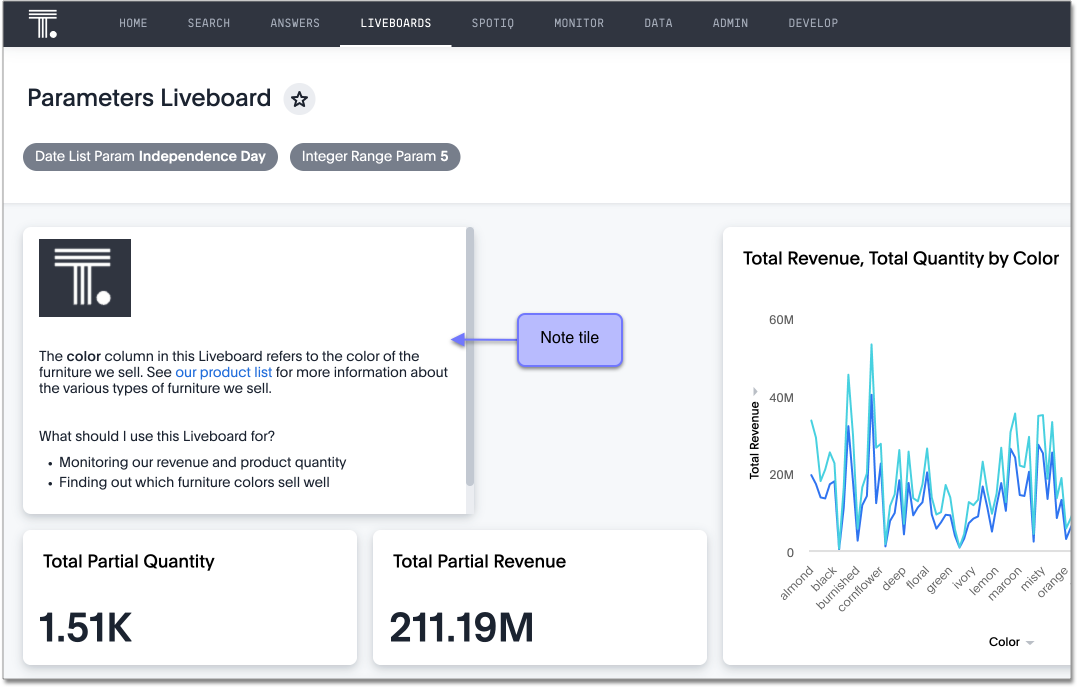
Contextual change analysis Early Access
You can now identify the key change drivers for changes in your metrics in a KPI chart. This feature is now available for administrators to enable, without contacting ThoughtSpot Support. Select the percent change label or select any two data points on the KPI sparkline to view change analysis on your top 5 columns by usage-based ranking (UBR) and identify the reason behind the observed change. You can view the changes in other columns by clicking Manage attributes and selecting the desired column(s). This feature must be enabled by your administrator.
For more information, see Contextual change analysis.
Attributes in pivot table cells GA
You can now include attributes in the pivot table cells as well as measures. This is useful for cases when you want to summarize text data such as user role, pass/fail, or other attributes. For more information, see Pivot table charts.
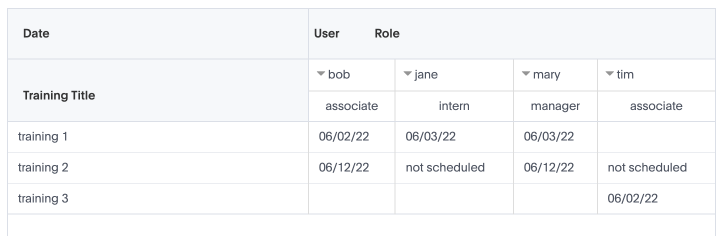
Change the filter order for Answer filters GA
Arrange Answer filters in the filter bar so that they are in a logical, coherent order, by dragging and dropping them to different spots in the list. This makes it easier for viewers of the Answer to understand and use the filters on the Answer. To try it out, open any Answer, and drag and drop the filters in the filter bar. For more information, see Change the filter order.
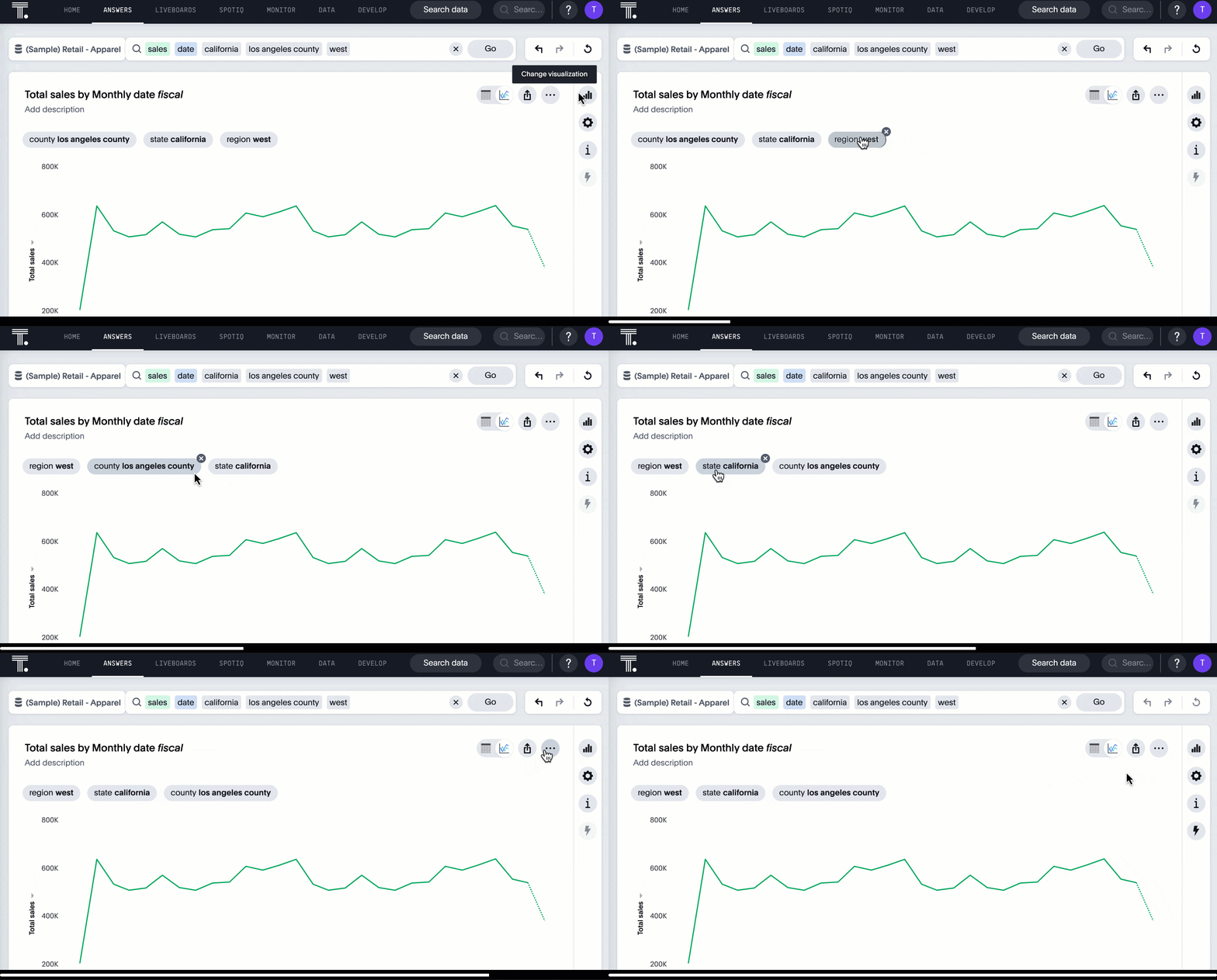
Keywords "of", "percentage of" Beta
To enable business users to answer questions related to mix, contribution, share of, percentage, and total ratios, we added the keywords "of" and "percentage of". These keywords help answer questions such as "What is the share of a certain store’s sales as a percentage of the regional whole?" Previously, searches such as these required the use of a group aggregate formula, which presented a barrier to users. To try out this feature, enter a search phrase in the search bar containing the keyword, such as sales percentage of store region, and press Go.
For more information, see Keywords: Of and Percentage of. This feature is off by default. To enable it, contact ThoughtSpot support.
Liveboard header visible when you scroll down GA
When you scroll down in a Liveboard, the Liveboard name, menu options, and filter and tab bars remain visible. You don’t need to scroll back up to the top to edit the Liveboard or check your filters. You can see the filters or parameters applied to the Liveboard, select the Edit button or more options menu, and view which tab you’re on from any spot in the Liveboard. To try it out, open any Liveboard, and scroll down.
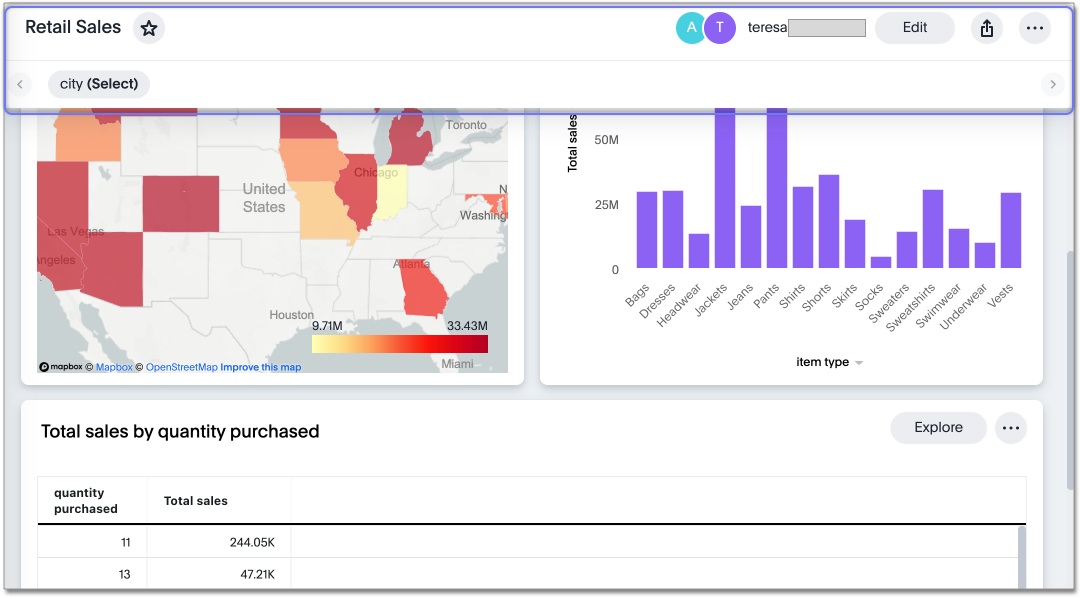
Ability to change legend position GA
You can now configure the legend position in a chart, or hide the legend. The available options are left, right, above, and below the visualization. To try it out, open the chart configuration menu, select Settings, and choose between Legend on right, Legend on left, Legend on top, and Legend on bottom. You can select the Show legend toggle to hide or show the legend. See Changing charts.
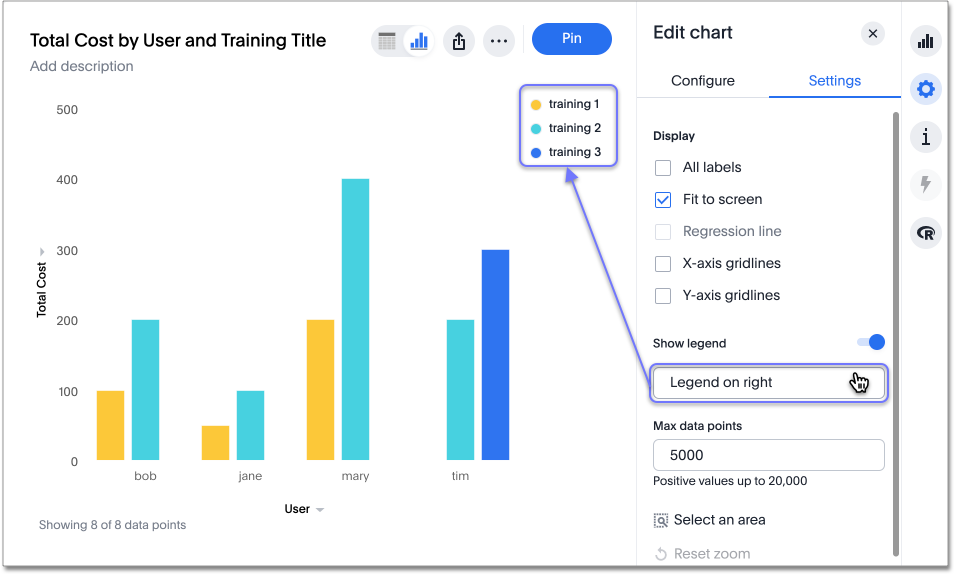
Other features and enhancements
ThoughtSpot Cloud on Google Cloud GA
ThoughtSpot Cloud will be available on Google Cloud Platform in addition to AWS. Customers can choose whether they want their SaaS deployed on AWS or GCP.
ThoughtSpot on GCP can be purchased directly from ThoughtSpot but will also be available to purchase in the Google Cloud Marketplace, the BigQuery Partner Center, and Google Workspace Marketplace. Customers can also use their committed spend and credits on Google Marketplace to purchase ThoughtSpot. If you want to migrate to GCP, contact ThoughtSpot support.
AI-generated Worksheet column synonyms Early Access
When you create a Worksheet, ThoughtSpot automatically creates synonyms for each column name. This feature is now available for administrators to enable, without contacting ThoughtSpot Support. Users can easily start searching on your data, without knowing the exact names for every column. For example, if you have a column named Product type, ThoughtSpot might create a synonym such as Product Category. When a user searches for revenue by product category, for example, ThoughtSpot returns sales by product type. To try it out, create and save a new Worksheet. Your column name synonyms appear in the Synonyms column on the Worksheet details page. This feature must be enabled by your administrator.
For more information, see
Create synonyms for a column.
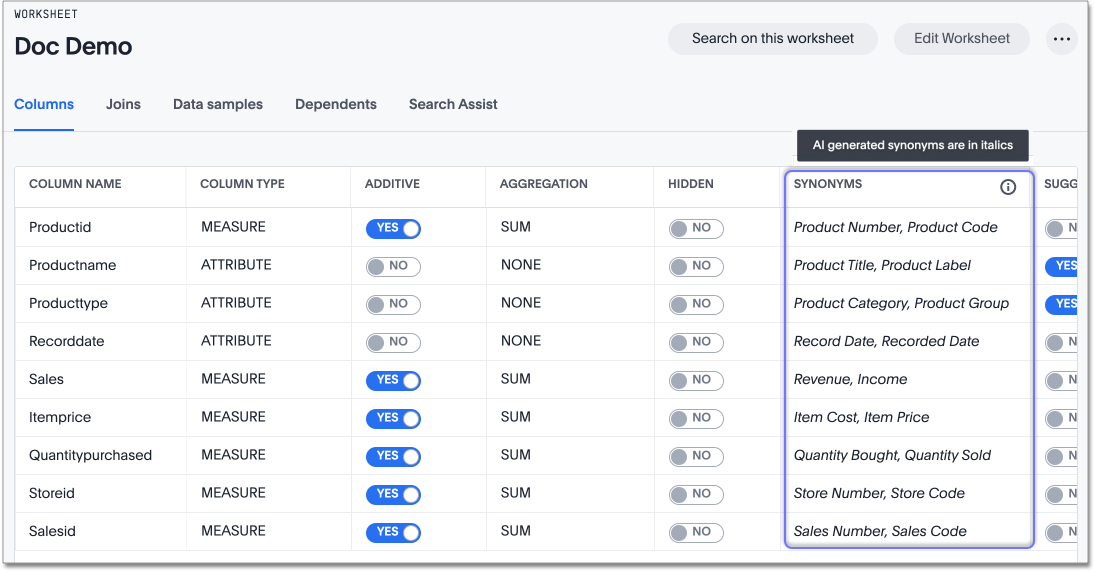
Edit a dbt integration GA
This release includes the following improvements to the dbt integration:
-
Ability to connect to a single-tenant dbt environment.
-
New UI for editing a dbt integration in ThoughtSpot.
-
Beta When editing a dbt integration, ThoughtSpot updates your existing Worksheets, tables, and Liveboards, instead of replacing them with new objects.
To try it out, select Data in the top navigation bar, then select dbt in the side navigation bar. For more information, see Editing a dbt project.
Amazon Aurora PostgreSQL connection and Amazon Relational Database Service (RDS) PostgreSQL connection GA
You can now connect to and query Amazon Aurora and Amazon RDS for PostgreSQL databases using the PostgreSQL connector. For details, see PostgreSQL.
MySQL connection GA
You can now create connections from ThoughtSpot to MySQL. For details, see MySQL.
Specify default connection for CSV uploads GA
Previously, when multiple database connections were configured to receive CSV uploads without a specified table or worksheet for collocation, the files were randomly uploaded to one of the connections. With this new enhancement, administrators and data managers now have the ability to specify a default target connection for such uploads.
To set the default target connection, navigate to Data > Connections, click the More menu icon , select Configure data upload, and click the Enable data upload toggle to on. Next, select the Set as default CSV upload destination toggle. By specifying a default connection, you ensure that CSV files without a designated destination will be uploaded to the chosen connection.
This enhancement provides better control and organization of CSV uploads, making it easier to manage data in scenarios where end-users do not select a collocation for their uploaded files.
In-app billing reporting GA
Admin users will be able to access a Liveboard reflecting the pricing model purchased and associated with their cluster. Query-based pricing customers see the Billable Query Stats Liveboard, while time-based pricing customers see the Credit Usage Liveboard.
For the Developer
For new features and enhancements introduced in this release, see ThoughtSpot Developer Documentation.
9.2.0.cl
May 2023 9.2.0.cl
| Features marked as Beta are off by default. To enable them, contact ThoughtSpot support. |
This release introduces important enhancements to provide help and support for all ThoughtSpot users.
In-product help GA
With the new in-product help, you can search the documentation, training and community sites to find the information you’re looking for. Links to documentation open in a window inside ThoughtSpot, so you can read the documentation while never leaving ThoughtSpot.
To use the help, click the question mark icon  to open the Information Center, and then click Help.
AI-assisted chat support GA
Now you can get live, chat-based support from anywhere, in a small self-contained window that floats on top of the ThoughtSpot UI. You can send a message, book a call with a product specialist, or search for answers in our documentation, training and community sites. Messages can be a product question, sales inquiry, feedback, or even a product idea.
To use the chat-based support, click the support icon  in the lower-right corner of ThoughtSpot.
Chat support is available to all customers in North America for the 9.2.0.cl release.
In this release we introduce our new AI-powered search experience called ThoughtSpot Sage, which makes it easier for you to get answers and insights from your complex data. ThoughtSpot Sage uses a combination of GPT-3, GPT-3.5T and GPT-4, and the large language models (LLM) of the Microsoft Azure OpenAI Service.
Sage features include:
-
Natural language search
-
AI-suggested searches
-
AI-generated Worksheet column synonyms
Sage features are disabled by default and available for select customers to try before they reach GA, when they are enabled by default. To enable ThoughtSpot Sage features, you must contact ThoughtSpot Support.
Once enabled, your ThoughtSpot administrator can grant access to the Natural language search and AI-suggested searches features for users in a group by assigning the Can preview ThoughtSpot Sage user privilege to the group.
You can now search using natural language to access AI-generated answers to your business questions. To try it out, navigate to the Home page, select the search bar labeled Ask any business question you have and type your question. When you enter your question, you will see the AI-generated answer appear, along with a list of related Answers created by users in your team.
You can select the Worksheet to search on by clicking the Worksheet title in the left side of the search bar and selecting a new Worksheet from the dropdown. Worksheets with AI answers enabled display a triangular icon to the left of the Worksheet name: .
This feature must be enabled by ThoughtSpot Support.
The AI-suggested searches feature helps you think of relevant questions to ask of your own data source, by providing examples of searches. This feature is designed to help you get started if you are a new user of Search Data, or if you are working with a new Worksheet. For more information, see AI-suggested searches.
This feature must be enabled by ThoughtSpot Support.
Liveboard cross filters Early Access
Right-click any data point in your Liveboard and easily filter the entire Liveboard by that value. For example, if you right-click California in a geo chart on your Liveboard, and then select Filter, all the other visualizations only show data from California. A visualization for Total sales by city, for example, would only show sales for cities in California. This feature is also called brushing and linking. To try it out, select any data point(s) in a Liveboard visualization, and select Filter from the menu that appears. This feature must be enabled by your administrator. For more information about cross filters, see Liveboard cross filters.
Liveboard note tiles Early Access
Add notes to your Liveboards, so that viewers of your Liveboards can quickly understand how to use the data and visualizations you gathered. Note tiles can provide an overview of a Liveboard or visualization, company branding through images, definitions of terms used in the Liveboard, and so on. To try it out, edit a Liveboard, and select Add note. The Liveboard note tiles feature must be enabled by your administrator. For more information about note tiles, see Liveboard note tiles.
Mandatory Liveboard filters GA
Mandatory Liveboard filters are now GA. Mark certain filters in your Liveboard as mandatory. If you add mandatory filters to a Liveboard, the visualizations will only load after Liveboard viewers select values for the mandatory filters. Use mandatory filters for Liveboards that contain data that may not be relevant for everyone who must view and consume the Liveboard. Mandatory filters also lower query and performance costs. To try the feature out, select Mandatory filter when adding a filter to a Liveboard. For more information about mandatory filters, see Mandatory Liveboard filters.
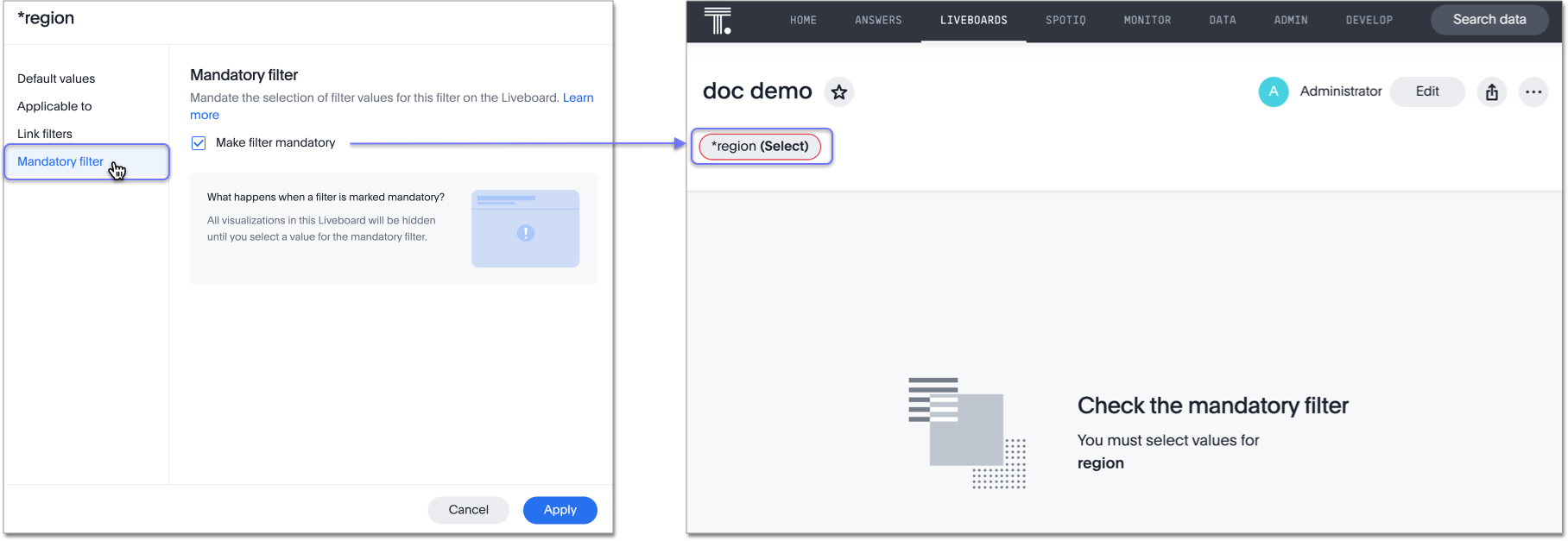
Custom comparison points for KPI charts GA
You can now set your KPI chart to display a percent change comparison between the most recent data point and a custom comparison point. For example, when searching for sales monthly, you can choose to see percent change between this month and the previous month, previous quarter, or previous year. For more information, see
Custom comparison points.
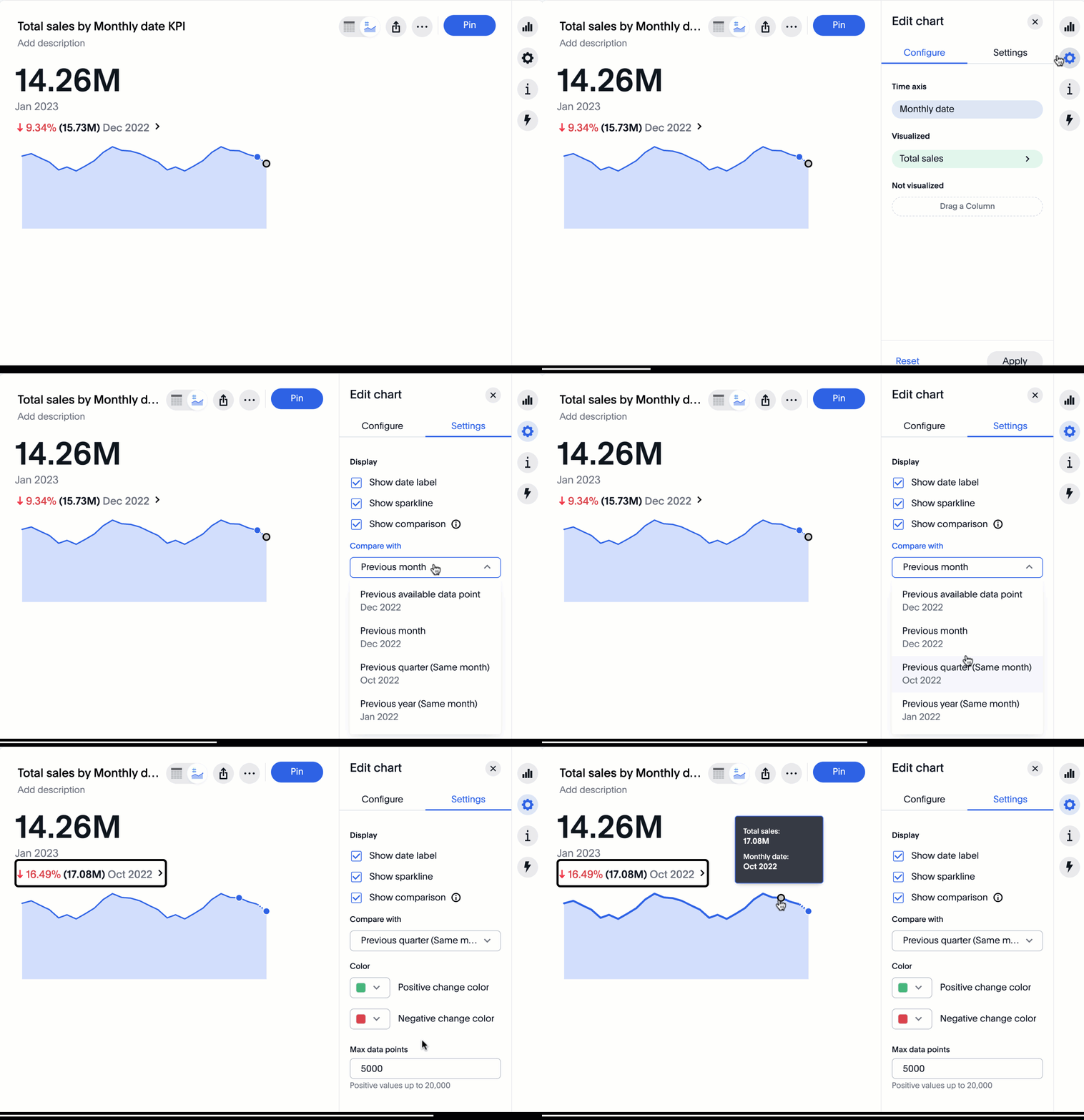
ThoughtSpot Sync GA
You can now use ThoughtSpot Sync to sync data directly from an Answer or custom SQL view to the following apps:
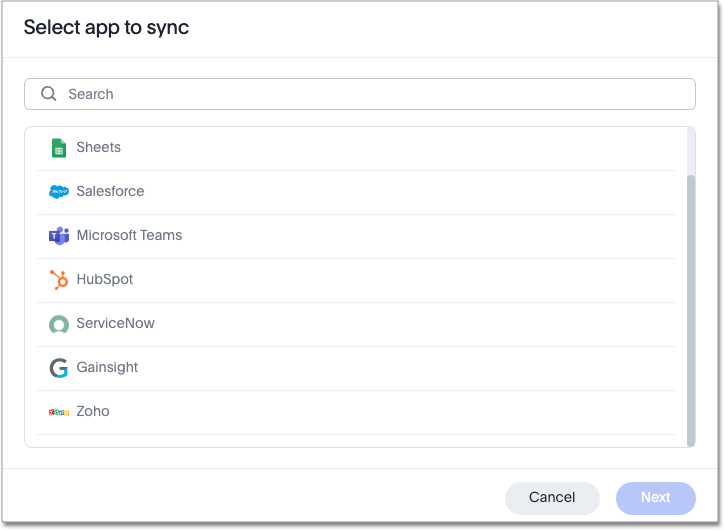
Schedule ThoughtSpot Sync GA
When scheduling a sync with an external app, you can now choose to schedule every 5, 10, 15, 20, 30, and 45 minutes, in addition to the other existing schedule options.
Parameters GA
The Parameters feature is now GA. Any user can now create Parameters at the Answer level to optimize their data inquiries. Analysts can also create Worksheet Parameters that are available to all Worksheet users. Use Parameters to run different scenarios with adjustable values, without creating or modifying the constants in formulas for each new value. For example, easily adjust the attribute in an Answer to view your revenue by commit date or order date, as in the following image. To try it out, navigate to any Answer, search, or Worksheet, and select the + button next to the Parameters section in the left panel. For more information, see Creating Parameters and Using Parameters.
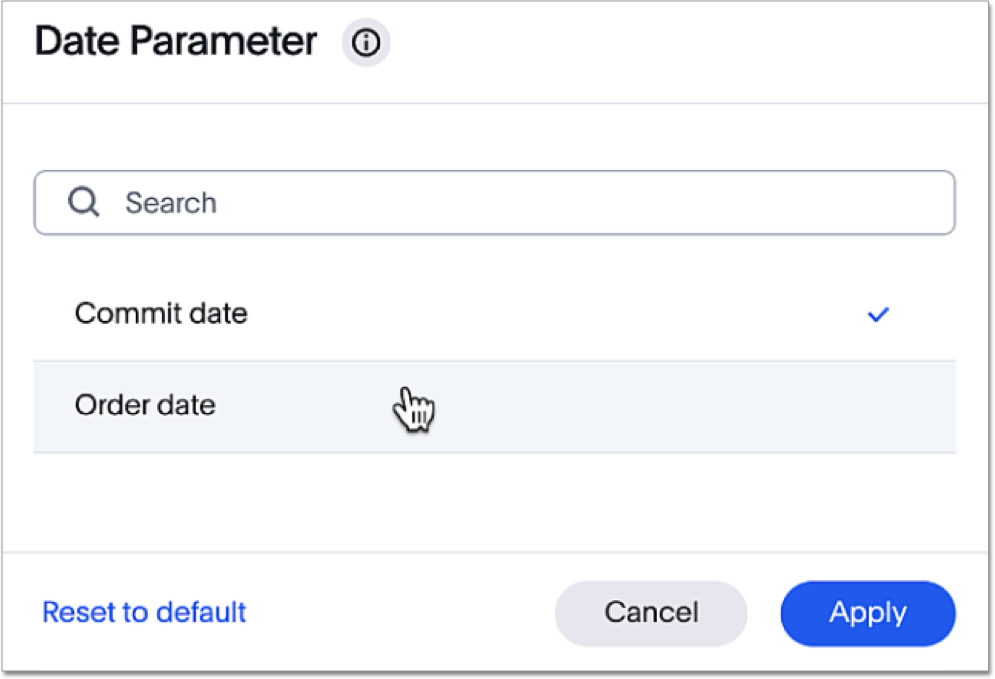
Anomaly detection for time-series KPI charts GA
You can now see anomalies in time-series KPI charts. Our new anomaly detection algorithm detects data which does not fall within the expected confidence intervals, while allowing for seasonal changes and growth over time. To try it out, open your KPI chart as an Answer, open the chart configuration menu, and select Show anomalies. For more information, see Anomaly detection.
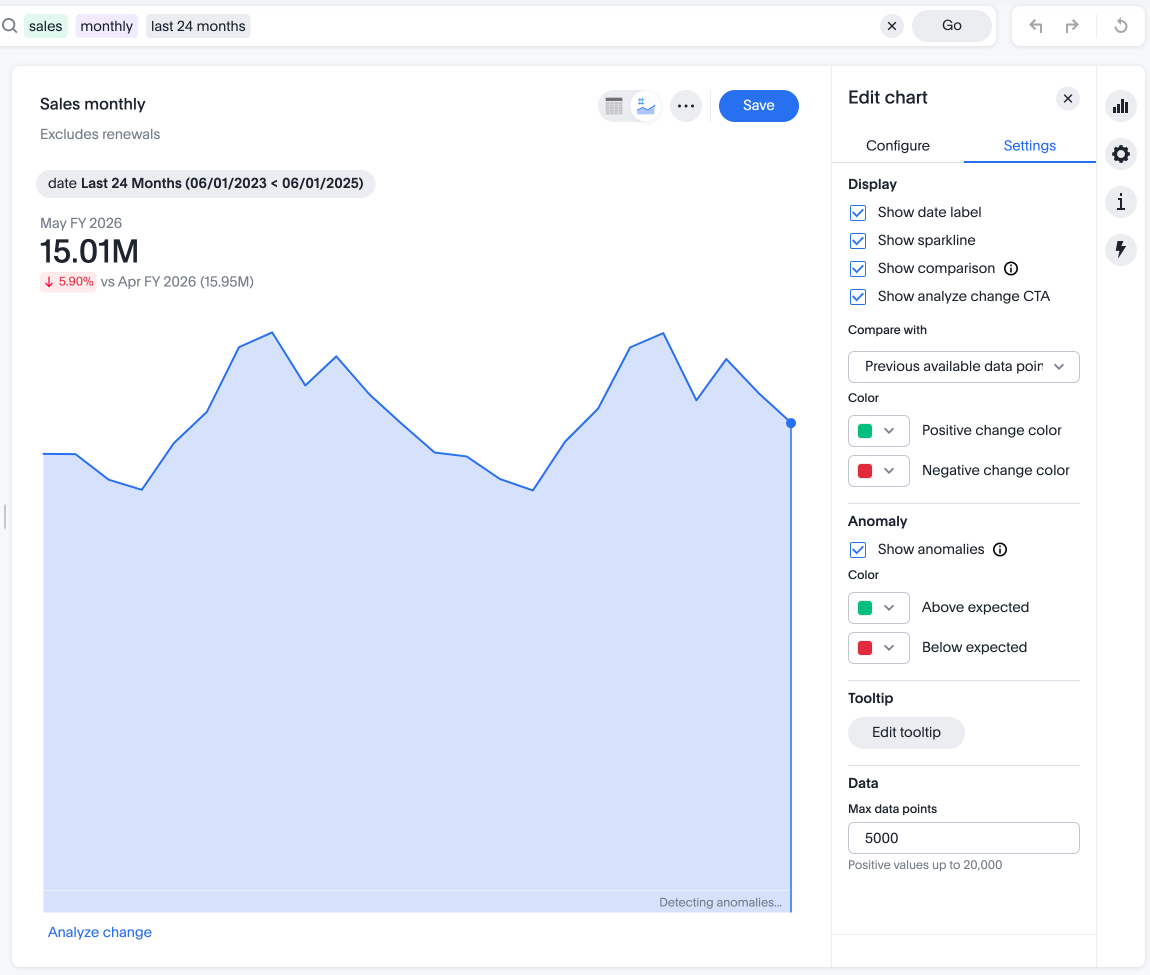
Change analysis for KPI charts GA
KPI change analysis is now GA. You can now use change analysis to directly identify the key drivers for change in your KPIs.
To access this feature, go to your KPI chart and select the caret icon to the right of the percent change label. The Run change analysis pop-up allows you to customize the attribute columns ThoughtSpot analyzes to identify the drivers of change. ThoughtSpot runs change analysis for the most recent data point and the past comparison data point as per the KPI chart’s configuration.
For more information on change analysis, see Comparative analysis. Note that you need SpotIQ privileges to use the KPI change analysis feature.
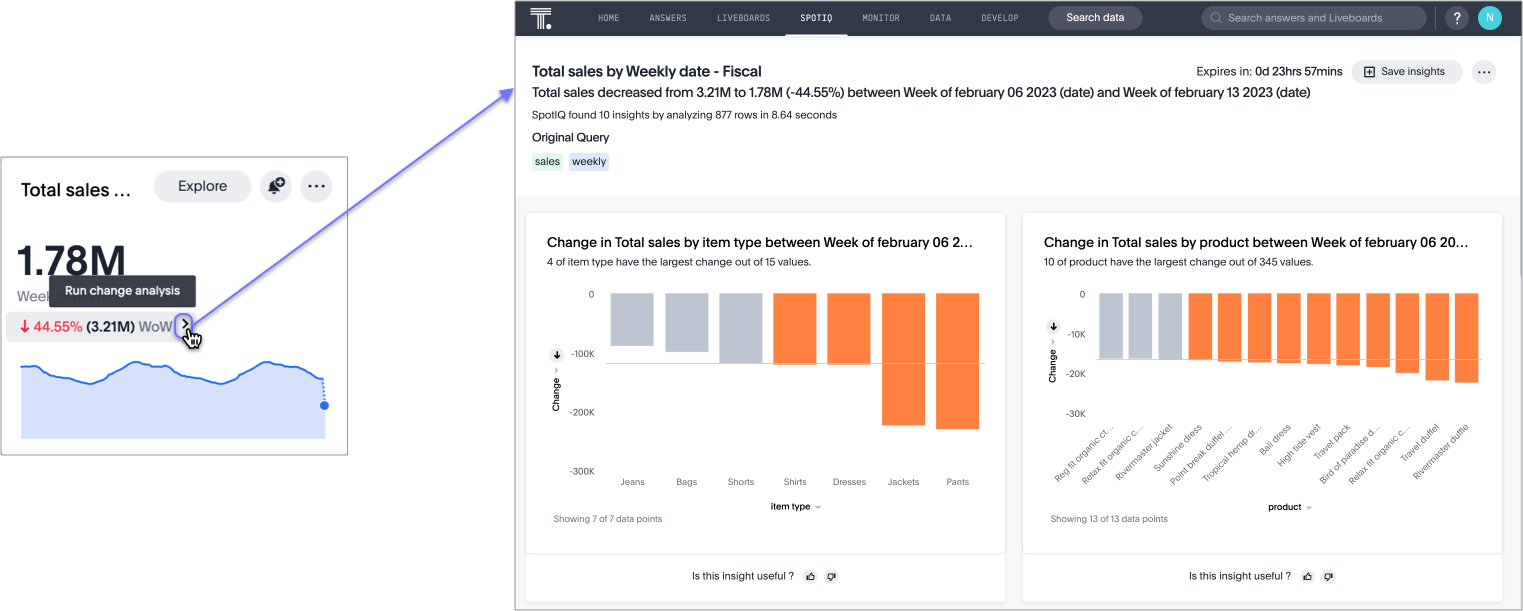
Apply multiple chart changes at once GA
Apply multiple chart changes at once is now GA. Now users can make multiple configurations and apply them at the same time rather than waiting for each configuration to load separately. For more information, see Reorder labels on the axis or legend.
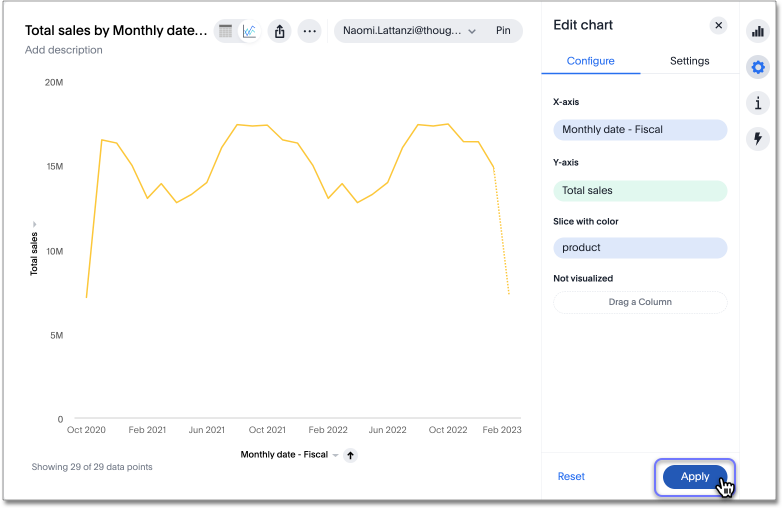
Disable heatmap data labels GA
Optionally disable heatmap charts' data labels, and understand the chart quickly by scanning the heatmap colors. This makes complex heatmap charts with many data values easier to read. To try it out, create a heatmap chart, select the edit chart configuration icon , select Settings, and clear the All labels checkbox.
For more information, see
Heatmap charts.
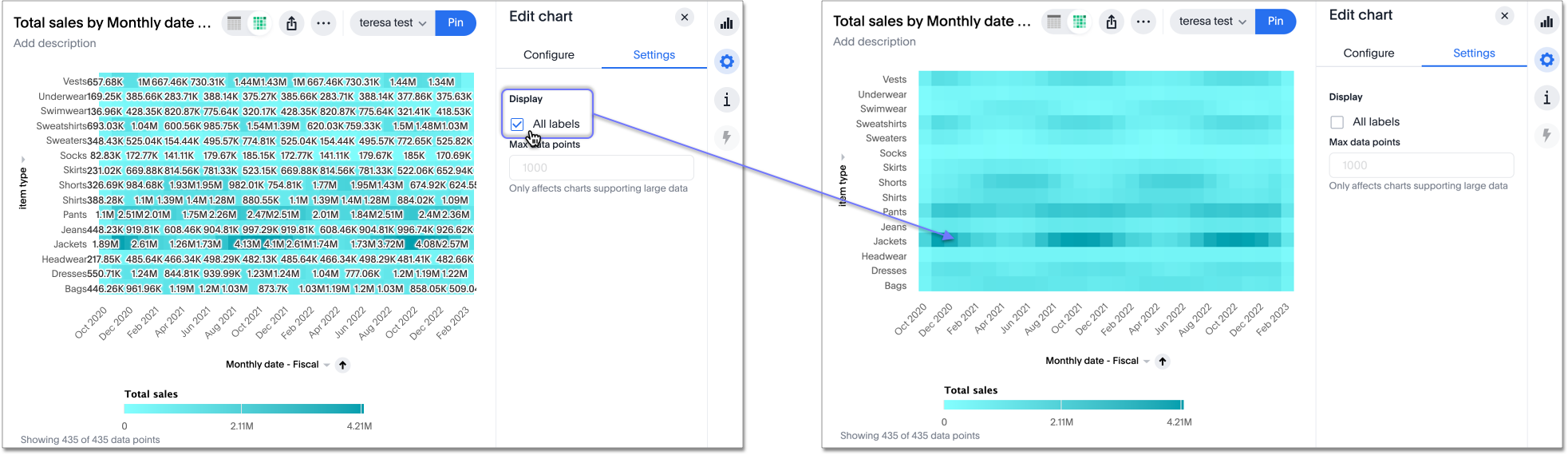
Specify format when downloading charts and tables GA
We streamlined the file format options when downloading tables and charts from ThoughtSpot. You can download tables in XLSX, CSV, or PDF format, and download charts in XLSX, CSV, or PNG format. To try it out, open a chart or table, and select Download from the more options menu . For more information, see
Download a chart or table.
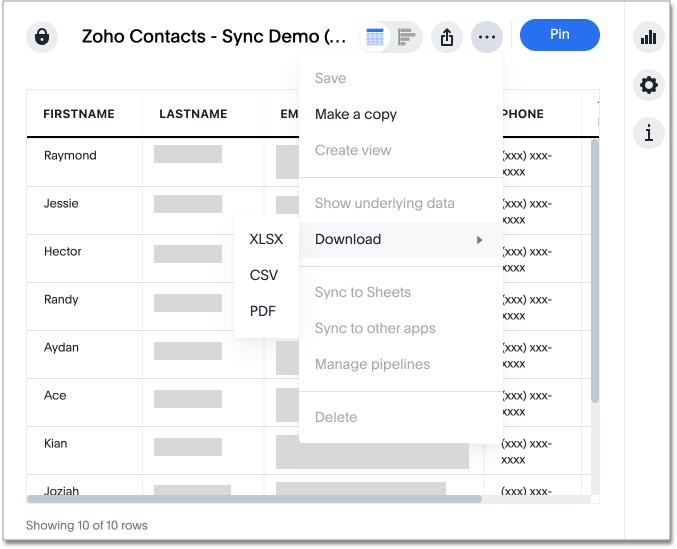
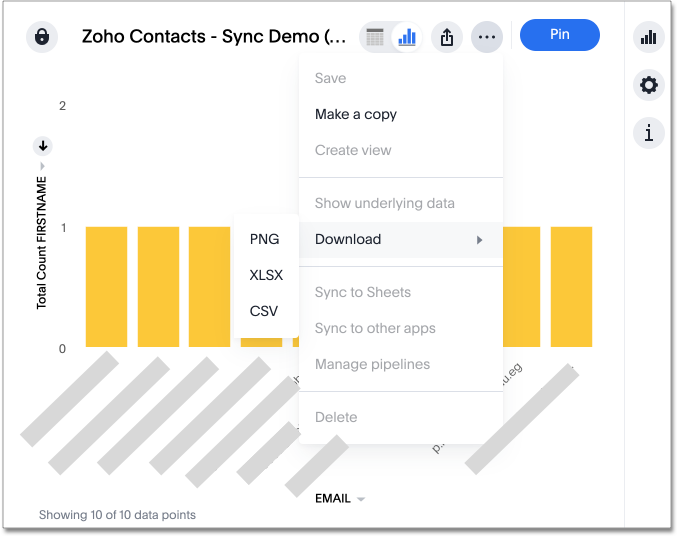
Data labels on a dark background GA
Data labels on a dark background are now GA. Labels that appear on a dark background now display in a lighter text color, making them easier to read. To try it out, navigate to Search data and Create a chart > Change the chart color, and Add labels. For more information, see Reorder labels on the axis or legend.
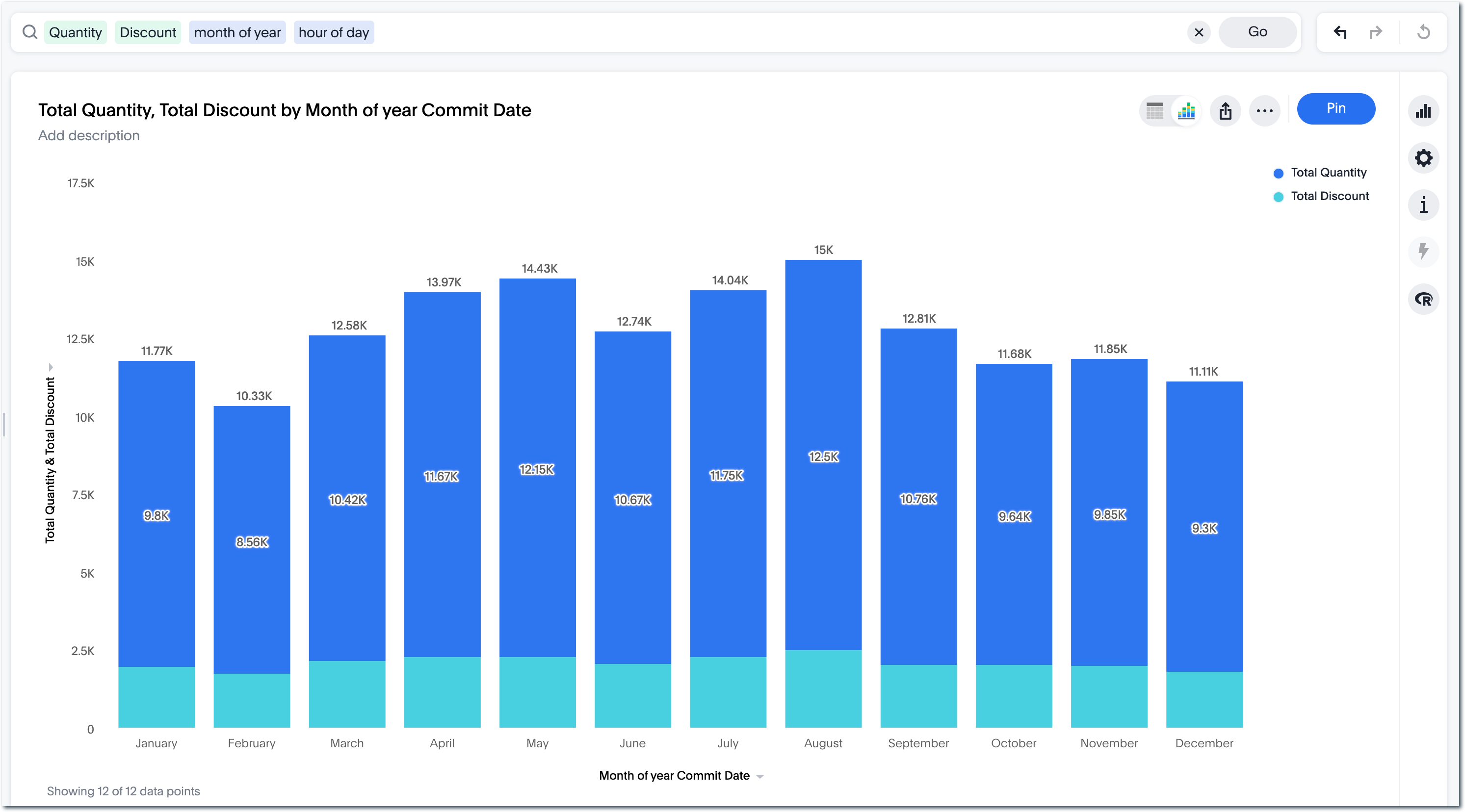
Change filter order for Liveboard filters GA
Arrange Liveboard filters in the filter bar so that they are in a logical, coherent order, by dragging and dropping them to different spots in the list. This makes it easier for viewers of the Liveboard to understand and use the filters on the Liveboard. To try it out, edit any Liveboard, and drag and drop the filters in the filter bar. For more information, see Change the filter order.
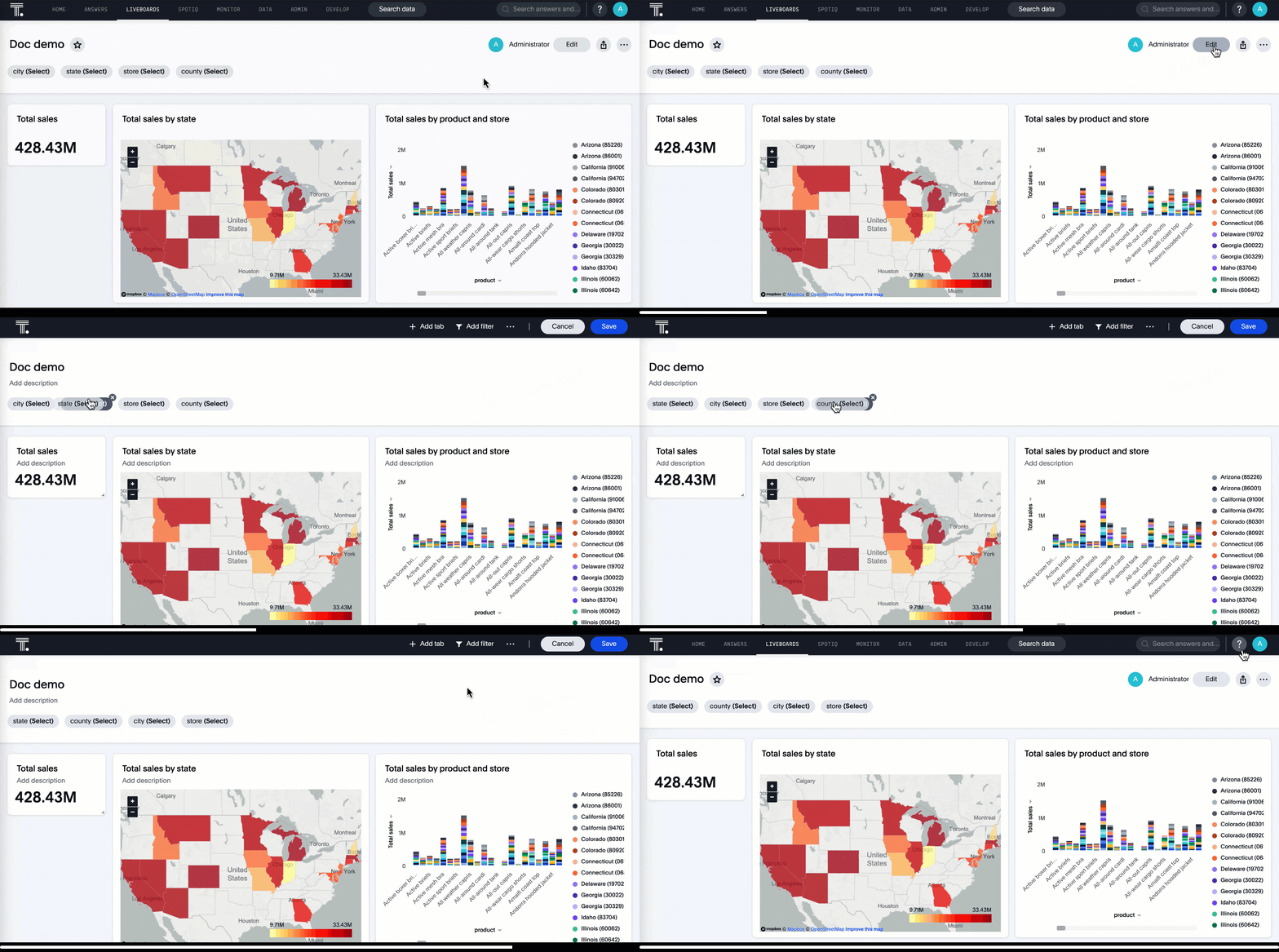
Text keywords enhancements GA
We improved the syntax of our text keywords, such as begins with and contains, to provide users with more flexibility. For example, the contains keyword now accepts expressions such as product name contains 'shoes' or 'snickers'.
See the
Keyword reference.
Additionally, if your query includes two or more contains phrases that modify the same column, ThoughtSpot now combines the phrases using or logic, instead of and. If you have existing Answers or visualizations using this and logic, ThoughtSpot will automatically update your queries after you upgrade to 9.2.0.cl, to ensure they return the same information.
See the
contains keyword.
Improvements to French keywords GA
This release improves the translated French keywords. To try it out, change your ThoughtSpot locale to French, and include keywords in your search. For more information, see Français (France) keyword reference.
Group aggregation enhancements: filters GA
Group aggregate filter enhancements are GA. Previously, when using group_aggregate formulas, users could use query_filters to include filters entered in the search bar in the formula’s value, but it was difficult to write a formula that accepted filters from only a single column.
Starting with this release, you can specify column names within the ‘filters’ section of a group_aggregate formula, and any filter in your search bar referencing that column will be added to the formula. Filters entered in the search bar that are not on columns specified in the third argument of the group_aggregate formula will be ignored. For details, see Group aggregation filters.
Group aggregate enhancement: reaggregation Beta
To reduce confusion when using aggregate formulas, the level of detail defined in group formulas is now respected at query level. For example, when trying to calculate the contribution of each store’s sales to the entire region, you might use a group_sum formula, where the sales at store level is divided by the sales at regional level. Your search would include the following columns: Revenue, Customer nation, Regional Revenue formula, and Customer region, where Regional Revenue formula = group_sum(Revenue, Customer Region).
According to the old reaggregation behavior, if a customer removed Customer region from the search bar, the level of detail in the formula would no longer be respected and the formula’s denominator would re-aggregate up to the total. In this case, the formula result would display revenue as a percentage of total revenue, rather than as a percentage of regional revenue.
Under the new aggregation behavior, the formula result will continue to display revenue as a percentage of each region, even if you remove Customer region from the search bar. Visualizations will also display the correct aggregation even if the grouping column is not added to the X-axis.
For more information, see Flexible aggregation functions.
Mobile app Liveboard experience GA
ThoughtSpot is updating the Liveboard experience for the mobile app. Mobile app users can now view KPI charts in Liveboards.
Mobile App load more button GA
When using ThoughtSpot Mobile, you can now press the Load More button at the bottom of a table to see the next 100 rows of data.
Specify time zone when scheduling Liveboards GA
When scheduling Liveboards, you can now specify your time zone. To try it out, click on the blue text to the right of the Frequency section and select your timezone from the dropdown menu. For more information, see Schedule a Liveboard job.
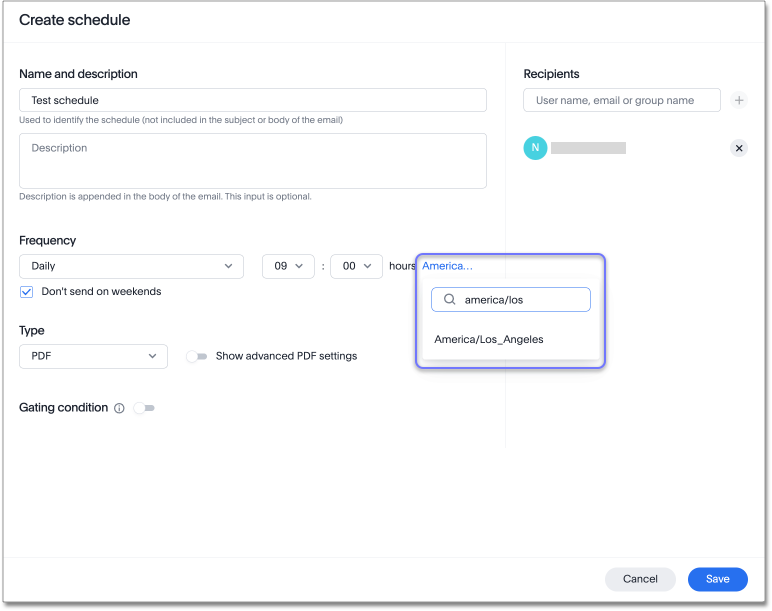
Connect your ThoughtSpot instance to Google Sheets GA
You can now pull data from a ThoughtSpot instance into Google Sheets using the ThoughtSpot for connected sheets extension from the Google Workspace Marketplace. You can connect to any ThoughtSpot instance, even Free Trial. Once connected, you can select your data by using the search bar or selecting it from the data panel, just like in ThoughtSpot. Once you select your data, you can then pull it into Google Sheets and use the available tools to further analyze your data.
Column and data source overview in Search Data Beta
In the Search data page, you now see a short description of your selected data source which helps you understand the kinds of answers you can get from that data source.
Data source information includes the name, description, Liveboards created using the data source (if available), tags or classifications (if available), metadata, and experts (top users).
Column information includes the name, description, synonyms (if available), column type, sample values, Parameters, and more.
All of this information saves you time, by helping you find the right data source for the question you want to ask. For more information, see Start a new search with column and data source overview.
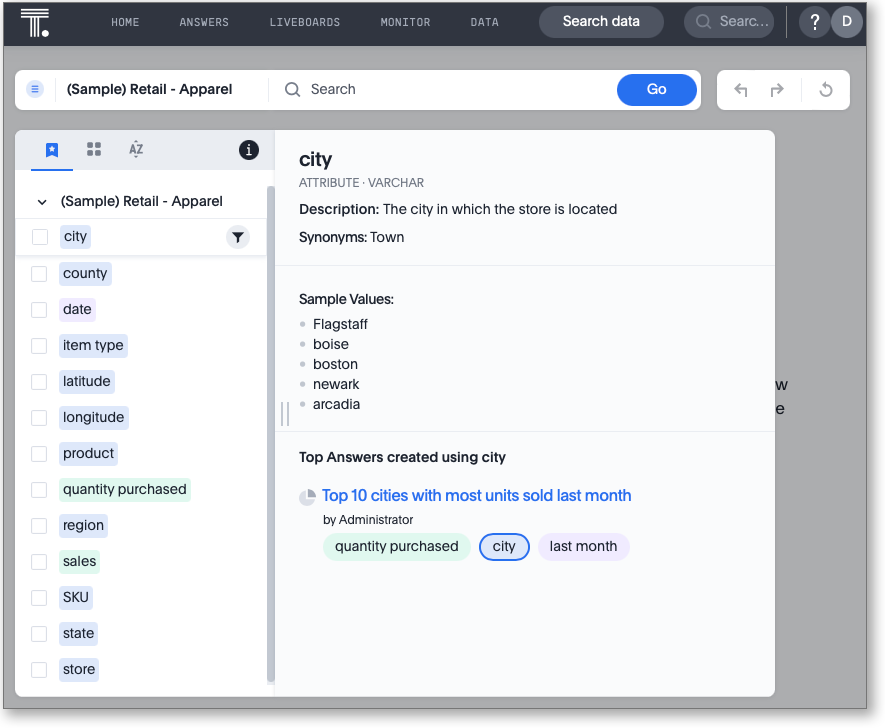
You can now identify the key change drivers for changes in your metrics in a KPI chart. Select the percent change label or select any two data points on the KPI sparkline to view change analysis on your top 5 columns by usage-based ranking (UBR) and identify the reason behind the observed change. You can view the changes in other columns by clicking Manage attributes and selecting the desired column(s). This feature must be enabled by ThoughtSpot Support.
For more information, see Contextual change analysis.
User profile notification preferences GA
In the new Notification preferences section of your user profile, you have the option of receiving email notifications when other users share Liveboards or answers with you, and when they request access to Liveboards or answers which you edit. For more information, see Notification preferences.
ThoughtSpot Google Sheets™ add-ons GA
There are now two ThoughtSpot add-ons for Google Sheets aimed at different audiences:
-
ThoughtSpot Analytics for Google Sheets lets you use the power of ThoughtSpot to search, and create charts and visualizations from your spreadsheet data.
-
ThoughtSpot Connected Sheets lets you connect to a ThoughtSpot instance, pull data directly into a Google Sheet from trusted data sources connected to that instance, and use the tools in Google Sheets for ad-hoc analysis.
For details on both add-ons and how you can use them together, see ThoughtSpot Google Sheets add-ons.
Other features and enhancements
When you create a Worksheet, ThoughtSpot automatically creates synonyms for each column name. Users can easily start searching on your data, without knowing the exact names for every column. For example, if you have a column named Product type, ThoughtSpot might create a synonym such as Product Category. When a user searches for revenue by product category, for example, ThoughtSpot returns sales by product type. To try it out, create and save a new Worksheet. Your column name synonyms appear in the Synonyms column on the Worksheet details page. This feature must be enabled by ThoughtSpot Support.
For more information, see
Create synonyms for a column.
Cross-Region Disaster Recovery GA
Cross-Region Disaster Recovery allows ThoughtSpot to recover your ThoughtSpot instance in a secondary cloud region in the case of a failure of the primary cloud region where ThoughtSpot is running. This ensures that if one cloud region fails, ThoughtSpot can start in another region, guaranteeing minimal downtime.
For more information, see Data protection and disaster recovery.
Upload custom geo maps GA
Custom geo maps are now GA. Upload your own custom maps and visualize data on geo charts with regions that are specific to you and your organization. To try it out, select Custom maps in the Admin Console. For more information, see Upload custom geo maps.
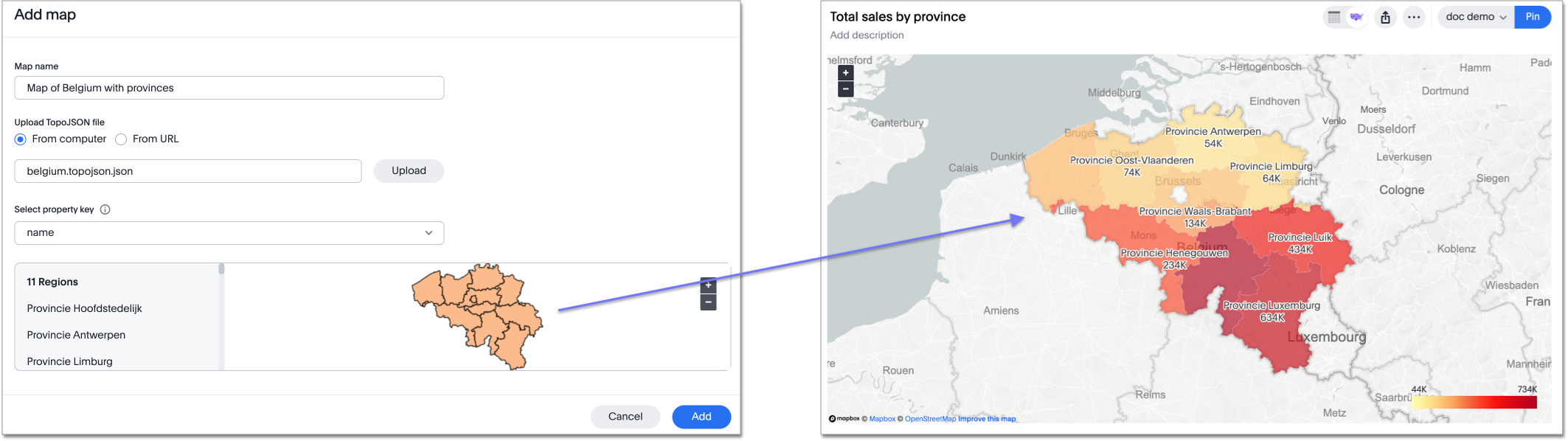
Add a custom message in the alert notification GA
When creating an alert for a KPI chart, you can now include a custom message in the alert update email. You can use this feature to specify next steps the alert subscribers should take once the KPI reaches a certain threshold.
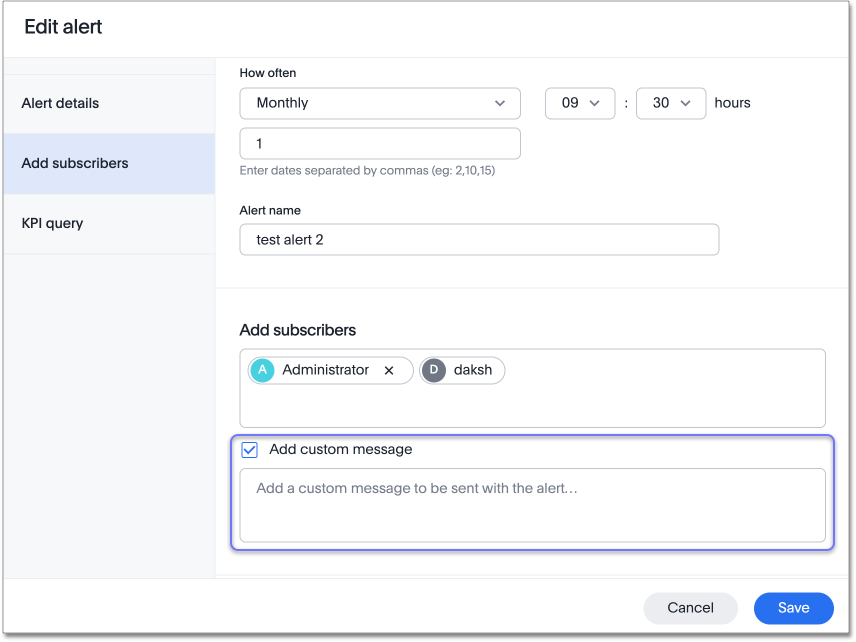
Remove attached files from scheduled emails GA
For data security, you may choose to remove attached files from all scheduled Liveboard emails, so that users need to sign in to view updates in Liveboards they follow. When this feature is enabled, scheduled Liveboard email recipients will receive an email with a link to the Liveboard, which they will need to sign in to see. To ensure that only signed-in users can access your data, contact ThoughtSpot support to enable this option. For more information, see Scheduled Liveboards.
SQL Server connection GA
You can now create connections from ThoughtSpot to SQL Server. For details, see SQL Server.
Generic JDBC connector integration GA
You can now create connections from ThoughtSpot to Generic JDBC databases. For details, see Generic JDBC.
Certification of Amazon Aurora and Amazon Relational Database Service (RDS) for PostgreSQL GA
You can now connect to and query Amazon Aurora and Amazon RDS for PostgreSQL databases.
HubSpot Sync mapping fields GA
When creating a sync to HubSpot, you can now use email as a mapping field on the Contacts object type, as well as ContactID.
Databricks catalog field GA
When creating a connection to Databricks, you can now enter your catalog name under the Catalog field. For more information, see Add a Databricks connection.
Scheduled or downloaded Liveboard PDF width GA
By default, scheduled and downloaded Liveboard PDFs now render at a width of 1920 pixels. This ensures that most Liveboard PDFs you download or schedule look the same as the Liveboards you see in ThoughtSpot. You can also change this default width to a different width for your company, by contacting ThoughtSpot support. To try the new default width out, download a PDF of a Liveboard. For more information, see Download a Liveboard as a PDF and Schedule a Liveboard job.
Object Usage Liveboard GA
Use the Object Usage Liveboard to easily track how specific objects (Liveboards, Answers, Worksheets, or tables) are trending over time. Our new visualizations allow you to understand adoption on the object level, and filter on a specific user or users to see usage on the user level.
For more information, see Object Usage Liveboard.
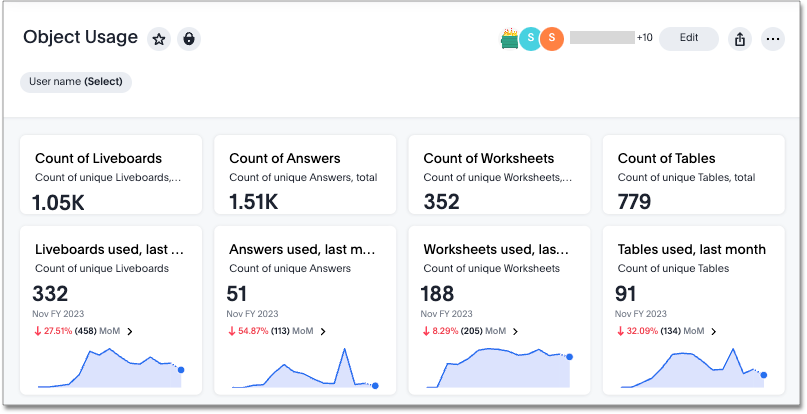
TML for Monitor alerts GA
TML for Monitor alerts is now GA. Export, edit, and import KPI Monitor alerts programmatically, using ThoughtSpot Modeling Language. To try it out, export a Liveboard that contains Monitor alerts and its associated objects. For more information, see Syntax of the Monitor alert TML file and Monitor KPIs in your data.
Edit join conditions using TML GA
Use TML to directly edit a join condition by editing the TML file’s on parameter. This simplifies the previous process of deleting and recreating the join in TML or the ThoughtSpot application. To try it out, edit a TML file, and update a join’s on parameter. For more information, see TML join syntax.
Delete table columns using TML GA
Remove columns from tables in ThoughtSpot by deleting them in the tables' TML files. To try it out, edit a table TML file, and delete a column’s name and properties. We support deleting a column from a TML file and removing that column’s dependencies in the same zip file import. Note that if the deletion of a column fails, the whole import will fail. For more information, see Deleting columns.
Join creation for views Beta
We standardized the method of creating joins for all data objects in ThoughtSpot. When creating a join from a view, users are now directed to a Create join page where they can choose a connection, name the join, and map the source and destination columns.
Runtime Parameter overrides GA
Adjust Parameter values at runtime from Liveboard or Answer URLs, or using REST API v1 requests. To try it out, add the Parameter runtime override syntax to any Liveboard or Answer with an active Parameter. For more information, see Runtime overrides for Parameters and Runtime Parameters.
Search suggestions on columns with many values GA
For any column with a high cardinality, which is defined as more than 100,000 unique column values, ThoughtSpot does not index the column if the index type is DEFAULT. This means the column values do not show up in search suggestions. Previously, this limit was 1 million unique column values. This change improves performance, and reduces index times and memory usage.
If you have existing columns with a cardinality between 100,000 and 1 million, and you use these columns' search suggestions regularly, ThoughtSpot will continue to index these columns. For more information, see High cardinality and performance.
Private Preview features GA
In this release, we introduce Private Preview features. Private Preview features are complete, and available for select customers to try before they reach GA, when they are enabled by default. To try them out, contact ThoughtSpot support to enable these features. Then, administrators can selectively enable or disable this feature set for users and groups, using the Can preview ThoughtSpot Sage user privilege. For more information, see Private Preview features and Understanding privileges. Private Preview features are disabled by default.
For the Developer
For new features and enhancements introduced in this release, see ThoughtSpot Developer Documentation.
9.0.0.cl
February 2023 9.0.0.cl
| Features marked as Beta are off by default. To enable them, contact ThoughtSpot support. |
ThoughtSpot Sync GA
You can now use ThoughtSpot Sync to sync data directly from an Answer or custom SQL view to the following apps:
Parameters Beta
Create Worksheet Parameters to optimize your data inquiries. Use Parameters to run different scenarios with adjustable values, without creating or modifying the constants in formulas for each new value. For example, easily adjust the attribute in an Answer to view your revenue by commit date or order date, as in the following gif. To try it out, edit a Worksheet, and select the + button that appears when you hover over the Parameters section. For more information about Parameters, see Creating Parameters and Using Parameters.
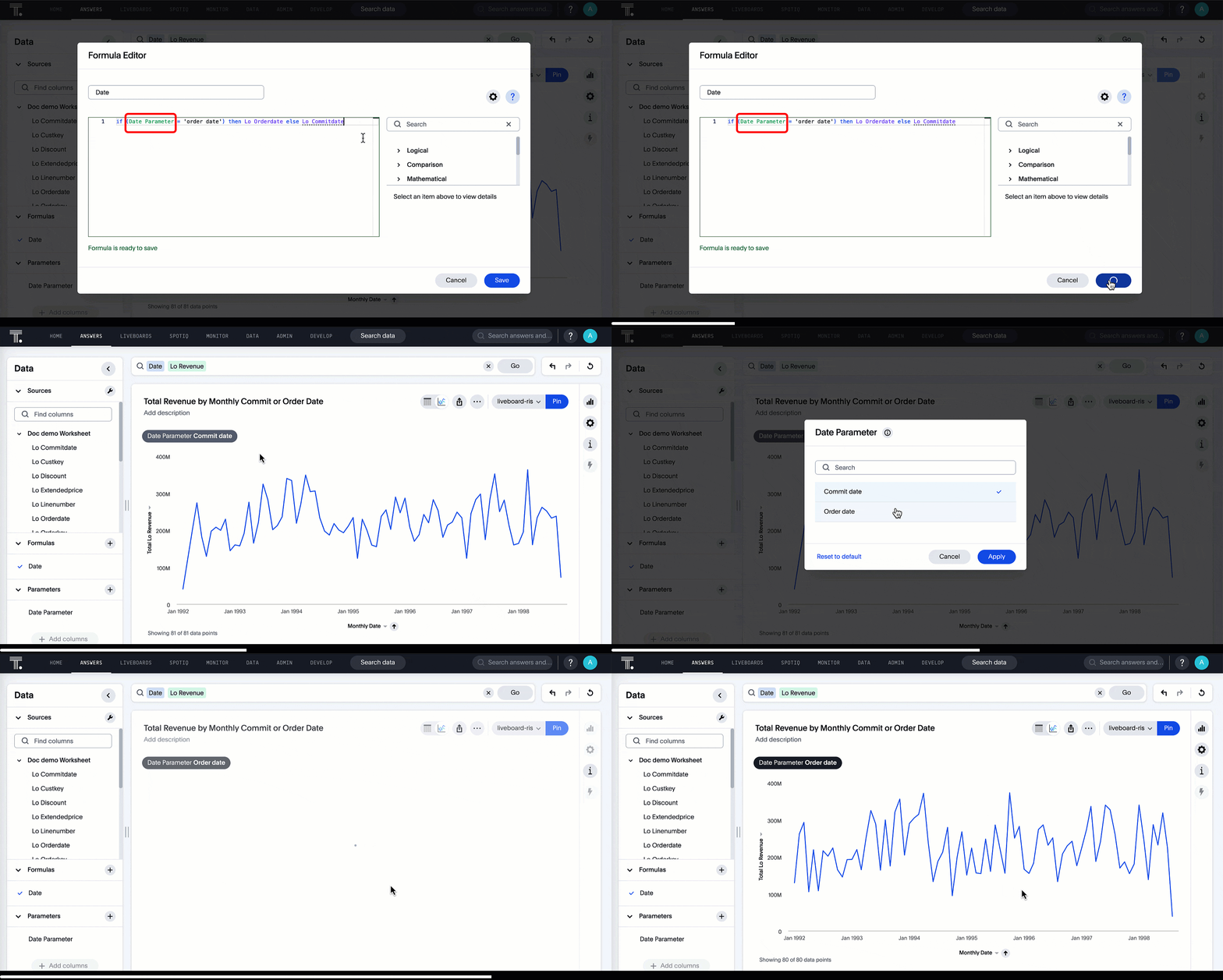
Mandatory Liveboard filters GA
Mark certain filters in your Liveboard as mandatory. If you add mandatory filters to a Liveboard, the visualizations will only load after Liveboard viewers select values for the mandatory filters. Use mandatory filters for Liveboards that contain data that may not be relevant for everyone who must view and consume the Liveboard. Mandatory filters also lower query and performance costs. To try the feature out, select Mandatory filter when adding a filter to a Liveboard. This feature must be enabled by your administrator. For more information about mandatory filters, see Mandatory Liveboard filters.
Show measures in pivot table rows GA
By default, ThoughtSpot displays measures in columns in pivot tables. With this release, choose whether to display measures in rows or columns in your pivot tables. To try it out, in the chart configuration panel for a pivot table, select Settings > Display measures in rows. For more information, see Reorder your pivot table.
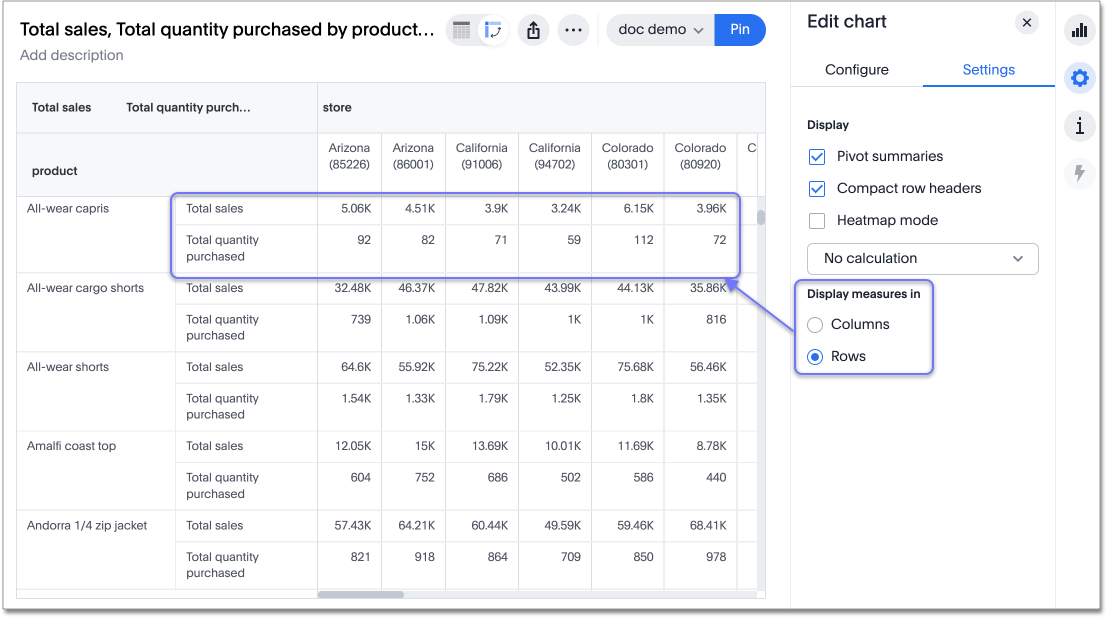
Upload custom geo maps GA
Upload your own custom maps and visualize data on geo charts with regions that are specific to you and your organization. To try it out, select Custom maps in the Admin Console. This feature must be enabled by your administrator. For more information about custom geo maps, see Upload custom geo maps.
Data labels on a dark background GA
Labels that appear on a dark background can be displayed in a lighter text color, making them easier to read. To try it out, navigate to Search data and Create a chart > Change the chart color, and Add labels. This feature must be enabled by your administrator. For more information, see Show data labels.
Chinese (Traditional) or 中文 (繁體) localization GA
Set your ThoughtSpot locale to Chinese (Traditional), or 中文 (繁體). ThoughtSpot changes your data format settings, such as currency and number formatting, and translates keywords, ThoughtSpot menu and navigation items, operators, and error messages. To try it out, navigate to your profile, and edit your system language. For more information, see 中文 (繁體) keyword reference and Change language and data format settings.
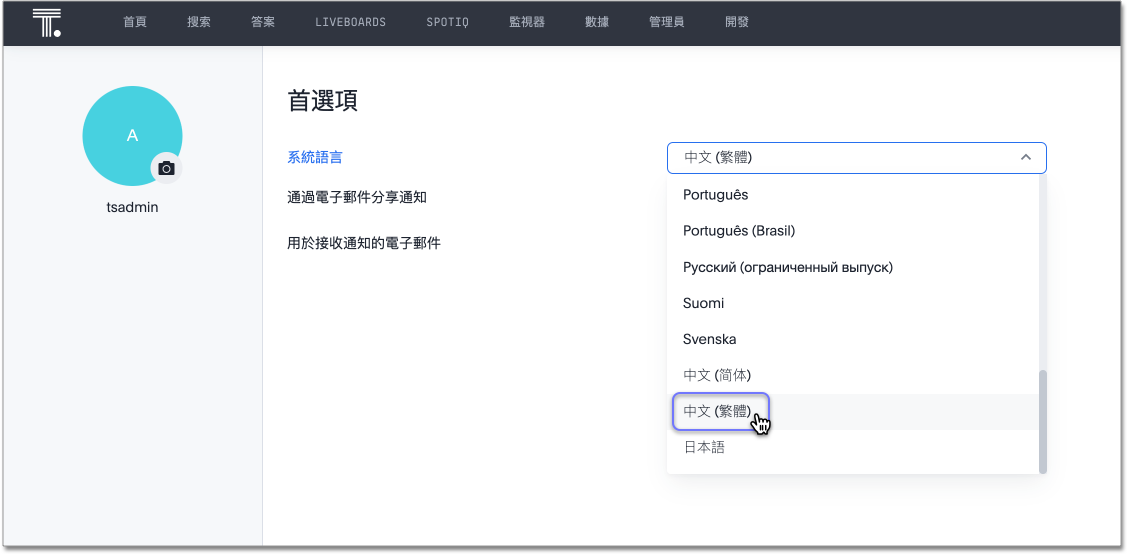
Rename Liveboards and visualizations in view mode GA
Change the name or description of a Liveboard or visualization from view mode. The more menu for Liveboards and Liveboard visualizations now includes a Rename option, where you can edit the object name and description. To try it out, navigate to a Liveboard, and select the more menu for a visualization. For more information, see
Other Liveboard edits.
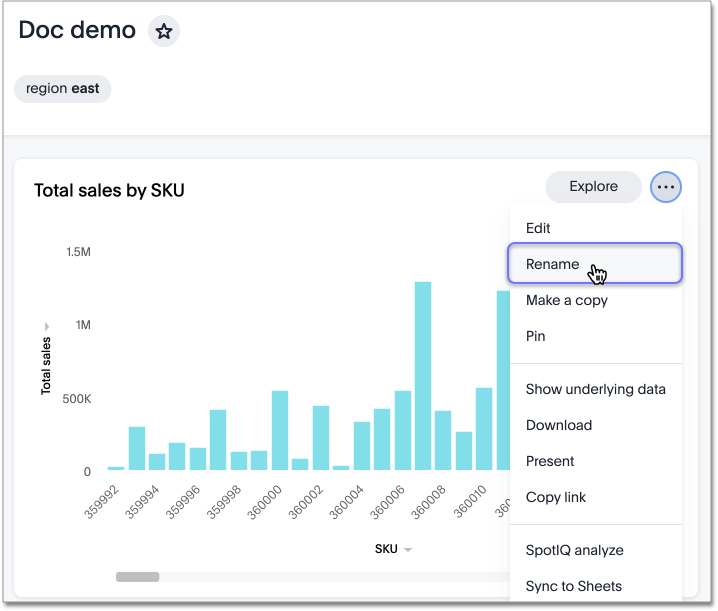
Apply multiple chart changes at once GA
When a user drags and drops the fields in the chart configuration panel, the chart reloads. When a user has multiple fields, they need to rearrange a lot of them to reach a desired chart. Now users can make multiple configurations, and apply them all at once, rather than waiting in between each configuration. To try it out, click Apply in the chart configuration panel after editing a chart.
This feature must be enabled by your administrator. For more information, see Reorder labels on the axis or legend.
Group aggregation enhancements: filters Beta
Previously, when using group_aggregate formulas, users could use query_filters to include filters entered in the search bar in the formula’s value, but it was difficult to write a formula that accepted filters from only a single column.
Starting with this release, you can specify column names within the ‘filters’ section of a group_aggregate formula, and any filter in your search bar referencing that column will be added to the formula. Filters entered in the search bar that are not on columns specified in the third argument of the group_aggregate formula will be ignored. For details, see Group aggregation filters.
Other features and enhancements
Snowflake CSV upload GA
Snowflake CSV upload is GA in this release. Now you have a quick and easy way to complete one-time data loads of small files that are not present in your cloud data warehouse. You can now upload a CSV file to the database of your Snowflake connection that can be joined to other tables or Worksheets in your connection. Once your administrator enables this feature, go to Data > Utilities, and click Upload CSV. See Configure CSV upload for your Snowflake connection, and Upload a CSV file in your Snowflake connection.
PostgreSQL connection GA
You can now create connections from ThoughtSpot to PostgreSQL. For details, see PostgreSQL.
Sharing connections GA
You can now share connections with other users or groups. Once granted access to a connection, users can add, remove, and modify tables in that connection. To try it out, go to Data > Connections and click the Share connection button. For more information, see Share connections.
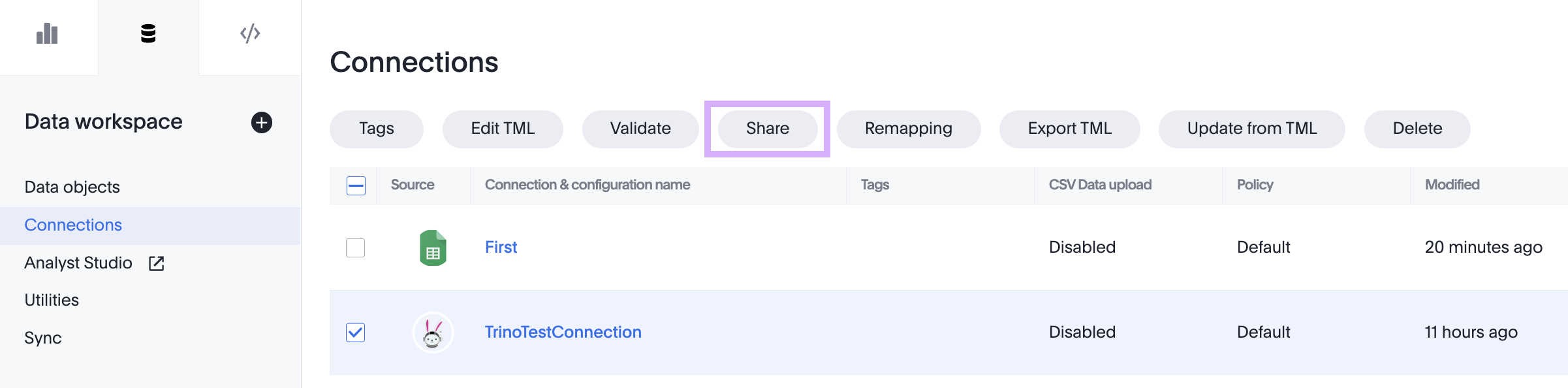
dbt metadata tags for tables and Worksheets GA
Manage your ThoughtSpot table and Worksheet column properties and table joins in dbt by using metadata tags to define column properties and joins within your dbt model schema. Your dbt models contain all the necessary information, and you don’t have to manually update the columns in ThoughtSpot when you make changes to your dbt model. To try it out, update the .yml schema files for your dbt models with the new metadata tags. For more information, see
Metadata tags for dbt.
Redshift Partner Connect GA
Redshift Partner Connect allows you to try out ThoughtSpot connected to Redshift for free. For details, see ThoughtSpot in Redshift Partner Connect.
TML for Monitor alerts Beta
Export, edit, and import KPI Monitor alerts programmatically, using ThoughtSpot Modeling Language. To try it out, export a Liveboard that contains Monitor alerts and its associated objects. For more information, see Syntax of the Monitor alert TML file and Monitor KPIs in your data.
Include FQNs when exporting TML files GA
To reduce ambiguity when exporting TML files, you can export the fully qualified names (FQNs) for the objects' data sources. If you select this option, the TML file contains FQNs for the underlying tables and connections. To try it out, select Export FQNs of referenced objects when exporting TML files. For more information, see ThoughtSpot Modeling Language.
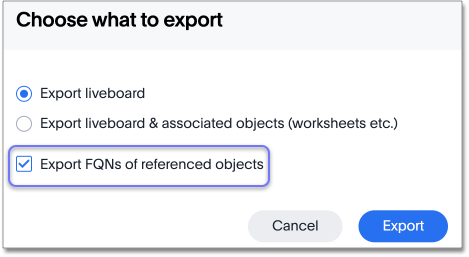
Delete joins and RLS rules through TML GA
When you edit and import table TML files, ThoughtSpot now supports deletion of joins at the table level and row-level security (RLS) rules. To try it out, delete the lines in a TML file that contain RLS rules or joins, and import the object. For more information, see ThoughtSpot Modeling Language.
Delete or make a copy of objects from the details page GA
Delete or make a copy of Worksheets and Views from an object’s details page. To try it out, open any Worksheet or View, and select the more menu . For more information, see
Make a copy of a SQL-based View.
Early Access features GA
Administrators can see the available Early Access features and selectively enable or disable them for all users. To try it out, go to the Admin tab and select Early Access features. For more information, see Enable Early Access features. Early Access features are new in this release. For more information about them, see ThoughtSpot Cloud release life cycle. Early Access features are disabled by default.
For the Developer
For new features and enhancements introduced in this release, see ThoughtSpot Developer Documentation.
8.10.0.cl
January 2023 8.10.0.cl
| Features marked as Beta are off by default. To enable them, contact ThoughtSpot support. |
Schedule ThoughtSpot Sync GA
ThoughtSpot Sync schedules are now GA and on by default. When creating a sync from ThoughtSpot to an external business app (Google Sheets, Microsoft Teams, Slack), you can now schedule the sync to repeat on an hourly, daily, weekly, or monthly basis. To try it out, create a sync and select Schedule your sync.
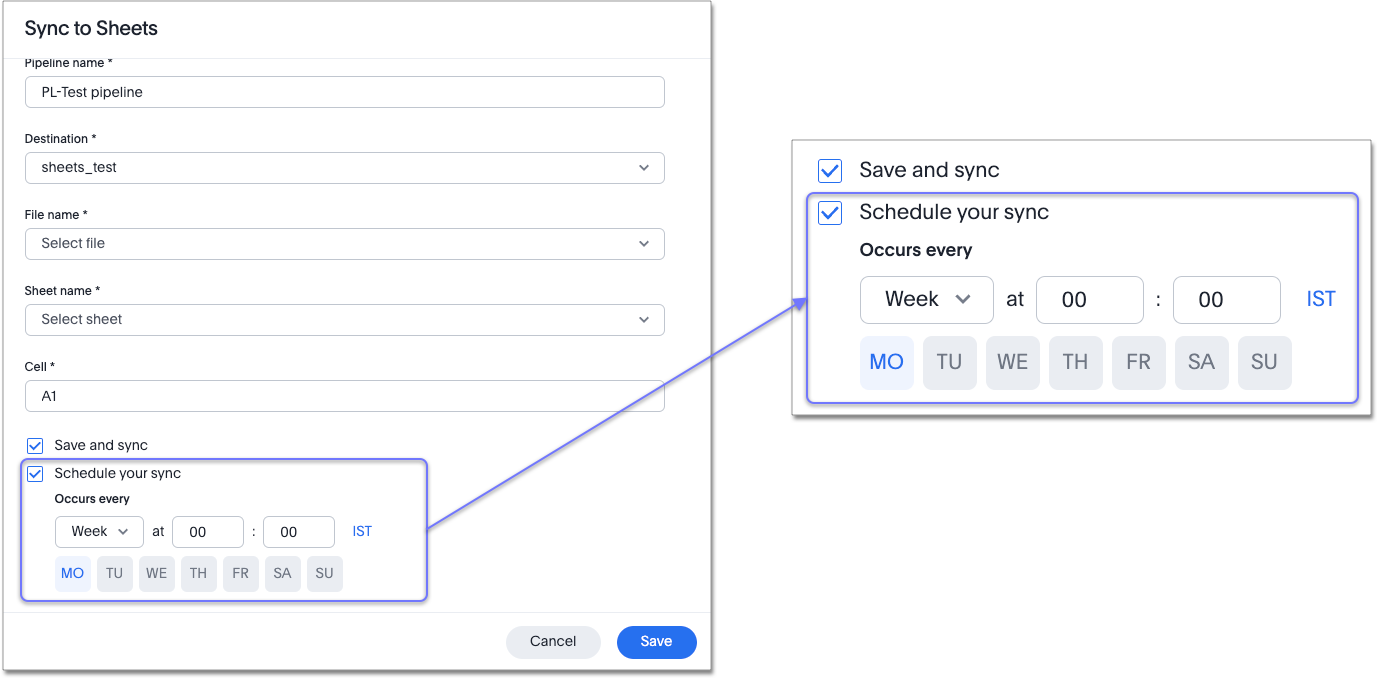
ThoughtSpot Sync Salesforce connection GA
ThoughtSpot Sync for Salesforce is now GA and on by default. You can now sync data directly from an Answer or custom SQL view to Salesforce. Using ThoughtSpot Sync, you can push insights directly to Salesforce, notify your teams, and view data in context. ThoughtSpot Sync automatically establishes a secure pipeline to the destination app and thus eliminates the need for building custom connectors.
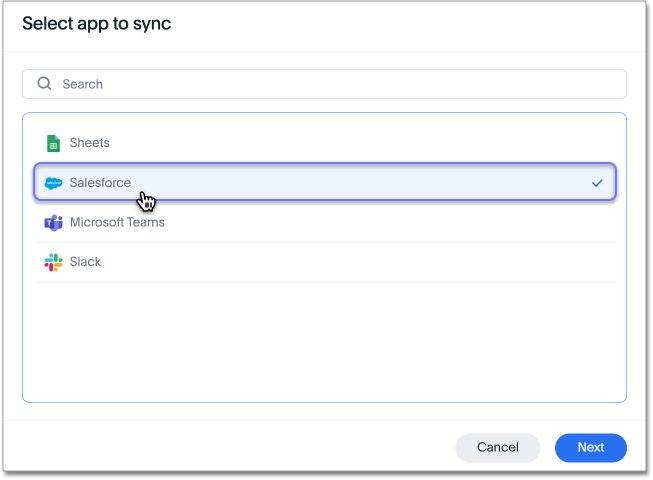
Other features and enhancements
Multi-tenancy with Orgs GA
This release introduces ThoughtSpot’s multi-tenancy feature. Partition your ThoughtSpot Cloud instance into multiple completely separate environments called Orgs. Creating Orgs keeps user and object information in different Orgs completely isolated. For more information, see Multi-tenancy with Orgs.
Admins can manage all Monitor alerts GA
Admins can view, edit or delete Monitor alerts even if they are not the creator or subscriber of those alerts. For more information, see Permissions.
SpotApps GA
The DEI Workforce Diversity SpotApp is now available. Use this SpotApp to get invaluable insight into your workforce diversity data from your HR application.
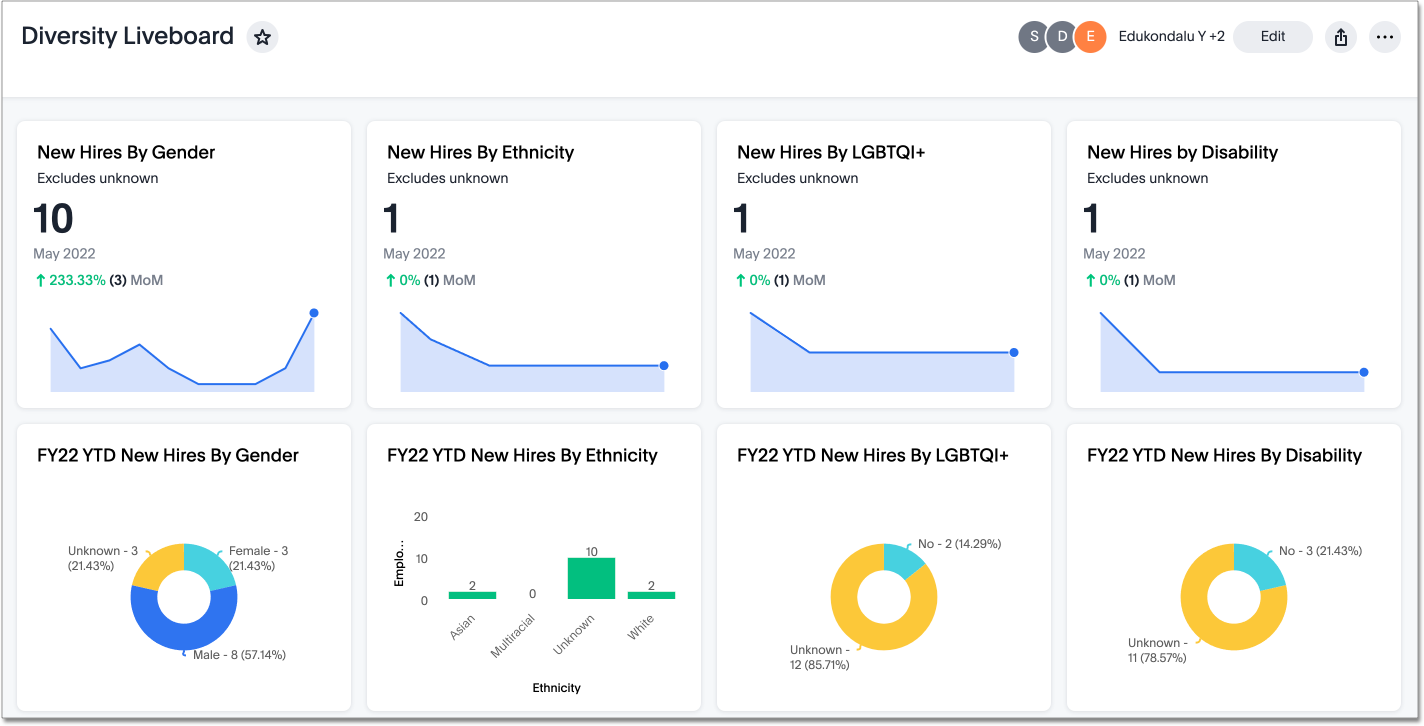
Multiple AWS PrivateLinks GA
ThoughtSpot now supports multiple AWS PrivateLinks in your environment. If you have data in multiple cloud data warehouses that need an additional layer of security and network reliability, you can set up an AWS PrivateLink between each CDW, for a maximum of five PrivateLinks. For more information, see Enabling an AWS PrivateLink between ThoughtSpot Cloud and your cloud data warehouse.
Delete tables from ThoughtSpot GA
Previously, when deleting tables from Connections, ThoughtSpot did not delete the table’s metadata completely. Starting in 8.10.0.cl, tables deleted through the ThoughtSpot UI disappear completely from your cluster.
For the Developer
For new features and enhancements introduced in this release, see ThoughtSpot Developer Documentation.
8.9.0.cl
November 2022 8.9.0.cl
| Features marked as Beta are off by default. To enable them, contact ThoughtSpot support. |
Custom sizes for visualizations in Liveboards GA
Custom tile sizes for visualizations within Liveboards are now GA. Make your Liveboard layout your own by customizing your Liveboard visualizations to be any size, instead of just 5 predetermined sizes. For more information, see Edit the layout of a Liveboard.
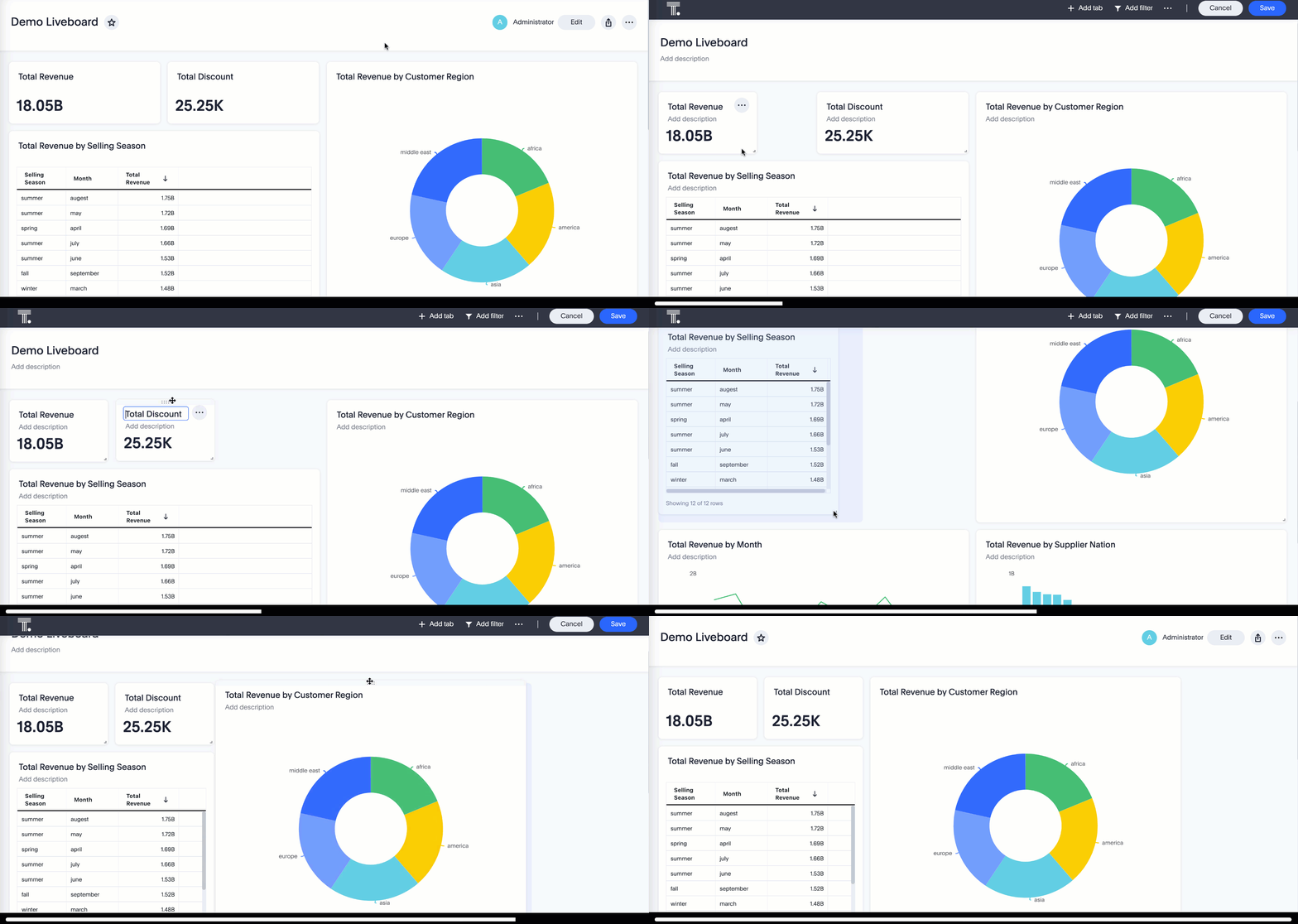
ThoughtSpot Sync Salesforce connection Beta
You can now sync data directly from an Answer or custom SQL view to Salesforce. Using ThoughtSpot Sync, you can push insights directly to Salesforce, notify your teams, and view data in context. ThoughtSpot Sync automatically establishes a secure pipeline to the destination app and thus eliminates the need for building custom connectors.
For more information, see Sync data to Salesforce.
Discoverable Answers and Liveboards GA
Discoverable Answers and Liveboards are now GA and on by default. You can now easily and immediately make content available to your team members. Use the Make this [answer | Liveboard] discoverable checkbox that appears when you save or share an Answer or Liveboard to grant view access to your teammates. Teammates can then view your Answer or Liveboard in the list of relevant results when they use Search Answers, and see your content on their home page once viewed.
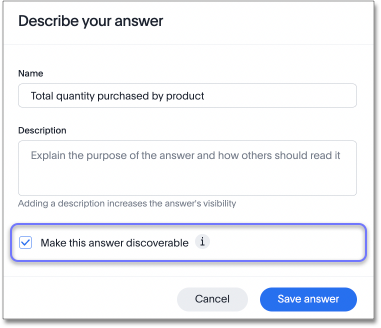
For more information, see Share Answers and Share Liveboards.
Edit display name from profile GA
You can now edit your display name by clicking the profile icon in the upper-right corner of the screen and clicking on the Edit button next to Name. For more information, see Edit display name.

ThoughtSpot for Google Sheets™ GA
This release introduces ThoughtSpot for Sheets, an entirely new web plug-in that brings modern, true self-service analytics directly to your data in Google Sheets — for free. Simply download the extension here, launch it in any of your Google Sheets spreadsheets, and start analyzing your data. For more information, see the Getting started with ThoughtSpot for Sheets video.
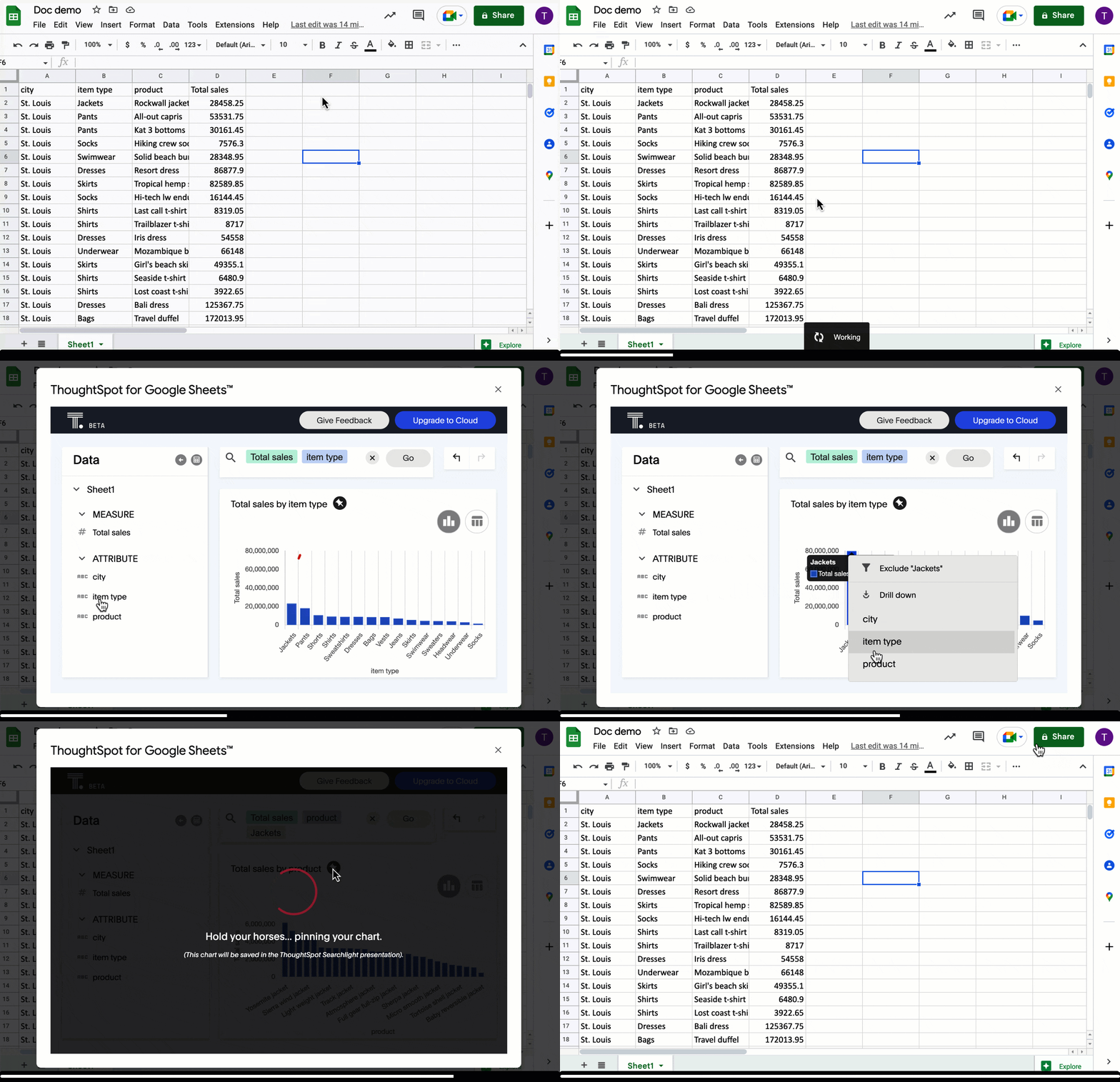
Other features and enhancements
Tag enhancements GA
This release includes the following updates to the tags feature in the Data workspace:
-
Add tags to multiple objects at a time
-
Administrators can create new tags from the Edit tags modal
For more information, see Apply a tag and Create a tag.
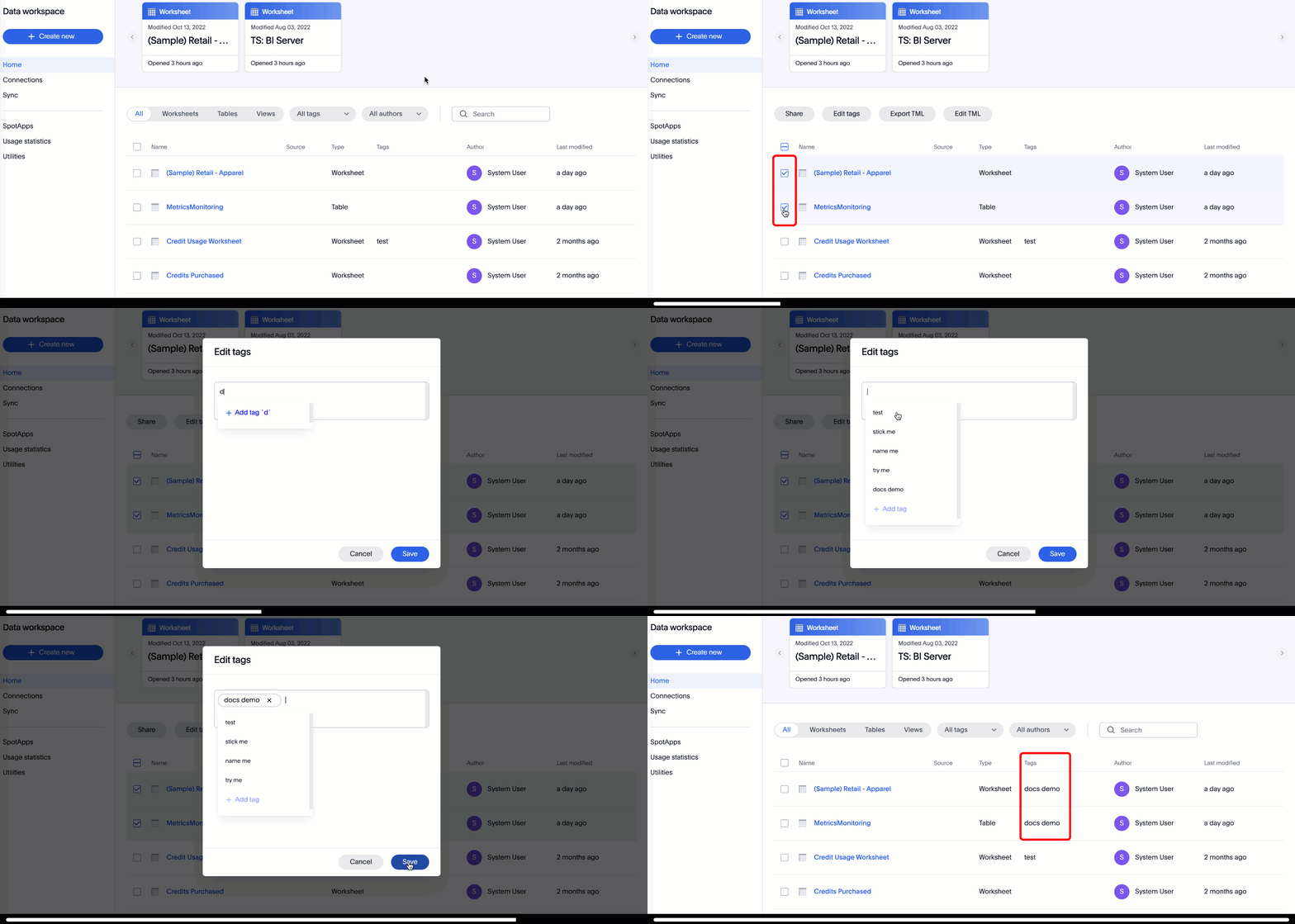
High Availability GA
ThoughtSpot now supports High Availability through deployment spanning multiple AWS Availability Zones. This ensures that the ThoughtSpot Cloud application experiences near-zero downtime in the case of Availability Zone (AZ) failures. To learn how to enable High Availability in your environment, see High Availability and resilience.
Query banding with Teradata connections GA
With query banding, Teradata connections now support the trust SQL feature in Teradata. This provides additional permissions to a ThoughtSpot user for accessing specific tables in Teradata to execute queries. The user must be configured as an application proxy user in Teradata. Query banding also allows tracking of statistics for queries executed by a user. Refer to Add a Teradata connection.
SpotApps GA
The following SpotApps are now available:
-
Google Ad Analysis: Use this SpotApp to get invaluable insight into your Google Ads performance, from high-level usage to identifying popular campaigns.
-
LinkedIn Ads: Use this SpotApp to get invaluable insight into your LinkedIn Ads performance, from high-level usage to identifying popular projects.
-
Procurement Vulnerability Analysis for SAP: Use this SpotApp to quickly identify where disruptions could occur in your global supply chain, reducing risk and building resilience.
SQL Server with Synapse connections GA
In this release, ThoughtSpot officially certifies and provides support for Microsoft SQL Server used with Synapse connections.
Query stats Liveboard GA
The Query Stats Liveboard allows administrators of customers who have signed up for a query-based usage subscription, to track the number of queries generated by their users. To view the Query Stats Liveboard, go to Liveboards and select Query Stats Liveboard. Query-based usage is part of consumption-based pricing. For more information, see Query Stats Liveboard.
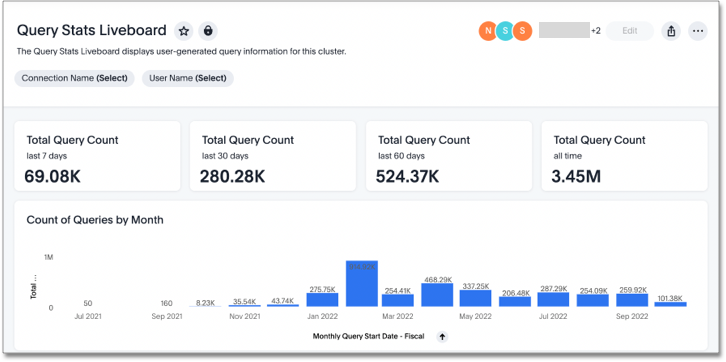
Visualization GUID support in TML files GA
Liveboard ThoughtSpot Modeling Language (TML) files now contain distinct GUIDs for each visualization in the Liveboard by default. This ensures that the GUID for the visualization stays the same after you import or export it. For more information, see ThoughtSpot Modeling Language.
For the Developer
For new features and enhancements introduced in this release, see ThoughtSpot Developer Documentation.
8.8.0.cl
October 2022 8.8.0.cl NOTE: Features marked as Beta are off by default. To enable them, contact ThoughtSpot support.
Schedule ThoughtSpot Sync Beta
When creating a sync from ThoughtSpot to an external business app (Google Sheets, Microsoft Teams, Slack), you can now schedule the sync to repeat on an hourly, daily, weekly, or monthly basis. To try it out, create a sync and select Schedule your sync. For more information, see ThoughtSpot Sync.
Custom sizes for visualizations in Liveboards Beta
This release introduces custom tile sizes for visualizations within Liveboards. In addition to the 5 predetermined visualization sizes, you can now customize your Liveboard visualizations to be any size. For more information, see Edit the layout of a Liveboard.
Explain change for KPI charts Beta
You can now use SpotIQ analysis to directly identify the key drivers for recent change in your KPIs. KPI change analysis allows you to drill down into the causes of change in your KPIs and customize the insights generated by SpotIQ.
To access this feature, go to your KPI chart and select the caret icon to the right of the percent change label. The Run change analysis pop-up allows you to customize the columns ThoughtSpot analyzes. Note that ThoughtSpot runs change analysis between the two most recent data points defined by the KPI’s time bucket (for example, daily or weekly).
For more information on change analysis, see Comparative analysis.
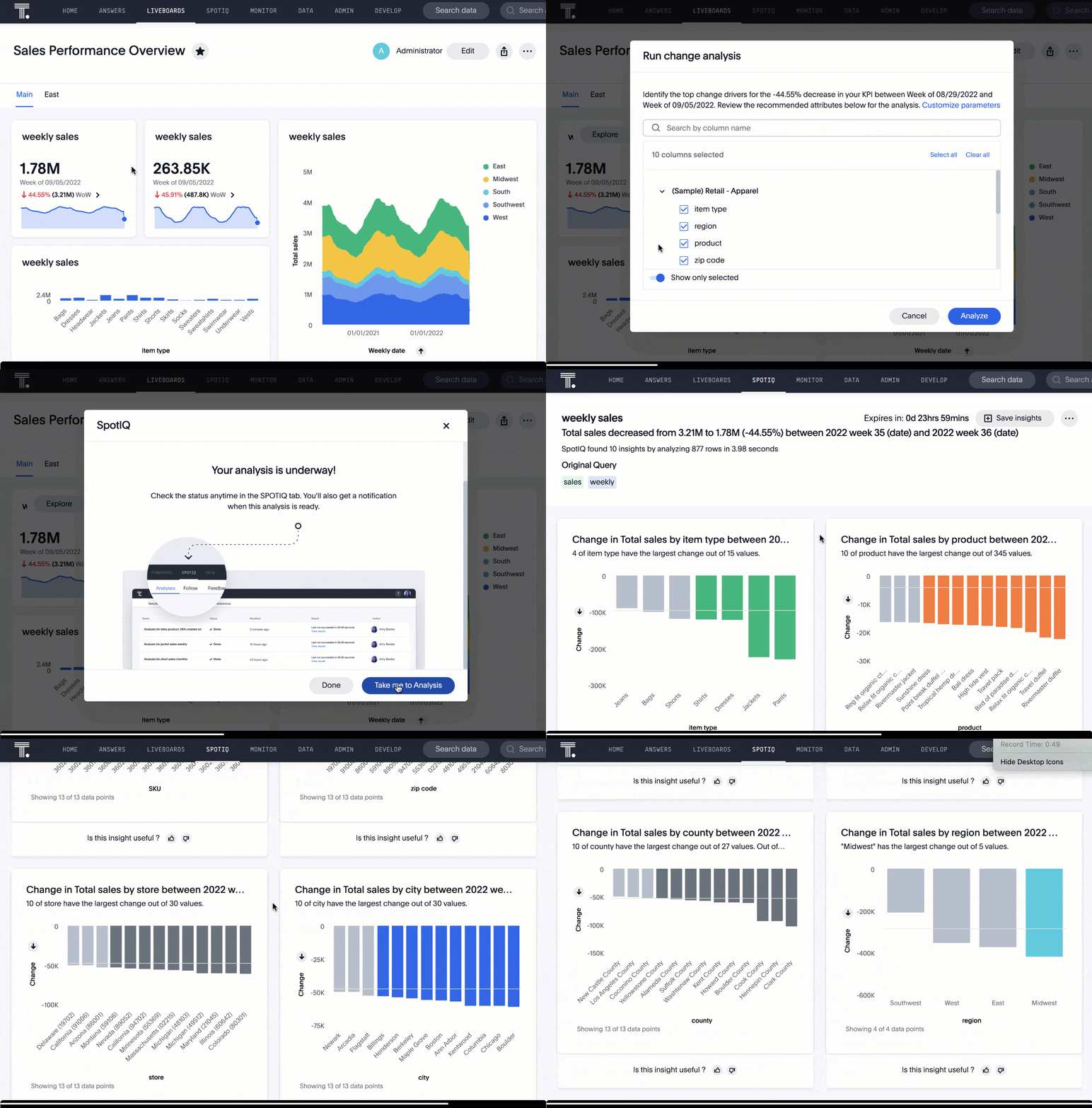
Formula function search bar GA
The formula editor assistant now contains a search bar for formula functions. Use it to search for specific functions to include in your formula. For more information, see Add a formula to a search.
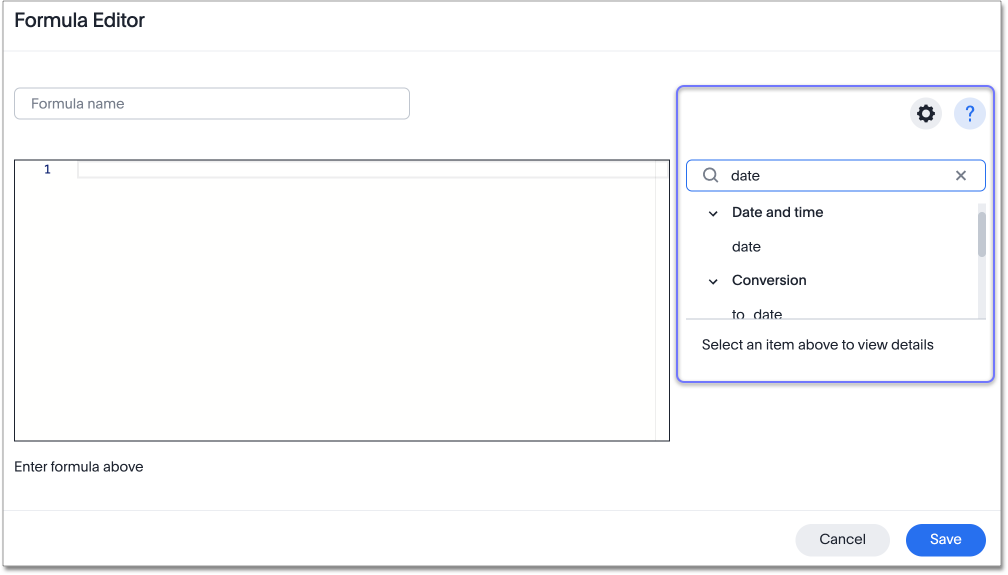
Apply tags in home page GA
You can now apply and edit tags on Liveboards and Answers directly from the Home page, as well as from the Answers and Liveboards tabs. To try it out, select the checkbox next to the name(s) of the Answer(s) or Liveboard(s) you would like to tag. For more information, see Home page.
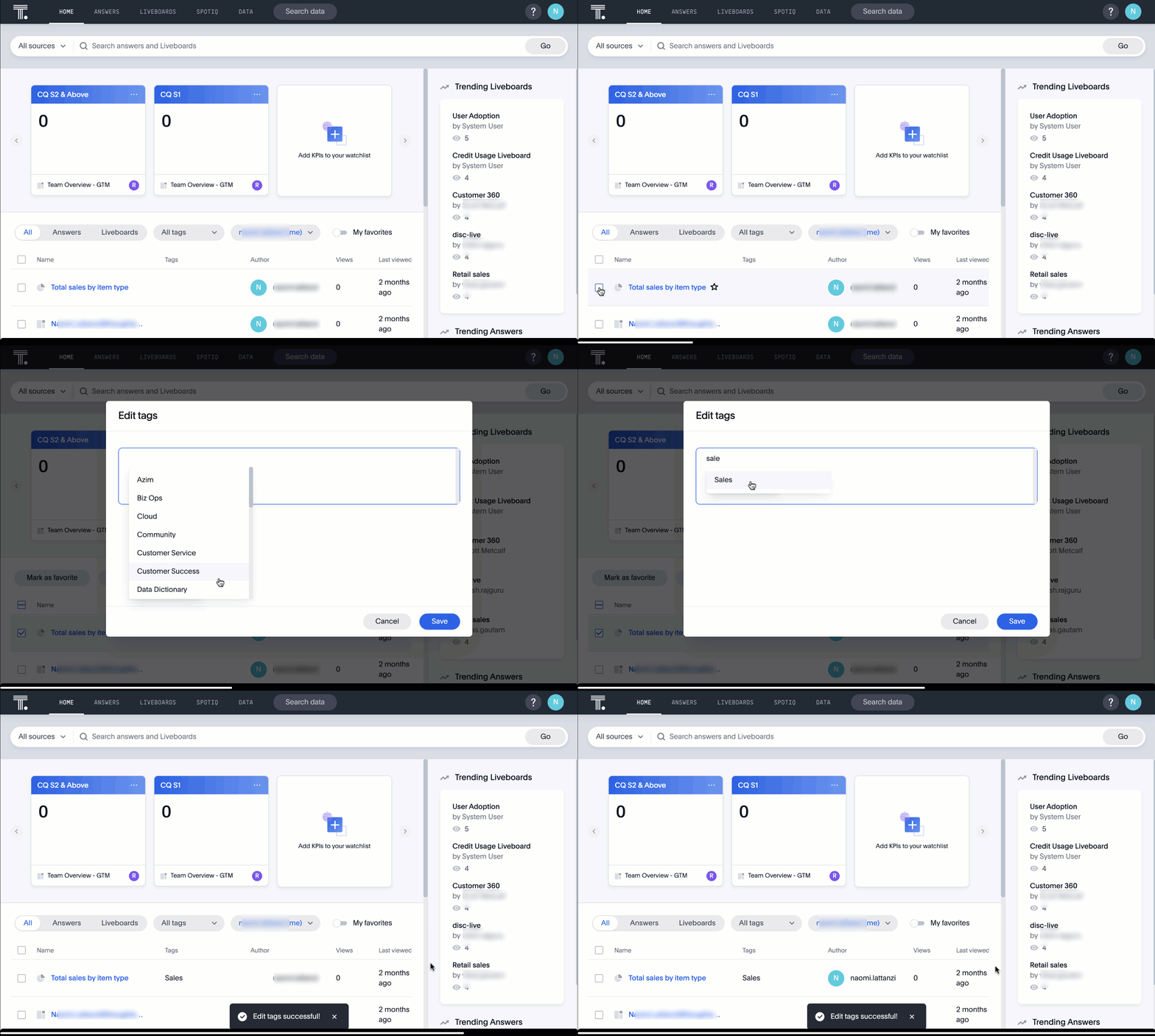
Show underlying data improvements GA
We have made the following improvements to the Show underlying data feature:
-
When you right-click a table and select Show underlying data, ThoughtSpot displays only the columns visualized in your query.
-
You can now open the Show underlying data pop-up and click Edit columns to add or remove columns from your query.
-
When you open the Edit columns pop-up, you can now search for column names using the search bar.
-
The Show underlying data pop-up no longer disables columns by default. To disable columns from your query, click Edit columns and deselect the column name(s).
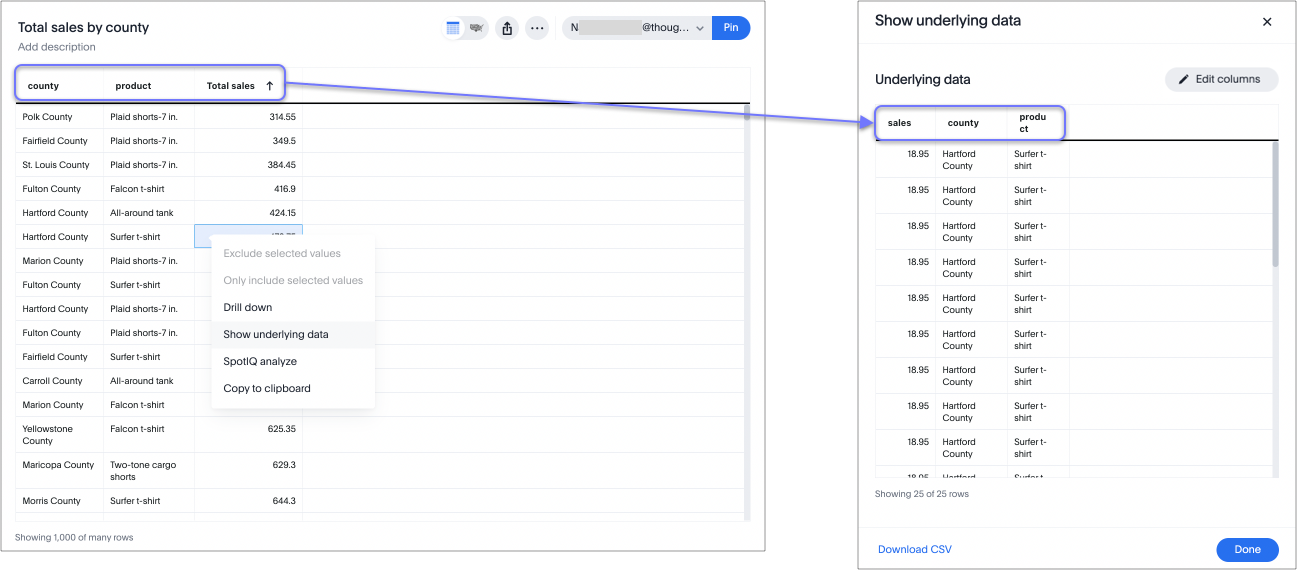
year_name function GA
The new year_name formula function returns the year in string format for a given date. This improves the behavior of formulas involving years when using a custom calendar with year values that are not in integer format. For more information,
see the Formula function reference.
Headline summaries for discontinuous group aggregate formulas GA
We changed the default behavior for table aggregation summaries when the search contains a formulas that contain both a conditional clause (if… then… else) and a group_aggregate expression. When a user searches with a formula containing both a conditional clause and a group_aggregate expression, then ThoughtSpot detects the aggregation type on the first non-constant output clause and uses it in the headline summary. In this context, a non-constant output clause means any base column reference (for example, Revenue), or formula (for example, sum(revenue)).
For example, in the formula group_aggregate(sum(if (Color = 'blue') then 0 else group_unique_count(Discount))), the headline summary would use COUNT_DISTINCT, since the first non-constant output clause within the if… then… else clause is group_unique_count and has an aggregation type of COUNT_DISTINCT.
For more information, see Table aggregate summary.
Improvements to German keywords GA
This release improves the translated German keywords. For more information, see Deutsch keyword reference.
Other features and enhancements
Starburst OAuth with Azure AD GA
Starburst connections now support Azure AD OAuth. For details, see Azure AD OAuth for Starburst.
New connections GA
Delete joins that have dependents GA
You can now delete a join from the ThoughtSpot UI even if the join has dependents. This allows you to delete a join and create it again in the other direction, without invalidating or deleting any dependent objects.
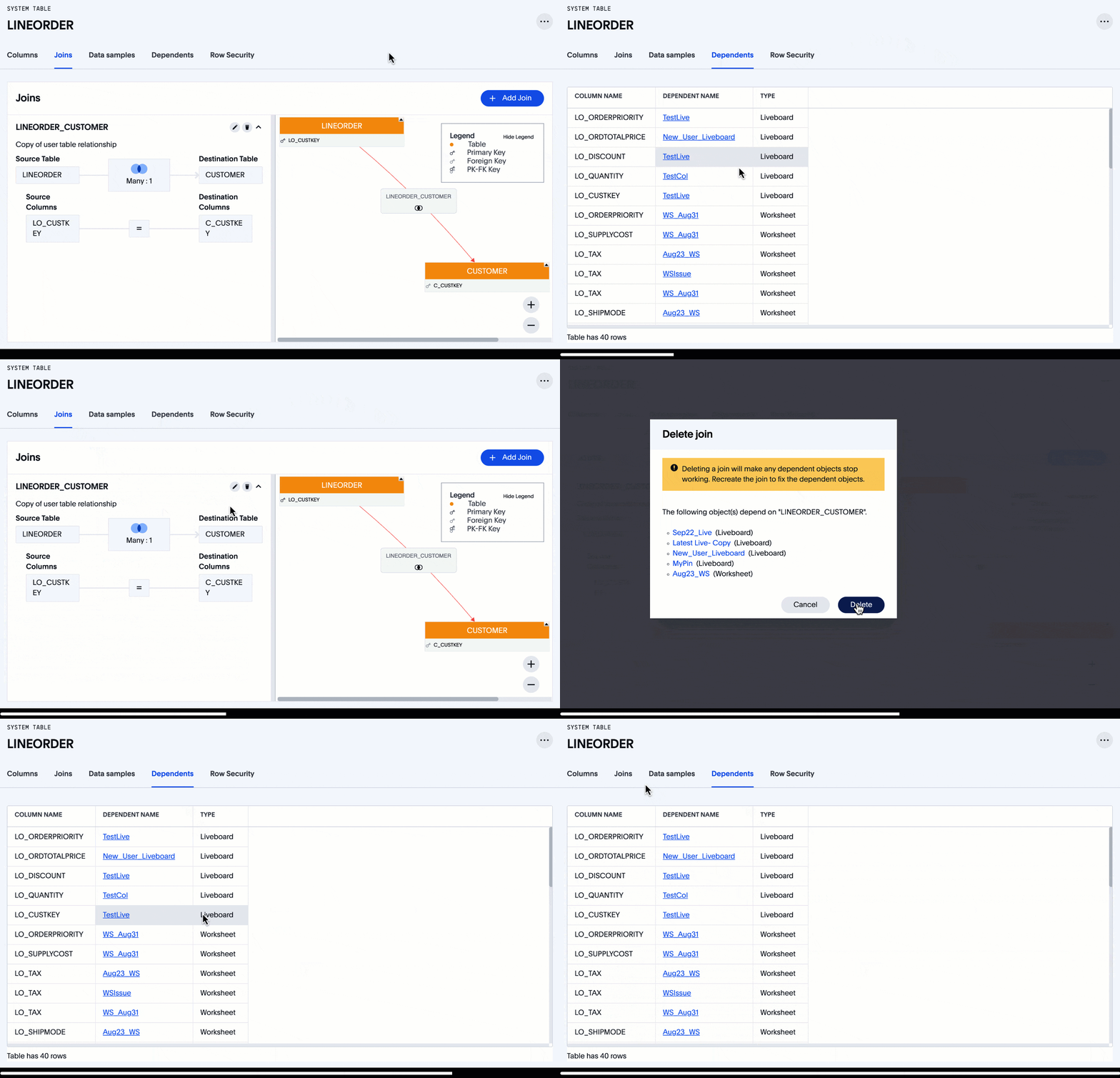
SpotApps GA
The following SpotApps are now available:
-
Facebook Ads: Use this SpotApp to measure ad performance across platforms to grow reach, engagement, & sales.
-
Salesforce Pipeline Analysis: Use this SpotApp to track how prospects progress closer to closed deals.
Integration with dbt for Amazon Redshift and Google BigQuery GA
This release supports integration with dbt for the following 2 new cloud data warehouses:
-
Amazon Redshift
-
Google BigQuery
For more information, see dbt integration.
IPSec VPN support for cloud data warehouse connections GA
ThoughtSpot now supports secure access from ThoughtSpot Cloud to your data in ThoughtSpot’s supported cloud data warehouses, through your IPSec VPN server. For more information, see Configure IPSec VPN for your cloud data warehouse connection.
Storage of session-based consumption in Snowflake GA
ThoughtSpot now securely stores your consumption data in a searchable Snowflake data store. For more information, see Consumption data storage.
For the Developer
For new features and enhancements introduced in this release, see ThoughtSpot Developer Documentation.
8.7.0.cl
September 2022 8.7.0.cl
| Features marked as Beta are off by default. To enable them, contact ThoughtSpot support. |
Threshold-based alerts GA
Threshold-based alerts are now GA and on by default. You can now use the Monitor feature to receive alerts when your KPI satisfies a given threshold condition. For example, create a condition to receive an alert when your Sales KPI becomes greater than 200,000, or when your KPI for Sales weekly increases by 2%.
For more information,
see Create a threshold-based alert.
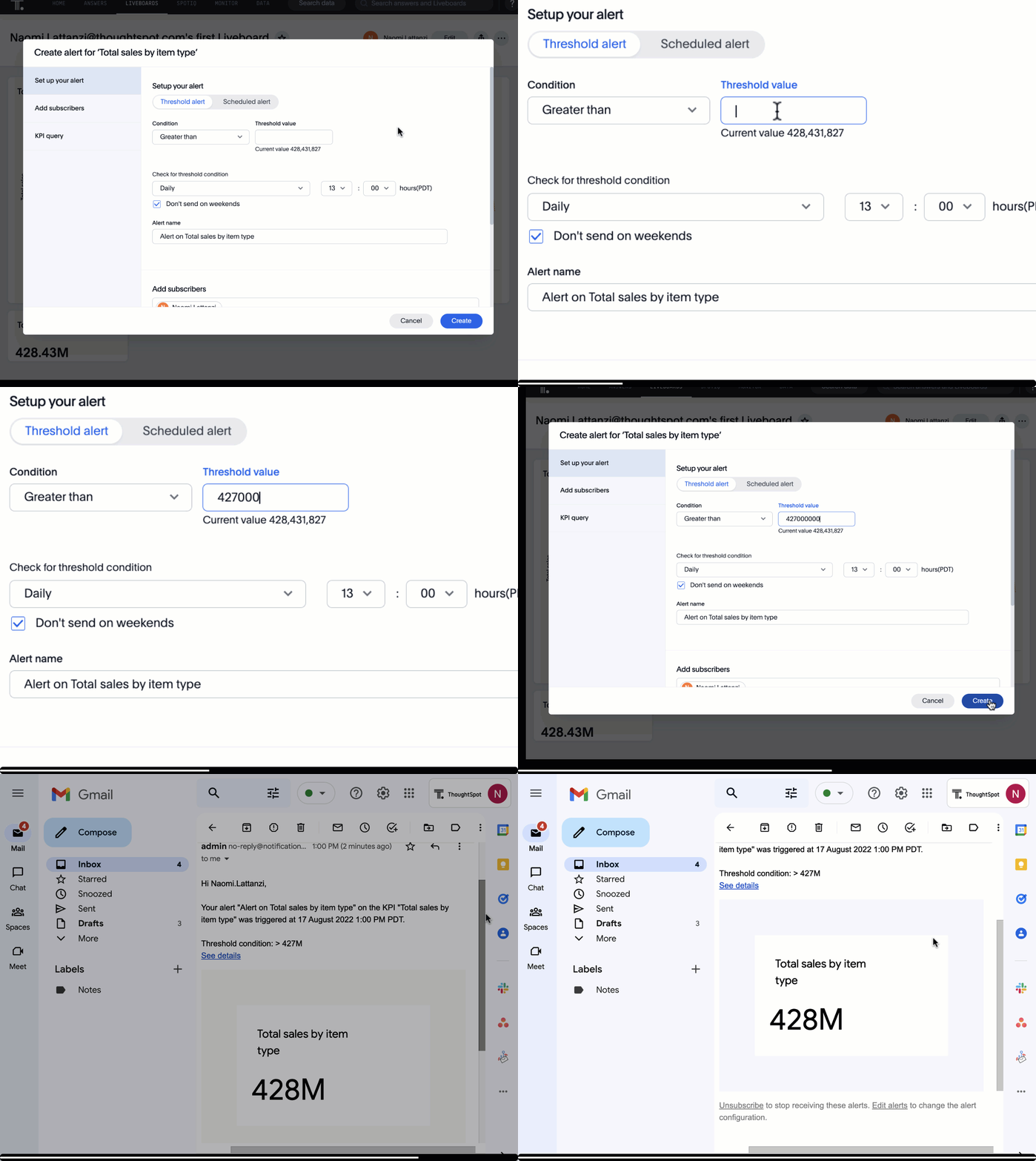
Liveboard tabs GA
ThoughtSpot now supports separating Liveboards into multiple tabs. This allows you to group specific visualizations together within a single Liveboard. For example, you may have a Sales Liveboard that contains top-level KPIs and more detailed charts. You can create a tab for the top-level KPIs for executives to view, and a tab for the more detailed charts that managers need to monitor. For more information, see Liveboard tabs.
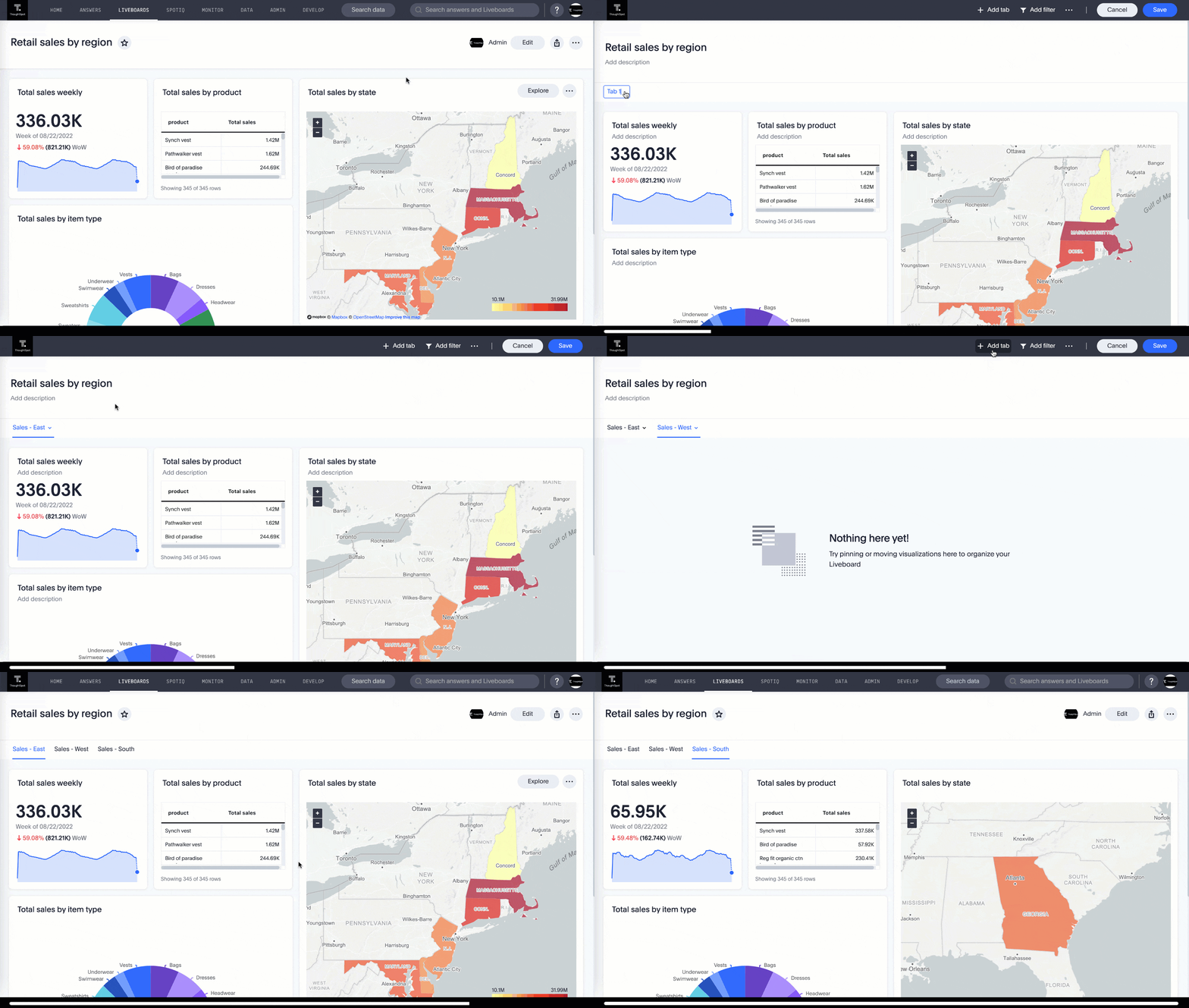
ThoughtSpot Sync GA
You can now sync data directly from an Answer or custom SQL view to an external business app like Google Sheets, Slack, or Microsoft Teams. Using ThoughtSpot Sync, you can push insights directly to your app, notify your teams, and view data in context. ThoughtSpot Sync automatically establishes a secure pipeline to the destination app and thus eliminates the need for building custom connectors to external apps. For more information, see Sync data from ThoughtSpot to external apps.
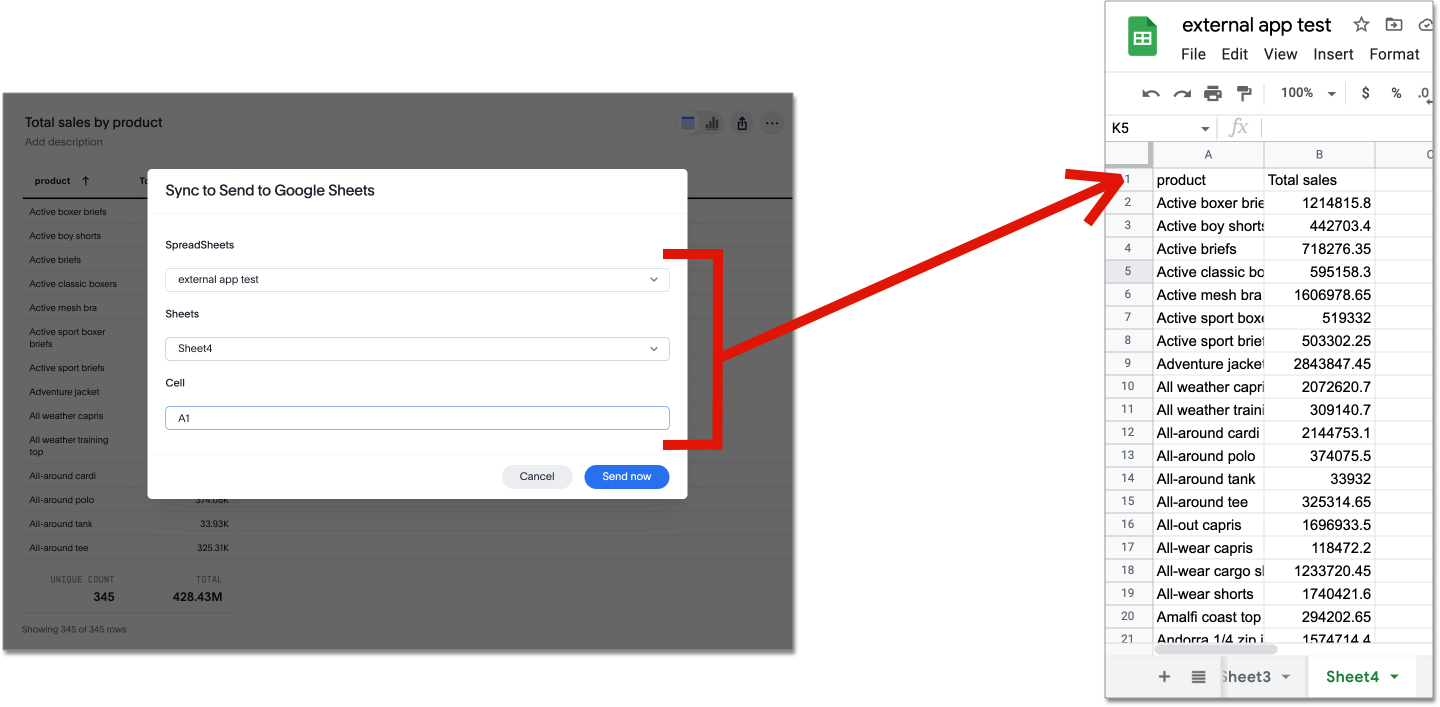
Geo charts enhancements GA
This release includes several enhancements to all geo charts:
-
Improved map quality: This includes faster map loading, better clarity, and more granular details down to the street level when you zoom in.
-
A new map type option that allows you to customize the display of the geo chart map. The new map type options are Light, Dark, Outdoors, Streets, Satellite, and Satellite Streets. The default is Light. For more information, see Geo charts.
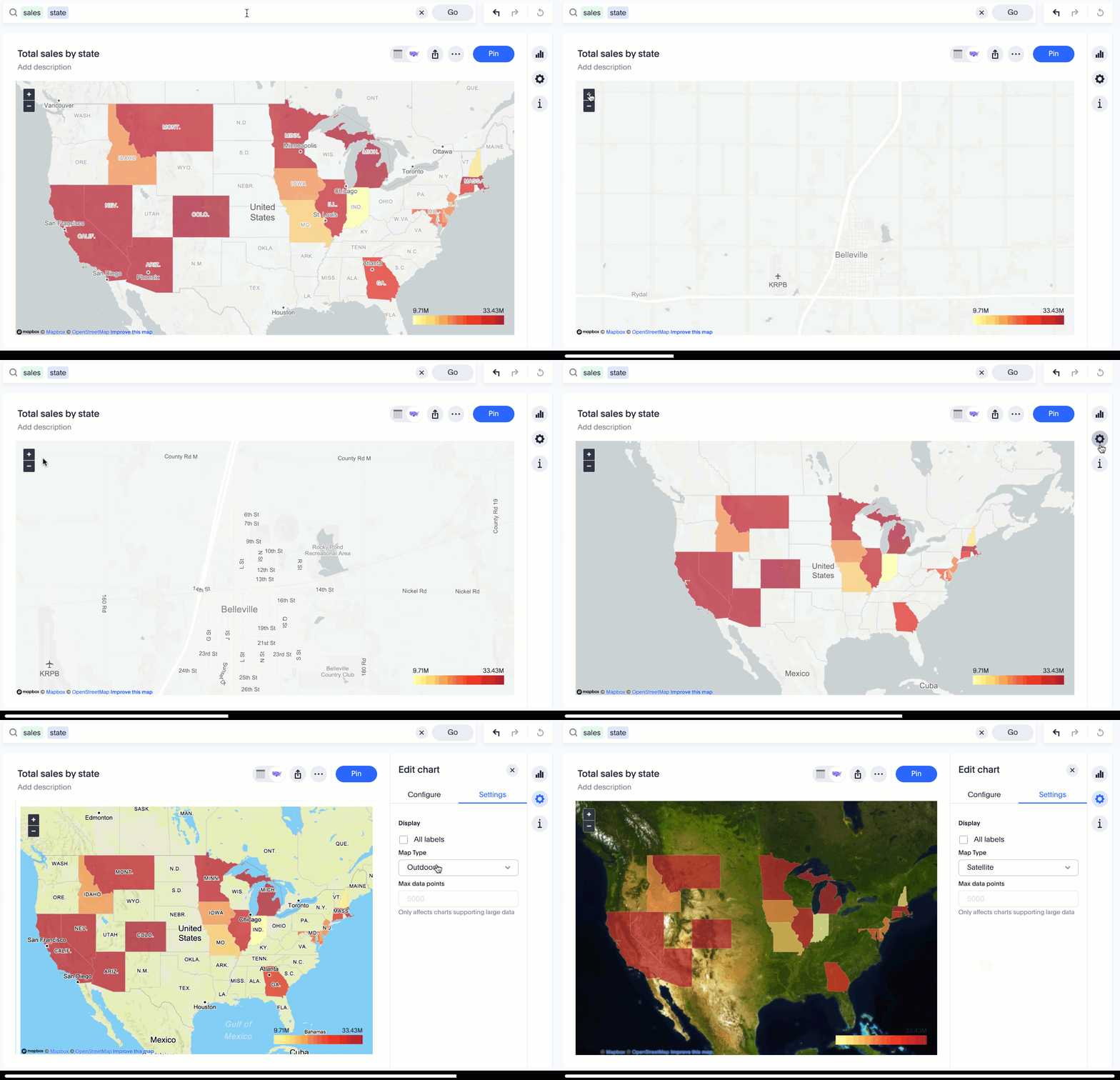
Customizable colors for heatmap and treemap charts GA
You can now customize the colors used for heatmap and treemap charts. You can select any color in your color palette. For more information, see Heatmap charts and Treemap charts.
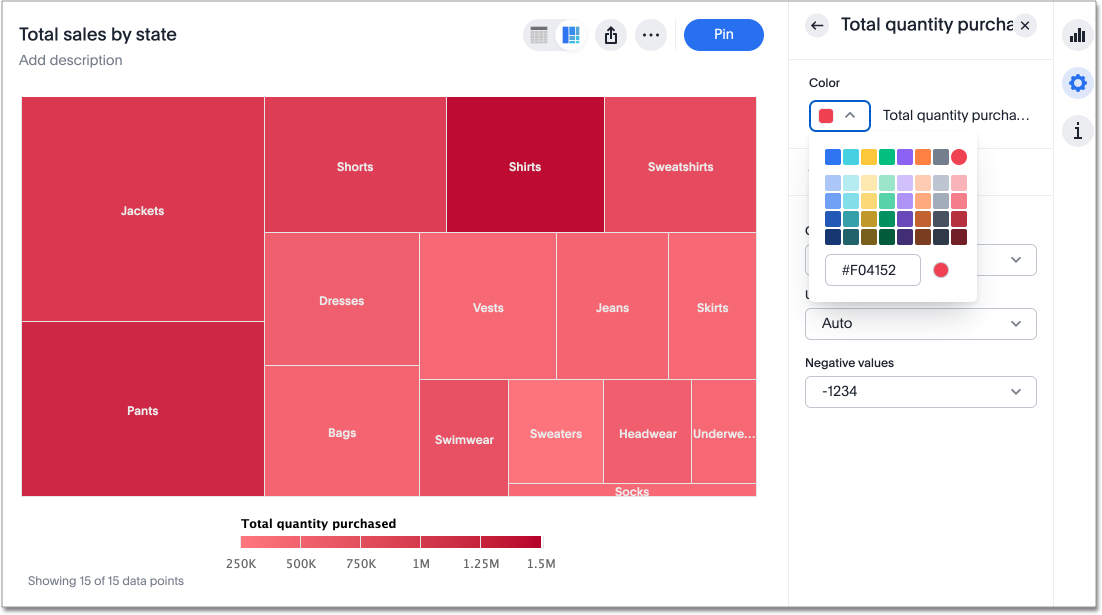
Support for multiple contains, begins_with, and ends_with phrases in versus queries GA
ThoughtSpot now supports multiple contains, begins_with, and ends_with phrases in vs queries. For example, you can now have a versus query such as state name begins_with 'a' state name begins_with 'c' vs state name begins_with 'd'.
For more information, see the Keyword reference.
Other features and enhancements
Snowflake CSV upload Beta
Now you have a quick and easy way to complete one-time data loads of small files that are not present in your cloud data warehouse. You can now upload a CSV file to the database of your Snowflake connection that can be joined to other tables or Worksheets in your connection. Once your administrator enables this feature, go to Data > Utilities, and click Upload CSV. See Configure CSV upload for your Snowflake connection, and Upload a CSV file in your Snowflake connection.
Denodo Oauth GA
Denodo connections now support OAuth. For details, see Configure OAuth for a Denodo connection.
Snowflake OAuth improvements GA
This release brings improvements in how ThoughtSpot handles user tokens for Snowflake connections configured with Snowflake OAuth. If a user’s refresh token becomes invalid, the administrator or author of the connection can now run the Invalidate Tokens command to allow the user to re-authenticate and regain access to the insights provided by the connection, and the connection itself. Also, in this release the Role field has been added to the Snowflake OAuth connection details page, allowing a role to be added when the connection is created and changed when a connection is edited. see Invalidating refresh tokens of a Snowflake connection.
Identity and Access Management V2 Beta
In this release, ThoughtSpot switches to a new, industry-standard cloud identity and access management method through Okta. This switch involves several external improvements to authentication:
-
New local users now create their own password during activation. Administrators do not create the password prior to activation. For more information, see Activate your ThoughtSpot account.
-
Ability to map IDP attributes for SAML authentication from the ThoughtSpot Admin Console (username, email, and display name). For more information, see Managing authentication with SAML.
-
Account activation monitoring from the Users section of the Admin Console: if a user still needs to activate their account, administrators can see that information in the Users section and re-send their activation email. For more information, see Create.
For a general overview, see Identity and Access Management V2.
For the Developer
For new features and enhancements introduced in this release, see ThoughtSpot Developer Documentation.
8.6.0.cl
August 2022 8.6.0.cl
| Features marked as Beta are off by default. To enable them, contact ThoughtSpot support. |
New Liveboard experience GA
The new Liveboard experience is now GA and on by default. It contains new features and enhancements, including Edit mode, HTML in Liveboard titles and descriptions, and improved filtering.
To try it out, navigate to any Liveboard. For more information, See New Liveboard experience.
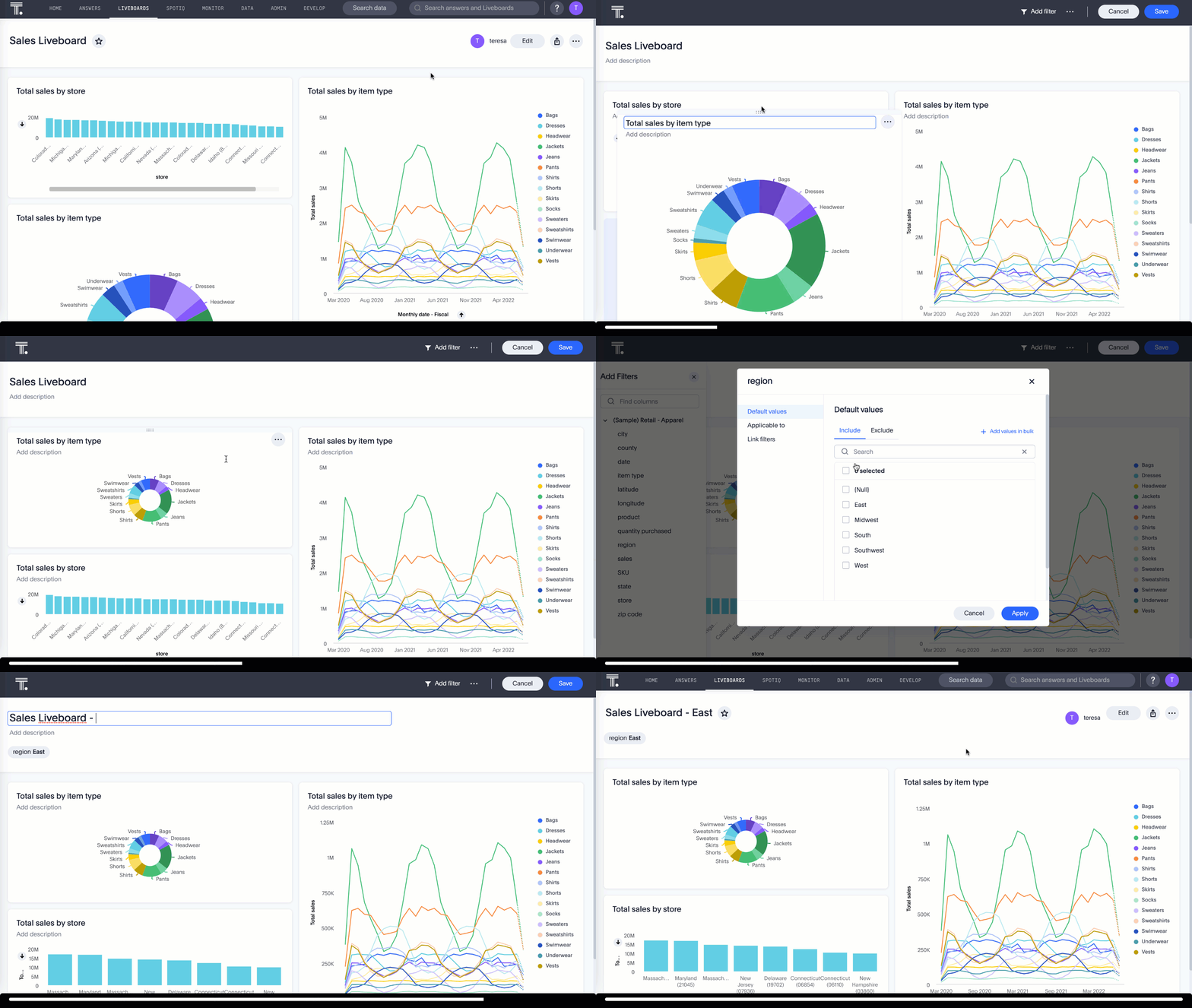
Threshold-based alerts for KPI charts Beta
You can now use the Monitor feature to receive alerts when your KPI satisfies a given threshold condition. For example, create a condition to receive an alert when your Sales KPI becomes greater than 200,000, or when your KPI for Sales weekly increases by 2%.
For more information,
see Create a threshold-based alert.
Delete objects from home page GA
You can now delete Answers and Liveboards directly from the list on the home page, as well as from the Answers and Liveboards tabs. To delete an Answer or Liveboard from the home page, scroll down the list or search tags and author name to select the object name. After clicking the checkbox to the left of the object name, click the Delete button that appears.
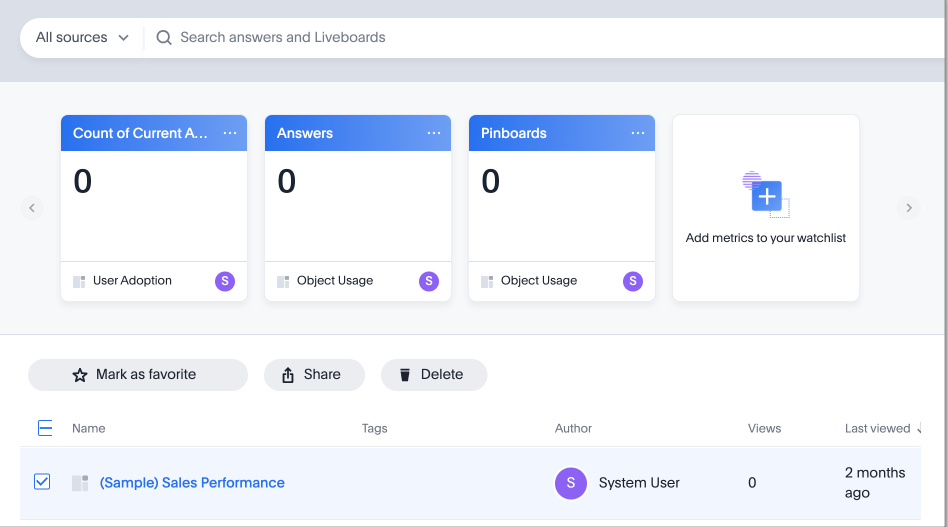
For more information, see Home page.
Choose sources limitation GA
You can no longer select more than 100 data sources to search on when searching data. This maximum of 100 sources improves performance and limits timeouts due to the selection of too many sources. For more information, see Choose a data source.
Other features and enhancements
TML import improvements GA
You can now import TML files that contain certain errors. During the import process, ThoughtSpot removes the part of the object that contains errors, and allows you to import the rest of the object. For more information, see Scriptability.
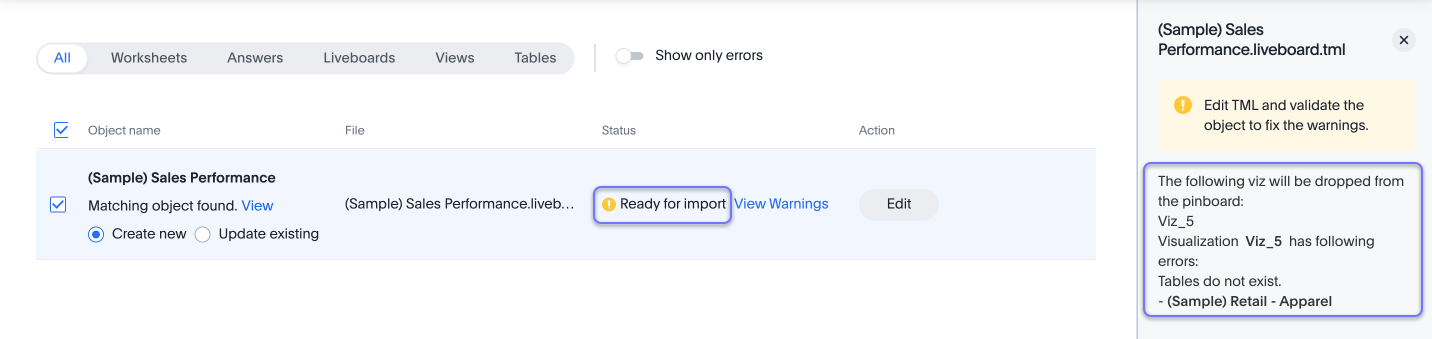
Edit tags from the Data workspace GA
You can now edit tags for tables, Worksheets, views, and SQL views from the Data workspace home page. Simply click on the checkbox next to any object in the Data workspace object list, and select Edit tags. For more information, see Use tags to organize.
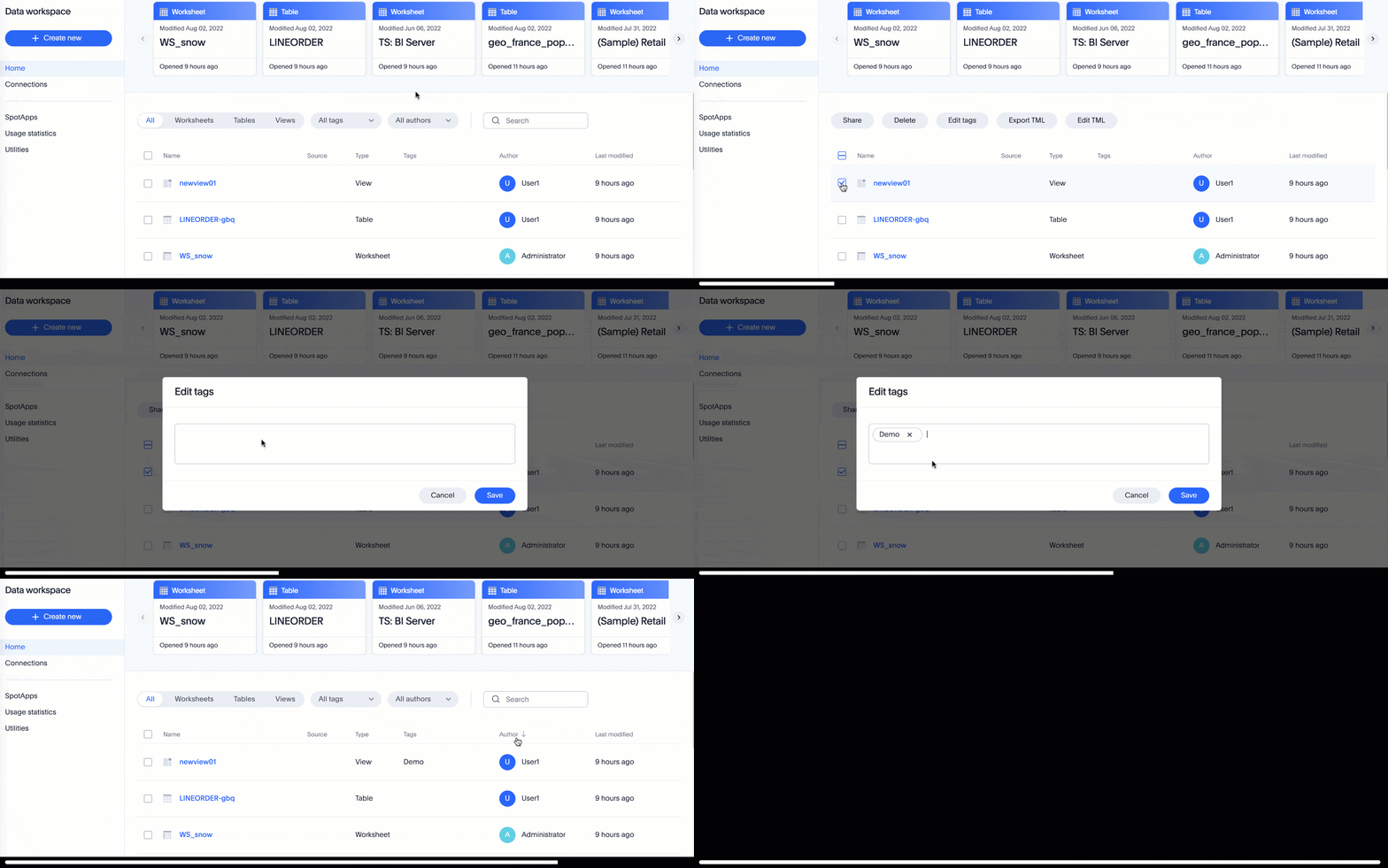
Connections GA
-
Denodo is a new connection type. See Denodo.
dbt integration enhancements GA
This release includes the following improvements to the dbt integration:
-
Integration with dbt for Databricks connections
-
Import of multiple folders at a time
-
Import of a single table within a folder
-
Support for joins across multiple folders
For more information, see Integrate with dbt.
PrivateLink support GA
ThoughtSpot now supports AWS PrivateLink for Denodo connections. ThoughtSpot encrypts all your data by default. For an additional layer of security and network reliability, you can use an AWS PrivateLink. For more information, see Enabling an AWS PrivateLink between ThoughtSpot Cloud and your Denodo data warehouse.
For the Developer
For new features and enhancements introduced in this release, see ThoughtSpot Developer Documentation.
8.5.0.cl
July 2022 8.5.0.cl
| Features marked as Beta are off by default. To enable them, contact ThoughtSpot support. |
Public Answers and Liveboards Beta
You can now make content easily available to your team members when you save or share an Answer or Liveboard. Use the Make this [answer | Liveboard] discoverable checkbox that appears when you save or share an Answer or Liveboard to grant view access to your teammates. Any user who has access to the underlying data source (Worksheet, table, view) and is part of the same user group as the author of the content, will be able to discover and access the Answer or Liveboard in Search Answers.
Select this checkbox to publish your content in the list of relevant results when a teammate uses the Search Answers feature, or deselect to keep your content private.
Table formatting for downloaded tables GA
When you download a table in XLSX format, the downloaded table now shows the same column width and date formatting as the table in ThoughtSpot.
For more information,
see Download your search.
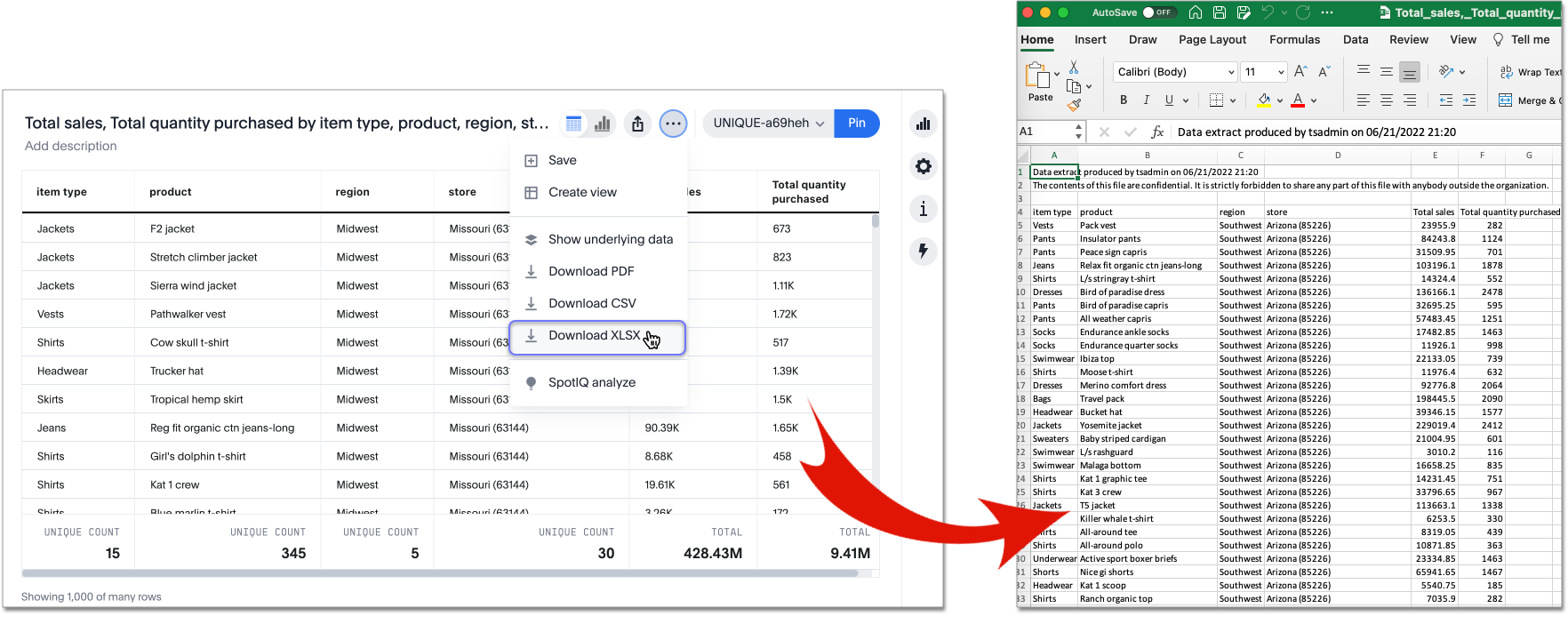
Discoverable Liveboard edit button Beta
The Edit button for Liveboards in the
new Liveboard experience
is now more discoverable. We moved it out of the more menu and into the main Liveboard menu. It is now at the upper right of the Liveboard  .
For more information,
see New Liveboard experience.
Other features and enhancements
SpotApps GA
SpotApps are now GA and on by default. SpotApps are ThoughtSpot’s new out-of-the-box solution templates built for specific use cases and data sources. They are built on ThoughtSpot Modeling Language (TML) Blocks, which are pre-built pieces of code that are easy to download and implement directly from the product.
SpotApps mimic the data models of the applications they are based on, such as ServiceNow or Jira. After you connect to your data in your cloud data warehouse, ThoughtSpot maps that data to SpotApp columns, and creates pre-built but still customizable Worksheets, Answers, and Liveboards, based on your data.
The following SpotApps are now available:
-
Databricks Storage Management
-
GBQ Performance and Consumption
-
Google Analytics
-
HubSpot Email Marketing
-
Jira Issue Management
-
Jira Sprint Management
-
Okta Application Management
-
Redshift Performance and Consumption
-
ServiceNow Incident Management
-
Snowflake Performance and Consumption
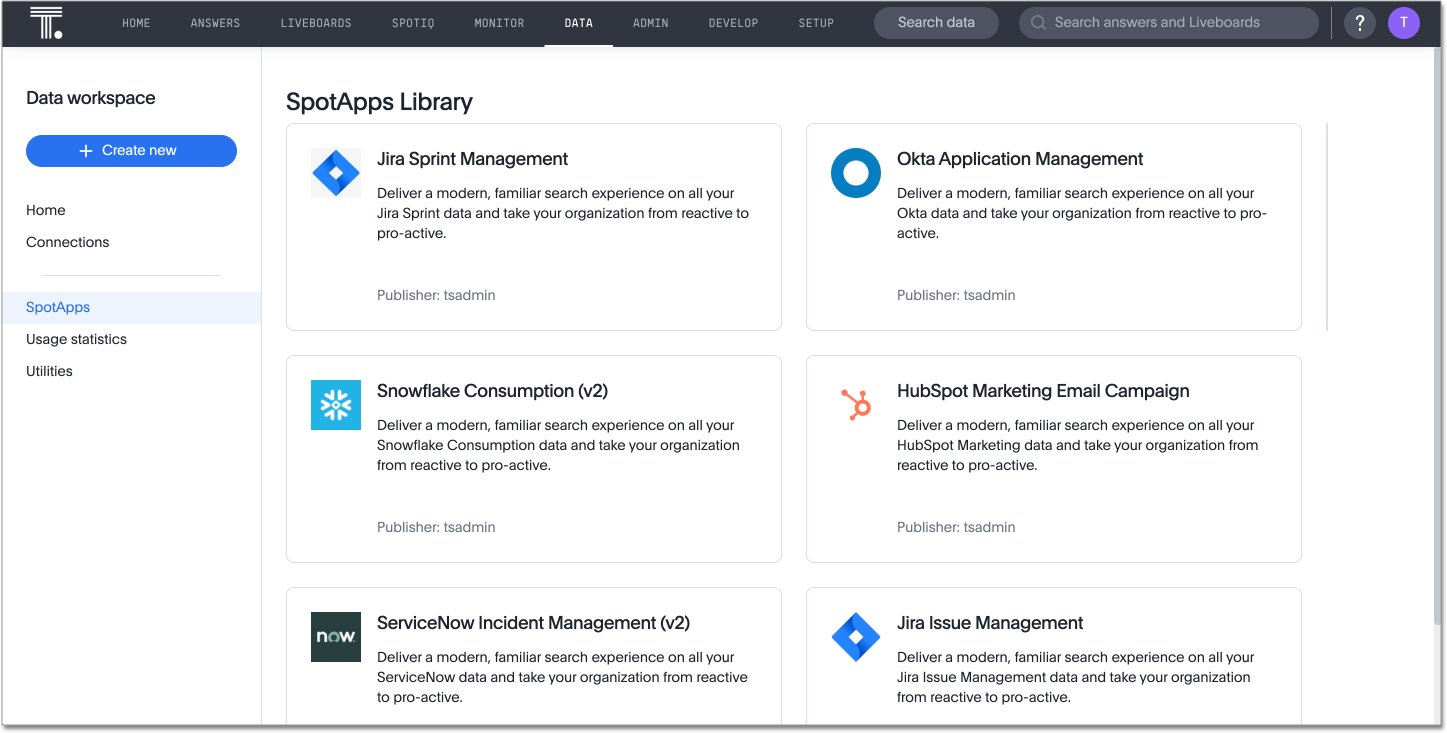
Data workspace GA
The new Data workspace is now GA and on by default. It redesigns the Data section of the product. To access it, select Data from the top navigation bar. The redesign introduces several new features, such as SQL-based views, dbt integration, and SpotApps, and makes the UI more intuitive. For more information, see Data workspace.
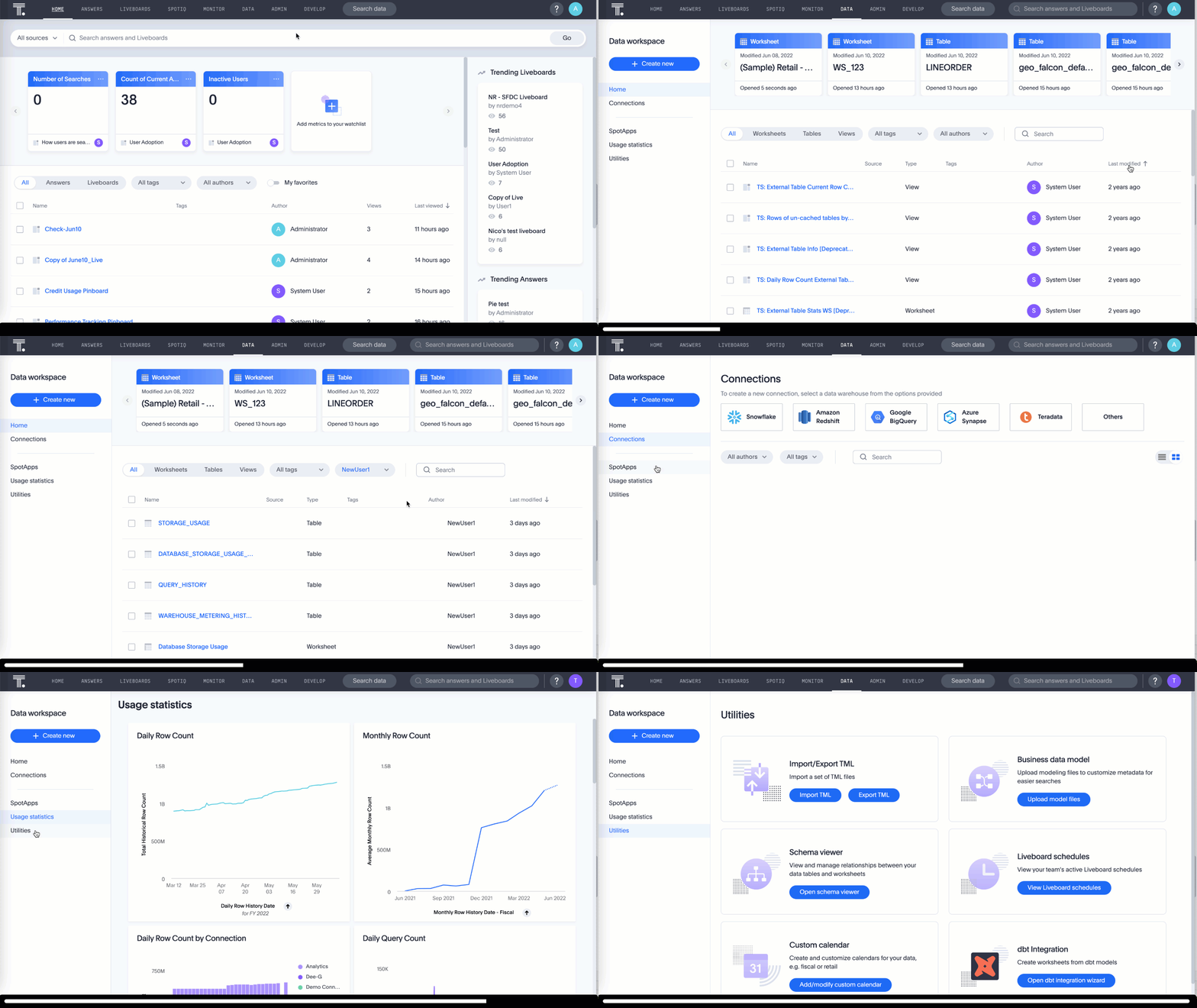
Integration with dbt GA
The dbt integration is now GA and on by default. With the new dbt integration, you provide your existing dbt models and ThoughtSpot automatically creates Worksheets you can use to query your data. Integration with dbt is certified only for Snowflake connections. To try it out, navigate to the Data tab, and select Utilities. Select dbt Integration. For more information, see dbt integration.
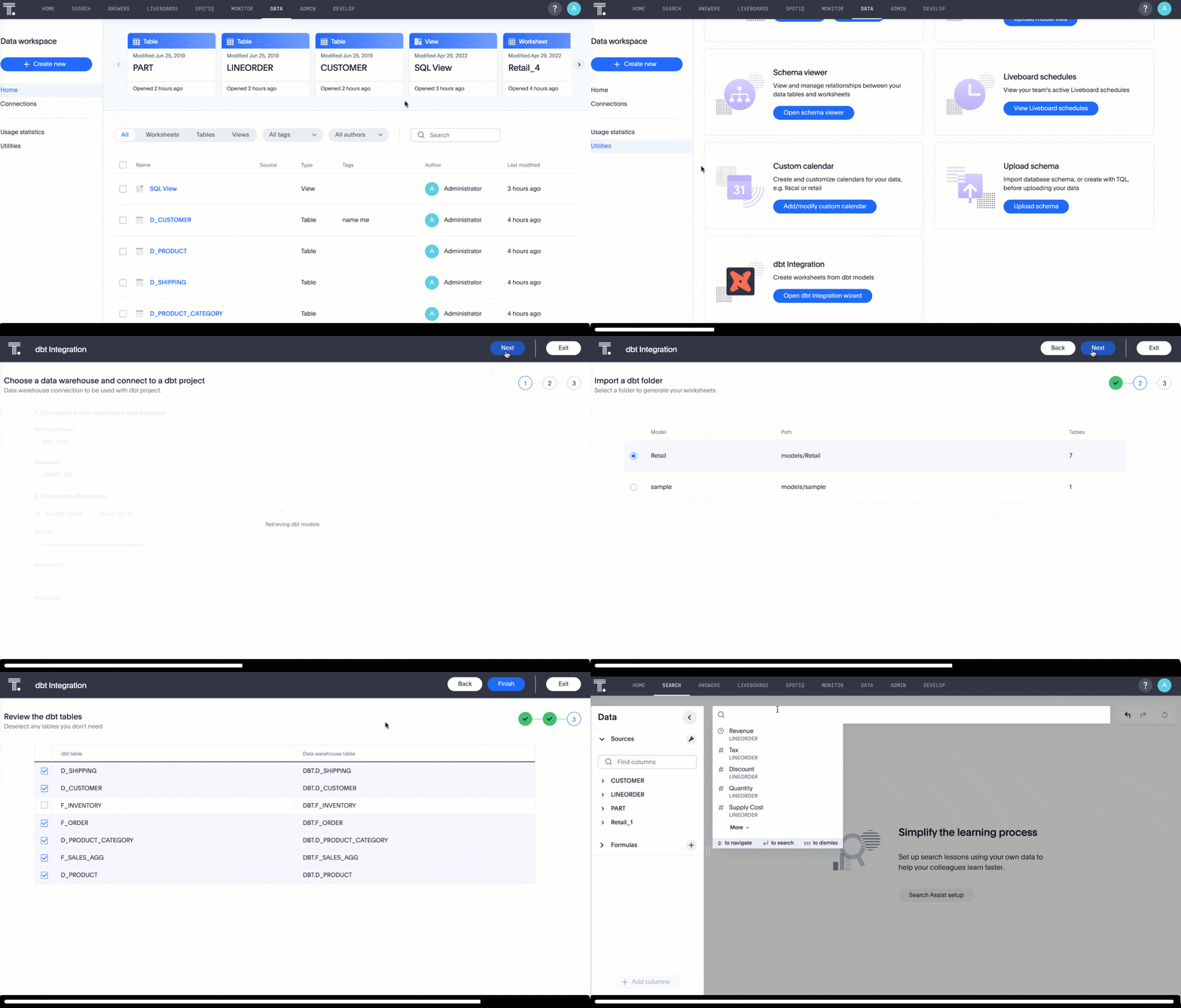
SQL views GA
SQL-based views are now GA and on by default. You can now create a view based on a custom SQL query, and use that view as a data source. To try it out, select Data from the top navigation bar. Then select + Create new > Custom SQL View. For more information, see SQL views.
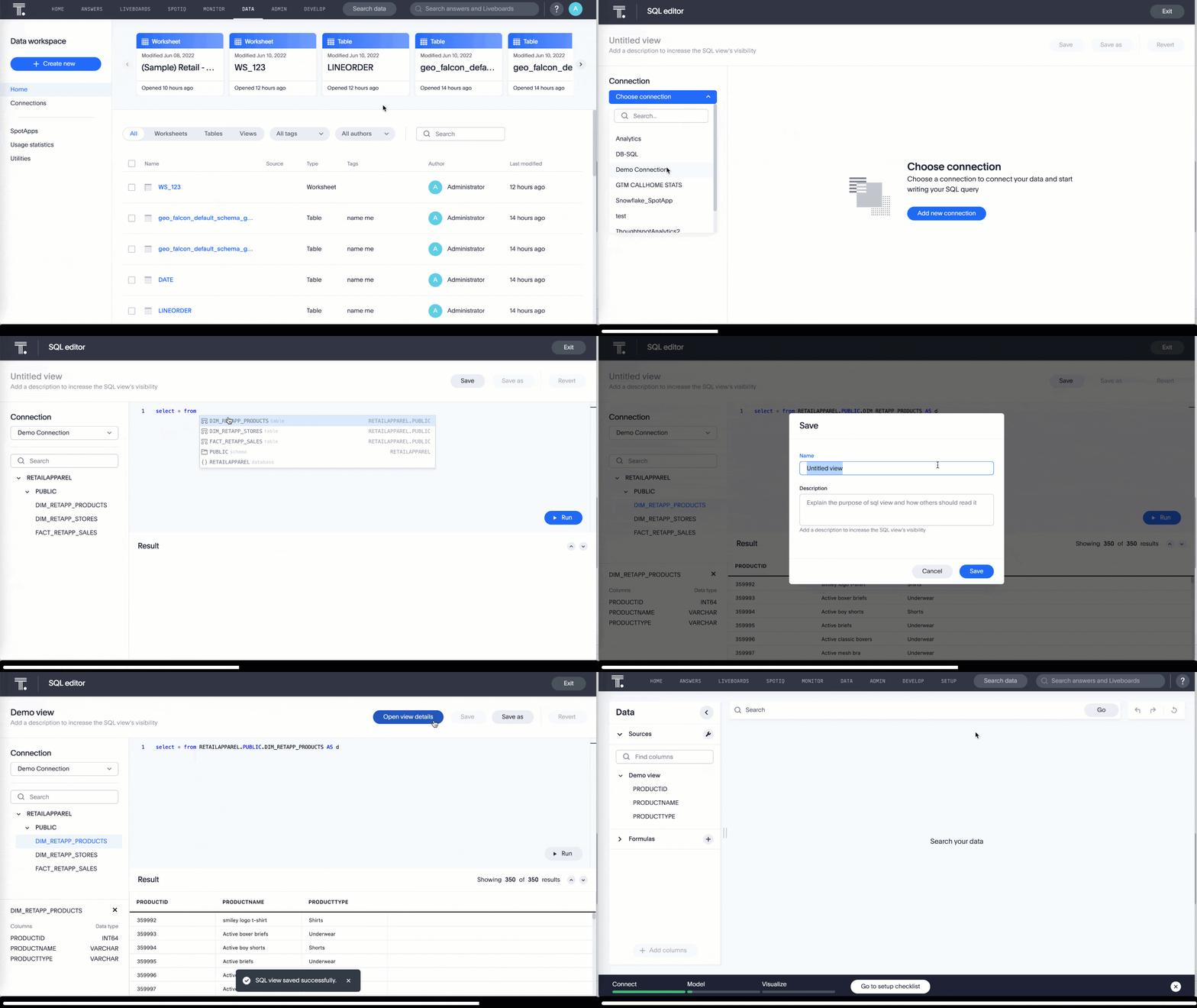
Session-level ranking of date columns in Search GA
ThoughtSpot now supports session-level ranking of Date columns in Search. For example, when you add a date column such as promotion date to your Search, then the promotion date column rises to the top of Search completion suggestions for the duration of your session.
Databricks Partner Connect GA
Databricks Partner Connect allows you to try out ThoughtSpot connected to Databricks for free. For details, see ThoughtSpot in Databricks Partner Connect.
Snowflake Okta OAuth GA
You can now use Okta as your authorization server for external OAuth. For details, see Configure Okta OAuth for a Snowflake connection.
Starburst OAuth GA
Starburst connections now support OAuth. For details, see Configure OAuth for a Starburst connection.
Query external tables GA
ThoughtSpot now supports querying external tables in data stores, after you create these tables in your Amazon Redshift, Google BigQuery, or Snowflake environments. For more information, see Query external tables from your connection.
PrivateLink support GA
ThoughtSpot now supports AWS PrivateLink for several new data warehouse connections. ThoughtSpot encrypts all your data by default. For an additional layer of security and network reliability, you can use an AWS PrivateLink. This option is now available for the following new data warehouse connections: Databricks, Dremio, Oracle, SAP HANA, Starburst, and Teradata. For more information, see Enabling an AWS PrivateLink between ThoughtSpot Cloud and your cloud data warehouse.
OpenID Connect Group Sync GA
ThoughtSpot now supports OpenID Connect (OIDC) Group Sync.
To configure OIDC, refer to OpenID Connect authentication.
For the Developer
For new features and enhancements introduced in this release, see ThoughtSpot Developer Documentation.
8.4.0.cl
June 2022 8.4.0.cl
| Features marked as Beta are off by default. To enable them, contact ThoughtSpot support. |
Geo map support for France GA
We now support more detailed geographic maps for France. You can now create maps based on postal codes, as well as region and city name. See See Geo map reference.
Conditional and number formatting for downloaded tables GA
When you download a table in XLSX format, the downloaded table now shows the same conditional and number formatting as the table in ThoughtSpot.
See Download your search.
Other features and enhancements
Liveboard and Answer download footer GA
Users with admin privileges can now add a standard footer to all Liveboard and Answer downloads. Use this functionality to add a confidentiality disclaimer, for example.
To try it out, select Admin from the top navigation bar. Select Search & SpotIQ from the side navigation bar that appears, and scroll down to Visualization. See Managing search & SpotIQ settings.
SpotApps Beta
This release introduces several new SpotApps that you can use to analyze your company data from external applications. Set up these SpotApps to provide your users with pre-built, customizable Worksheets, Answers, and Liveboards for the following applications:
-
Okta Application Management
-
Google Analytics
-
HubSpot Marketing Email Campaign
-
Snowflake Consumption Version 2
-
Jira Sprint Management
To access these new SpotApps, ensure that the feature is turned on in your environment and navigate to Data > SpotApps.
For the Developer
For new features and enhancements introduced in this release, see ThoughtSpot Developer Documentation.
8.3.0.cl
May 2022 8.3.0.cl
| Features marked as Beta are off by default. To enable them, contact ThoughtSpot support. |
KPI chart enhancements GA
With this release, you can track Key Performance Indicators (KPIs) more easily, and tailor conditional formatting to suit your business use cases.
-
Track KPI charts from your home page watchlist
You can now add KPIs to your watchlist and track them from your home page.
To access this feature, navigate to the Home tab and select Add metrics to your watchlist. See Home page.
-
Conditional formatting for KPI attributes
Make your KPIs stand out with conditional formatting for attribute-type KPI charts as well as measures.
To add conditional formatting to your KPI chart, select the edit chart configuration icon
, click on the visualized metric, and select + Add rule.
See Apply conditional formatting.
Monitor KPIs GA
You can now schedule alerts for changes in KPIs in your data. Using the Monitor function, you can schedule email notifications for your KPIs on an hourly, daily, weekly, or monthly basis.
Select the Monitor tab to view and manage all KPI alerts you create or subscribe to. See Monitor Key Performance Indicators in your data.
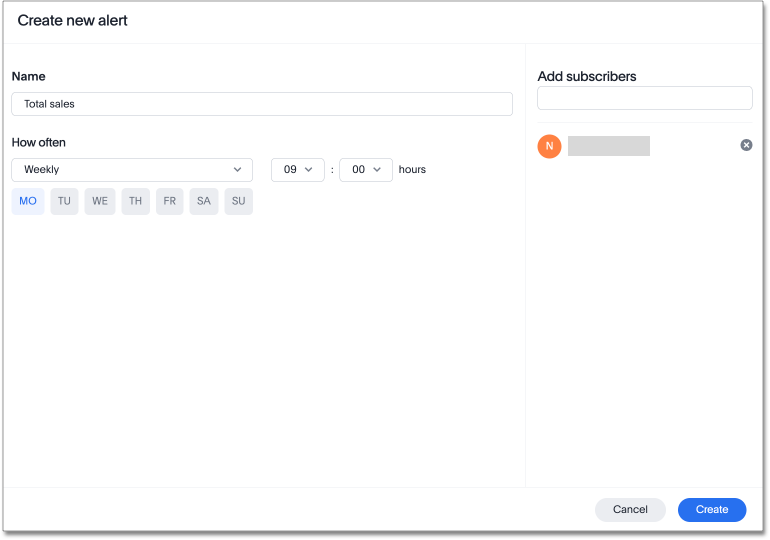
New Liveboard experience Beta
The new Liveboard experience contains new features and enhancements, including Edit mode, HTML in Liveboard titles and descriptions, and improved filtering.
To try it out, navigate to your profile, scroll down to Experience, select Edit, and toggle the Liveboard experience to New experience. See New Liveboard experience.
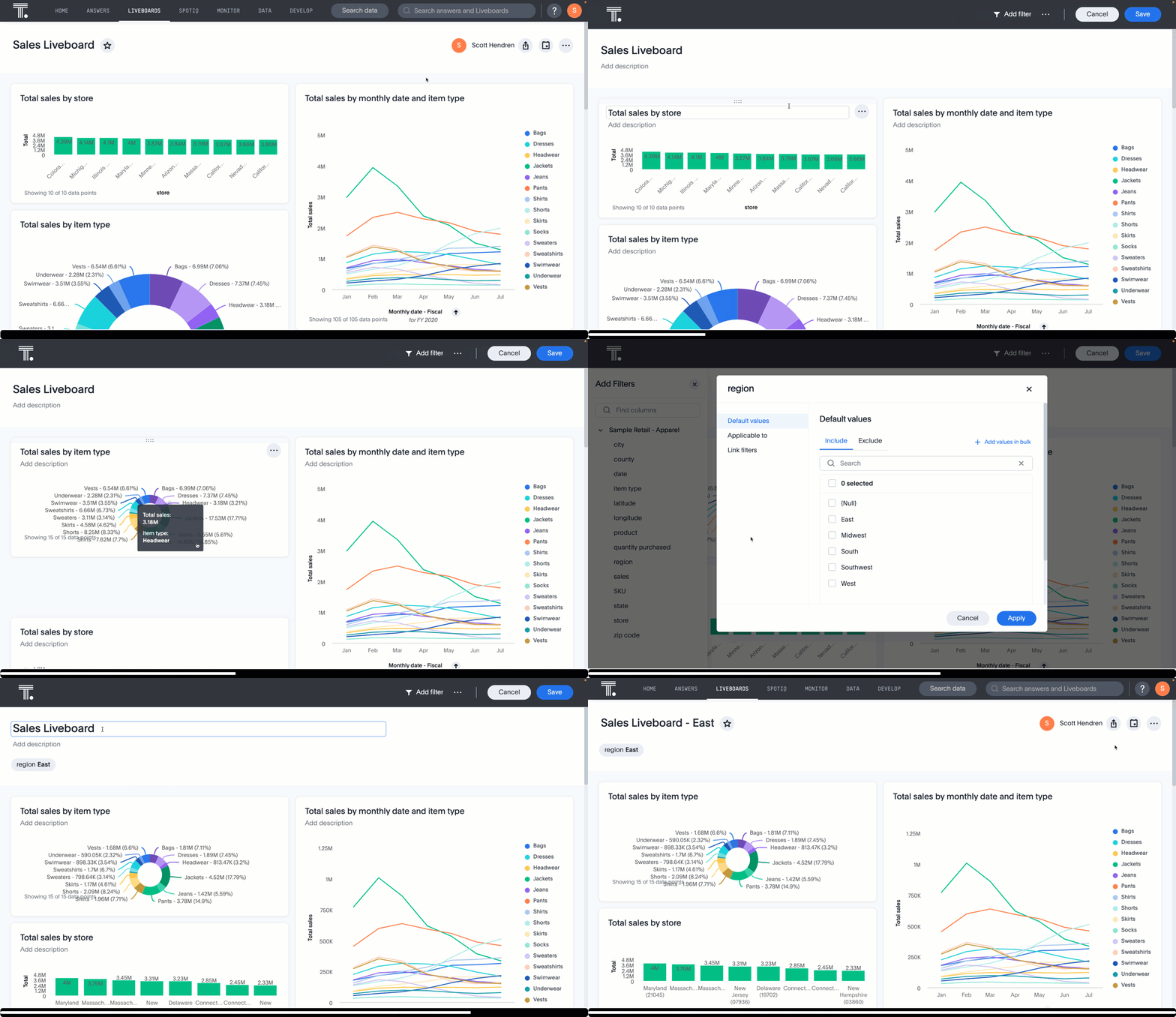
New SpotIQ experience GA
SpotIQ has a new reorganized and more intuitive UI. The functionality remains the same.
To try it out, navigate to your profile, scroll down to Experience, select Edit, and toggle the SpotIQ experience to New experience. See SpotIQ.
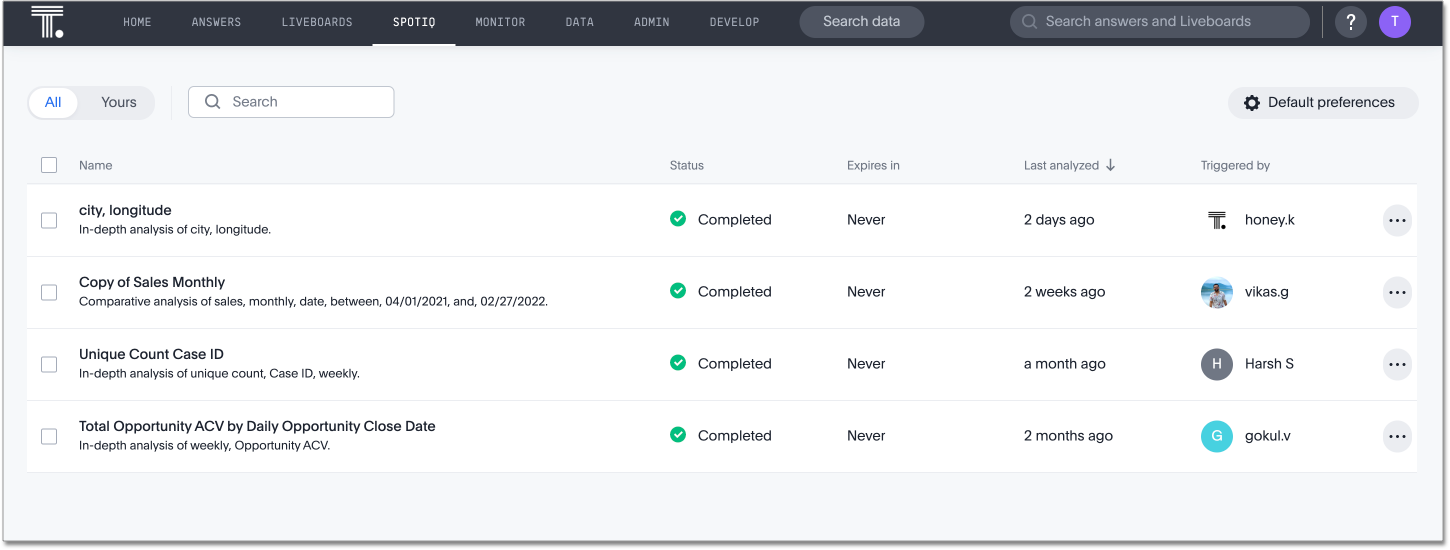
Search data button GA
You can now search data without disrupting your workflow. Just right-click the Search data button in the top navigation bar to open search in a new tab.
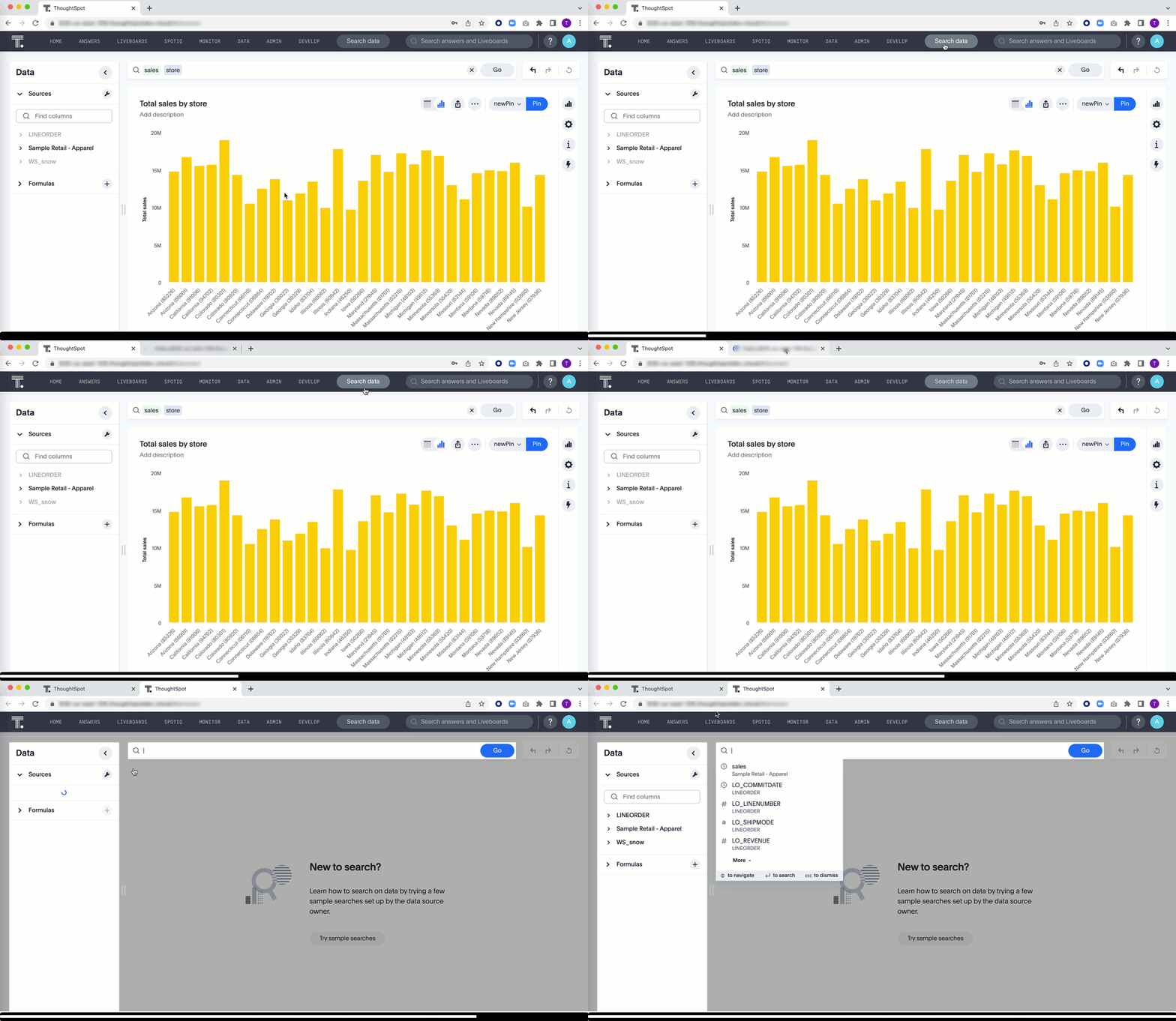
Other features and enhancements
Integration with dbt Beta
With the new dbt integration, you provide your existing dbt models and ThoughtSpot automatically creates Worksheets you can use to query your data.
To try out dbt integration, navigate to the Data tab, and select Utilities. Select dbt Integration.
Connections GA
-
 Oracle connections support Exadata and ADW
The Oracle ADW connection is renamed to Oracle. Existing ADW connections continue to work. There are now two options: Cloud for ADW connections, and On Premise for Exadata or other on-premise Oracle databases. See Oracle.
-
 Dremio
 is a new connection type, which supports OAuth authentication. See Dremio.
-
 OAuth for Databricks
Databricks connections now support OAuth authentication. See Databricks.
Advanced data encryption at rest GA
You now have more granular user and folder-level controls for encrypting your persistent data, with advanced data encryption at rest (EAR).
Jira Issue Management SpotApp Beta
With the new Jira Issue Management Spot App, you can analyze your issue tracking data. It maps your Jira data to SpotApp columns, and creates customizable Worksheets, Answers, and Liveboards, based on your data.
For the Developer
For new features and enhancements introduced in this release, see ThoughtSpot Developer Documentation.
8.2.0.cl
April 2022 8.2.0.cl
| Features marked as Beta are off by default. To enable them, contact ThoughtSpot support. |
KPI chart type GA
With this release, you get even more information from KPI charts.
-
Support for attributes
Have you ever wanted to display just the name of your product with the highest sales as a KPI and pin it to a Liveboard? You can now get KPIs on attributes, like products and dates.
-
Conditional formatting
Add visual cues for KPIs or threshold metrics, to easily show where your measurements exceed or fall short of desirable targets. For example, you can ensure that KPI metrics stay within certain ranges.
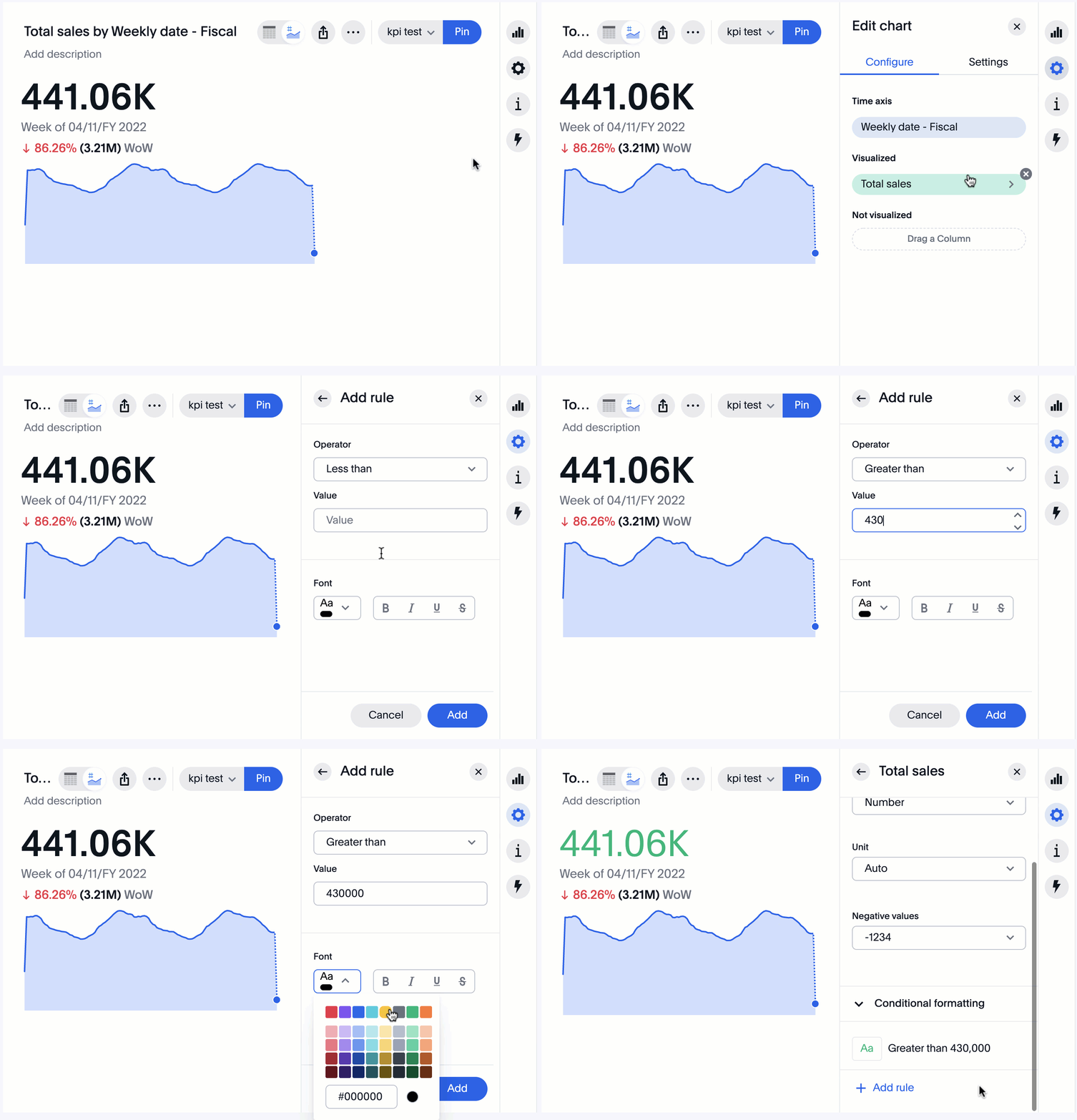
-
Support for Drill down, Show underlying data, and SpotIQ analyze
You can now right-click the sparkline visual of any KPI chart to See Drill down,window=_blank] to a finer-grain view of your data, Show underlying data,window=_blank], or run a custom SpotIQ analysis,window=_blank],
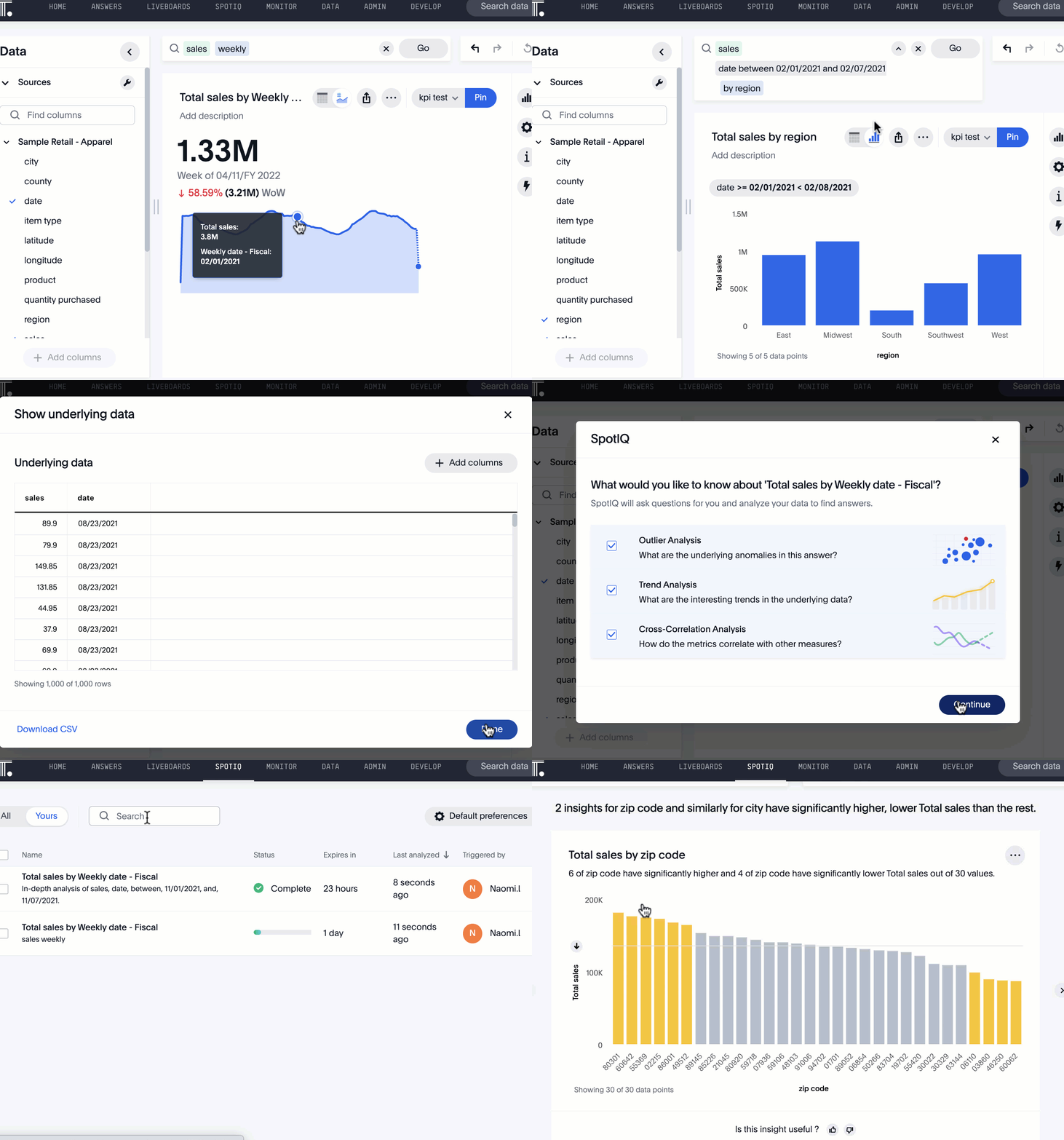
HTML in Answer titles and descriptions GA
In the title or description of an Answer or visualization in a Liveboard, you can now make any word or phrase a hyperlink by using an <a href> HTML tag.
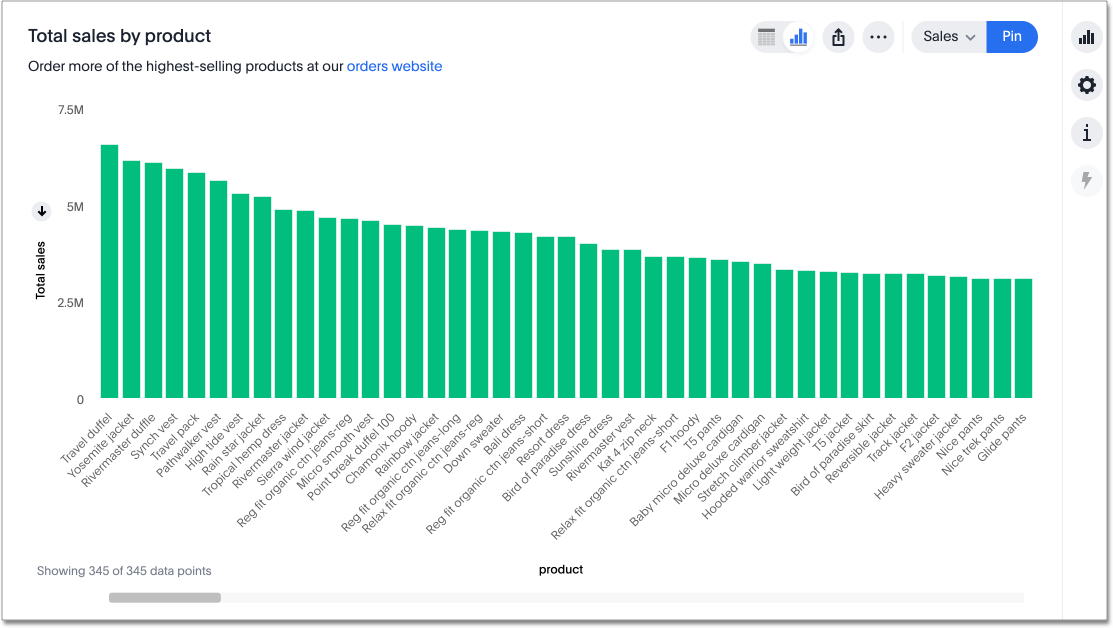
You can also format text as bold, italic, or highlighted.
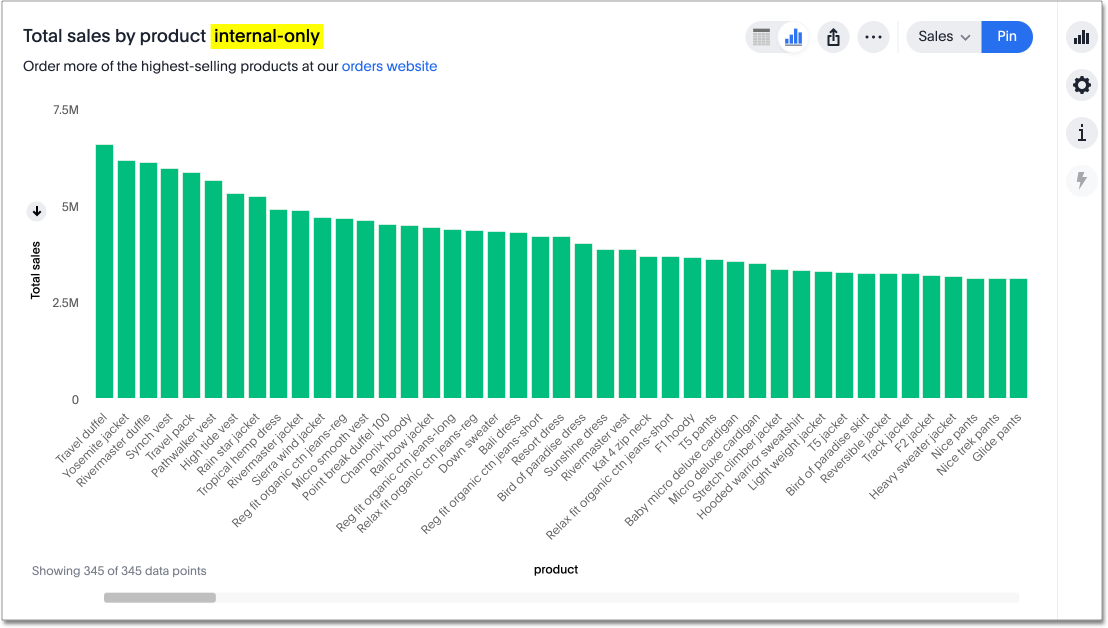
This feature is available only for Answers and visualizations inside a Liveboard, and not for the title or description of the Liveboard itself.
Pivot table scroll bar GA
If your pivot table contains multiple measures with long names, the column header now has a horizontal scroll bar, so you can see all your measures without taking up excessive space.
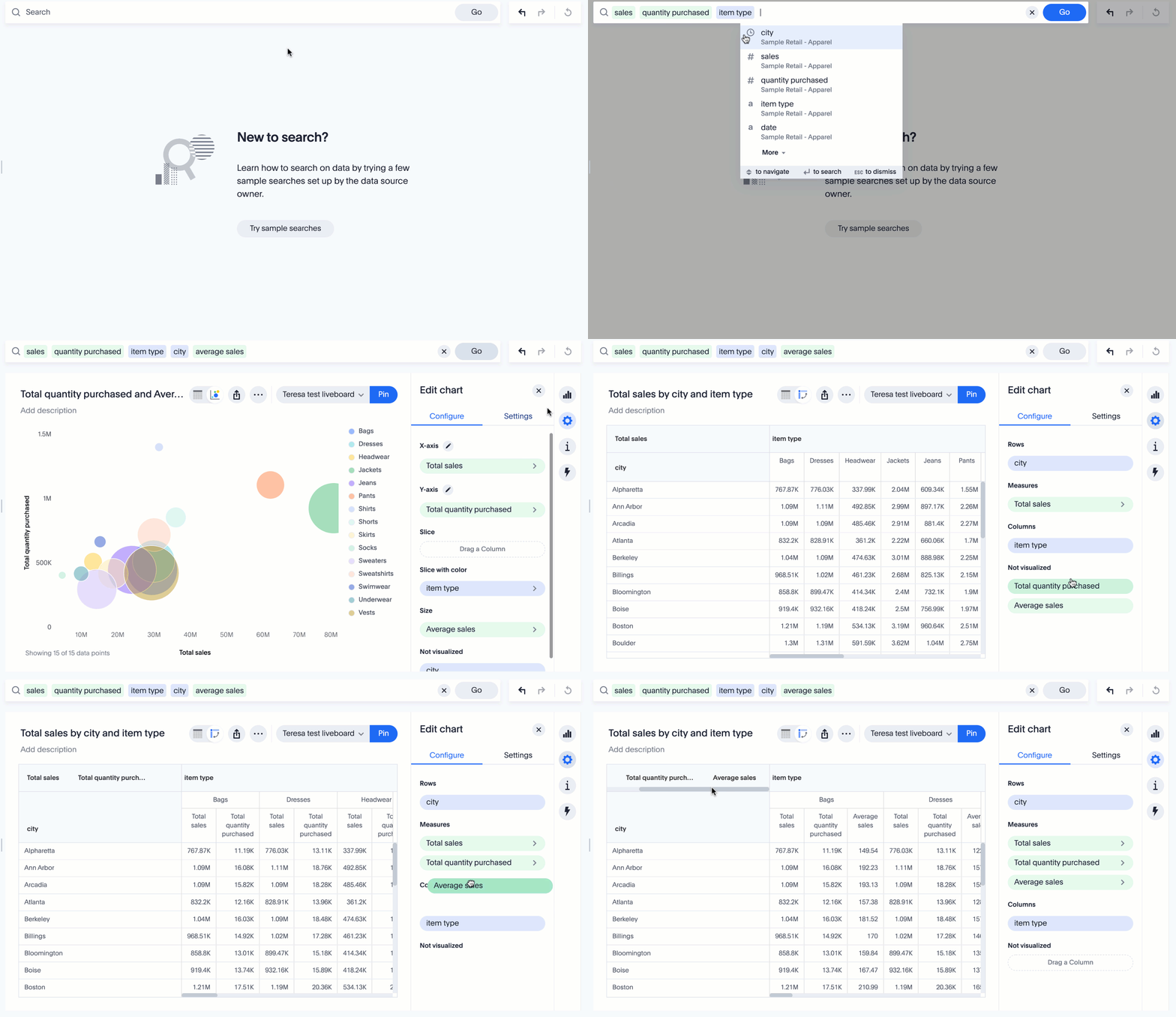
Other features and enhancements
Data tab redesign Beta
The redesigned data tab provides new features including SQL-based views, SpotApps, and a more intuitive user experience. To see it, select Data in the top navigation bar.
SQL-based views Beta
With SQL-based views, you can now create views based on custom SQL queries, and then use them as data sources.
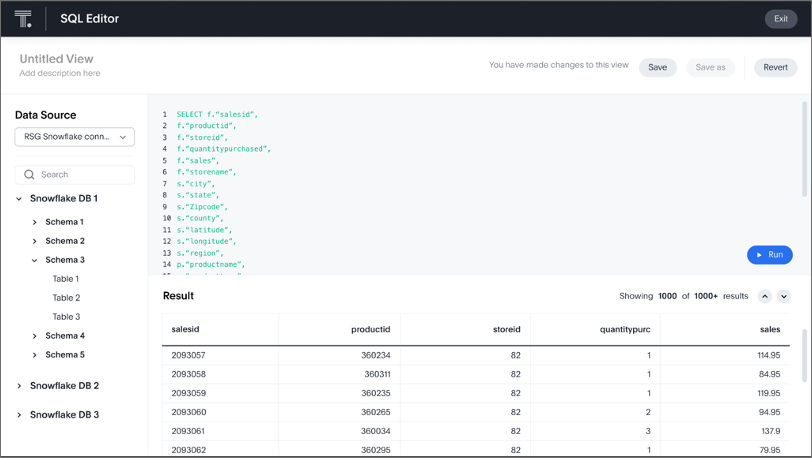
Simplified connections Beta
You can now more easily create connections on the new Data workspace page. To get started, click Data > Connections, and then select a cloud data warehouse. You don’t even have to specify tables or columns when you create your connection.
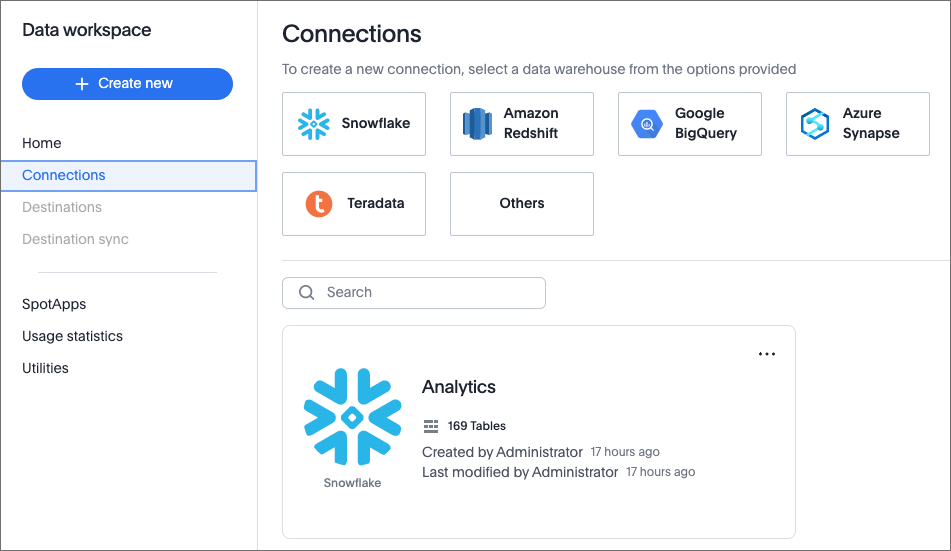
ServiceNow and Snowflake SpotApps Beta
SpotApps are solution templates for specific use cases and data sources. We deliver them to you as pieces of code that you can download and implement directly from our product.
In this release, we introduce Analytics Blocks, which include pre-built Worksheet, Answer, and Liveboard blocks.
We also include the ServiceNow and Snowflake SpotApps, which mimic the ServiceNow and Snowflake data models. After you connect to your ServiceNow or Snowflake data in your cloud data warehouse, ThoughtSpot maps the data to SpotApp columns, and creates functional and customizable Worksheets, Answers, and Liveboards.
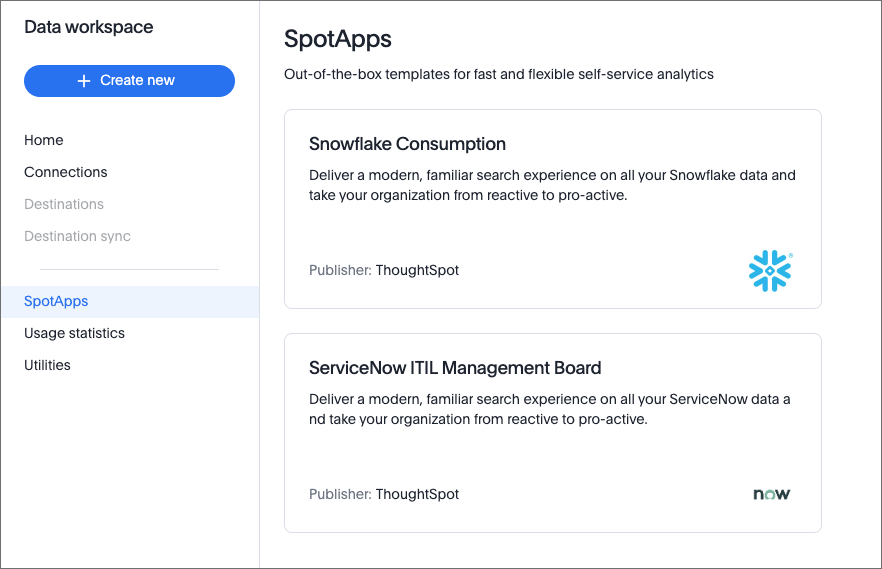
All these features are part of the data tab redesign, which is in beta.
For the Developer
For new features and enhancements introduced in this release, see ThoughtSpot Developer Documentation.
8.1.0.cl
March 2022 8.1.0.cl
| Features marked as Beta are off by default. To enable them, contact ThoughtSpot support. |
Sparkline visualization for KPI charts GA
With this release, we are announcing the Sparkline chart enhancement for the Key Performance Indicators (KPIs) chart. Just search for a metric using time keywords, like Sales weekly, and create sparkline visuals of your data’s KPI. See
Sparkline visualizations for time-series KPIs.
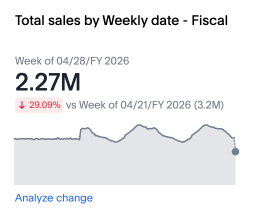
Reset saved Answers GA
Have you ever tried different chart types and filtering conditions on an Answer, and then decided you wanted to set your Answer back to its original state? Now you can easily do that by using the new reset button, next to the undo and redo buttons. This is only available for saved Answers in the new Answer experience.
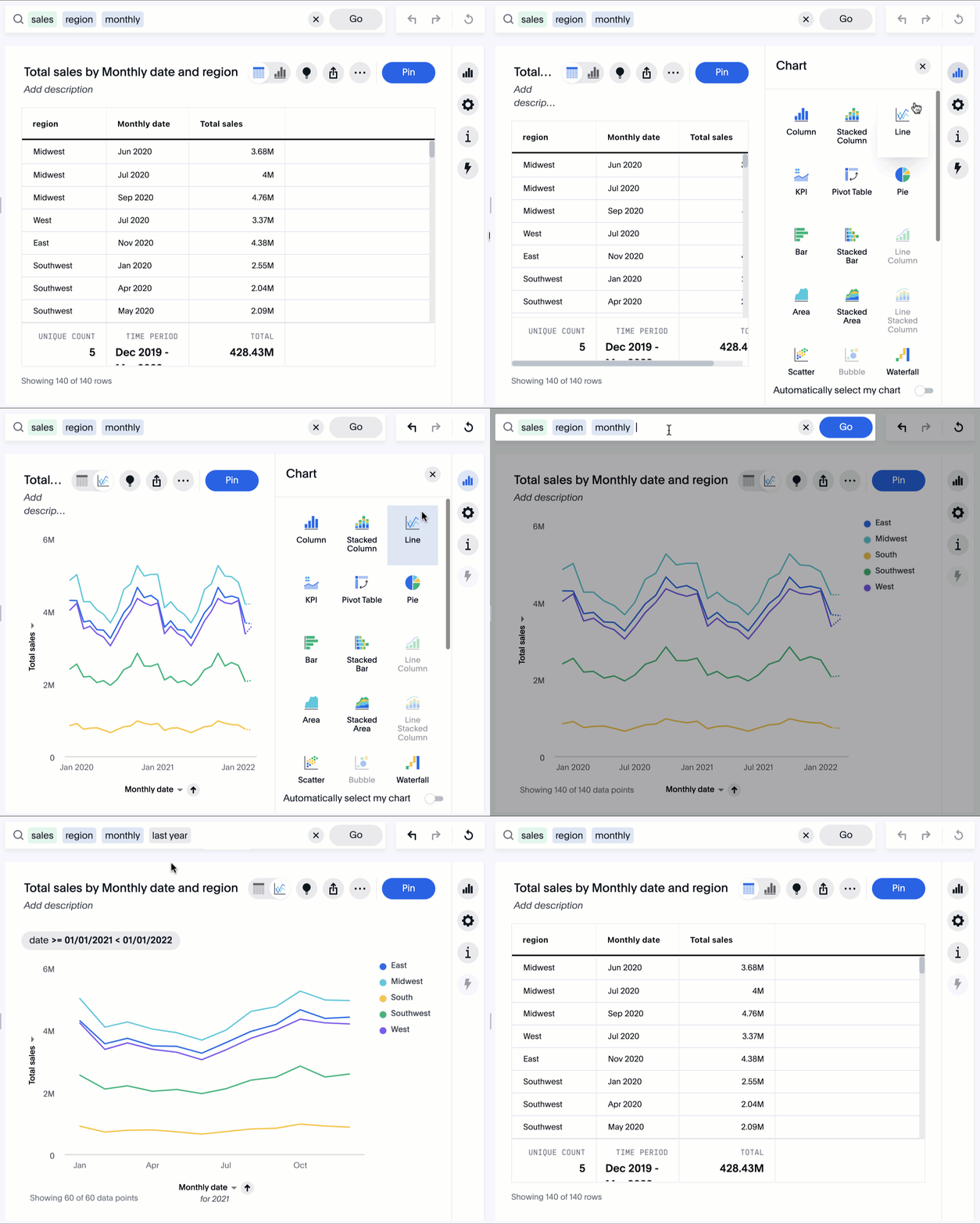
Other features and enhancements
New cloud region in Japan GA
For our clients in Asia, ThoughtSpot Cloud is now available in Japan. See see ThoughtSpot Cloud requirements and support.

OAuth for Connections GA
We enhanced our authentication protocols. ThoughtSpot supports OAuth for the following connection:
-
Microsoft Azure Synapse, see Configure OAuth for a Synapse connection.
Encryption at rest Beta
ThoughtSpot now uses Advanced Data Encryption at rest (EAR) for persistent data, both with user-level and folder-level controls.
For the Developer
For new features and enhancements introduced in this release, see ThoughtSpot Developer Documentation.