ThoughtSpot Support Handbook
The ThoughtSpot Support team is committed to making you successful when deploying and using ThoughtSpot, regardless of your location. We provide 24x7 worldwide support to all our valued customers.
Reliability of your business is very important for us. We created this document to describe our Support offering, so you can find resources to resolve your issues, and answer your questions.
Support roles
We have distinct roles in ThoughtSpot Support, and understanding them helps you to streamline issue resolution.
Systems Reliability Engineer (SRE)
Your cases are assigned to the SRE team, your main contact for providing support. Their primary goal is improving your user experience from a service management perspective. The SRE responsibilities include:
-
Responding to support cases through the Support website, by email, or by phone
-
Reproducing reported issues, as necessary
-
Researching, identifying, and resolving product technical issues
-
Working with other ThoughtSpot teams to resolve issues
SRE Manager
This role manages the team, and steps into the role of Escalation Manager when necessary.
Escalation Manager
If the issue is not progressing to your satisfaction (based on normal case lifecycle process expectations), the Escalation Manager joins the team. Escalations can be initiated by either the customer, or the SRE. The Escalation Manager:
-
Coordinates resources to diagnose and resolve the issue, including third parties as needed
-
Ensures that regular updates are shared with internal and customer stakeholders
-
Ensures that issues are resolved to the best possible satisfaction of all stakeholders
Support components
We have a multifaceted approach to ensure the success of ThoughtSpot deployments.
Alert monitoring
ThoughtSpot product implements an intelligent alerting system that sends regular system status reports and alerts to ThoughtSpot Support when it encounters critical events. These notifications prompt SREs to engage, and resolve all ThoughtSpot issues.
Metrics and diagnostics
The ThoughtSpot product records application and system metrics, and sends these to ThoughtSpot Support. These metrics provide the SRE team with visibility into capacity and system resource usage, and allow them to prevent or quickly resolve issues.
When working on cases, ThoughtSpot Support may collect diagnostic information on the system, and also request that you share the information with us. You can securely share the diagnostics with us through our secure ThoughtSpot File Server.
File Server
ThoughtSpot File Server is a secure way of sharing files, like diagnostics information files or software packages for performing updates. Only valid users can access the file server.
Product updates
Customers can request for the latest version of ThoughtSpot or ThoughtSpot Support may recommend updates as the resolution to an issue. ThoughtSpot Support will work with you to schedule and perform product updates. As part of the update process, you’ll have to download the software package from a secure ThoughtSpot File Server.
For cloud customers, ThoughtSpot automatically performs Cloud Release updates on a monthly basis. You will be notified in advance when these updates will occur. ThoughtSpot Support performs the upgrade.
In-app support
To enhance your support experience, ThoughtSpot now offers in-app support for all Cloud customers. This feature provides immediate assistance for product-related inquiries and "how-to" questions directly within the ThoughtSpot application.
Accessing in-app support
To initiate a live chat with our Product Specialists:
-
Click the question mark icon in the upper right corner of the top navigation to open the help menu and select Contact Support.
-
When the chat window opens, select Send us a message to begin.
| If you are using Free Trial or Team Edition, you see a chat widget in the bottom right corner of your screen. Please use this widget to start a chat with our team for assistance. |
Our live chat begins with an AI bot designed to quickly address your questions. If the bot cannot provide a solution, it will seamlessly connect you to a Product Specialist for personalized assistance.
Availability
In-app support is available from Sunday 8:00 PM PT through Friday 6:00 PM PT, ensuring support throughout the business week.
When to use in-app support
We encourage you to utilize in-app support for:
-
General questions about ThoughtSpot features and functionalities.
-
Guidance on training and "how-to" scenarios.
-
Assistance with common issues that can be resolved quickly.
For more complex issues requiring in-depth investigation specific to your instance, please submit a support case through the ThoughtSpot Community.
If your issue cannot be resolved via live chat, our team will guide you on how to escalate the matter appropriately.
We are committed to providing you with timely and effective support to ensure your success with ThoughtSpot.
If you encounter a technical issue, you can notify ThoughtSpot Support using the “Report an issue” sub-menu.
When in-app support is disabled
If the in-product support feature is disabled, you will see Report a problem in the help menu instead. When selecting this option, you will go to the ThoughtSpot Community where you can open a support ticket. For more information, see ThoughtSpot Support Portal.
Support case management
ThoughtSpot Support Portal
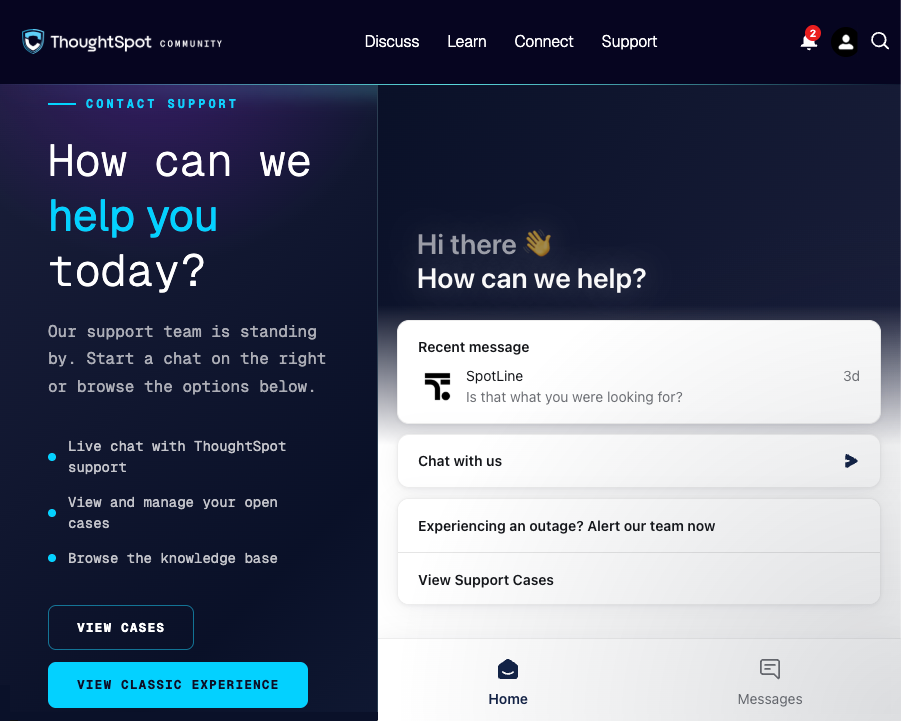
In the ThoughtSpot Support Portal, you can use SpotLine to ask a question, alert us to an outage, create a support case, or view a support case.
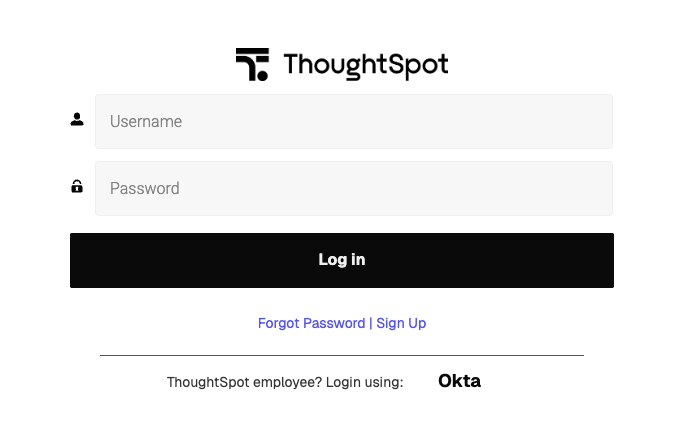
To access the support portal, go to:
| You must have a ThoughtSpot Community user account. If you’re not signed up yet, click "Sign Up" on the login page and follow the instructions to register and get access. |
After logging in to the Community, you’ll see the top-level navigation options for getting help: Discuss, Learn, Connect, and Support with the Contact Support section below it.
Using SpotLine
-
To ask a question, click Chat with us and do the following:
-
Enter your question in the Message box, and click the Send button
 .
.
-
-
To alert us to an outage, click Experiencing an outage? Alert our team now and follow the on-screen instructions to report your outage.
-
To create a support case, click Chat with us and do the following:
-
Enter "I want to create a support case" in the Message box, and click the Send button
. SpotLine will ask you some questions to clarify what your problem is before providing you a link to a form to create a support case.To report issues, especially critical ones, ThoughtSpot recommends that you create a support case online in the Support Portal. However, you can create a support case by phone. For details, see Creating a support case by phone.
-
-
To view a support case, click View Support Cases.
Creating a support case by phone
To create a support case by phone, use one of the following support phone numbers based on your region.
| Region | Phone |
|---|---|
Americas |
1-800-508-7008, ext 1 |
UK |
44 (0) 20 8102 1212 |
Germany |
49 32 221852493 |
France |
33 176400256 |
You can also find these support phone numbers on the Contact Us section of the ThoughtSpot website.
Please have the following information ready, so the SRE can log your case accurately:
-
Organization name
-
Your full name
-
Your phone number
-
Your email address
-
Priority for the case
-
Description of the issue
Case category and assignment
All cases reported to ThoughtSpot must have a category. The category establishes the case assignment rule.
Category |
Assignment |
Issue |
Systems Reliability Engineer |
Feature Request |
Customer Success Representative |
Case priority
Case priorities help us understand the real impact of an issue to your business, so we can determine the urgency of initial response. For each error, assign a priority level based on the relative impact the error has on your use of ThoughtSpot in your organization. ThoughtSpot may re-assign the priority level at its sole discretion. In the following table, we describe ThoughtSpot Support priority levels and the corresponding target initial response times.
| Priority | Description | Initial Response level |
|---|---|---|
P0 |
The Production instance is unavailable; all users are blocked and productivity halted. |
Within 1 hour |
P1 |
The Production instance is available; functionality or performance is severely impaired. |
Within 2 hours |
P2 |
The Production instance is available and can be used with partial, non-critical loss of functionality, or the production instance has an occasional issue that the Customer wants to be identified and resolved. Requests for help on administrative tasks. |
Within 4 hours |
P3 |
Cosmetic issues, or requests for general information about the ThoughtSpot Cloud, Documentation, process, or procedures. |
By next business day |
View cases
You can view your cases, or all cases within your organization by clicking .
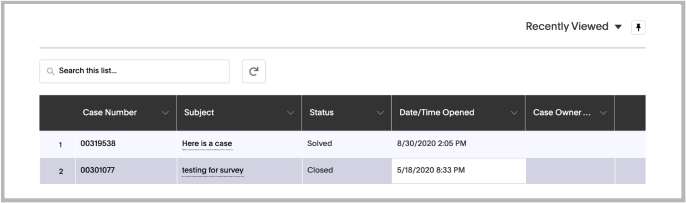
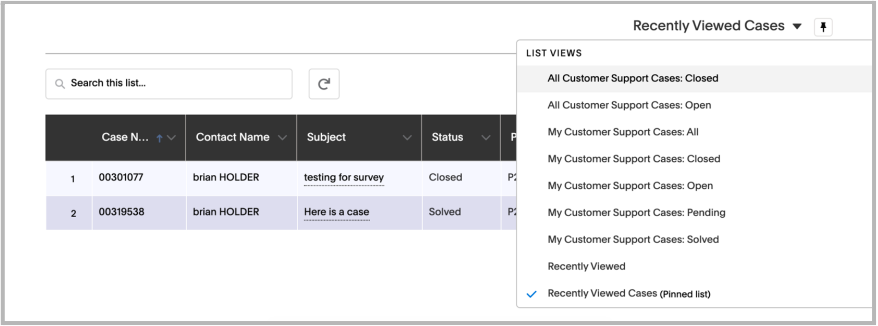
You can change the list view, and pin a specific view as default for the next time you use the portal. My Customer Support Case view is for your cases, while All Customer Support Cases shows all cases within your organization. You can request that access when working with your ThoughtSpot Customer Success Representative.
Case escalation
You can escalate a case at any time by requesting that you would like an SRE Manager to be engaged. Escalations occur when case progress or issue resolution is not in line with your expectations relative to the prescribed case resolution process. The SRE Manager serves as the Escalation Manager until we resolve the issue to your satisfaction.
Do the following to escalate a case.
-
Go to your case and click Escalate My Case to escalate the case.
If you try to escalate a case before the defined SLA timeframe has passed, you will encounter the following message:
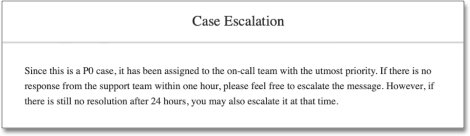
| The escalation option for P0 cases is available one hour after the case is created if no response is received from SRE within that timeframe. If a response from SRE is received, escalation is available one day after the case is created. Escalation is available after 3 days for P1 cases, 5 days for P2 cases, and 7 days for P3 cases. |
-
Select a Case Escalation Reason from the drop-down list.
-
Optionally, enter any Additional Comments.
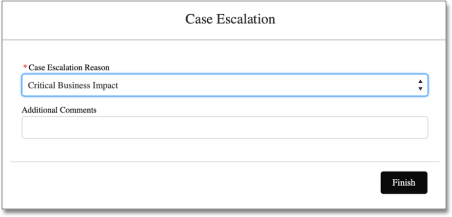
| Additional Comments are mandatory when Other is the selected Case Escalation Reason. |
Close case
ThoughtSpot Support works with you to determine if the issue is resolved to your satisfaction, and closes the case. A case may be closed if we don’t hear from you within two weeks after a request for information, and when we made multiple attempts to contact you during this period.
You can also choose to close a case yourself. To close a case, go to the case and click Close Case.
Support by ThoughtSpot Analytics edition
Capability |
Essentials |
Pro |
Pro |
Enterprise |
|---|---|---|---|---|
Community-based support |
|
|
|
|
In-app support |
|
|
|
|
Support portal access |
|
|
|
|
Email and phone support |
|
|
|
|
Support hours |
24 hours a day, |
24 hours a day, |
24 hours a day, |
|
Response times |
P0: Eight hrs |
P0: Eight hrs |
P0: Eight hrs |

Support by ThoughtSpot Embedded edition
Capability |
Developer |
Pro |
Enterprise |
|---|---|---|---|
Community-based support |
|
|
|
In-app support |
|
|
|
Support portal access |
|
|
|
Email and phone support |
|
|
|
Support hours |
24 hours a day, |
24 hours a day, |
|
Response times |
P0: Eight hrs |
P0: Eight hrs |