Deactivate a Generic JDBC connection
You can now deactivate Generic JDBC connections directly within ThoughtSpot, suspending all activity on that Connection until it’s re-enabled.
| To access the Connection deactivation feature, you must have the New connection configuration experience enabled. Administrators can access this option from the Early Access tab. |
Deactivate a Connection
To deactivate a Connection from the Data workspace, follow these steps:
-
Select the Connections tab in the left side bar.
-
Scroll to or search the name of the Connection you plan to deactivate.
-
Click the More icon
 and select Deactivate.
 -
In the pop-up, select Deactivate.
The name of the Connection displays an Inactive badge.
-
Navigate to the Connection in the Data workspace Connections tab and select the Connection name. To deactivate a Connection from the Connection view, follow these steps:
-
Click the More icon
and select Deactivate. -
In the pop-up, select Deactivate.
The name of the Connection displays an Inactive badge.
Interrupted functionality
While a Connection is deactivated, dependent objects like Answers and Liveboards experience interrupted functionality. Trying to access these objects generates the following error:
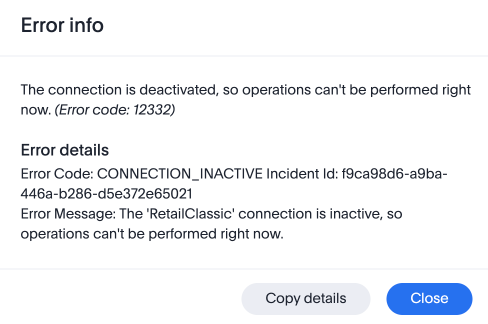
To restore access to these objects, you can instantly activate the Connection from the Data workspace.
Activate a Connection
To activate a Connection from the Data workspace, follow these steps:
-
Select the Connections tab in the left side bar.
-
Scroll to or search the name of the Connection you plan to activate.
-
Click the More icon
and select Activate.
To activate a Connection from the Connection view, follow these steps:
-
Navigate to the Connection in the Data workspace Connections tab and select the Connection name.
-
Click the More icon
and select Activate.
Functionality is immediately restored, and the Inactive badge disappears from the Connection title.