Start a new search
You can start a new search from any page in ThoughtSpot by clicking the Search data button in the top navigation bar.
Starting a new search with the Answer data panel
The Search data page displays a short description of your selected data source or column, which helps you understand the kinds of answers you can expect to get when searching.
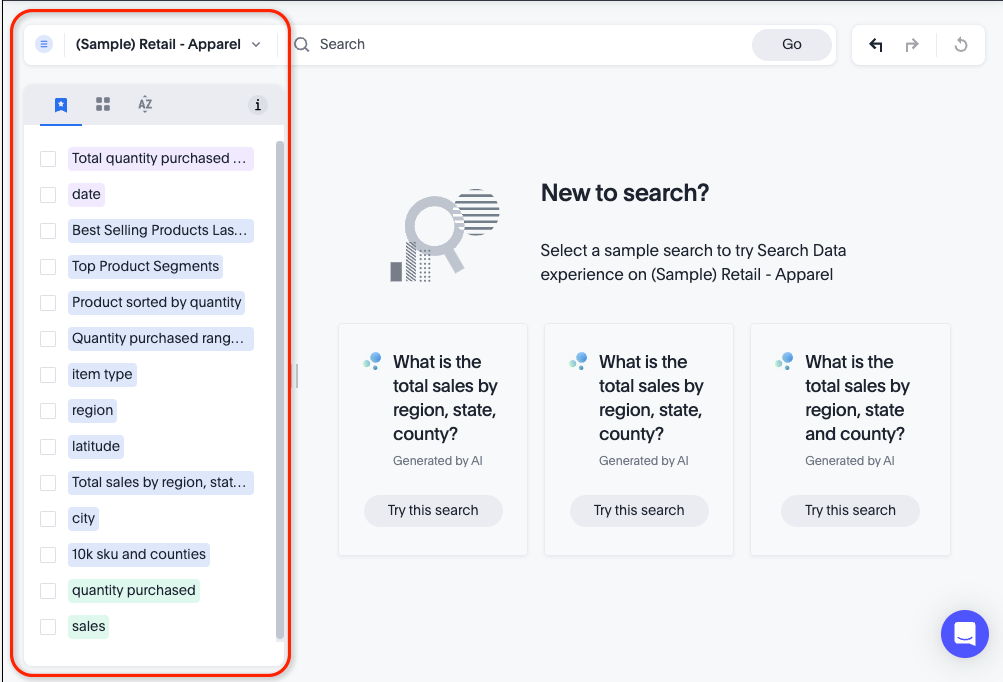
Data source information includes:
-
Name
-
Description
-
Liveboards created using the data source (if available)
-
Tags or classifications (if available)
-
Metadata
-
Experts (top users)
Column information includes:
-
Name
-
Description
-
Synonyms (if available)
-
Column type
-
Sample values. Note that if the column contains an aggregate formula, or if the data source contains a chasm or fan trap, ThoughtSpot does not show sample values.
-
Answer-level formulas
-
Parameters
To start a new search:
-
Select Search data on the Insights tab.
The Search data page appears.
To select a data source, do the following:
-
Click the name of the default data source.
The Select data source window appears.
-
Find the new data source using the following methods:
-
In the Find sources search field, enter the name of a data source.
-
In the scrollable list of data sources, select a data source.
You can filter the list to a specific source type by clicking the gear icon
 , and selecting a specific source type.
You can also filter data sources by how they are tagged.
-
-
Enter your search terms in the search bar, and click Go.
ThoughtSpot gives your search an automatic title based on your search columns, and displays it as either a table or chart, depending on how it is best represented. You can change the view to fit your needs.
Adding a formula, parameter, or column set to your search
To add a formula, parameter or column set to your search, do the following:
-
At the top of the data panel, click + Add and select any of the following:
-
Formula
-
Parameter
-
Set
After you add your formula, parameter or column set, it appears in the data panel.
-
Editing a formula, parameter, or column set in your search
After you add a formula, parameter, or column set, you can edit it by doing the following:
-
Hover over the formula, parameter or column set to reveal the More menu
 , click the menu and select the option you want.
The options available for each include:
-
Formula:
-
Edit
-
Delete
-
-
Column set:
-
Add as filter
-
Edit
-
Delete
-
-
Parameter:
-
Answer-level: Change value, edit, or delete
-
Model-level: Change the value
-
-