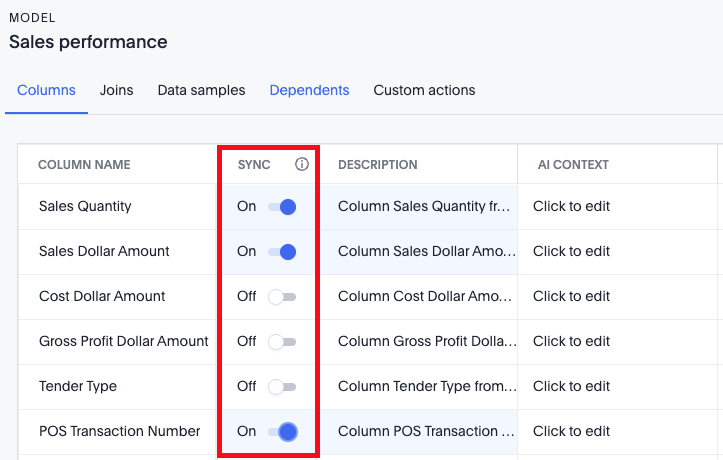
Model column property sync
When you create a Model in ThoughtSpot, all column properties are copied over from the underlying tables to the newly created Model.
By default, column properties are not automatically synchronized with the same columns at the Model level. As a result, the link for some column properties can break after the model is created when tables used for the Model are updated. If there are multiple models using the same table, and you need to rename a column or update a description, you would normally need to go into each Model and update those values.
You can avoid this extra work with the Model column property sync feature. With Model column property sync, you can select which columns in your Model automatically sync with the source table in your cloud data warehouse. To enable this feature, contact ThoughtSpot Support.
How column property sync works
The sync of column properties occurs from the immediate parent.
-
If a Model is derived from a table, property changes in the table are synced to the Model.
-
If a view is derived from a Model, property changes in the Model are synced to the view.
-
If a Model is built on top of a view, property changes in the view are synced to the Model.
Syncing Model column properties
To sync Model column properties with the source table in your cloud data warehouse, do the following:
-
Go to the Data workspace.
-
In the Data objects page, click the name of the Model where you want to enable column property sync.
-
In the Columns tab, find the column(s) where you want to enable sync.
-
In the SYNC column for each column, click the status slider to set SYNC to On
 .
.