Create variables
ThoughtSpot introduces variables to allow you to substitute values for specific properties of an object and share them across Orgs in ThoughtSpot. You can create variables of the following types: table mapping, connection property, and formula variable. In addition, you can delete, search, edit, and rename the variables.
| You can create variables using APIs, or inside ThoughtSpot. If you are using APIs, you can also create connection property per principal variables. You must be an instance admin to create, edit, or delete variables, and you can only edit them from the primary Org. |
Create a variable in ThoughtSpot
To create a variable in ThoughtSpot, follow these steps:
-
Navigate to the Admin tab and select All Orgs. Scroll to the bottom of the left side menu and select Variables under Application settings.
-
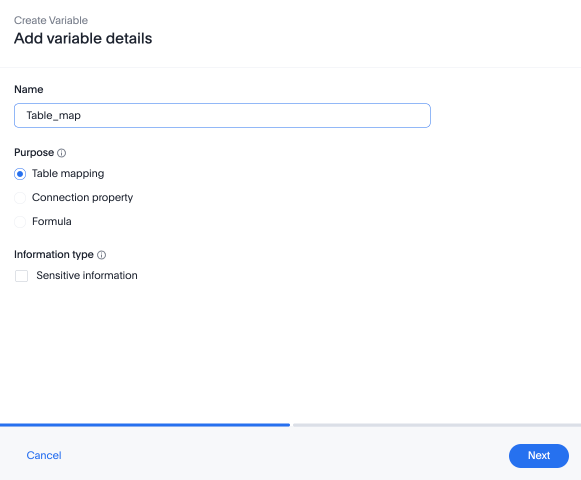
Click the + Create Variable button in the upper right corner. The Create Variable modal appears.
-
Title your variable in the Name field. The variable name must start with either a letter or an underscore (_), and can only contain alphanumeric characters and underscores.
-
Select one of the following types of variables:
- Table mapping
-
Use this for table mapping properties such as schema name, database name, and table name.
- Connection property
-
Use this for data connection properties such as account name, warehouse, user, password, and role, among others.
- Formula
-
Use this to parameterize logic in formulas and rules.
-
Under Information type, you can select Sensitive information. Use this to obscure information like passwords. If Sensitive information is selected, anyone who views the variable from the variables page will not be able to read the values of the variable.
Sensitive information is not supported for formula variables. -
Click Next.
-
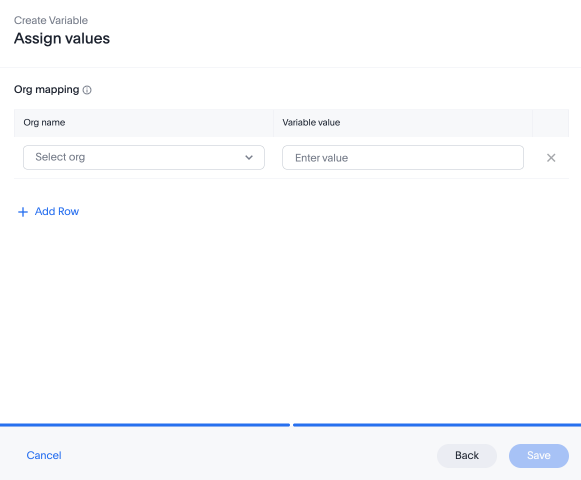
The Assign values modal appears.
-
Under Org name, select the desired Org for the variable from the drop-down list.
-
Enter the value(s) for the variable. If you want to use multiple values, use a semicolon-separated list.
If you create a formula variable with multiple values, you must separate the values using semicolons (;). -
To share the variable across multiple Orgs, click + Add Row and select another Org from the Org dropdown. Note that you can create a variable with the same values across Orgs, or with different values for each Org.
-
Click Save.
Edit a variable
You can edit a variable from the Variables tab, either by selecting the checkbox next to the variable name and clicking Edit, or by selecting the More menu icon  and selecting Edit.
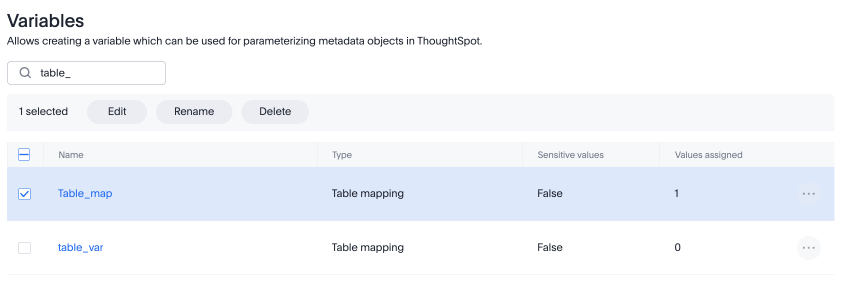
Note that the Edit Variable option only allows you to change the Org it is assigned to, or its values. To rename the variable, you must select Rename.
Delete a variable
You can delete a variable from the Variables tab, either by selecting the checkbox next to the variable name and clicking Delete, or by selecting the More menu icon and selecting Delete.
You can select multiple variable checkboxes and delete them at the same time. If you try to delete a variable with dependent objects like Answers or Liveboards, you see an error message and cannot delete.