Using an agent in AgentSpot
Learn how to find and start a conversation with an agent, ask effective questions, evaluate answers critically, and manage your connectors, skills, and memory settings.
Find the right agent
-
On the AgentSpot home page, you can access agents you created or that have been shared with you, and you can browse existing agents built by your org.
-
Open an agent you want to try and read these before asking anything:
-
Description — one-line summary.
-
Apps connected — the connectors it is configured to use.
-
| To see if it is right agent for you, ask the agent itself. |
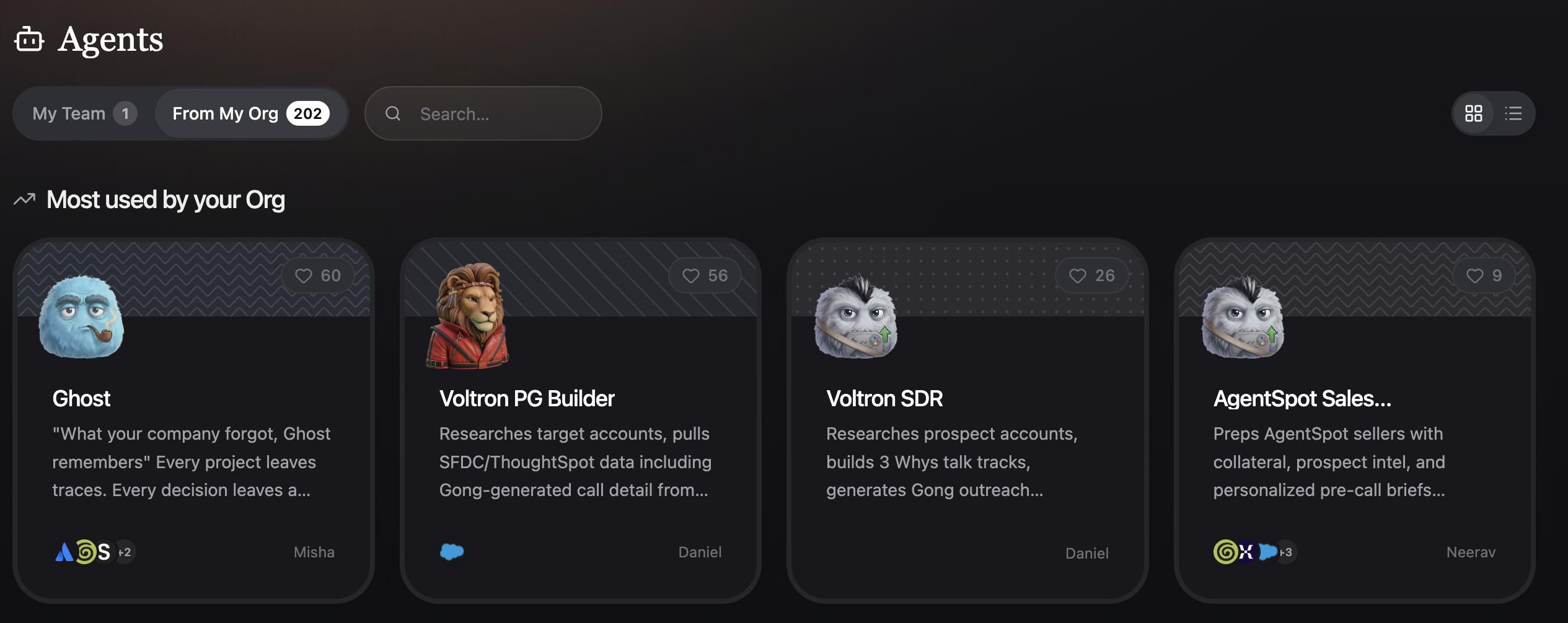
You browse existing agents on the Agents page, where you can switch between the My Team tab (agents you own or have saved) and the From My Org tab (agents shared across your organization). Use the search box to find an agent by name or description.
Each agent card shows a heart with a like count. Click the heart to like an agent you find useful, and click it again to remove your like. On the From My Org tab, agents are ordered with the most-liked first, so the agents your organization values most rise to the top. You can see persistent like counts. The count badge in search reflects a server-side filtered total matching your search.
Agent cards show every connected connector, including connectors that do not have a brand icon.
Start a conversation
-
From the detail page, click in the chat box and ask your question.
-
Ask follow-up questions in the same conversation. (The agent remembers earlier messages)
-
(Optional) upload a file to use with your questions, by clicking the
 button in the chat box or dragging and dropping the file into the chat.
Answer the agent’s questions
Sometimes the agent needs a decision from you before it continues — for example, which option to use or which direction to take. Instead of guessing, it can ask you inline with a response card that appears just above the chat box.
-
Pick one option (or several, when the card allows multiple selections).
-
If the card offers a describe your own choice, you can type your own answer instead of picking from the list.
Your selection is sent as your next message, and the agent picks up right where it left off.
Ask good questions
The single biggest factor in answer quality is your question.
Be specific. Vague questions get vague answers.
-
Weak: "How are we doing?"
-
Strong: "Compare EMEA pipeline coverage for closed-won deals in Q1 2026 vs Q2 2026, by segment."
Name the timeframe. Most data changes over time.
-
Weak: "What’s our churn?"
-
Strong: "What was monthly logo churn for the last 6 months?"
Name the slice. Region, segment, team, product, owner — whatever filter matters.
-
Weak: "Show top accounts."
-
Strong: "Show top 10 enterprise accounts in NA by ARR for FY26."
Ask one thing at a time. Two questions get better answers than one combined question.
Iterate. Treat the first answer as a starting point. Use follow-ups: "now break that down by region," "same question but only last quarter," "why did that change?"
Read the answer
A good answer has three parts. Check all three before acting.
-
The answer itself. If the agent hedges ("approximately," "based on partial data," "I don’t have enough information"), take the hedge seriously.
-
The sources. If you see a citation, click it and verify the source exists and looks right. If a factual answer has no citation, ask explicitly: "What source did you use?"
-
Scope. Confirm the answer is inside the agent’s stated What it can do list. Out-of-scope answers may be guesses.
Use the answer
At the bottom of the answer, you can do the following:
-
Copy the answer into a doc, email, or message, by clicking the
 button.
 -
Give Feedback with thumbs-up
 or thumbs-down
  . The feedback is sent to AgentSpot to help measure overall satisfaction.
When an answer looks wrong
Incorrect answers can happen. Run this checklist before assuming the data is broken.
-
Re-read your question. Was it specific? Did it name timeframe and slice?
-
Check scope. Is what you asked inside What it can do?
-
Check the source. Click the citation. Does the source actually contain what the answer claims?
-
Ask the agent to explain. "Walk me through how you got that number." or "Which rows did you use?"
-
Try a different angle. If the same question rephrased gets a very different answer, that’s a signal the agent is uncertain.
-
Correct it. Once the agent explanation is clear, switch into “Edit mode” for the agent and discuss with the agent builder to remediate the problem and improve the agent definition accordingly.
Do not act on a number you can’t verify against a source.
Privacy and trust
-
Admins can see who used which agent and when. They cannot see conversation content.
-
Do not paste secrets. Passwords, API keys, and credentials don’t belong in chat.
-
Treat answers as drafts. For anything material — money, customers, legal, people — verify in the source system before acting.
-
Agents can be wrong. The model can sound confident and still be incorrect, especially for out-of-scope questions.
-
You are interacting with an AI system. A transparency notice below the message box reminds you that responses come from an AI system and should be reviewed before you rely on them.
Troubleshooting
| Symptom | What to try |
|---|---|
The agent refuses to answer your question. |
Likely outside the agent’s scope. Check What it can’t do; contact the owner if the refusal looks wrong. |
Citation links to something you can’t open. |
You may not have access to that source. Ask the owner or your admin. |
Different answers to the same question on different days. |
Underlying data has changed. Ask the agent: "What’s the as-of date of this answer?" |
The agent seems slow. |
Long answers and complex questions take longer. A more specific question usually receives a faster and better response. |
You can’t find an agent you used before. |
It may have been unpublished or moved to a different group. Contact the owner, or your admin. |
Get help
-
Wrong answer or missing data on this agent: contact the Owner on the detail page.
-
Can’t sign in, can’t see any agents: contact your AgentSpot admin.
-
Confirm you are using the agent the way it was intended: You can do this by reading the description of the agent or by asking the agent directly what it can do.
Managing Connectors
Connectors are the bridge between AgentSpot and your enterprise data. You have a central management hub to handle these integrations. To manage your connectors, click your user menu in the upper right and select Connectors.
In the Connectors page you have the follow options:
-
Already Connected: Displays apps (e.g., Google Workspace, GitHub, Jira, HubSpot) you are currently logged into.
-
Available from Your Organization: Your administrator defines which apps are approved for your enterprise. If an app is approved but not yet active for you, click Connect in the app you want to authenticate with.
-
Many-to-many relationship: Connectors are global to your account. Once connected, they can be utilized by any agent that requires that specific app context.
-
On-the-fly connectivity: If you launch an agent that requires a connector you haven’t set up yet, AgentSpot will prompt you to connect right within the chat interface. For a complete list of supported connectors, see AgentSpot connector reference.
Skills: Transversal Instructions
A Skill is a repeatable set of instructions that can be applied to multiple agents.
To manage your skills, click your user menu in the upper right and select Skills.
-
What it does: Instead of repeating complex instructions in every agent, you create a Skill (e.g., "Public API Specialist" or "Slide Builder").
-
The "When" logic: Each skill includes a description of when the agent should invoke it, helping the AI understand which specialized task it is facing.
-
Sharing and privacy: Skills are Global (available to the org) to ensure that an agent being allocated a given skill will function with consistency across all users leveraging it.
Memory: personalizing the experience
While Instructions reside within an agent and Skills focus on tasks, Memory allows AgentSpot to improve its understanding of your preference and improve the quality of its work over time. The more you use AgentSpot, the better it gets!
AgentSpot maintains three types of memories:
-
Agent memory:
Agent memory allows agents' creators to refine how the agent behaves as it goes through tasks together, improving the agent’s accuracy and efficiency over time and ensuring that everyone using this agent benefits from these learnings. Agent creators can view and modify an agent’s memory. Conversations with agents will result in memory being updated either in the agent’s memory, or on the user’s memory.
-
Personal memory:
Personal memory tracks the platform’s growing understanding of a user’s work style and key facts, improving accuracy over time. Connected applications can optionally provide regular updates on the user to keep the memory up to date. Users can view their memory. Think of it as the platform learning how each person works so agents give better answers over time. For more
-
Org memory:
Org memory allows administrators to teach AgentSpot key facts about your organization, ensuring that each agent and each workflow across the organization is grounded in your company’s context. The company memory can automatically grow over time based on agents' conversations. Administrators can always view and modify the company memory. If you’re an administrator, see Org memory.
Memory shapes how all agents across the platform interact with you based on your preferences:
-
Format Preferences: e.g., "Always use the metric system."
-
Persona/Mindset: e.g., "Always answer through the lens of a Product Manager."
-
Tone & Style: e.g., "Maintain a friendly, casual tone" or "Be strictly professional and concise."
The personal, agent, and admin memory pages list memories grouped by every topic, so you can view your full set of memories organized for easier management.
|
Memory is the "DNA" of your user experience. It ensures that every agent you interact with—regardless of its specific function—understands how you prefer to work. |
Import context from another AI tool
If you have been using another AI tool such as ChatGPT or Claude, you can bring the context it has learned about you into AgentSpot. This gives AgentSpot a head start in understanding how you work, so every agent you interact with delivers more relevant, personalized responses from your first conversation.
-
Open the AI tool you have been using (ChatGPT, Claude, or a previous version of AgentSpot) and paste the following prompt:
Export all of my stored memories and any context you've learned about me from past conversations. Preserve my words verbatim where possible, especially for instructions and preferences. Categories (output in this order): 1. Instructions – Rules I've asked you to follow: tone, format, style, "always do X", "never do Y" 2. Personal info – Name, role, background, anything biographical 3. Preferences – Tools, workflows, communication style 4. Ongoing projects – Active work, goals, recurring topics 5. Other context – Anything else you know about me Output: Wrap the entire export in a single code block for easy copying. -
Copy the output that your AI tool generates.
-
In AgentSpot, click your user menu in the upper right and select Personal memory.
-
Paste the copied output into your personal memory and save your changes.
Your agents now have context about your preferences, role, and work style, and can give more personalized responses.
| You can also populate your memory by asking an agent to remember key details from a document. For example, ask an agent to read a PDF or Confluence page and remember the definitions it contains. The agent saves the relevant facts to memory automatically. |
Using Personal memory
You control whether AgentSpot uses memory for you. To manage it, click your user menu in the upper right and select Personal memory.
You can enable or disable the following settings:
-
Personal memory contains facts, preferences, and context you’ve explicitly added or imported. Turning it off means agents stop reading from your memory.
-
Learn about me from conversations contains facts that AgentSpot saves about you as you chat. Turning it off means your memory only contains what you’ve manually added.
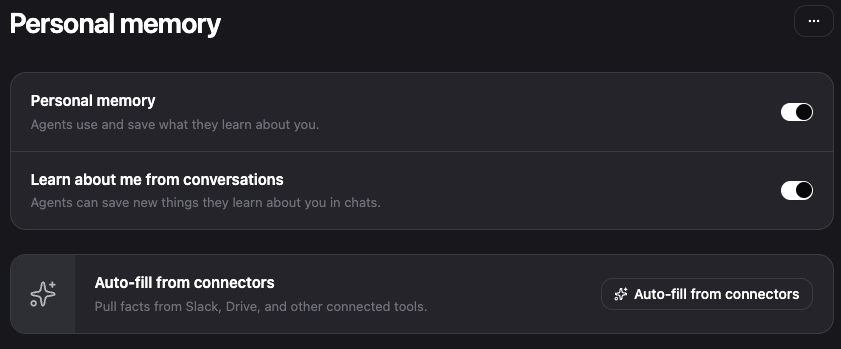
When AgentSpot captures a new memory, it prompts you for explicit consent before saving.
| Your administrator can also turn memory off for the whole organization. When memory is off at the organization level, it stays off for every user. |
The personal memory page, agent memory pages, and admin memory page now display memories grouped by every available topic, so you can browse and manage your full set of memories in one view.