Getting started with AgentSpot
This guide walks you through your first steps, from signing in and exploring existing agents to setting up connectors and building your own agents.
If you are an administrator responsible for setting up AgentSpot for your company, see AgentSpot administration.
Overview
AgentSpot is an AI agent platform integrated with your ThoughtSpot ecosystem. It allows you to use pre-built agents created by your organization, or create your own agents that can read data from and take actions within your business applications.
AgentSpot has three core building blocks:
| Feature | Interaction model | Description |
|---|---|---|
Agents |
Conversational |
Agents respond in real time through conversation. If you have used AI chat tools before, agents will feel familiar. Use agents for active, back-and-forth tasks where you need immediate results. |
Workflows |
Asynchronous |
Workflows are built through conversation but run independently once created. They are deterministic — they behave the same way every time — and can be scheduled to run in the background without manual oversight. Use workflows for repeatable, time-consuming tasks you want to automate. |
Apps |
Build once, share with anyone |
Apps are interactive analytical applications you build through conversation and publish as a shareable, versioned snapshot. Each App bundles live data queries with a generated interface, so viewers always see results drawn from current data when they open it. Use Apps when you want to turn an analysis into something others can open and interact with to get answers to their business questions, without needing to recreate it. |
Before you begin
Make sure you have the necessary permissions to access AgentSpot. To confirm, contact your ThoughtSpot administrator.
To sign in, your user account must have one of the following privileges:
| Privilege | Access level |
|---|---|
Can access AgentSpot |
Standard access — browse and use agents shared by your organization. |
Can manage AgentSpot |
Administrator access — includes all standard access plus the ability to manage connectors, org memory, and organization-wide settings. |
If you are unsure which privilege you have, contact your ThoughtSpot administrator.
Activating your account
If you were invited to AgentSpot, your invitation email includes an activation link. The first time you follow that link, you land on the activation screen, where you set a password before entering AgentSpot.
To activate your account, do the following:
-
Open the activation link from your invitation email.
-
Confirm the username shown on the screen — it is the email address you were invited with and cannot be edited here.
-
In Create password, enter a password that meets all of the listed requirements:
-
At least 8 characters long
-
At least one lowercase letter (a-z)
-
At least one uppercase letter (A-Z)
-
At least one number (0-9)
-
At least one special character (for example
!,#, or&)Your password also cannot contain your name or email address.
-
-
Click Start building.
Once your password is accepted, AgentSpot signs you in and takes you to the app.
| If the activation link is incomplete or cannot be verified, AgentSpot shows a message under the button. Use the most recent link from your invitation email, or contact your ThoughtSpot administrator if the problem continues. |
Signing in to AgentSpot
-
Sign in to your Org in your ThoughtSpot instance.
-
Go to the Insights tab and click AgentSpot in the left-hand navigation (just below Home and Spotter).
-
Sign in with the same credentials you use for your ThoughtSpot instance.
The onboarding journey
When you sign in for the first time, the home page shows a Get started with these easy steps section with a quick introduction video. You can go back to the onboarding at any time by going to your user menu, and selecting Revisit onboarding.
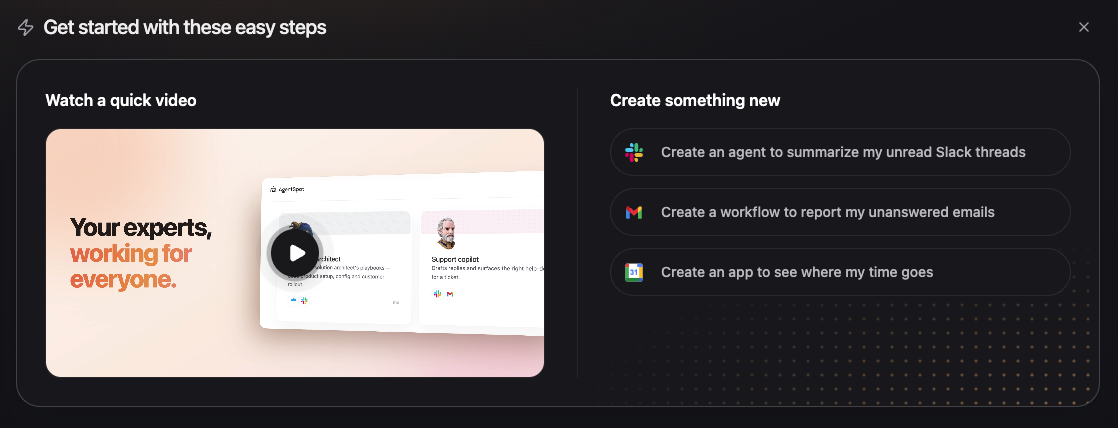
From the onboarding section, you can choose one of two paths:
-
Watch a quick video: Watch an overview of AgentSpot and how it works.
-
Create something new: Build a new agent, workflow, or app using one of the suggestions.
| AgentSpot may ask you to pick a persona that best describes your role. If you completed onboarding before persona selection was available, AgentSpot asks you to pick one the next time you sign in. |
Where to go after onboarding
After onboarding, you can either explore existing agents to see what other users have created to get ideas on what you could create, or go ahead and create your own.
Start with agents created by your org (recommended)
As your getting started, ThoughtSpot recommends for you to browse existing agents built by members of your Org.
These agents are already configured for your organization’s data and use cases, giving you a useful starting point before building an agent of your own.
From the AgentSpot home page select Browse existing agents and select one to start a conversation.
For details, see Using an agent in AgentSpot.
Create your own agent
If you have a use case that is not covered by your organization’s existing agents, you can create your own agent or workflow from scratch.
For details, see Creating an Agent in AgentSpot.
AgentSpot home page
The next time you sign in to AgentSpot after onboarding, you see the AgentSpot home page.
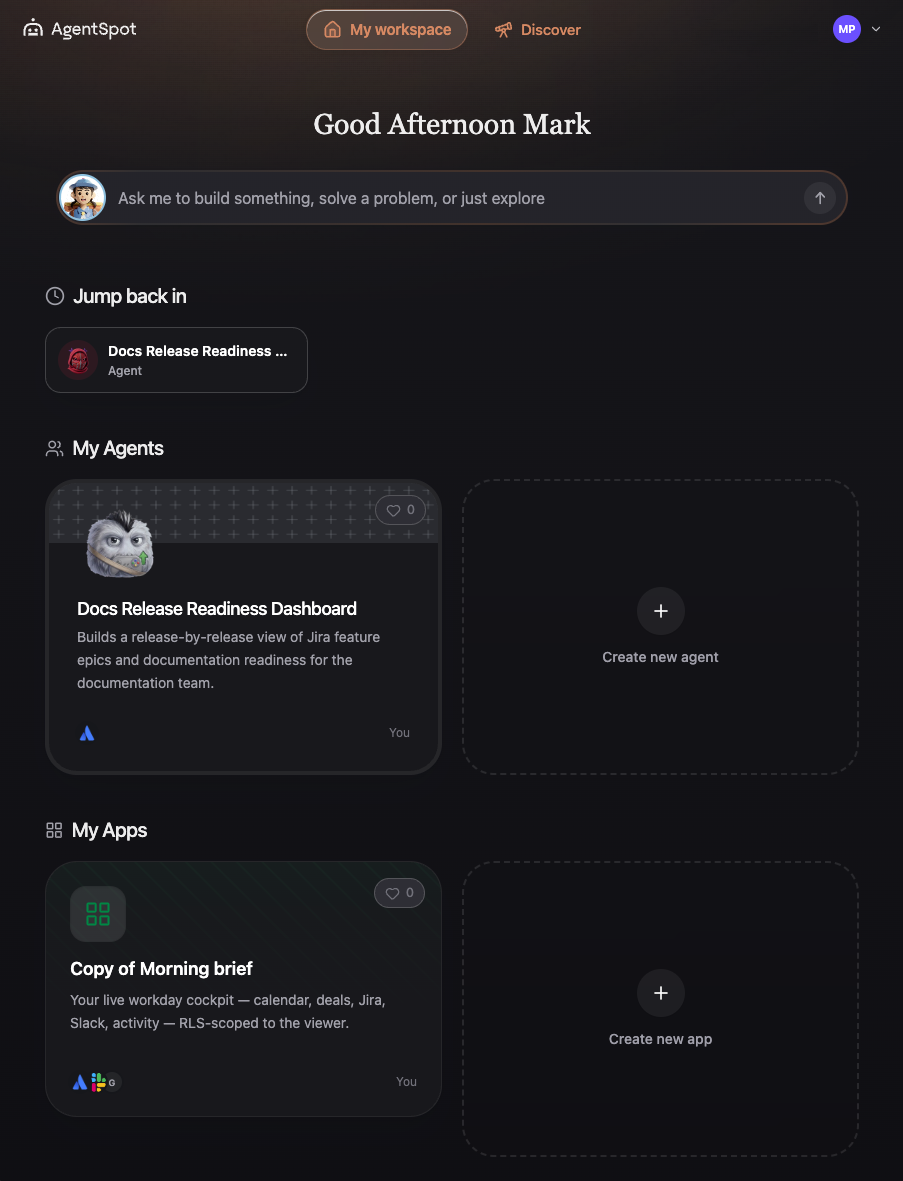
On the home page, you can:
-
Browse and use agents and apps available in your organization
-
Create a new agent
-
Access workflows you have created
-
Create a new workflow
The option to create Apps appears only when the feature is enabled for your organization.
The home page is organized into two views, accessible from the header navigation tabs:
-
My workspace: Your own agents, workflows, and Apps, along with items you visited recently so you can jump back in. It also suggests template ideas you can build from; click View more ideas to see additional suggestions.
-
Discover: The agents, workflows, and Apps shared across your organization, ranked by how much people in your org actually use and like them, so the most adopted work appears first.
In the upper-right corner, your user menu provides access to the following:
-
Connectors: where you can manage connection to external services your agents can access
-
Skills: where you can create, share, and manage reusable skills for your agents
-
Personal memory: where you can view and edit the context your agents remember about you across all of your conversations
-
Learning Center: where you can watch video tutorials and demos of AgentSpot
-
Community: where you can open the AgentSpot community
-
Visit ThoughtSpot: where you can open your ThoughtSpot instance directly.
-
Time zone: where you can choose the time zone AgentSpot uses for workflow schedules, run times, credits, audit logs, and chat timestamps
-
Switch to light/dark mode: where you can select different display modes for AgentSpot
-
Revisit onboarding: where you can go back to the initial onboarding page
-
Logout: where you can sign out of AgentSpot
If you are an administrator, you will also see  Admin Settings next to your user menu.
If your organization has enabled the Default Agent feature, you also see a conversation interface on the home page where you can start chatting with your organization’s primary agent immediately.
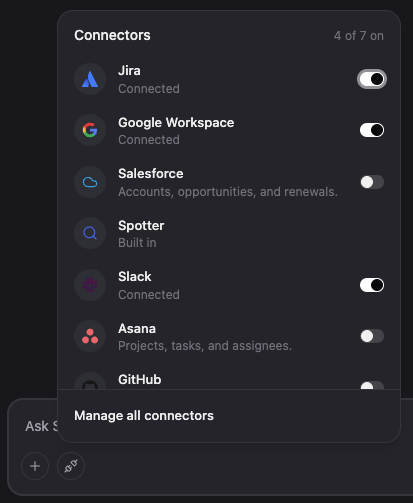
The Default Agent works with your own connectors: when a request needs one of your connected apps, it acts on that app directly instead of only pointing you to another agent. A connectors menu in the chat box lists the available connectors with their icons and short descriptions, and shows how many of them are turned on. You can enable or disable specific connectors, if needed.
Setting up your connectors
After exploring the home page, set up your personal connectors. Connectors link AgentSpot to external services such as Slack or Google Workspace, giving your agents additional context and enabling them to take actions on your behalf — such as sending messages or creating tickets.
To set up a connector, do the following:
-
In the upper-right corner, click your user menu and select Connectors.
-
Browse the list of connectors available in your organization.
-
On the connector you want to add, click Connect.
-
Sign in to your account for that application.
-
Review the requested permissions and click Authorize.
The connector is now active and available to your agents.
| The connectors available to you are determined by your administrator. If a connector you need is not listed, contact your ThoughtSpot administrator. |
If you can’t sign in or don’t see any agents, contact your AgentSpot administrator.
| If you have been using another AI tool such as ChatGPT or Claude, you can import your existing context into AgentSpot in under two minutes. See Import context from another AI tool. |
Where to go next
-
To learn how to use an agent, see Using an agent in AgentSpot.
-
To learn how to create an agent, see Creating an Agent in AgentSpot.
-
To learn how to create a workflow, see Creating and managing a Workflow in AgentSpot.
-
To learn about apps and how to use them, see Using an App in AgentSpot
-
To learn how to create an app, see Creating an App in AgentSpot