Creating and managing a Workflow in AgentSpot
Learn how to create and manage workflows to automate your repeatable, time-consuming tasks.
If you find yourself manually checking the same applications every morning or every week, that task is a good candidate for a Workflow.
Agents vs. workflows
Before building, it helps to understand how agents and workflows complement each other:
| Feature | Description |
|---|---|
Agents |
Think of these as people. They have personalities and specific expertise (for example, SEO, design, or sales support), and you interact with them through conversation to get specialized help. |
Workflows |
Think of these as tasks. These are automated, repeatable processes (for example, a morning briefing or deal monitor) that run in the background to handle recurring work and data synthesis. |
Workflow concepts
Every Workflow in AgentSpot is built on three core concepts:
-
Trigger: Workflows run on a schedule. You decide how often the Workflow runs (for example, every morning at 8:00 AM).
Event-based triggers (for example, a new ticket appearing in ServiceNow) are planned for a future release.
-
Sub-agents: A Workflow is a team of specialized sub-agents, each focused on one tool or data source. Sub-agents run in parallel to process tasks as efficiently as possible.
-
Output: The final action the Workflow takes, such as posting a summary to a Slack channel or sending an email.
Creating a new Workflow
-
On the AgentSpot home page, scroll to the bottom and click Create new Workflow.
The Workflow builder opens — it works the same way as the agent builder.
The builder shows the name of the Workflow you are building, and you can use the back control to return to the page you came from.
-
In the prompt field, describe the task you want to automate in plain language.
Example 1. Example promptEvery morning, look at my meetings from yesterday, find the transcripts, check my emails, Slack, and Jira, and help me prioritize what to work on. Suggest draft responses for common questions. Then look at today’s meetings — for customer-facing meetings, get external context on the company and check relevant Slack channels. Send a short summary to my Slack channel and a detailed brief in Canvas.
-
Answer any clarifying questions the builder asks, such as which Slack channel to post to or how to identify a specific type of meeting.
Some questions are presented as a set of choices you select from — pick a single option, or several where the question allows it — and you can always type your own answer instead. Other questions are open free-text.
The builder uses your answers to configure the Workflow correctly.
AgentSpot also applies smart defaults where it can.
-
Review the sub-agents the builder creates in the canvas.
The builder breaks your Workflow into specialized sub-agents, each focused on one tool or data source. Where possible, sub-agents run in parallel to process tasks efficiently. The final sub-agent synthesizes all results into a human-readable output.
You can click any sub-agent to review or edit its instructions and connectors.
-
Set a schedule for the Workflow. Enter the time and frequency you want the Workflow to run. Options include hourly, daily, weekly or monthly.
AgentSpot displays times, including Workflow schedules and run times, in the time zone you select in your profile or header settings. -
Click Save.
Testing and scheduling
Before activating your Workflow, run a test to verify it is working as expected.
-
Click Test run.
-
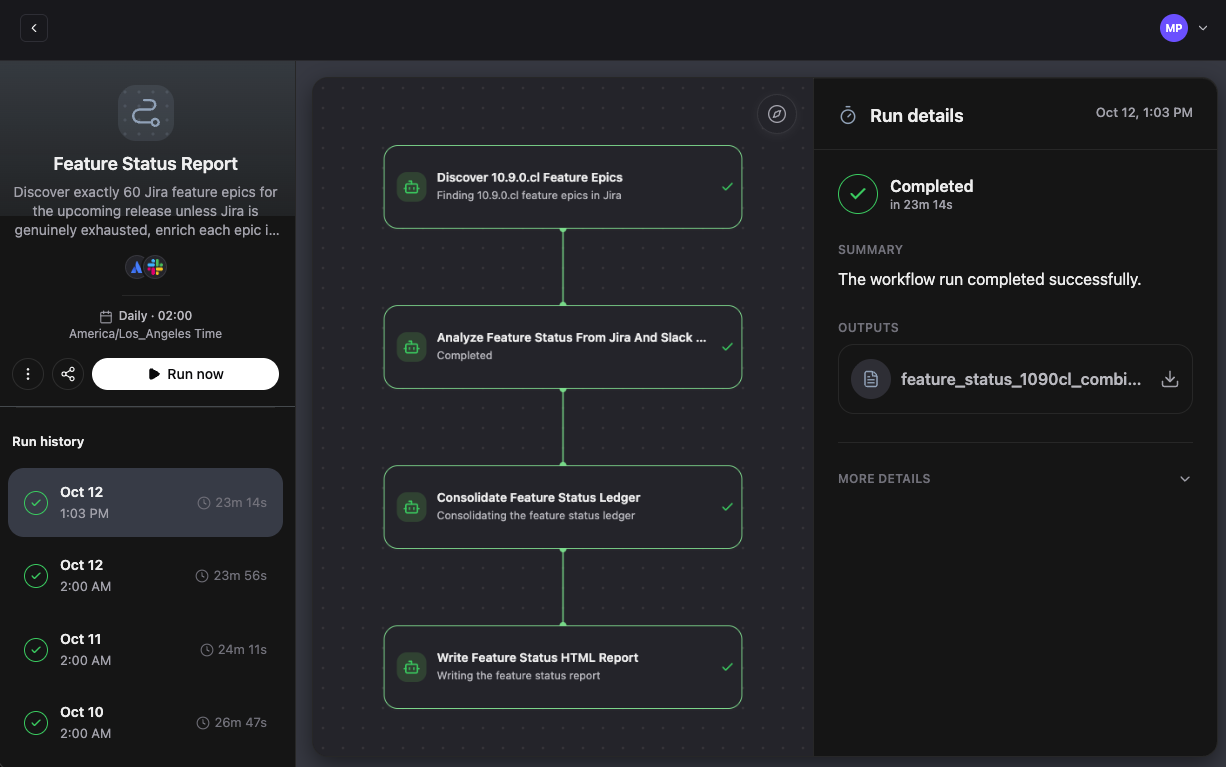
Monitor progress in the canvas. The Workflow moves through each sub-agent in sequence. The left panel shows run history; the center panel shows the full Workflow graph; the right panel shows details for the currently selected step.
-
Review the output. AgentSpot shows you exactly what would have been sent to your output channel.
-
If the results look correct, the Workflow is active and will run on the schedule you set.
Managing existing workflows
Your workflows appear in the My Workflows list on the AgentSpot home page.
Click any Workflow to open it. The Workflow view has three panels:
-
Left panel: Run history. View past runs to verify the Workflow is performing as expected.
When a run finishes, AgentSpot examines the completed run and shows a pass (Green circle) or fail (red circle) verdict for it.
-
Center panel: Workflow graph. Shows the full orchestration — every sub-agent and the connections between them.
-
Right panel: Run details. Click any step in the graph to see its status, duration, when it started, and when it ended.
When a run finishes, the run details also show a structured recap of the run’s results, and the Workflow graph shows how the run moved through each step and connection, including conditional and loop paths. A per-workflow connector health check is also visible.
Reconnecting a failed connector
If a connector used by your Workflow fails — for example, because your connection expired — the Workflow run page shows the problem and lets you reconnect the connector directly from there, without leaving for the Connectors page.
After you reconnect, run the Workflow again to confirm it completes.
Stopping a running Workflow
You can stop a Workflow run that is still in progress. While a run is pending, queued, or still running, the Run now / Run again button in the Run details panel is replaced by a Stop button.
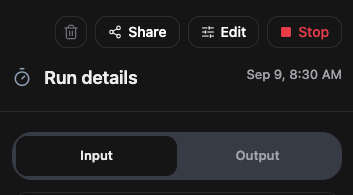
To stop a running workflow, do the following:
-
In the Run history panel, select the run you want to stop.
-
In the Run details panel, click Stop.
-
In the confirmation window, click OK to stop the Workflow run.
Editing a Workflow
Workflows are designed to be iterated on. After reviewing your results, you can refine the Workflow at any time.
-
In the workflows list, find the Workflow you want to update.
-
Click Edit.
The builder reopens with the full history of your previous conversation.
-
Continue chatting to describe the changes you want — for example, adjusting the output format or adding a new data source.
-
Click Save when you are satisfied with the changes.
-
Run a test to verify the updated Workflow behaves as expected.
Expect to iterate. It typically takes a few refinement cycles to get a Workflow producing exactly the output you want.
| You can start a new test or Workflow run without waiting for a currently running Workflow to finish. |
Sharing a Workflow
You can share a Workflow with other people in your organization. When someone opens a shared Workflow, they rebuild it in place from that shared prompt, so they get their own copy configured for their access rather than a link into yours.
To share a Workflow, do the following:
-
From the AgentSpot home page, find the My Workflows section and click your Workflow to open it.
-
In the right panel of your Workflow, click Share.
-
In the Add a person menu, select one or more people to share your Workflow with.
-
Click Save shares.
Each Workflow card also shows a heart with a like count. Click the heart to like a Workflow you find useful, and click it again to remove your like — the same likes model used for agents and Apps.