AgentSpot administration
Learn the essential steps for an administrator to set up AgentSpot for their team.
Setting up AgentSpot
To set up AgentSpot, complete the following steps in order. Completing setup before adding end users ensures AgentSpot is ready for new users when they sign in for the first time.
-
Set up roles and groups in ThoughtSpot: Create the roles and groups your users will need, but do not add end users to the groups yet. For details, see Managing users.
-
Configure connectors in AgentSpot: Sign in to AgentSpot and enable the connectors your organization will use. For details, see Managing connectors.
-
Set up org memory: Add your organization’s key facts and behavioral rules so that all agents and workflows share consistent context from the start. For details, see Org memory.
-
Create and share agents: Set up agents and share them with your team so end users have a useful starting point. For details, see Creating an Agent in AgentSpot.
-
Add end users to their groups in ThoughtSpot: Once setup is complete, add users to the groups you created in step 1. For details, see Managing users.
Managing users
To add users to AgentSpot, you must do the following in your ThoughtSpot instance:
-
Create a role with AgentSpot privileges.
-
Add your role to a group.
-
Add users to your group, as needed.
There are two primary AgentSpot privileges you can assign to a role:
| Privilege | Description |
|---|---|
Can manage AgentSpot |
Full administrative access to manage connectors, agents, and organization-wide settings |
Can access AgentSpot |
Access to AgentSpot to use shared agents |
| Users can only access AgentSpot after they have been assigned a role containing one of these privileges. |
Creating a role with AgentSpot privileges
To create a role with AgentSpot privileges, do the following:
-
Sign in to your ThoughtSpot instance.
-
Go to the Admin tab.
-
Under the Admin tab, click Roles.
-
Click Create role.
-
In the Create role window, enter a Role name and description.
-
Click AgentSpot Control.
-
Select one or more AgentSpot privileges for your role.
-
Click Review selection.
-
Review the role name, description, and admin controls.
-
When you are ready to save your role, click Save.
-
Create additional roles as needed.
Adding your role to a group
To add your role to a group, do the following:
-
Under the Admin tab, click Groups.
-
Click the More options
 menu associated with the group and select Edit.
 -
In the Select roles section, select the checkbox for the role(s) you want to add and click Review selection.
-
Review the roles you added and make changes, if needed.
-
When you are ready to save your group, click Save.
Adding users to a group
| When setting up AgentSpot for your organization, make sure you configure connectors, set up org memory, and create and share agents before adding end users to AgentSpot groups. For more information, see Setting up AgentSpot. |
To add a user to a group, do the following:
-
Under the Admin tab, click Users.
-
Click the More options
menu associated with the user and select Edit. -
In the Edit user window, select the group which you want to add the user to and click Save.
After you set up your AgentSpot users, you are ready to log in to AgentSpot and add connectors. For details, see Managing connectors.
| After users are added to a group with an AgentSpot privilege, they must refresh their browser while on the Insights tab of their ThoughtSpot instance before the AgentSpot option appears in the navigation. |
Admin Settings
In the Admin Settings page you can view and manage the AgentSpot workspace. It is organized into the following sections:
-
Connectors: Manage connectors to different applications. See Managing connectors.
-
Slack bot: Enables two-way communication between Slack users and AgentSpot AI agents — without leaving Slack. See Slack bot.
-
Usage: View the overall usage of AgentSpot. See Monitoring usage.
-
Users: View details about AgentSpot users. See Monitoring users.
-
Audit log: View a chronological list of logged events. See Audit log.
-
Org memory: Add and manage the shared facts and rules that ground all agents and workflows in your organization. See Org memory.
Managing connectors
Connectors allow AgentSpot to interact with external applications like Jira, Slack, and Clay.
As an administrator, you have the authority to:
-
Add or remove connectors: for your entire organization.
-
Test before sharing: Activate a connector for yourself to verify it works before making it available to all users.
In the  Admin Settings > Connectors page, you can see the list of Available Connectors. Once you add a connector, it appears in the list of Already Added connectors near the top of the page.
|
New connectors are added on a regular basis. Check the Admin Settings > Connectors page for the current list.
|
Requirements for adding a connector
-
You must know the URL of the MCP server for the external application you are connecting to. For details, refer to the documentation for the external application.
-
Your company must have a license for the external application.
-
You must have access to that external application.
Adding a connector
AgentSpot ships with native connectors for popular applications, listed under Available Connectors. If you want to connect to an external application that is not included, you can add it using a custom connector.
To add a connector, do the following:
-
Sign in to AgentSpot.
-
Click
Admin Settings in the upper-right corner. -
Under the Connectors tab, do either of the following:
-
For an available connector: In the box for the connector, click Add.
-
For a custom connector: Click + Custom Connector.
-
-
In the Register window, do the following:
-
For Connector Name, do either of the following:
-
For an available connector (Optional): A name is already provided, but you can change it if you want.
-
For a custom connector: Create a name for your connector.
-
-
For Server URL, enter the connector’s MCP server URL. (Refer to the product’s documentation for that.)
-
(Optional) For Transport Type, select either of the following:
-
Streamable HTTP (Default and recommended)
-
Server-Sent Events (SSE)
-
-
(Optional) Enter a Description.
-
(Optional) Choose an Authentication method.
-
(Optional) Enter a Client ID (or leave it empty for auto-registration)
-
(Optional) Enter a Client Secret (or leave it empty for PKCE flow)
-
Click Register Connector.
-
|
Some connectors, such as Google Workspace and Microsoft 365, are platform-native and do not require an MCP server URL. These connectors may prompt for administrator consent or OAuth authorization instead of the registration form described above. |
Sharing a connector with your organization
When you add a connector, it is private to administrators by default. It does not appear in the connector list for non-admin users until you share it. This lets you register and test a connector before rolling it out. Right after you add a connector, AgentSpot also prompts you to share it.
In the Already Added list, each connector row shows its availability and lets you change it:
-
Share to all: Click Share to all on a private connector and then click Share to confirm. At that point, it is available to every user in your org. Once shared, the row shows a Shared badge.
-
Make private: From the connector’s actions menu
, select Make private and then click Make private to confirm you want to withdraw the shared connector. A connector that is made private is no longer accessible to non-admin users.
| Making a connector private removes it from non-admin users' connector lists. Existing agents that depend on it may no longer be able to use it until it is shared again. |
Managing a connector’s tool permissions
Each connector exposes a set of tools that agents can call. As an administrator, you can review and control which of a connector’s tools are authorized for use in your organization.
To manage tool permissions for a connector, do the following:
-
Go to
Admin Settings > Connectors. -
In the Already Added section, click the More options
menu associated with the connector and select Manage tool permissions. -
In the Manage tool permissions window, specify which tools you want to allow or block. You can specify individual tools or all tools.
-
Click Done.
Tool authorization is enforced centrally, so a tool that is not authorized cannot be called by any agent in your organization.
Custom connectors
If an application is not in the list of available connectors, you can add it using a custom connector. Provide the URL for the MCP server and complete the setup to enable any compatible tool. Refer to the documentation for the product you want to connect for its MCP server URL.
User authentication and security
Connectors use each user’s existing credentials for the target application. When an admin enables a connector, each user must complete a one-time OAuth sign-in to authorize AgentSpot to act on their behalf. AgentSpot respects all existing permissions within the target app — users can only access data and perform actions they are already authorized to access in that application.
When an admin enables a connector (e.g., Jira), each user must log in with their individual credentials. AgentSpot respects all existing permissions within the target app; users will only see data and perform actions they are already authorized to access.
Slack bot
The AgentSpot Slack bot lets users interact with their agents from Slack. Once an admin connects a Slack app and connects a channel to an agent, anyone in that channel can @mention the bot and receive agent responses in the same thread.
Setup crosses back and forth between Slack and AgentSpot. The order matters, and AgentSpot states it directly on the page: use the event request URL in Slack, then verify the app before connecting channels.
Here’s what it supports:
-
Interact with AI agents directly in Slack
-
@mention an agent in a Slack channel thread to ask it questions or trigger tasks
-
The agent processes your message and replies back in the same Slack thread
-
Works in public channels, private channels (with appropriate permissions), and direct messages (off by default, but the admin can opt-in).
-
Before you begin
-
You need permission to create and install a Slack app in your workspace. Scope changes may require workspace-admin approval.
-
You need admin access to AgentSpot (Admin Settings)
-
At least one agent must already exist, and be ready to connect.
-
Channel connections support both public and private channels. The bot must be invited to a channel before it can be connected. A disclosure checkbox is required when connecting any channel; the text adapts to show whether the selected channel is public or private. Direct messages are off by default, but an admin can set a default agent for direct messages.
Part 1: Create the Slack app from a manifest
-
Go to slack.com.
-
Click the Your Apps button in the top right corner of the page.
-
Sign into your Slack account if prompted.
-
In the Slack API console, click Create New App, then choose From a manifest under "Or start your own way."
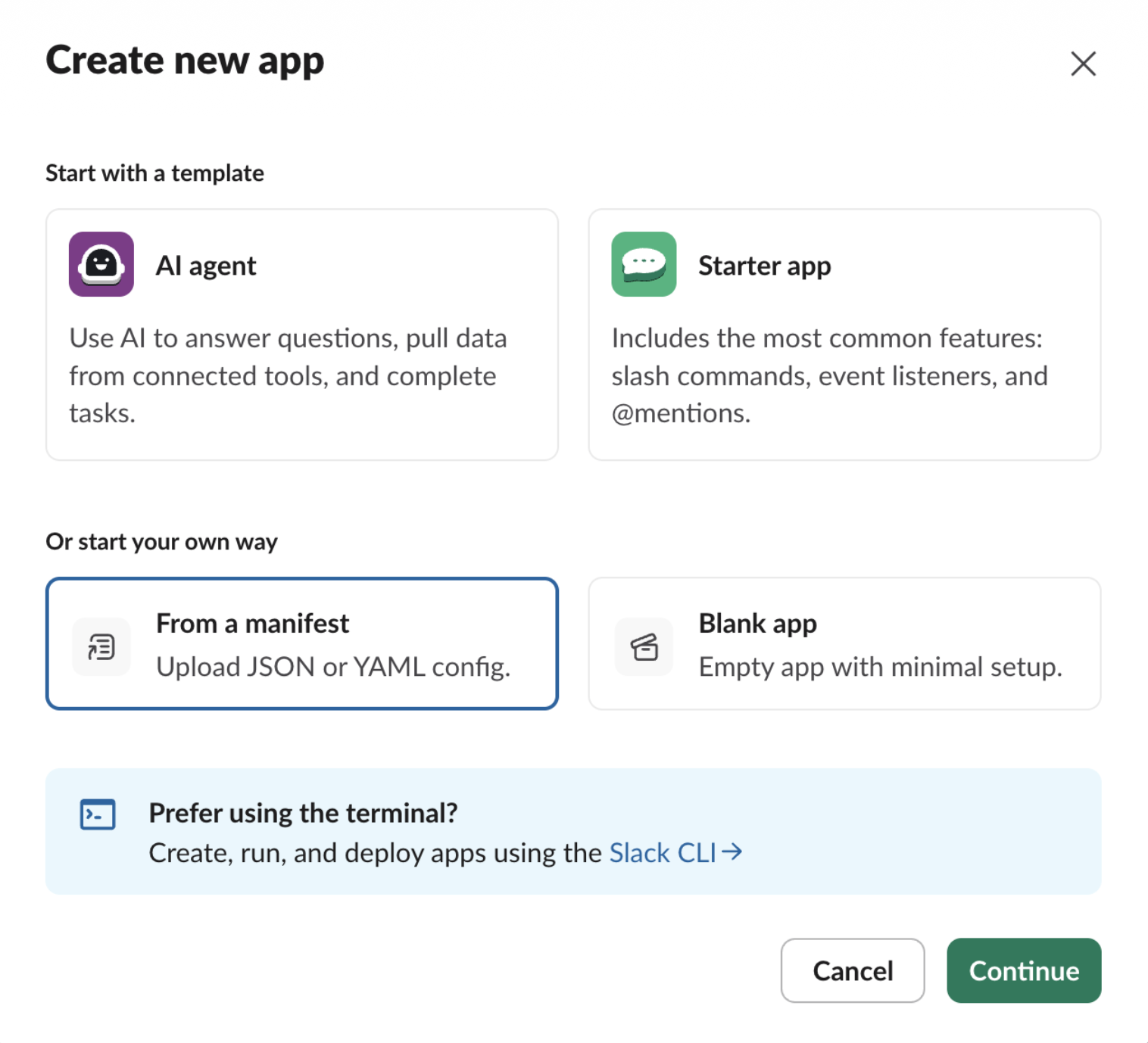
From a manifest accepts JSON or YAML files.
Starting from a manifest sets the bot profile, scopes, and event subscriptions in one shot, which avoids the missing-scopes failure entirely.
|
Socket Mode hides the Request URL
This manifest ships with |
{
  "display_information": {
    "name": "AgentSpot",
    "description": "Ask your AgentSpot agents questions directly in Slack.",
    "long_description": "AgentSpot brings your ThoughtSpot agents into Slack. Mention the bot in any channel it has been invited to and it replies in the same thread, so your team can ask questions, pull data, and trigger tasks without leaving the conversation.",
    "background_color": "#0d0e0f"
  },
  "features": {
    "app_home": {
      "home_tab_enabled": false,
      "messages_tab_enabled": true,
      "messages_tab_read_only_enabled": false
    },
    "bot_user": {
      "display_name": "AgentSpot",
      "always_online": true
    }
  },
  "oauth_config": {
    "scopes": {
      "bot": [
        "app_mentions:read",
        "canvases:read",
        "channels:history",
        "channels:join",
        "channels:read",
        "chat:write",
        "files:read",
        "files:write",
        "groups:history",
        "groups:read",
        "im:history",
        "im:read",
        "lists:read",
        "mpim:history",
        "reactions:write",
        "users:read.email",
        "users:read"
      ]
    },
    "pkce_enabled": false
  },
  "settings": {
    "event_subscriptions": {
      "bot_events": [
        "app_mention",
        "message.channels",
        "message.groups",
        "message.im",
        "message.mpim"
      ]
    },
    "org_deploy_enabled": false,
    "socket_mode_enabled": true,
    "token_rotation_enabled": false
  }
}
Rename agentspot and the slash command to suit the integration.
Part 2: Copy the credentials
As soon as the app is created and installed, Slack shows a " <app-name> is ready!" dialog with Your app credentials. This is the easiest place to grab the bot token. The eye icon reveals it, the copy icon copies it.
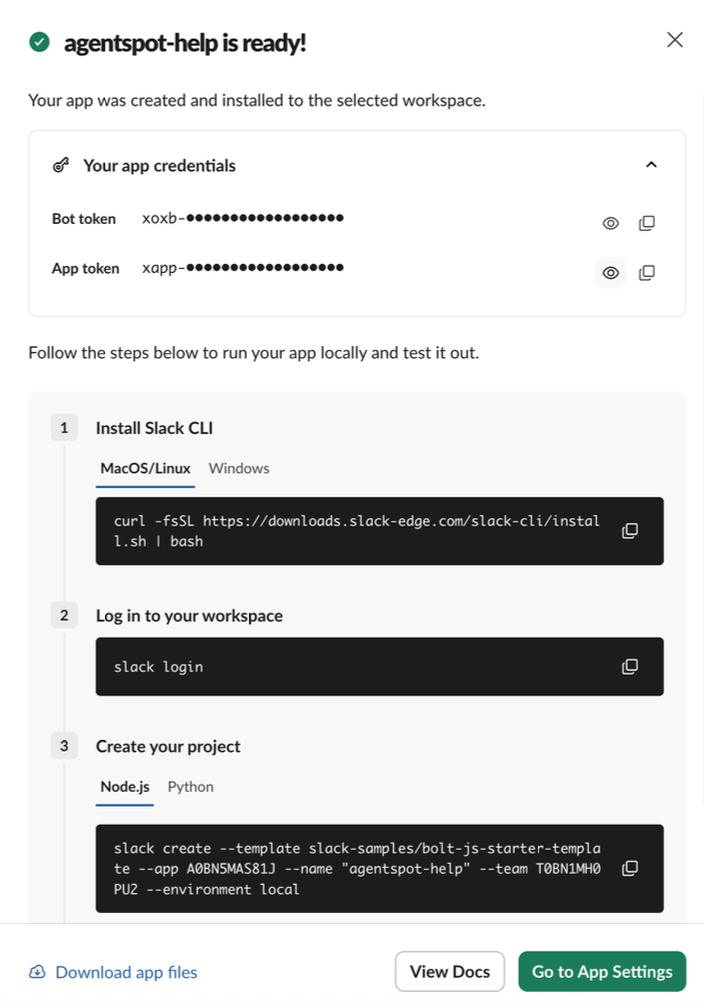
Shown immediately after creating the app from a manifest. Copy the Bot token here.
-
In the Your app credentials section, copy the Bot token and save it to a text file or other document.
About the App tokenThe xapp-… App token is generated because the manifest sets
socket_mode_enabled: true. AgentSpot’s Admin UI does not ask for it. It only needs Bot token, Signing secret, and App ID. Ignore it unless you are building a Socket Mode app of your own. -
Go to Basic information > App Credentials and copy both App ID and Signing Secret and paste them into a text file or some other document. You’ll need to copy and paste each one in another step.
Value Where in Slack Format Bot token
"is ready!" dialog, or OAuth & Permissions > OAuth tokens
xoxb-…App ID
Basic Information > App Credentials
A…Signing Secret
Basic Information > App Credentials
Hex string
A Client Secret is not the Bot token.A Client Secret is a plain hex string and is the wrong value. The Bot token field rejects anything that is not a valid xoxb- token and save it in a text file or other document.
If you dismiss that dialog, or need the token again later, go to OAuth & Permissions > OAuth Tokens:
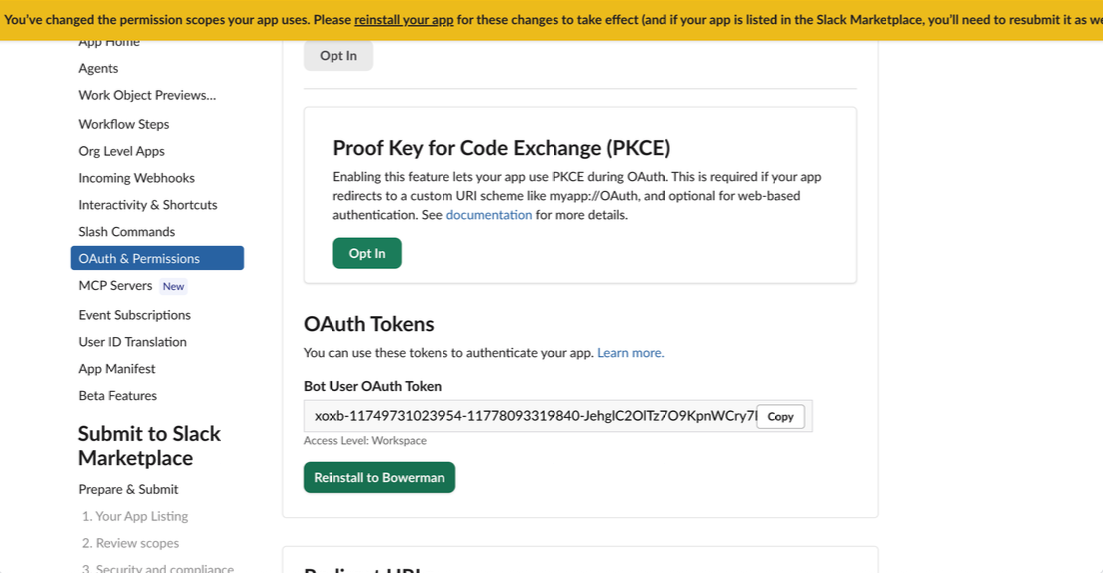
Any time you change scopes a yellow banner appears (as shown in the above image), prompting you to reinstall. You must reinstall your app before the token picks the scopes, and reinstalling reissues the token.
Part 3: Add the Slack app in AgentSpot
-
In AgentSpot, go to
Admin Settings > Slack bot and click +Add Slack app. -
Paste in the Slack app ID, Signing secret, and Bot token.
Name in Slack API Name in AgentSpot admin settings App ID
Slack app ID
Signing Secret
Signing secret
Bot User OAuth Token
Bot token
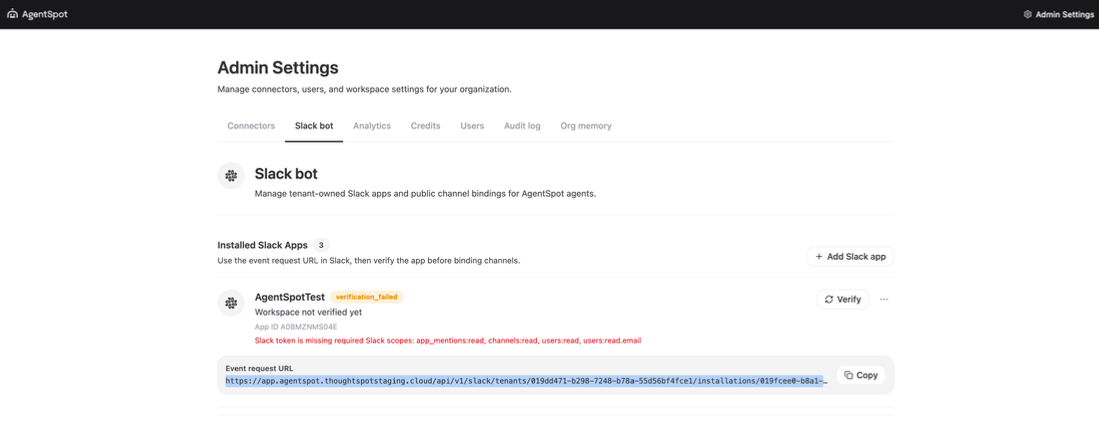
New apps start as
verification_failedwith "Workspace not verified yet", This message remains until Parts 4 and 5 are done.Once saved, the app appears under Installed Slack Apps with a status badge, its App ID, and an Event request URL. The URL is unique per installation and follow this format:
https://app.<tenant>.thoughtspot.cloud/api/v1/slack/tenants/<tenantId>/installations/<installationId>
Part 4: Paste the Event request URL into Slack
Copy the Event request URL from the app’s row, then in the Slack API console go to Event Subscriptions:
-
Toggle Enable Events to on.
-
Paste the Request URL and wait for Slack to show Verified. Copy it exactly, with no trailing white space. It must begin with
https://. -
Under Subscribe to bot events, confirm
app_mentionis listed. The manifest adds it, but be sure to confirm it is listed.
If verification fails and the URL is definitely correct, then it is an endpoint issue. In that case, contact ThoughtSpot support.
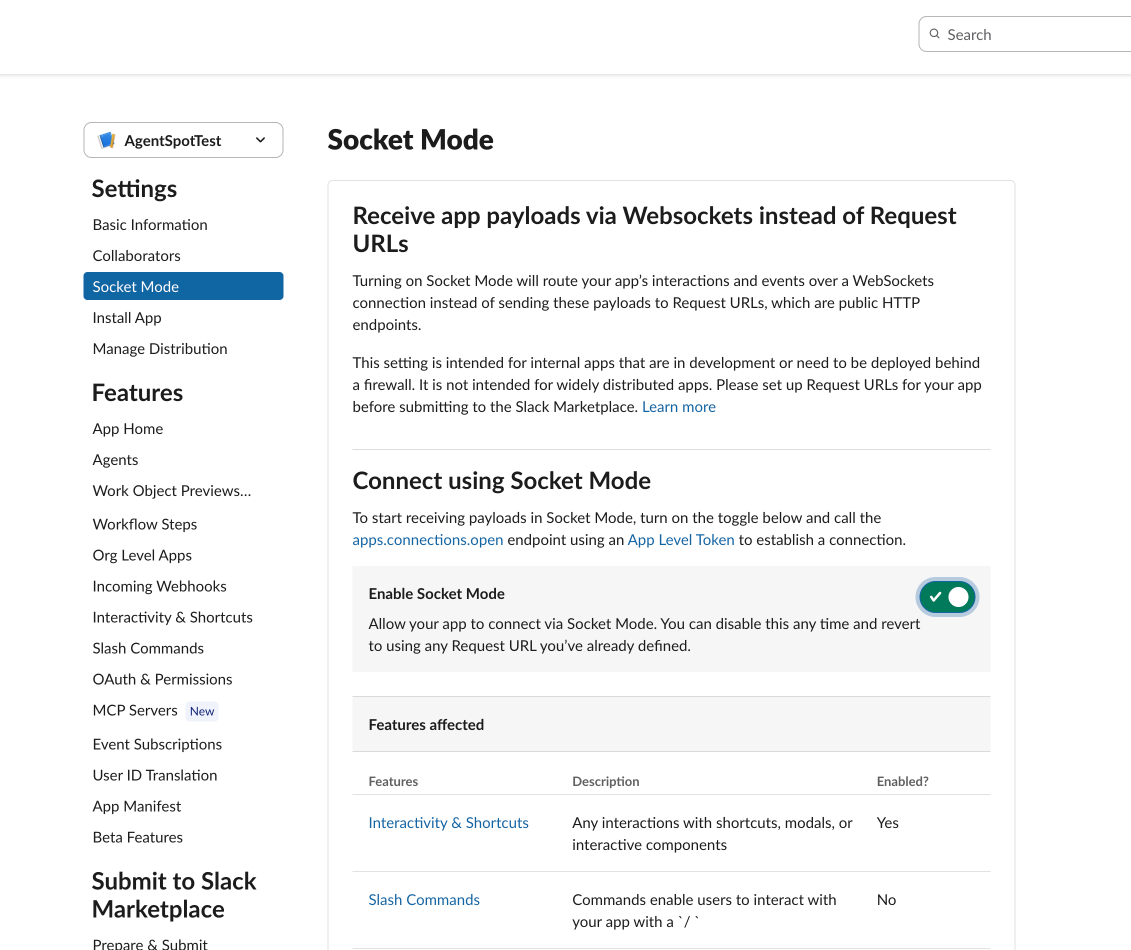
Part 5: Disable Socket Mode
-
In the Slack API dashboard, go to the Socket Mode tab and turn off the Enable Socket Mode toggle under Connect using Socket Mode.
Part 6: Invite the bot, then connect a channel
-
In Slack, in the target channel run this command:
/invite @your-bot-name -
Back in AgentSpot, reload the
Admin Settings > Slack bot page. -
In the left sidebar, select the Slack app you want to configure.
-
In the Channel connections section, click Connect channel.
-
In the dialog, do the following:
-
Select the channel from the dropdown.
Channels are marked as public (with
#prefix) or private (with a lock icon). Channels where the bot is not a member are disabled — invite the bot first, then click Refresh channels. -
Select the agent from the dropdown.
-
Select the disclosure checkbox.
The disclosure text adapts to the selected channel type. For any channel, it confirms that thread context will be sent to AgentSpot for authorized users; for a private channel, it additionally discloses that private thread context may be sent.
-
Click Connect channel.
-
Part 7: Test
-
Mention the bot in the connected channel. The agent replies in the same thread.
Test at the top level of the channel first rather than inside an existing thread. It rules out a whole class of ambiguity if something is wrong.
Required scopes
AgentSpot enforces a minimum set and names the missing ones in the error. The following are mandatory:
app_mentions:read, channels:read, users:read, users:read.emailThe full manifest grants 16. Trim to least privilege for your actual flows, because excess scopes raise operational and security risk.
| Purpose | Scopes | Needed when |
|---|---|---|
Core mention and reply |
|
Always. |
Channel listing and joining |
|
Always. |
Private channels |
|
Connecting a private channel to an agent. |
Direct messages |
|
Setting a default agent for DMs. Off by default; admin can opt in per app. |
Group DMs |
|
Group DM support is not available in this UI. |
Slash command |
|
Using |
Files |
|
Agent handles file uploads or outputs. |
Reactions |
|
Bot acknowledges with emoji. |
Troubleshooting
Every failure in this flow is silent. You get a disabled control or a generic status, never an explanation. These are the four, in the order that they occur.
- Slack token is missing required Slack scopes
-
Adding scopes does not grant them to an existing token. Slack shows a yellow banner reading "You’ve changed the permission scopes your app uses. Please reinstall your app for these changes to take effect."
-
Open OAuth & Permissions > Bot Token Scopes and confirm the scopes are under Bot, rather than User. They are two separate columns.
-
Click Reinstall to <workspace>.
-
Copy the new Bot User OAuth Token. Reinstalling reissues it, so the one in AgentSpot is now stale.
-
Update the Bot token in AgentSpot, save, then click Verify again.
-
- Bot is connected but never replies
-
When the bot is connected but never replies, it can be caused by any of the following:
-
The signing secret is incorrect.
-
Socket mode is enabled.
-
Event Subscriptions are not enabled.
-
The Slack API needs to be reinstalled.
Recommended next steps:
-
Make sure the signing secret is correct. AgentSpot signature-verifies every inbound event, so a stale or mistyped signing secret means events arrive and are silently rejected. This produces exactly this symptom. For details, see Part 2: Copy the credentials.
-
Make sure Socket Mode is disabled, see Part 1: Create the Slack app from a manifest.
-
Make sure Event Subscriptions is enabled, the URL shows Verified, and
app_mentionis subscribed. If there is no Request URL field at all, Socket Mode is still on. -
If the app was reinstalled after adding the event, Event subscriptions in Slack must be reinstalled.
-
The Slack email matches the AgentSpot email. That is what
users:read.emailis for. An unmatched sender is dropped. -
The user has agent access. Slack does not widen access. Only users who already have the agent in AgentSpot can trigger it.
In AgentSpot use
Admin Settings > Audit log to split the problem. If nothing is logged it means Slack is not sending, so check causes 1 and 2. Logged but no run means AgentSpot is rejecting, so check causes 3 through 5. -
- Connecting overwrites an existing one
-
Channel to agent mapping is 1:1. Connecting a channel that is already connected replaces the previous agent. This is why connecting channels is admin-only.
You can monitor high-level metrics including the following:
-
Total active users
-
Number of conversations
-
Connector usage frequency
The page also shows top agents, workflows, and apps by usage, plus total and failed run counts over the selected time range.
Monitoring users
The Users page allows you to view detailed information about users in your AgentSpot organization.
It provides the following information:
-
Users: Number of total users
-
Name
-
Email address
-
Role: Member or Admin
-
You can download a .csv file containing a complete list of AgentSpot users, including User ID, Name, Email, and Role by clicking  Export.
|
To add or remove AgentSpot users, you must go to Admin Settings > Users in your ThoughtSpot instance.
|
Audit log
The audit log page displays a chronological list of logged events, most recent first.
Each entry shows:
-
Time: Month, day, year and time (based on user’s timezone)
-
Actor: Firstname, lastname, and email address of the user
-
Action: Specific action performed
-
Resource: Which resource was used (for example, a tool call or workflow)
Org memory
Org memory is the shared set of facts and behavioral instructions that AgentSpot applies across all agents and workflows in your organization. Setting up org memory early in the setup process ensures that every agent your team builds or uses starts with accurate, consistent organizational context — without each agent needing to be individually configured with the same information.
| Seed org memory before creating agents or adding end users. Agents built on top of a well-configured org memory require less individual instruction and behave more consistently across your organization. |
Verified facts vs. instructions
Org memory is organized into two types of entries:
| Type | Think of it as… | Description |
|---|---|---|
Verified facts |
Grounding truths |
Org-wide reference values every agent trusts and checks its own answers against before replying. Verified facts help agents reason correctly when they encounter numbers, names, or terms that should match known values. For example, if an agent retrieves a revenue figure that does not match the fact you provided, it will flag the discrepancy and ask for clarification. |
Instructions |
Behavioral recipes |
Rules every agent in this org should follow on every reply — data to scope or skip, formatting, and defaults. Instructions define how agents should behave in specific situations — including boundaries, approval steps, and standard operating procedures. For example, an instruction might specify that outbound customer emails require human approval before being sent, or define the steps your organization follows for competitive intelligence research. |
What to include in org memory
The following table lists suggested categories of information that are most valuable to include. Org memory entries are free-form; these categories are guidance rather than UI-mandated fields.
| Category | Examples |
|---|---|
Company basics |
Company name, legal name, industry, headquarters locations |
Financial context |
Annual revenue, fiscal year start date, quarter definitions |
Products and services |
Product names, descriptions, and which ThoughtSpot data models are associated with each |
Key metrics and acronyms |
Definitions for internal metrics, abbreviations, and terminology used across teams |
Technology stack |
Names of key tools, platforms, and systems in use |
Instructions and procedures |
Standard operating procedures, approval requirements, and behavioral boundaries for agents (for example, "Exclude test accounts from all reports" or "Outbound customer emails require human approval before sending") |
Adding org memory
To add facts and instructions to org memory, do the following:
-
Sign in to AgentSpot.
-
Click
Admin Settings in the upper-right corner. -
Select the Org memory tab.
-
Click inside the field for Verified facts, Instructions, Terminology, or Playbooks, depending on the type of entry you are adding.
-
Enter your content.
Org memory entries support Markdown formatting. You can use tables, lists, and headings to organize content within a single entry. -
Click the checkbox to save your changes.
-
Repeat for each type of memory information that you want to add.
You can review, edit, and correct individual entries at any time by clicking directly into them.
Memory and learning switches
The Org memory tab includes two independent controls that manage how memory functions across your organization:
| Switch | Behavior |
|---|---|
Memory for your organization |
When enabled (default), agents and workflows can read from and write to org memory for all users. When disabled, agents stop accessing org memory entirely, acting as an organization-wide kill switch. This setting overrides individual user preferences. |
Auto-learning |
When enabled, AgentSpot automatically extracts reusable facts and instructions from completed agent sessions and surfaces them as candidate entries in org memory. You review each candidate and explicitly approve it before it is added. When disabled, only entries you manually add to org memory are stored. |
Both switches are independent. Disabling Memory for your organization does not disable Auto-learning, and vice versa.
|
Disabling Memory for your organization removes org memory context from all agents and workflows for all users. Existing agents that rely on org memory context may produce inconsistent or less accurate results until the switch is re-enabled. |
Auto-learning
The Org memory page includes an Auto-learning toggle that, when enabled, automatically extracts reusable instructions from completed agent sessions.
Updating org memory over time
Org memory is not a one-time configuration. As your organization evolves, you can update facts and instructions directly in the UI.
In addition, as your organization uses AgentSpot, the system can identify recurring facts and instructions from agent conversations and connected applications (such as Jira, Slack, and Confluence). These are surfaced as candidate entries for you to review and add to org memory. Only items you explicitly approve are added.