Add a filter to a Model
| Worksheets are now referred to as Models. |
You can add filters to a Model to limit the data users can access from the Model.
This is useful when you have underlying tables that store more data than is necessary for the types of analyses the Model is intended for. You can also use Model filters to provide data security, when you want different groups of users to be able to see different data without relying on row-level security.
| Model filters are ignored by the search index. As a result, when searching a Model, you will get suggestions for things even when they are filtered out. |
Note that starting in release 6.2, you can export and import Models with filters using a flat TML file, which allows for optional modification of any Model properties, including filters.
If you are on a release prior to 6.2, you can migrate Models using a flat file format, but you cannot migrate Models with filters.
Refer to Migrate and restore objects to add a filter to a Model through the TML file.
To add a filter to a Model through the user interface:
-
Select Data in the top menu bar, find your Model, and click its name.
-
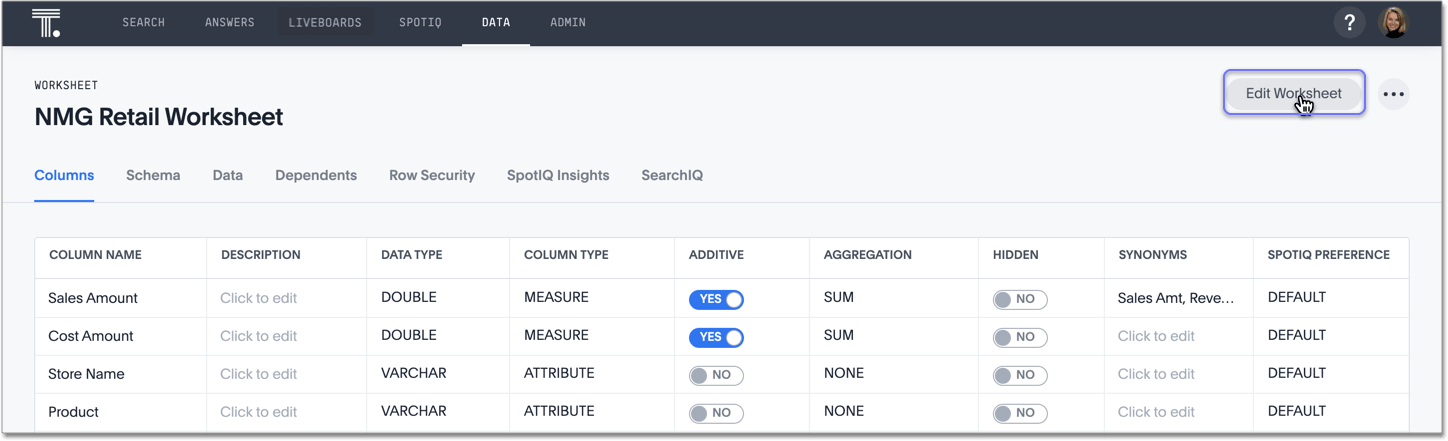
Select the Edit Model button.
-
Hover over Filters on the left menu and select +.
-
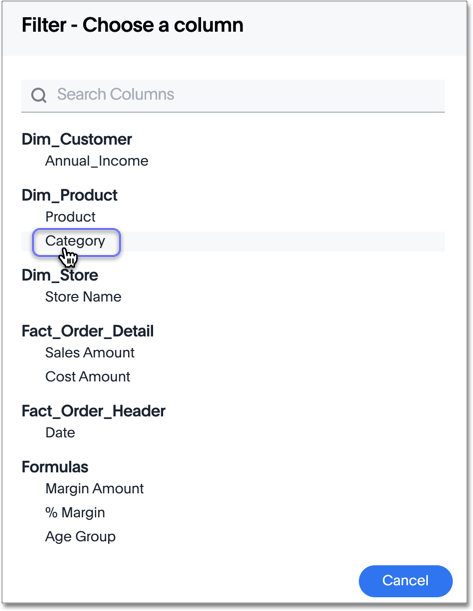
Choose the column you want to filter on.
-
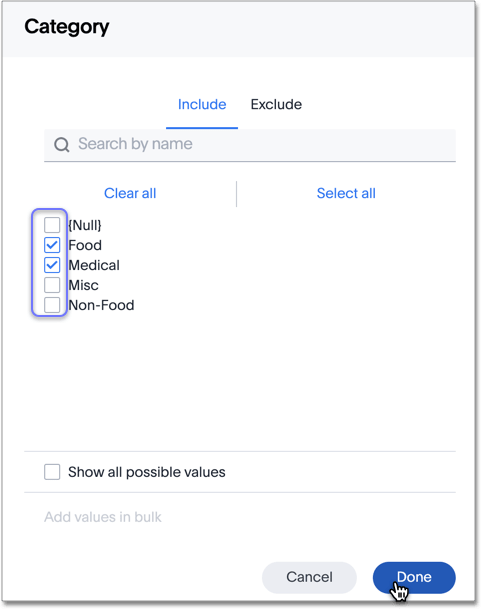
Select the values to include in your answer.
-
If you want to exclude values, select Exclude and choose values to exclude.
-
Select Done.
If there are too many values, you can use the filter search bar to find the ones you want.
Use aggregate formulas as Model filters
Use an aggregate formula as a Model filter.
This is useful when, for example, you only want your results to show a measure when the related attribute is greater than some number, or vice versa.
You may only want to see sales when the unique customer count is greater than 1, or you may only want to see a customer if the associated sales is greater than 0.
Rather than add that formula to every search, you can create a filter at the Model level.
To add an aggregated formula to a Model, follow these steps:
-
Add the formula to the Model as a filter, as shown in steps 1-7. Instead of choosing a column to filter on, search for and choose your aggregate formula.
-
Specify conditions in which the filter should apply. Here, we have chosen to only display
gross profitwhen it is greater than $1,000,000. The following conditional statements are acceptable:is greater than,is greater than or equal to,is less than,is less than or equal to,is between,is in, oris not in.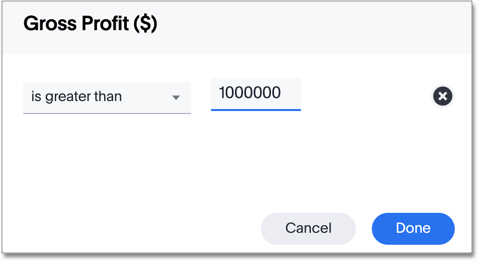
-
Select Done, and save the Model.