Connect to Google BigQuery in Analyst Studio
Supported JDBC drivers and known issues
| Driver | Driver Release Date | Analyst Studio Removal Date |
|---|---|---|
(Recommended) Simba v 1.6.1.1002 |
7/23/2024 |
|
Simba v 1.3.3.1004 |
5/25/2023 |
|
Simba v 1.2.23.1027 |
4/28/2022 |
|
Simba v 1.2.21.1025 |
10/28/2021 |
|
Simba v 1.2.16.1020 |
5/7/2021 |
|
Simba v 1.2.12.1015 |
11/30/2020 |
|
Simba v 1.2.11.1014 |
8/28/2020 |
Analyst Studio recommends connecting via the Simba Big Query driver because it is the official driver endorsed by Google.
The following are known issues with the current supported drivers. Analyst Studio continues to advocate on our customers' behalf for vendors and open-source communities to resolve these issues.
| Driver | Known Issue | Further Details |
|---|---|---|
Simba v 1.3.2.1003 and older |
Nullpointer exceptions |
This driver is known to cause null pointer exceptions (for example, when a table has unicode column names) so will be removed and replaced with the newest version where this issue is fixed. |
Simba v 1.2.23.1027 and older |
Does not support JSON format |
Please utilize 1.3.0.1001 or newer versions to work with JSON data. |
Simba v 1.2.21.1020 |
Read timed out error |
Queries occasionally encounter a read timed out error. |
Simba v 1.2.16.1020 |
DDL/DML commands in comments |
Null pointer exception when using DDL/DML commands (for example, create, update) in single line comments (for example — services created and deleted by month). As a workaround, use the /* */ format. |
Simba v 1.2.16.1020 |
Large queries need the 'bigquery.readsessions.create' permission |
Large queries trigger the Google Storage API, which is free to use for anonymous tables, but requires admins to add the 'bigquery.readsessions.create' to their Google Big Query role associated with the Analyst Studio DB connection. java.sql.SQLException: [Simba] BigQueryJDBCDriver 100210 Error initializing the Storage API. + Message : io.grpc.StatusRuntimeException: PERMISSION_DENIED: request failed:the user does not have 'bigquery.readsessions.create' permission. |
Simba v 1.2.11.1014 |
Nested rows return as objects vs. arrays using Analyst Studio driver |
Utilize UNNEST and ARRAY_AGG to view nested rows as arrays. select author, ARRAY_AGG(title) as title, |
Simba v 1.2.11.1014 |
Batch priority is unsupported |
The specification of job priority is unsupported.
All queries are executed as "interactive" priority, never "batch" priority. |
Simba v 1.2.11.1014 |
Necessary permissions |
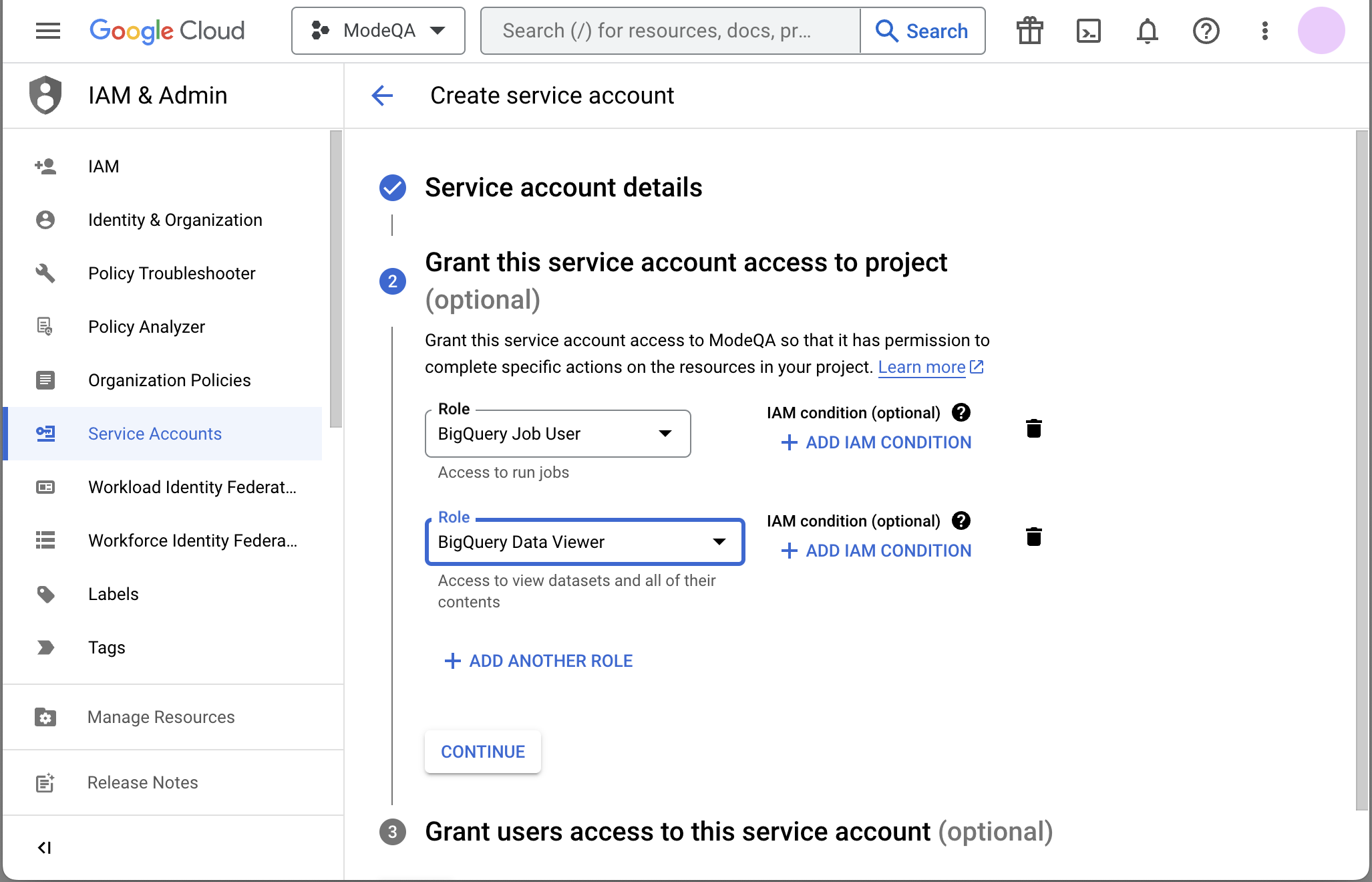
To connect via this driver, the service account should have the roles BigQuery Data Viewer and BigQuery Job User. |
Database configuration instructions
To connect Analyst Studio to your BigQuery project, you will need to create a service account for Analyst Studio to use.
-
Navigate to the Google Developers Console. Before proceeding, click on the dropdown to the right of Google Cloud and select the project to which you want to connect.
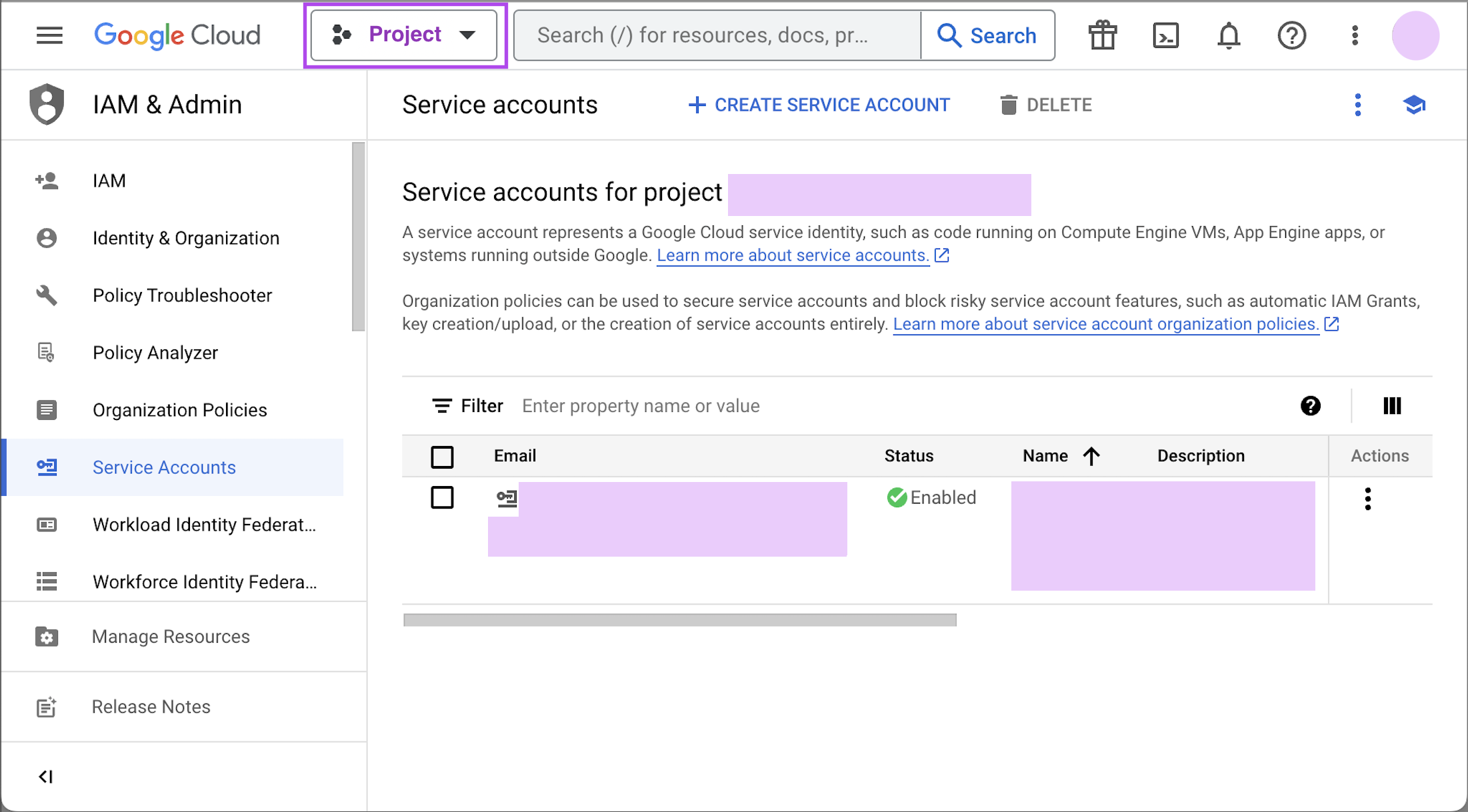
If you do not see the project you would like to connect to listed in the dropdown, click on the account switcher in the upper right corner of the window and ensure you are logged in to a Google account that is a member of the project. -
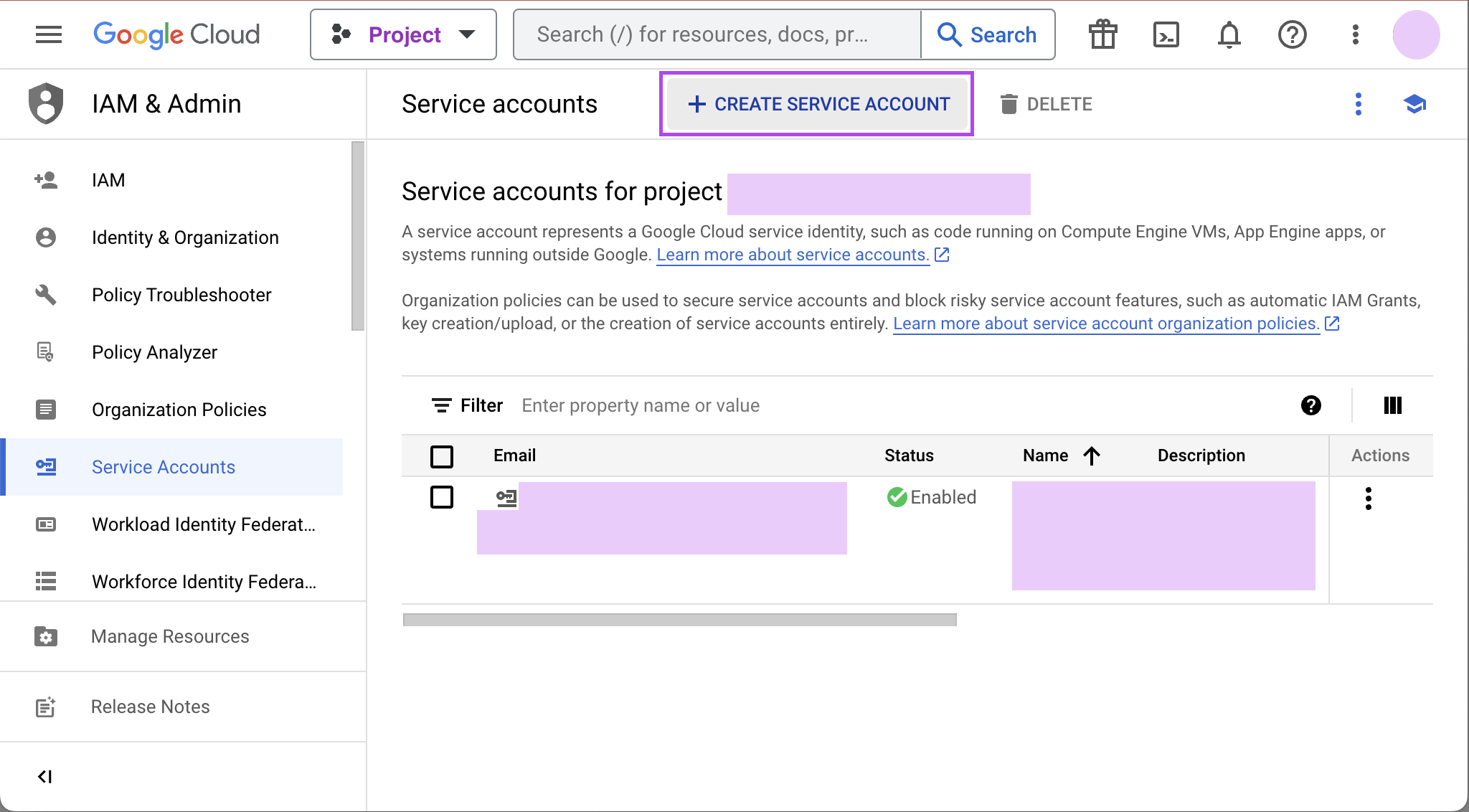
Click on the hamburger menu in the upper left and select IAM & Admin and then Service accounts. Click the Create service account button.
-
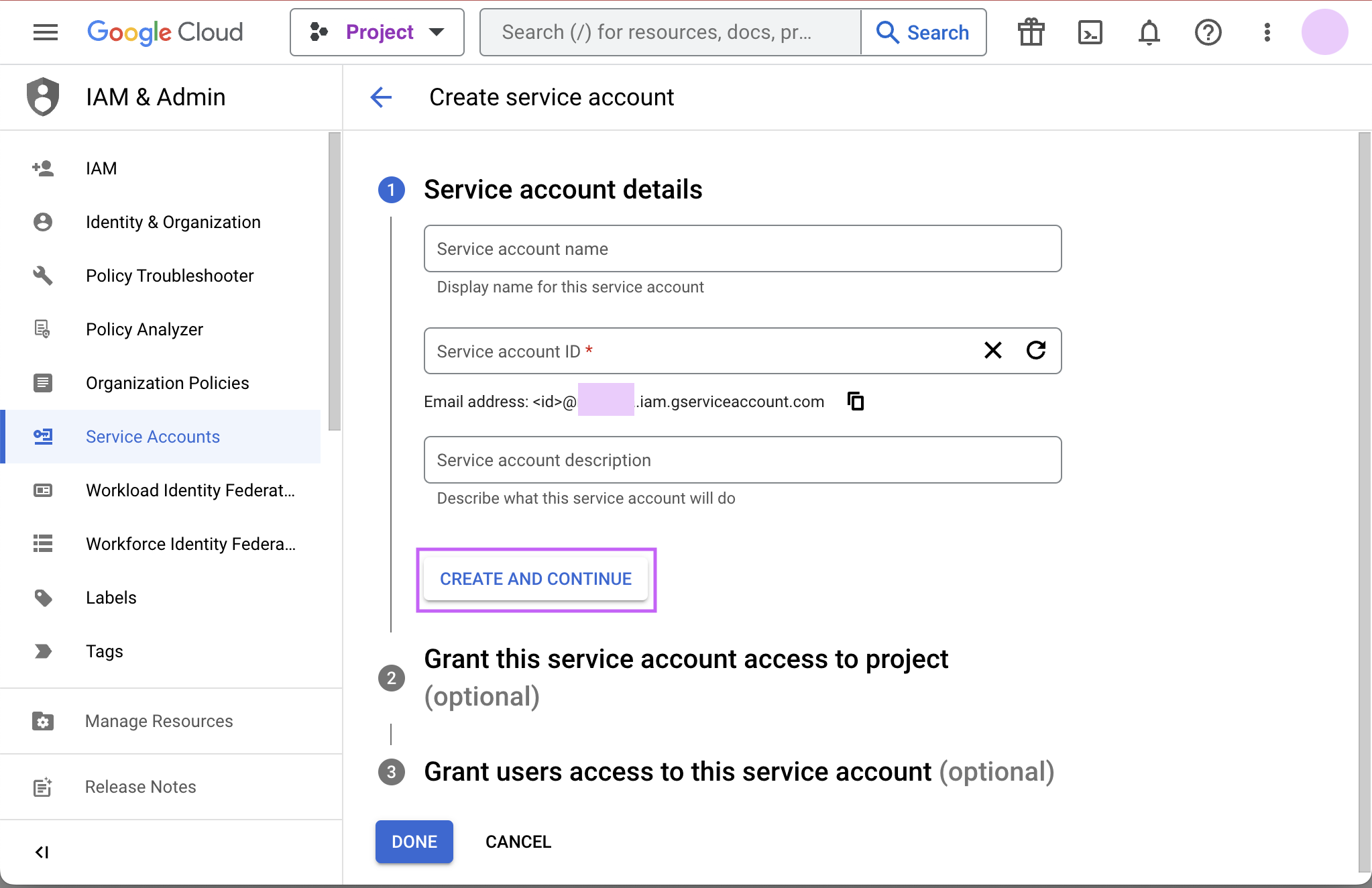
Give your new service account a name, pick a unique ID, and add a description. Click Create and continue.
-
Grant required roles, for example, BigQuery Job User and BigQuery Data Viewer.
-
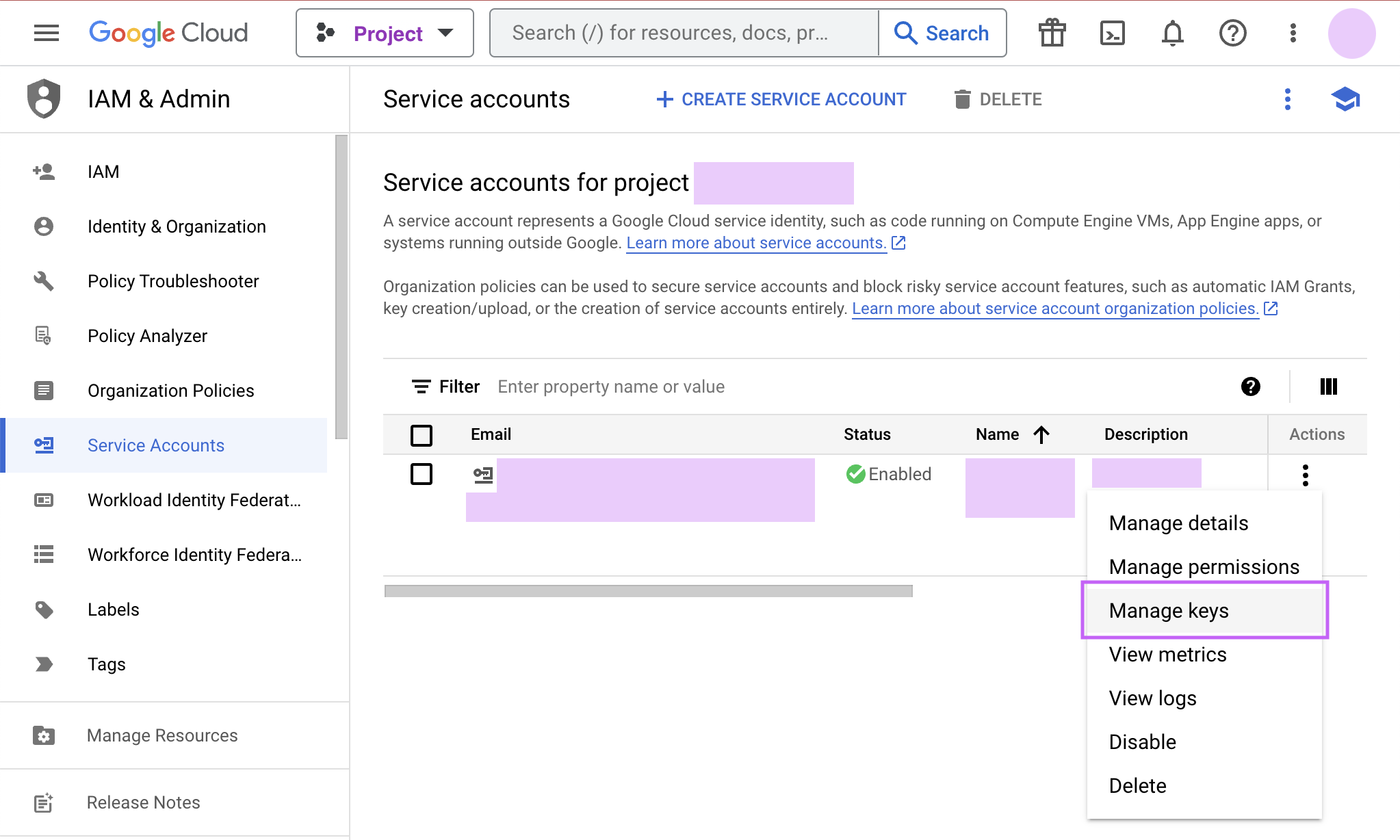
Finally, click Done to create your service account. Now we create the JSON key file. Navigate to Manage keys under the Actions menu for the service account.
-
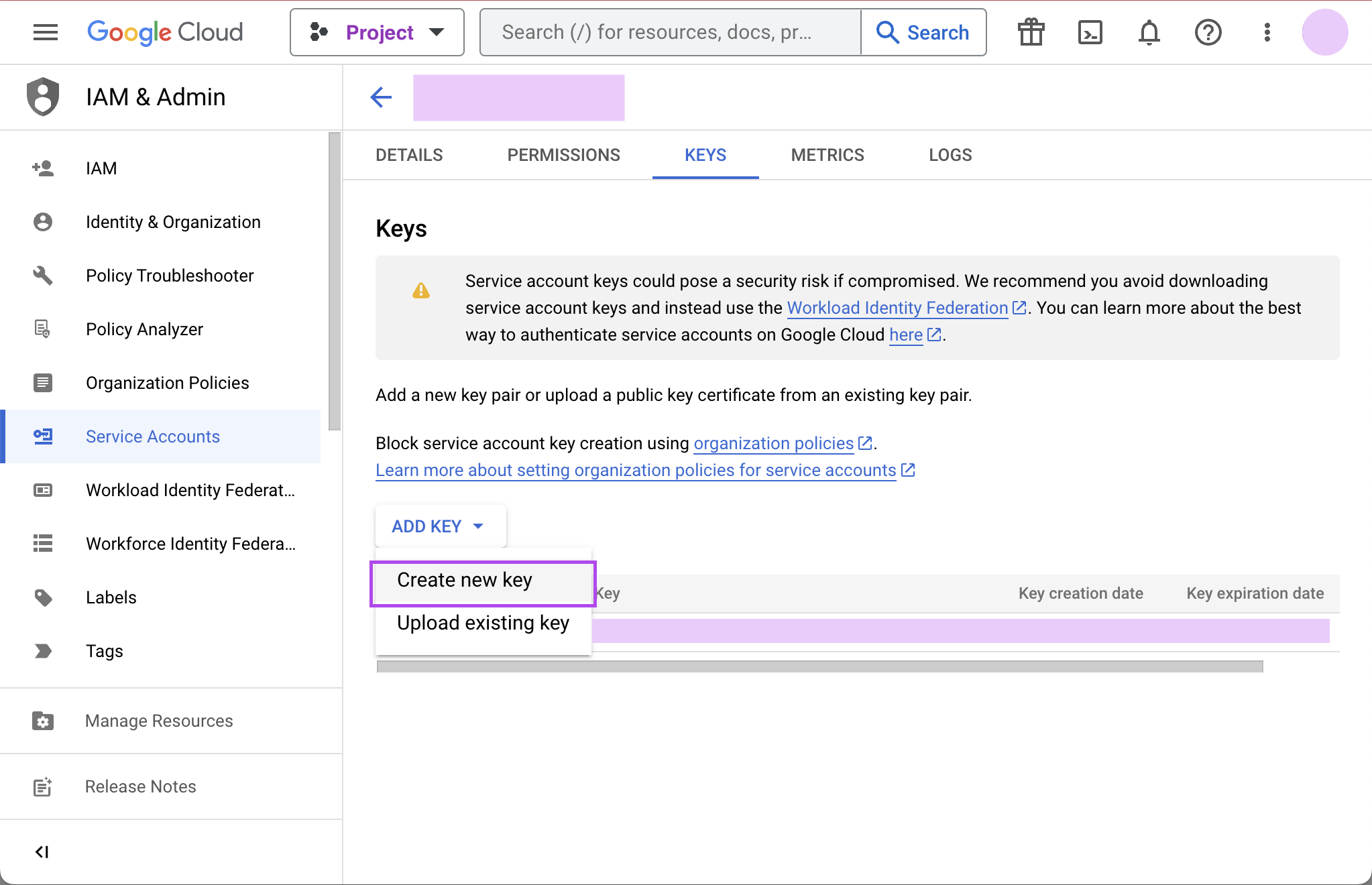
Navigate to ADD KEY > Create new key.
-
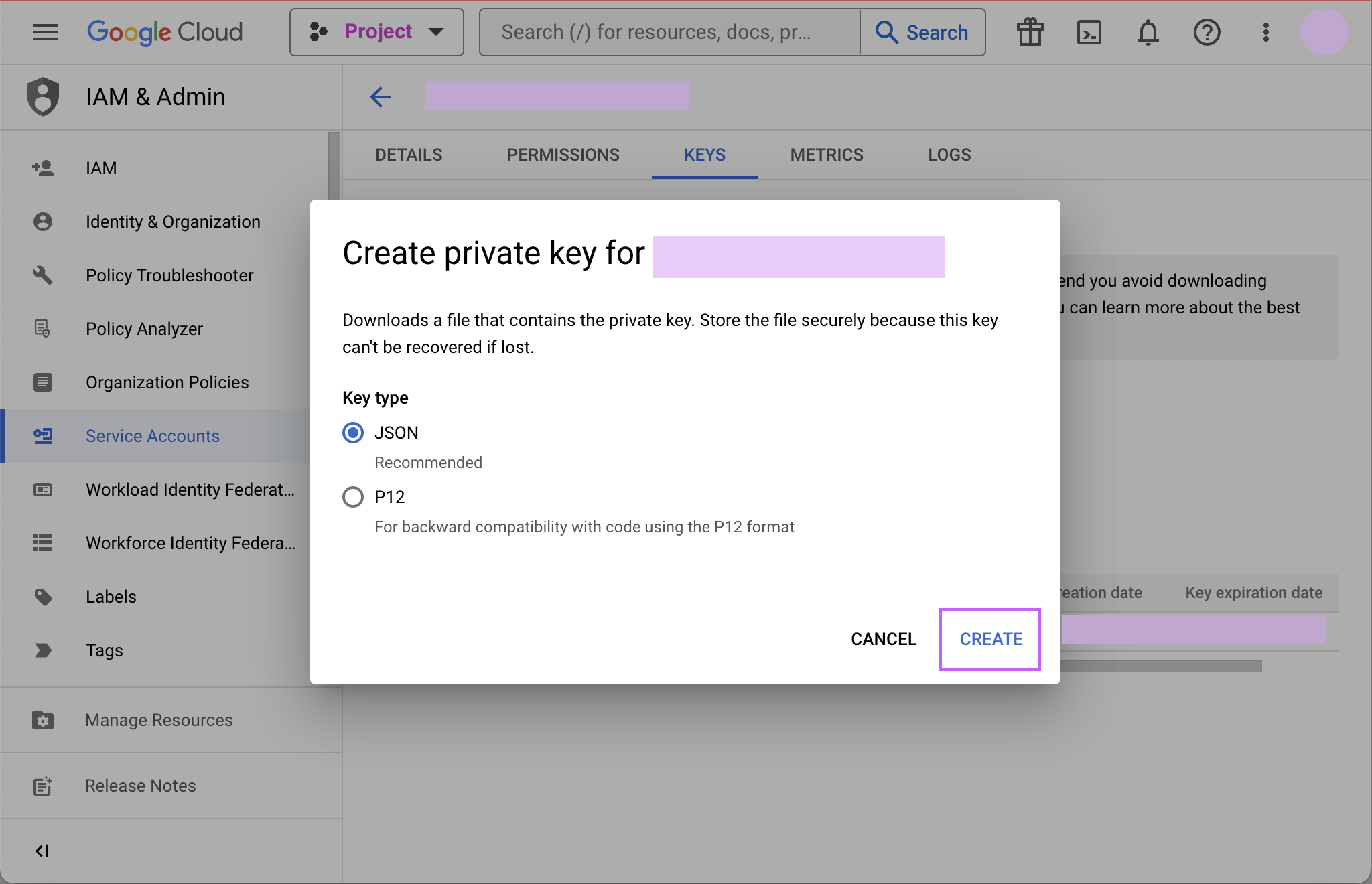
Click CREATE to create and download the JSON key file. Save the private key file to a secure place where you can easily retrieve it when setting up the connection in Analyst Studio.
-
Return to Analyst Studio, and begin the process to connect a BigQuery database. When you see the form to enter your BigQuery credentials, first enter a name (internal to Analyst Studio) for the new database connection.
-
In the Project ID field, enter the BigQuery project ID. It can be found in the URL of your Google Developers Console. The URL should be structured like this:
https://console.developers.google.com/apis/library?project=MY_PROJECT_ID -
In the Service Account Email Address field, add your service account’s email address that you noted in step 3.
-
Under the Key field, click Choose File and select the private key file you downloaded in step 6.
-
Click Connect to complete the connection.
Standard vs. legacy SQL
When connecting to BigQuery, you will choose either legacy SQL or standard SQL as the default SQL dialect for that connection. Most users choose standard SQL, which is similar to industry standard SQL dialects used by other databases.
Regardless of your choice as the connection’s default, users can specify which dialect they would like to use on a query-by-query basis by including either #standardSQL or #legacySQL in the Query Editor.
A Workspace admin can change the default SQL preference of a BigQuery connection at any time by following these steps:
-
Navigate to the Data workspace and select Analyst Studio.
-
Click on your name in the upper left corner of the window.
-
Click Workspace Settings.
-
Under the Data section, click Connections.
-
Click on the BigQuery connection you want to update.
-
In the upper right corner of the page, click on Settings.
-
Toggle standard SQL on or off.
-
Before your settings are updated, you will need to re-upload your service account’s P12 key. Learn more about BigQuery service accounts and P12 keys.
-
Click Save Changes.
Take care when changing the default SQL dialect for an existing connection, as any queries written using that connection that are written in the previous default SQL dialect may no longer work.
Connecting to Analyst Studio
-
Return to Analyst Studio, and begin the process to connect a BigQuery database. When you see the form to enter your BigQuery credentials, first enter a name for the new database connection.
-
In the Project ID field, enter the BigQuery project ID. It can be found in the URL of your Google Developers Console. The URL should be structured like this:
https://console.developers.google.com/apis/library?project=MY_PROJECT_ID. -
In the Service Account Email Address field, add your service account’s email address that you noted in step 4.
-
Under the Key field, click Choose File and select the private key file you downloaded in step 3.
-
Click Connect to complete the connection.
Use BigQuery to query Google Sheets
You can use Analyst Studio to query Google Sheets in BigQuery. The first step, enabling your Google Drive API, only needs to be done once.
-
Enable Google Drive API.
Navigate to the Google Developer Console and select your project from the project dropdown menu. From the left menu, click on Library. Under Google Apps API, click on Drive API to enable the API from that page.
-
Create a table in BigQuery from your Google Sheet.
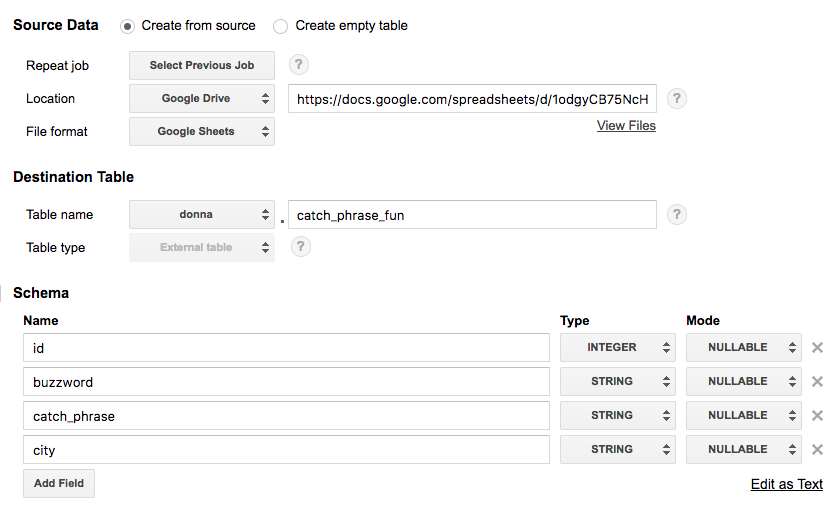
Go to the BigQuery Web UI. In the navigation, hover over a schema name and click the down arrow icon next to the name. Choose Create new table.
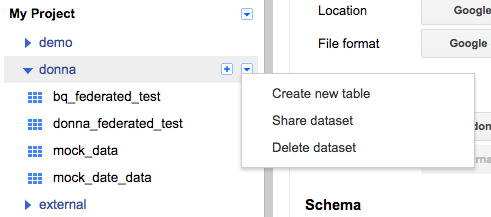
Select Google Drive for the new table’s location and paste the Google Sheet URL (not the shared link, but the actual URL you use to view the Sheet) into this field. Choose Google Sheets as the Format. Then add all the column names and types from your Google Sheet under Schema. Click Create Table when ready.
-
Enable Google Sheets for Analyst Studio Use.
-
For Analyst Studio to query your new table, share your Google Sheet with the service account email address you used to connect Analyst Studio to BigQuery. You can also share folders in your drive with this email address, which will allow Analyst Studio to query every sheet in that folder.
-
To get your service account email address, go to your Google Cloud Console, switch to your Project, and click on Service Accounts. Copy the service account email address you used to connect Analyst Studio to BigQuery.
-
To share a sheet or folder, click Share on the Google Sheet or in the folder, and paste the service account email address into the Share email field.
-
Note that BigQuery schemas don’t refresh automatically in Analyst Studio. To see this table appear in your schema browser, go to Workspace Settings and click Connections under the Data section. Choose your BigQuery connection, and click the green Refresh button in the upper right corner to update the schema browser in Analyst Studio.
-