Connect to Amazon Athena in Analyst Studio
Supported JDBC drivers and known issues
| Driver | Driver Release Date | Analyst Studio Removal Date |
|---|---|---|
Amazon v 3.2.2 |
7/22/2024 |
|
(Recommended) Simba v 2.1.1.1001 |
7/31/2023 |
|
Simba v 2.0.35.1001 |
12/22/2022 |
|
Simba v 2.0.33.1001 |
10/4/2022 |
|
Simba v 2.0.31.1001 |
5/30/2022 |
|
Simba v 2.0.27.1001 |
1/13/2022 |
|
Simba v 2.0.23.1000 |
6/10/2021 |
|
Simba v 2.0.18.1000 |
1/29/2021 |
|
Simba v 2.0.13.1000 |
6/9/2020 |
Analyst Studio recommends connecting via the Simba Athena driver because it is the official driver endorsed by Amazon.
The following are known issues with the current supported drivers. Analyst Studio continues to advocate on our customers' behalf for vendors and open-source communities to resolve these issues.
| Driver | Known Issue | Further Details |
|---|---|---|
Simba v 2.0.27.1001 |
Queries with special characters failing |
Queries with special characters (for example, ‘√ß’ and ‘√Ö’) are failing with String index out of range error. As a workaround, use the previous version of the driver (2.0.23.1000). |
Simba v 2.0.13.1000 |
Requires additional IAM permissions for queries |
This version of the driver requires that the Analyst Studio user’s IAM permissions include the |
Simba v 2.0.13.1000 |
Schema refreshes fail with Null Pointer Exception for external data sources |
Attempts to get or update schemas when Athena is connected to non-Hive (PostgreSQL confirmed) external data sources results in a Null Pointer Exception. For customers whose Athena instance includes external data sources, automatic refresh of the database’s schema data should be disabled and the Analyst Studio Schema Browser will be unable to display data. |
Database configuration instructions
The Analyst Studio user’s IAM permissions must include athena:ListDatabases and athena:ListDataCatalogs.
In addition, ensure that port 444 is open to outbound traffic.
Connecting to Analyst Studio via access keys
-
Follow the steps to connect a database with Direct Connect.
-
Select Amazon Athena from the list of databases.
-
Fill out your AWS region to be formatted like
us-west-2. -
Select Authentication method: Access keys in the Analyst Studio connection form.
-
The AWS Access Key and Access Secret should be for the AWS user you want to connect through. When creating an Athena connection, we recommend creating a user in AWS that only has access to the data you want to query through Athena. For data you want to query, the AWS user only needs read access.
-
The S3 Results Directory should be a bucket where Athena can write query results. For this bucket, the AWS user specified above needs read and write access. The bucket should be a full S3 url (for example,
s3://acme/my/athena/bucket). -
Click Connect. You will land on a page that displays your database schema.
Connecting to Analyst Studio via IAM role
-
Follow the steps to connect a database with Direct Connect.
-
Select Amazon Athena from the list of databases.
-
Fill out your AWS region to be formatted like
us-west-2. -
Select Authentication method: IAM role in the Analyst Studio connection form.
-
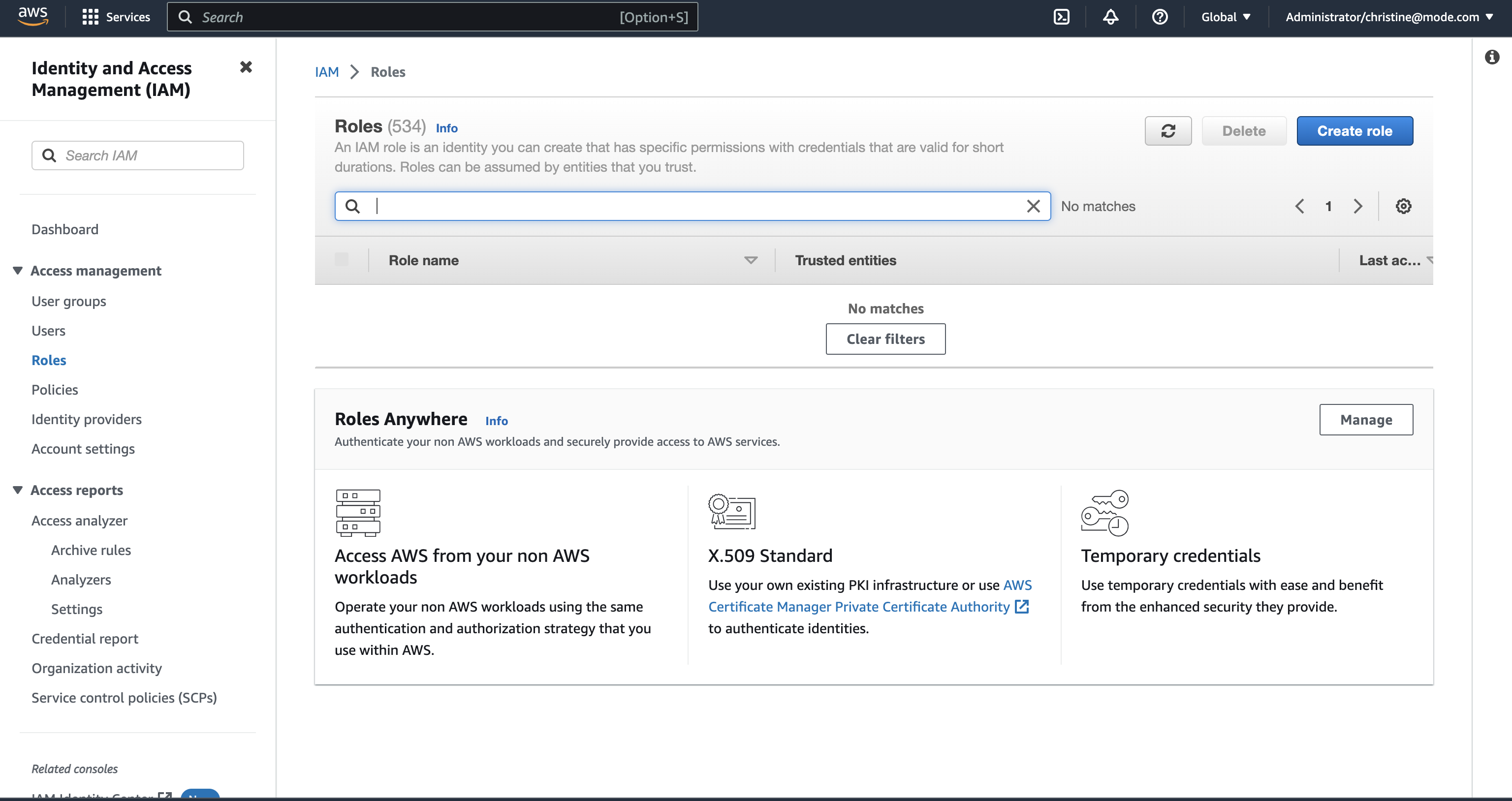
Navigate to IAM > Roles in your AWS Console.
-
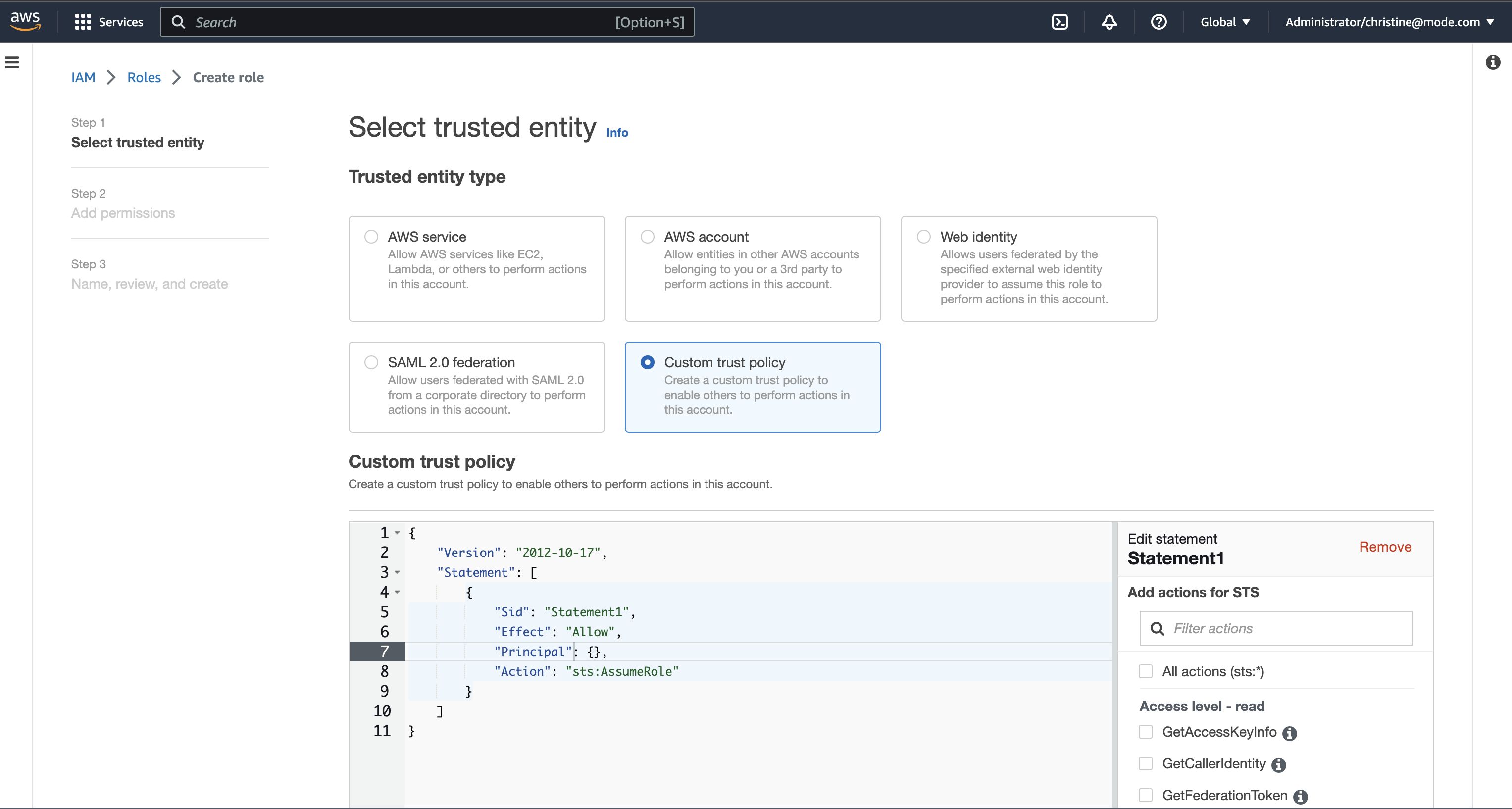
Create a new role or choose an existing role and select Custom trust policy under Trusted entity type.
-
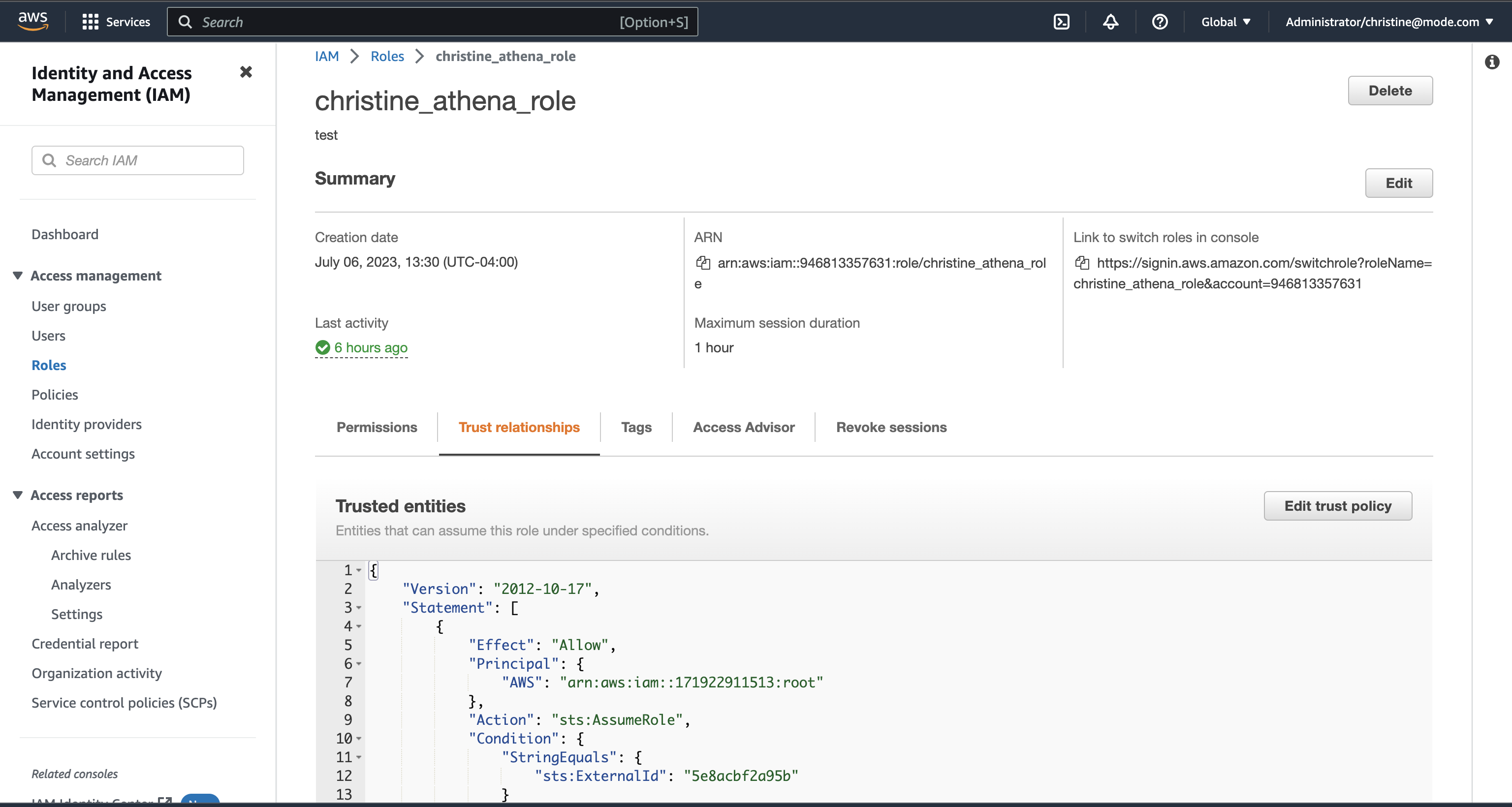
Alternatively, you can choose an existing role and select the Trust relationships tab.
-
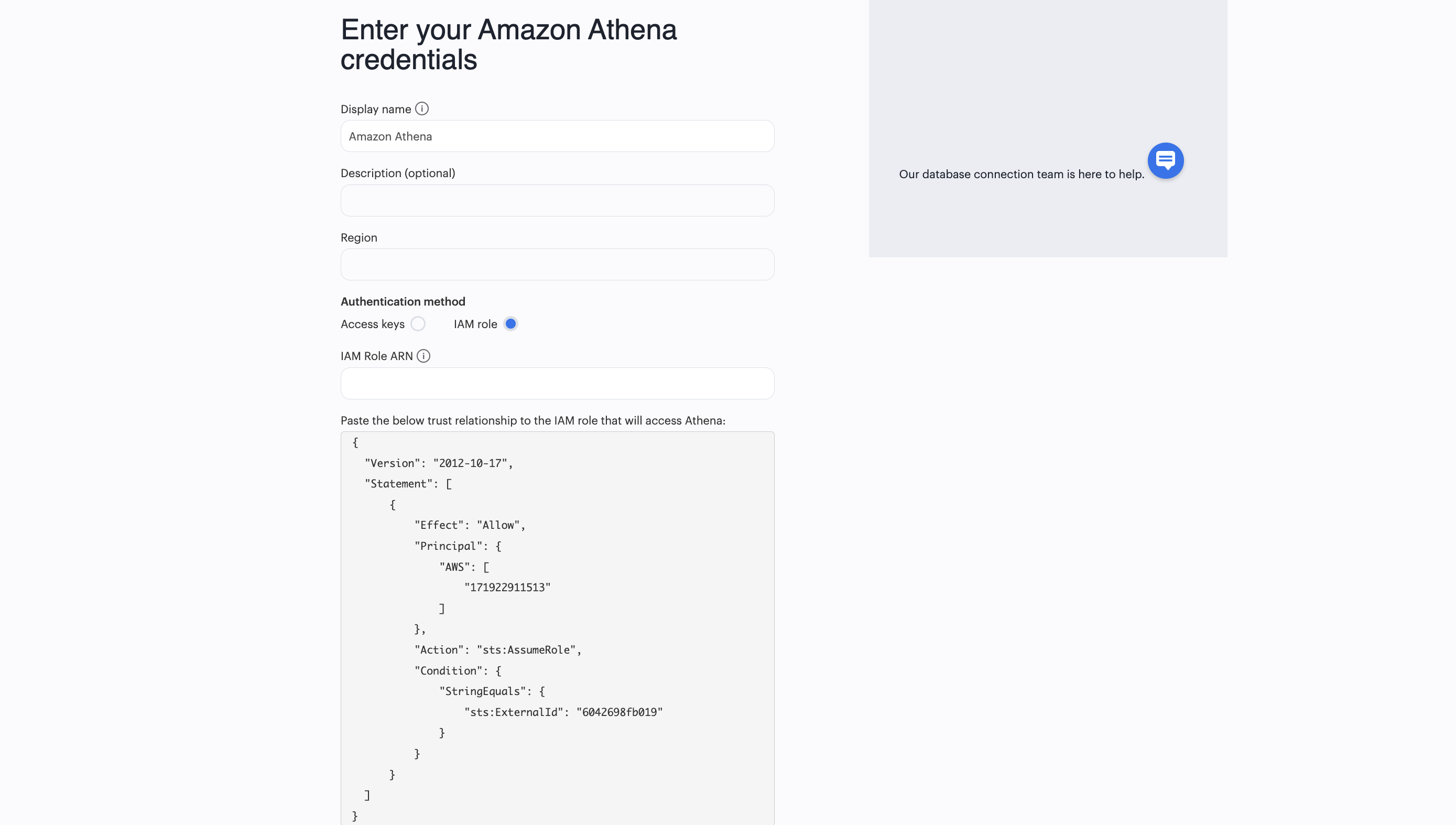
Copy and paste the trust relationship from the Analyst Studio connection form into your AWS IAM Role.
-
Add in the necessary IAM permissions to access your Athena resource (must include
athena:ListDatabasesandathena:ListDataCatalogs). -
Click Create Role in AWS and paste the IAM Role ARN into the Analyst Studio connection form.
-
The S3 Results Directory should be a bucket where Athena can write query results. For this bucket, the AWS user specified above needs read and write access. The bucket should be a full S3 url (for example,
s3://acme/my/athena/bucket). -
Click Connect. You will land on a page that displays your database schema.