Share a Spotter chat
Sharing a chat lets your organization put Spotter’s insights to work. Rather than passing on a screenshot or an exported report, you hand over the analysis in the form the work was done; recipients open the same thread and follow the questions, the iterations, and the analysis that led to the conclusion, as you intended it to be read.
You can share a Spotter 3 chat with users and groups as a read-only view. Sharing is available once your administrator has enabled chat history and chat sharing — see Enable chat sharing.
Share a chat
-
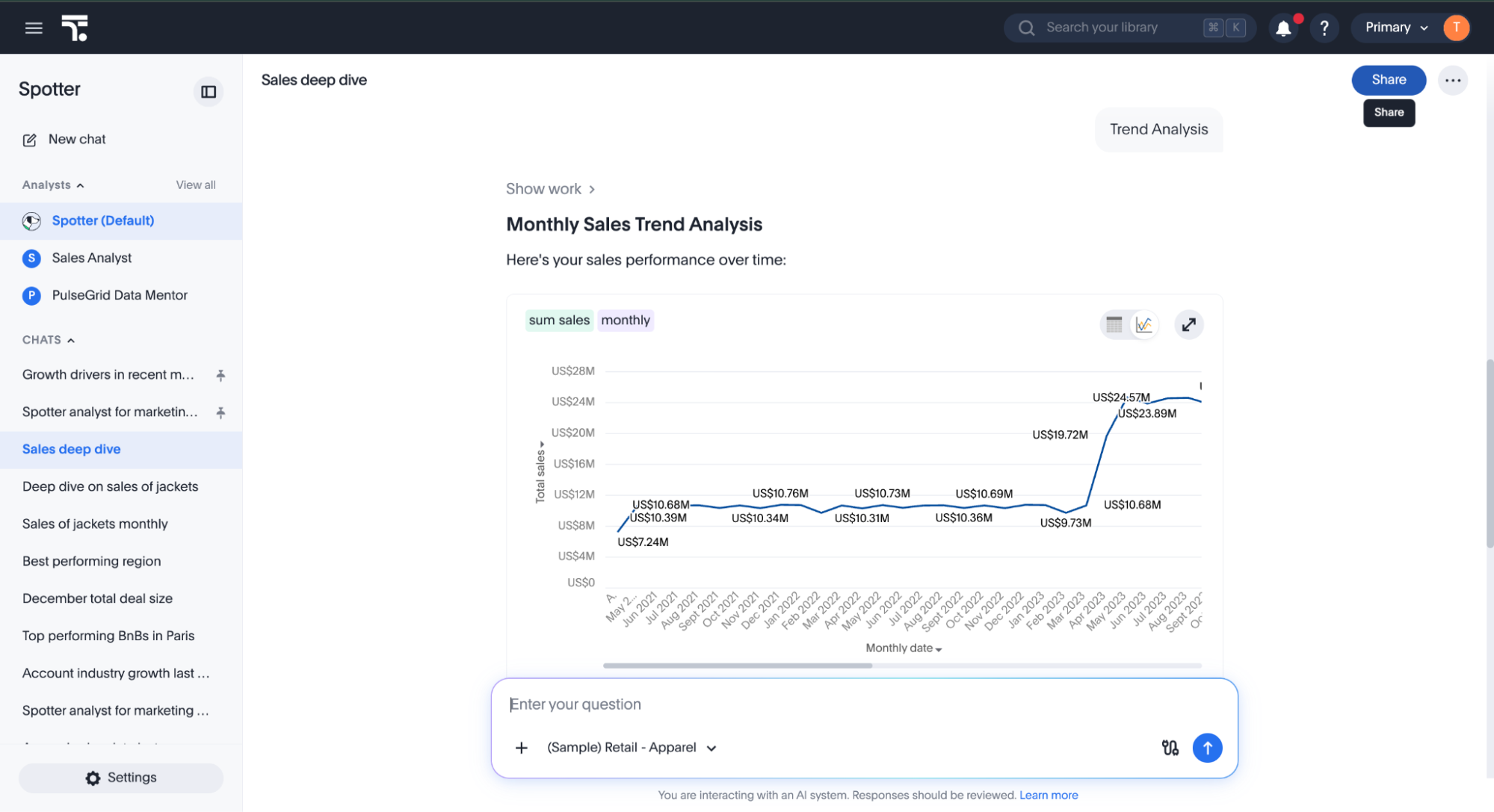
In a chat, select Share. You can also share a saved chat from the left-hand rail.
-
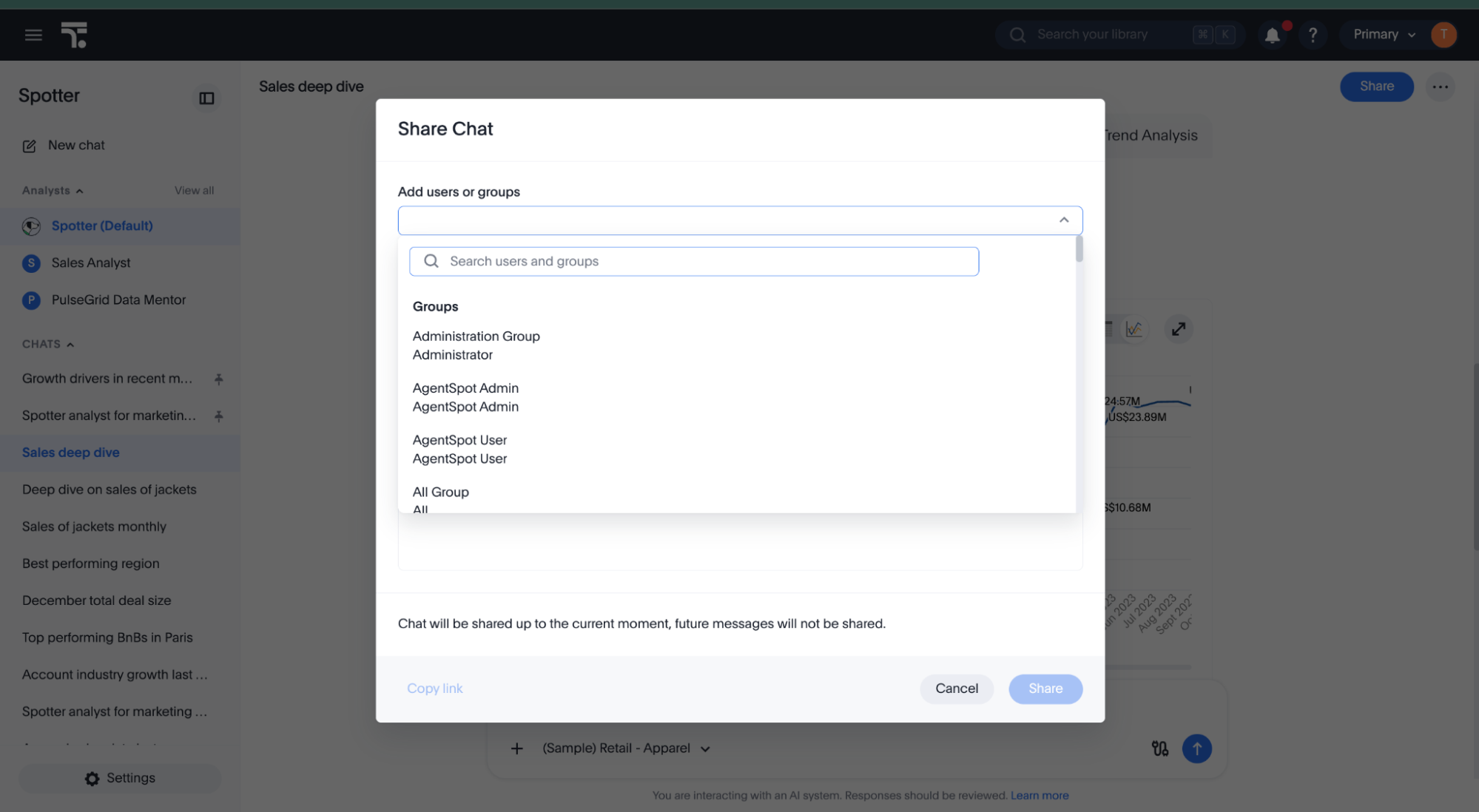
In the Share Chat dialog, click Add users or groups to select who you want to share with. You can select a group from the dropdown, or search by name in the Search users and groups bar.
-
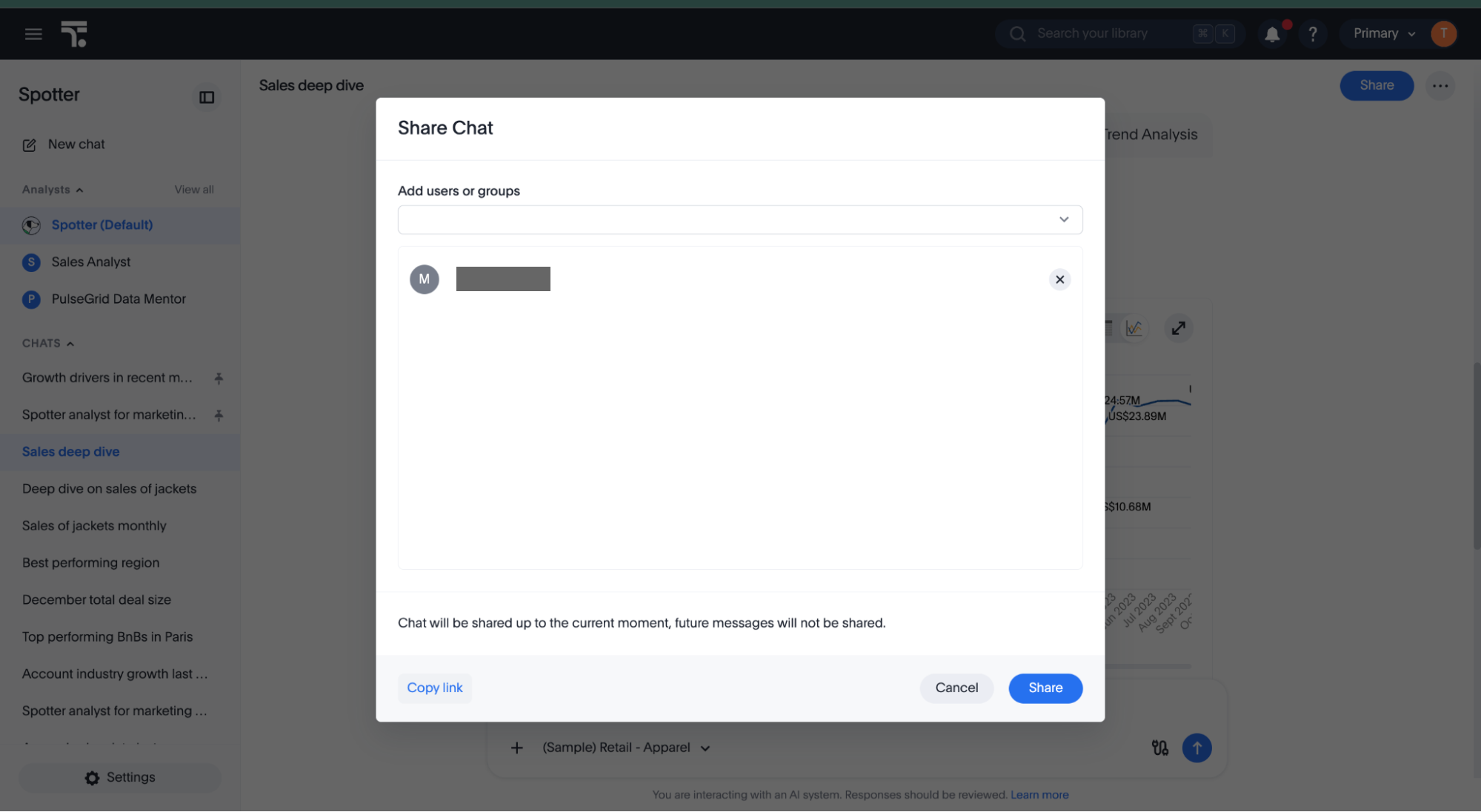
Select Share. The users and groups you added receive access and are notified in ThoughtSpot and by email.
Copy a link to a shared chat
A chat’s link is generated at the point of sharing. Copy link therefore becomes available only after a chat has been shared: share the chat first, then reopen the Share Chat dialog and select Copy link to distribute the link through your own channels.
Access is governed by the share, not by the link. Only the users and groups added in the Share Chat dialog can open a shared chat.
Update a shared chat
Sharing a chat shares it as it stands at that moment. If you carry on with the chat afterward, your recipients continue to see the version you shared until you choose to update it.
To bring the shared version up to date:
-
Open the chat and select Share.
-
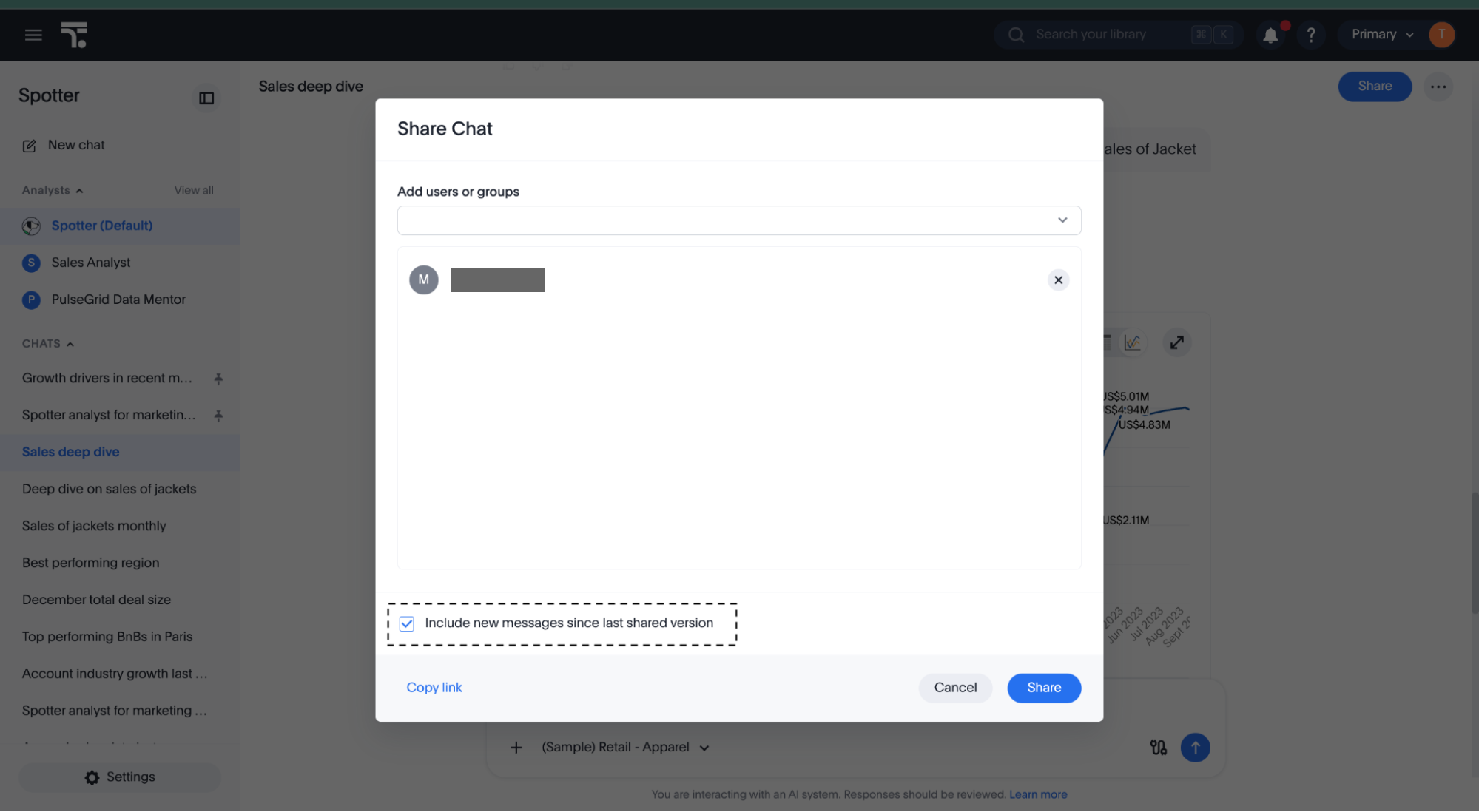
Keep Include new messages since last shared version selected.
-
Select Share.
Recipients now see the chat including everything you have added since you last shared it.
To give more people access without updating the shared version:
-
Open the chat and select Share.
-
Add the users or groups.
-
Deselect the Include new messages since last shared version checkbox.
-
Select Share.
The people you add receive the version that was shared previously. Anything you have added to the chat since then stays out of the shared version for every recipient.
Who you can share with
The same sharing privileges apply as elsewhere in ThoughtSpot. See Understand groups and privileges. Access to a shared chat is always read-only, and recipients cannot share it with others.
-
By default, you can share with users and groups from the groups you belong to. You cannot share with a group marked as NOT SHAREABLE.
-
With the Can share with all users privilege, you can also share with users outside your own groups, and with groups marked as NOT SHAREABLE.
-
Sharing with the All group requires Can share with all users or Can administer ThoughtSpot privileges.
In all cases, sharing is limited to your own Org.
What recipients see
A shared chat opens as a read-only view of the chat as it stood when it was shared, not as it stands now. Text and answer cards — the charts and tables in a chat — behave differently:
- Spotter’s text is shared exactly as the creator saw it and intended to share it.
-
The written analysis — insights, summaries, and explanations — is passed through unchanged. It is not filtered or regenerated for the recipient, so recipients read the same text the creator did even where they have no access to the data model the chat used.
- Answer cards are governed by the recipient’s own permissions.
-
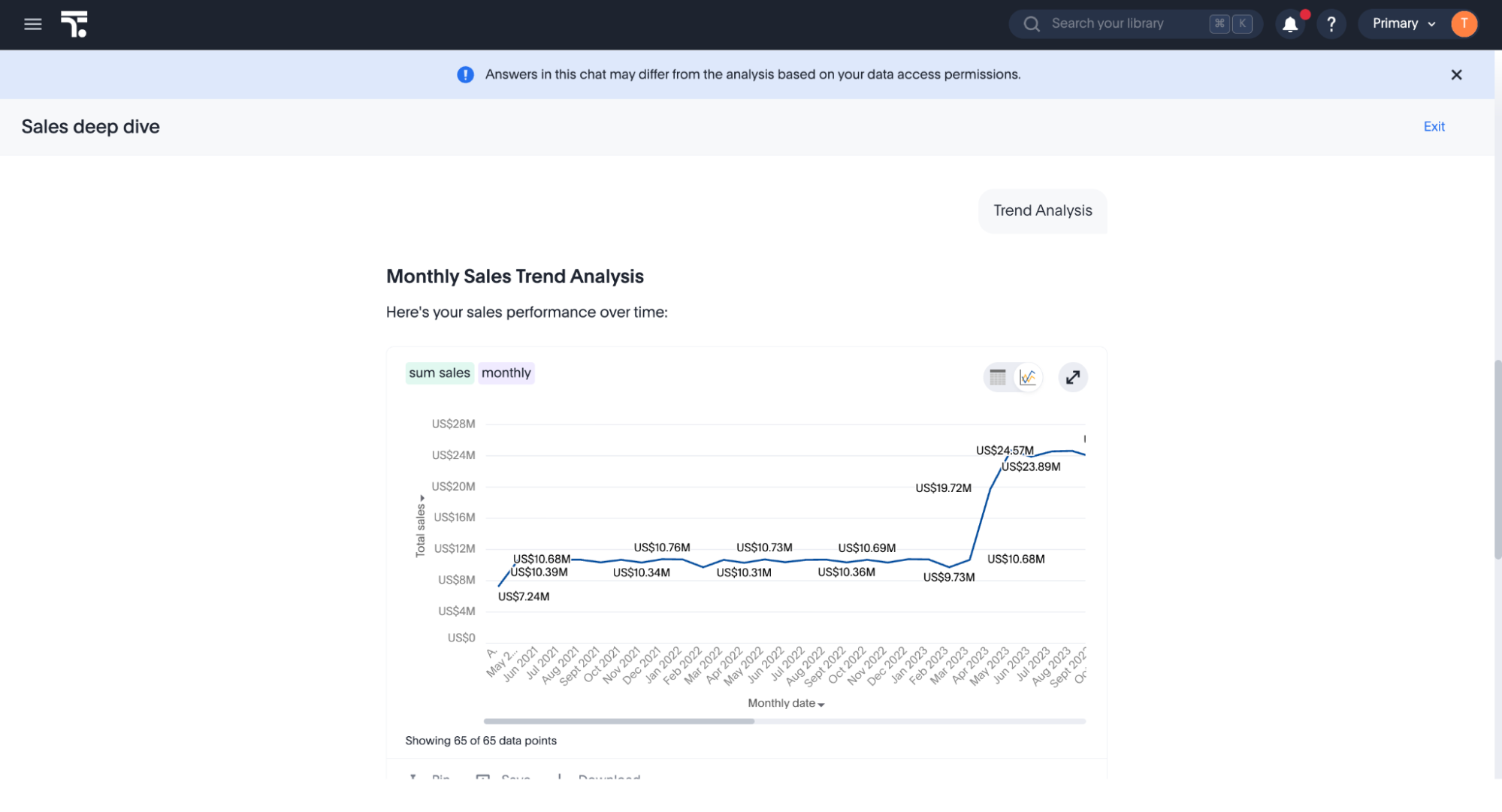
They are re-run under the recipient’s privileges rather than shown as the creator saw them. A recipient with a more restrictive view of the data sees the answer cards with their own numbers. A recipient with no access to the data model does not see the answer cards at all, although the surrounding text still appears. Where a recipient’s data access differs from the creator’s, the shared chat displays a banner explaining why.
- Downloads follow the recipient’s download privilege.
-
Recipients can download data from a shared chat only if they hold that privilege.
- Uploaded files are not shared.
-
If the chat used an uploaded file, recipients see the file name but cannot open the file.
| Answer cards are protected by the recipient’s permissions; the written analysis is not, and ThoughtSpot does not prevent you from sharing to a user who cannot access the underlying data. Review your recipients before sharing a chat that discusses restricted or sensitive data. |
Limitations
-
Recipients cannot ask follow-up questions or continue a shared chat, including on data they have full access to. To explore further, they start their own chat.
-
A shared chat does not appear in the recipient’s Previous Chats or in any list view. The notification or the link is the only way to reach it.
-
You can share a whole chat only, not an individual answer.
-
Recipients must sign in to open a shared chat.
-
Shared Chats expire with the same period as chat history from the data of creation or last update
Enable chat sharing
Chat sharing is off by default and requires chat history. See Enabling chat history.
-
Navigate to the Admin panel, select All Orgs, and select AI settings.
-
Locate the Enable share chat option under Spotter 3 capabilities and switch it to Enabled.
While the toggle is disabled, sharing options are not available in Spotter.