Using connectors within Spotter
You can now connect tools like Slack, Confluence, Asana, and Snowflake and use them directly within Spotter. This allows you to bring in unstructured data and search it as easily as you would data within ThoughtSpot. You can also direct Spotter to send its analysis to the connected tool so you can access it anywhere.
Once your administrator enables connectors to Spotter, you can access them within conversations. Every user must authorize their own account to maintain security permissions. Note that the list of available connectors you see is controlled by the connectors your admin enabled for the instance.
Connecting your account
-
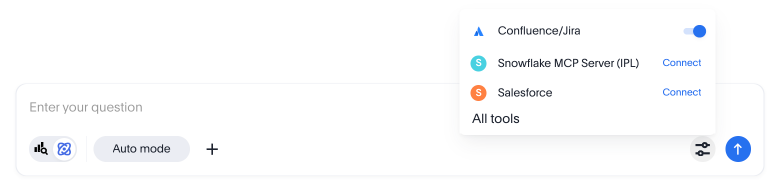
In the Spotter prompt bar, click the Tools icon
 .
.
-
Select All tools.
-
Click Connect next to the desired application.
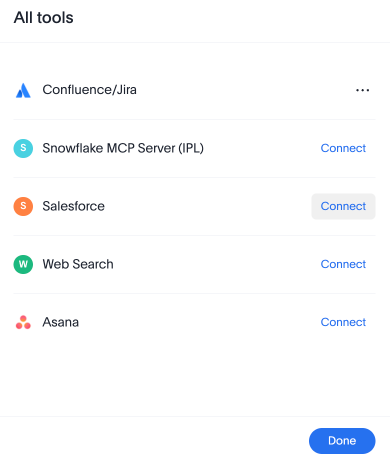
-
Follow the third-party login prompt to grant Spotter permission to read and write on your behalf.
| If the Connectors are authenticated using OAuth, you need to sign in to use them. If the authentication is token-based, you can connect immediately. |
Interacting with connectors
Spotter can now intelligently decide which tool to use based on your natural language. Note that it’s best practice to mention the name of the desired tool within your prompt.
- Cross-platform knowledge
-
“What are the project requirements for the Airbnb-Ops project in Confluence?”
- Spotter action
-
Identifies the “Confluence” tool, searches pages, and summarizes the text.
- Data validation
-
“Tell me the top 5 selling laptops from Snowflake.”
- Spotter action
-
Connects to the Snowflake Intelligence Agent tool, writes the query, iterates if it encounters a SQL error, and returns a formatted table.
- Pushing actions
-
“The laptop sales look low. Send a DM to @SalesManager on Slack with a summary of these insights.”
- Spotter action
-
Uses the Slack: Send Message tool to format and deliver the data.
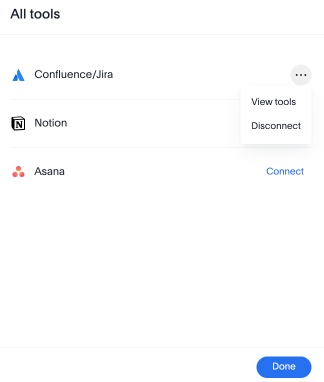
Note that within Spotter, you can select a connector and click View tools to view a list of each potential action you can take with the connector.